How to update your staff page
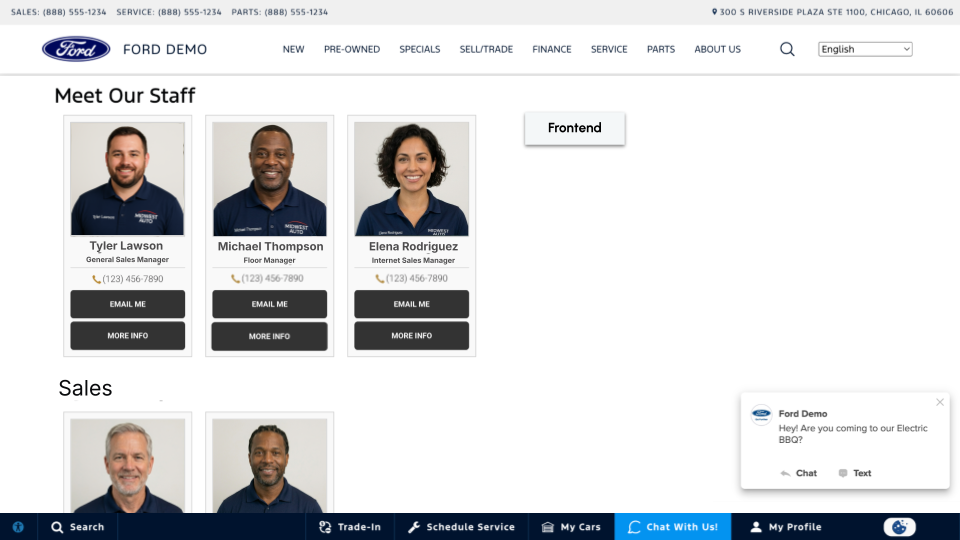
Making updates to your staff page sets the tone of your brand and reputation before a shopper steps foot on your lot. Maintaining a consistent staff profile with approachable headshots and contact details allows shoppers to feel comfortable asking for that specific salesperson by name when they walk onto the lot. It adds a human element to your digital website experience and serves as your dealership’s first impression to the shopper.
In this article, you’ll learn how to navigate to the staff plugin, edit or add a staff member, fill out their contact information and bio, add a headshot, and publish your changes.
To get started
Go to the Cars.com Hub. Click on Dealer Inspire, then Manage Website.
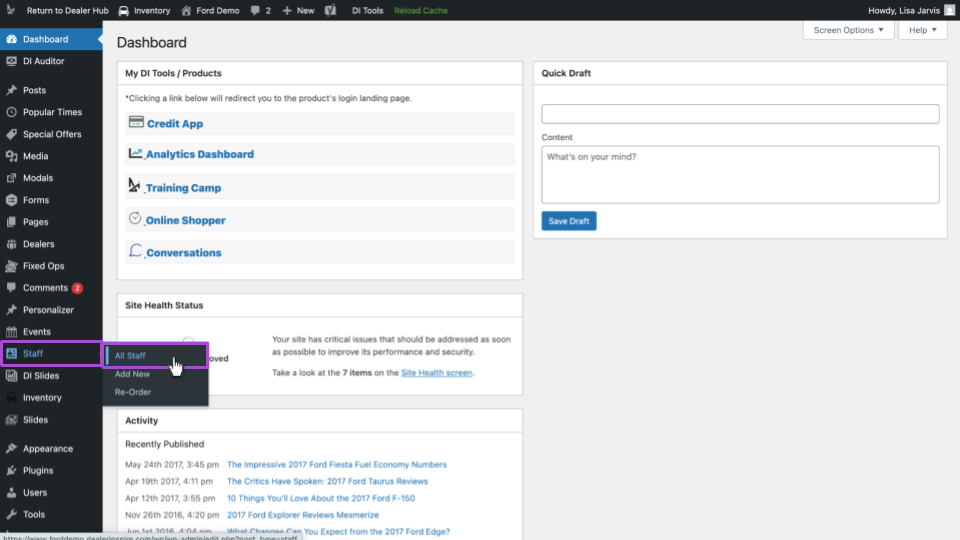
1 Navigate to the staff plugin
From the backend of your website:
- Click Staff
- Then, All Staff
2 Edit or add a staff member
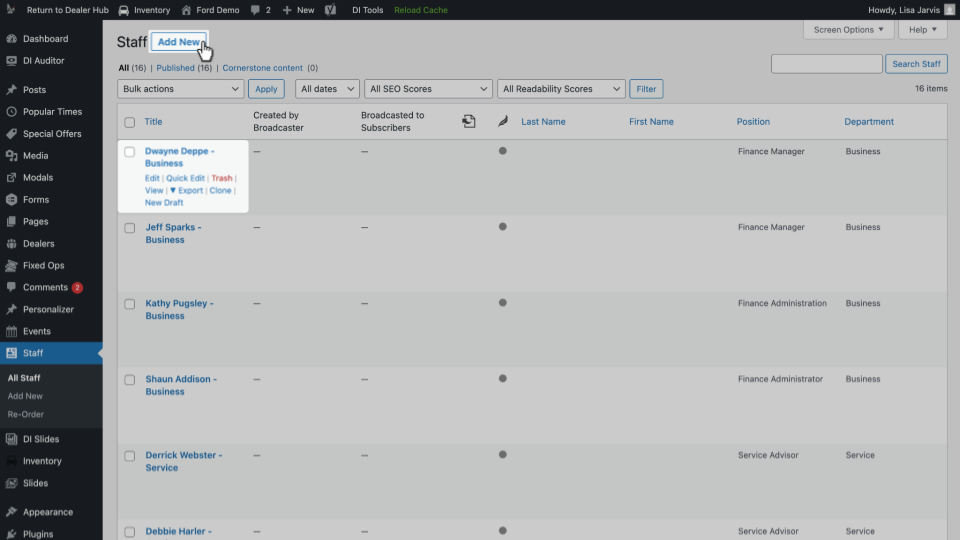
You will see a list of your current staff members.
- Hover over a name to Edit or Trash (delete) a staff member
- Or, click Add New to add to your team
3 Fill out contact information
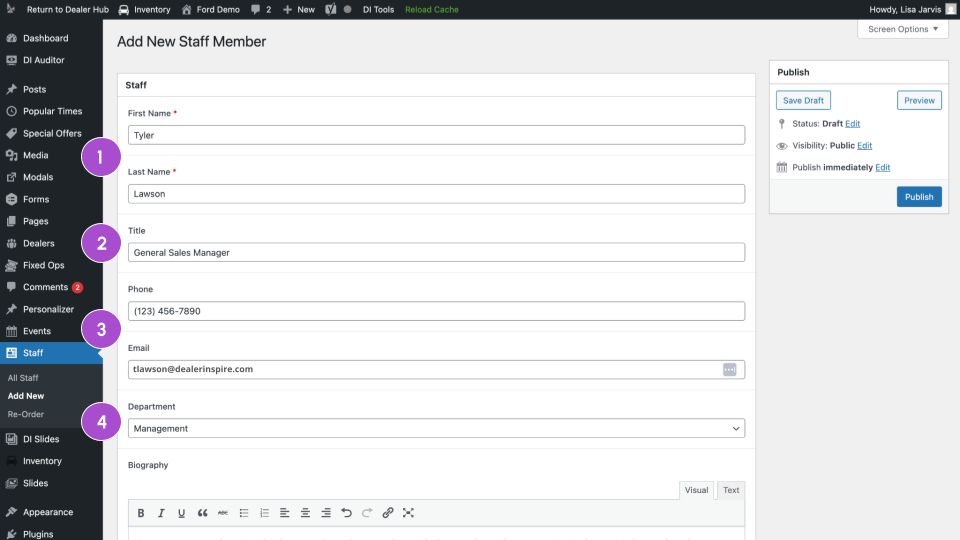
Fill out the fields of your new staff member. Though only first and last name are required, we recommend filling out all details, like:
- Title
- Phone
- Department
Leaving fields blank will result in an incomplete staff card. Cards missing details such as headshots, titles, emails, phone numbers, or bios may appear unpolished to shoppers.
4 Add a bio
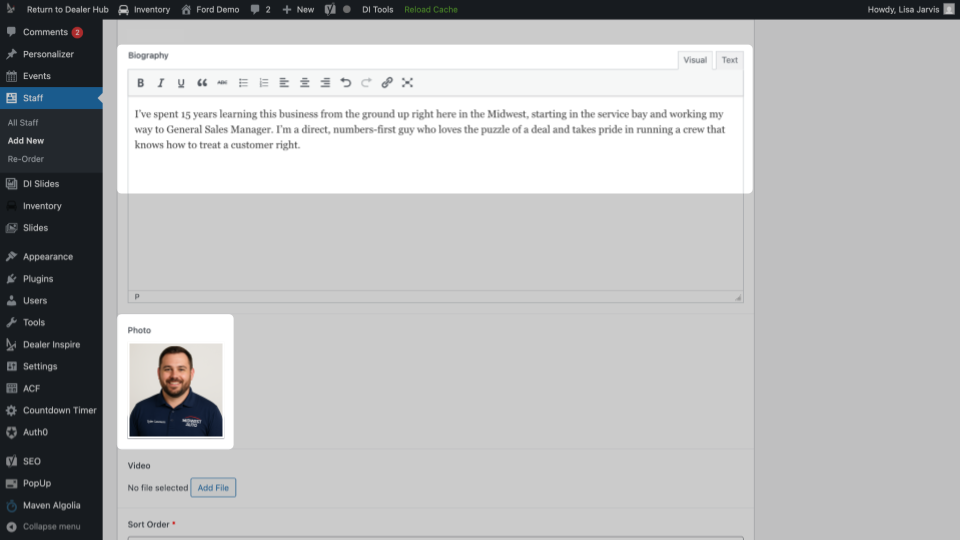
Enter a bio for the staff member. Recommended bio characteristics:
- Short and conversational in tone
- Briefly covers the staff member’s experience
- Includes a call to action inviting shoppers to reach out directly
5 Add a headshot
Add a headshot photo for the staff member.
Recommended image specifications:
- Size: 356 x 356px
- Simple, neutral background
- Good lighting — avoid harsh or backlighting
- Consistent style with the rest of your team’s photos
6 Publish your changes
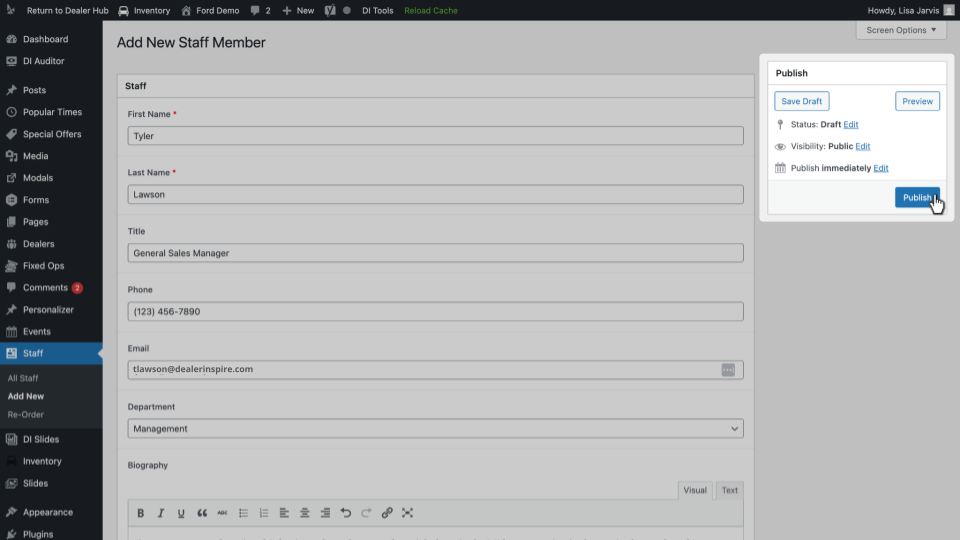
- Scroll to the top of the page and click Publish.
- Navigate to your staff page on the frontend of your site to confirm the new or updated staff member appears correctly.