How to set up AccuTrade on your Dealer Inspire website
The AccuTrade trade-in solution lets shoppers instantly value their vehicle on your Dealer Inspire website. It includes built-in Cars.com branding by default, but you can choose to white-label the experience to match your dealership.
In this article, you’ll learn how to verify AccuTrade is live on your Dealer Inspire website, explore available integration and customization options, request activation if needed, and view the leads generated through your trade-in solution.
1 Verify AccuTrade integration on your Dealer Inspire website
Confirm the trade-in solution is active on your site. The standard integration includes:
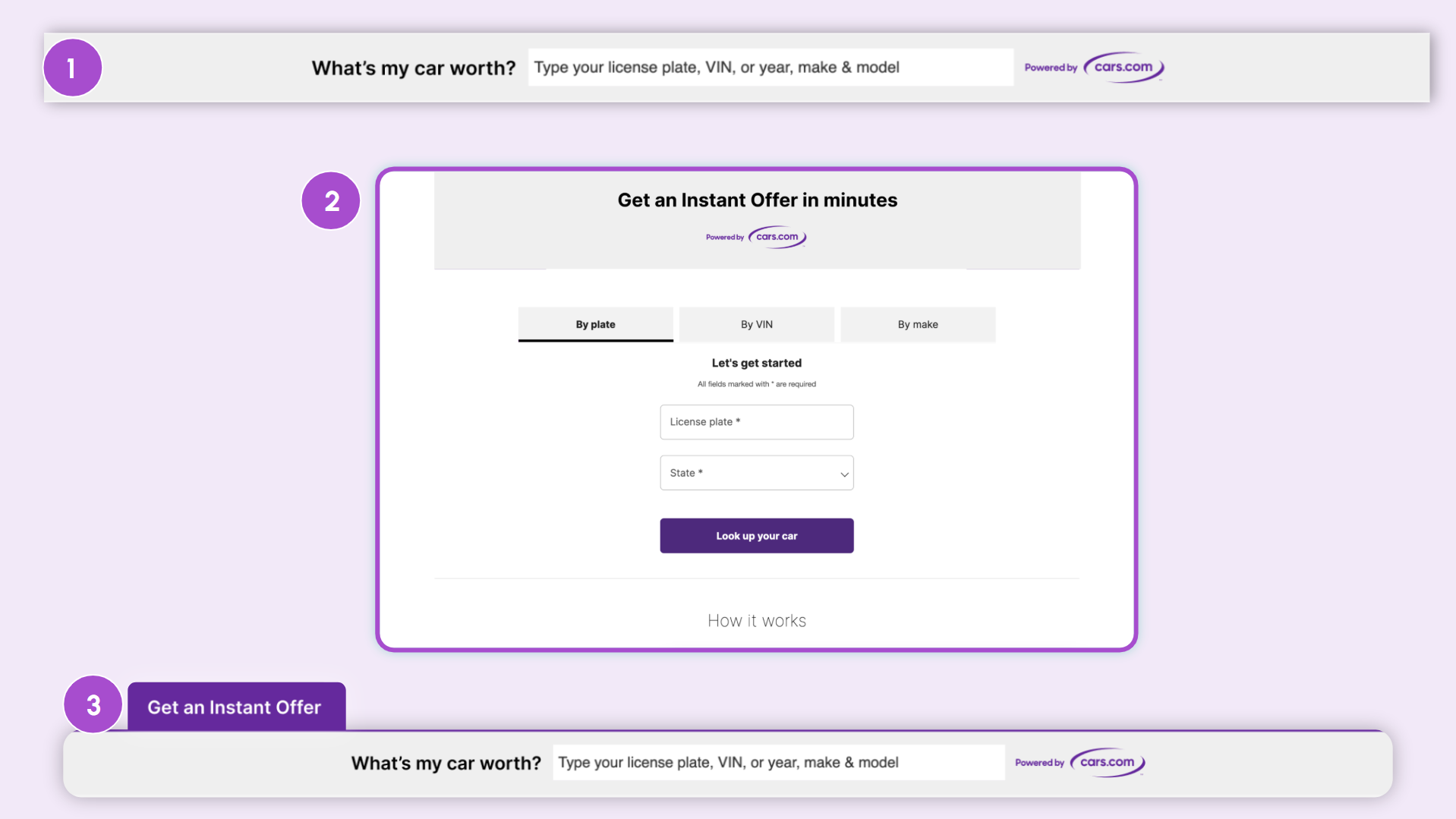
- Trade-in landing page: A dedicated page where shoppers complete their valuation
- SRP banner: A prominent banner at the top of your search results pages
- Floating button: A persistent CTA that follows visitors across your site
These ensure shoppers can access valuations throughout their browsing experience.
2 Additional customization options
You can enhance your site with optional entry points:
- Typeahead Search Bar: VIN, plate, and autocomplete make/model search embedded in the site’s search bar
- Typeahead DIY Hero Banner: Embed the typeahead widget into a custom hero banner you build
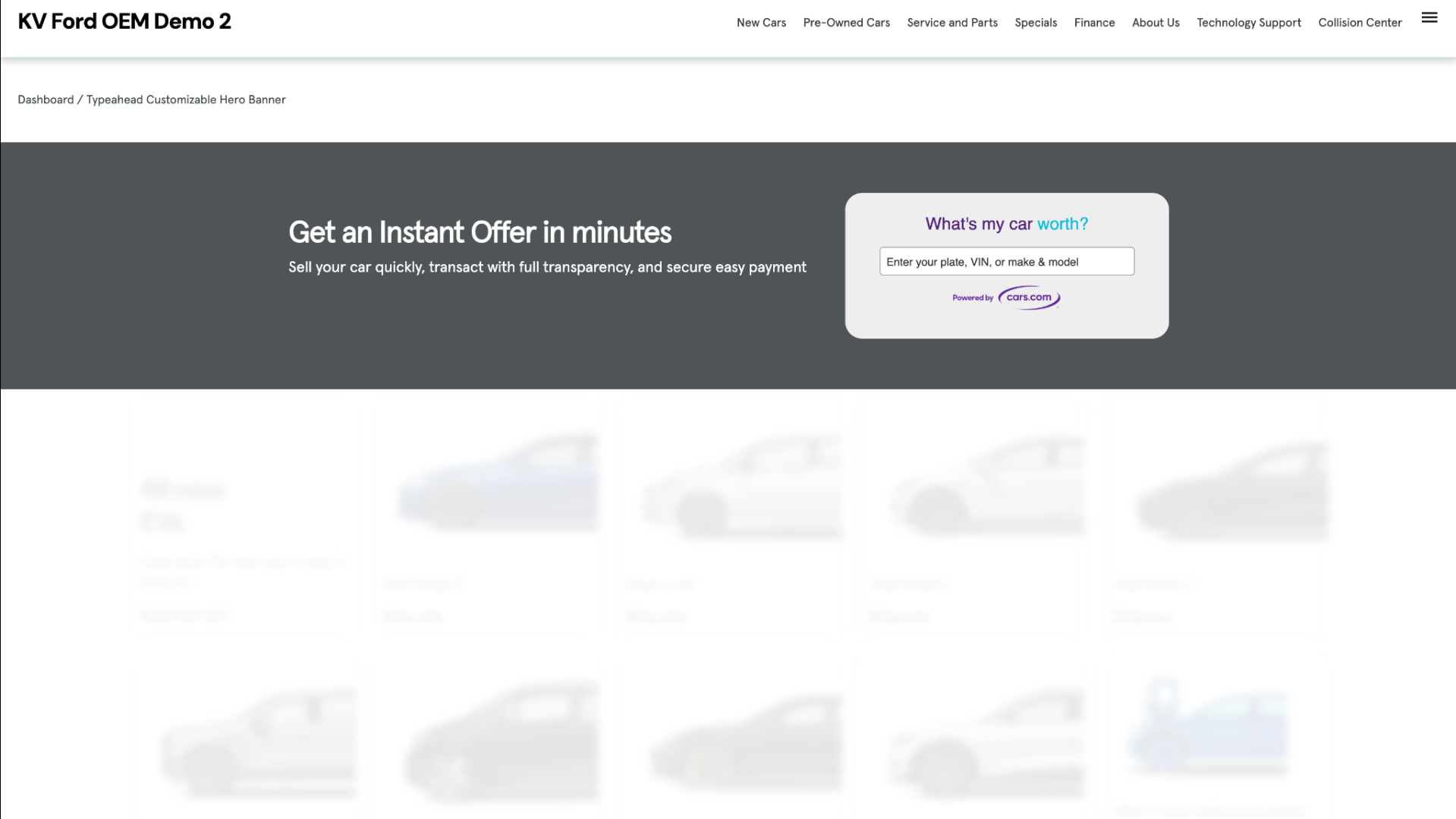
- Typeahead Customizable Hero Banner: A pre-built banner that you can edit with your own images, colors, text, and logos
Note: DIY means you build the banner and embed the widget. The customizable option provides a full banner layout ready for branding.
3 Request activation (if needed)
If the trade-in solution is not active on your site, email accutradesupport@carscommerce.inc with the following details:
Subject: Activate AccuTrade Website Trade-In Solution
Message:
Please activate the website trade-in solution for:
- Dealership name: [Your dealership name]
- Dealer ID: [Your ID]
- Branding preference: Standard (Powered by Cars.com) OR White-labeled
Note: The default configuration displays “Powered by Cars.com.” To request white-label branding, specify this in your email.
Timeline: Activation typically takes 2 to 3 business days. Support will confirm once live and provide any next steps
4 View your Dealer Website leads
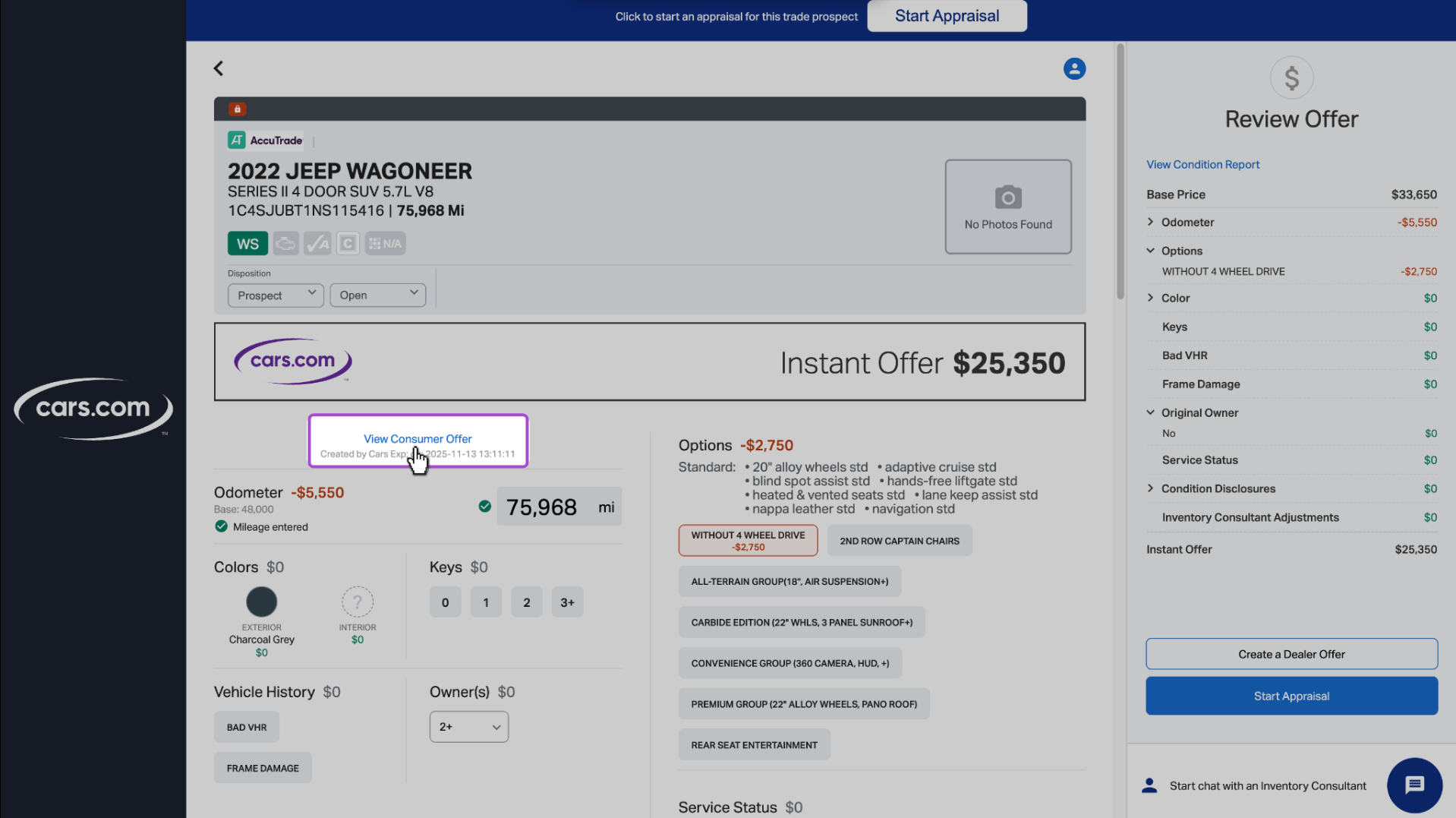
Once your trade-in solution is activated, AccuTrade automatically captures lead information for all vehicle valuations submitted through your website. These leads include detailed shopper data, vehicle information, and the instant offer presented.
To access your leads:
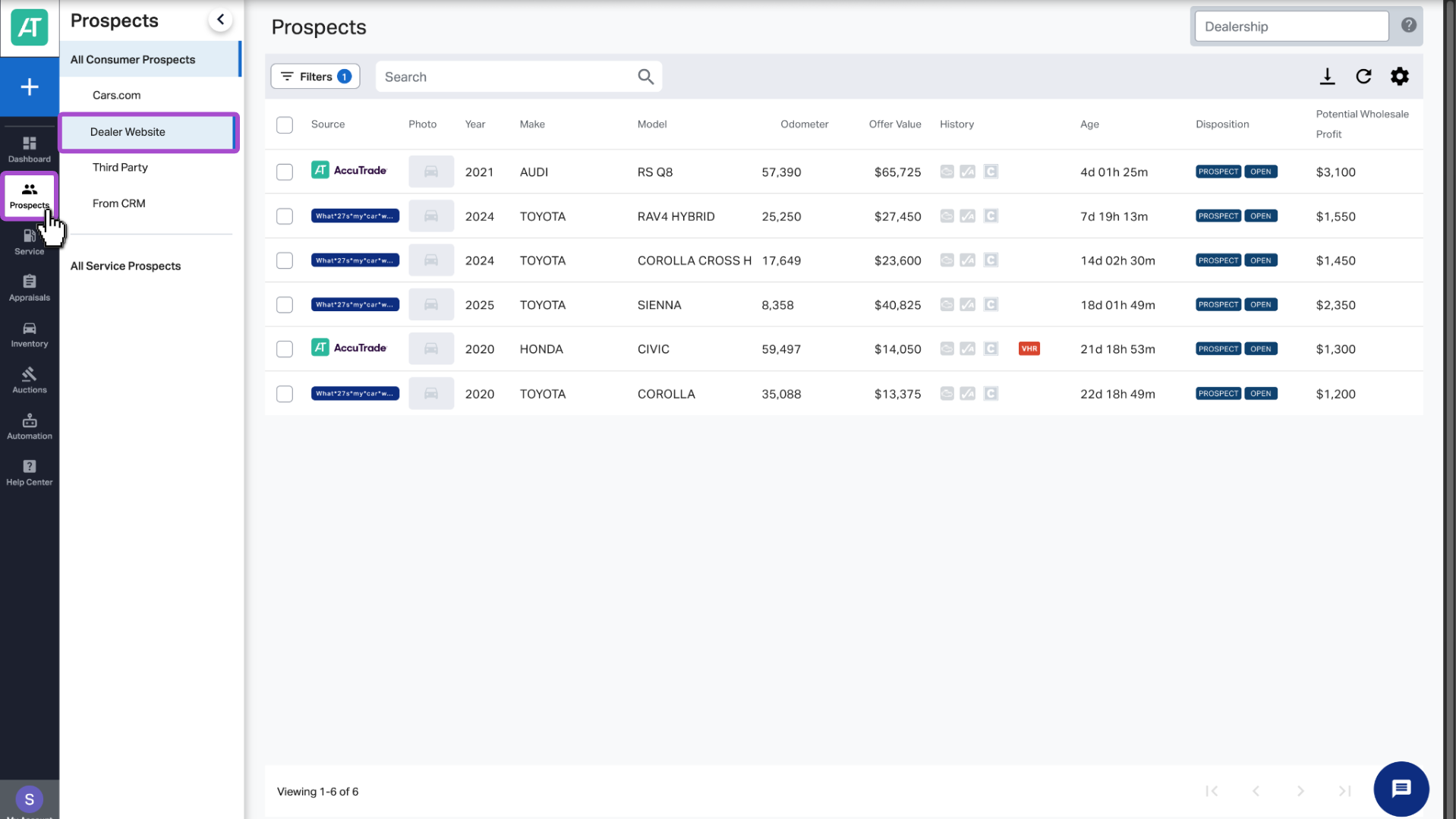
- Log in to the Cars.com Hub, and click on the AccuTrade tile.
- Navigate to the Prospects tab.
- Select Dealer Website from the source filter.
Each lead includes:
- Shopper contact details
- Vehicle info (VIN, make, model, mileage, condition)
- The valuation presented
From here, you can:
- Convert prospects into full appraisals
- Generate condition reports
- Follow up with trade-in opportunities