How to personalize your slides by make and model
Capturing a shopper’s attention the moment they land on your homepage is critical — especially if they’ve already shown interest in specific vehicles. With Dealer Inspire’s Personalizer and DI Slides, you can automatically display relevant homepage promotions based on a visitor’s past browsing behavior.
In this article, you’ll learn how to personalize homepage slides by make or model using vehicle history cookie data — so each visitor sees promotions that match the cars they’re most interested in.
To get started
Go to the Cars.com Hub. Click on Dealer Inspire, then Manage Website.
1 Open DI Slides
Let’s say you’re running a promotion on Chevy Blazers and want that slide to show up first for shoppers who’ve already browsed Blazers or similar inventory.
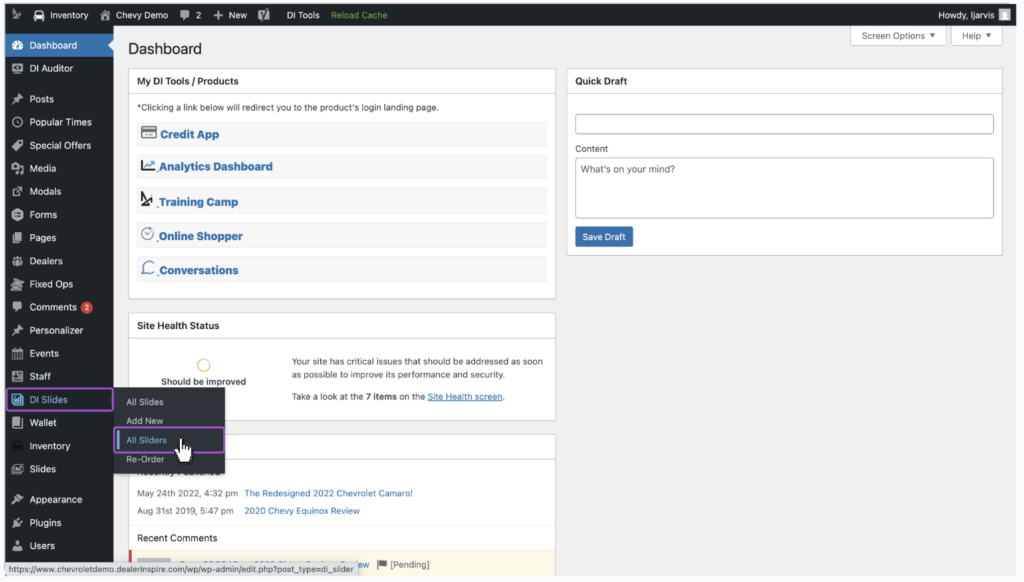
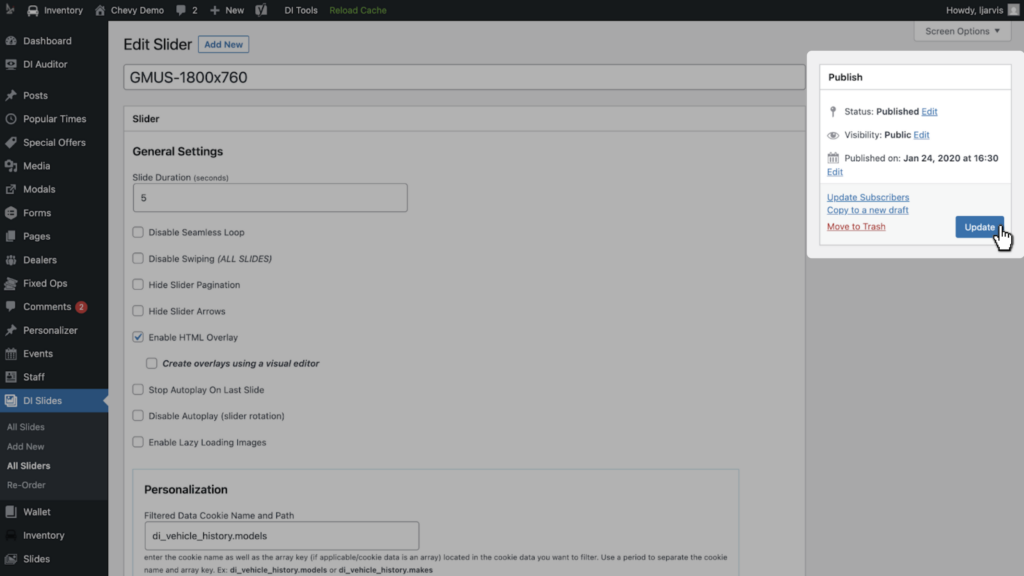
- From the left menu, click DI Slides > All Sliders
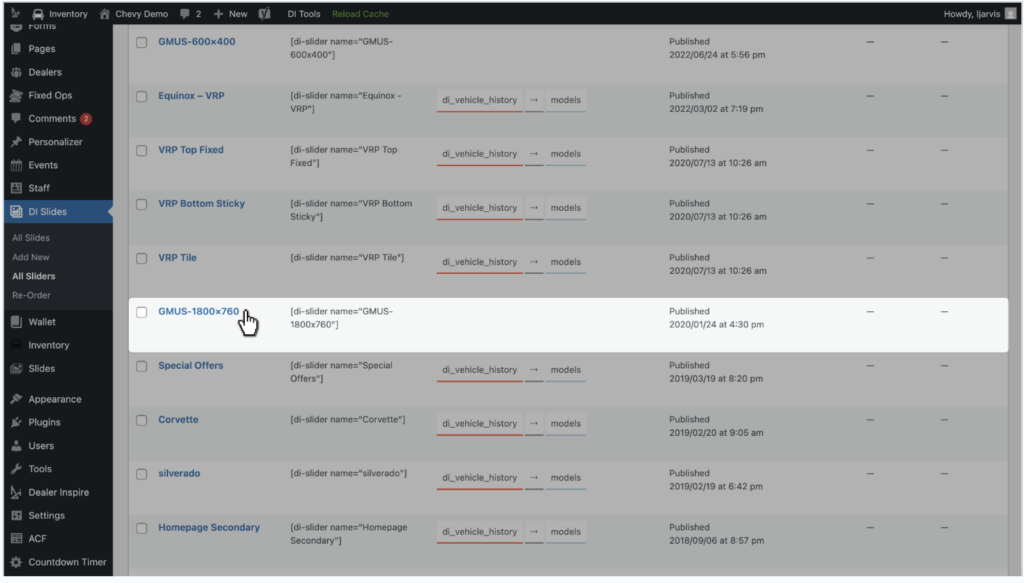
- Locate the slider container currently displaying on your homepage and click into it
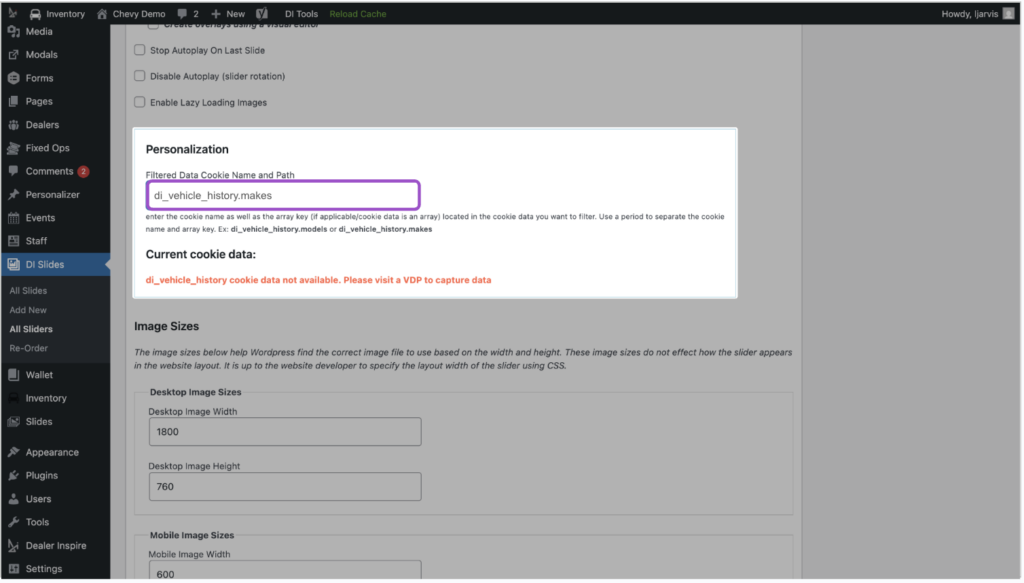
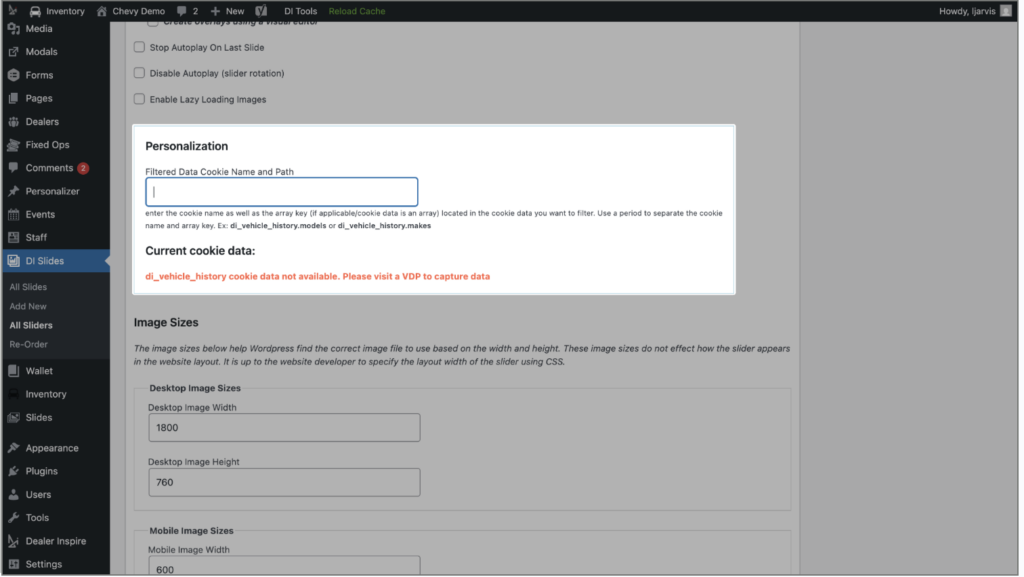
- Scroll to the Personalization section
2 Add the model or make filter key
In the Personalization section, enter one of the following cookie filter keys:
- By model: di_vehicle_history.models
- By make: di_vehicle_history.makes
These keys pull data from pages the shopper has visited — specifically the Vehicle Details Pages (VDPs). If a shopper hasn’t visited a relevant VDP, this data won’t be captured.
Note: If you’re unsure whether a VDP visit has been recorded, continue to the next step to simulate one.
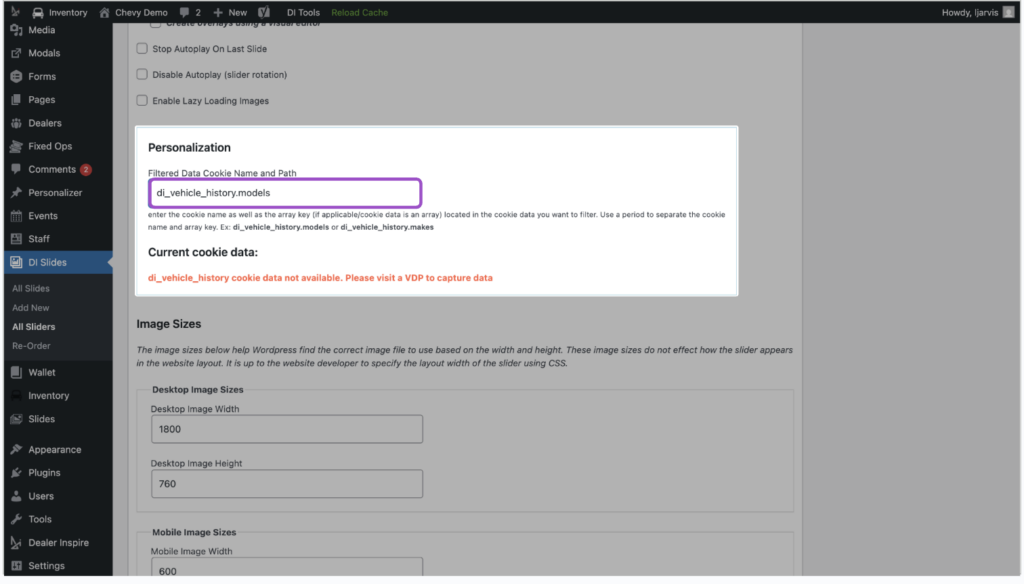
Scroll back up to the top of the page and click Update.
3 Visit a VDP to trigger the cookie
To ensure the vehicle history is recorded:
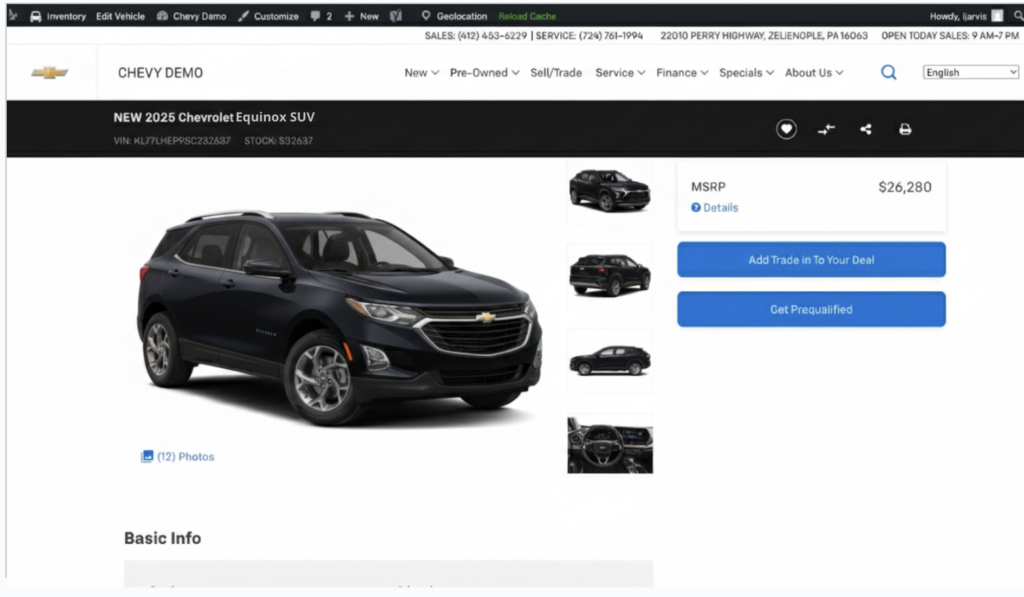
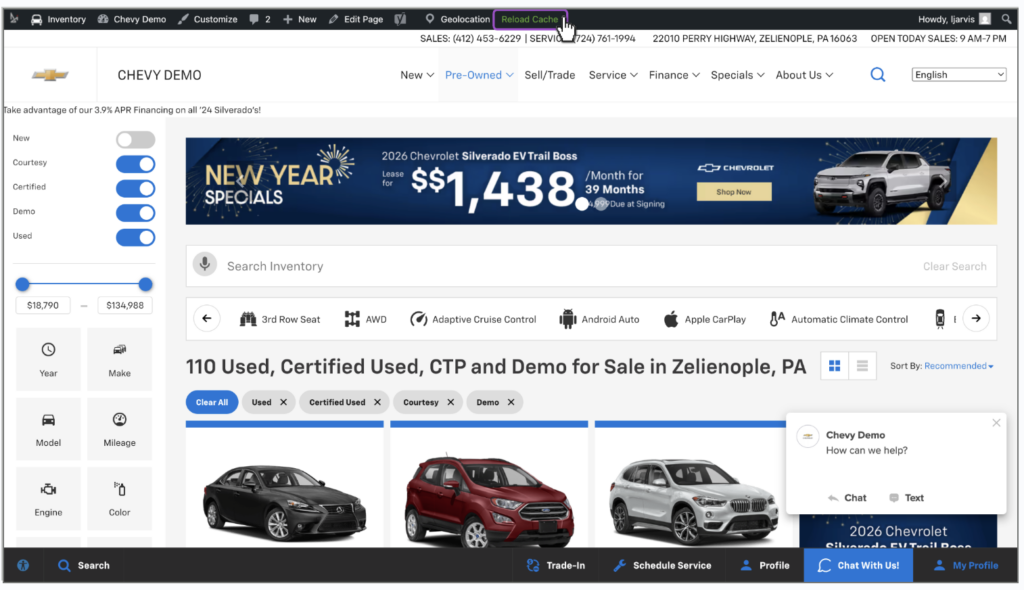
- Navigate to a relevant vehicle details page (VDP) on the frontend — for example, a Chevy Equinox
- This action triggers cookie data capture for that model or make
Back in your DI Slider, you should now see the model or make name populated in the current cookie data section (e.g., “Equinox”).
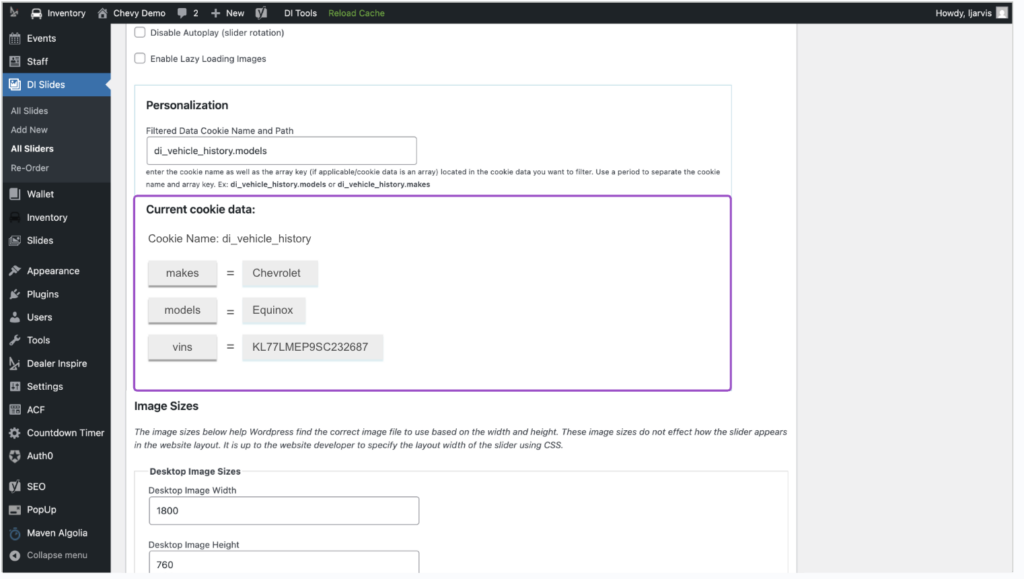
Copy “Equinox” from the models = block.
4 Assign the filter to the slide
Now it’s time to assign this model or make to a specific homepage slide.
- Go to DI Slides > All Slides
- Locate the slide you want to personalize (e.g., the Equinox slide) and click into it
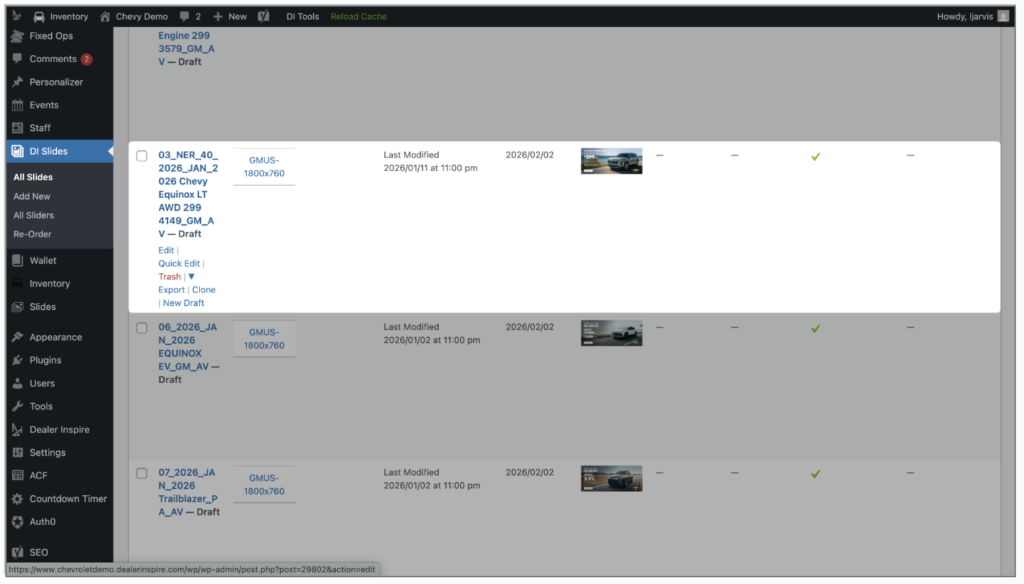
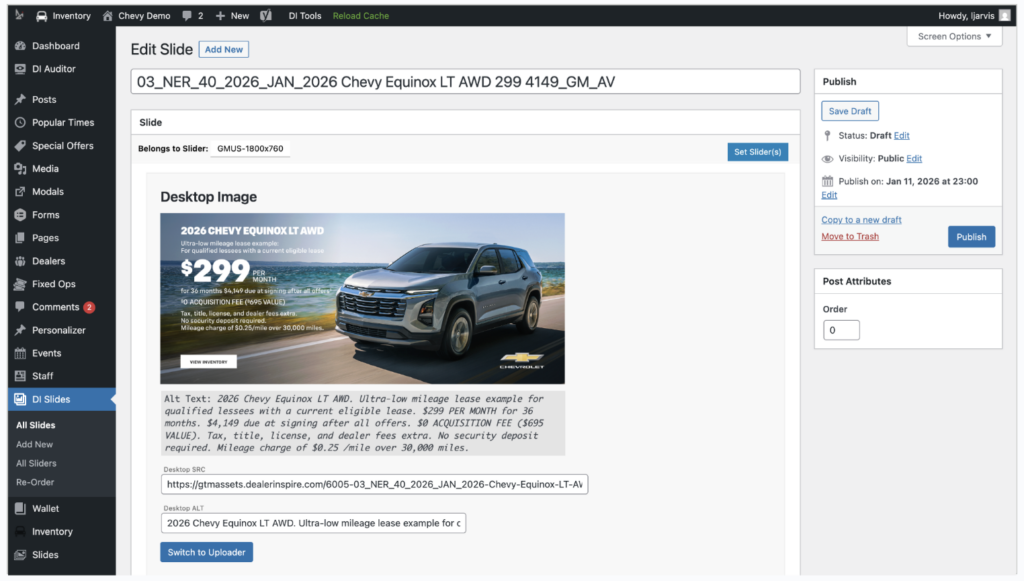
- Scroll to the Personalization box
- Paste or type in the model name exactly (e.g., “Equinox”)
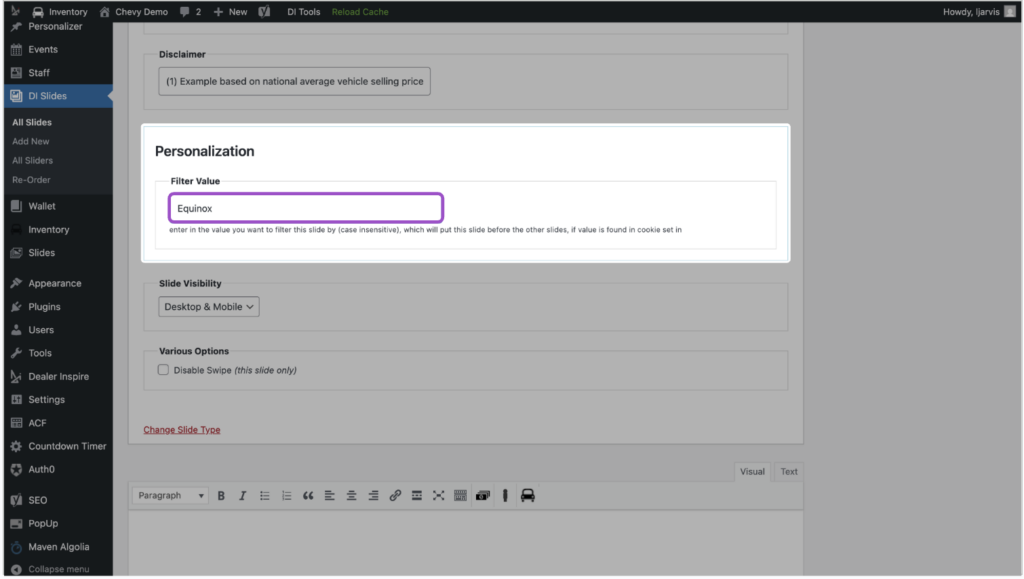
Important: You must already have a slide for that vehicle. If not, create a new slide first before continuing.
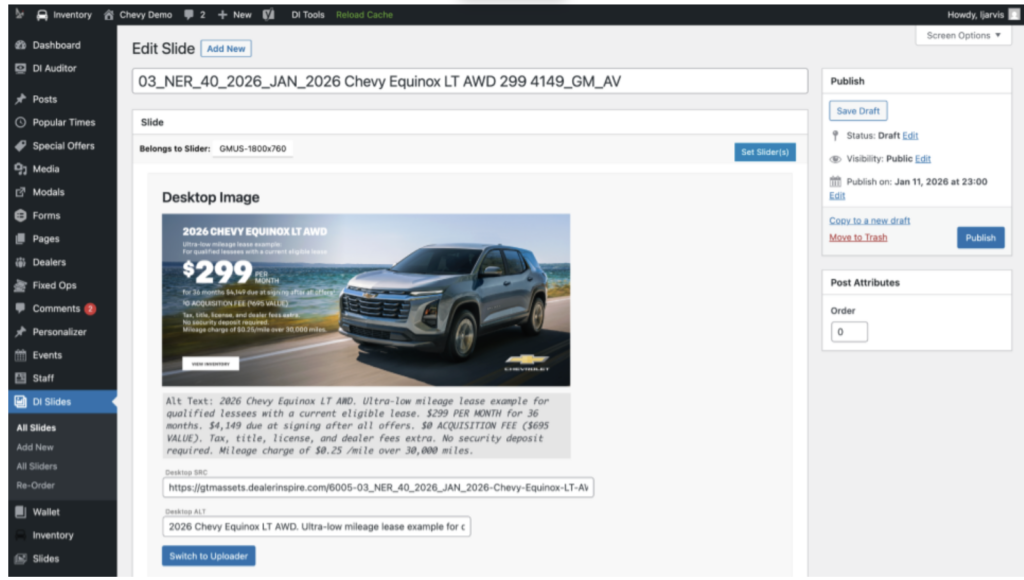
- Scroll back up and click Publish (or Update)
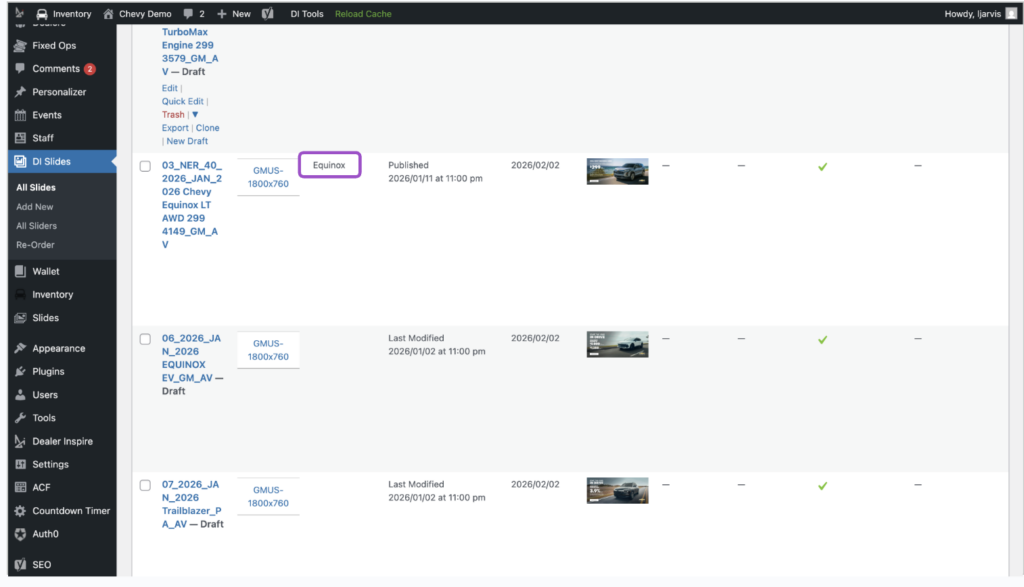
Back in the All Slides list view, you’ll now see “Equinox” in the Filter Value column.
5 Test your personalized slide
- Go to your website’s frontend
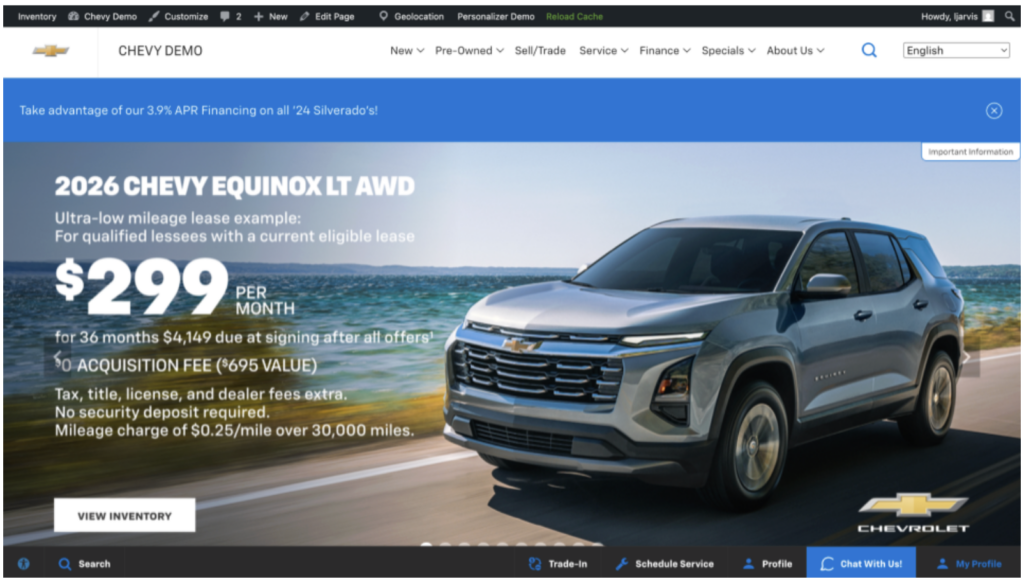
- Click Reload Cache
- Visit the homepage
If the personalization is working, the targeted slide (e.g., Equinox) should now appear first in the carousel for qualifying visitors.
6 Repeat the process for makes
To personalize by make instead of model:
- Use the key di_vehicle_history.makes in your homepage slider
- Follow the same steps to capture the make from a VDP
- Apply the corresponding make name to the slide you want prioritized