How to set up your auction search filters
Filters help you zero in on the inventory that fits your lot — faster. With DealerClub’s filtering tools, you can customize your Auctions view based on vehicle type, condition, price, seller preferences, and more.
In this article, you’ll learn how to apply filters, save and edit search sets, and turn on alerts when vehicles that match your filters go live.
To get started
Go to the Cars.com Hub, and then click on DealerClub.
1 Set up your filters
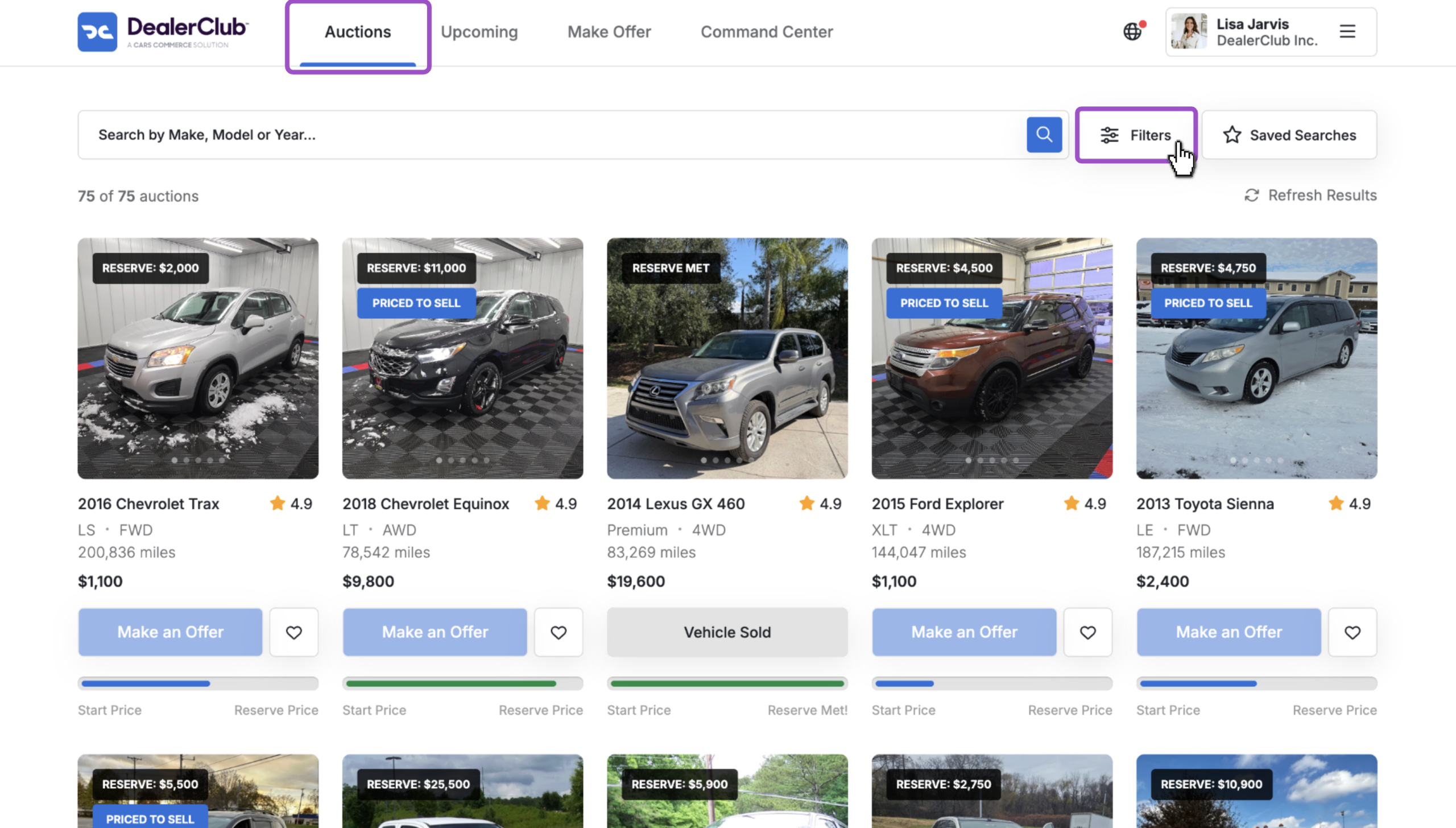
From the Auctions homepage, click Filters.
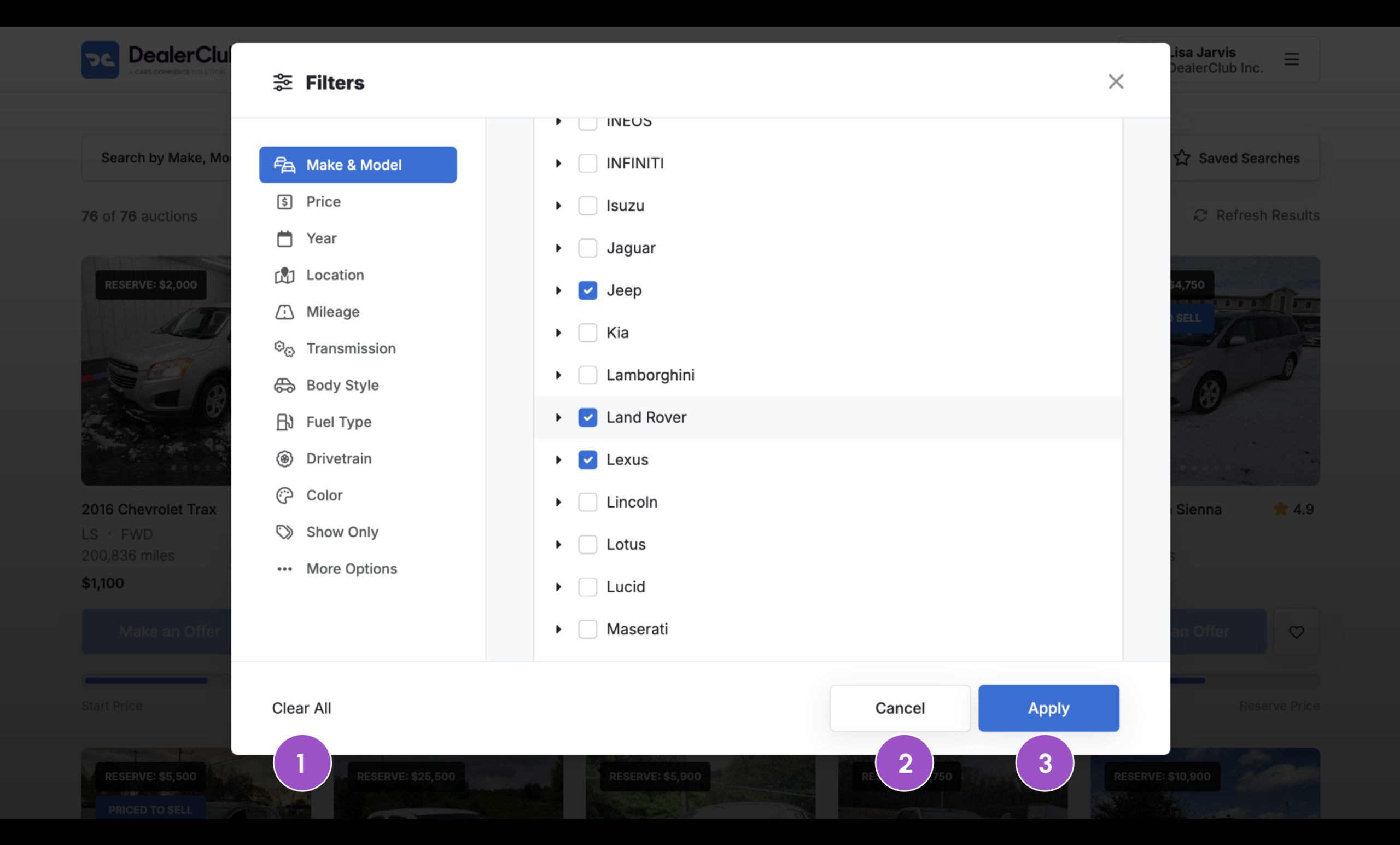
A filter window will appear with multiple categories to refine your search.
Common filters include:
- Make & Model
- Year
- Price
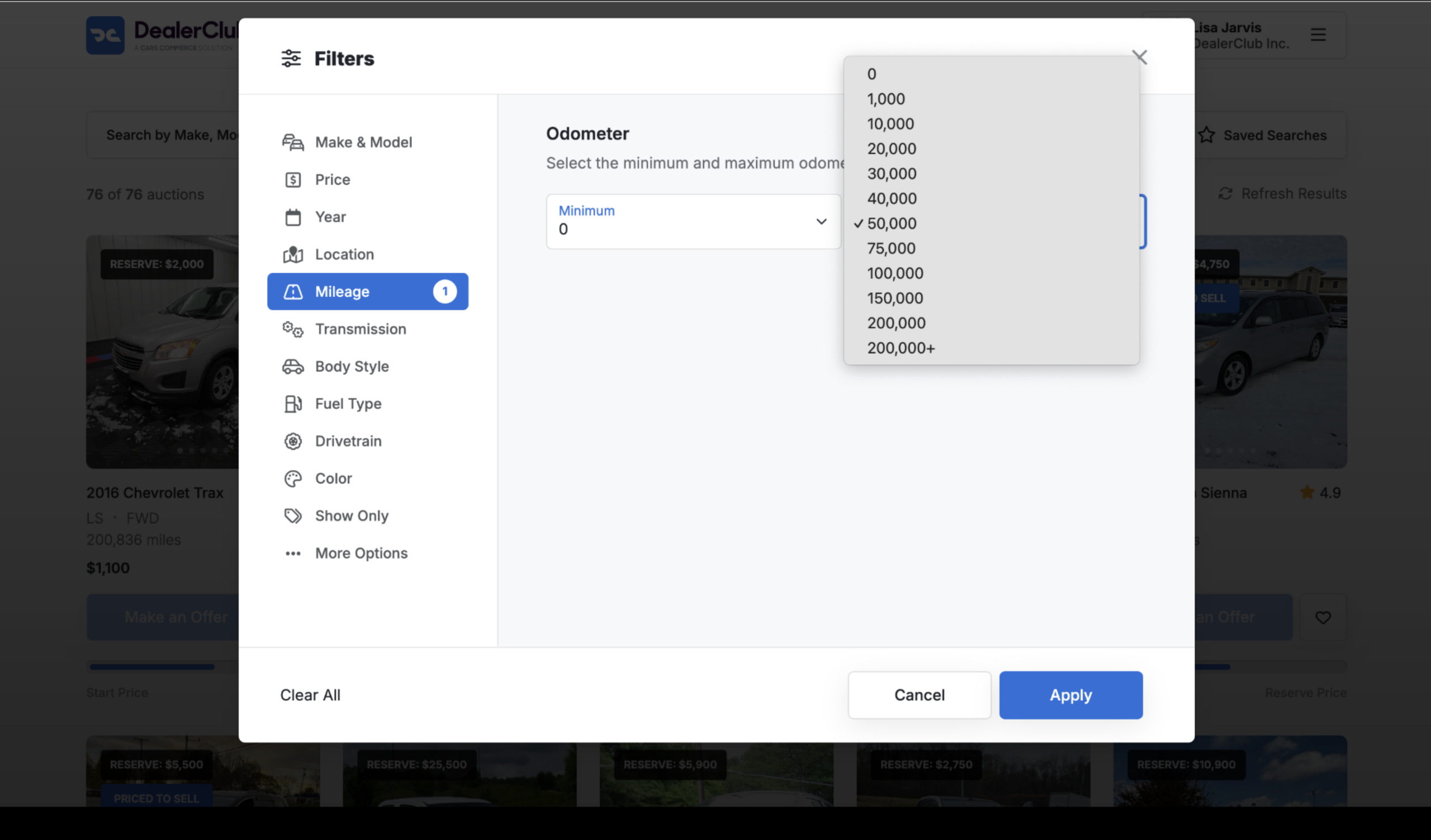
- Mileage
- Location
At any point throughout the process, you can:
- Clear your selections
- Cancel the action
- Apply the updates
Additional filters:
- Transmission
- Body Style
- Fuel Type
- Drivetrain
- Exterior Color
- Seller (all sellers, followed sellers, specific sellers)
- Inventory status (available or sold)
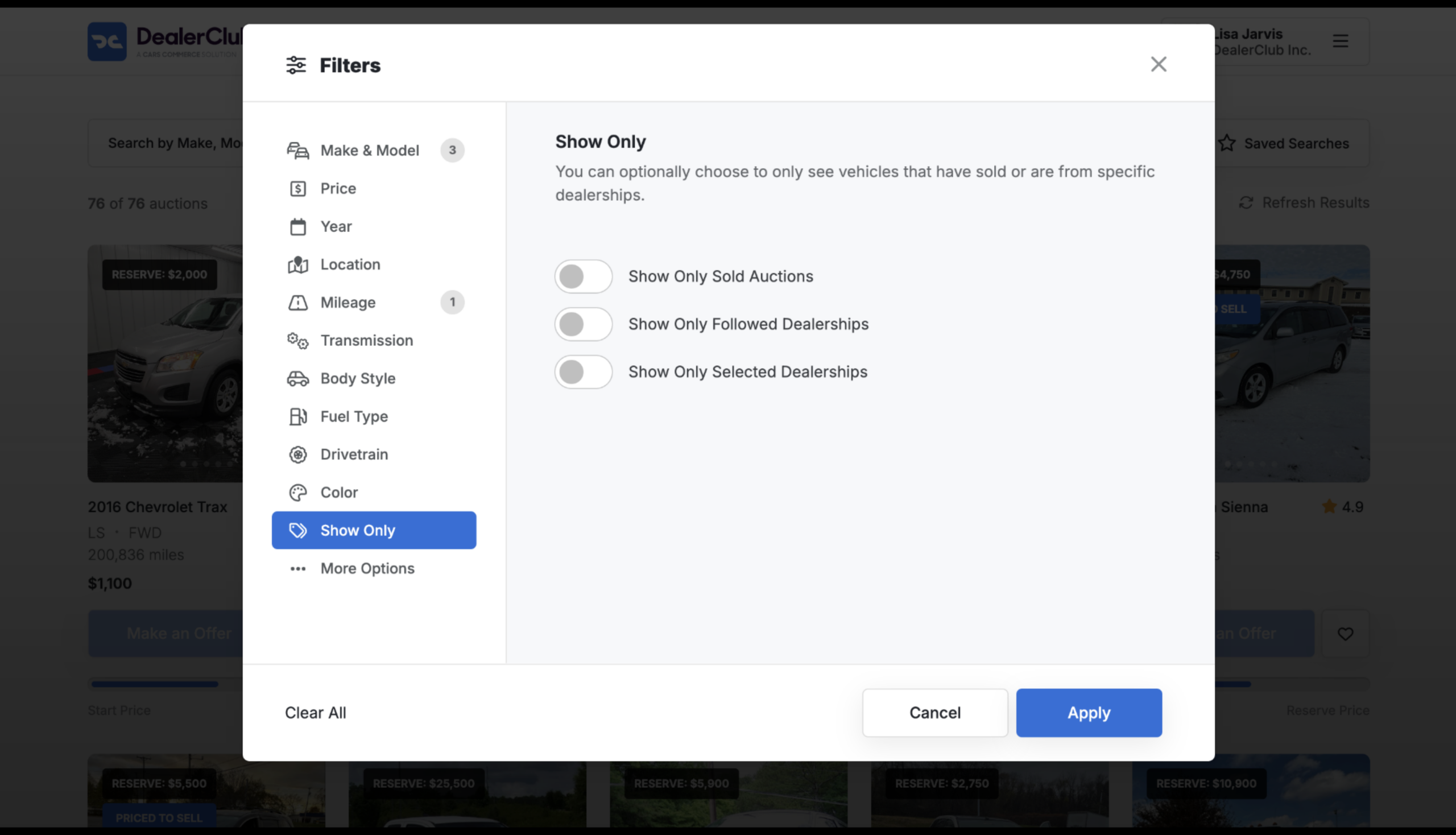
You can even determine if you want the vehicle results to be already sold, only from dealerships you follow, or specific dealerships you select.
Under More Options, you can also filter by:
- Condition Grade
- Guarantee types
- Title types
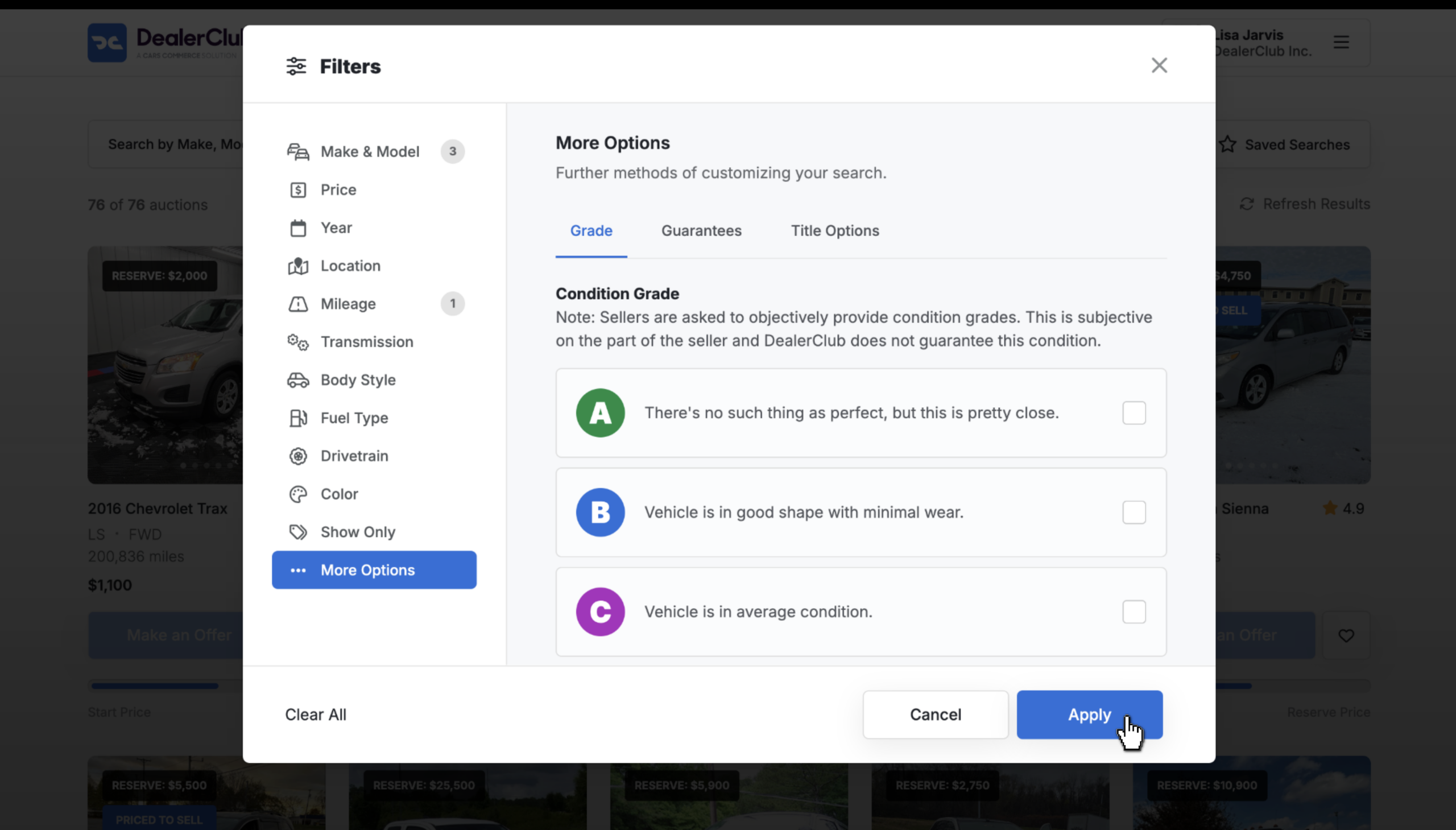
When you’re done selecting filters, click Apply.
Tip: Avoid setting too many narrow filters at once, which may return no results. You can save multiple searches for different sourcing goals and toggle between them as needed.
2 Save your search
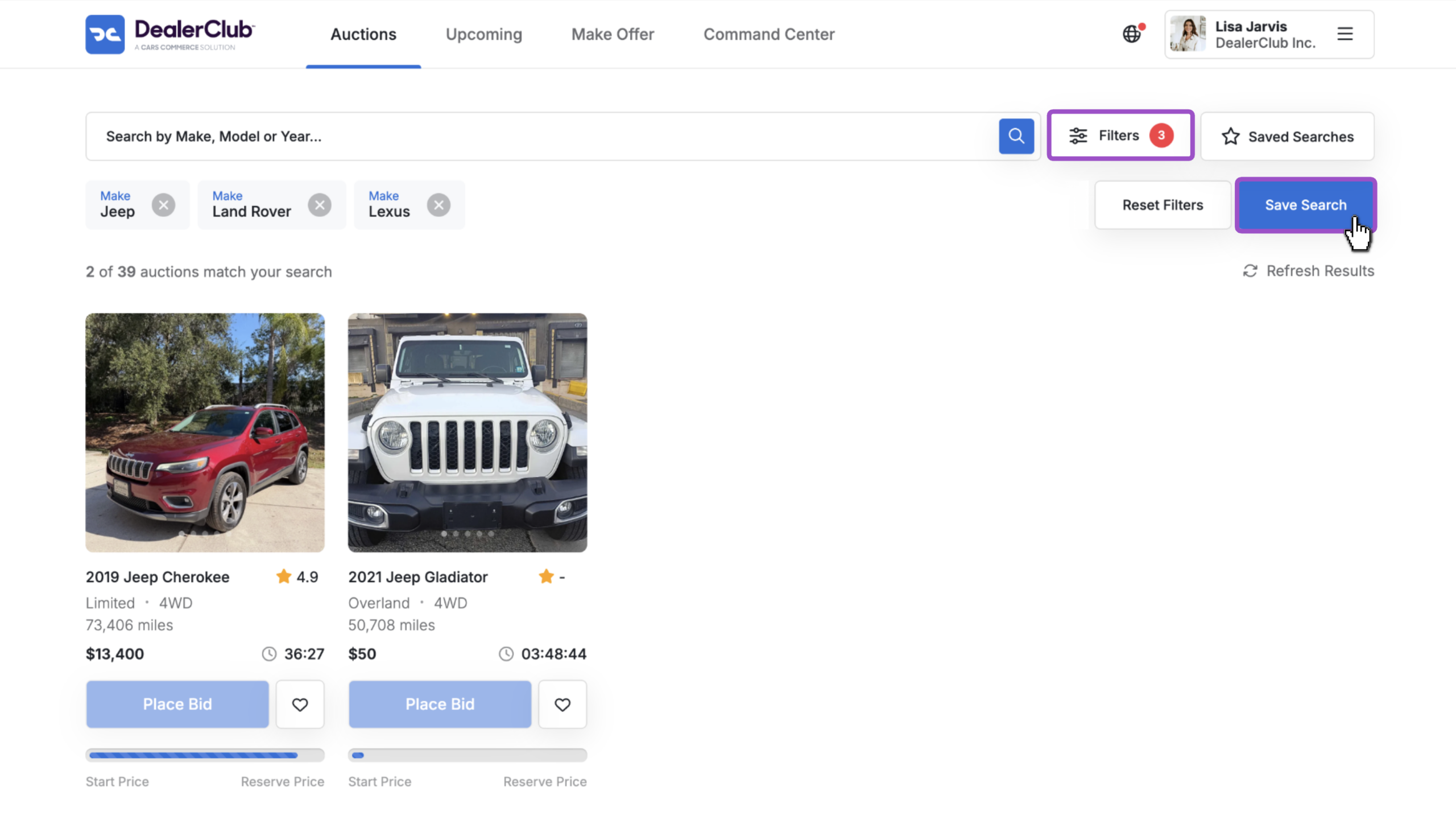
- Once your results populate, click Save Search to save your current filter set.
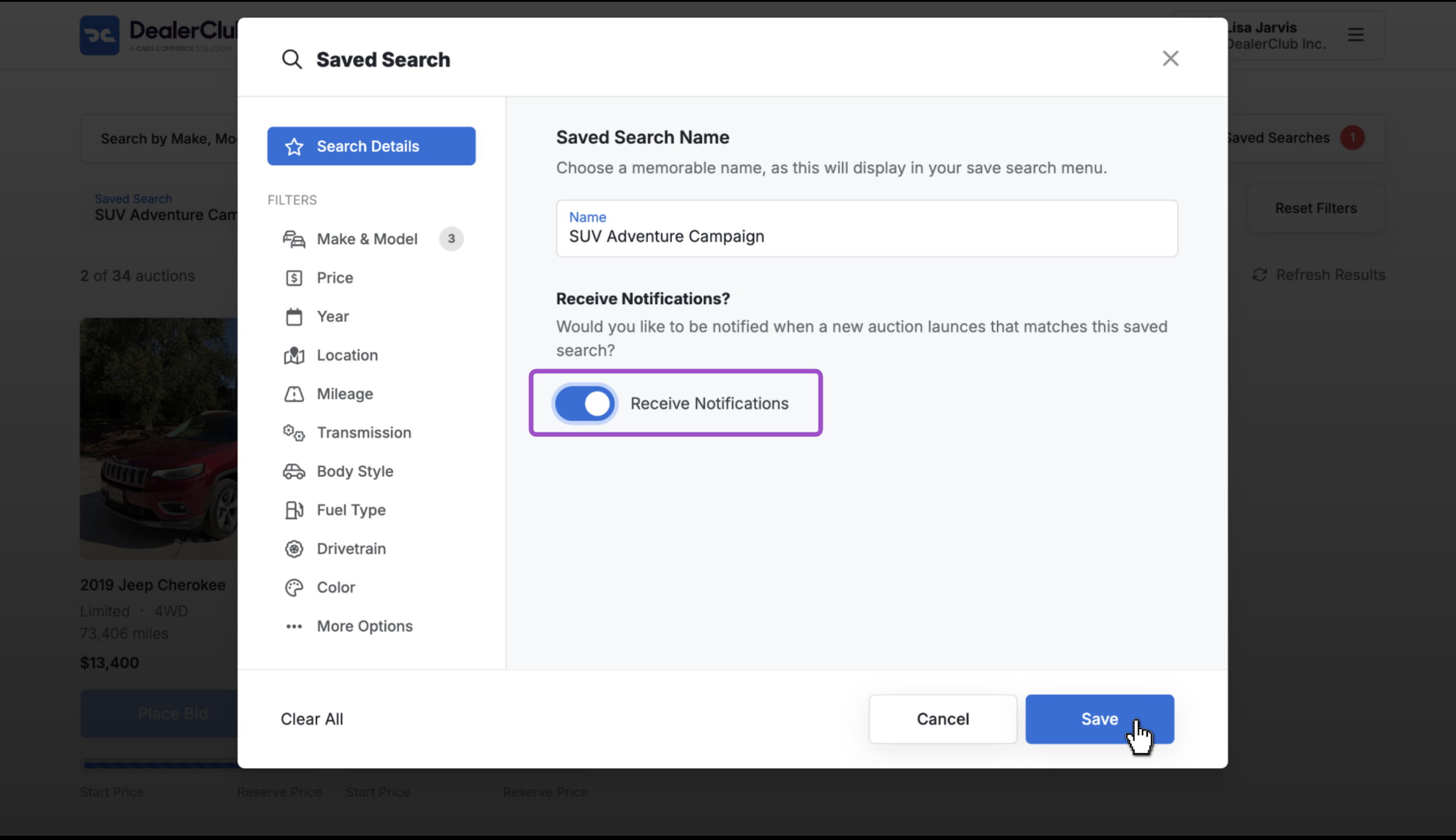
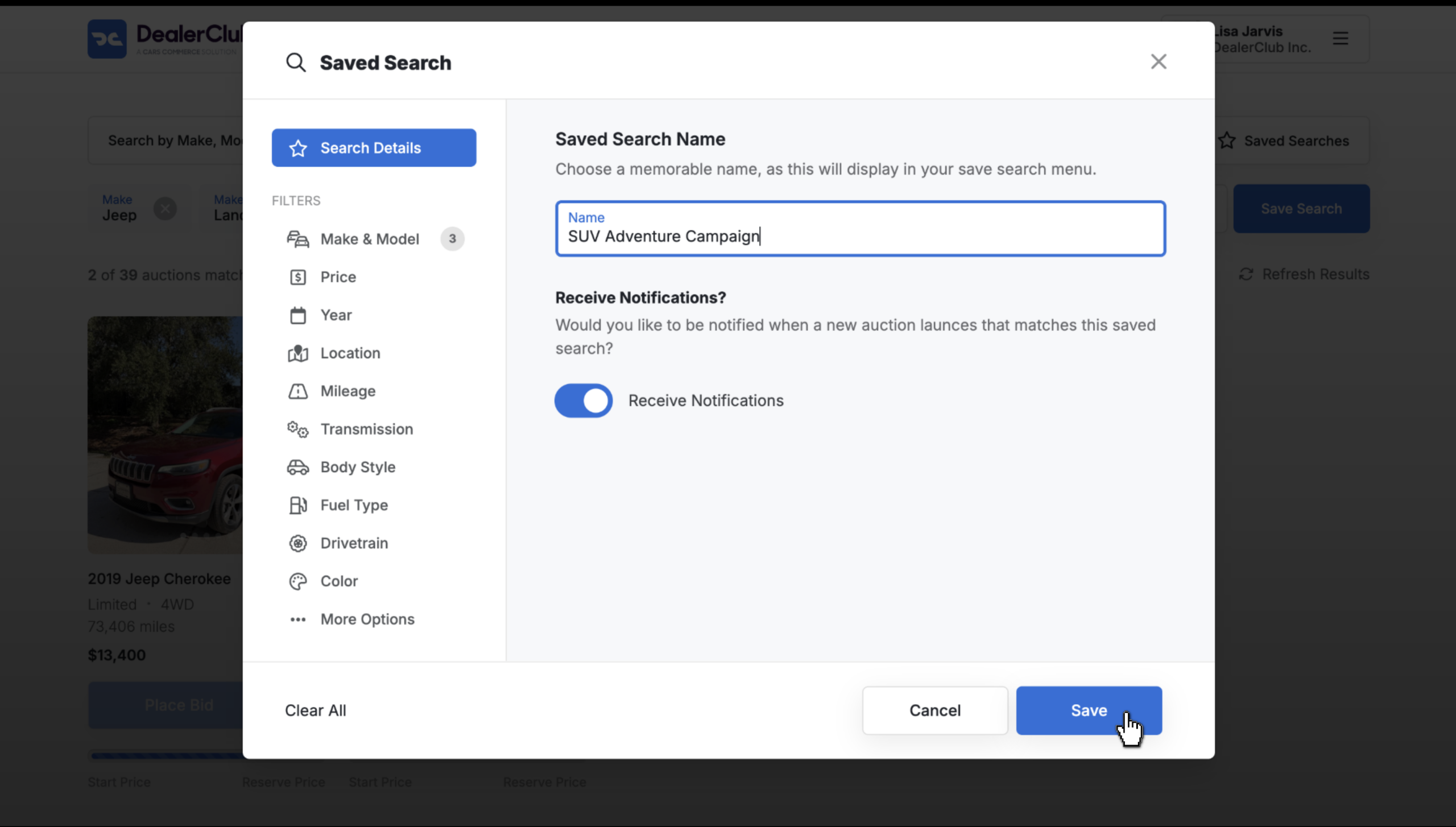
- Give your search a name, then click Save.
- You’ll now see a red notification icon indicating the number of saved searches.
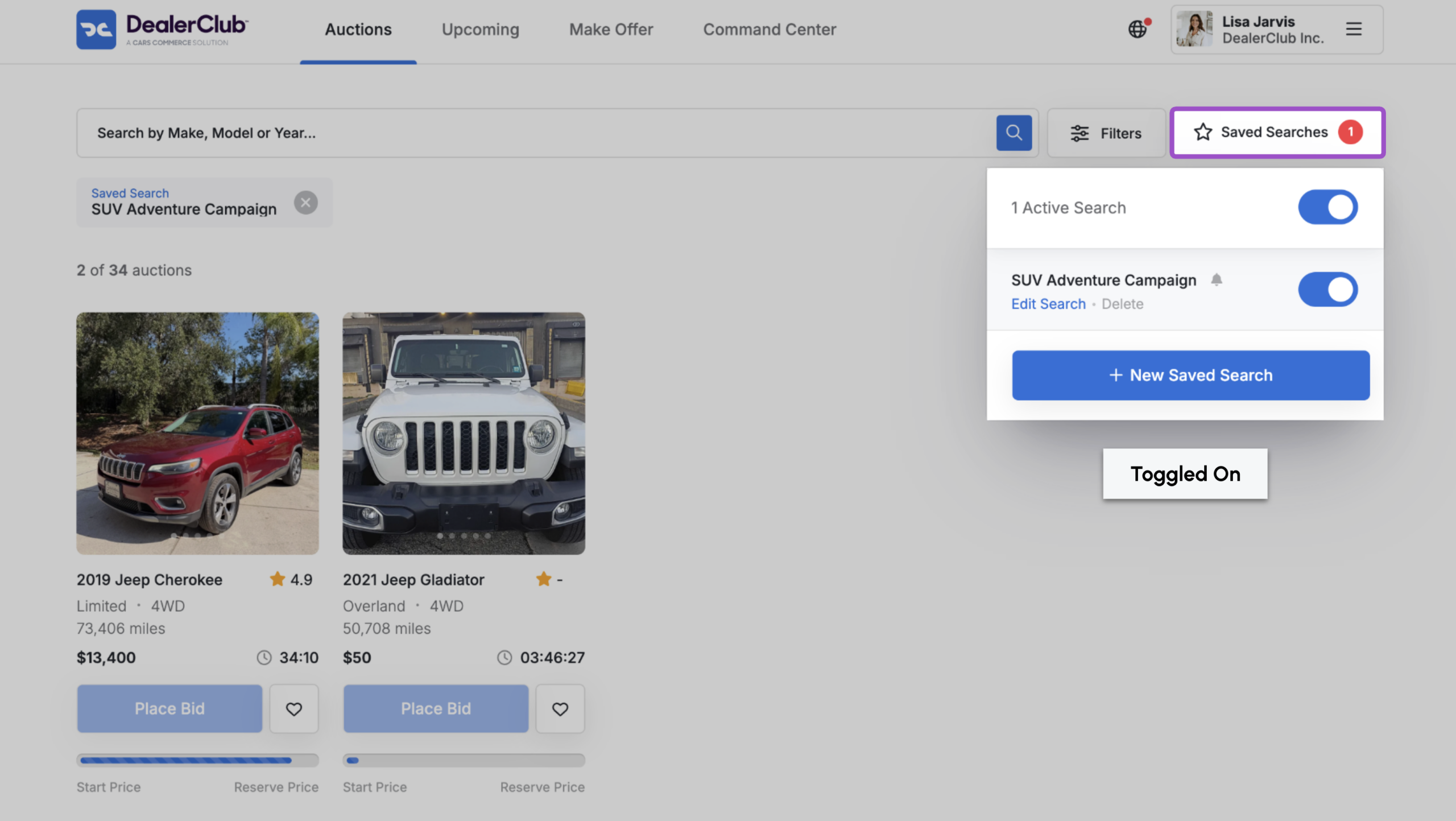
- Click this icon to open a list of your saved searches. From here, you can:
- View results based on a saved filter
- Toggle filters on or off
- Edit or delete saved searches
- View results based on a saved filter
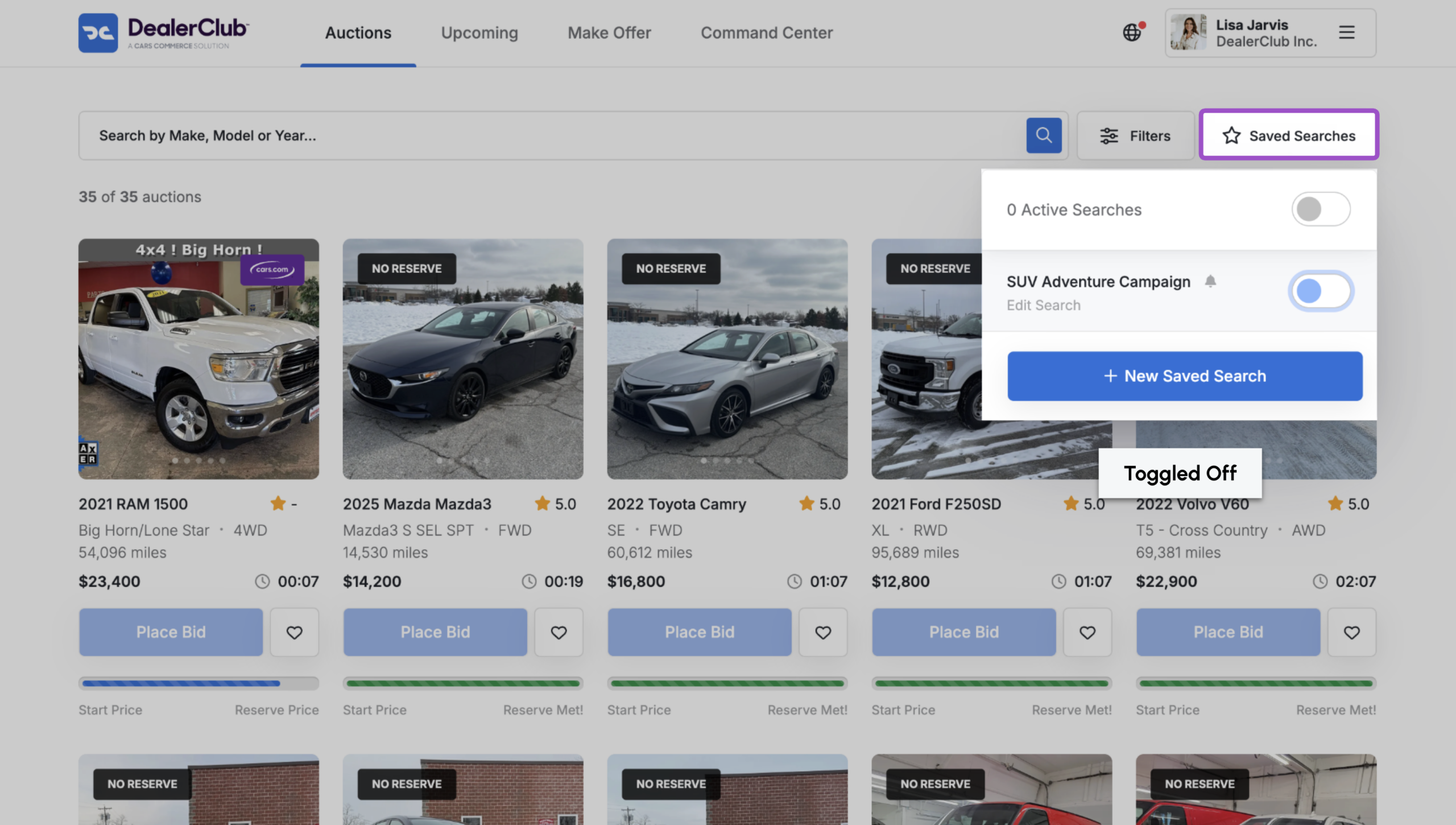
- Toggling a search off resets your Auctions page to show all listings.
3 Edit filters or update a saved search
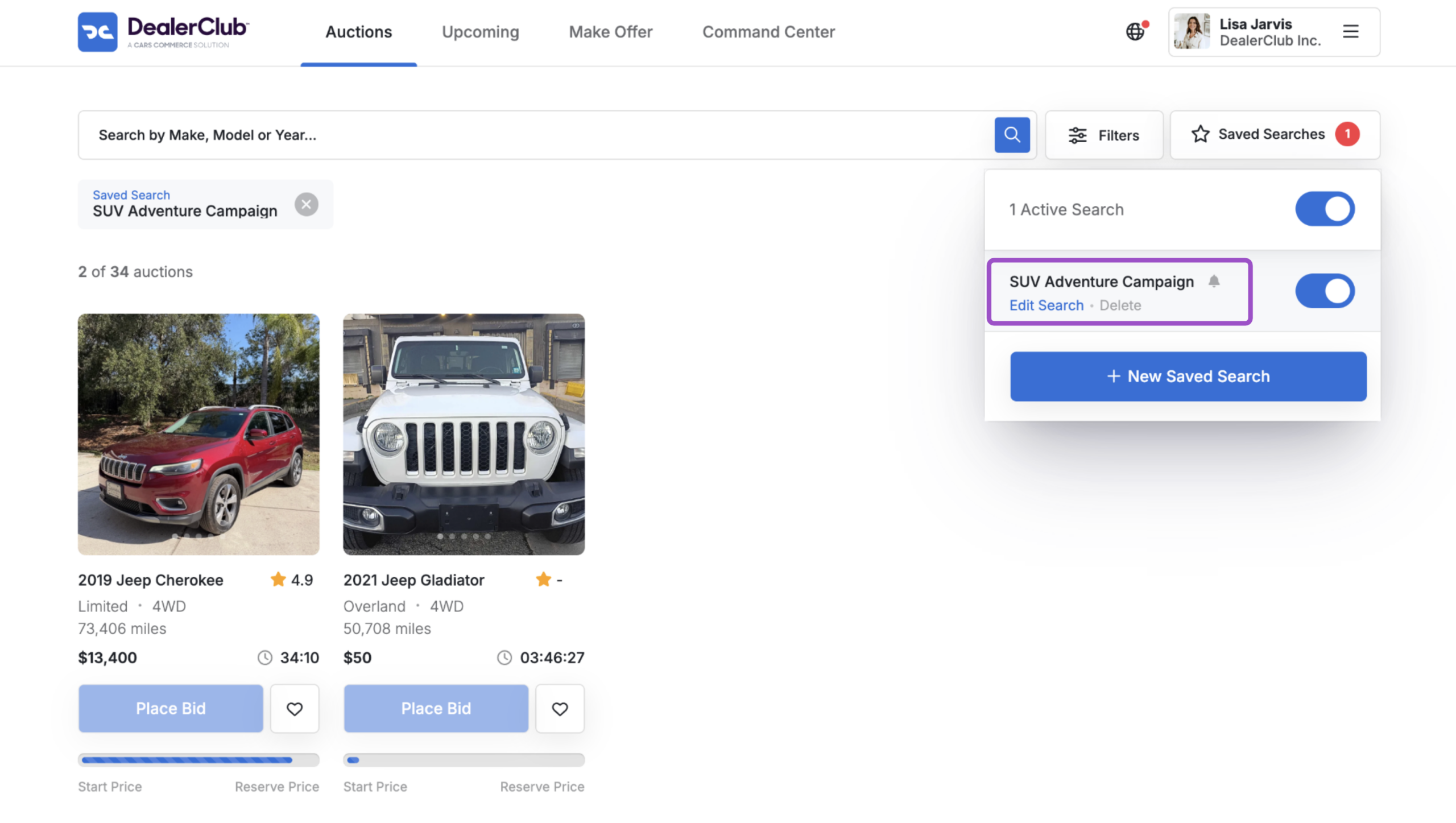
- To make changes to an existing saved filter, click Edit Search in the Saved Search bar.
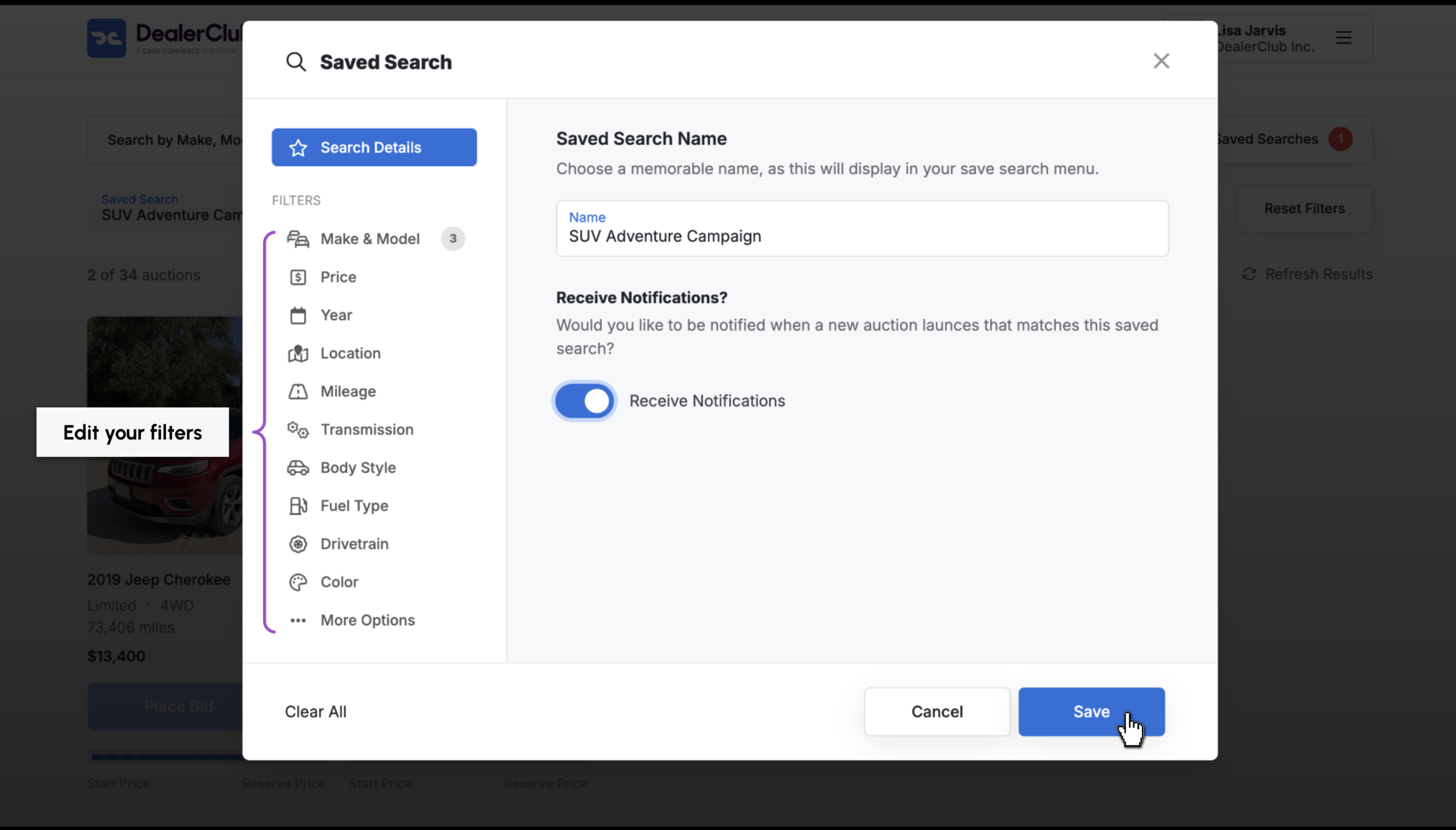
- Adjust your selections, then click Save to update the existing filter.
Note: Saving changes will overwrite the original saved search — it does not create a new one.
4 Receive notifications for matches
While viewing a saved search, you can toggle on notifications to be alerted when new vehicles matching your criteria become available.
This ensures you never miss a match for your sourcing strategy.