How to access your Cars Social report
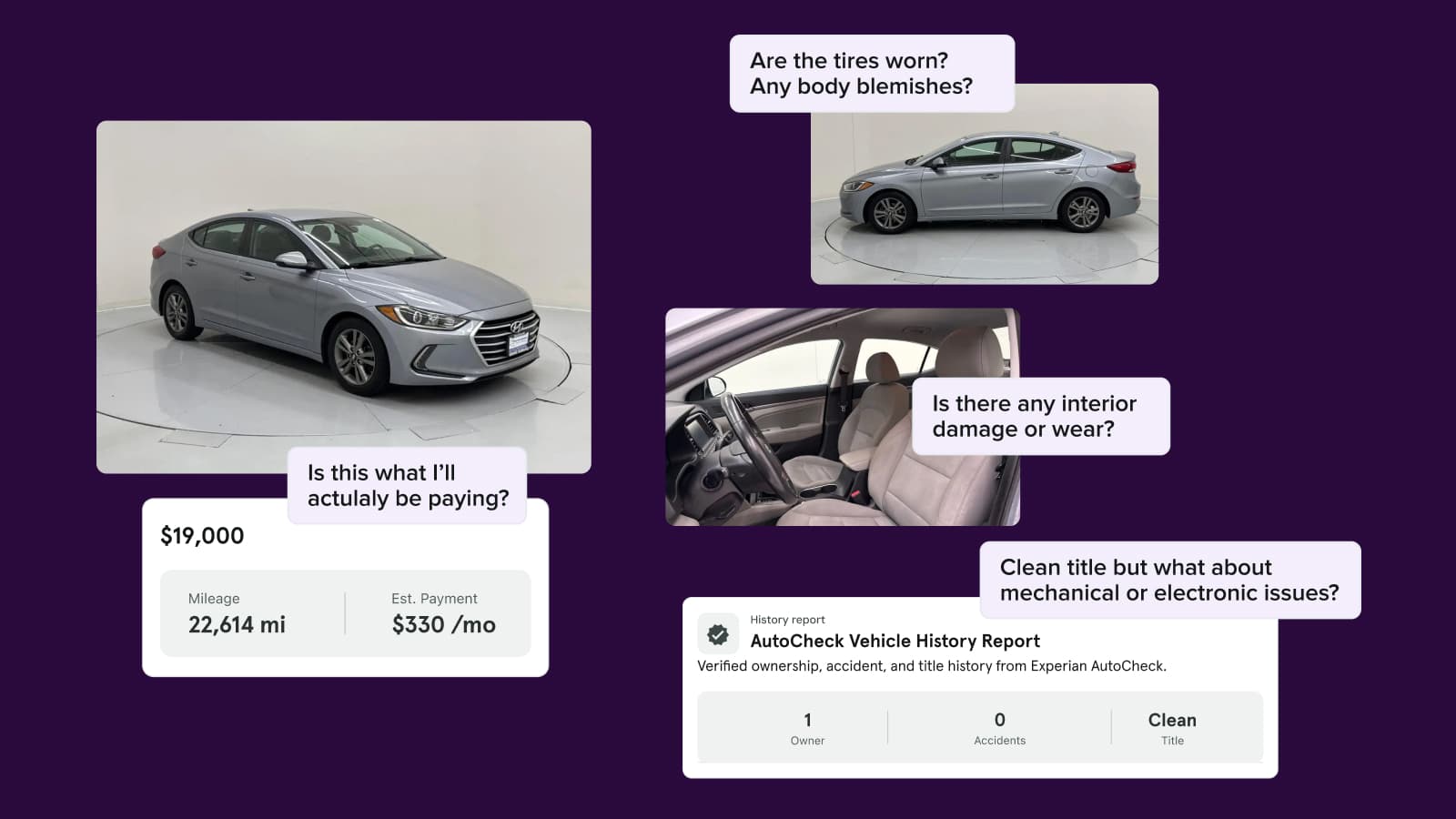
Cars Social dynamically recommends your relevant inventory to our exclusive audience of in-market shoppers after they leave Cars.com — reaching them on Facebook and Instagram with interactive ads that drive them directly to your website VDPs.
The Cars Social report provides a comprehensive summary of your Cars Social performance for the month.
To get started
Go to the Cars.com Hub
1 Find your reporting in the Cars.com Hub
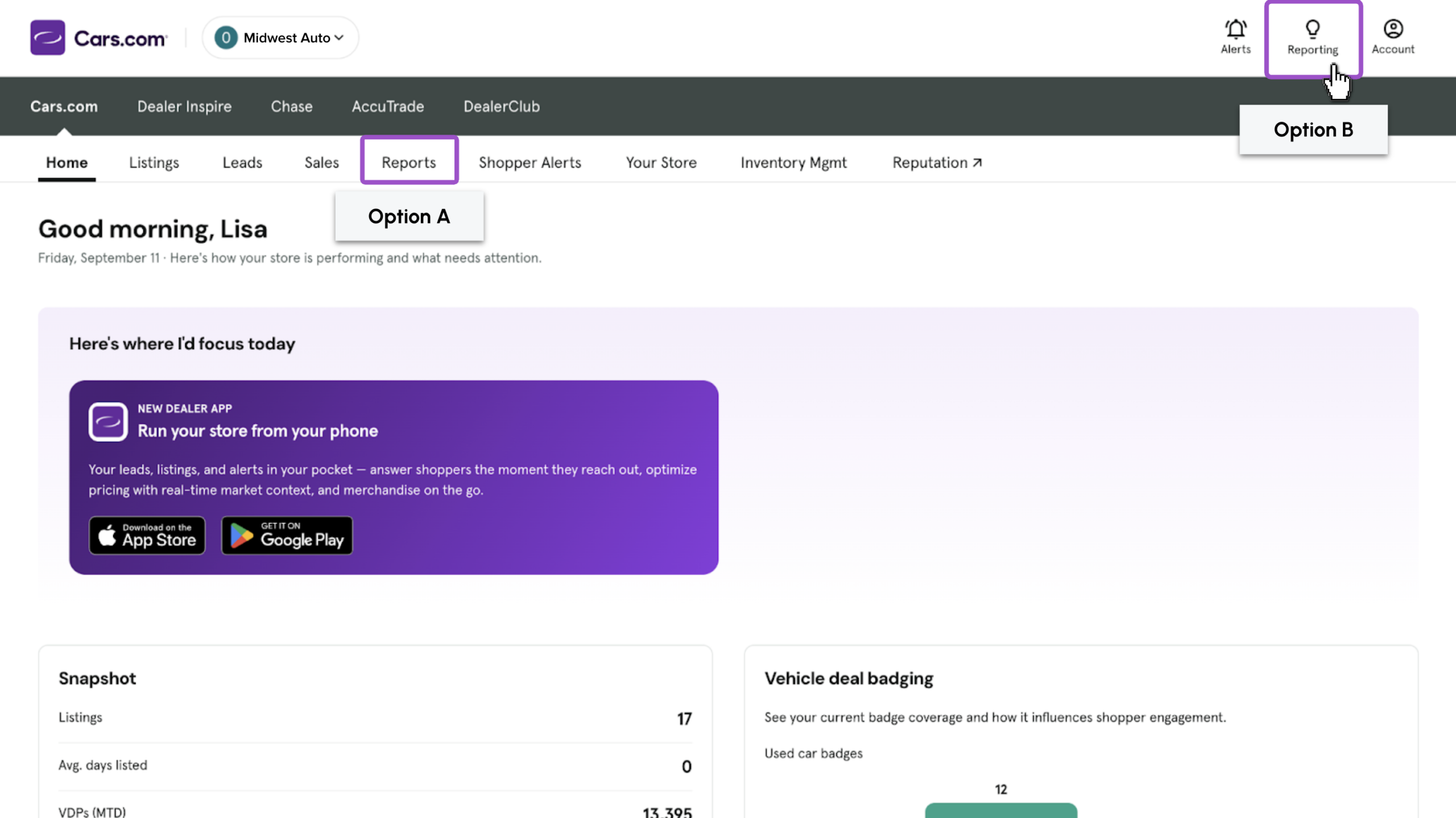
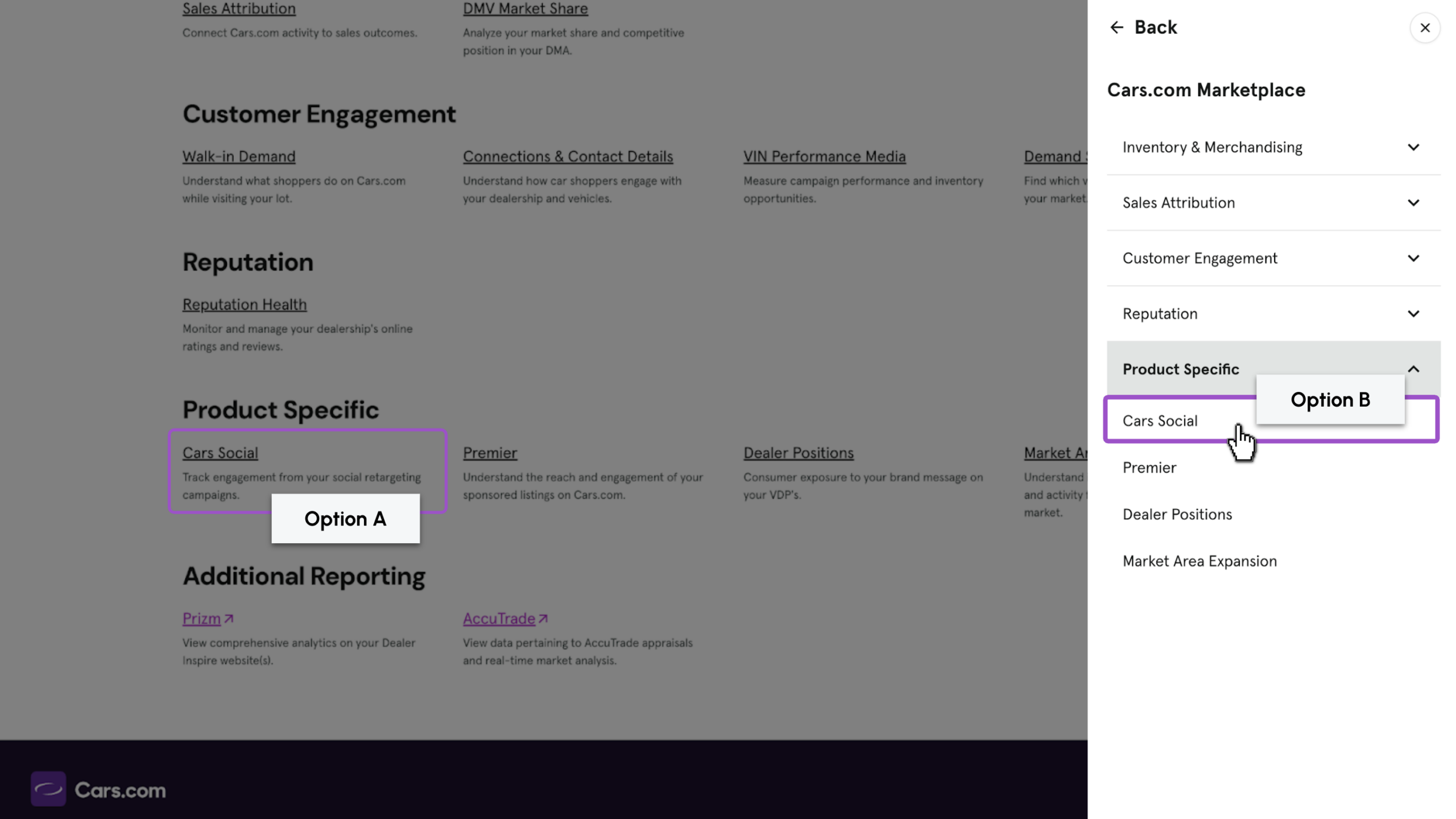
Get to your reports one of two ways:
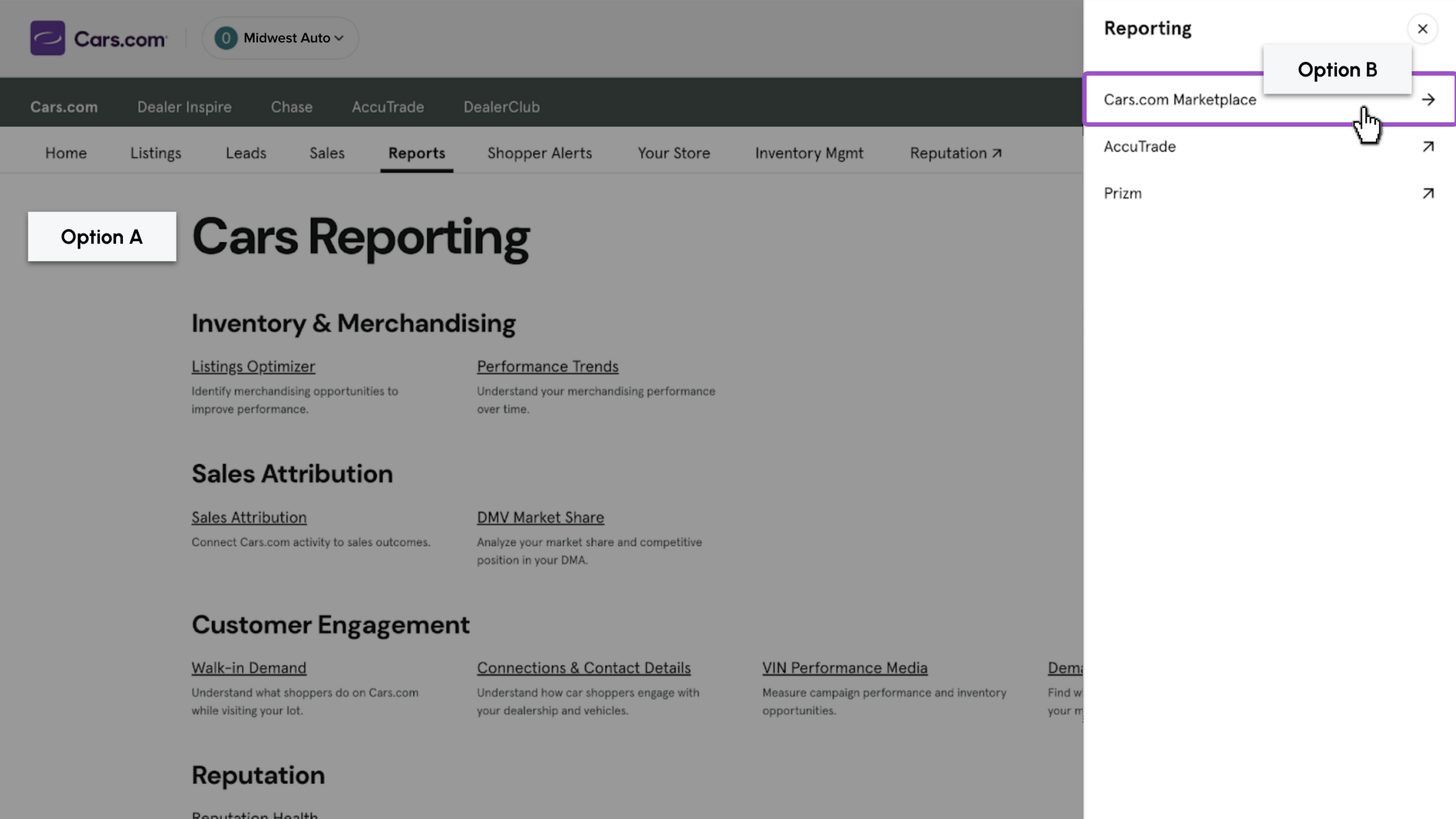
- Option A: Click the Reports tab in the top menu; it opens the full Cars.com Marketplace Reporting page directly
- Option B: Click Reporting in the top right; a panel expands with shortcuts. Click Cars.com Marketplace to open the relevant report options.
2 Select Product Specific
- Option A: On the Reports page locate Product Specific, then click Cars Social
- Option B: In the Reporting panel click Product Specific, then click Cars Social
3 Review Cars Social performance
Filter your report by: Date Range, Market Zone, or Cost Per Click (CPC) Rate.
The snapshot summary highlights:
- Impressions: how many times the ad was viewed on Facebook or Instagram
- Unique Shoppers: the distinct number of shoppers that have viewed the ad
- Views Per Shopper: how many times each shopper viewed the ad
- Leads: how many leads were submitted from Cars Social ads
- Clicks: how many times shoppers clicked on the ad from Facebook or Instagram. This includes any engagement with the ad, like scrolling through photos
- Estimated Website Transfer Deep Link: how many times shoppers clicked on the ad from Facebook or Instagram that took you to your website
- Cost Per Click (CPC): enter in the monthly rate you spend on Cars Social in the CPC Rate filter at the top. The Cost Per Click section within the summary will automatically generate accordingly. If you have multiple units in the same zone, enter the total rate of all units — otherwise the one unit rate will be applied across the rolled up reporting and the CPC will appear inaccurate.
- Click Through Rate (CTR):the number of clicks divided by the number of impressions

Monthly Social Trend
The monthly social trend bar graph shows the 13-month trend of clicks and estimated Website Transfer deep links.

Top 10 Vehicles by Engagement
View granular impressions and click performance down to the VIN level. Toggle the filter to show the top vehicles shown. You can edit the quantity to be more or less than 10.

Zone Performance Breakdown
Switch the filter to Zone Performance to highlight location-specific metrics on your Cars Social performance, down to the address. If you have multiple units, you can see the performance for each of them in this list.

Inventory Eligibility
For inventory to appear in Cars Social ads, it must comply with Facebook’s vehicle merchandising requirements, such as requiring a minimum of two photos. Ineligible vehicle listings will not be included in Cars Social ads. This report breaks down the percentage of your inventory that is eligible and which required details are missing.

Need more information?
Your Cars Commerce Account Executive can answer your reporting questions. You can also contact support at 888.252.7731 or support@cars.com.