How to follow sellers on DealerClub
Just like a social platform, DealerClub lets you follow individual sellers or dealerships to stay updated on their activity. Following a seller gives you quick access to their profile, performance metrics, and newly listed inventory — helping you act fast on vehicles that meet your needs.
In this article, you’ll learn how to follow sellers or dealerships, where to find their profiles, and how to manage your followed list from the Command Center.
To get started
Go to the Cars.com Hub and then click on DealerClub.
1 Access the seller’s profile
To follow a seller, start by finding them through a listed vehicle.
- Click into a vehicle from any page on DealerClub.
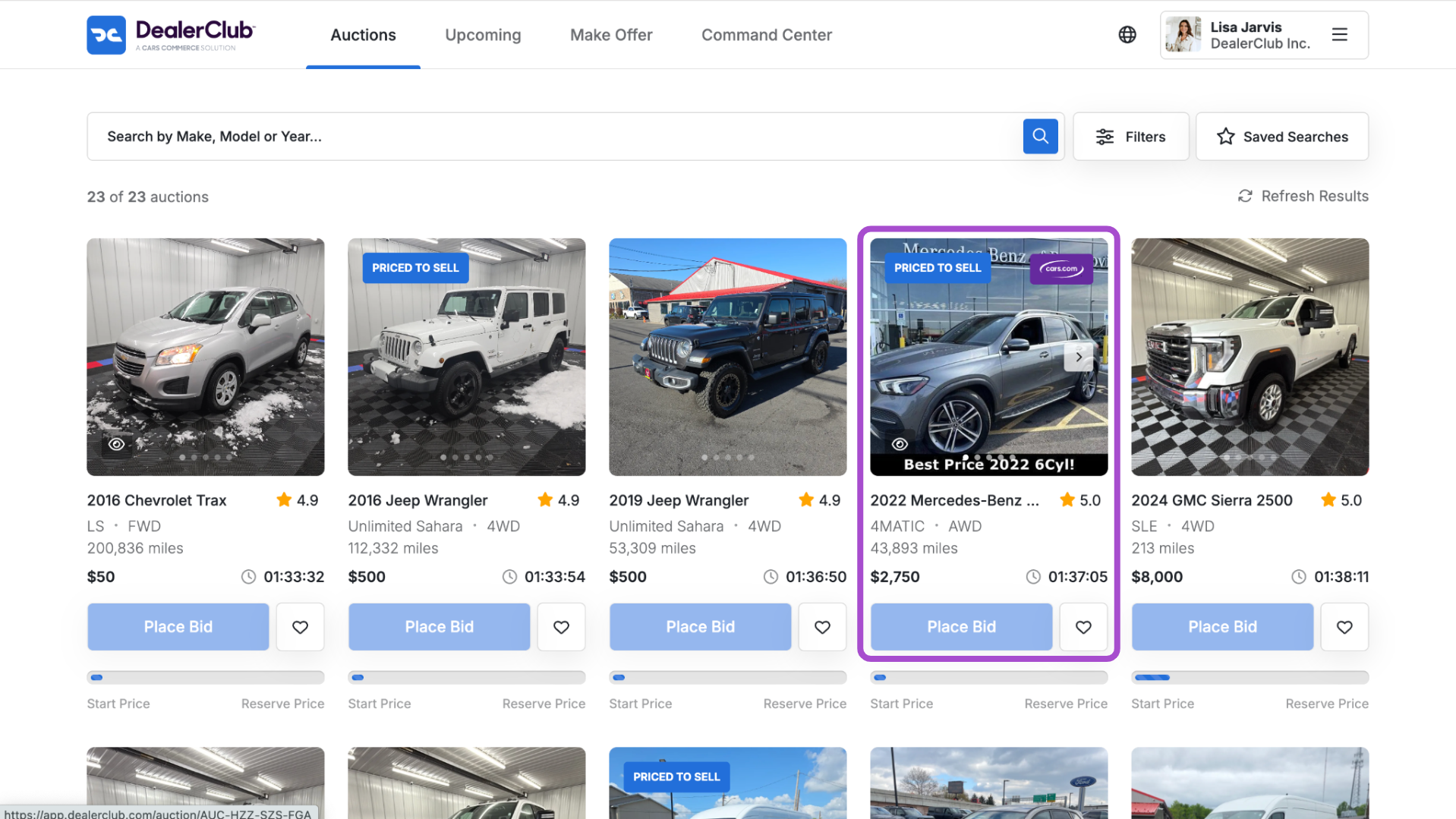
- This will open the vehicle detail view.
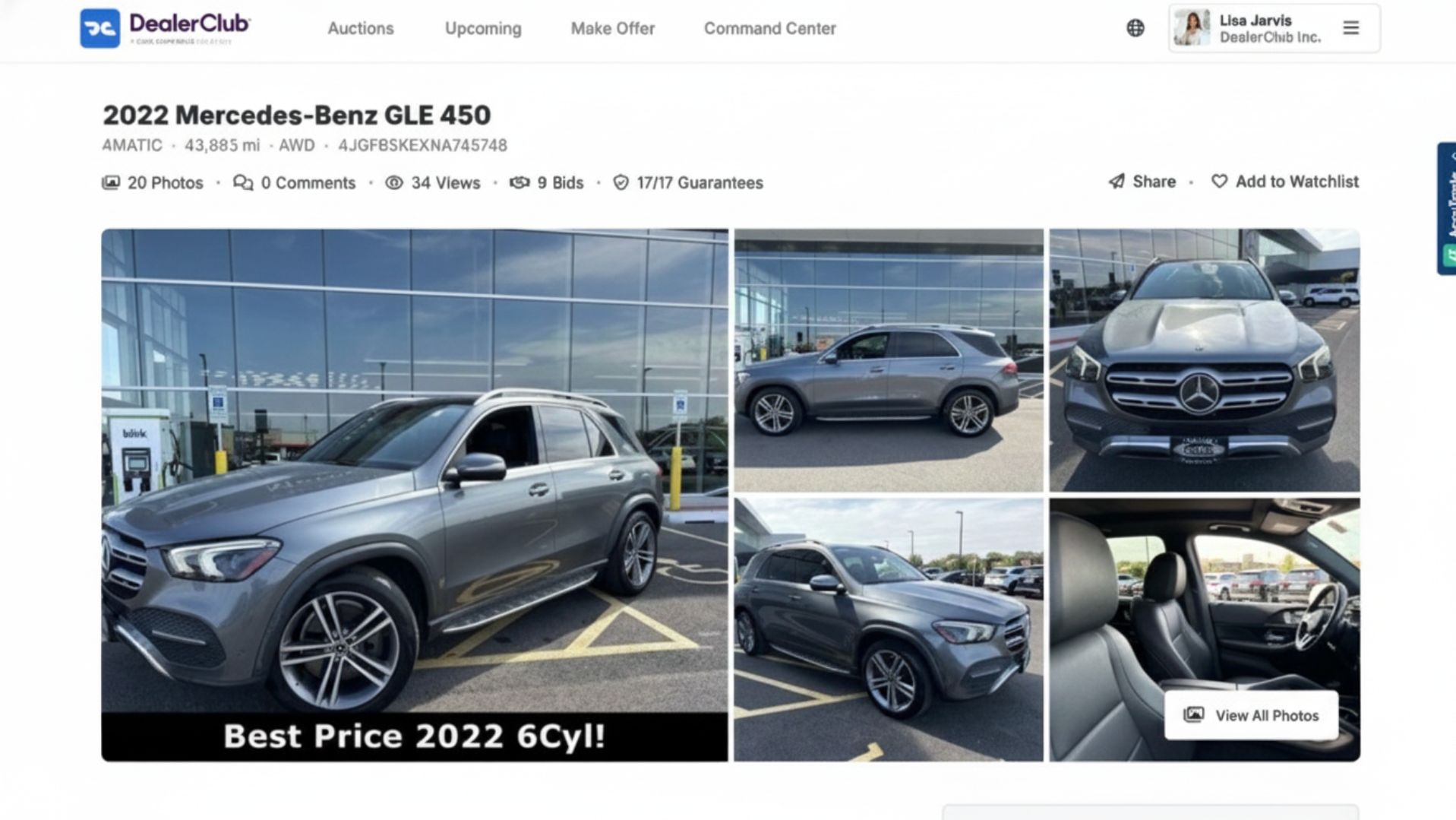
2View inspector profile or dealership performance
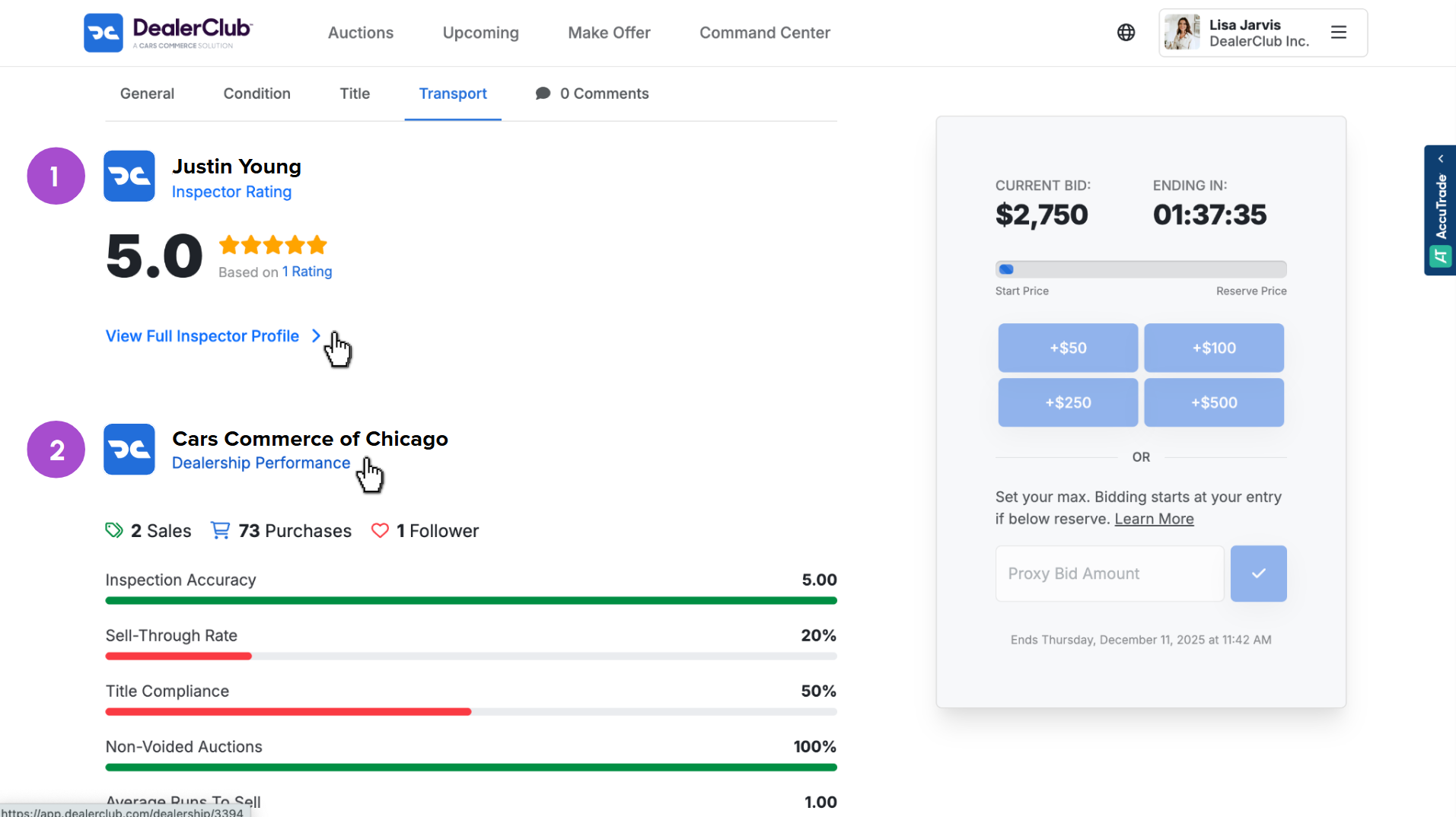
- Scroll down to find the seller information, including their rating and dealership name
- Click View Full Inspector Profile to open the individual seller’s profile
- Or click Dealership Performance to view the dealership’s metrics and activity
Note: Both options follow the same process — you can follow sellers from either profile type.
3 Follow the seller or dealership
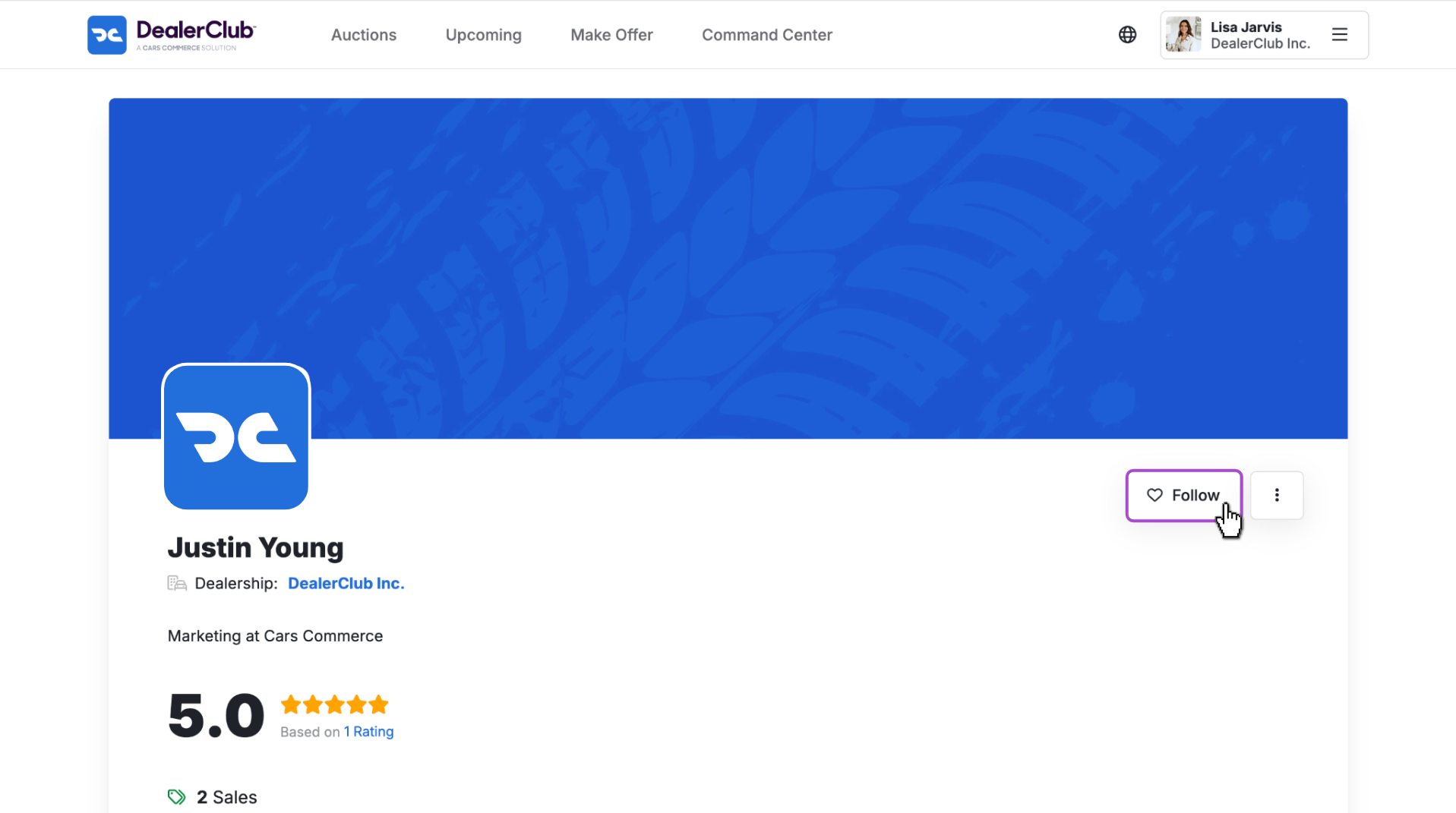
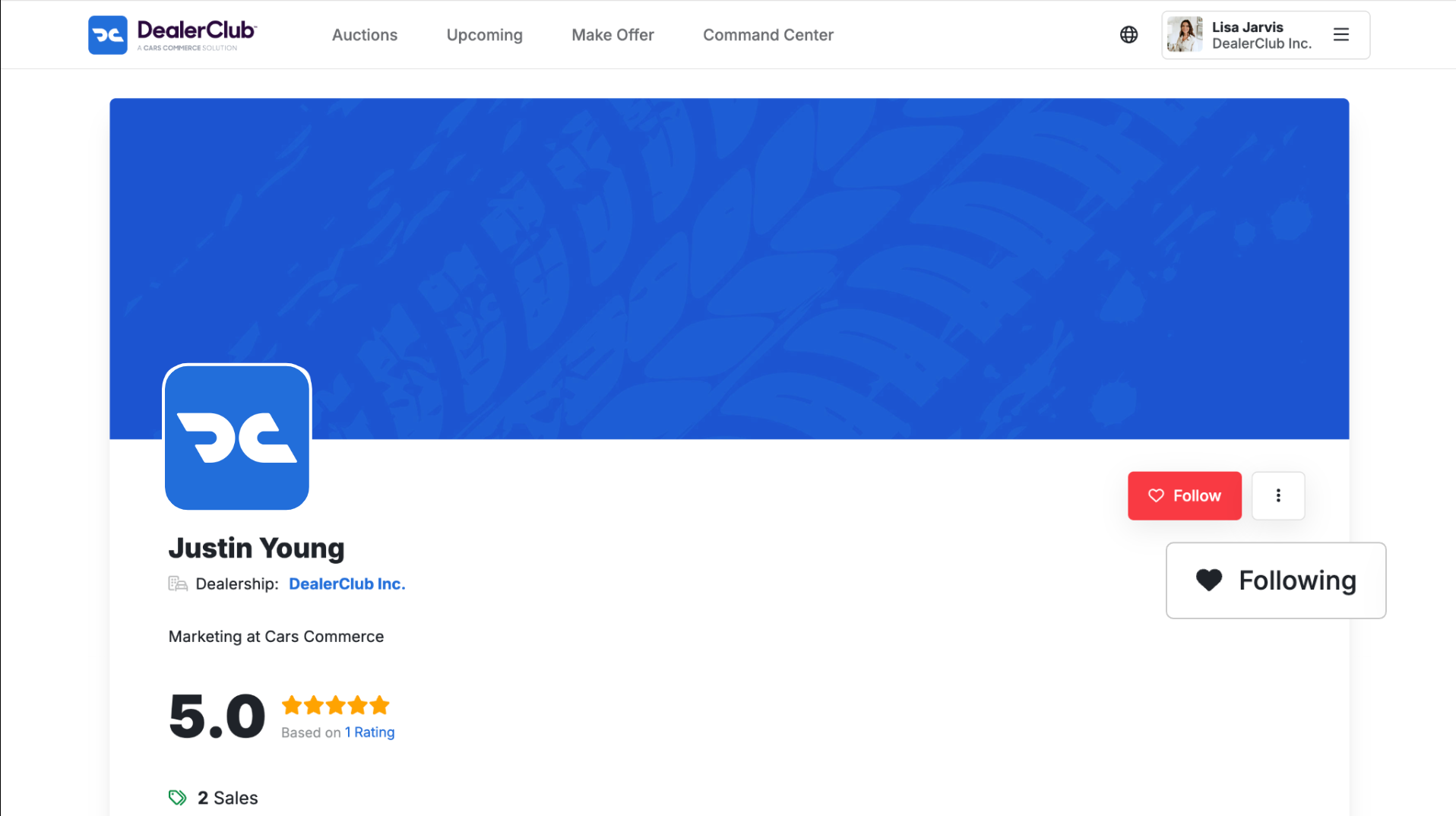
- On the seller’s profile page, click the Follow button in the top-right corner
- The button will briefly turn red to confirm your action, then update to show that you’re now following the seller
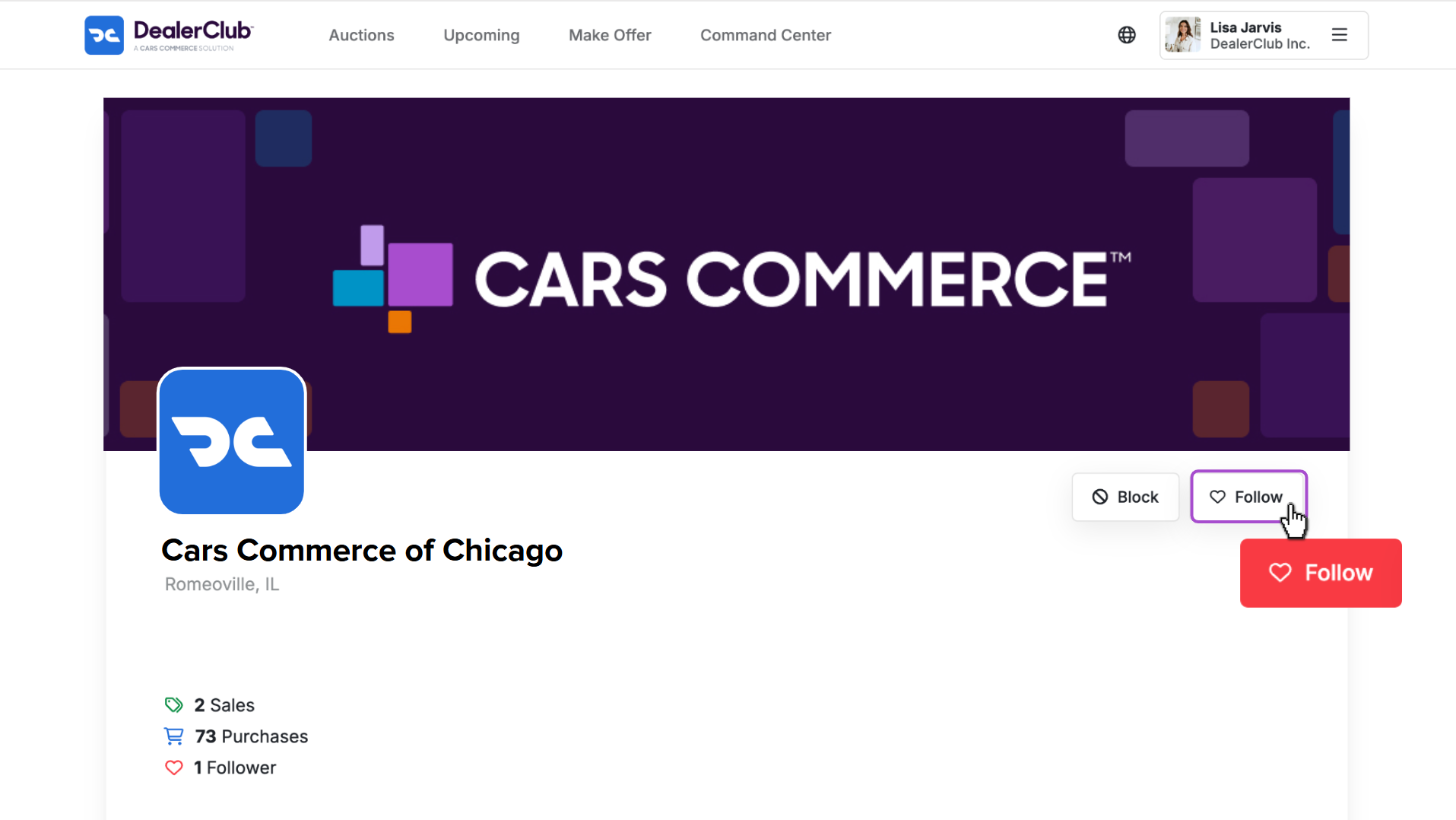
- You can also click Follow on a dealership’s profile to be notified when they list new auction inventory.
- Need to block a seller or dealership? You’ll also find the Block option on the profile page
4 Track and manage followed sellers
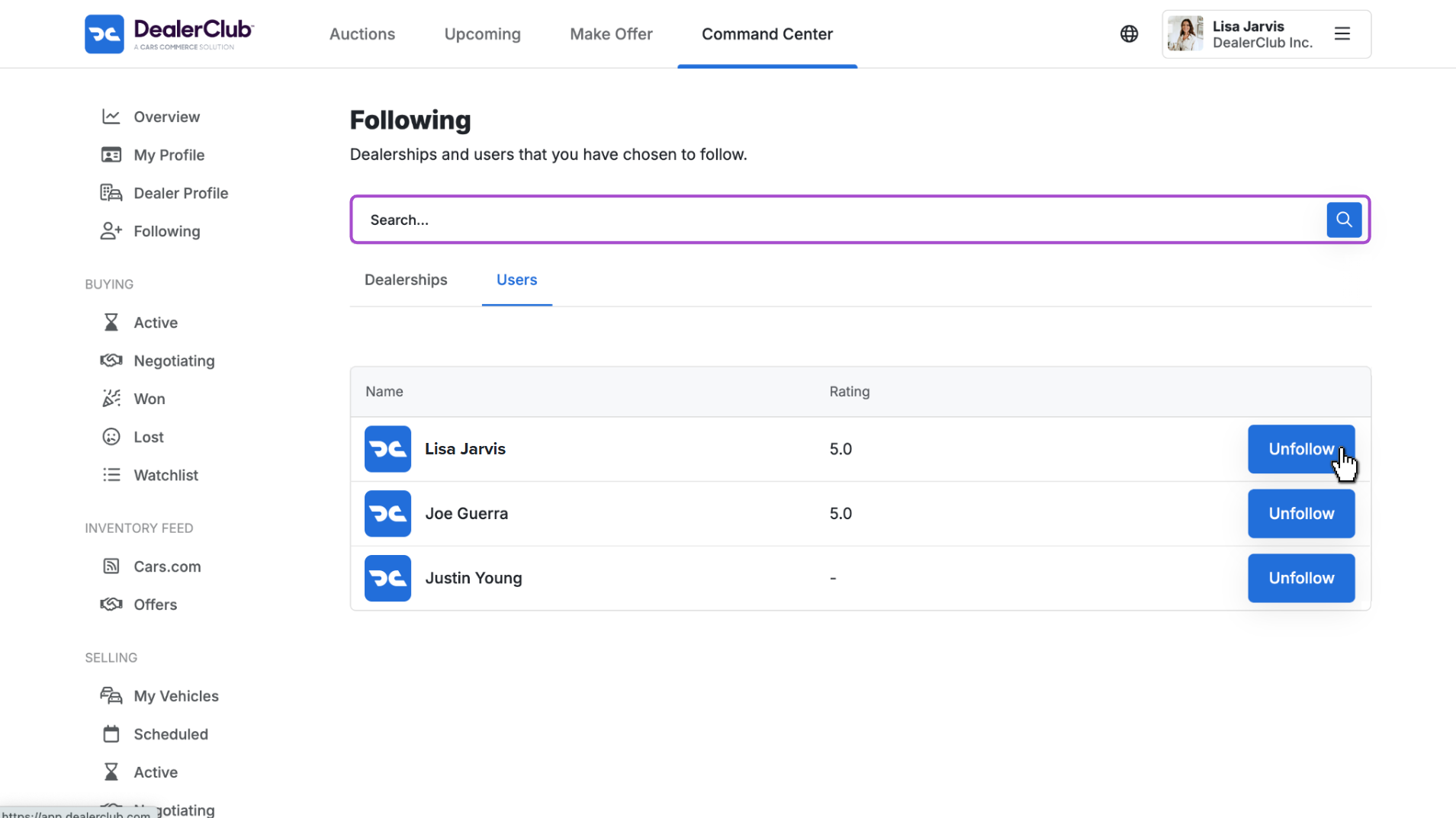
To see who you’re following:
- Click Command Center from the main navigation
- Select Following
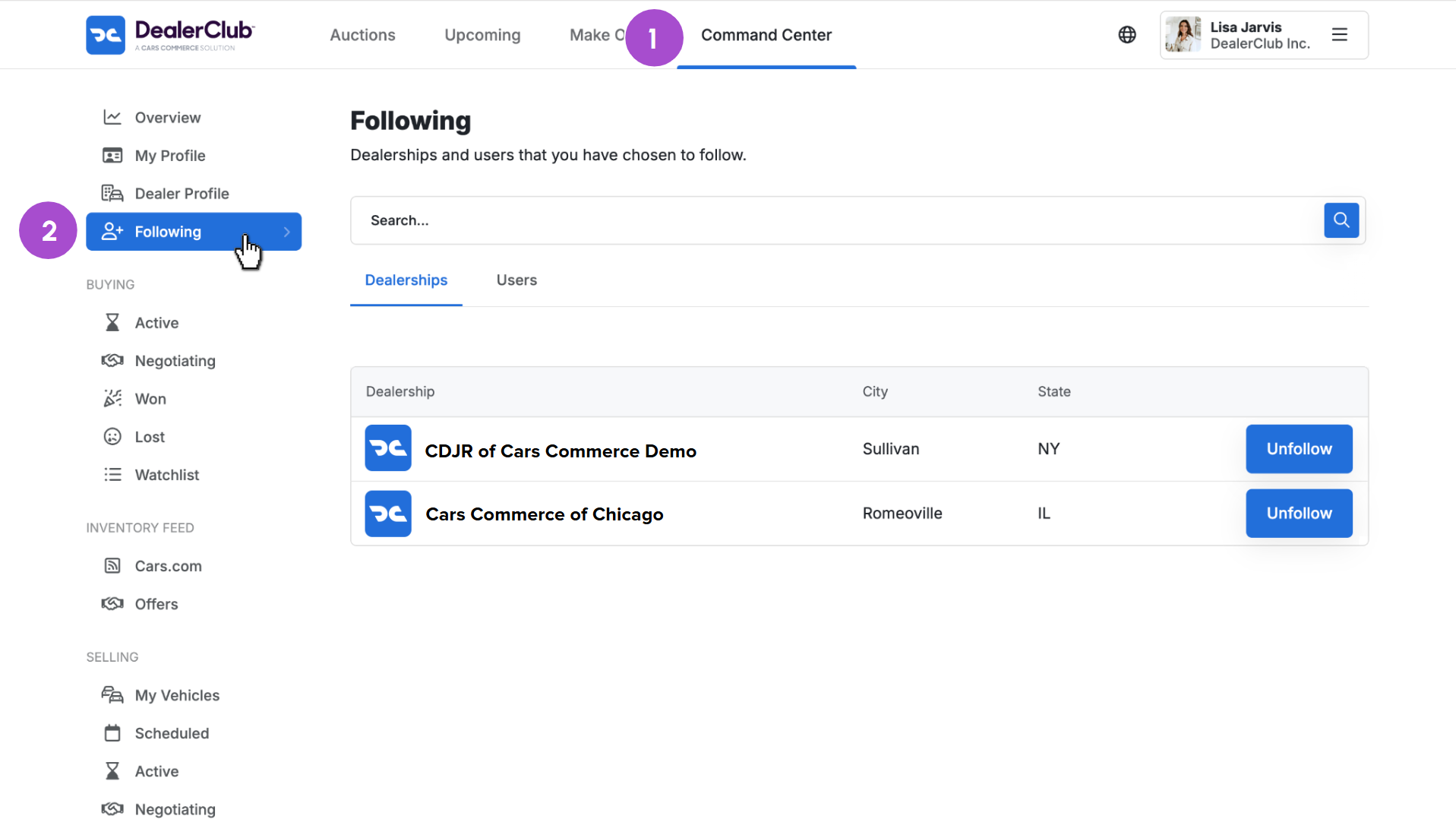
From here, you can:
- Search for followed sellers or dealerships
- Filter by Users or Dealerships
- Click into profiles to view updates
- Unfollow users or dealerships to manage your list