How to utilize the competitive set
The competitive set in AccuTrade shows how similar vehicles in your market are currently priced and performing. You can use this data to inform pricing decisions at acquisition, listing, and throughout a vehicle’s time on lot. The competitive set drives the Price to Market, Cost to Market, and Adjusted Cost to Market percentages shown in the Price Calculator.
In this article, you’ll learn how to locate the competitive set for a specific vehicle, navigate between active and sold comparables, customize filters to refine the set, and review how the competitive set affects your pricing percentages and estimated profit.
To get started
Go to the Cars.com Hub, and click on AccuTrade.
1 Select a vehicle from your inventory
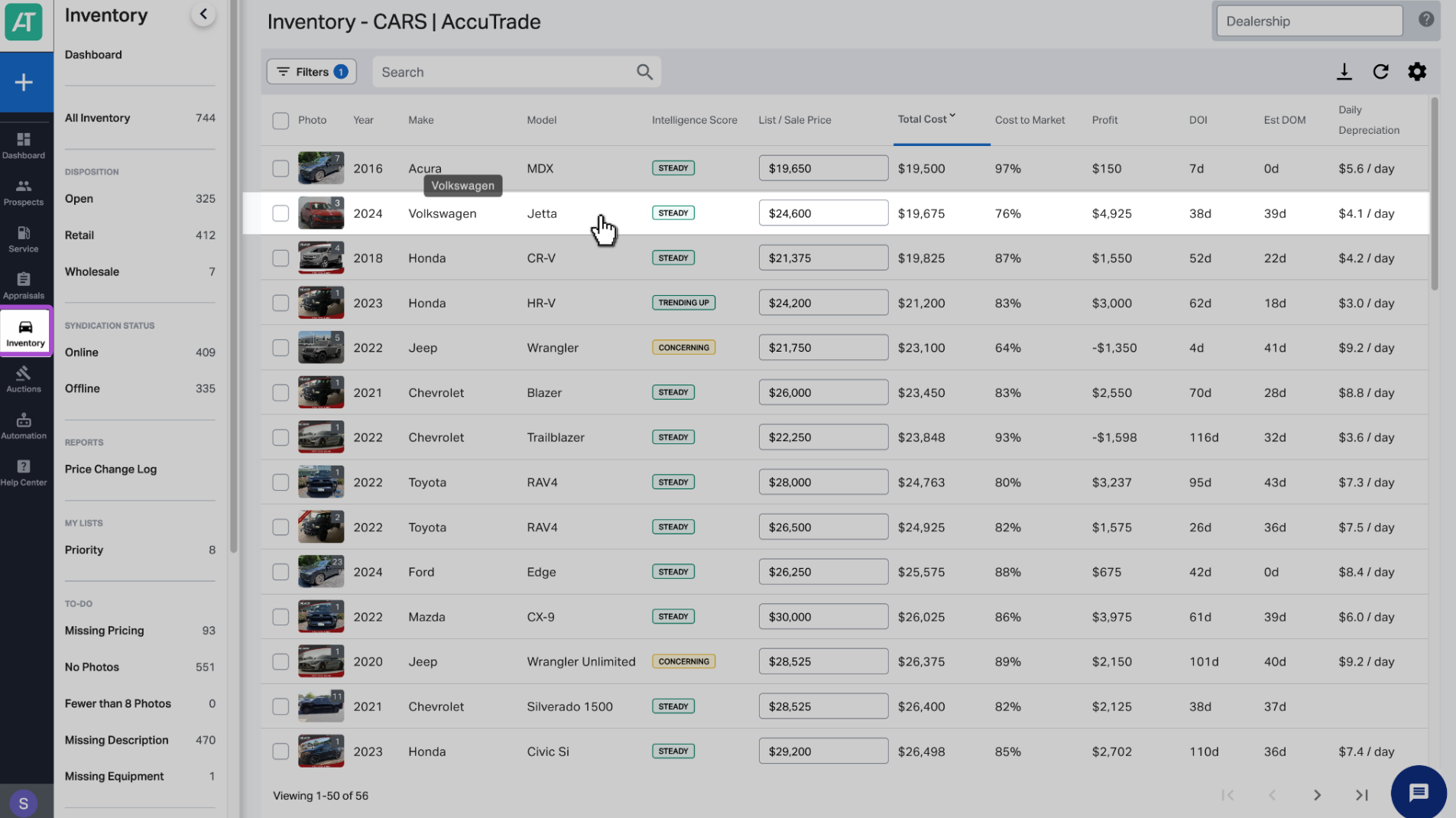
Click the Inventory tab to search for and select the vehicle you want to price.
2 Open the Market Pricing tab
Click the Market Pricing tab.
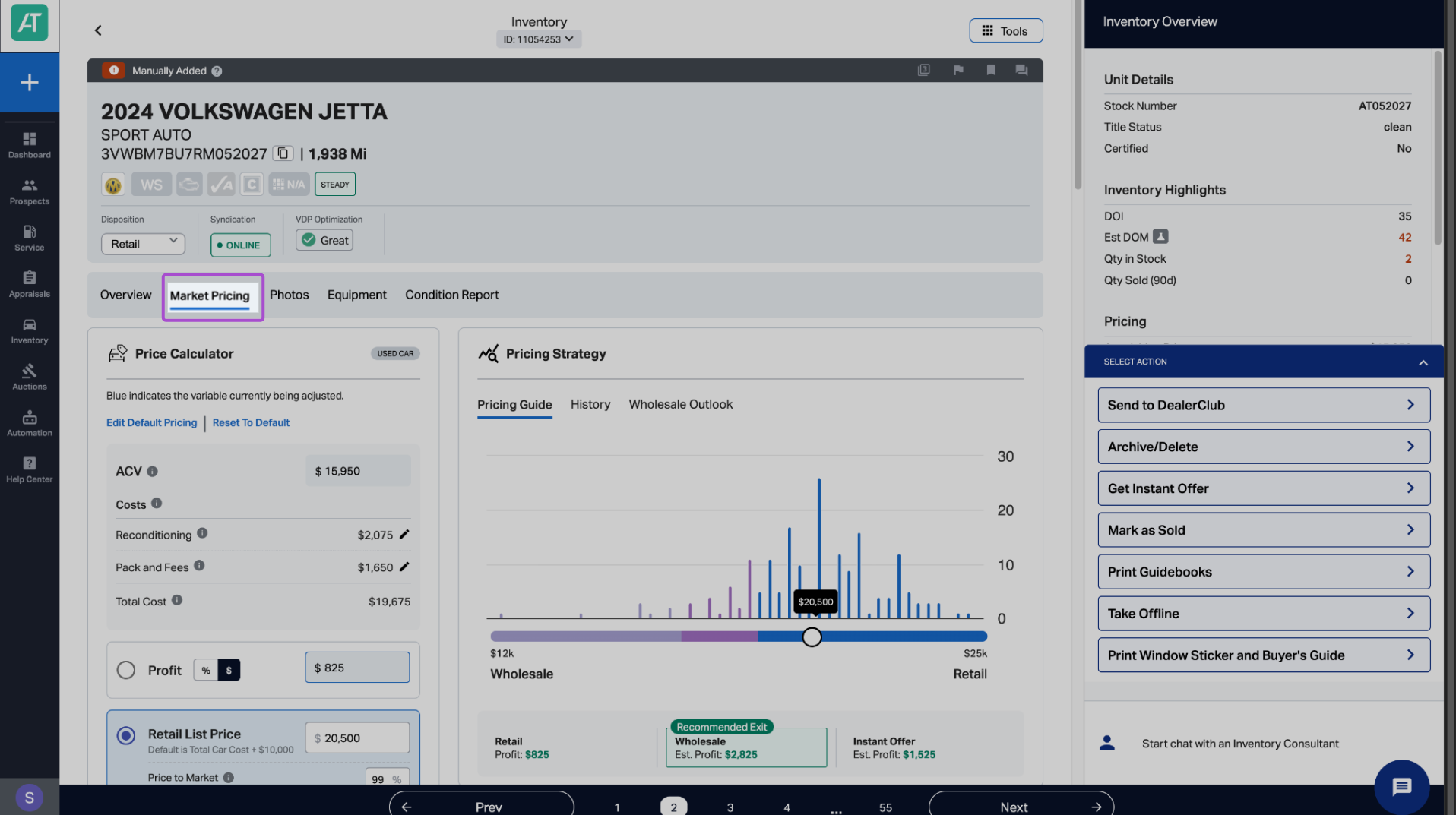
3 Locate the Similar Vehicles section
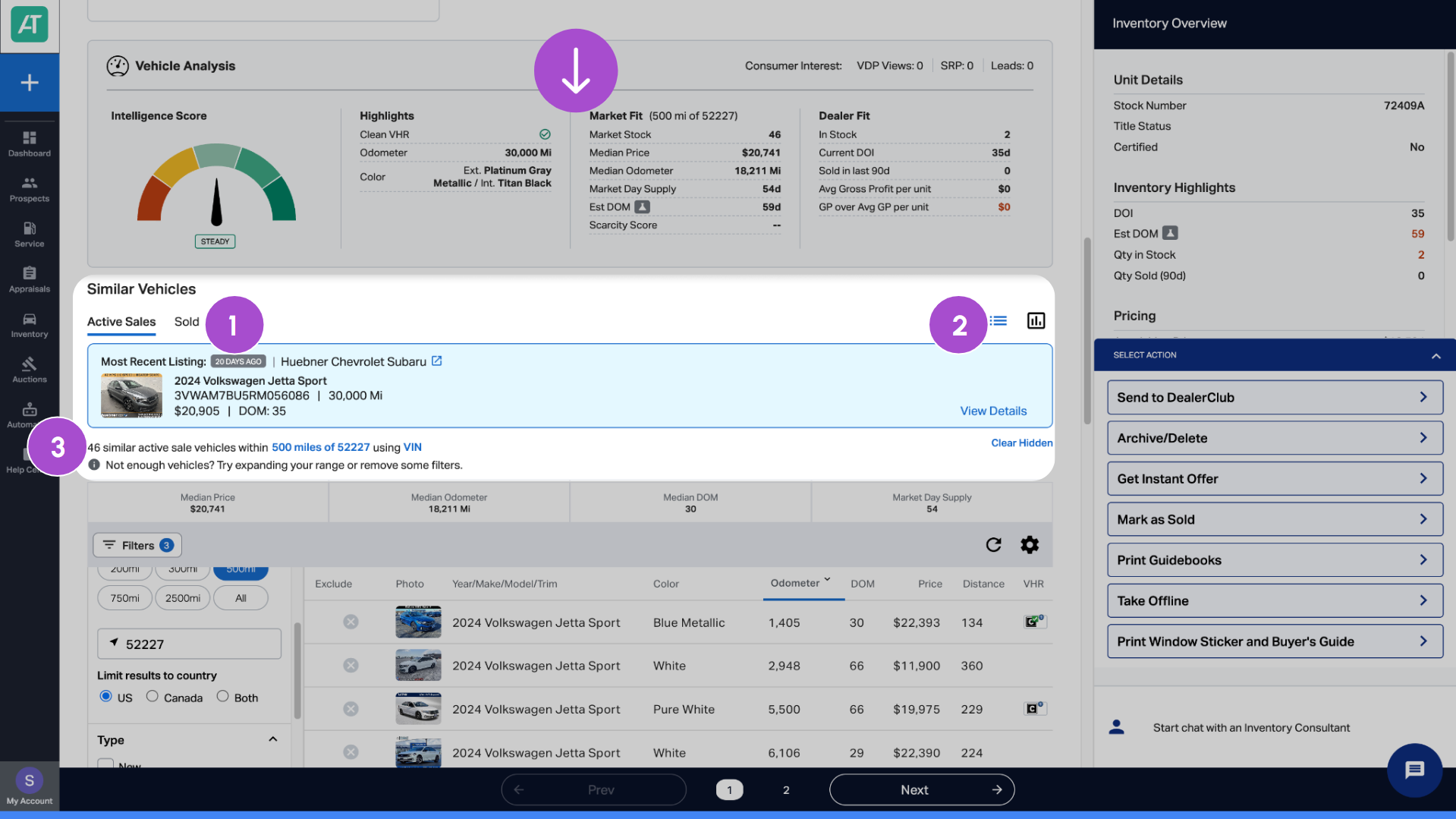
Scroll down to the Similar Vehicles section. Active sales are shown by default.
- Click the Sold tab to view recently sold comps.
- Click the Chart icon to switch from list view to chart view.
- View the competitive set, including:
- Total number of vehicles in the set
- Mileage range
- Comparison basis (VIN or Year/Make/Model)
- Total number of vehicles in the set
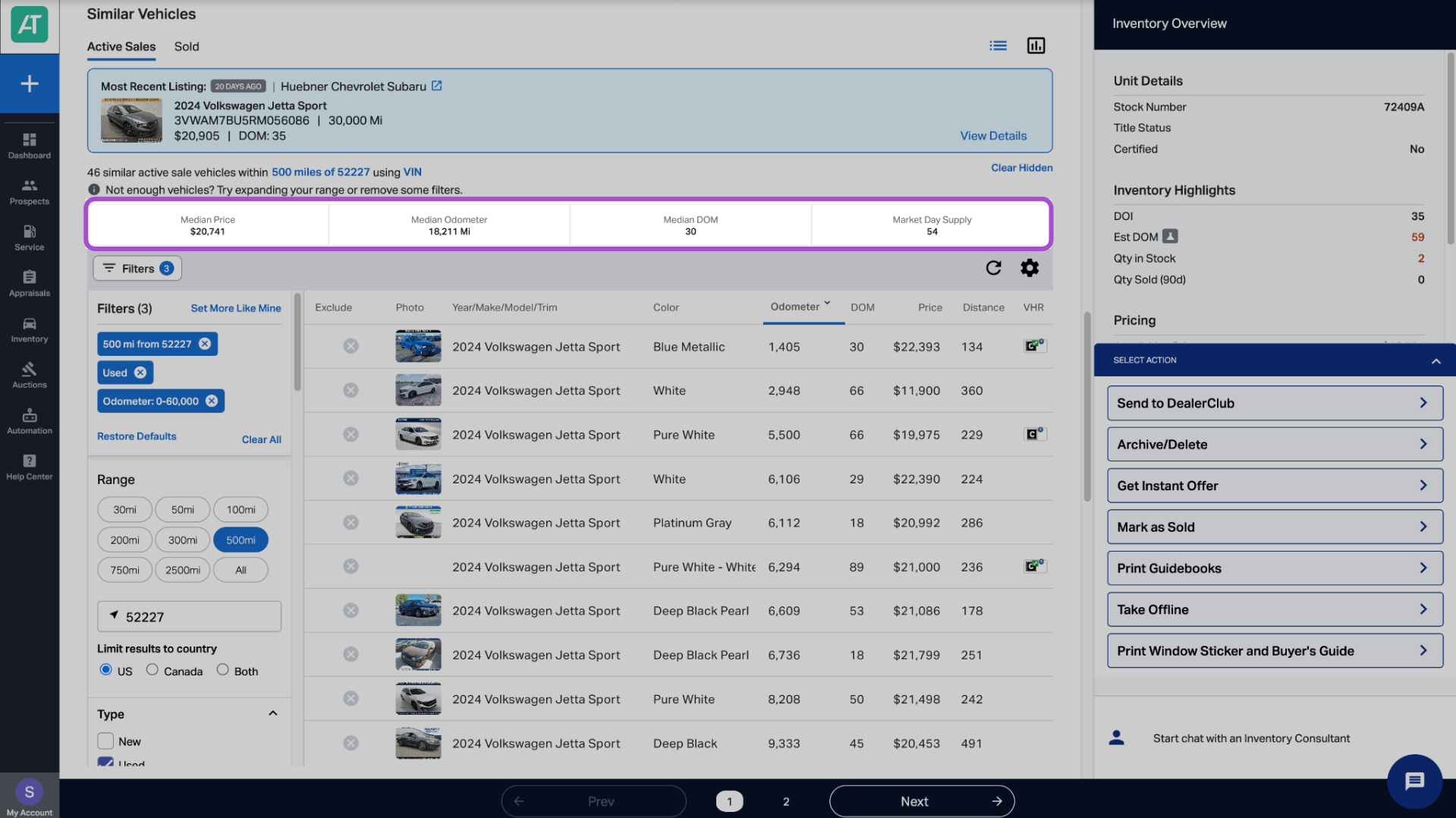
Below this information, AccuTrade displays the following median values for the competitive set:
- Price: What competitors are asking for similar vehicles
- Odometer: Average mileage in the competitive set
- Days on Market (DOM): How long similar vehicles sit before selling
- Market Day Supply (MDS): How many days of inventory exist at current sales pace
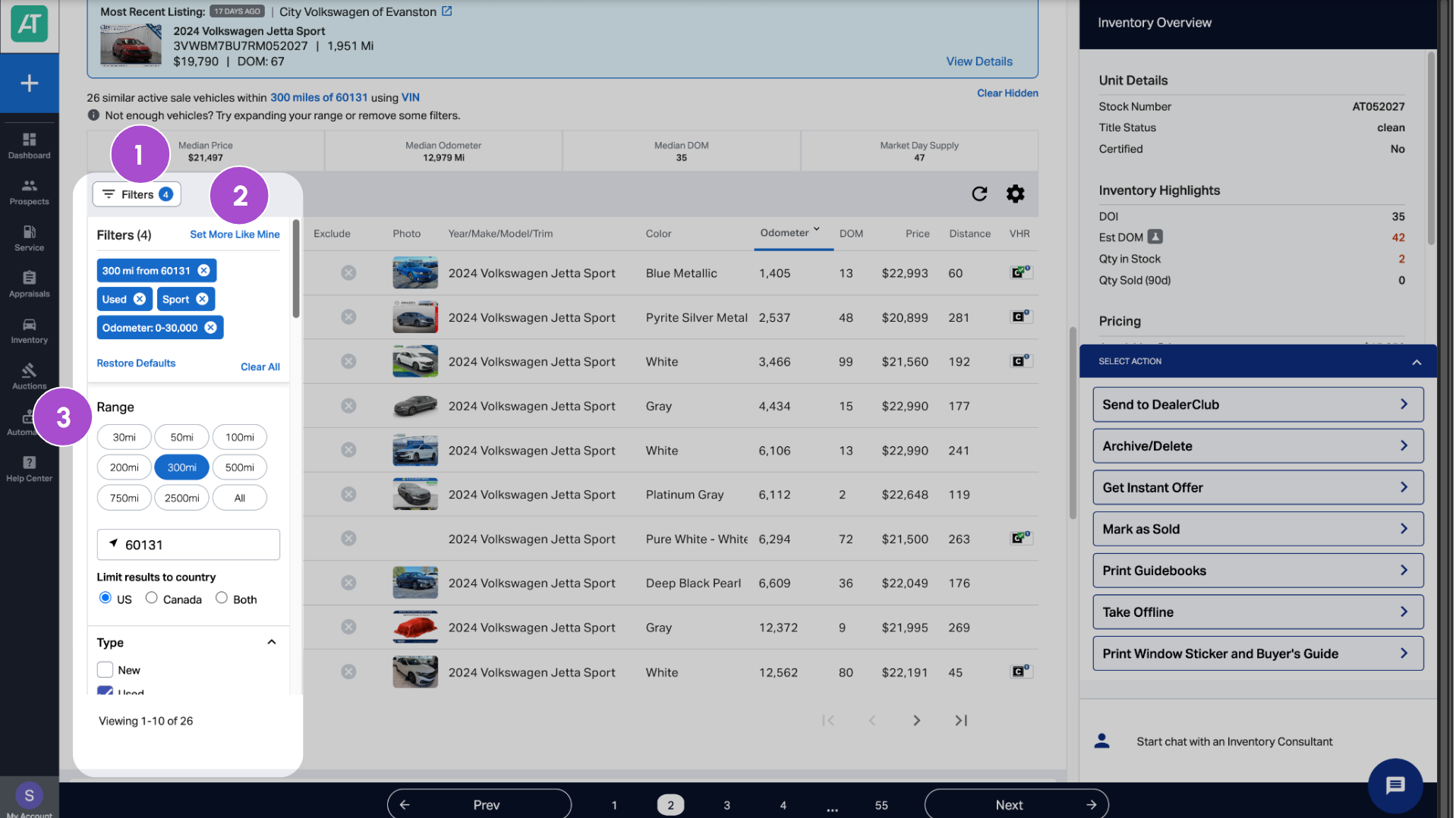
4 Customize the competitive set
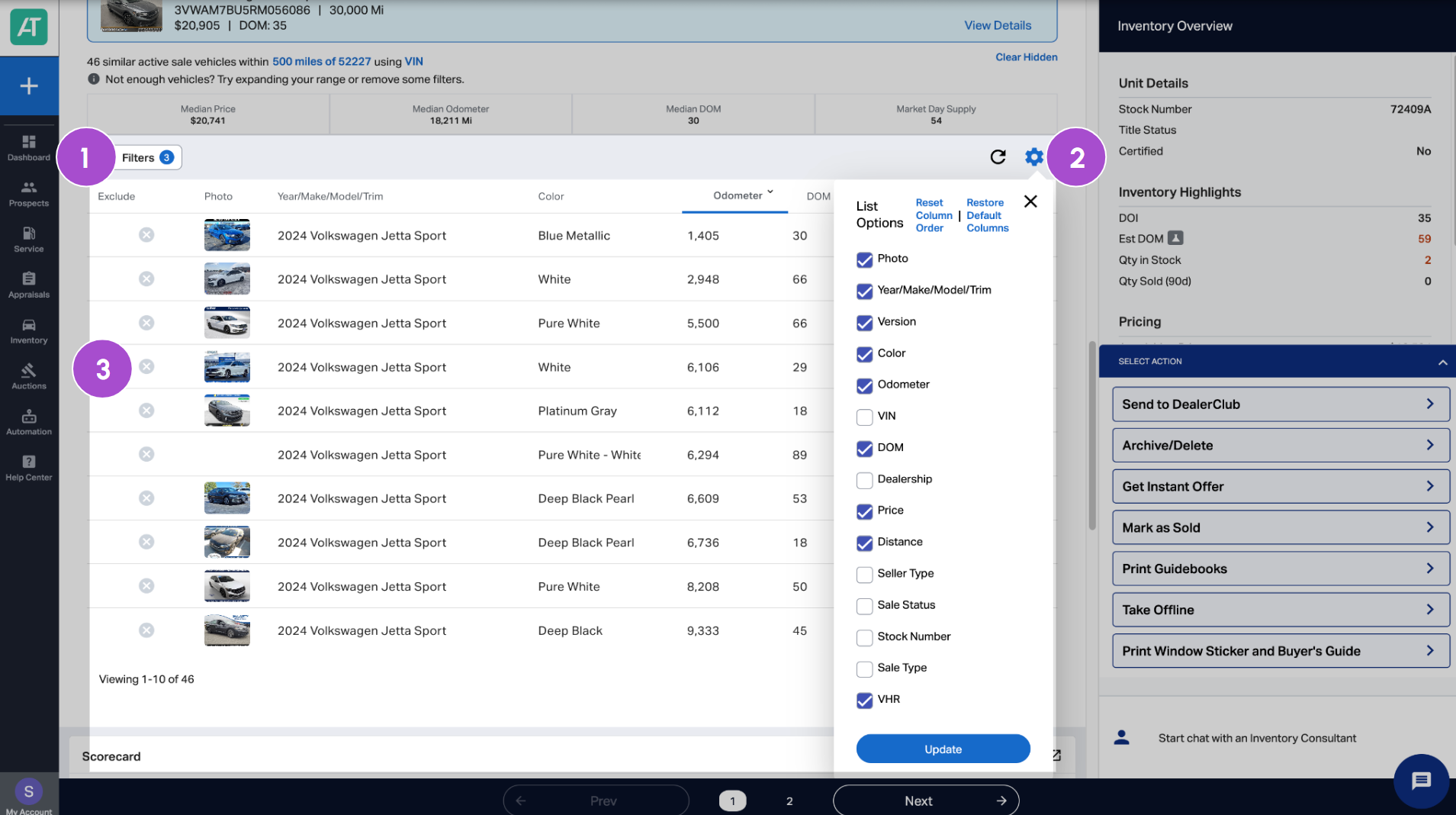
- Selecting a filter will automatically adjust the competitive set. If the filters menu isn’t showing, click Filters to open it.
- To quickly narrow the competitive set to vehicles with very similar characteristics, click Set More Like Mine at the top of the filter column. This one-click option automatically matches your vehicle’s key attributes (trim, color, mileage range, and features) to show you the most directly comparable vehicles in your market.
- You can also adjust filters manually to customize your competitive set:
- Range (default is 200-mile radius)
- Dealer type (franchise or independent)
- Trim
- Version
- Color
- Mileage range
- Price range
- History (clean or bad VHR)
- Owners (1 or 2+)
- Adjacent years (include vehicles from adjacent years)
- DOM range
- Options
- Features
Tip: Aim for at least 10 vehicles in the set. If you have fewer, increase the search radius, include adjacent years, or relax trim/version filters.
5 Review the Similar Vehicles list
The list appears to the right of the filters menu.
- To expand the list view, click Filters to collapse the menu.
- Click the gear icon to choose which columns appear.
- Click the X in the Exclude column to remove specific vehicles from the list.
6 Review your pricing strategy
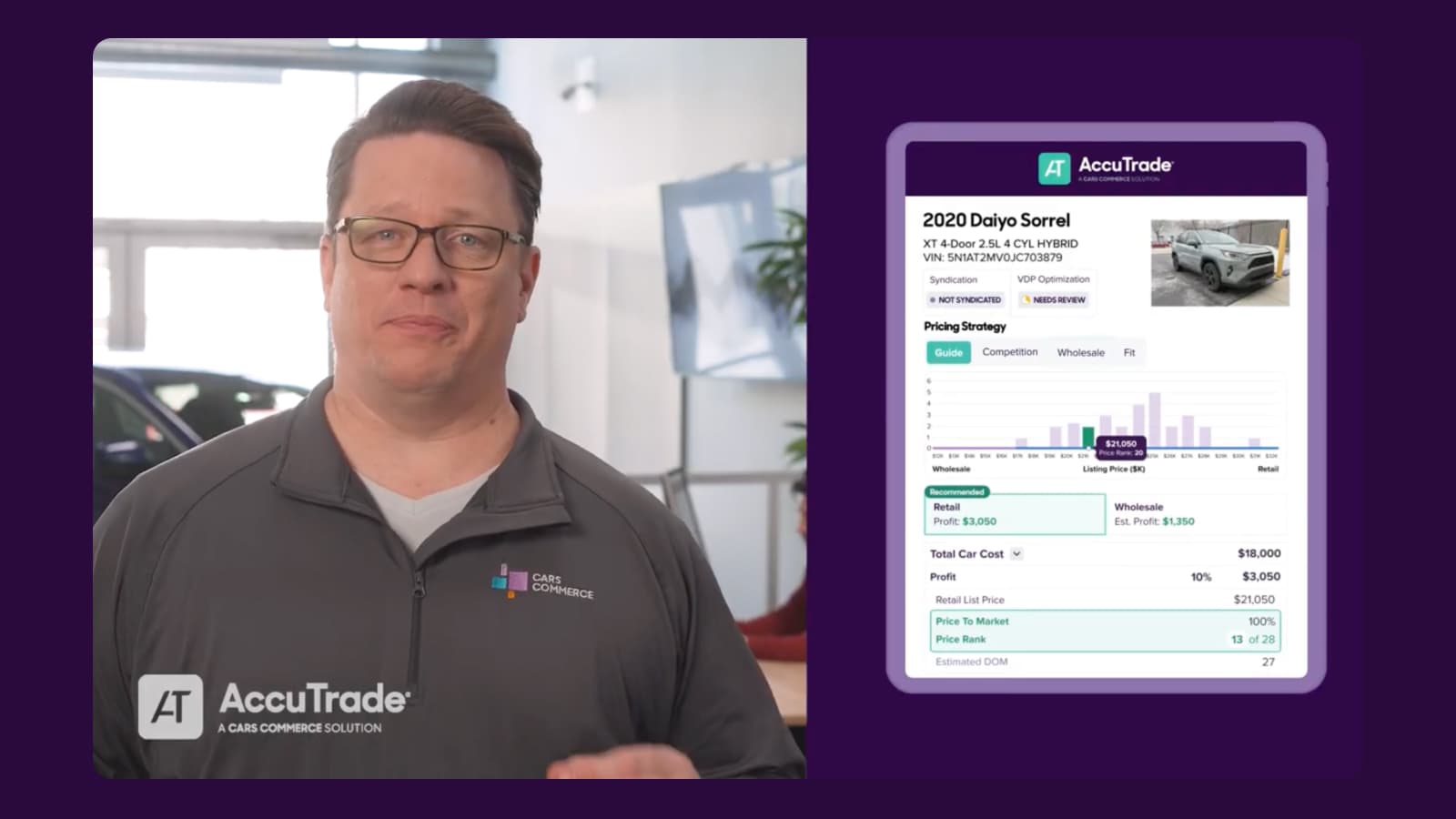
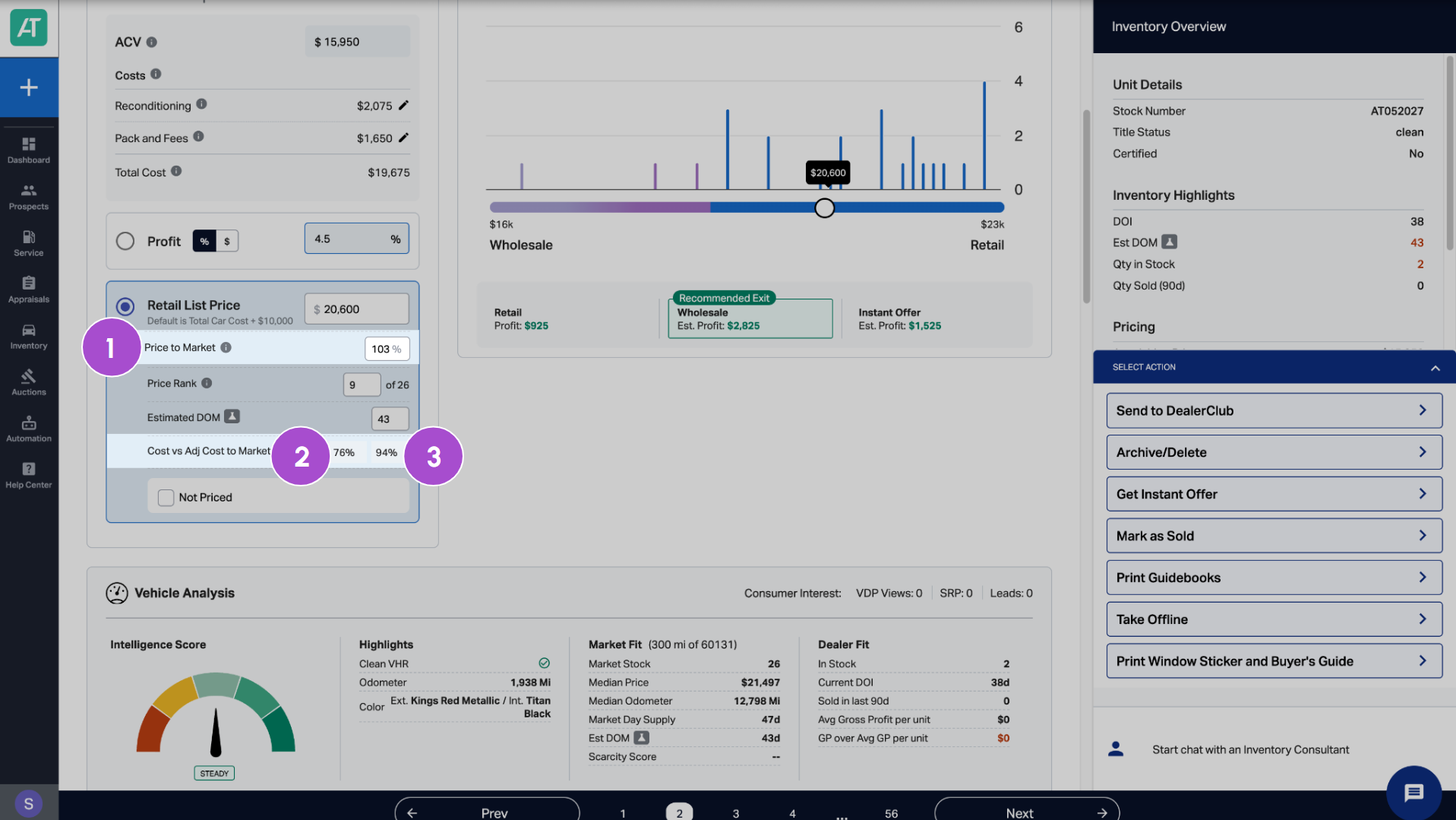
Your competitive set directly impacts the pricing percentages in the Price Calculator:
- Price to Market: How your list price compares to the median price in the set
- Cost to Market: Your ACV as a percentage of the market average
- Adjusted Cost to Market: Your Total Car Cost (ACV + recon/fees) as a percentage of the market average
Note: Competitive set data refreshes daily to reflect current market conditions.
7 Review profit impact
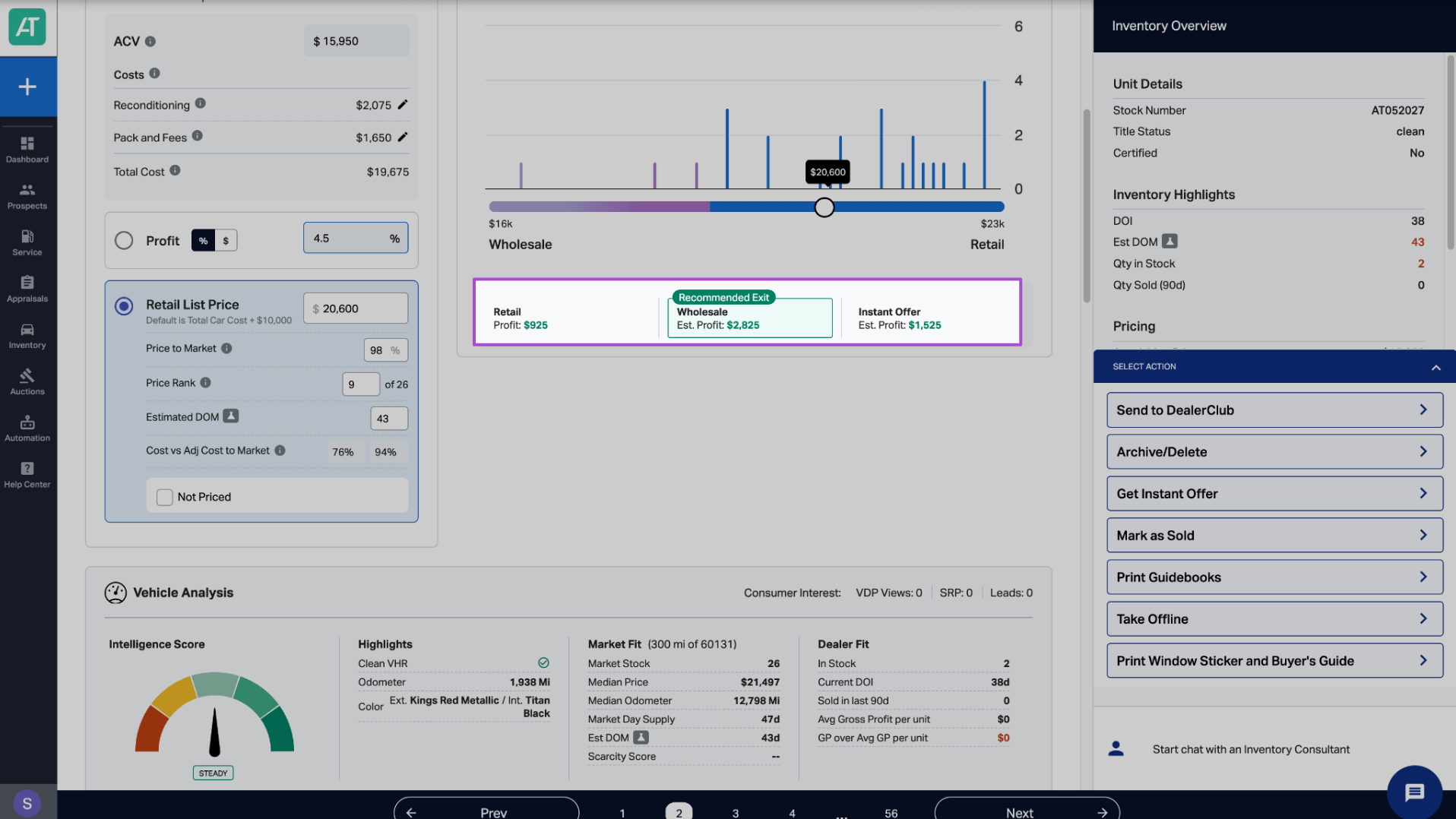
Check the Pricing Strategy section to view your estimated profit
- Retail Profit = List Price – Total Car Cost
Make sure your pricing strategy still delivers acceptable profit margins.
Best practices for using the competitive set
Use the competitive set throughout the vehicle lifecycle
- At acquisition: Check if you can offer more to win the trade-in while maintaining margin.
- At listing: Price competitively from day one to reduce DOM.
- During aging: Monitor as vehicles pass 30, 45, and 60 days to stay ahead of depreciation.
Filter strategically based on your goals
- Acquiring trades? Focus on franchise dealers with similar brand positioning.
- Pricing at-risk inventory? Expand the radius to see regional pricing trends.
- Targeting specific buyer segments? Filter by trim and features that matter to them.
Watch for market shifts
- If median DOM suddenly drops or MDS tightens, demand is increasing — you may be able to raise prices or offer more aggressively for trade-ins.
Check daily
- Market conditions shift quickly. Review your competitive set data daily for vehicles you’re actively trying to acquire or sell.
Combine with exit strategy data
- Use AccuTrade’s retail vs. wholesale recommendations alongside competitive pricing to make the most profitable decisions.
Track your win rate
- Monitor how often you win trade-ins when your offers are within or above the competitive range versus below it.