How to use LotShot in the Dealer app
LotShot in the Cars.com Dealer app lets you send customized review requests straight to recent customers. Attach a photo from the interaction and a short note to make the ask feel personal, and turn more sales and service visits into positive reviews.
In this article, you’ll learn how to navigate to LotShot and send personalized review requests after a sale or service visit.
To get started
Open the Cars.com Dealer app on your phone.
- Click More from the bottom menu of the Dealer app
- Select LotShot
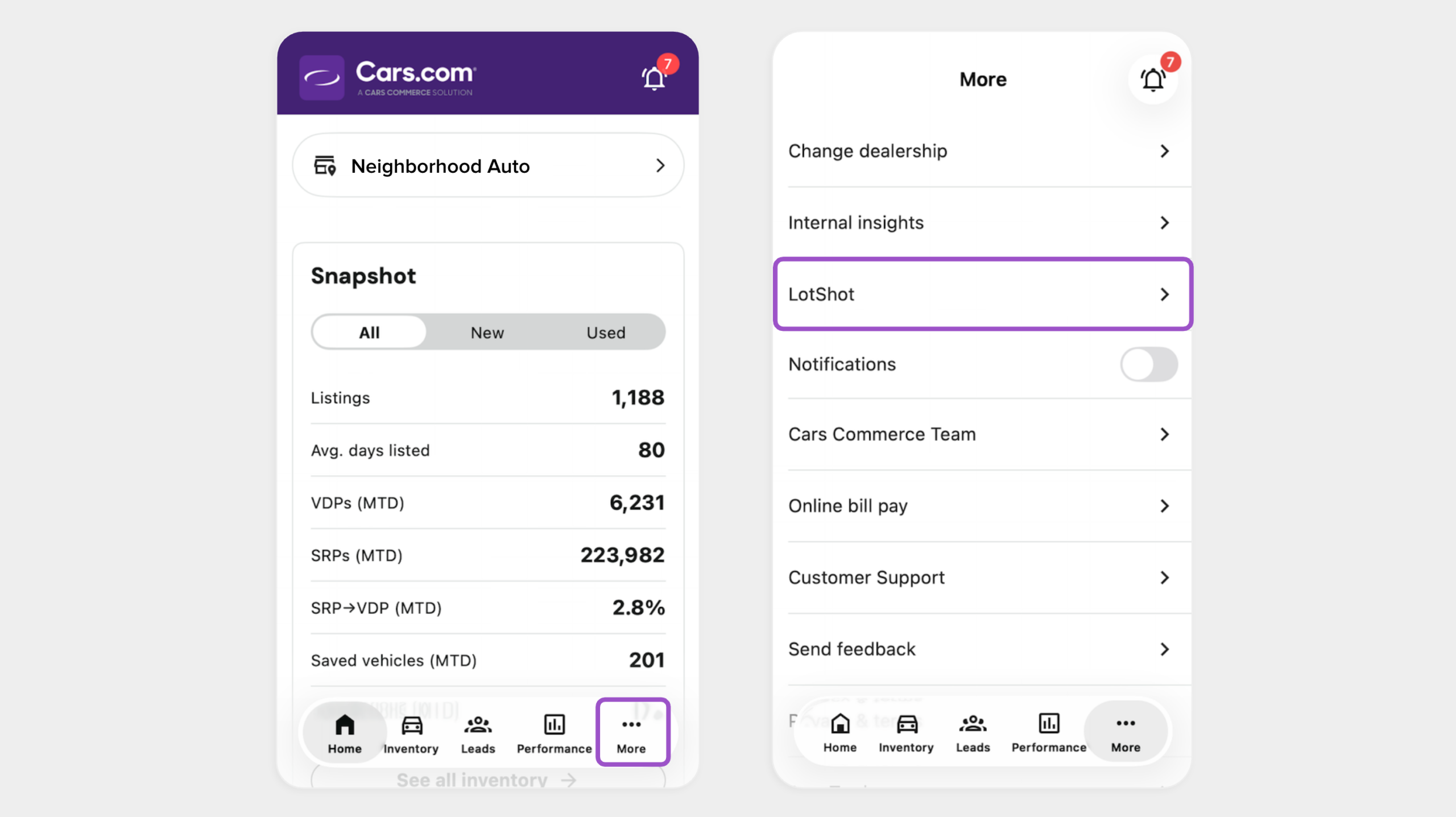
Note: If you’re associated with more than one dealership, confirm you’ve selected the correct one before opening LotShot. To switch dealerships, go to More > Change dealership.
- Tap Yes, take photo if your customer is comfortable being photographed
- Tap No, skip photo to move straight to shopper info without a photo
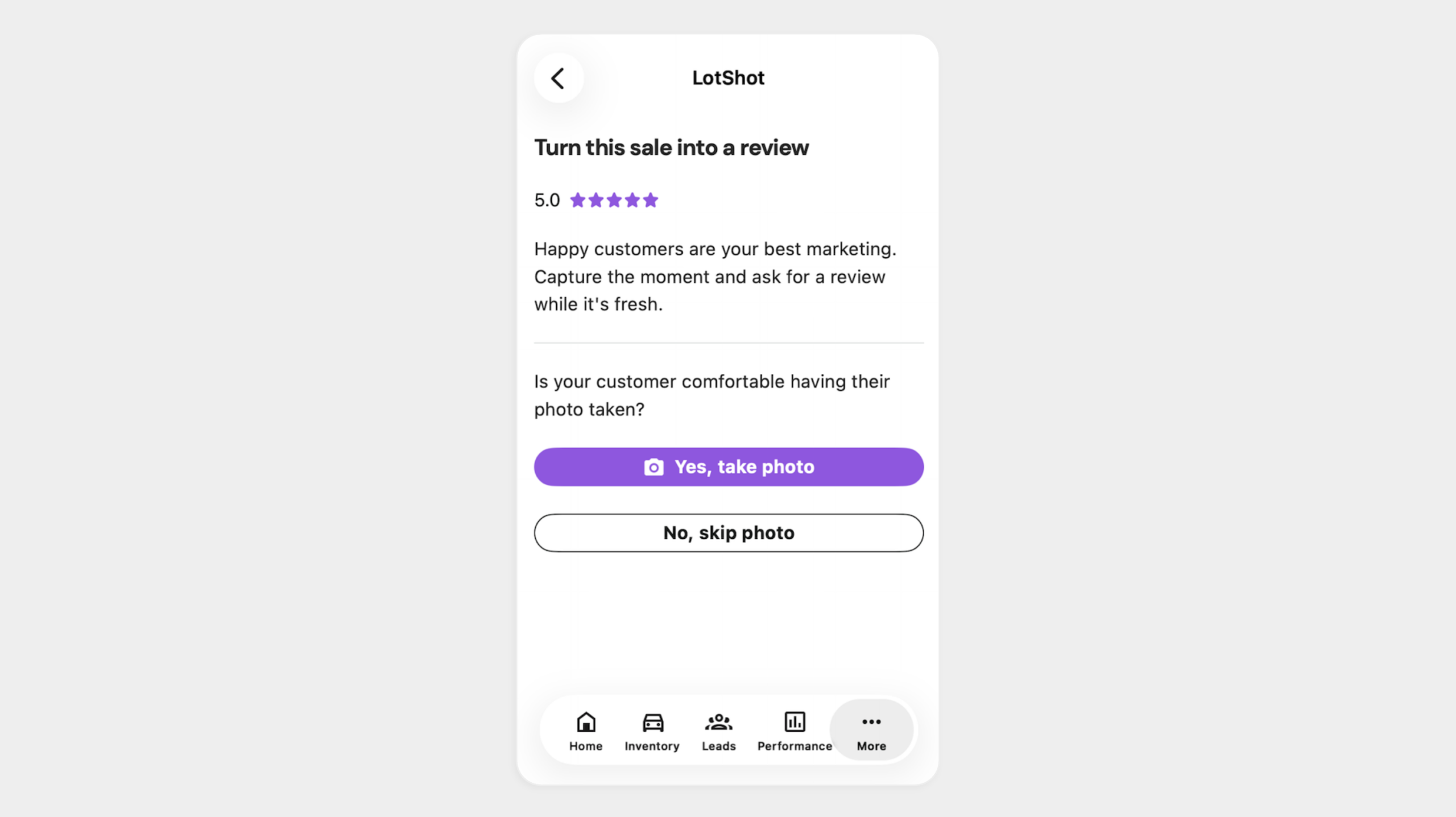
Best Practice: Take the photo of your customer with their vehicle at the dealership. A photo makes the request feel more personal and builds trust with the customer.
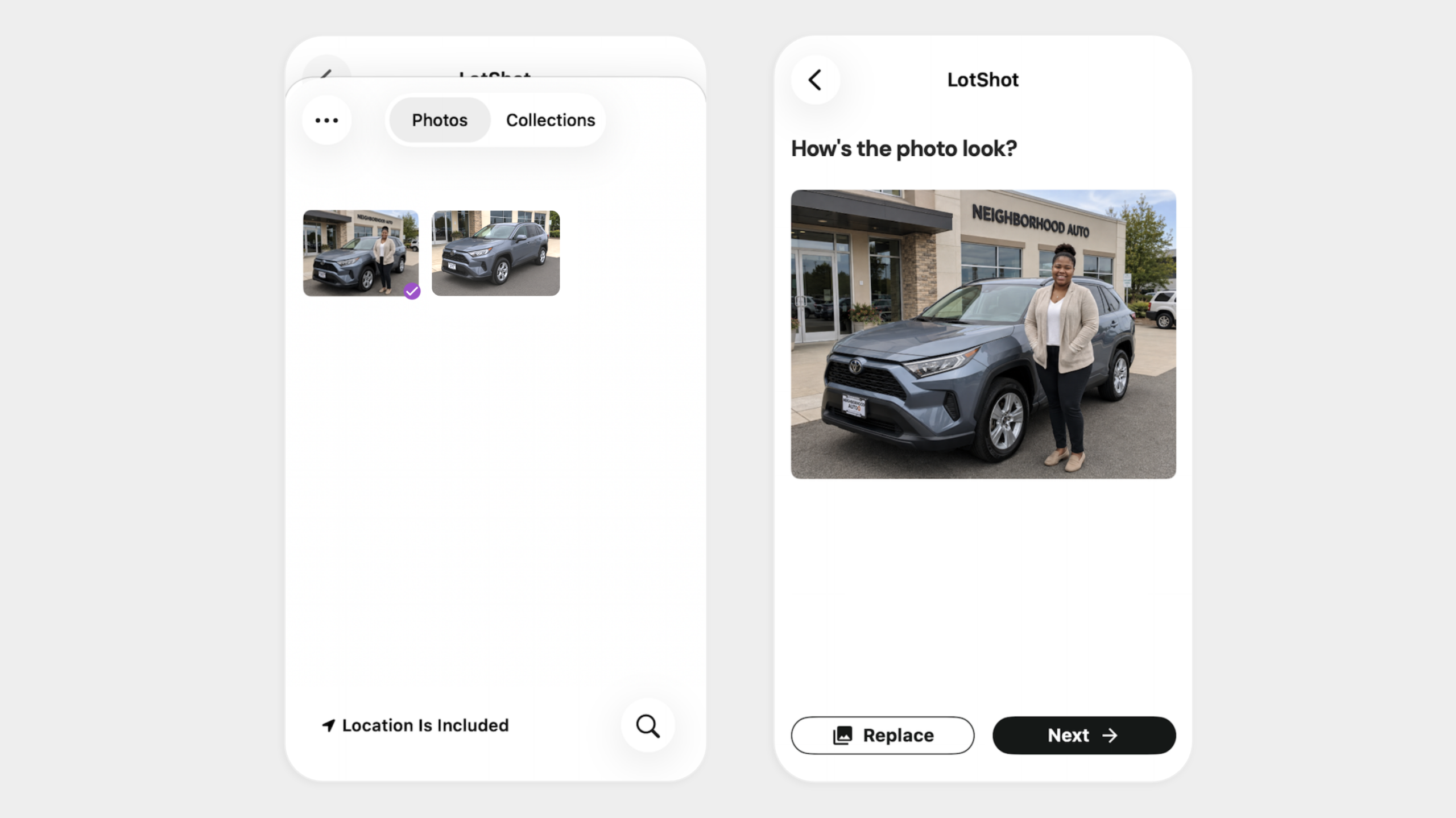
- Tap Take photo to open your camera, or tap Library to select an existing photo
- Tap Allow when prompted for camera access
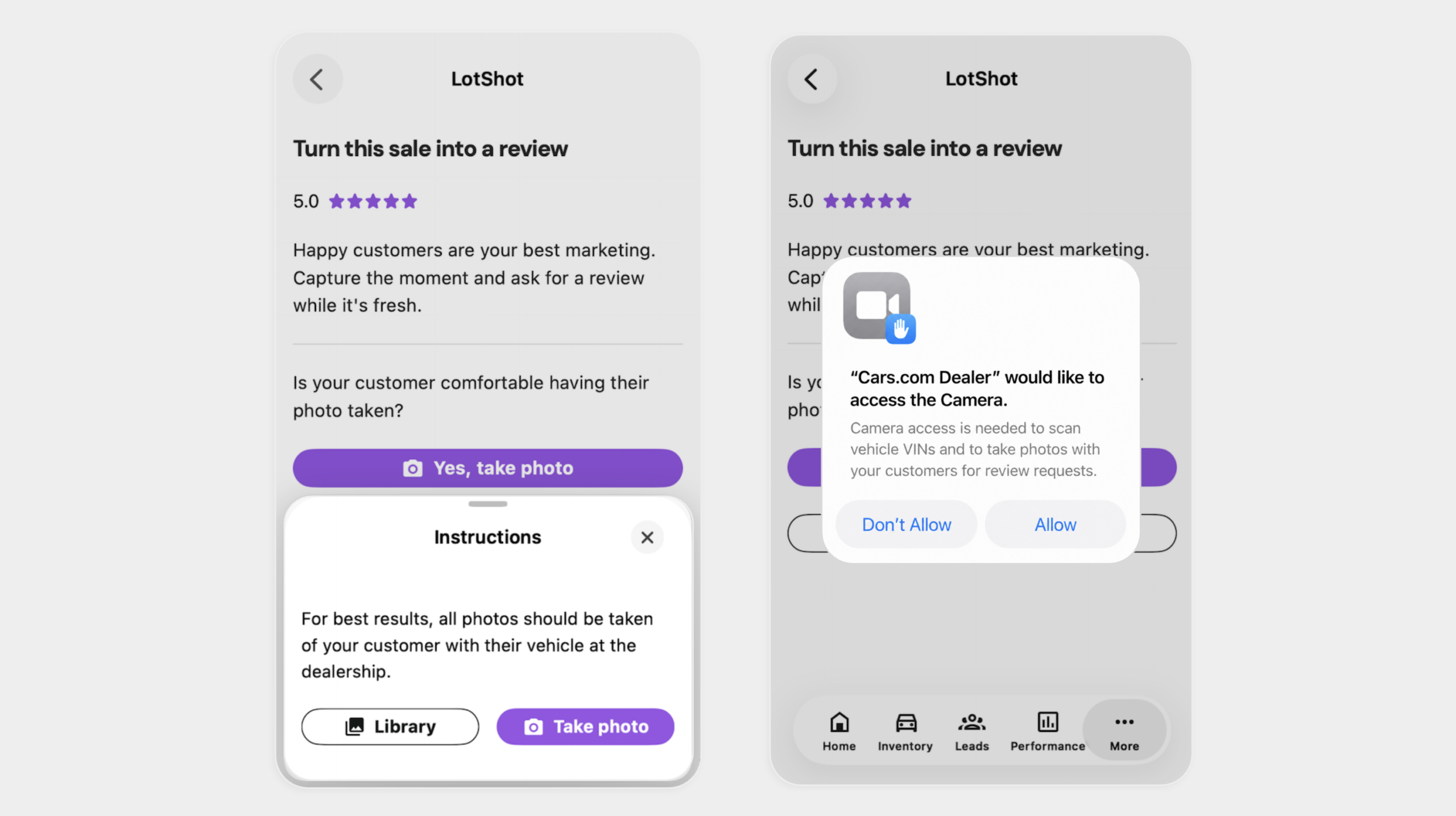
- Take or upload the photo from your library
- Select Next to keep the photo and continue
- Hit Replace to take or upload a new image
- Add the customer’s name
- Include the customer’s email address or mobile number
- Write a brief message to customize the interaction
- Hit Send Request
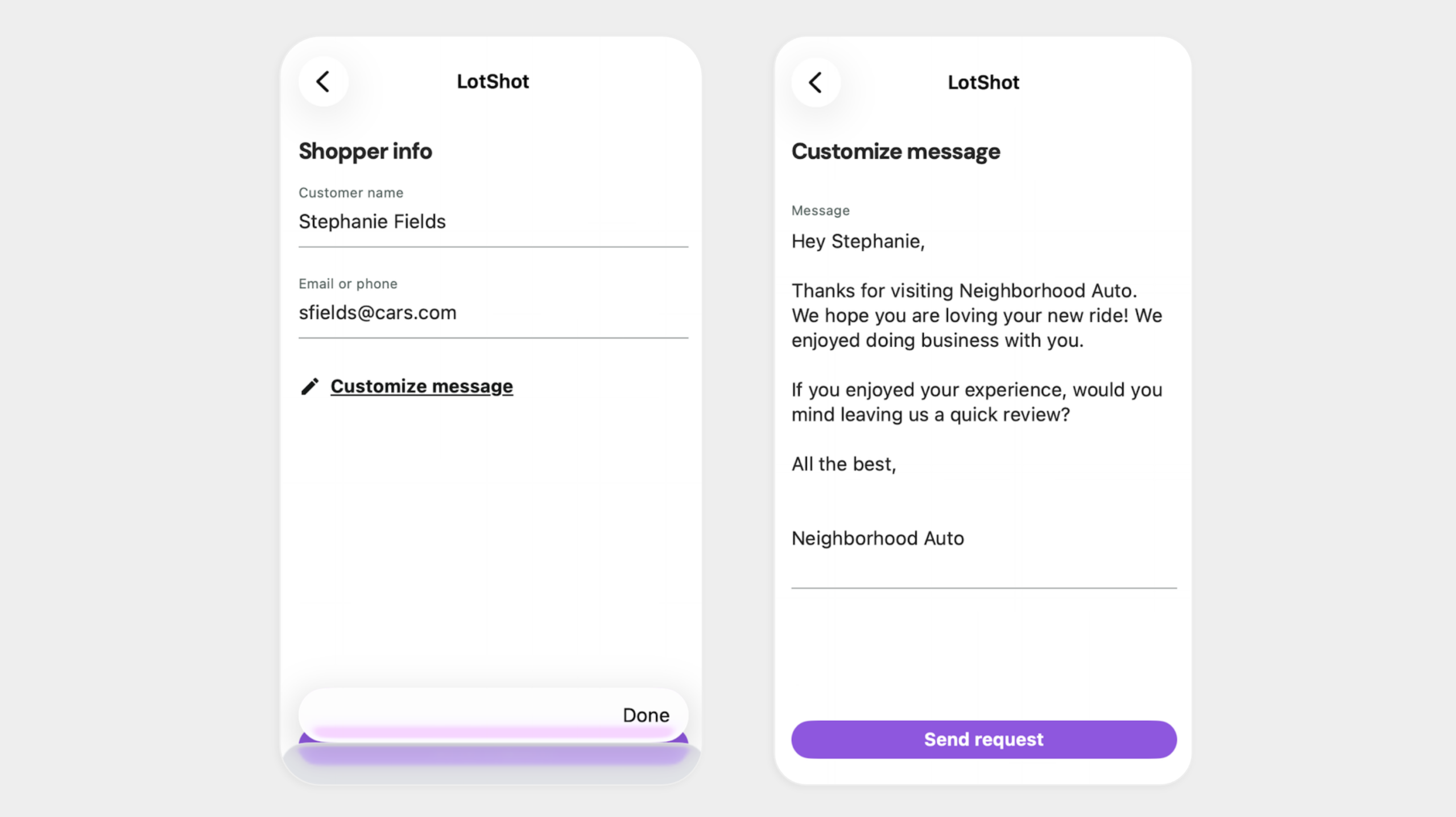
Best Practice: Writing a customized message is optional, but recommended. A tailored message paired with the photo makes the request feel personal and may improve response rates. If you choose not to customize the message a generic message will be sent with the request.
Note: Text requests can’t be customized. Regulations require specific message length and content, so LotShot sends a standard format.
Track and customize LotShot
Go to the Dealer Panel, then Reviews > LotShot to:
- Configure message templates to keep requests personal without starting from scratch each time
- Track reporting to see who you’ve sent requests to and whether they’ve posted a review
Check your LotShot report to follow up with customers who haven’t posted a review yet.
Troubleshooting
Running into an error message? Here’s what it means:
“Check the customer’s details and try again”
- This appears when the customer name or contact info is missing or entered incorrectly
- Confirm both fields are filled out correctly, then tap Send request again
“You already sent a request to this customer in the last 24 hours”
- LotShot blocks duplicate requests to the same customer within 24 hours to prevent spamming
- Wait 24 hours from the original request, then try again
For any other issue, contact support@cars.com.