How to create special offers
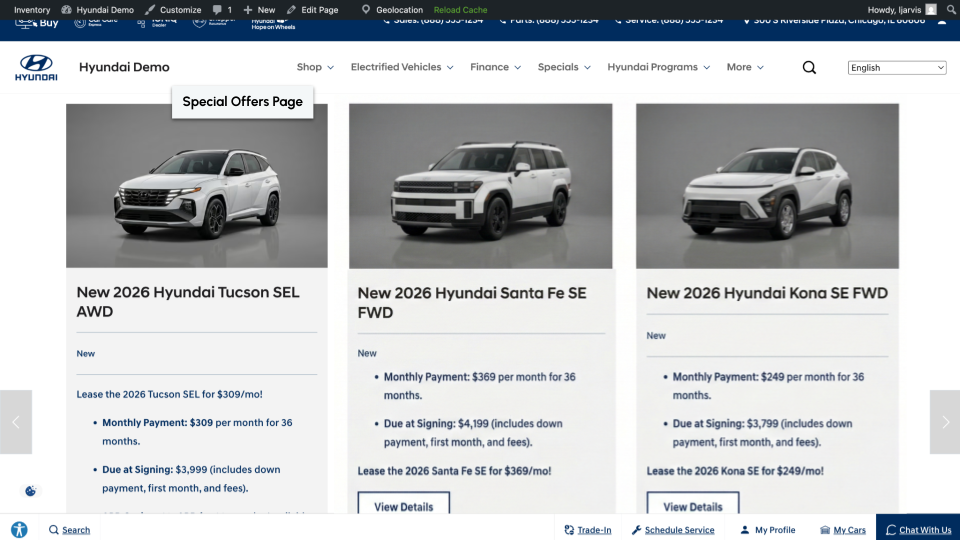
Special Offers allow you to display discounts and incentives on your inventory. You can use them to highlight new or used vehicles or specific inventory you want to move. Once created, special offers appear on your Special Offers page and can also be embedded on any page of your Dealer Inspire website using the Site Builder widget.
In this article, you’ll learn how to create a new special offer by entering a title, selecting an offer type, adding vehicle information, configuring the offer details and CTA, and publishing the offer. You’ll also learn how to embed your live special offers on any page of your site using Site Builder.
To get started
Go to the Cars.com Hub. Click on Dealer Inspire, then Manage Website.
1 Add a new offer
From the backend of your Dealer Inspire website:
- Hover over Special Offers
- Click Add Offer

2 Add a title and select an offer type
- Label your offer. This is for your reference and organization in the backend
- Enter an Offer Title. This will appear on your special offer card for shoppers to see
- Select your Offer Type:
- General: Most common, good for specials that apply to more than one vehicle
- Inventory: Similar to special offers, good for a specific make or model
- Stock (one unit): Tied to a specific stock number and is removed when sold

For this example, we’ve selected Inventory.
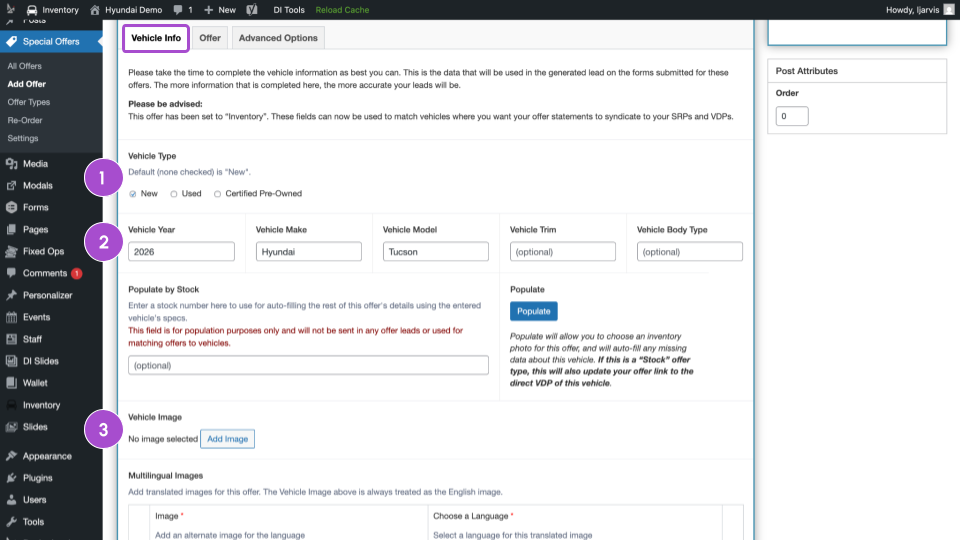
3 Enter vehicle information
Scroll down the page to continue adding details for your offer.
- Select the Vehicle Type for your inventory
- Input the vehicle information. Ensure this aligns exactly to how your inventory appears in your IMS.
- Click Add Image to select or upload a vehicle image
4 Add a URL, CTA, and offer details
Scroll back up and select the Offer tab.
- Include the URL to route shoppers to
- This is typically an inventory link
- Add text for your CTA button. It will default to View Inventory if left blank
- Select Add Line under the Offer Lines section
- Input the Offer and Label
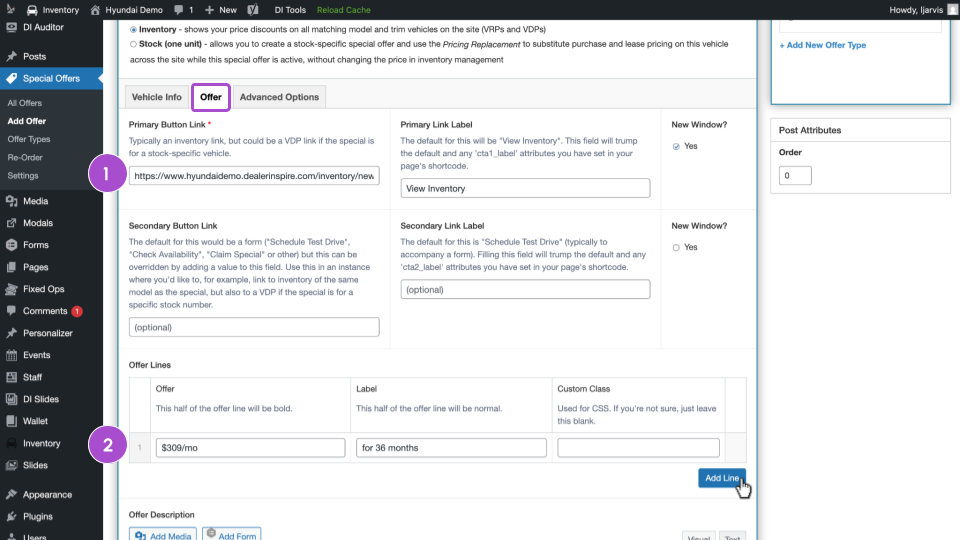
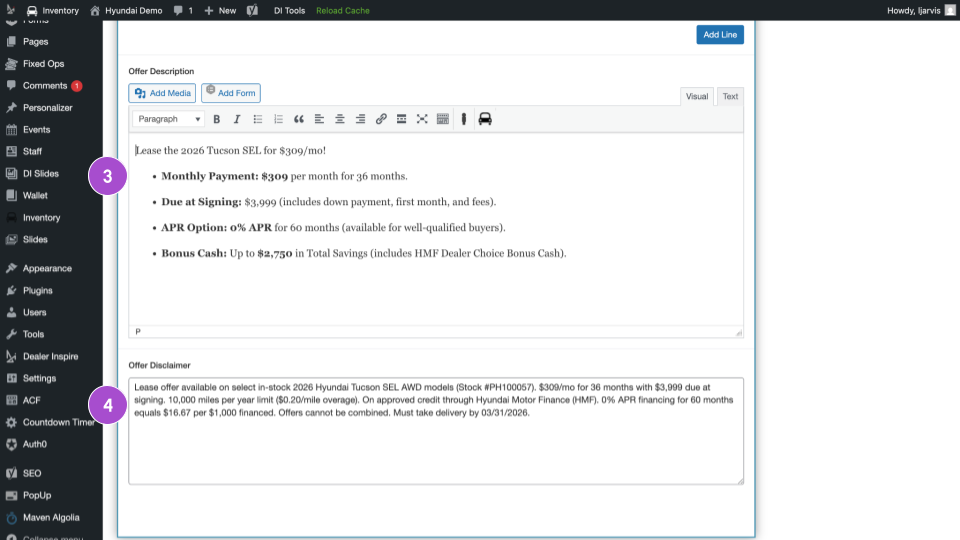
Scroll down the page to continue filling out the special offer.
3. Include important details about the special offer
4. Add a disclaimer (optional)
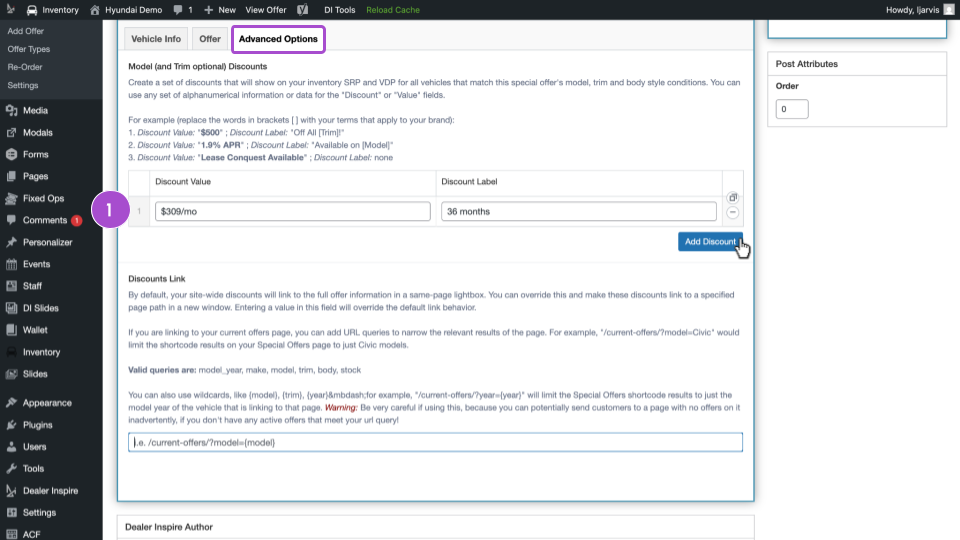
5 Add a discount
Scroll back up and select the Advanced Options tab.
- Click Add Discount
Enter the Discount Value and Discount Label.
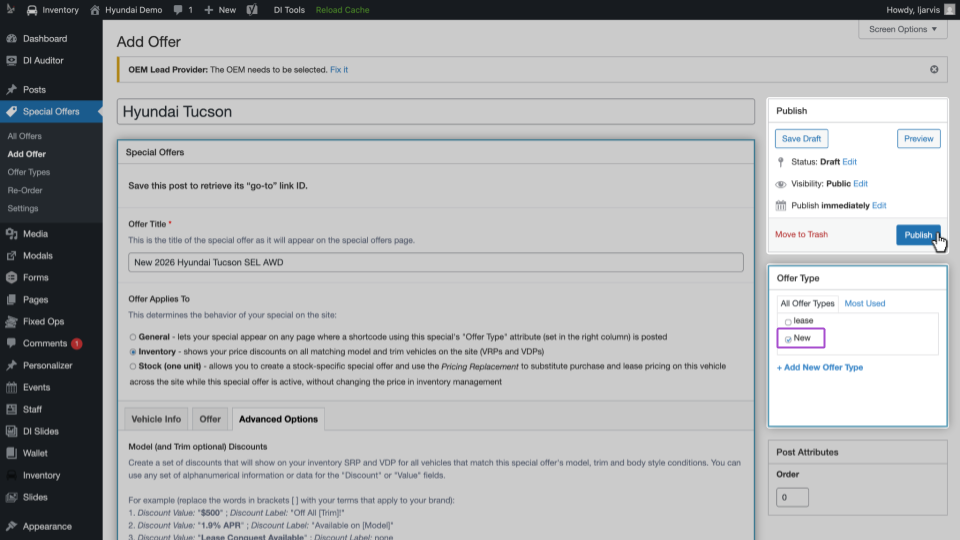
6 Publish the offer
Scroll back up the page.
- Select the Offer Type
- This ensures the offer appears on your specials page for new vehicles.
- Hit Publish
Flip to the frontend of your site and visit your Special Offers page to see the new offer displayed.