How to perform a vehicle inspection
In this article, you’ll learn how to perform a full vehicle inspection before listing a car for auction on DealerClub. A thorough inspection helps ensure your Condition Report (CR) is accurate, transparent, and trustworthy — giving buyers confidence and helping you achieve stronger auction results.
The process includes a visual walk-around, a test drive, and documenting the vehicle’s mechanical and cosmetic condition through photos and notes. Follow the steps below to complete a full inspection and prep your vehicle for auction.
1 Scan the VIN
To begin, upload the vehicle to DealerClub using the mobile app:
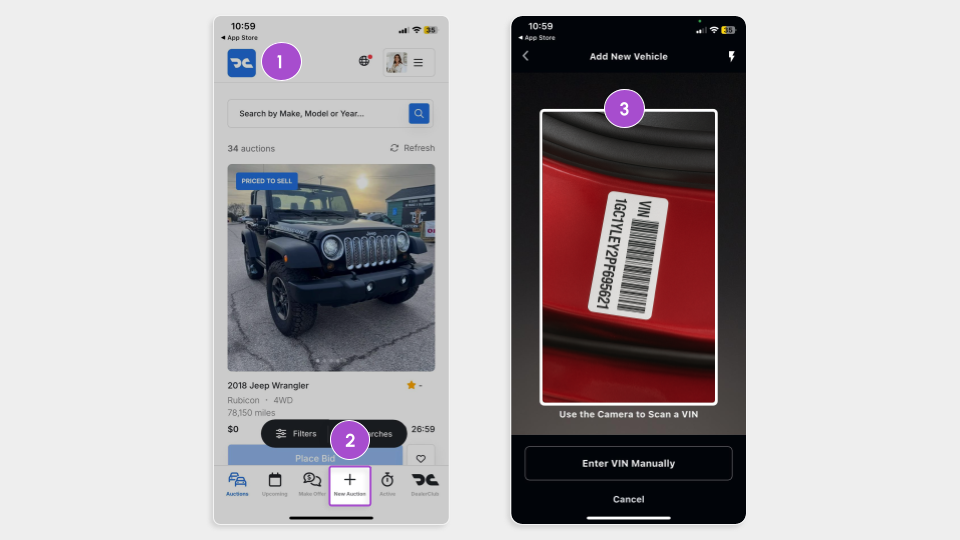
- Open the DealerClub app on your mobile device
- Tap New Auction
- Scan the VIN barcode using your camera, or enter it manually
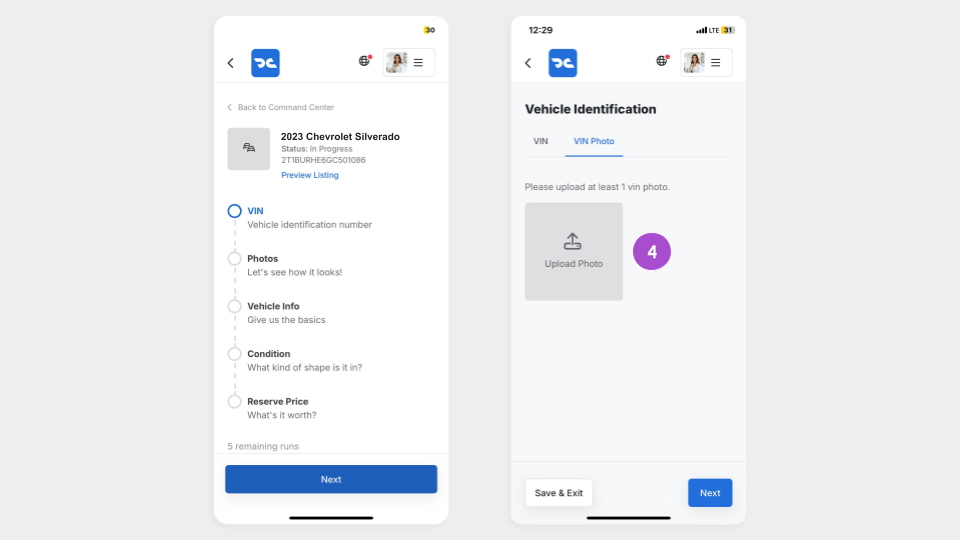
- When prompted, take a photo of the VIN label and click Upload Photo
Once the VIN is uploaded, you’re ready to begin the inspection process.
2 Conduct a walk-around inspection
Complete a full walk-around of the vehicle and document cosmetic condition.
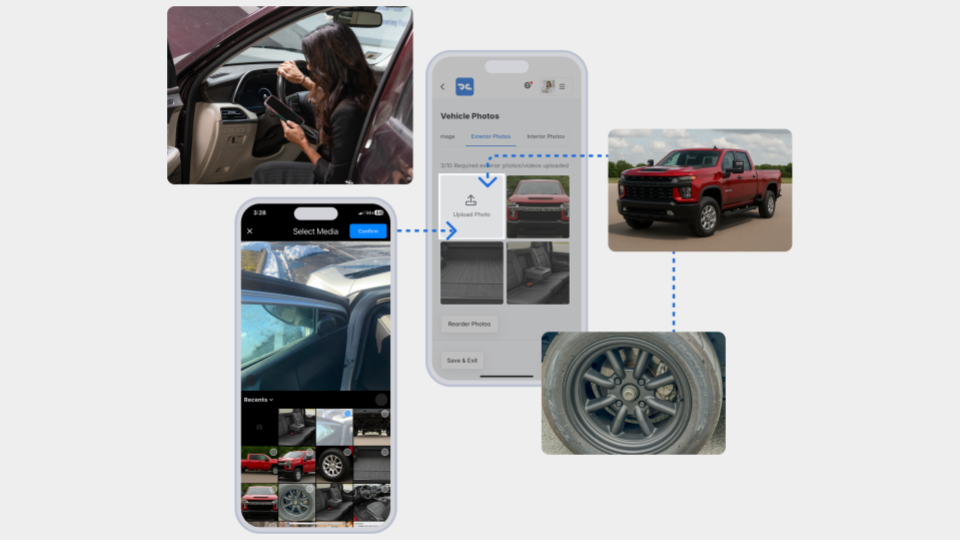
- Capture clear images of:
- Exterior (all angles)
- Interior (seats, dash, console)
- Tires and tread depth
- Paint scratches or dents
- Undercarriage
- Dashboard (including odometer and warning lights)
- Mark any visible damage in the app for full disclosure
Note: Providing detailed images improves buyer trust and reduces arbitration risk.
Once the cosmetic details are disclosed and images are added, you’ll want to take the vehicle for a test drive.
3 Perform a test drive
The next step is to evaluate vehicle performance. This is key for an accurate CR.
- Check for:
- Fluid leaks (oil, transmission, coolant)
- Air conditioning
- Electronic systems (radio, lights, windows)
- Take a 10-minute test drive, reaching at least 60 mph to:
- Assess engine and transmission performance
- Note unusual sounds, vibrations, or handling issues
Use this experience to inform condition details and “Guarantees” in the CR.
4 Fill out the condition details
You can continue the inspection flow in the app or log in on desktop.
To get started
Go to the Cars.com Hub and click on DealerClub.
On desktop:
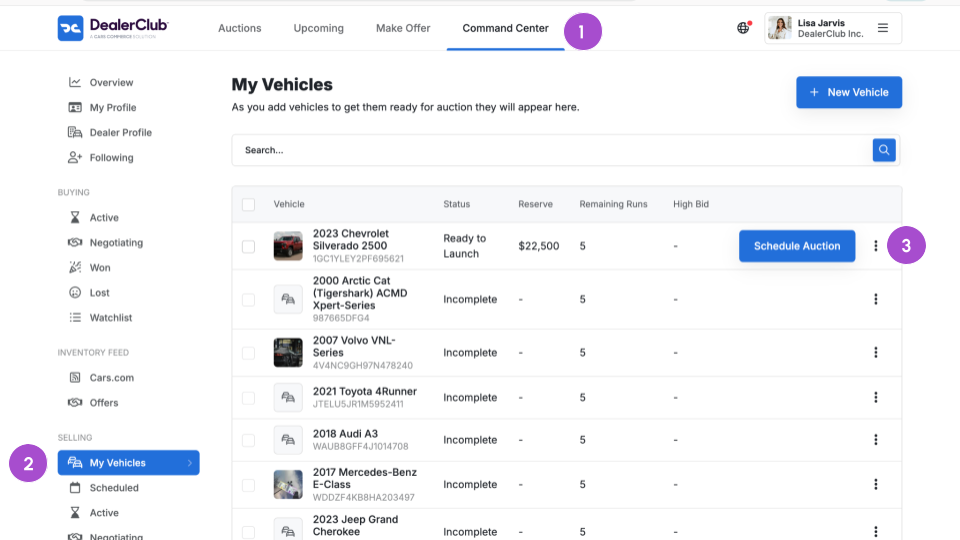
- Go to your Command Center
- Click My Vehicles
- Select the vehicle to open the listing
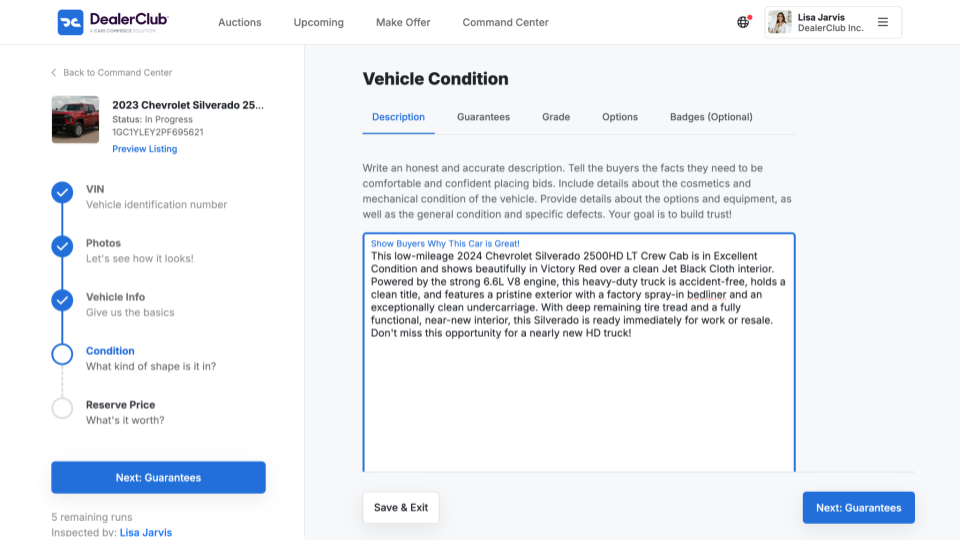
Vehicle description
- Write a clear, honest overview of the vehicle’s condition
- Include any standout features or seller insights
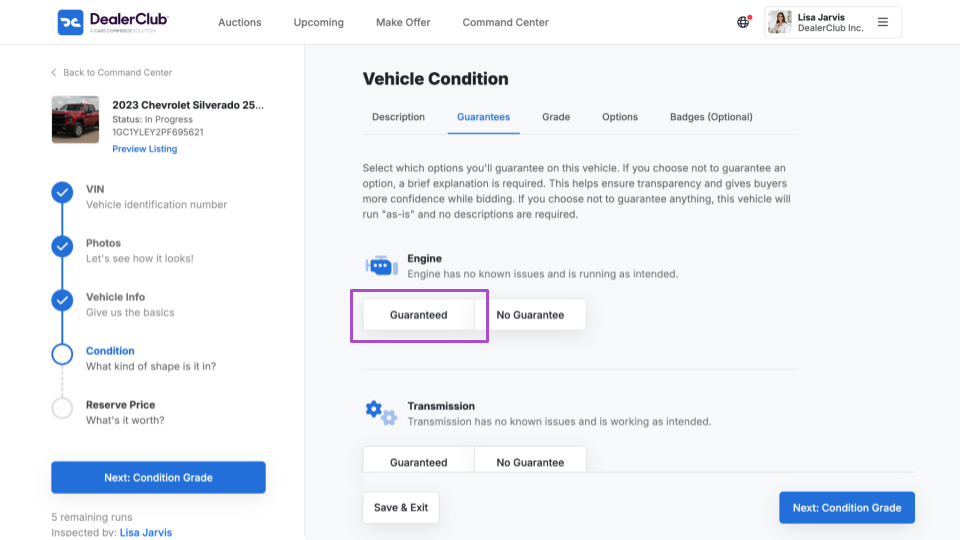
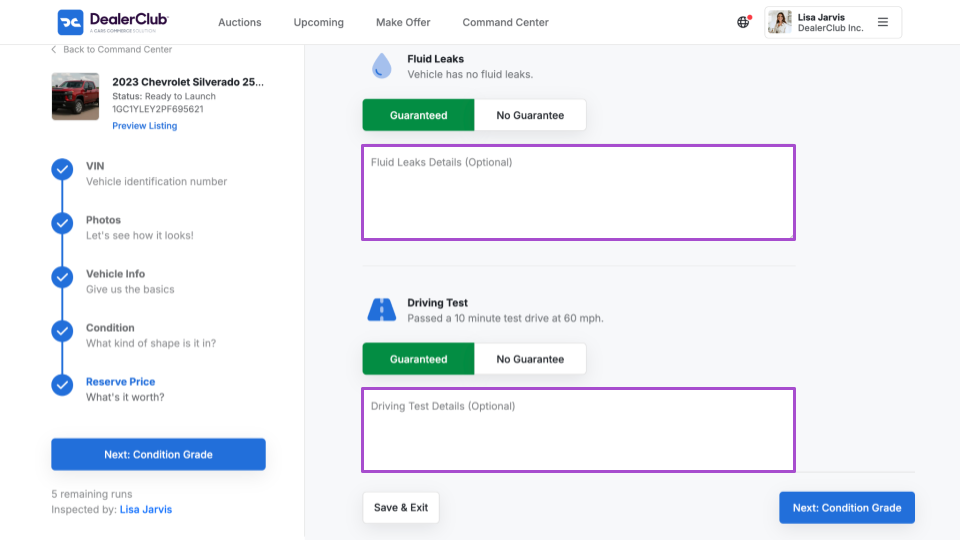
Guarantees
- Indicate whether features are guaranteed to be working
- If guaranteed, add brief supporting detail (e.g., “AC runs ice cold”)
- If not guaranteed, you must add a comment explaining why
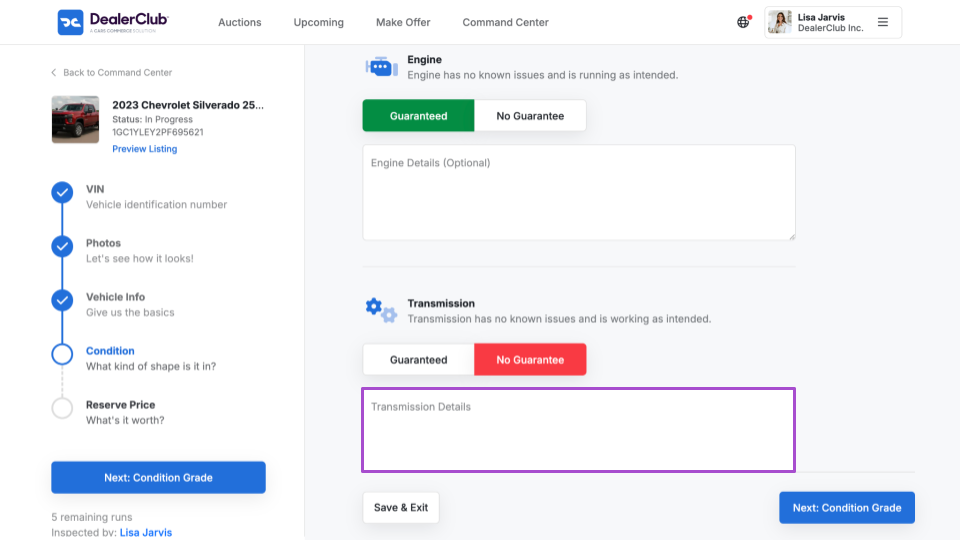
- This is also where you’ll record the results of the fluid check and test drive
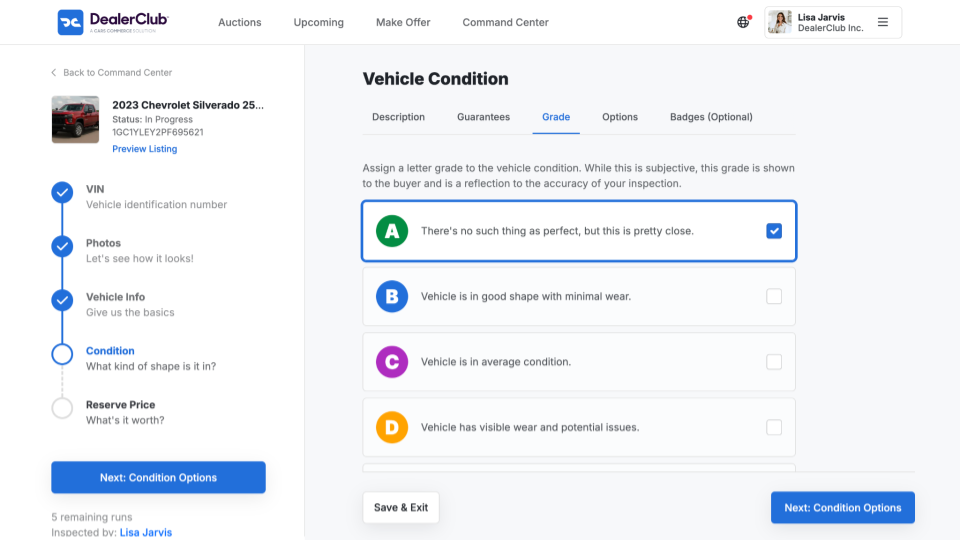
Grade
- Select the condition grade based on your honest assessment
- Think about what you’d want to know if you were the buyer
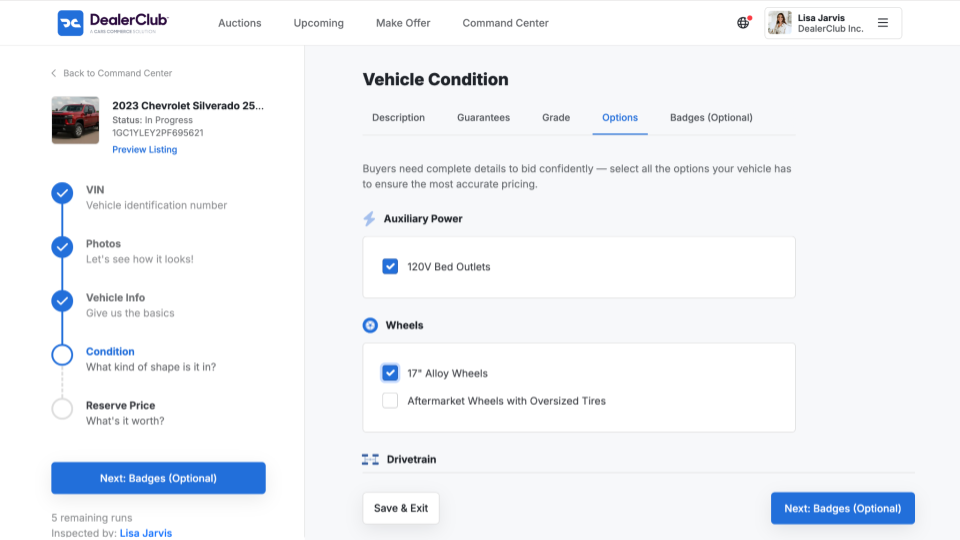
Options
- Add any vehicle features that may increase buyer interest (e.g., sunroof, leather seats)
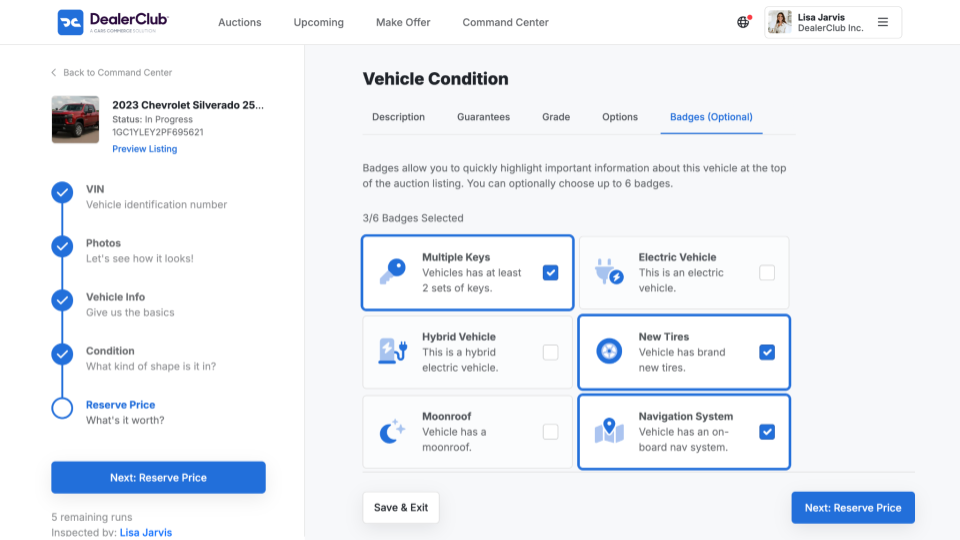
Badges
- Choose up to six badges that highlight selling points (e.g., “One Owner,” “Well Maintained”)
5 Schedule the vehicle for auction
Once your Condition Report is fully completed:
- Review all condition details and attached images
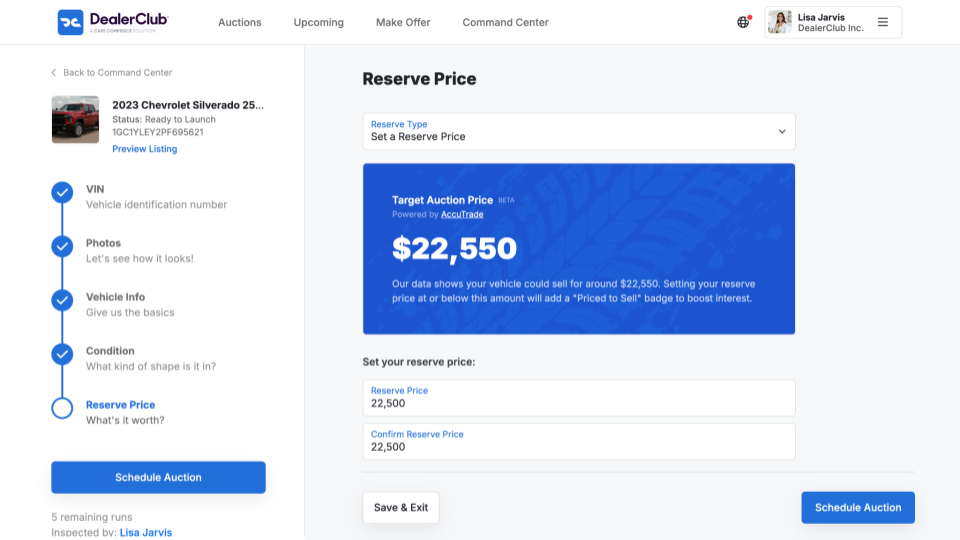
- Select Schedule Auction to list the vehicle
Your inspection is now complete, and the vehicle is ready to go live in DealerClub.