How to update dealership information
Keeping your dealership information accurate helps shoppers understand who you are, when you’re open, and what to expect before contacting or visiting your store. Your dealership profile appears across Cars.com and plays a key role in building trust and setting expectations for buyers.
This article walks you through how to access your dealer profile and update core details, including hours, photos, messaging, legal disclaimers, and service highlights.
To get started
Go to the Cars.com Hub. Click Cars.com, then Dealer Dash.
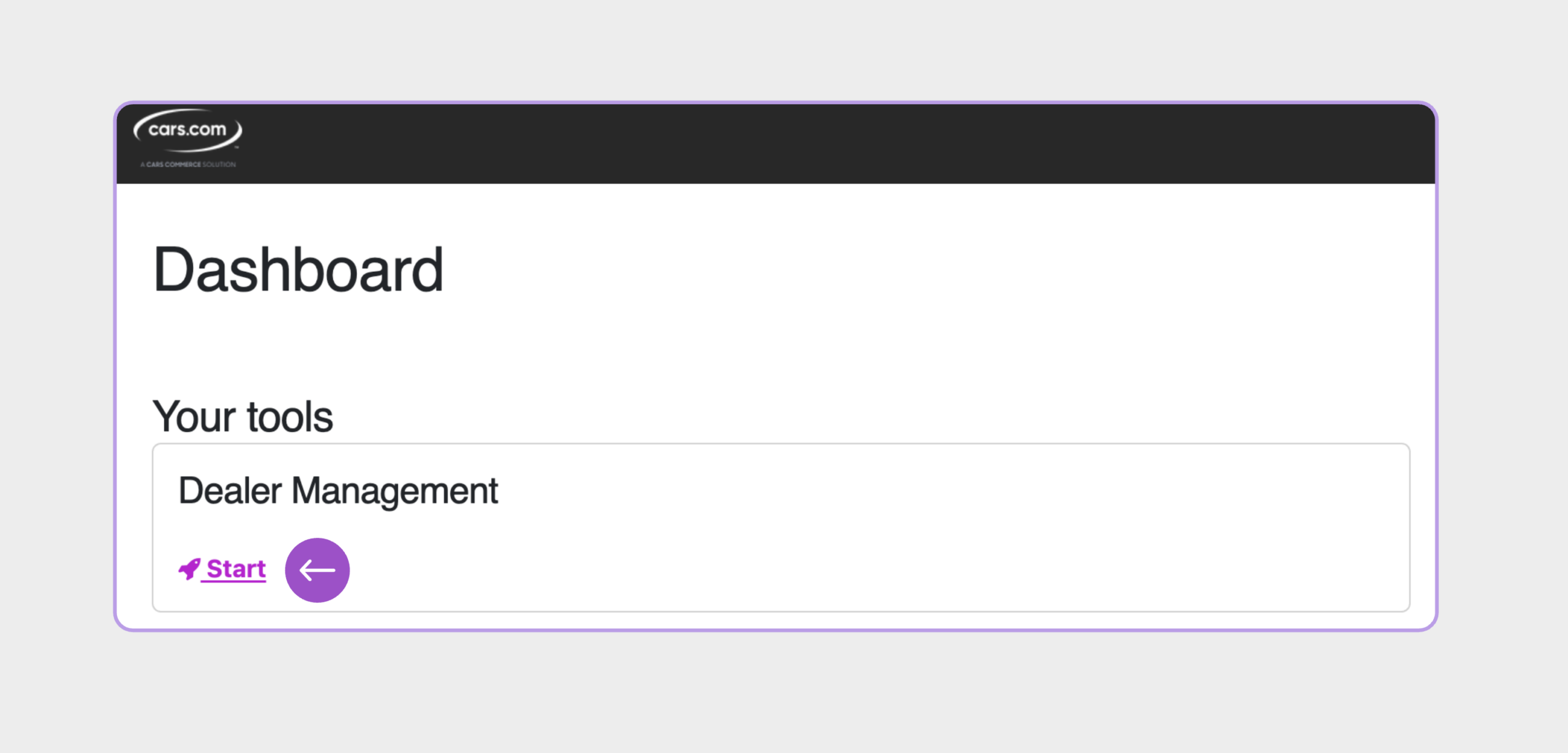
1 Click Start on Dealer Management
From your Dealer Center dashboard, click Start under the Dealer Management section.
2 Click on Dealer Profile
Select Dealer Profile from the menu to open your profile editor.
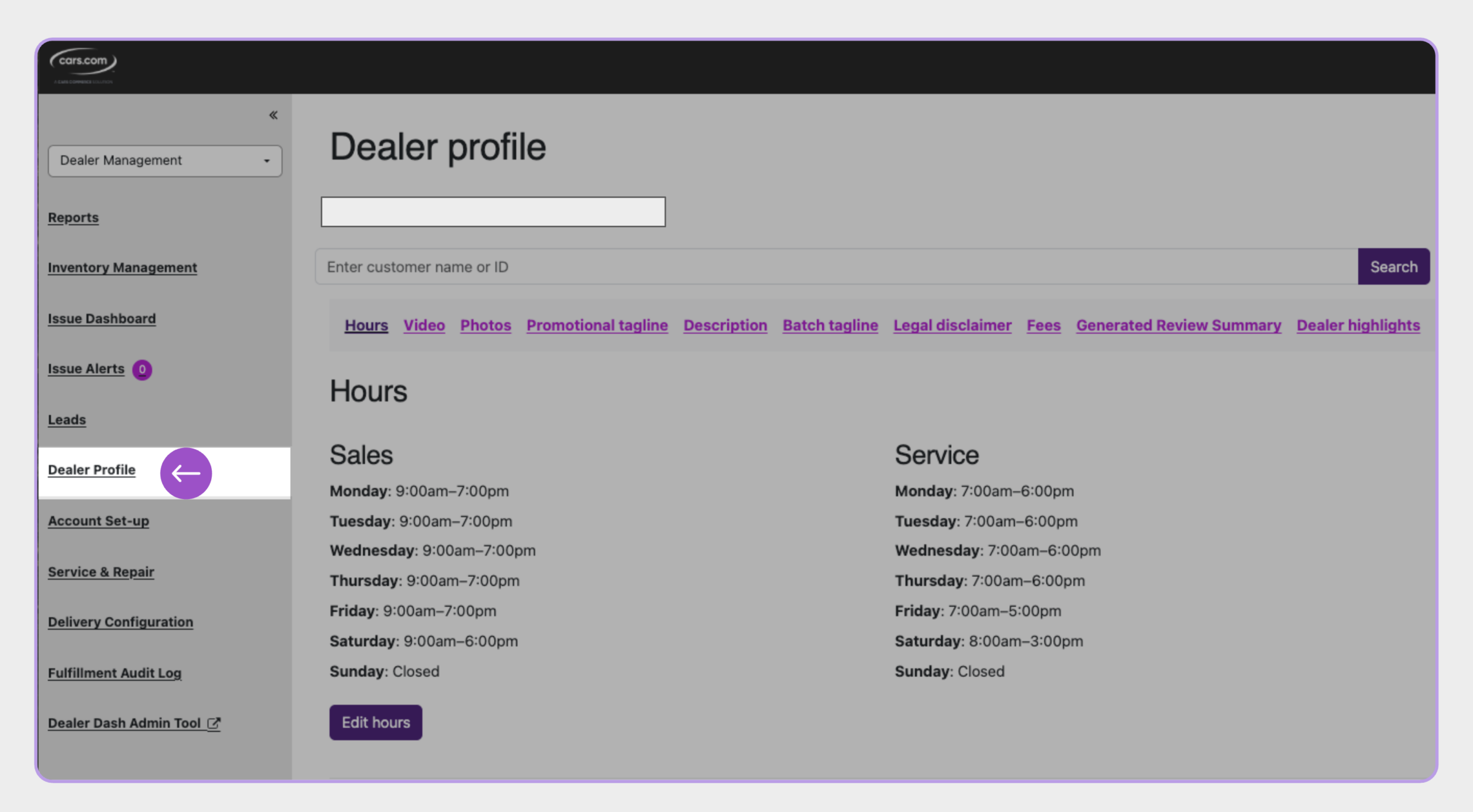
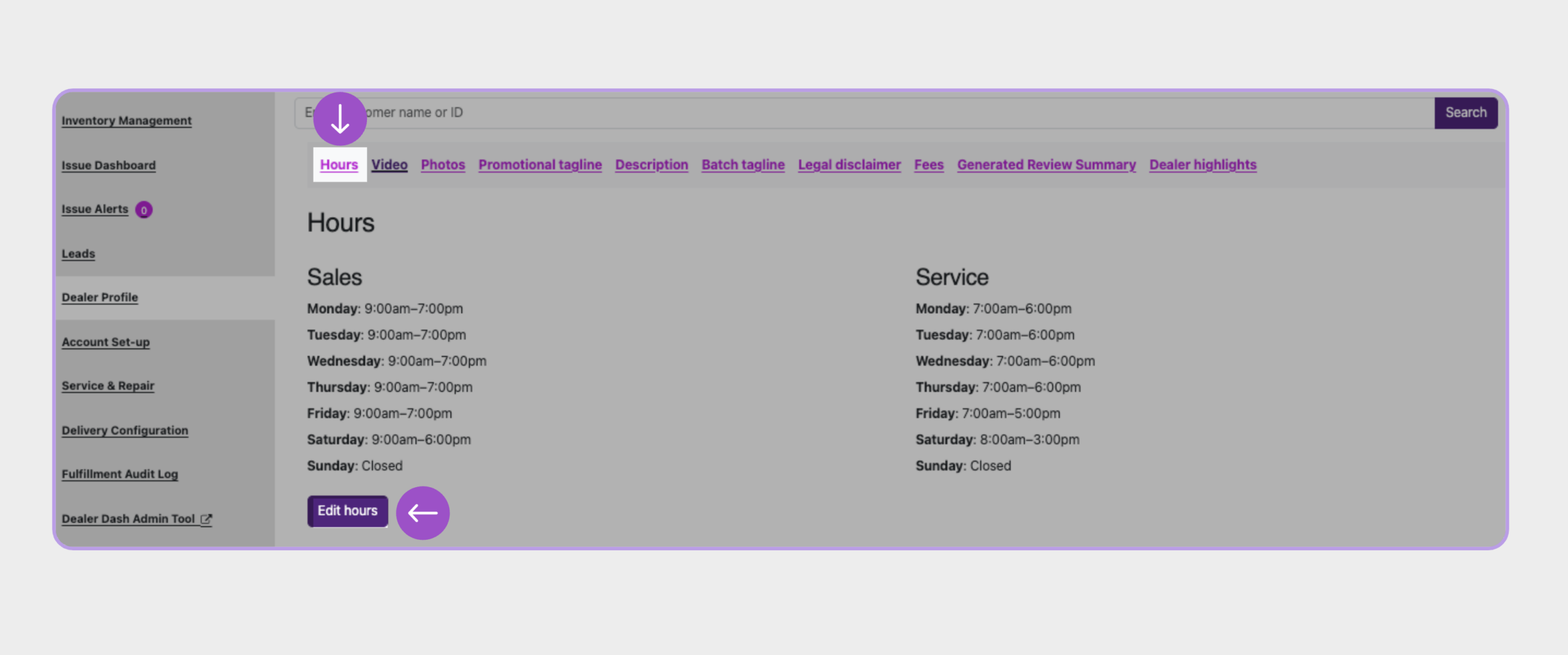
3 Update dealership hours
Keep your store hours accurate so shoppers know when to contact or visit you.
- Update sales or service hours as needed
- Save changes to ensure they display correctly across Cars.com
4 Add or update video and photos
Visual content helps shoppers get familiar with your dealership before reaching out.
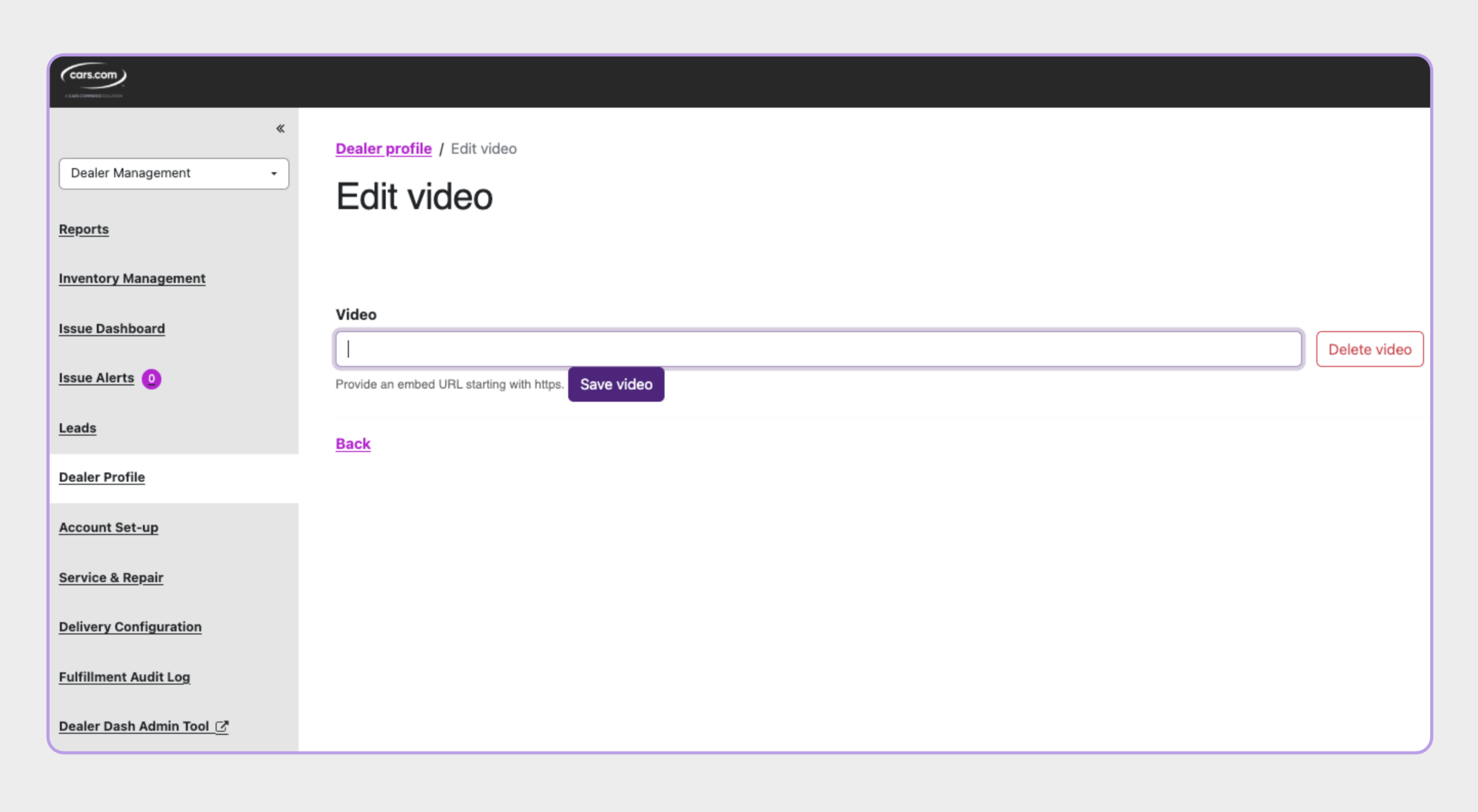
- Add or update the embedded dealer video that appears on your profile page
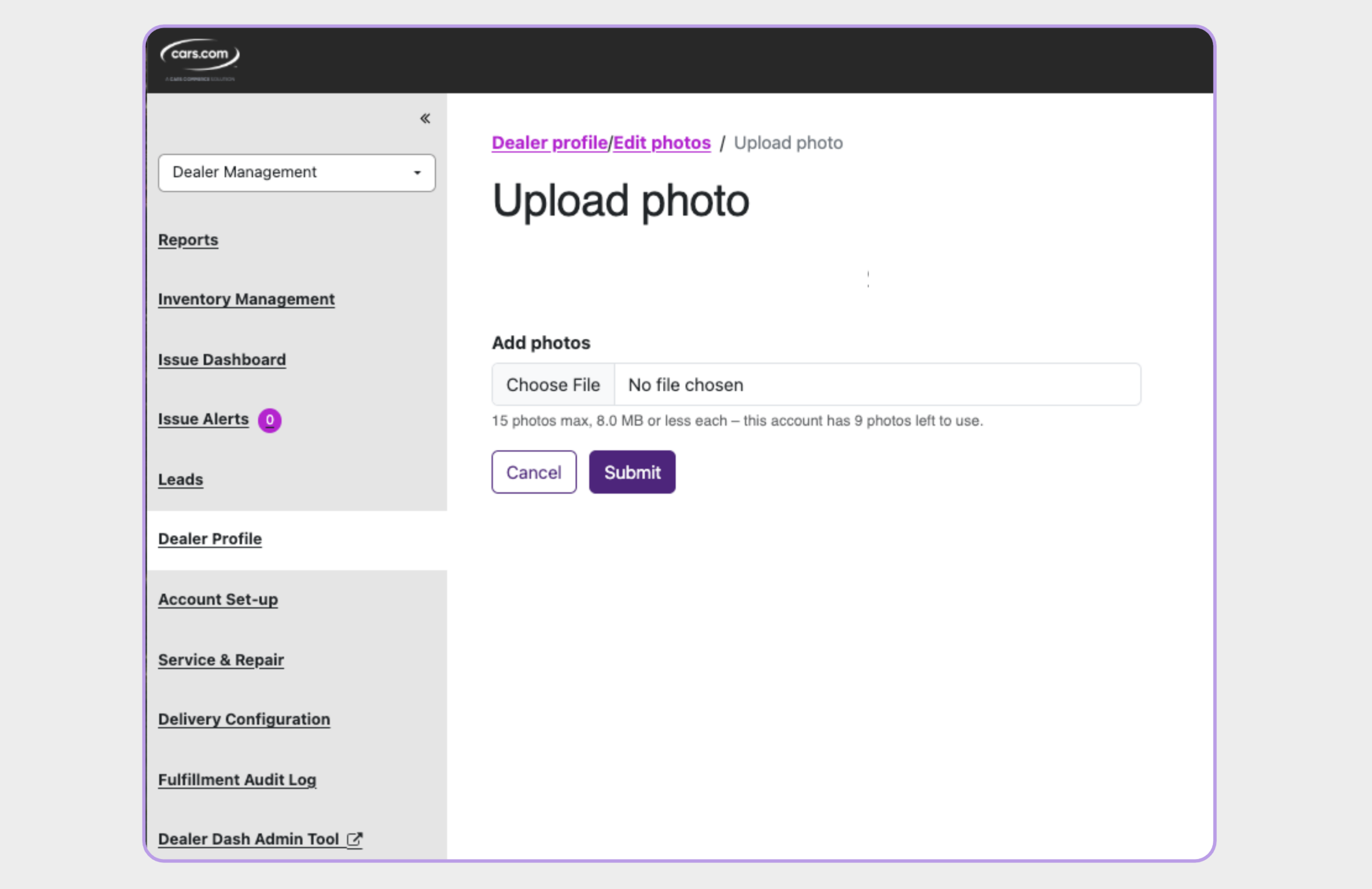
- Upload or replace up to 15 dealership photos (JPG or PNG format, max 8MB each)
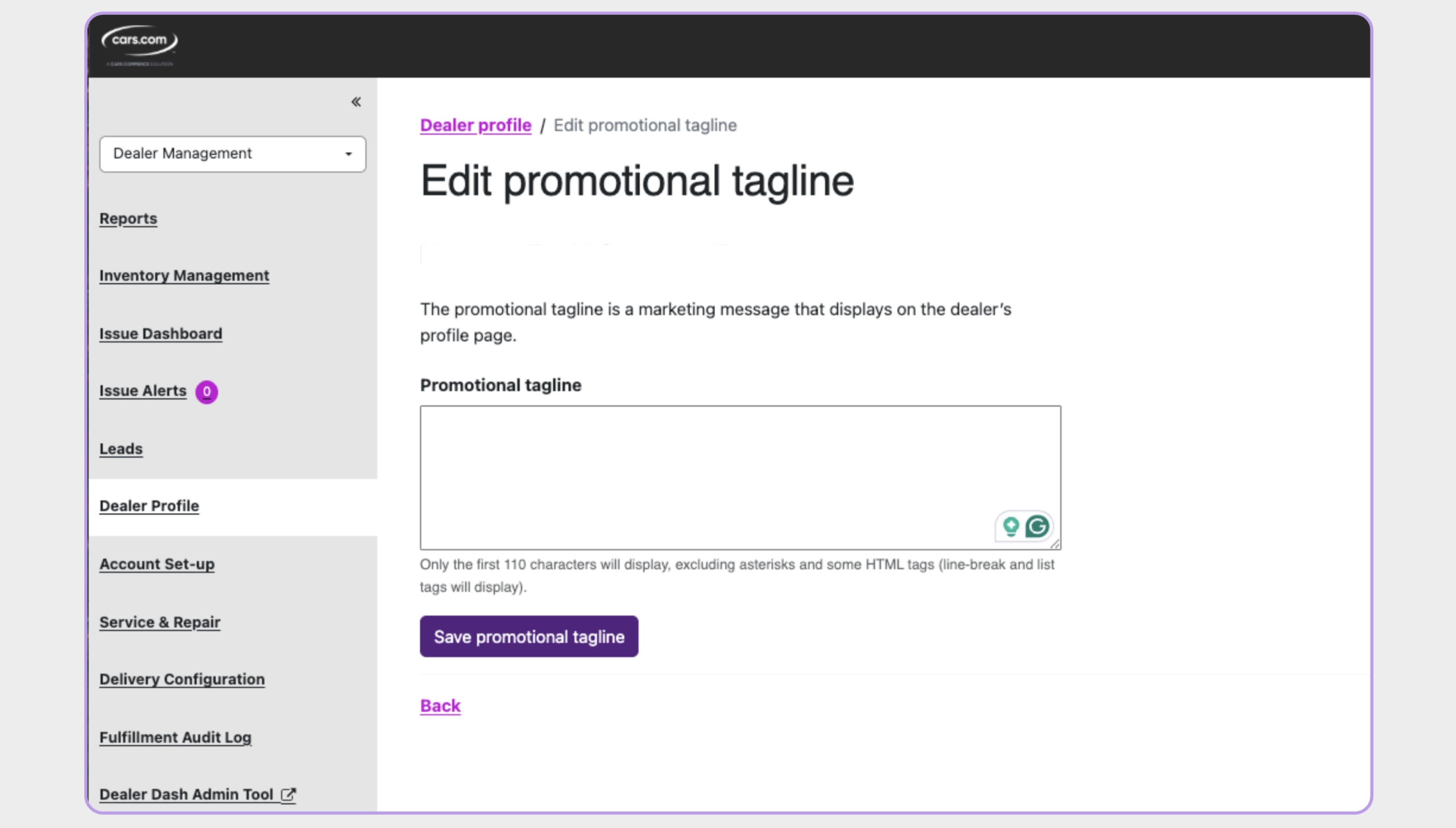
5 Manage promotional and batch taglines
Control the marketing language that appears on your profile and vehicle listings.
- Promotional Tagline (appears on your profile page)
- Max: 110 characters
- Use this space to promote offers or dealership strengths.
- Max: 110 characters
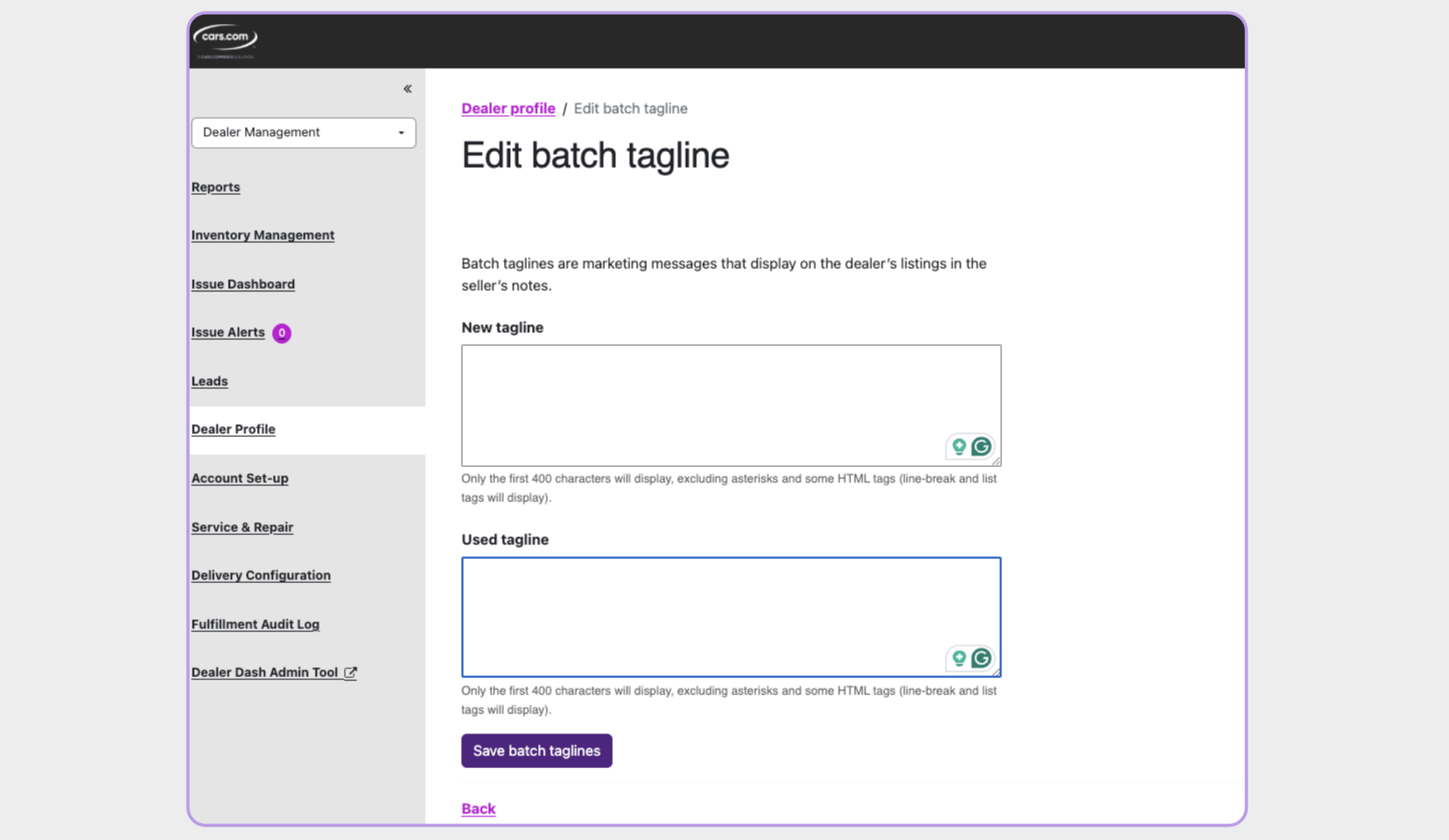
- Batch Taglines (appear in the seller’s notes on vehicle listings)
- Separate taglines can be applied to New and Used inventory.
- Max: 400 characters
- Use batch uploads or the inventory tool to apply in bulk.
- Separate taglines can be applied to New and Used inventory.
6 Edit your dealership description
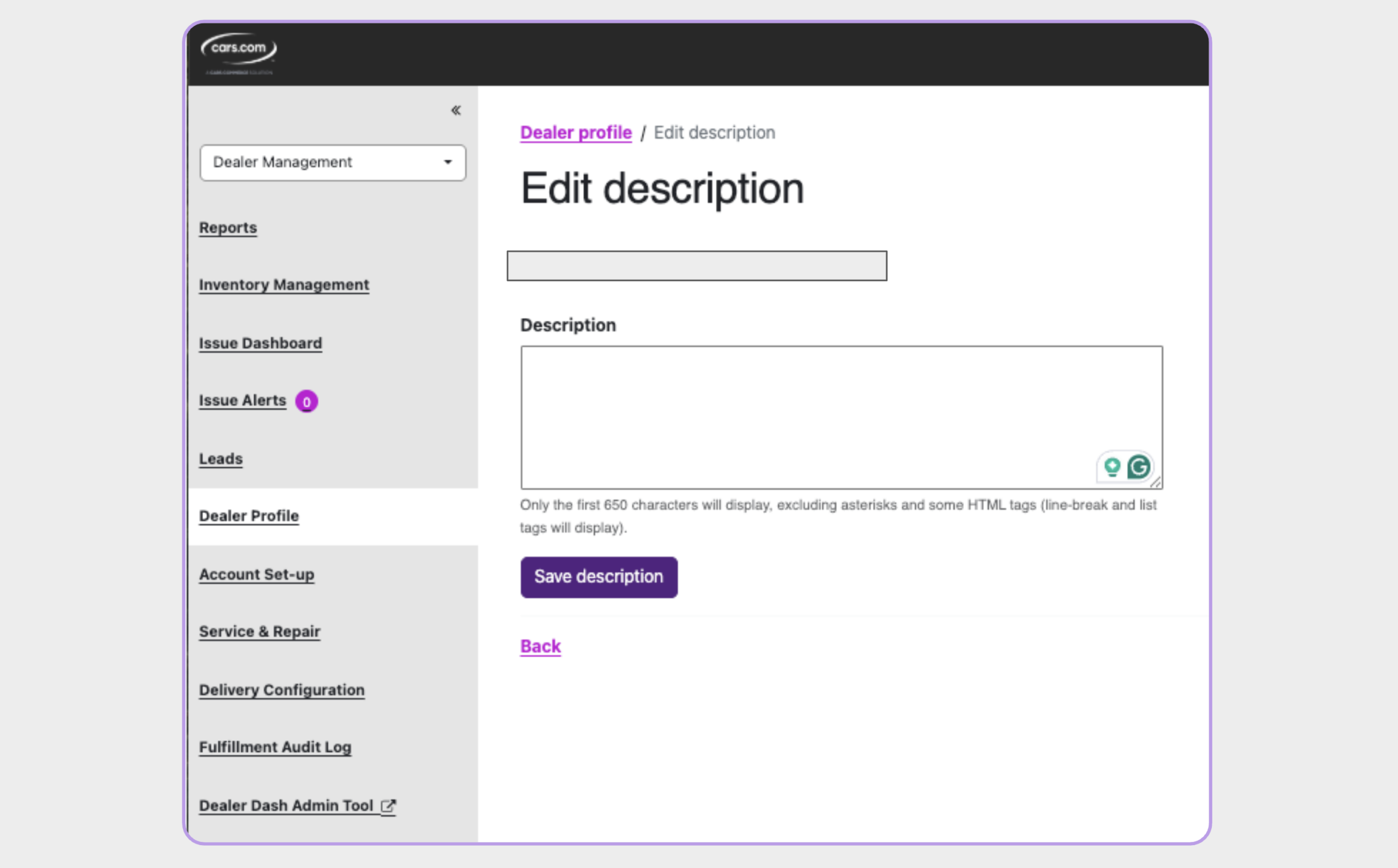
Use this section to describe your dealership and build shopper trust.
- Focus on who you are, your values, and what customers can expect.
- Only the first 650 characters will display on your public profile.
- Click Save to apply your updates.
7 Review legal disclaimers and fees
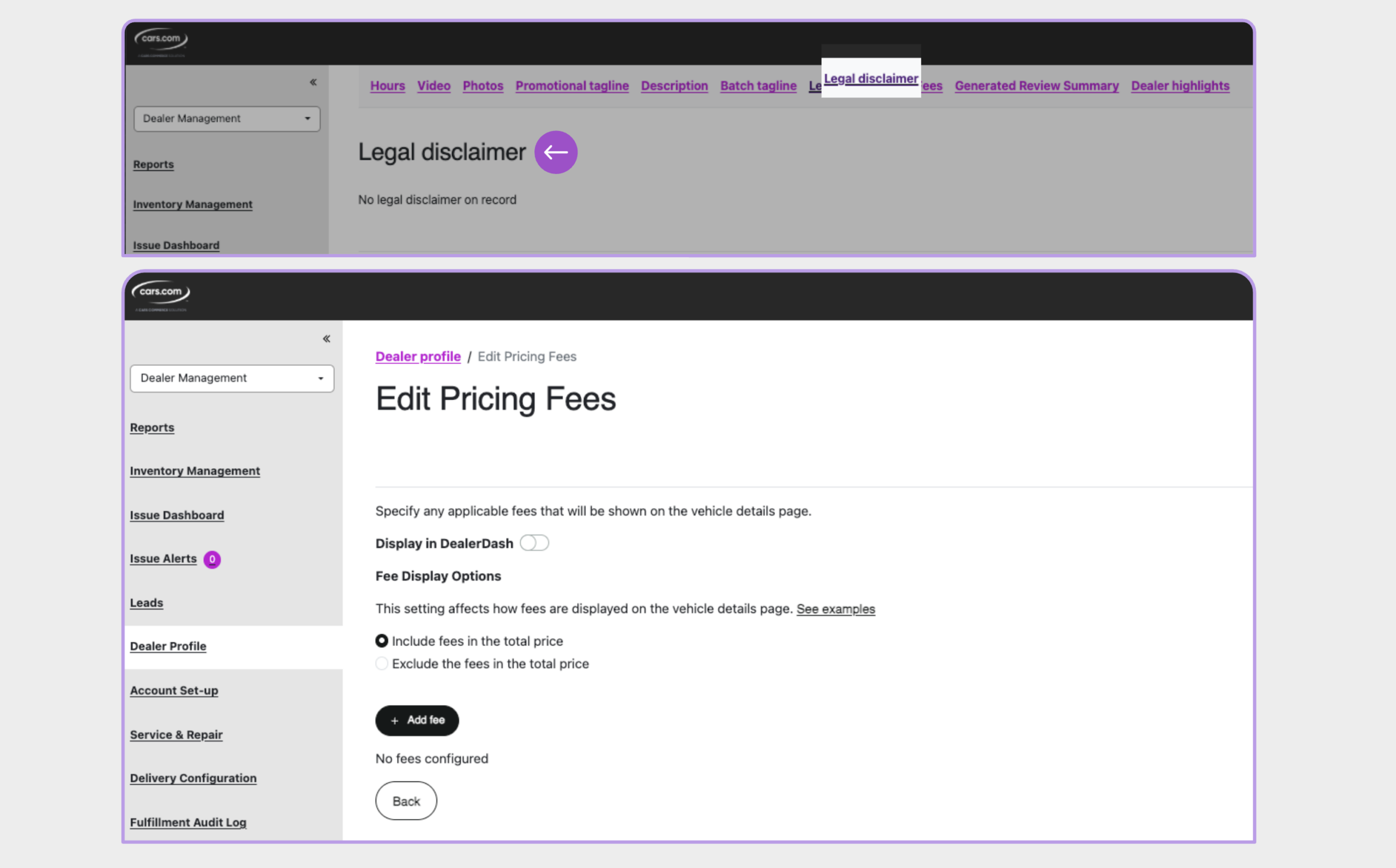
Ensure your pricing is transparent and compliant with regional regulations.
- Update your legal disclaimer, if required by state/local law.
- Add or modify any dealer fees (e.g., doc fees, prep fees).
- Choose whether fees are included in or excluded from your listed vehicle prices.
Note: Accurate disclosures help prevent shopper frustration and reduce lead fallout.
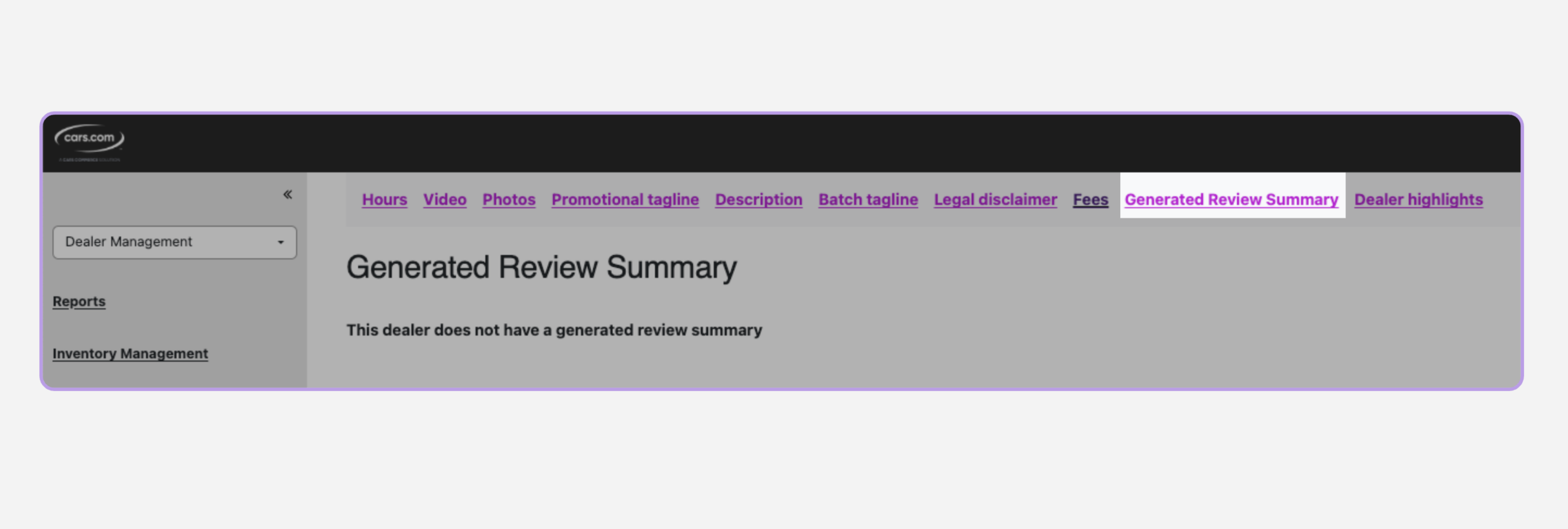
8 Review generated review content
Cars.com may display a summary of shopper reviews on your dealer profile.
- Review the generated review summary, when available
Please note: This section may not appear for all dealerships
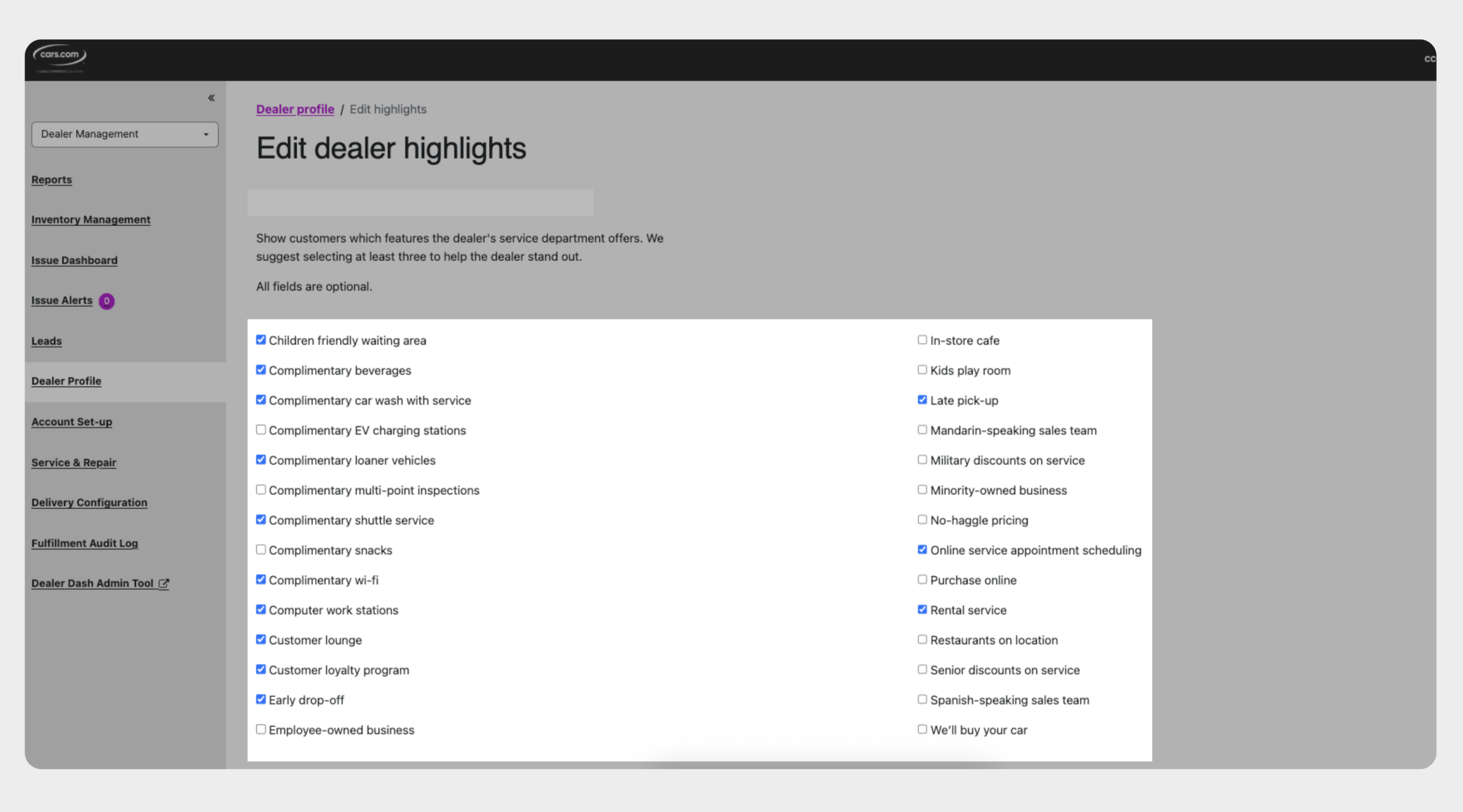
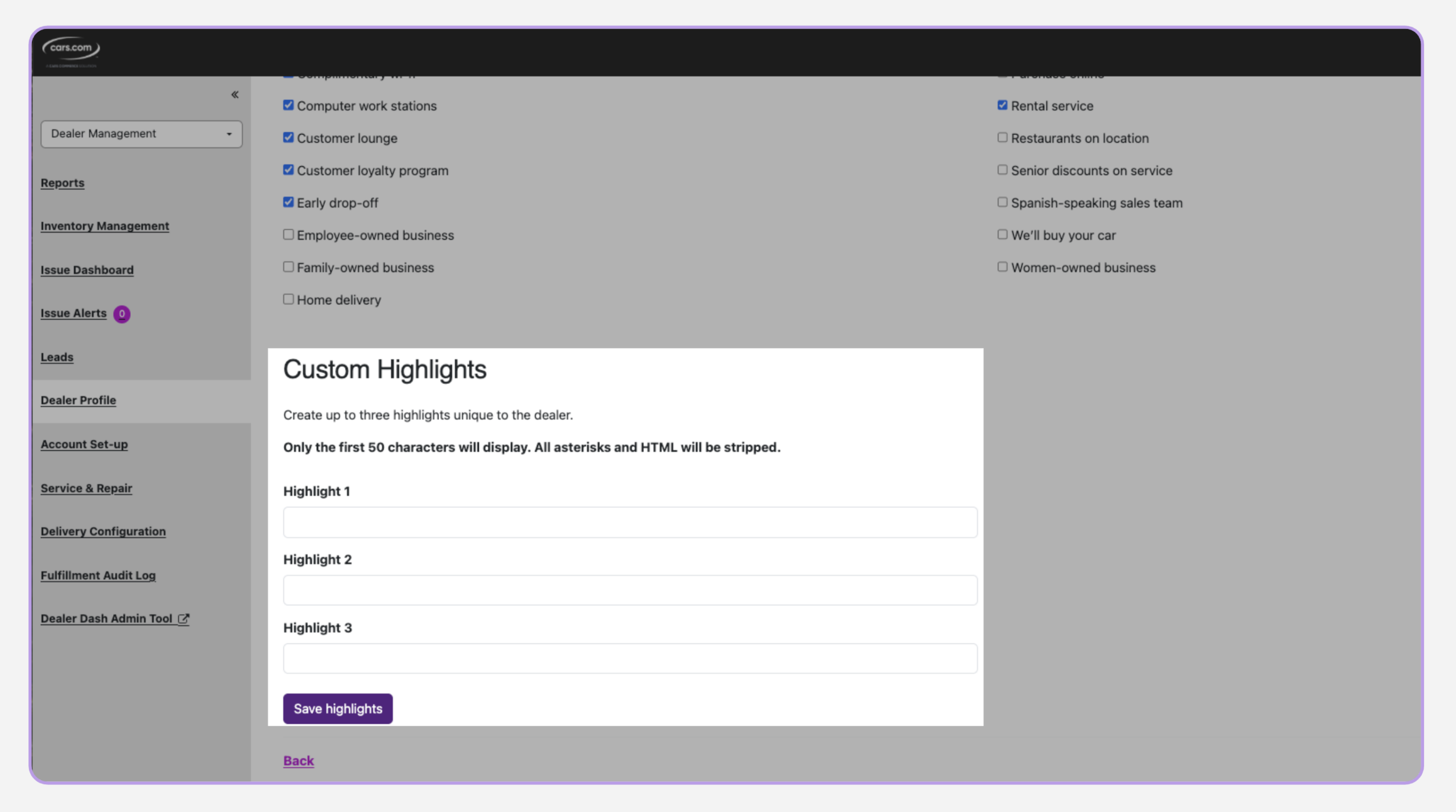
9 Manage dealer highlights
Dealer highlights show shoppers which features and services your dealership offers.
- Select from available dealer highlights (such as amenities or service options)
- We recommend selecting at least three highlights to help your dealership stand out
- Create up to three custom highlights, if desired