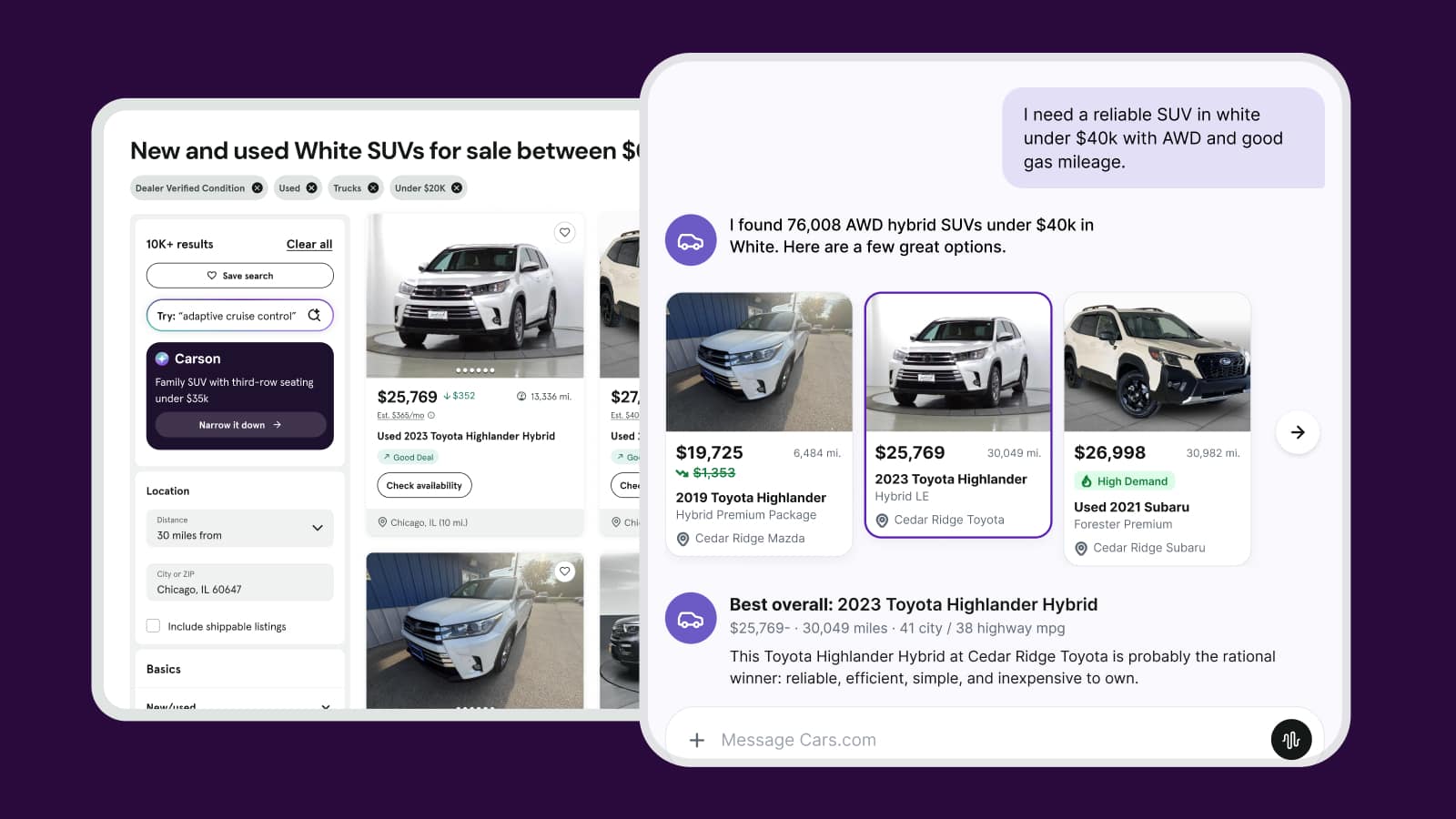
How to manage and review vehicle listings
The Cars.com Dealer app lets you check in on your inventory without being at your desk. Pull up any listing, check its health, spot gaps, and share what needs attention from anywhere.
In this article, you will learn how to access and filter your inventory, search or scan by VIN, review a vehicle’s detail page, and share listing details with your team.
To get started
Log in to the Cars.com Dealer app with your Cars.com credentials.
What you’ll need
- Download the Cars.com Dealer app from the App Store for Apple or Google Play Store for Android
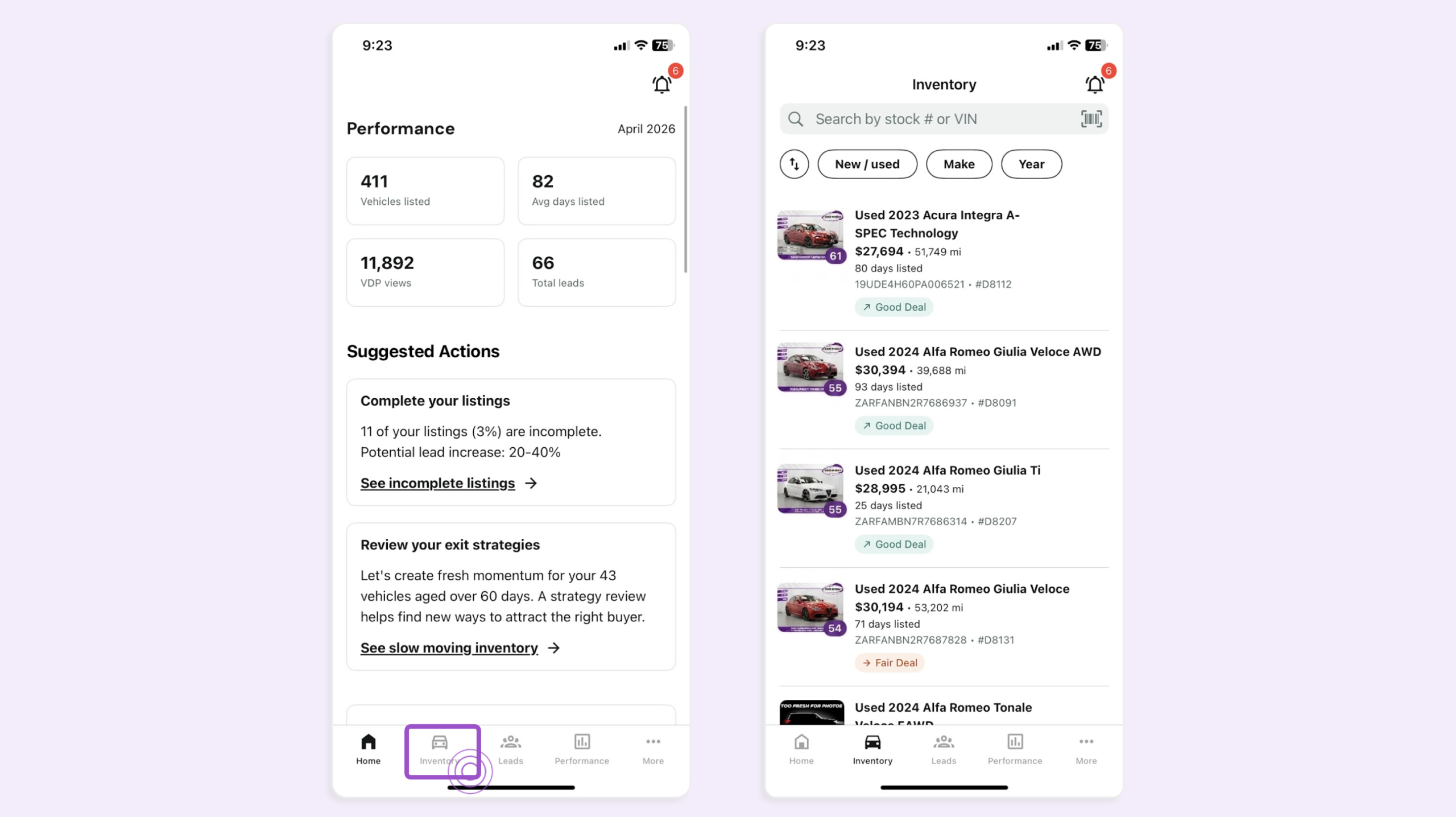
1Navigate to your inventory
- Tap Inventory from the bottom navigation
You’ll see your full vehicle inventory displayed as a list of inventory cards.
2 Filter or sort your inventory
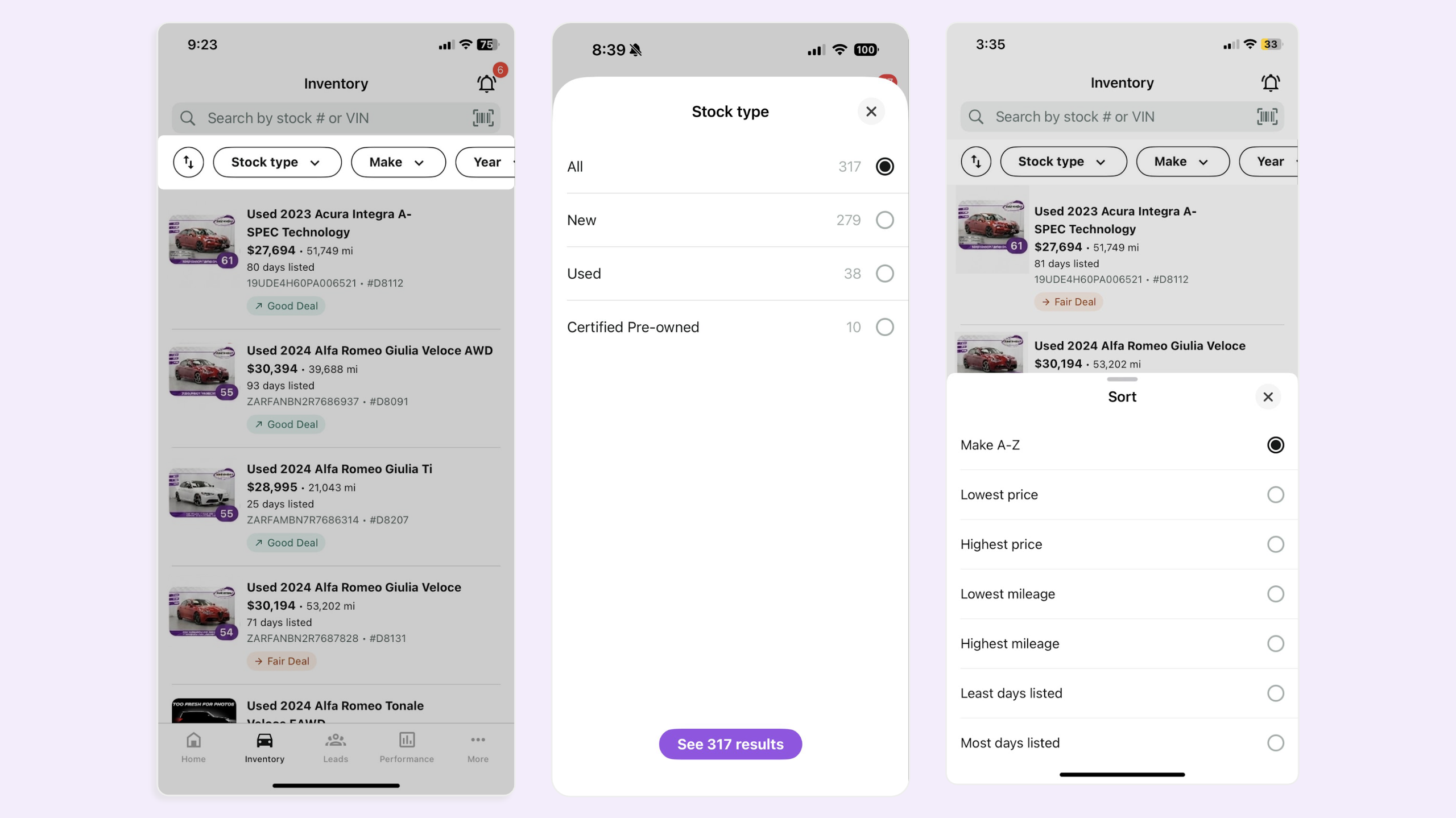
Narrow your inventory to find what you’re looking for.
- Quickly Filter results by tapping:
- Stock Type
- Make
- Year
- Incomplete
- Badging
- Slow movers
Filtering by incomplete, badging, or slow movers highlights specific vehicles that need attention without switching screens.
- Tap the arrows icon to Sort your search by:
- Make A-Z
- Price (lowest or highest)
- Mileage (lowest or highest)
- Days listed (least or most)
3Search for a specific vehicle
Search for a VIN
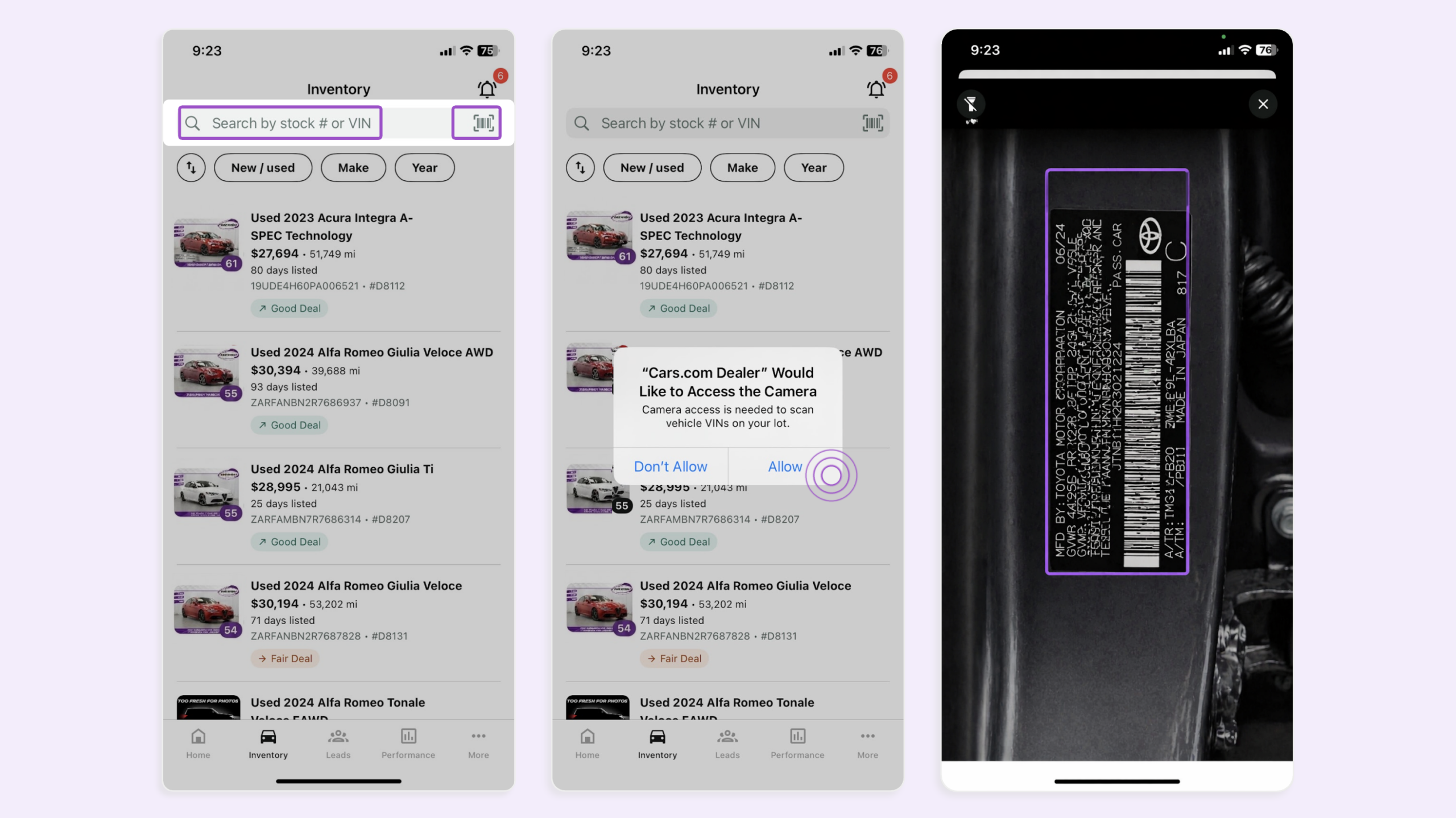
- Tap the Search bar at the top of your inventory list
- Enter a VIN or stock number to pull up a specific vehicle
Scan a VIN
- Tap the scan icon in the search bar
- If prompted to approve camera access, click Allow
- If prompted to approve camera access, click Allow
- Line up the VIN within the frame on your screen
- Select Accept when the VIN is detected
- This can pick up printed or neatly written VINs as well, not just barcodes.
The matching listing will load. You can check listing health, merchandising gaps, and exit options.
Note: Stock number scanning is not supported at this time.
4Open a vehicle detail page
Tap any inventory card to open the VDP. If you scanned a VIN, the VDP will open automatically.
The VDP gives you a complete picture of the vehicle, including:
- Deal badge status: pricing eligibility for a Deal badge
- Merchandising completeness checklist: missing photos, price, or description
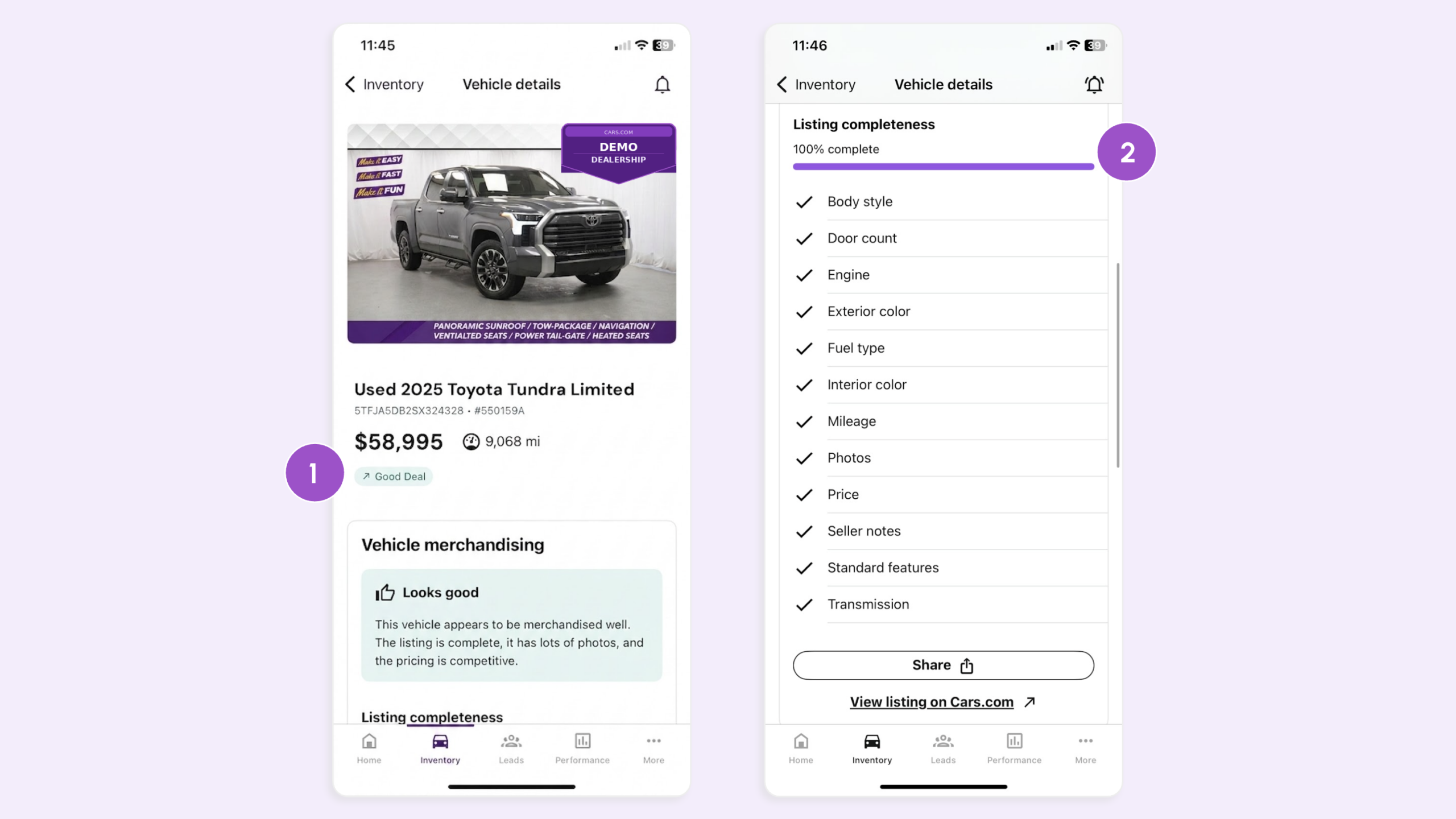
3. Listing health metrics: individual stats on the vehicle
4. AccuTrade wholesale pricing: current wholesale market value
5. DealerClub exit options: wholesale paths if the vehicle isn’t moving
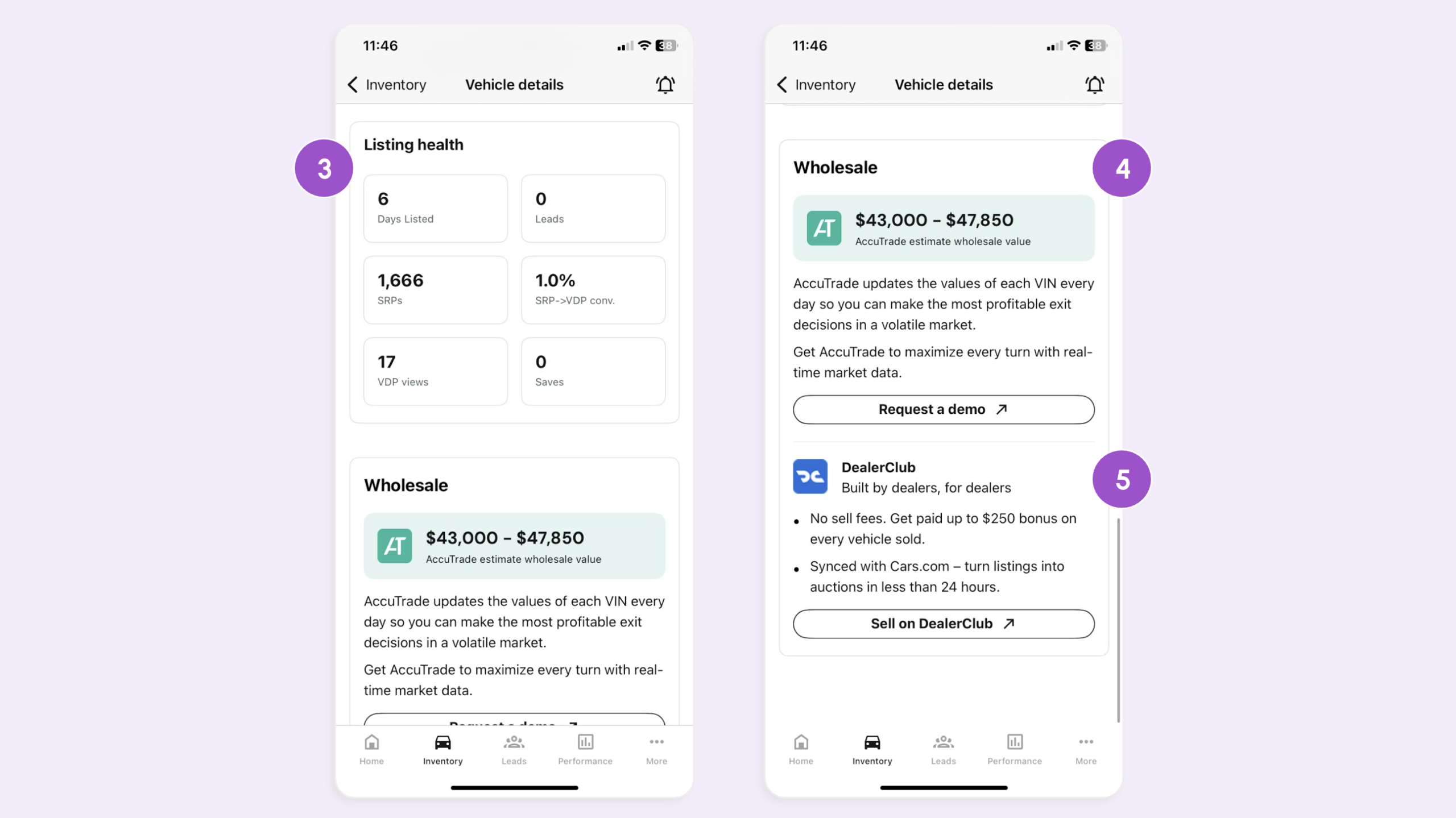
Use the VDP to identify incomplete listings or underperforming vehicles and share what needs attention with your team. The checklist provides a comprehensive picture of there to focus improvements.
5Share a vehicle with your team
When a listing needs attention, send it directly to the right person.
- Click Share under the Listing completeness checklist
- Send the listing via text, email, or any other communication app you have connected
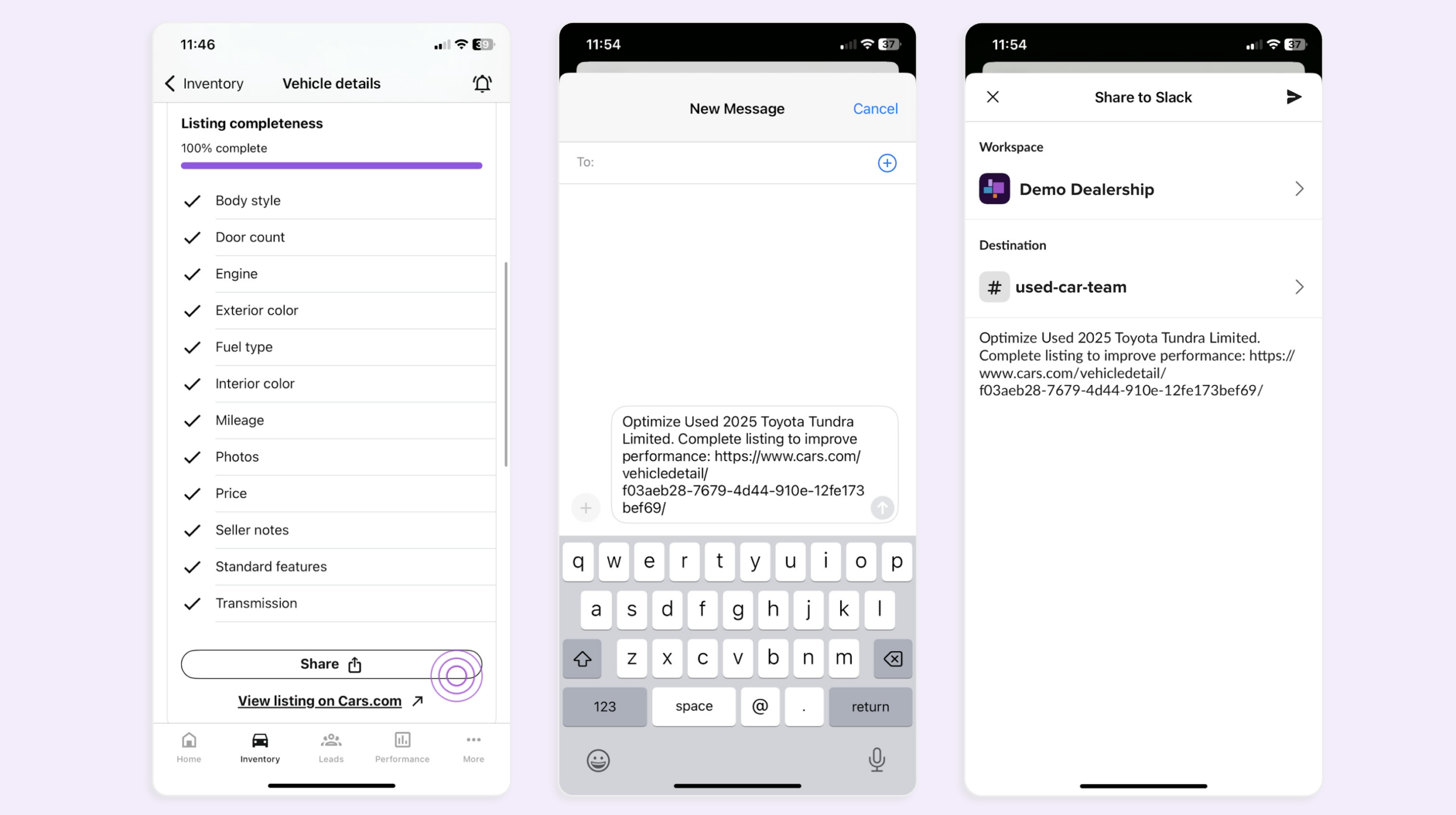
Tip: Use share when you’re walking the lot and spot a vehicle with a merchandising gap, get it to your inventory manager quickly without waiting until you’re back at a desk.