How to add your CARFAX or AutoCheck Integrations
You can seamlessly integrate your CARFAX and AutoCheck accounts with AccuTrade to include critical vehicle history and information directly into your appraisal workflow. These integrations ensure your team has the full vehicle story immediately, empowering you to make confident decisions in the moment based on accurate data.
To get started
Go to the Cars.com Hub and then click on AccuTrade.
1Access Account Settings
Once logged into AccuTrade:
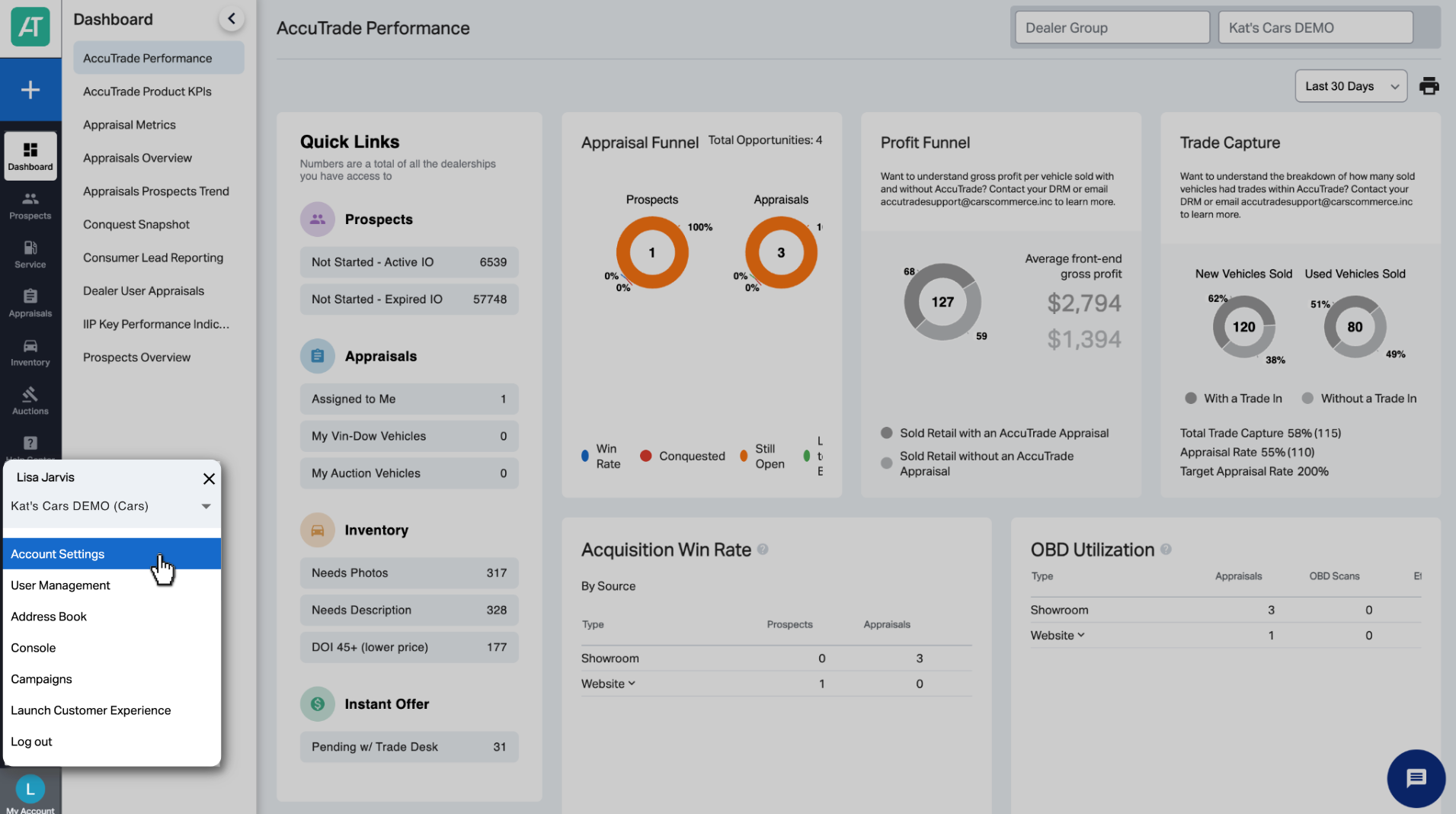
- Click My Account in the bottom left corner.
- Select Account Settings.
2 Select Add-ons
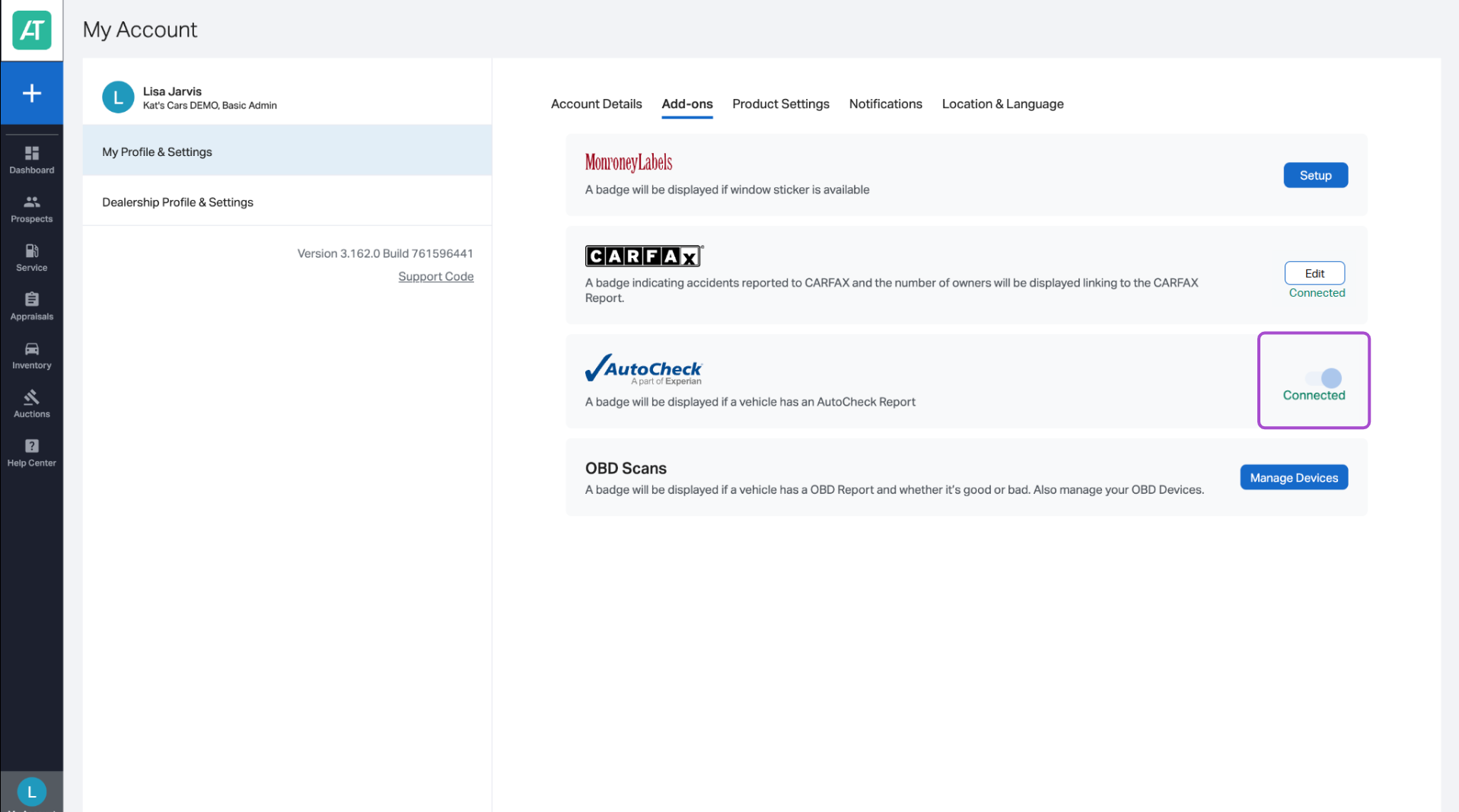
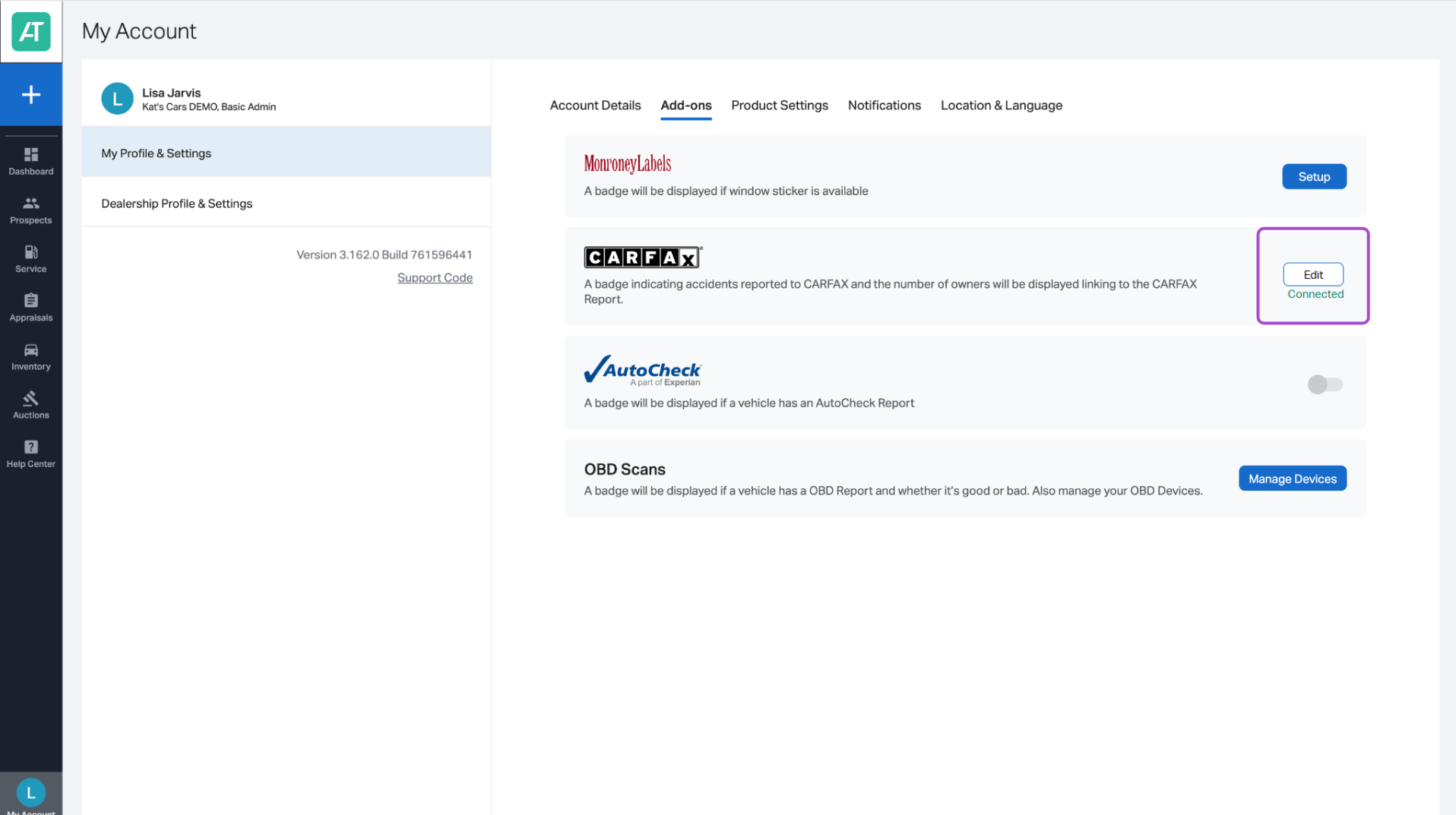
From the My Profile & Settings section, select the Add-ons tab to set up your CARFAX and AutoCheck integrations.
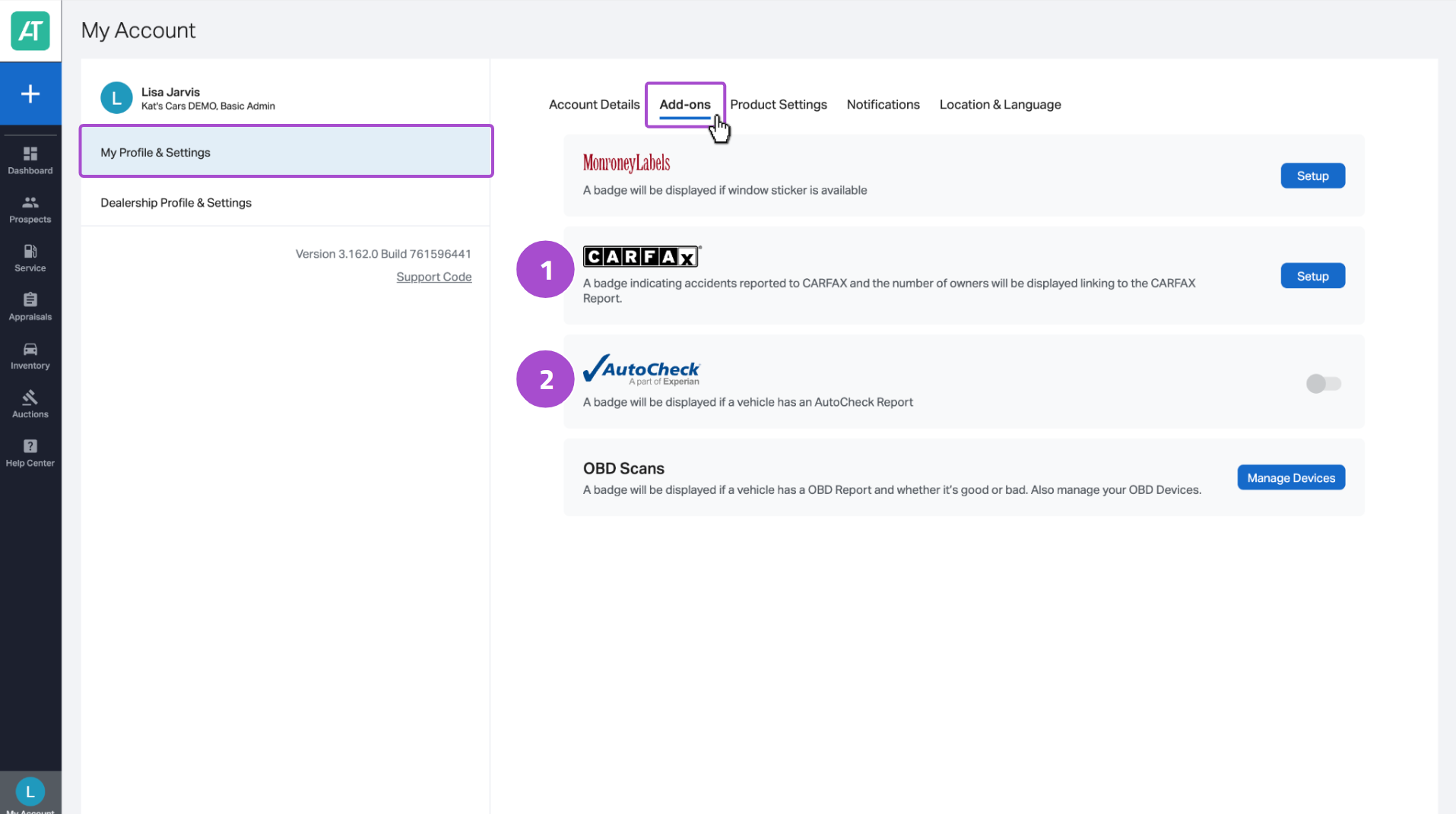
3 Setup CARFAX
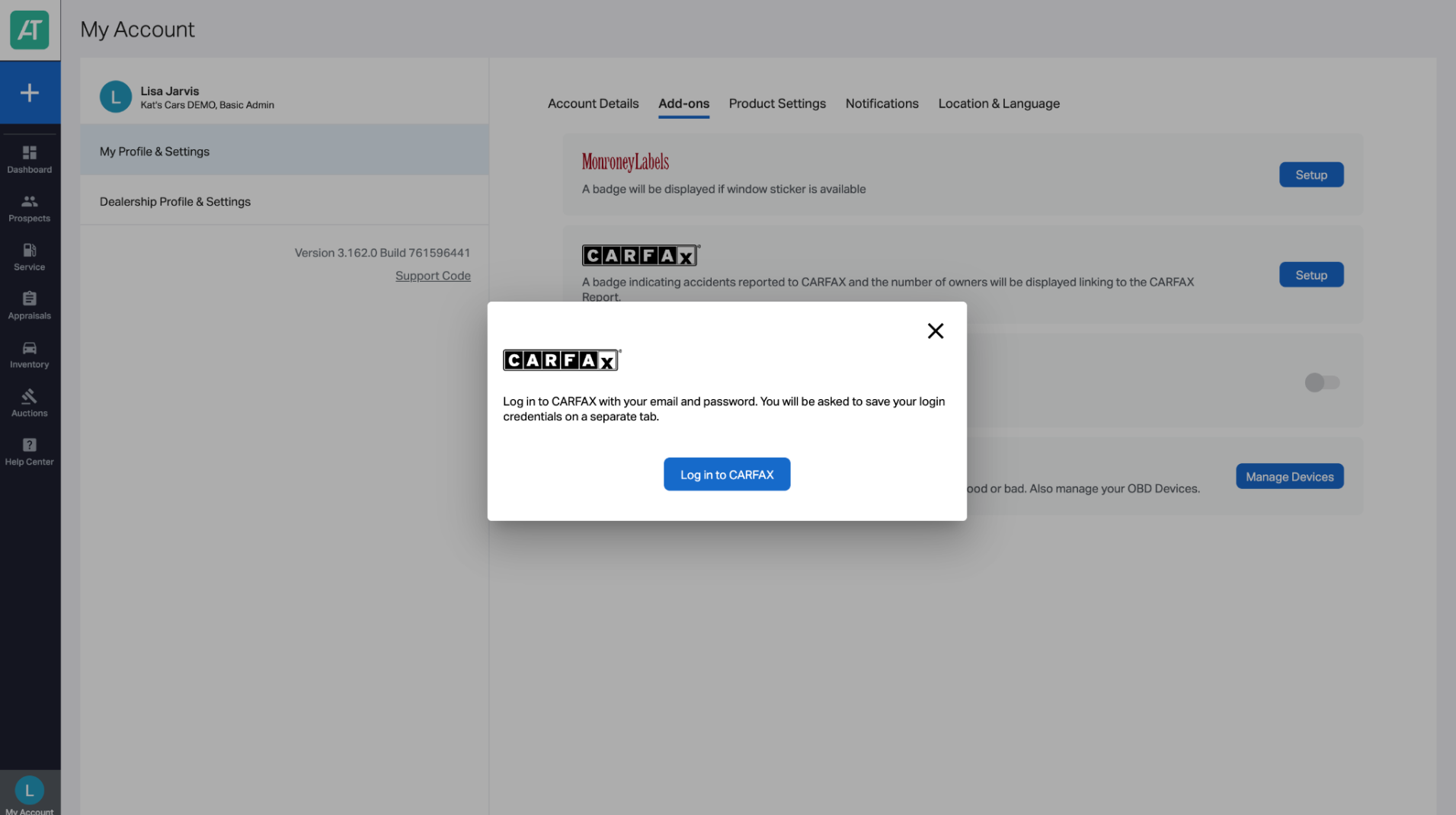
Click Setup next to CARFAX and a pop-up window will appear prompting you to login. Click Login to CARFAX and you will be taken to the CARFAX login page in a new tab.
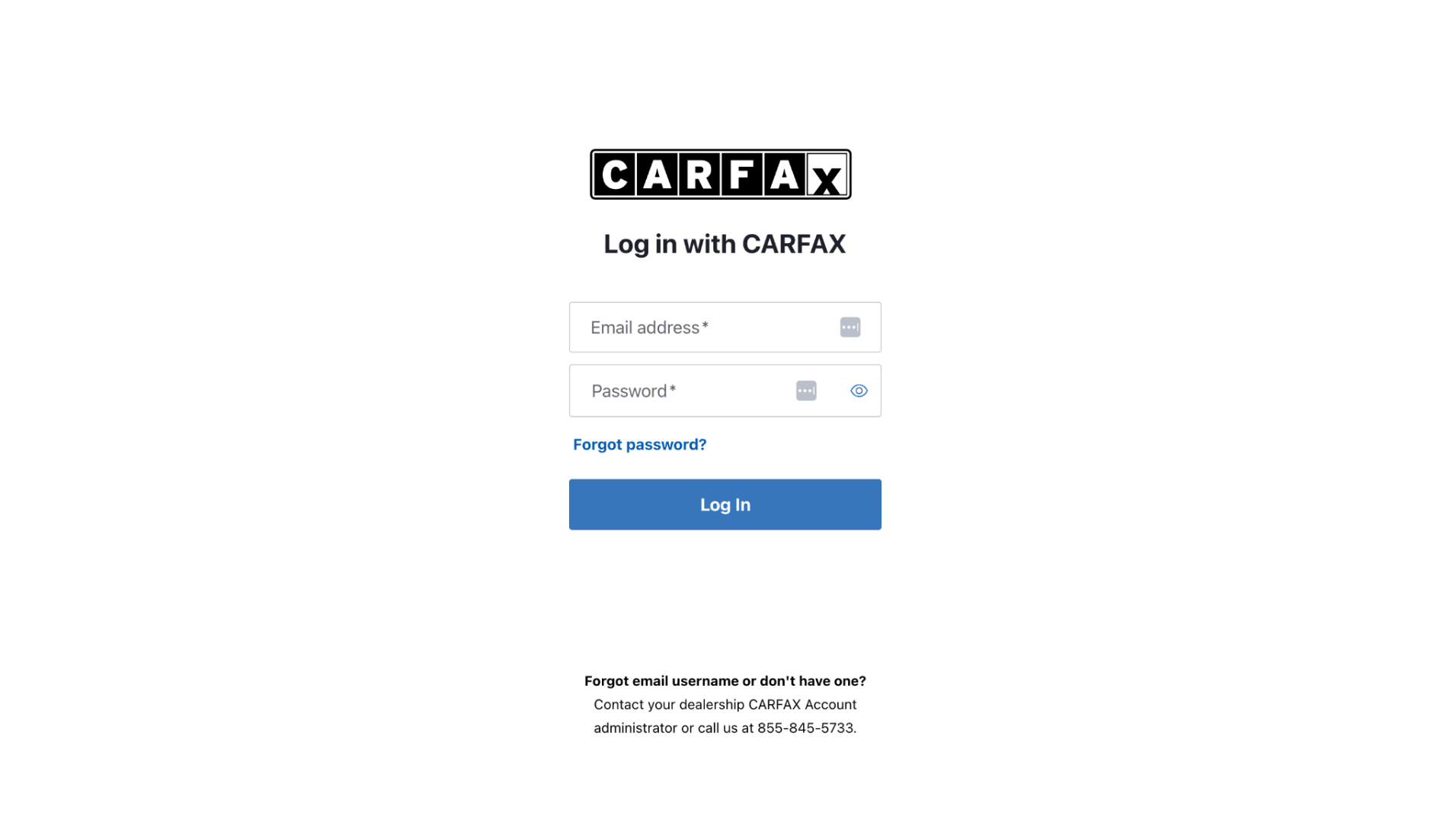
Fill in the fields with your credentials. Upon login, you’ll receive a confirmation that AccuTrade and CARFAX are connected.
Go back to AccuTrade and refresh the page. Your integration is successfully synced when the Setup button changes to Edit, with Connected appearing just below it.
4 Setup AutoCheck
To sync AutoCheck, just click the toggle to connect it with AccuTrade. The toggle will turn blue and Connected will appear below, confirming the integration was successful. It’s as simple as that!