How to place a bid
Finding and winning the right inventory requires a clear understanding of the bidding process. This article explains how to browse live auctions on DealerClub, review vehicle details, place bids, and use proxy bidding to participate in auctions without continuously monitoring them. Follow these steps to streamline your sourcing and bid with confidence.
To get started
Go to the Cars.com Hub and click on DealerClub.
1 View live auctions
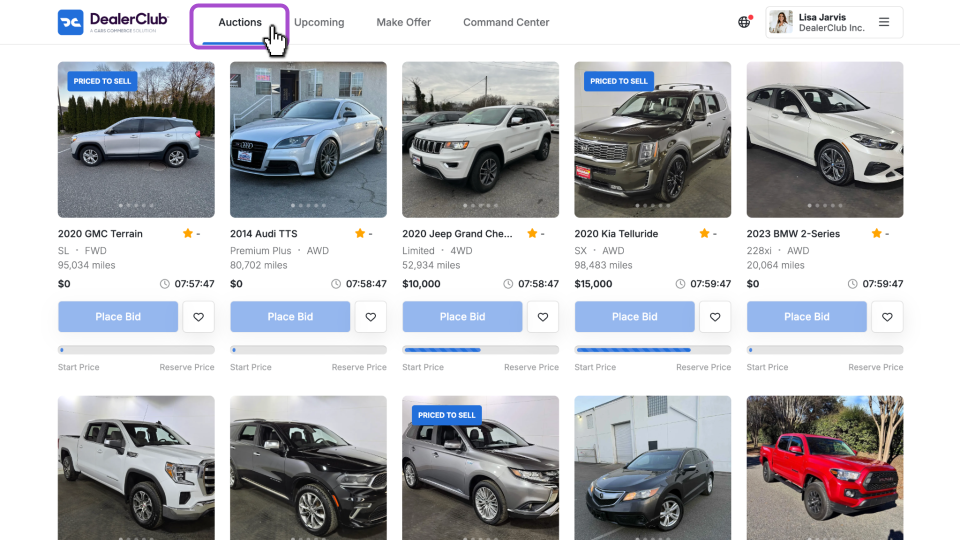
After logging in to DealerClub, you will land on the Auctions page by default.
- Click on any listing to view more details.
- All vehicles shown on this page are live and open for bidding.
- Scroll through the list to review available inventory.
2Select a vehicle
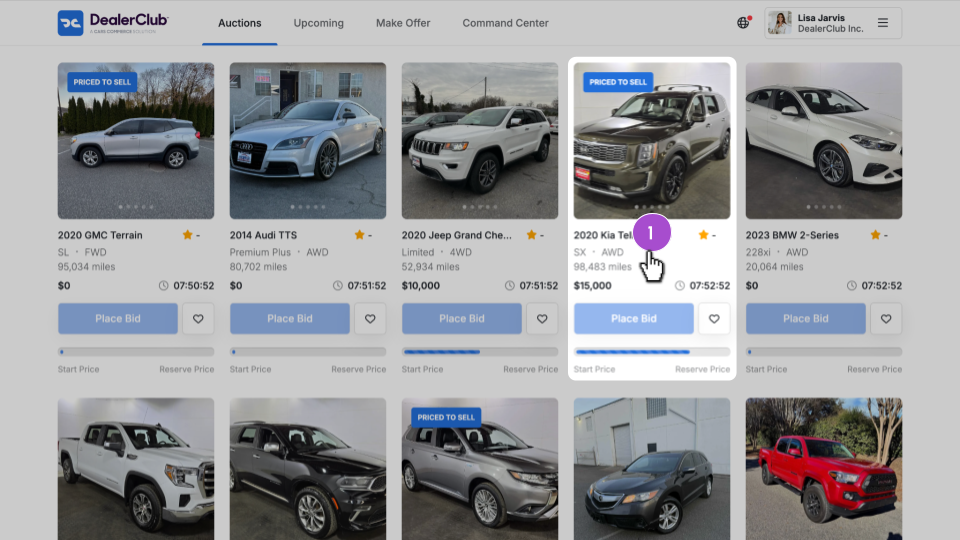
When you find a vehicle you are interested in:
- Click the vehicle listing to open its details.
You’ll see a Place Bid button from the list view, but opening the vehicle allows you to review the full Condition Report and supporting details before bidding.
3 Review vehicle details
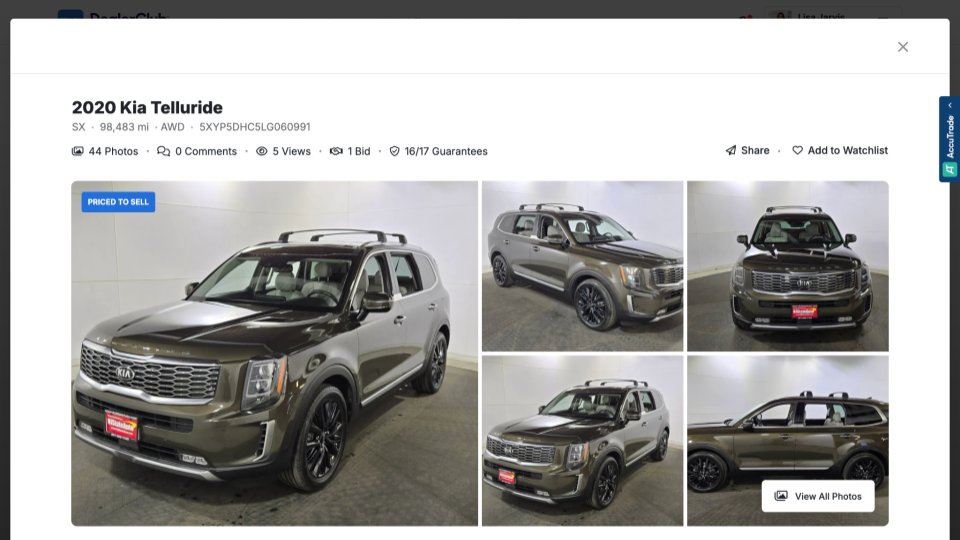
When you click into a vehicle, a pop-up window opens displaying:
- Vehicle images
- Condition Report (CR)
- Disclosures
- Descriptions
- Guarantees (if applicable)
Review all available information to confirm the vehicle meets your criteria before placing a bid.
4 Place a bid
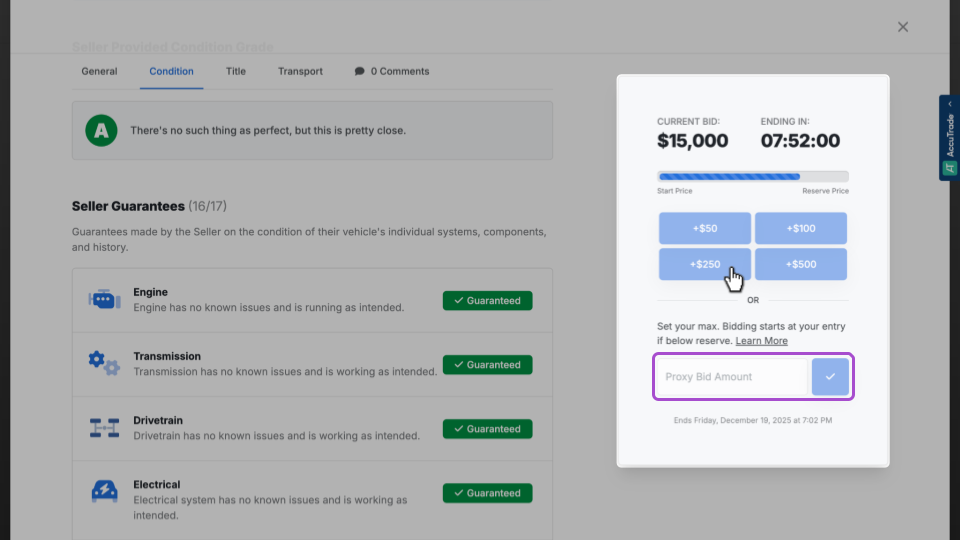
From the vehicle details view, use the bidding panel on the right side of the screen.
You can place a bid in one of two ways:
Quick bid increments
Click one of the preset increment buttons:
- +$50
- +$100
- +$250
- +$500
Each button increases the current bid by the selected amount.
Proxy bidding
Enter a Proxy Bid Amount in the field provided. Proxy bidding authorizes DealerClub to automatically place bids on your behalf, in standard increments, up to your maximum amount.
After entering your bid or proxy amount, click the blue check mark to submit.
How proxy bidding works
Proxy bidding allows you to set the highest amount you are willing to pay. DealerClub automatically manages bids for you up to that maximum.
If your proxy bid is below reserve
- Your bid is placed immediately at the entered amount.
- This can help move the auction closer to reserve.
- You remain eligible if the seller lowers the reserve or other bidders participate.
If your proxy bid meets or exceeds reserve
- Your bid is placed at either:
- The reserve price, or
- The next bid increment above the current highest bid
(whichever is lower)
- If additional bids are placed, DealerClub continues bidding on your behalf in standard increments until:
- You win the auction, or
- Your maximum proxy amount is reached.
If the auction has no reserve
- Your proxy bid raises the current bid to the next increment.
- As other bidders participate, DealerClub automatically increases your bid in increments up to your maximum amount.


