How to leave a rating for a seller
Building a transparent, reputation-based marketplace is core to the DealerClub experience. When you leave honest reviews about inspection accuracy and your buying experience, you help create accountability and trust across the platform — and give fellow dealers insights into who they’re working with.
In this article, you’ll learn how to leave a seller rating after a purchase on DealerClub, when review prompts appear, and how to submit reviews manually through the Command Center.
To get started
Go to the Cars.com Hub, and then click on DealerClub.
1 Respond to the review prompt
After you’ve successfully purchased a vehicle, you’ll receive a reminder prompt to leave a review:
- The review window opens two days after vehicle delivery or one week after the auction ends
- A Leave a Review pop-up will appear on login
- If no review is submitted, the prompt will continue to appear until one is submitted
Click Leave a Review to begin.
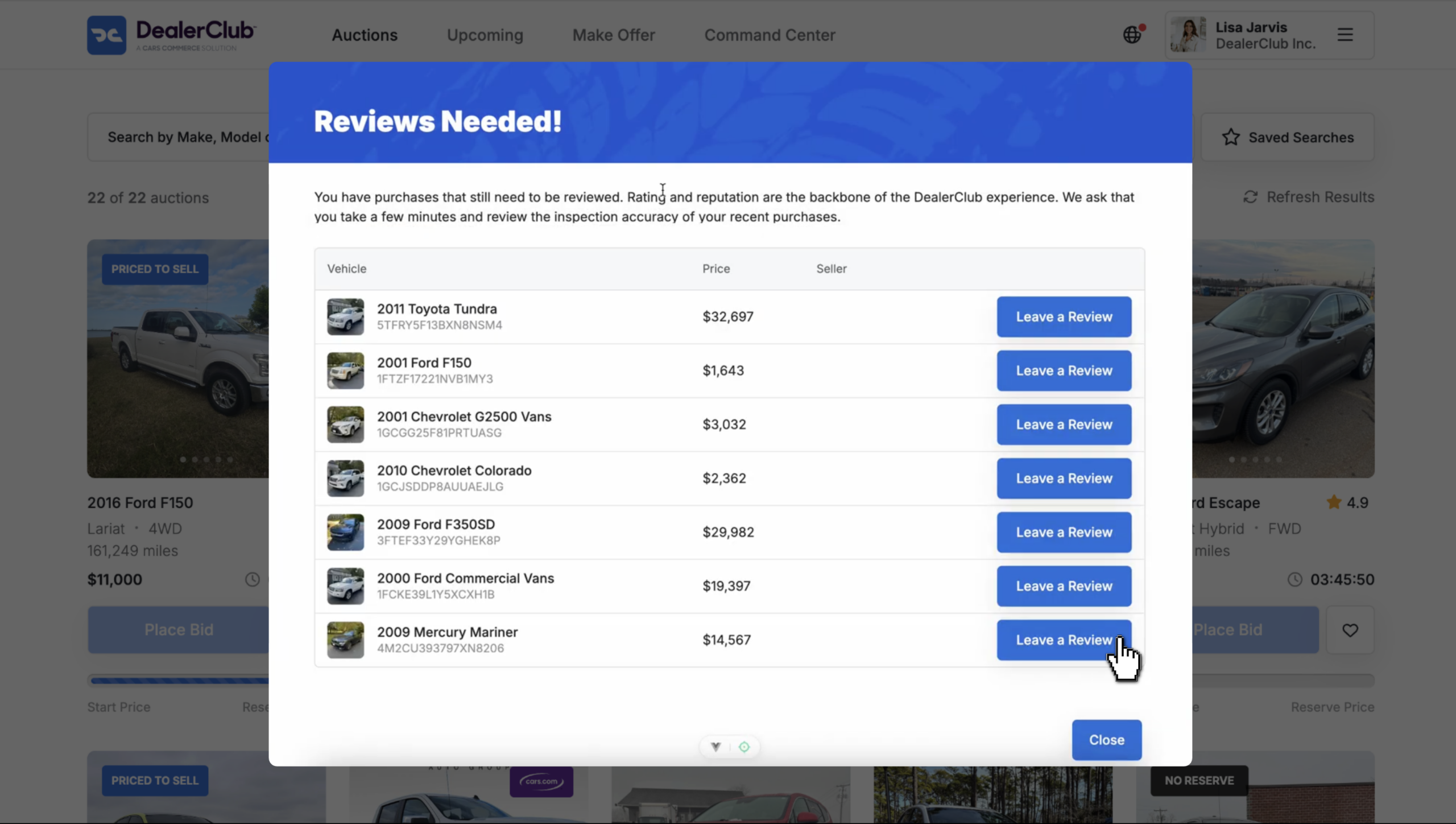
Leaving a review only takes a minute — and helps build transparency for the entire DealerClub community.
2 Submit your rating
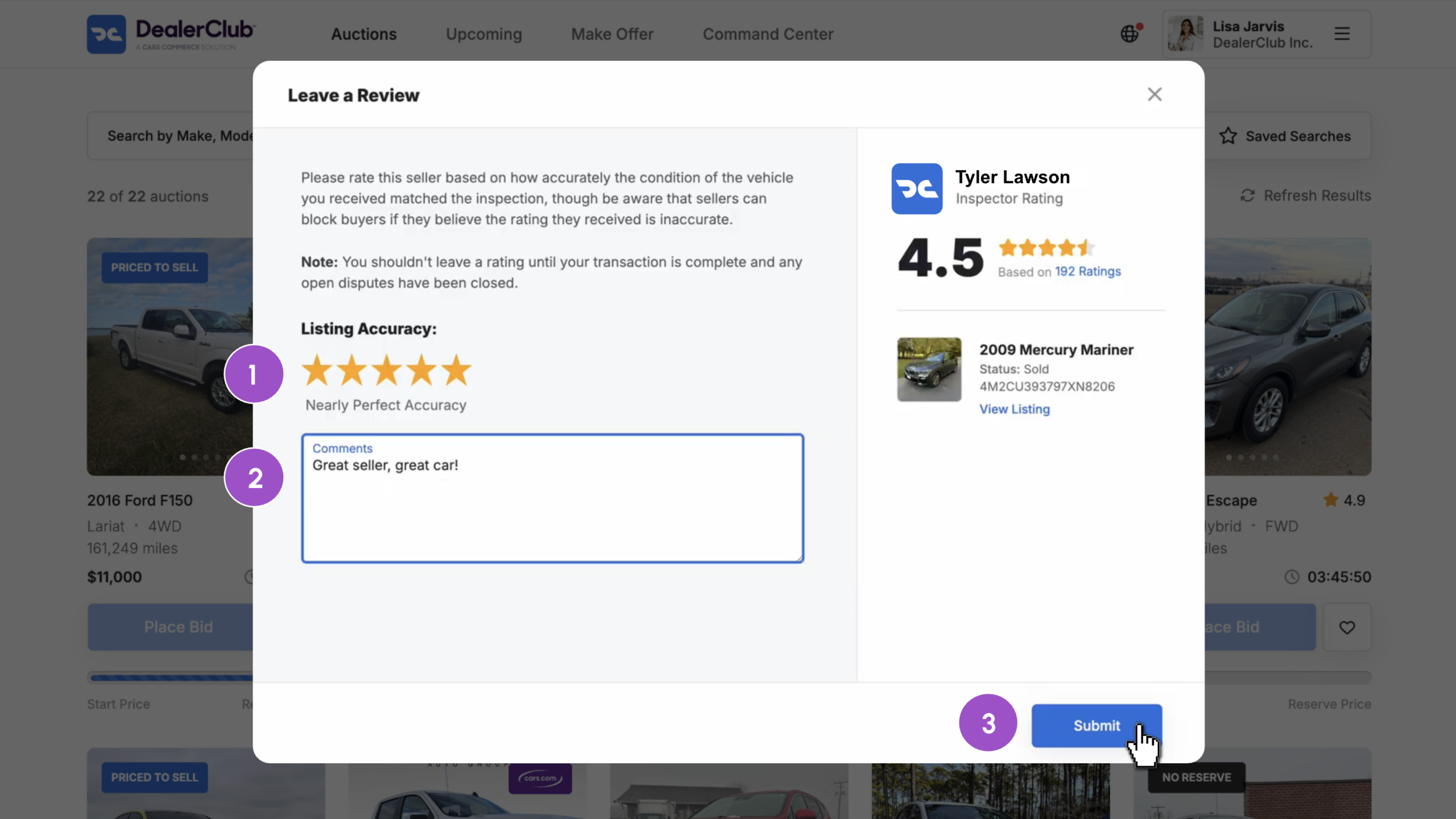
In the pop-up window, you’ll see the vehicle and seller listed.
To submit your review:
- Select the Listing Accuracy rating (1 to 5 stars)
- Add a brief description of your experience, focused on inspection accuracy and vehicle condition
- Click Submit
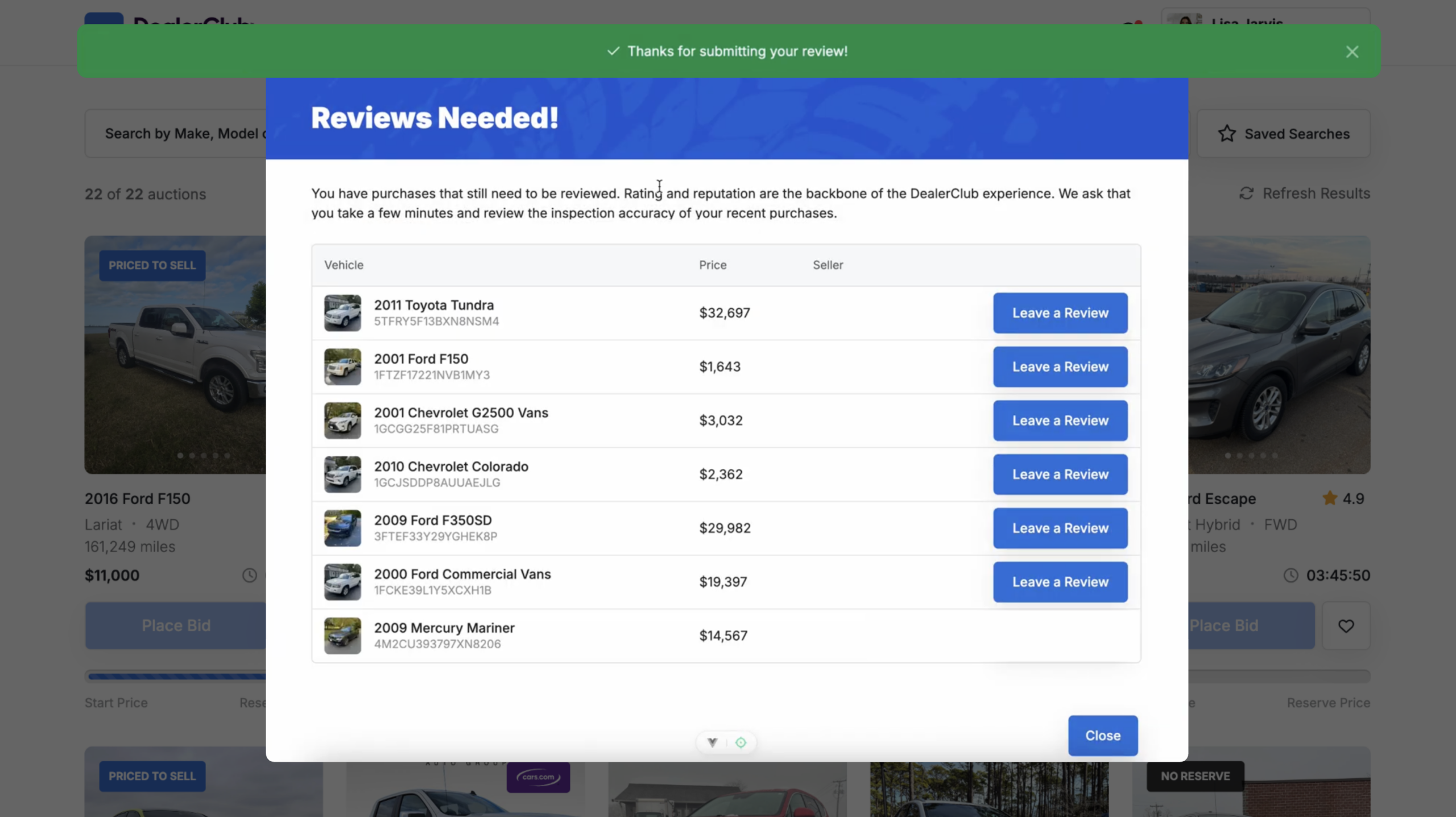
After submitting, you’ll return to your list of outstanding reviews and receive a confirmation that your review has been recorded.
Important: Make sure the transaction is complete and any disputes are resolved before leaving a rating.
Note: Dealers can block buyers from future auctions if they believe a rating is inaccurate or retaliatory.
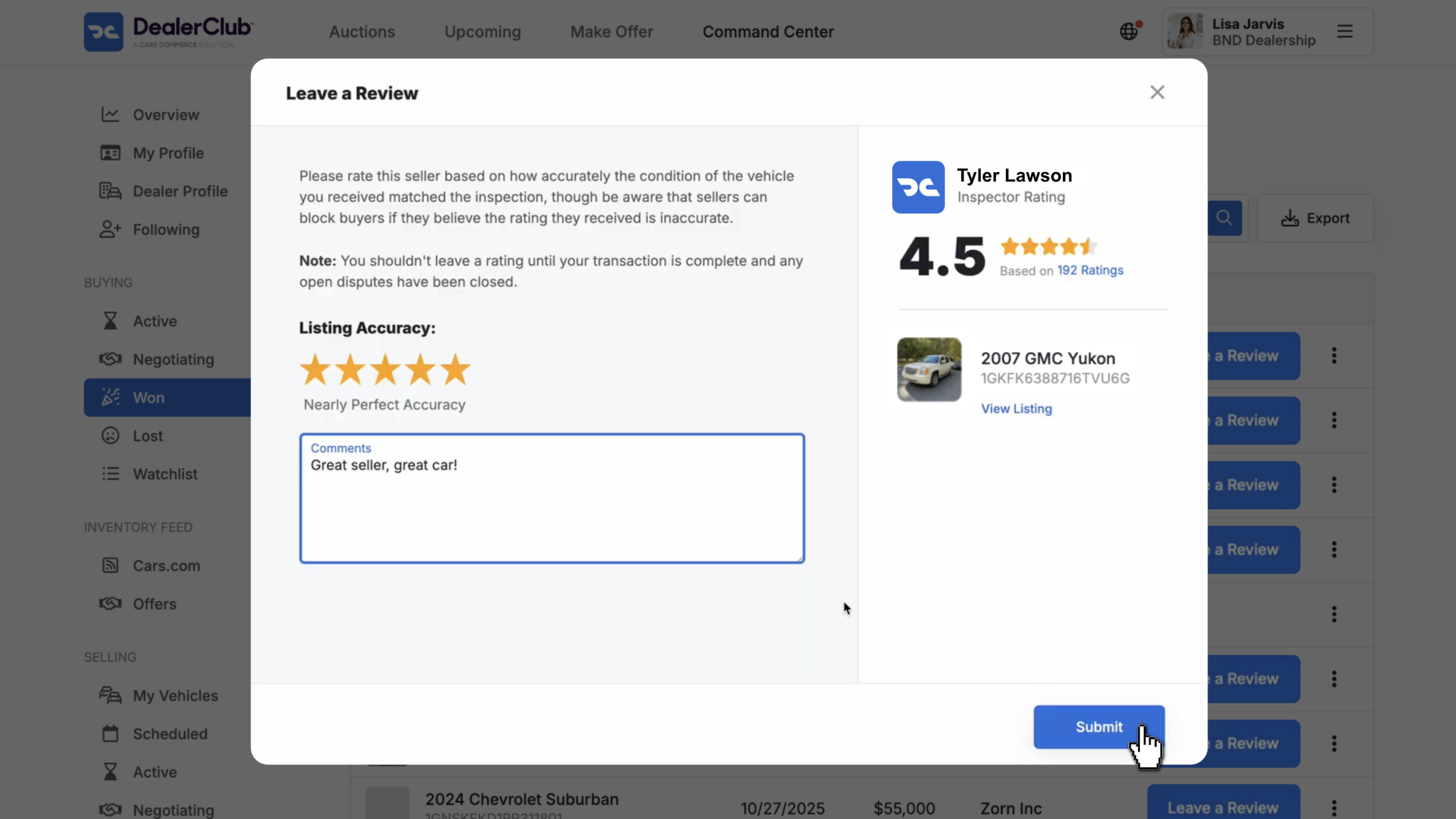
3 Leave a review via the Command Center
You can also go back to leave a review at any time, manually.
- Go to the Command Center
- Click Won
- Click Leave a Review
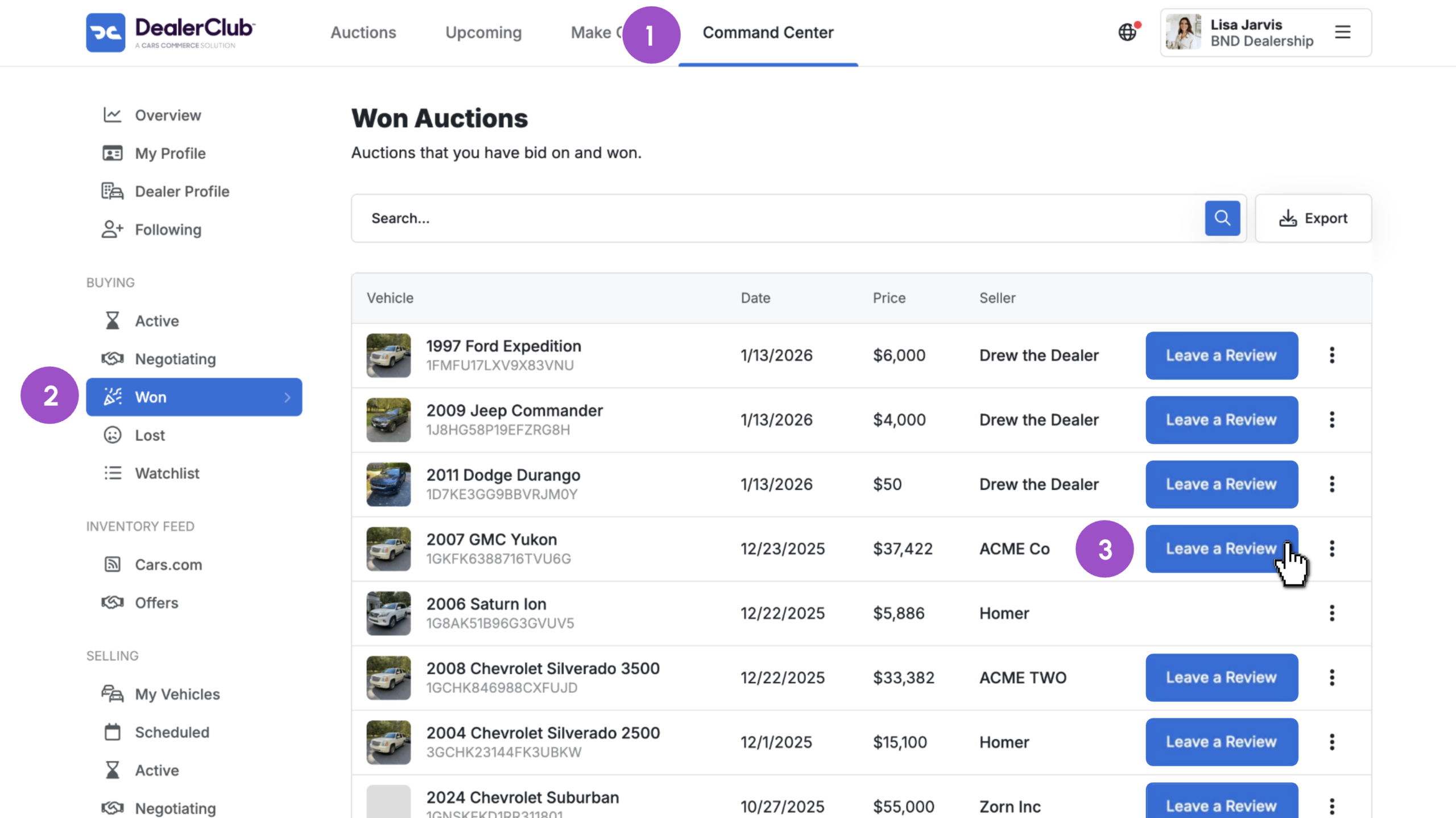
Follow the same steps as above. Select your star rating, add your comments, then click Submit.