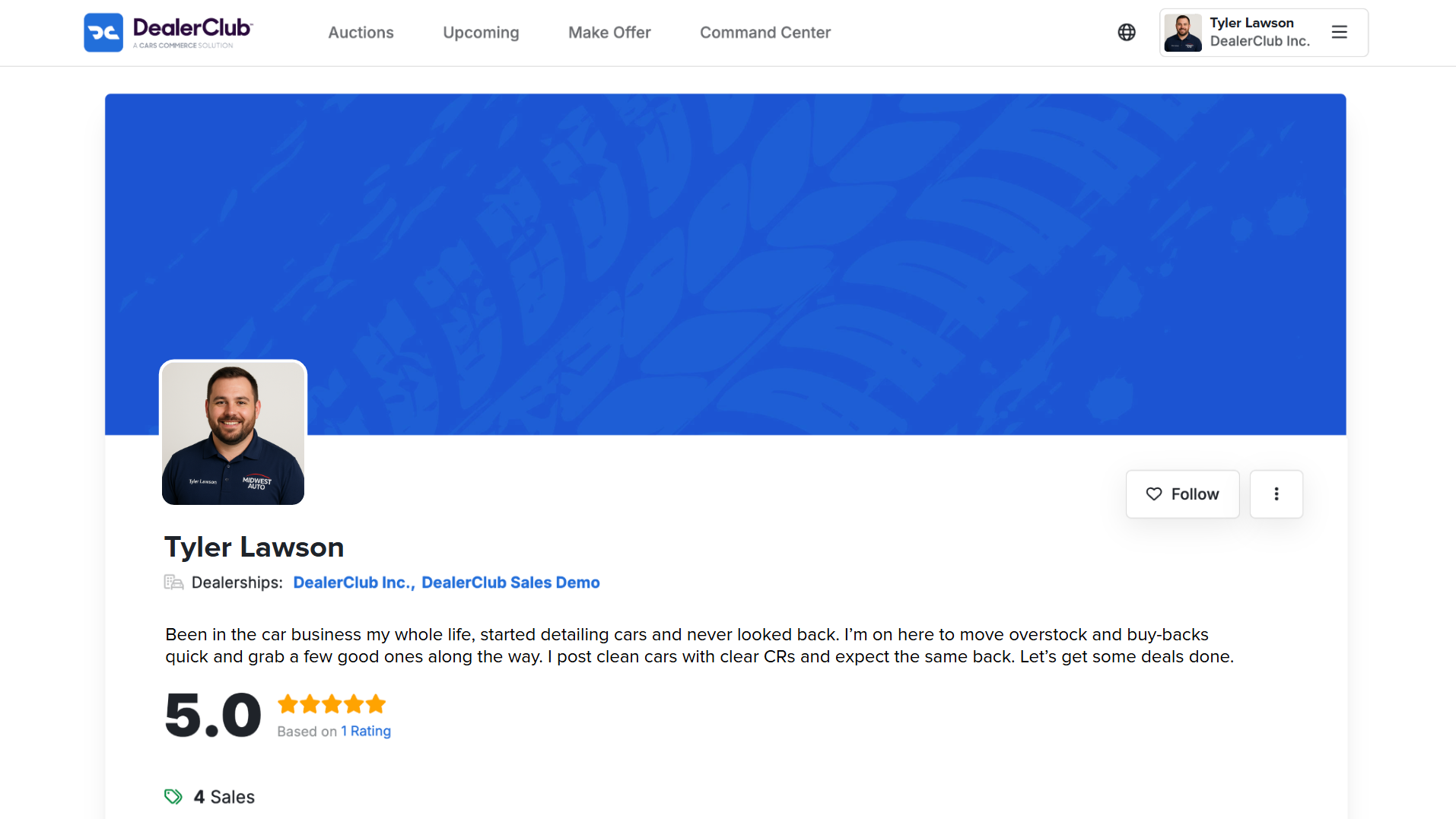
How to add a profile description
Your profile bio gives other dealers a sense of who you are, what you do, and how you operate — helping set expectations and build stronger wholesale connections.
In this article, you’ll learn how to add or update your profile bio during account setup or at any time from your profile settings.
1 Add your bio during account setup
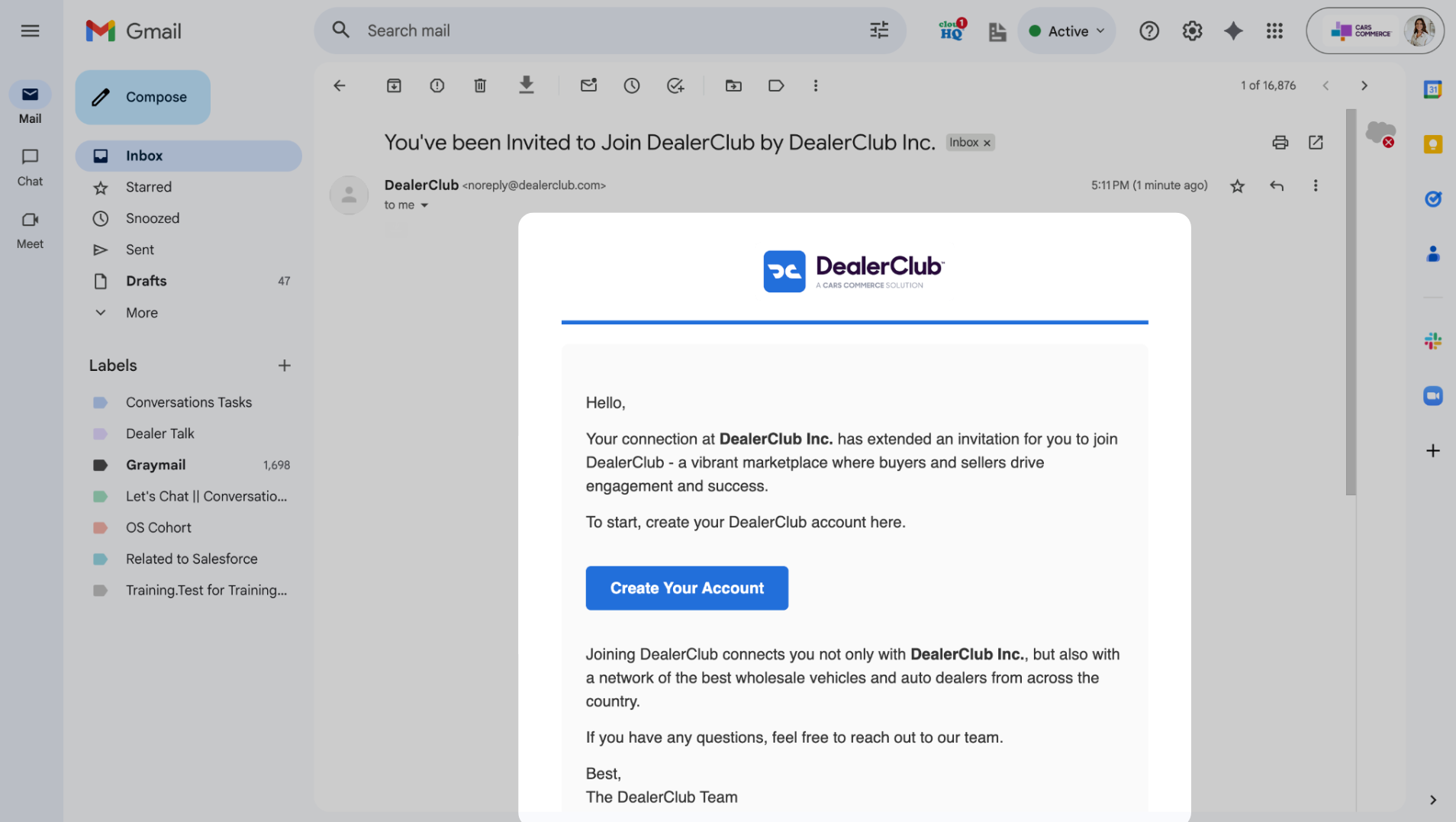
When you’re invited to join DealerClub, you’ll receive an invitation email.
- Click Create Your Account in the invitation email
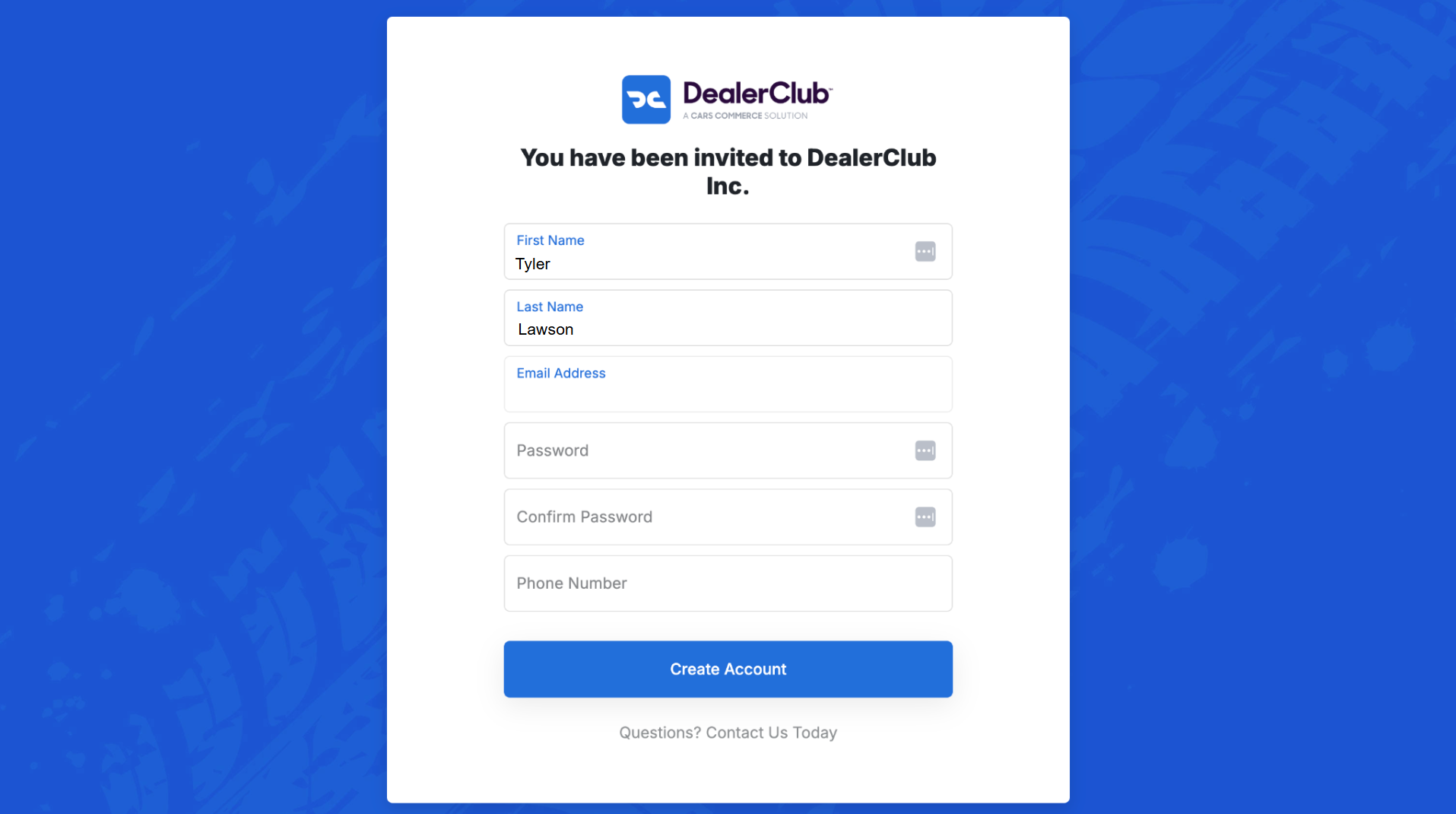
- Complete the sign-up form with your name, email, password, and phone number
- Click Create Account
- Follow the prompts to finalize your profile setup
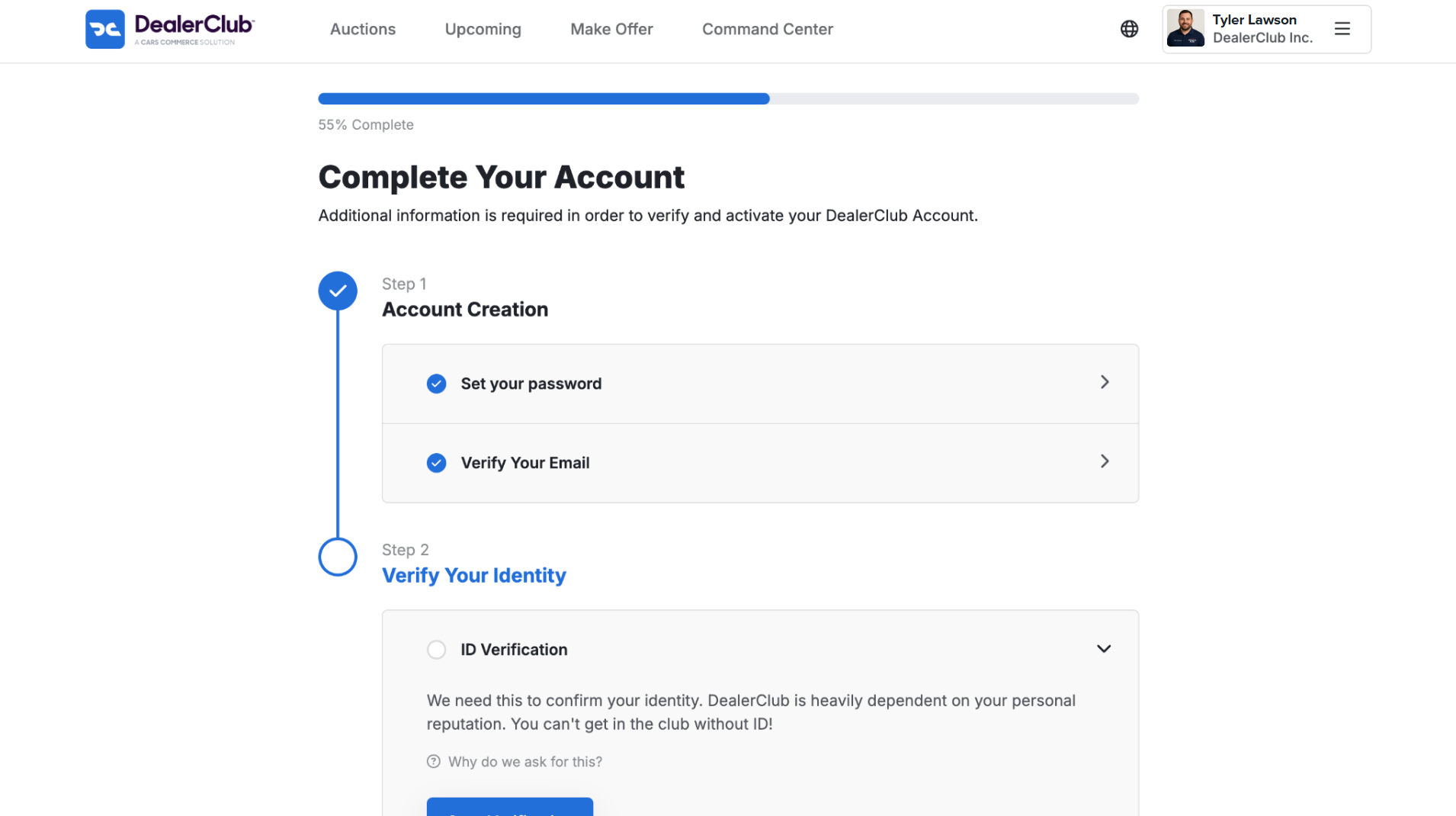
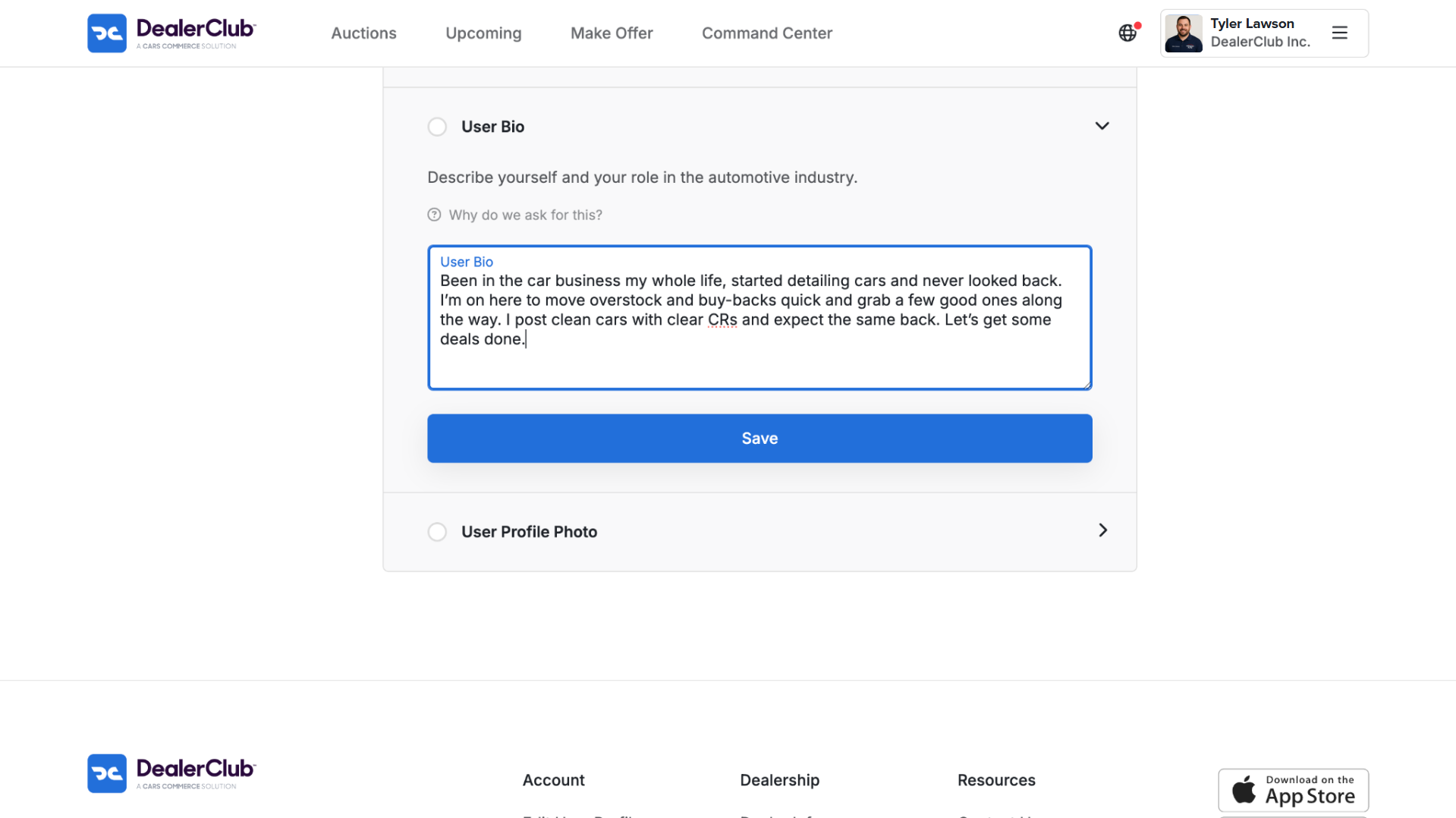
- When you reach the User Bio screen, enter your profile description
Tip: Include your dealership role, years of experience, and what it’s like to work with your store.
- Click Save and continue completing your profile
2 Edit or add your bio later
You can update your bio at any time, even if you skipped it during setup.
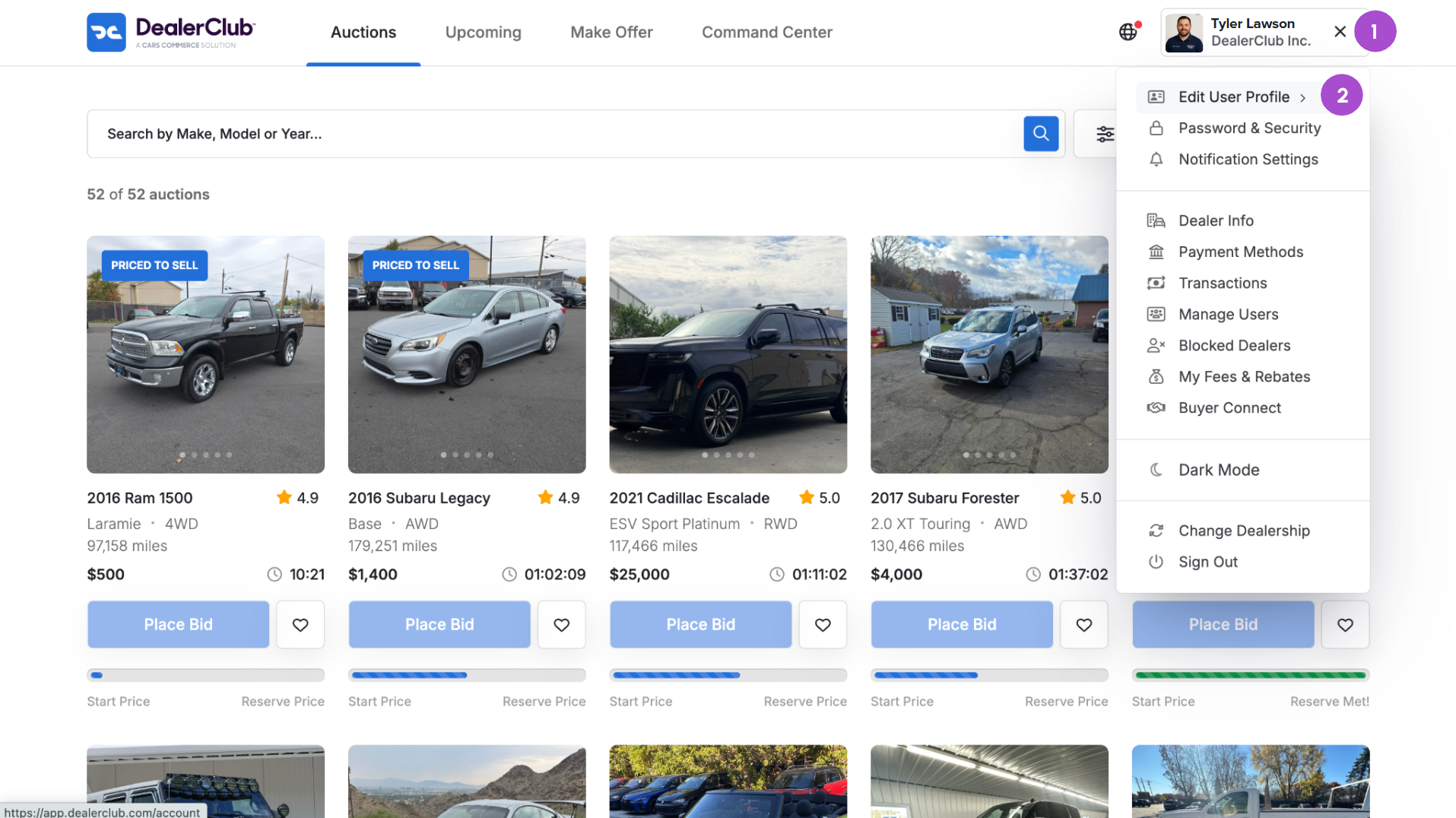
- Click your name in the top-right corner
- Select Edit User Profile from the dropdown
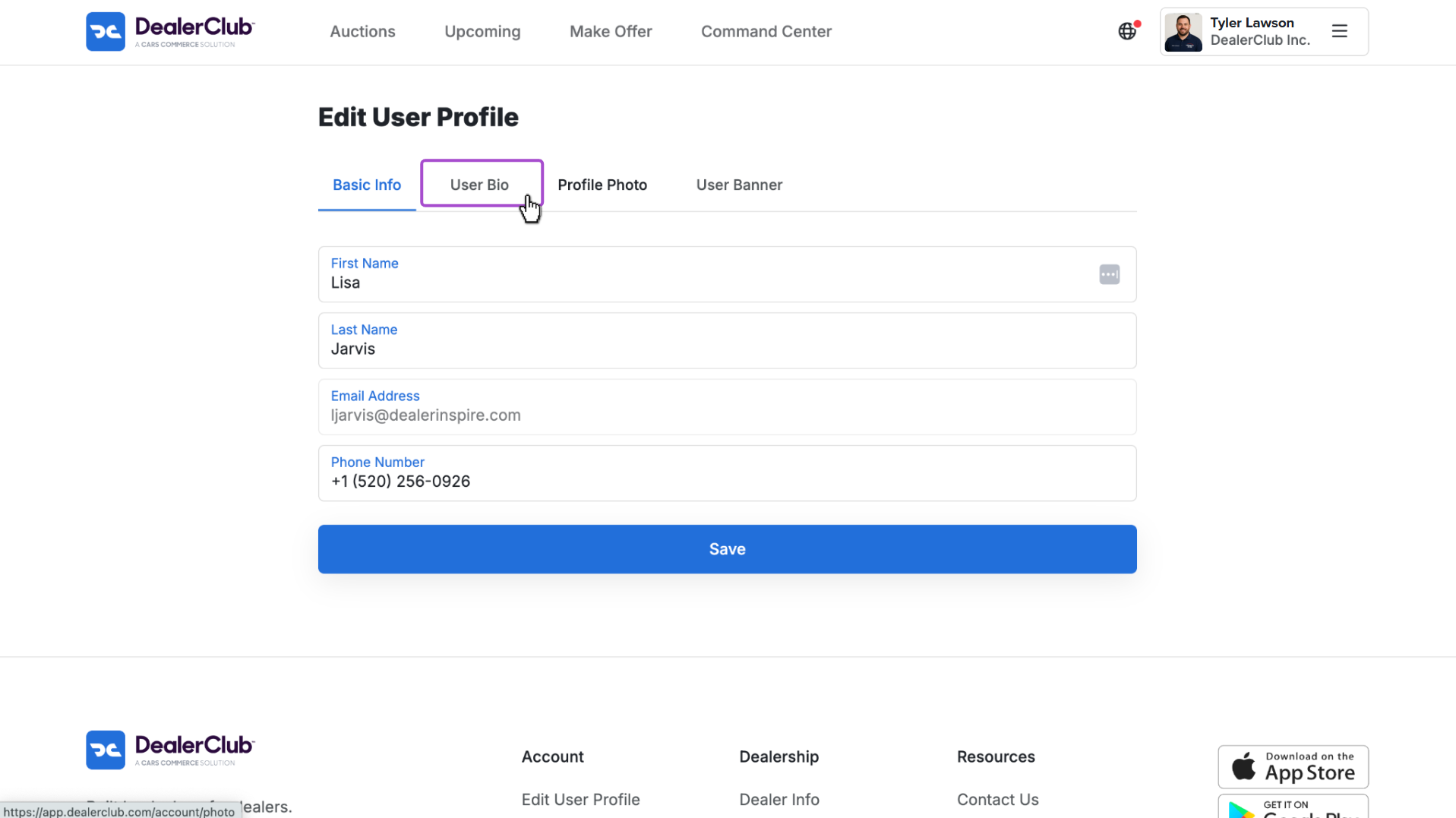
- Navigate to the User Bio tab
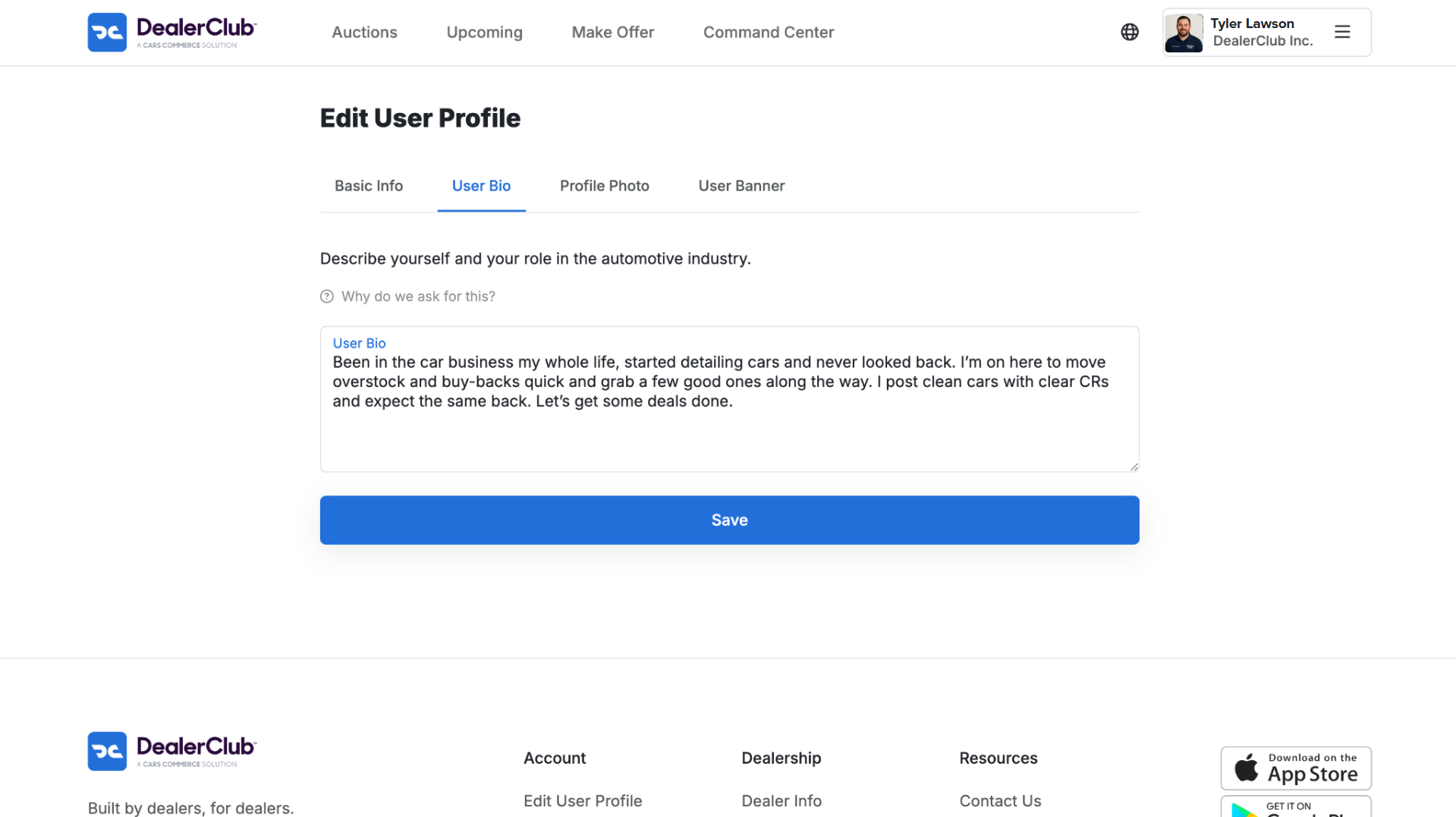
- Enter or update your profile description
Tip: Include your current role, years of experience, and your dealership’s specialties.
- Click Save
Your profile and bio appear to other dealers when they view your activity in DealerClub.