How to configure your Price Bar
To ensure your Price Bar on the appraisal screen aligns with your dealership’s valuation strategy, it’s essential to configure the price positions to your visual and operational preferences. This article provides a simple, step-by-step on how to access your settings, select different book values, and organize the five available price positions to maximize the impact of your appraisals and keep your process fast and effective.
To get started
Go to the Cars.com Hub, and click on AccuTrade.
1 Click into your Account Settings
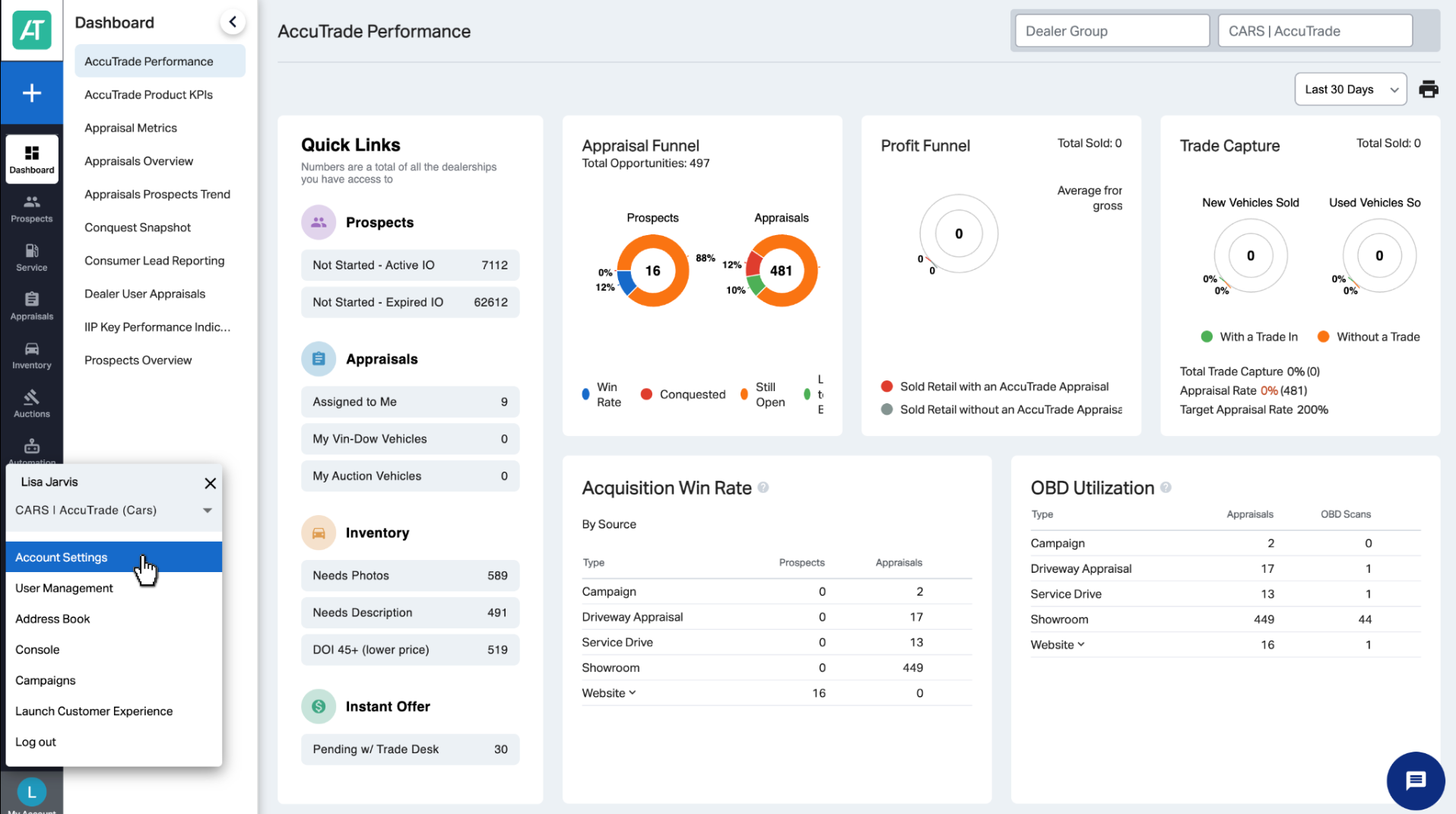
Once logged into AccuTrade, click My Account in the bottom left corner, then select Account Settings.
2 Click into Product Settings
From your Account Settings screen, click into the Product Settings tab, then Price Bar Configuration from the list.
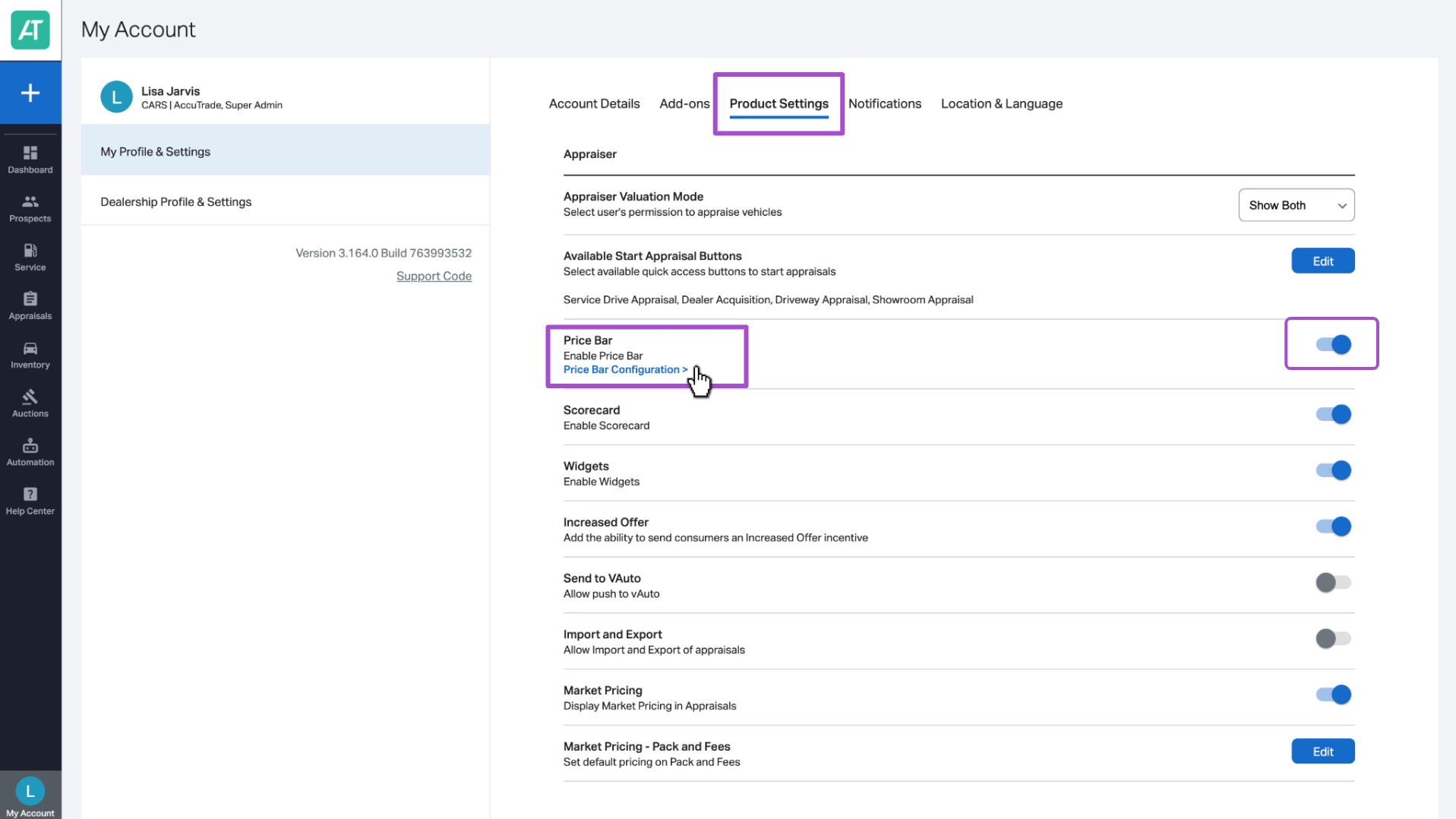
Ensure this feature is toggled on. If it isn’t, please reach out to accutradesupport@carscommerce.inc.
3 Adjust the Price Bar
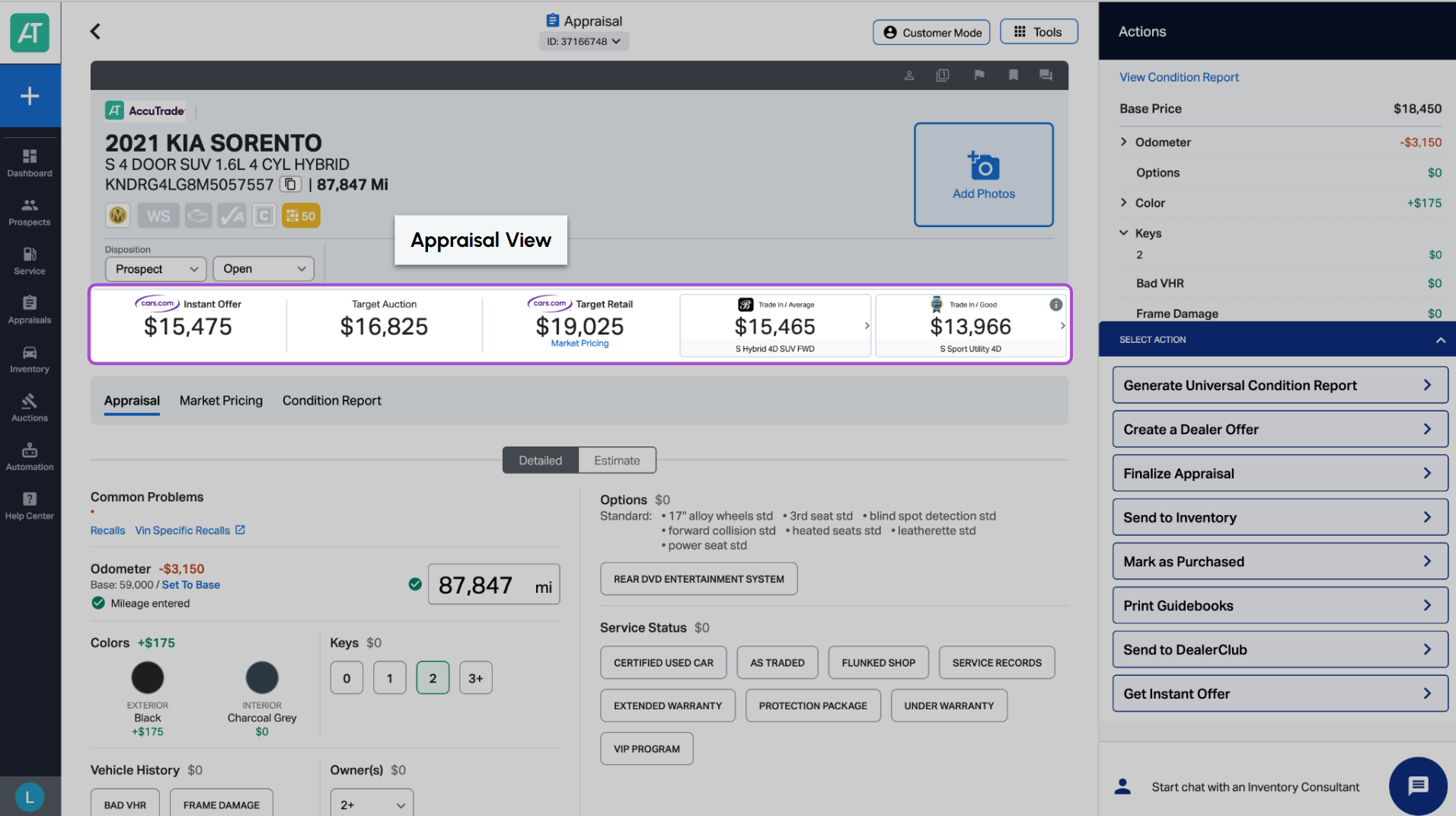
You’ll see five positions available to be adjusted. Each position provides a different price perspective in different categories to help reinforce and influence the Instant Offer.
Use the arrows to the right to change the order of how the price positions show on your appraisal screen.
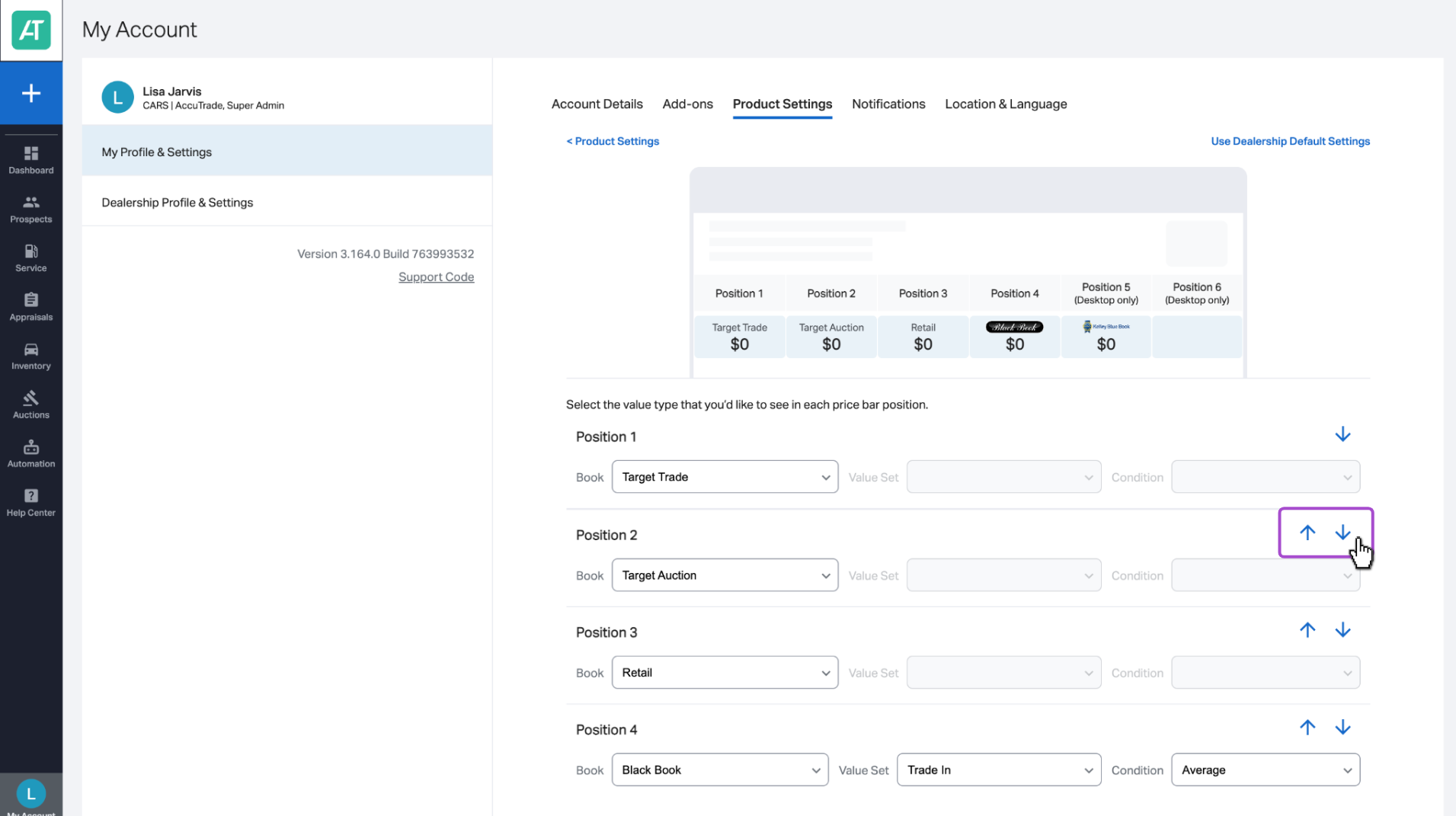
You can select up to two third party pricing books to appear in your Price Bar, like Black Book, KBB, JD Power, or MMR. You can update the Value Set and Condition of these pricing books.
To update a position:
- Select Book to choose the pricing source. This defines where the price is coming from.
- Select Value Set to define the type of transaction value. This helps differentiate between retail, trade-in, or wholesale values within the chosen book.
- Select Condition to apply a condition adjustment. This allows you to select the appropriate condition to accurately reflect the vehicle being appraised.
Click Save to push your changes to all users.
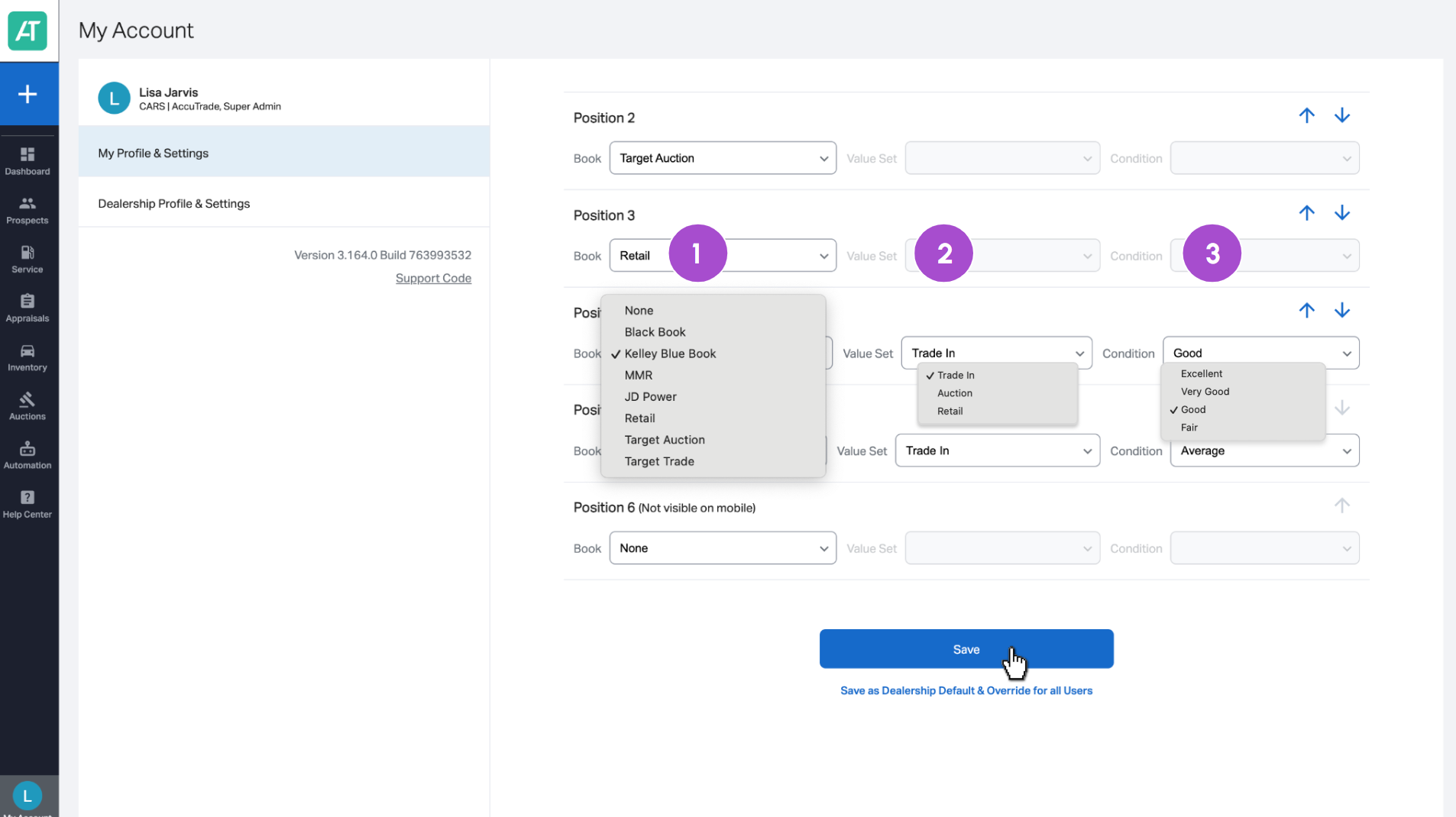
Note: Adjusting the Value Set and Condition will affect the final appraisal price, but simply adjusting the position of the pricing books in your Price Bar will not.
If you want to revert changes back to default, click Use Dealership Default Settings in the top right corner of the Configure Price Bar page. Dealership default settings were set up during your onboarding process.
You’ll notice your reconfigured Price Bar in the appraisal screen: