How to connect external review sources
Shoppers leave reviews on Google, Facebook, Yelp, Carfax, CarGurus, and more — and jumping between platforms to keep up isn’t sustainable. The Review Sources page in your Dealer Panel lets you connect those platforms in one place, so your team can read and respond to reviews, run ReviewBuilder campaigns, and manage additional reputation features without switching tools.
In this article, you will learn how to navigate to Review Sources, connect your Google and Facebook pages, add other third-party review platforms, and remove a source when needed.
To get started
Go to the Cars.com Hub. Click Cars.com, then Reputation.
Before you begin, make sure you have:
- Admin access to any Facebook Business Pages you want to connect
- Admin access to your Dealer Panel
- Access to the Google account linked to your dealership’s Google Business Profile
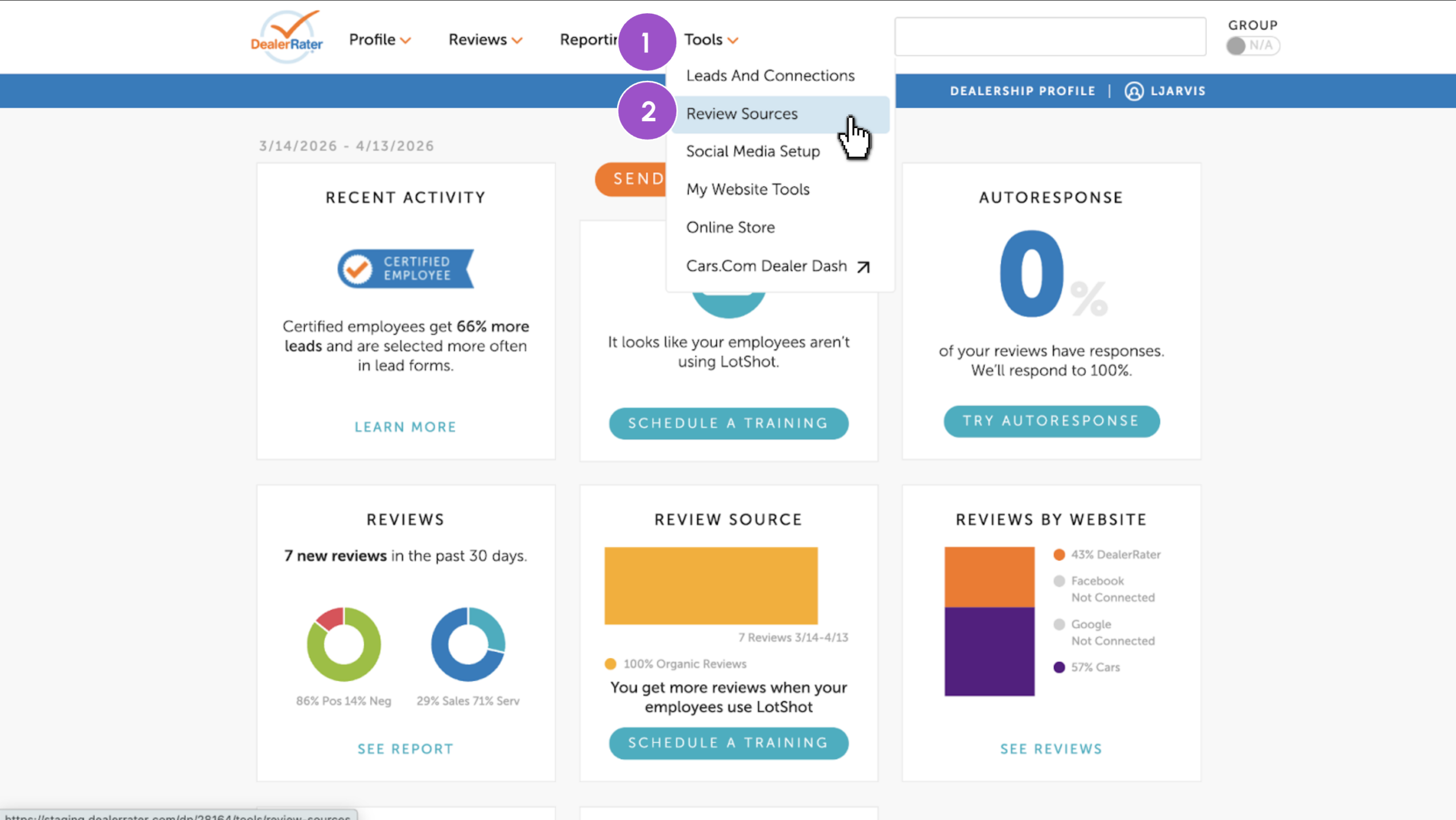
1 Navigate to your review sources
- Click the Tools tab from the top navigation bar in your Dealer Panel
- Select Review Sources
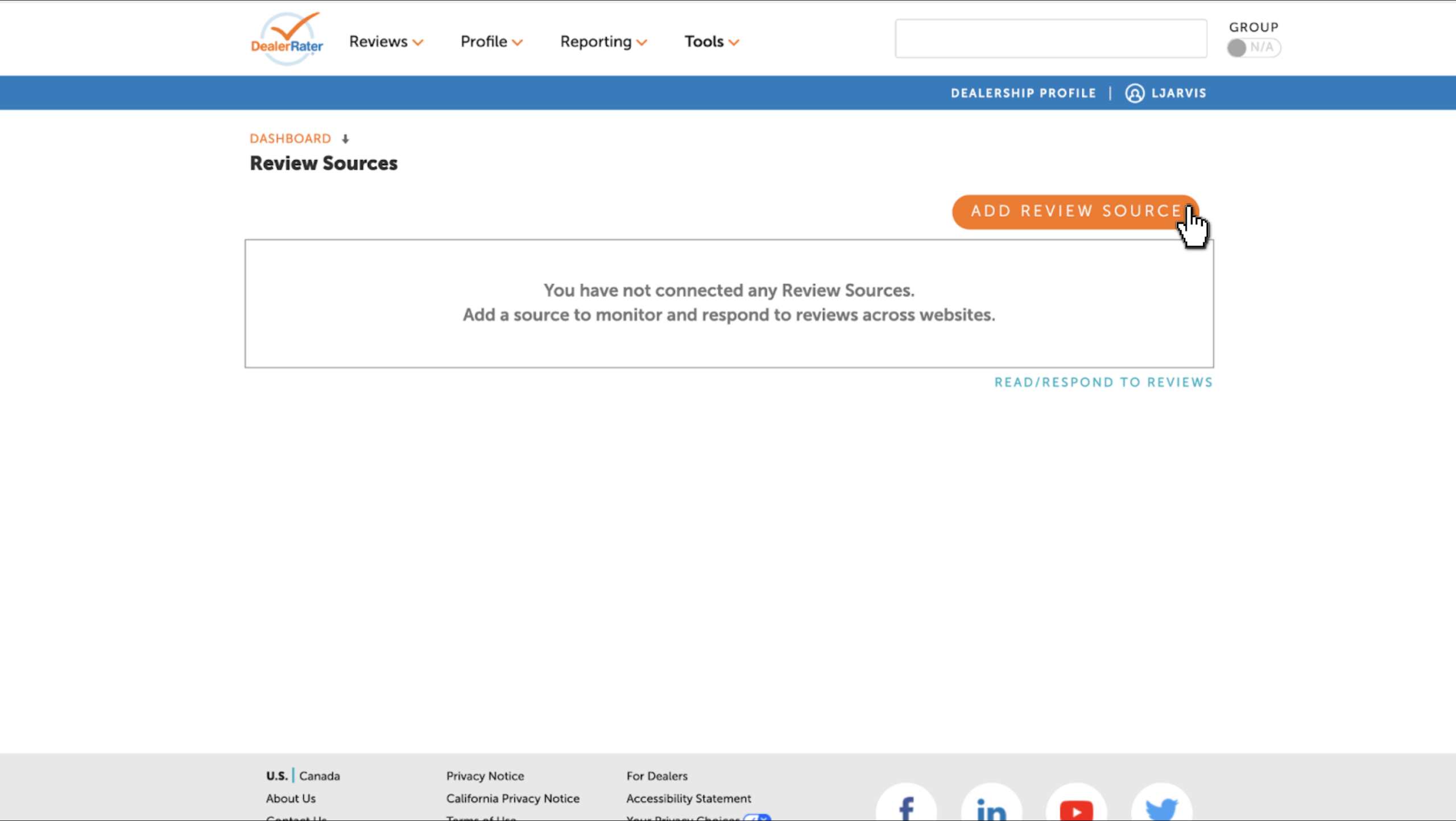
2Add a review source
- Click Add Review Source
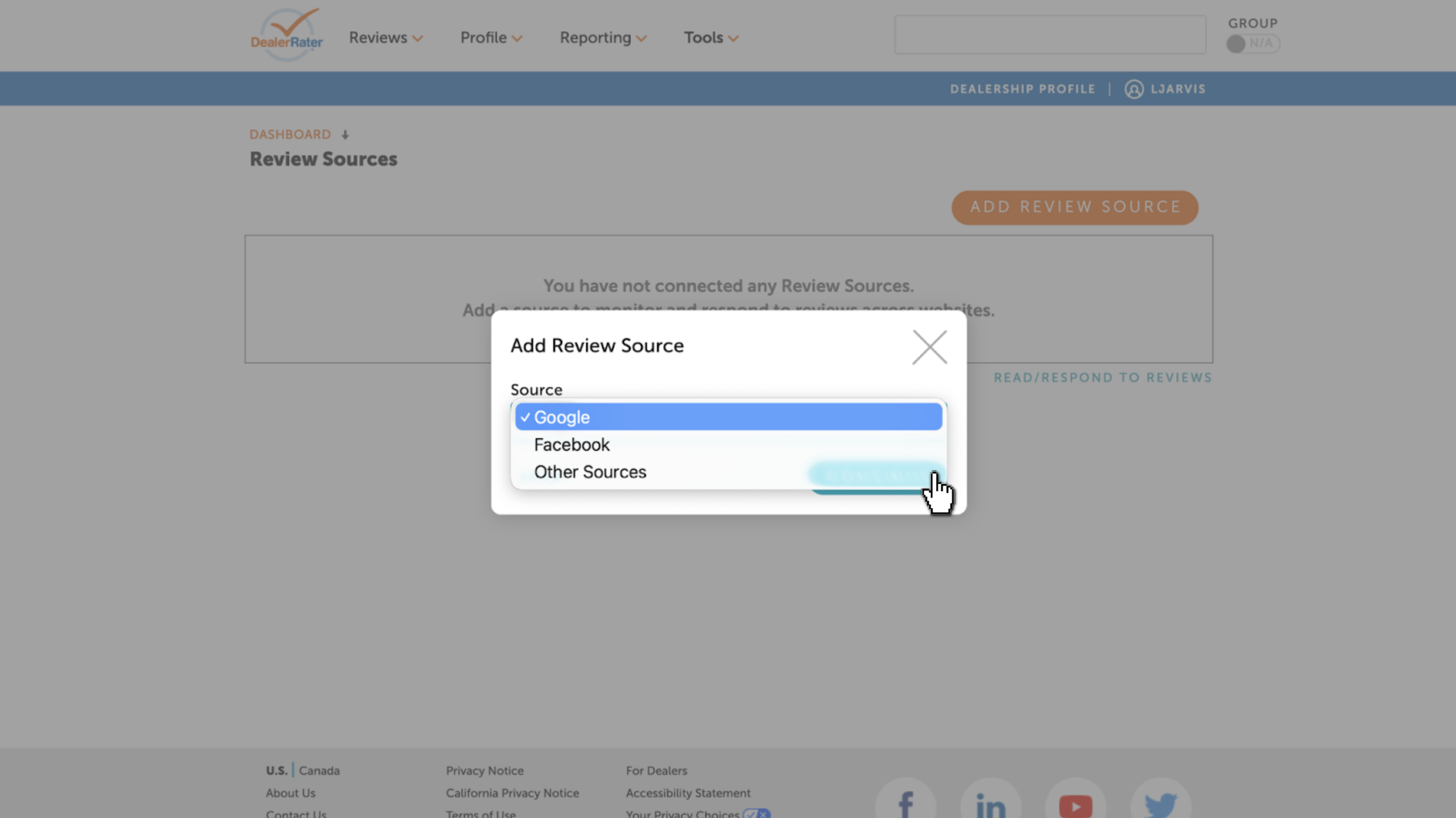
- Select Google, Facebook, or Other Sources from the dropdown
- Click Continue
3 Connect your Google page
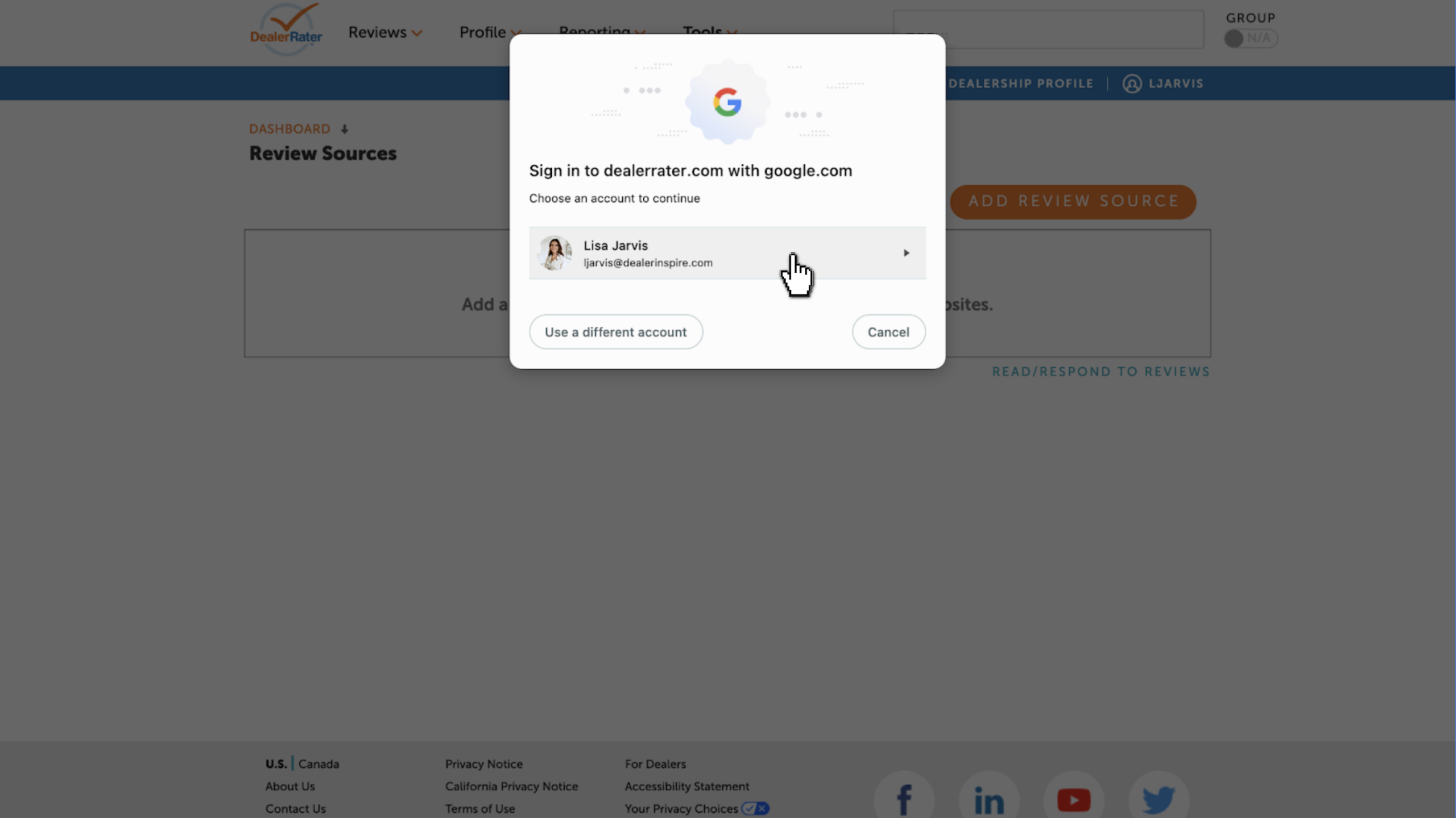
A Google sign-in window will appear.
- Select the Gmail account associated with your dealership’s Google Business Profile
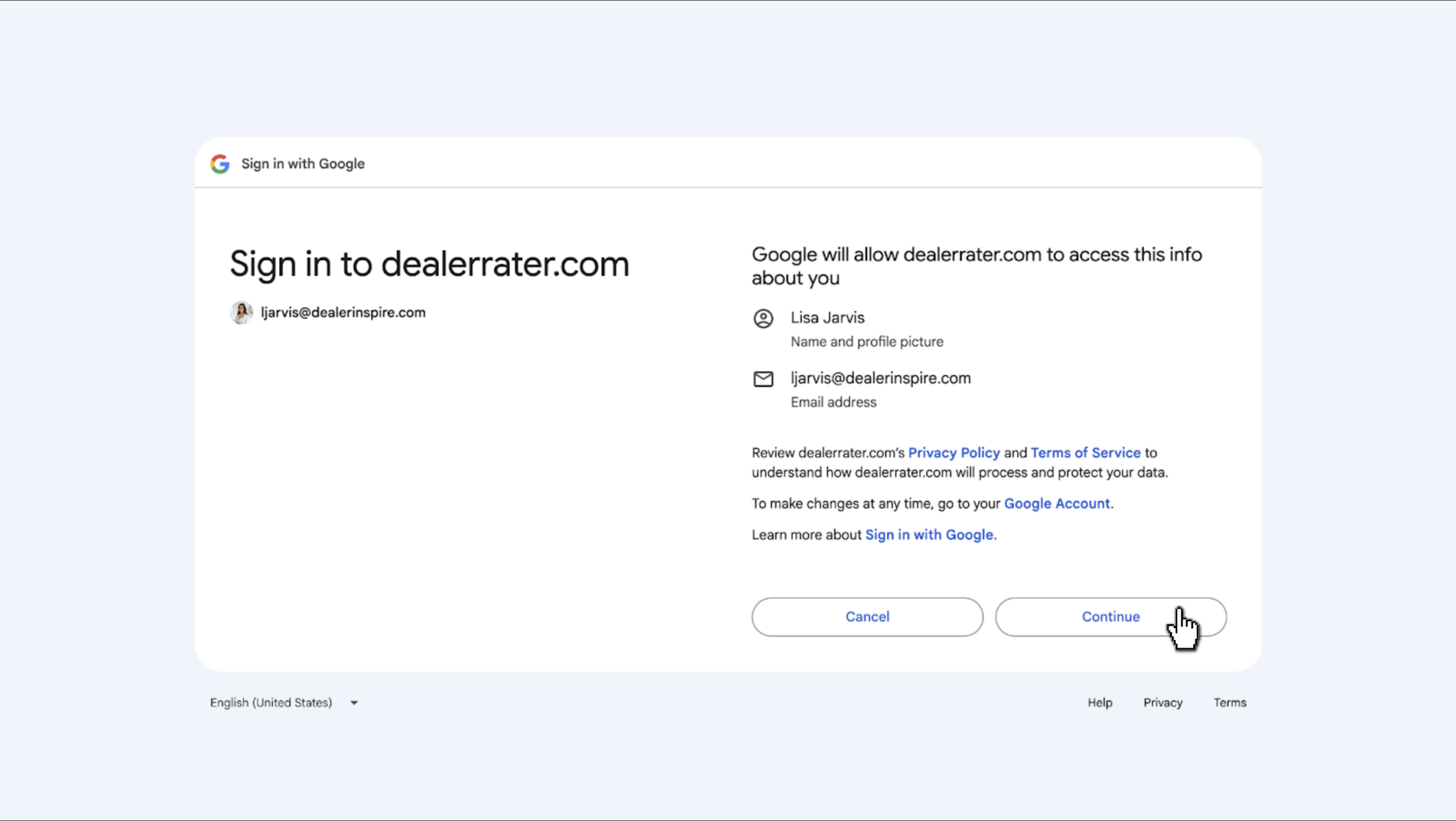
- Click Continue
- Click Continue again to confirm the connection
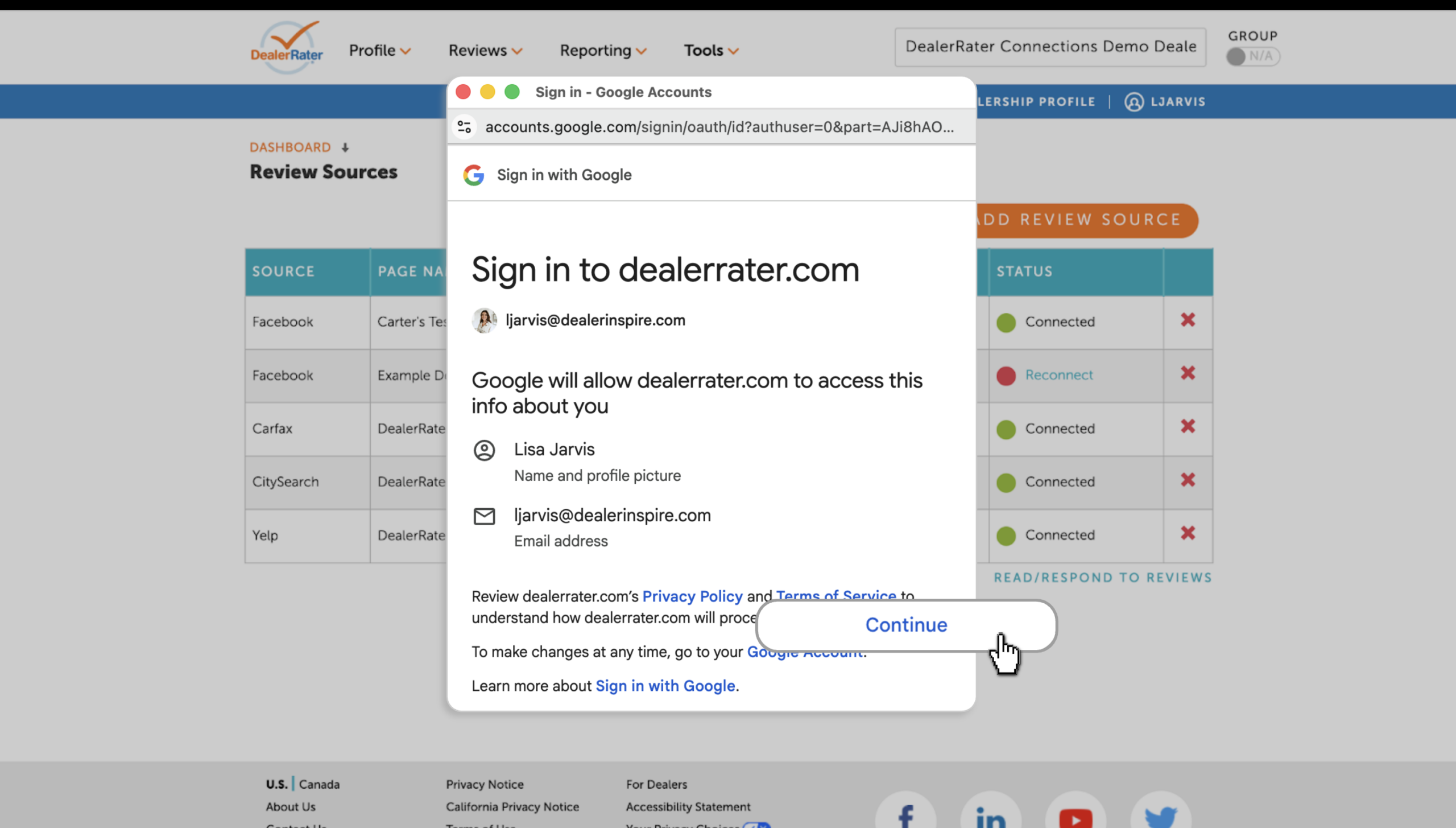
Note: You may see several Google authentication prompts before reaching the page selection on your Dealer Panel. Follow each one to complete the connection.
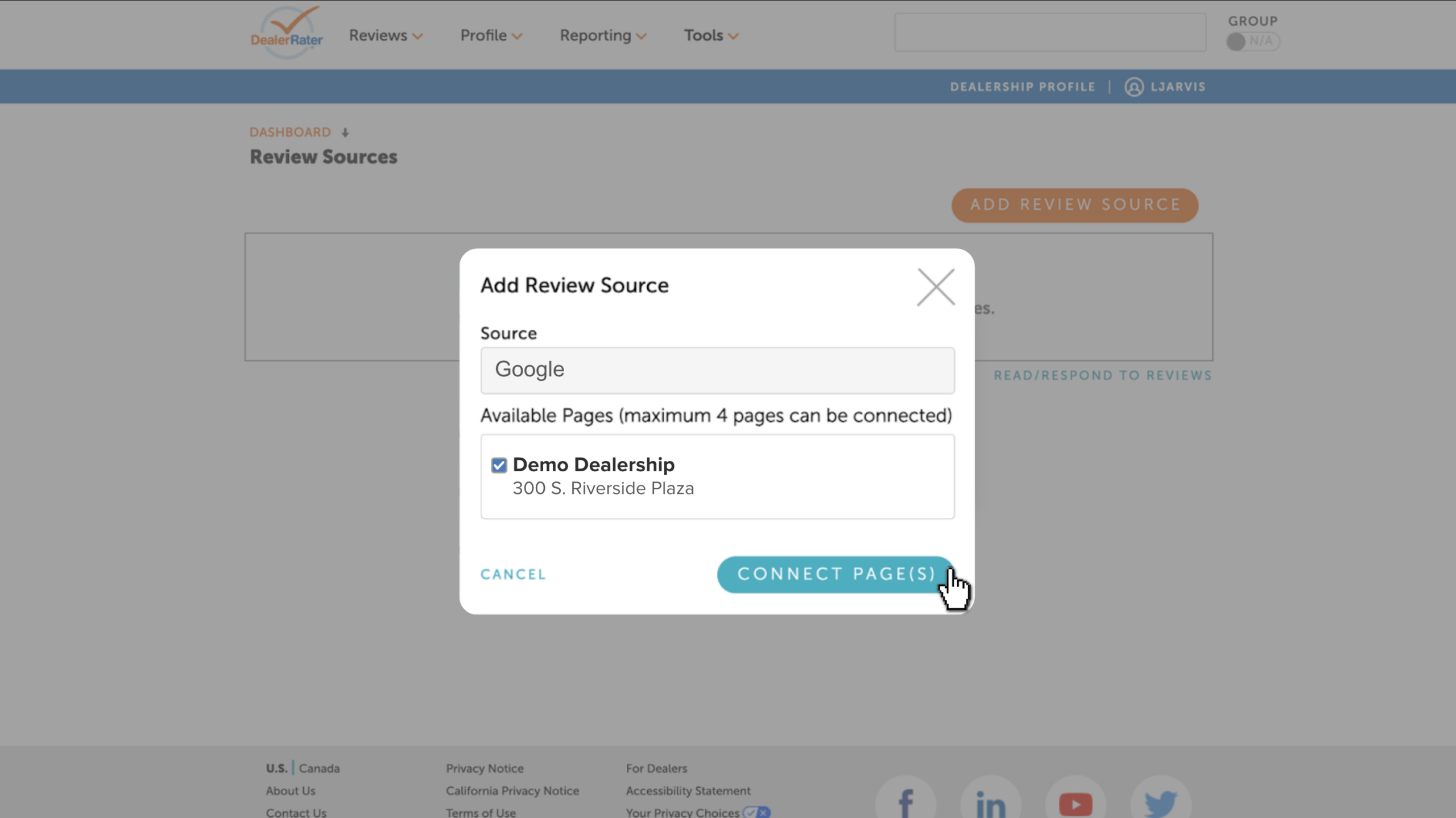
- Check the box next to each page you want to connect
- Click Connect Page(s)
Your Google page will appear in the Review Sources table along with:
- Source name
- Page name
- Average rating
- Review count
- Connection status
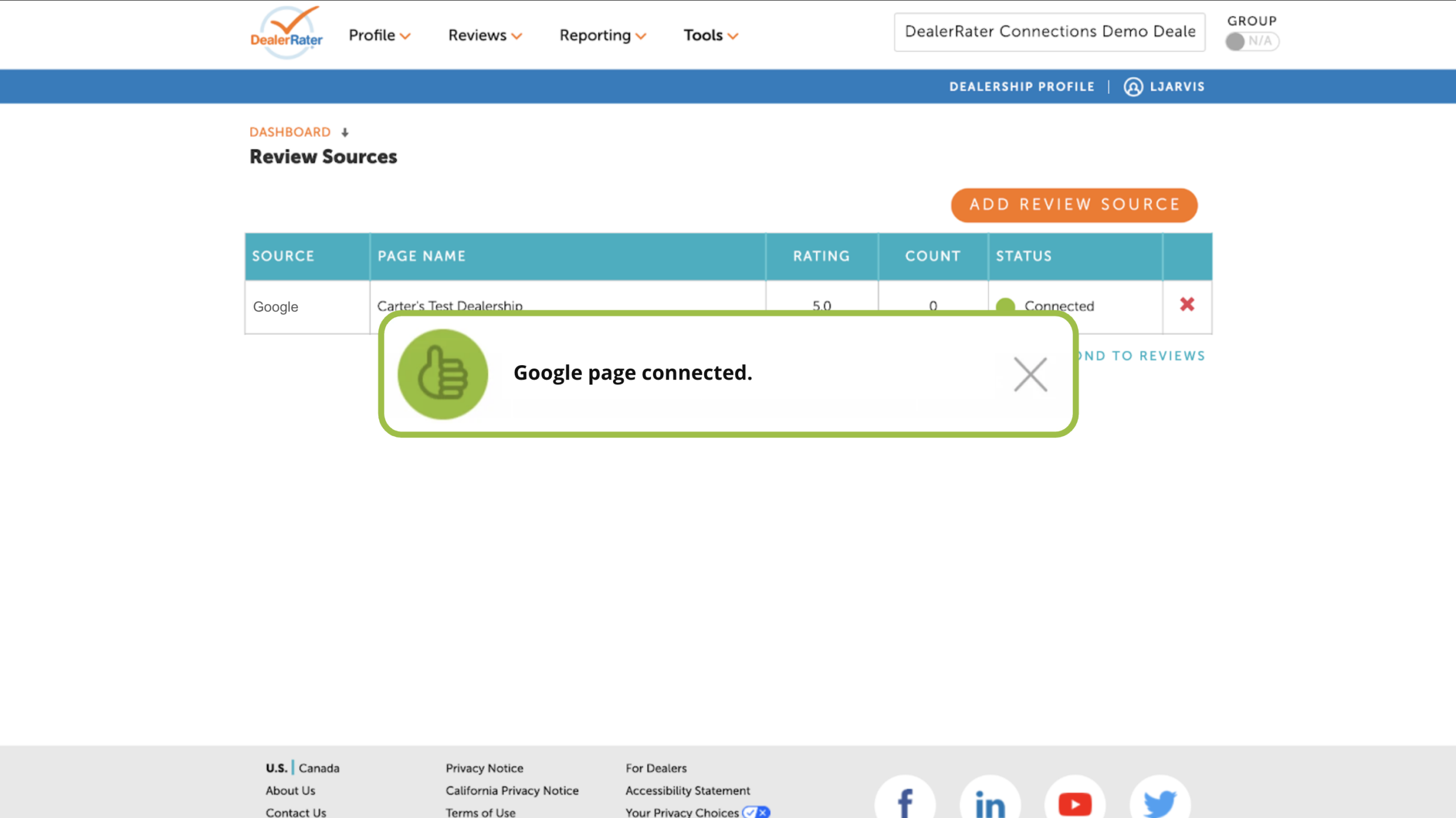
You’ll see confirmation once your Google account is connected.
4 Connect your Facebook page
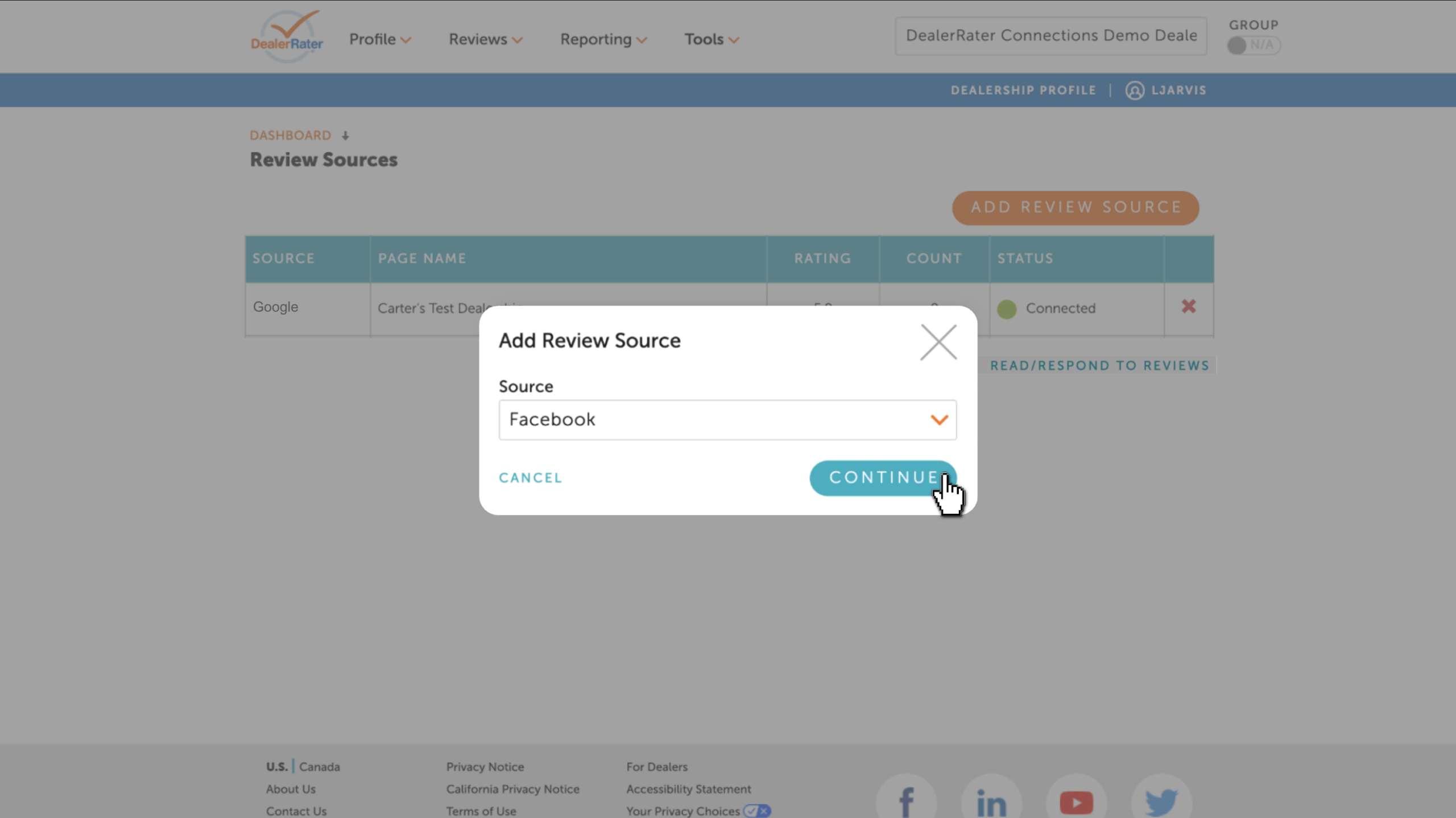
- Click Add Review Source again
- Select Facebook from the dropdown
- Click Continue
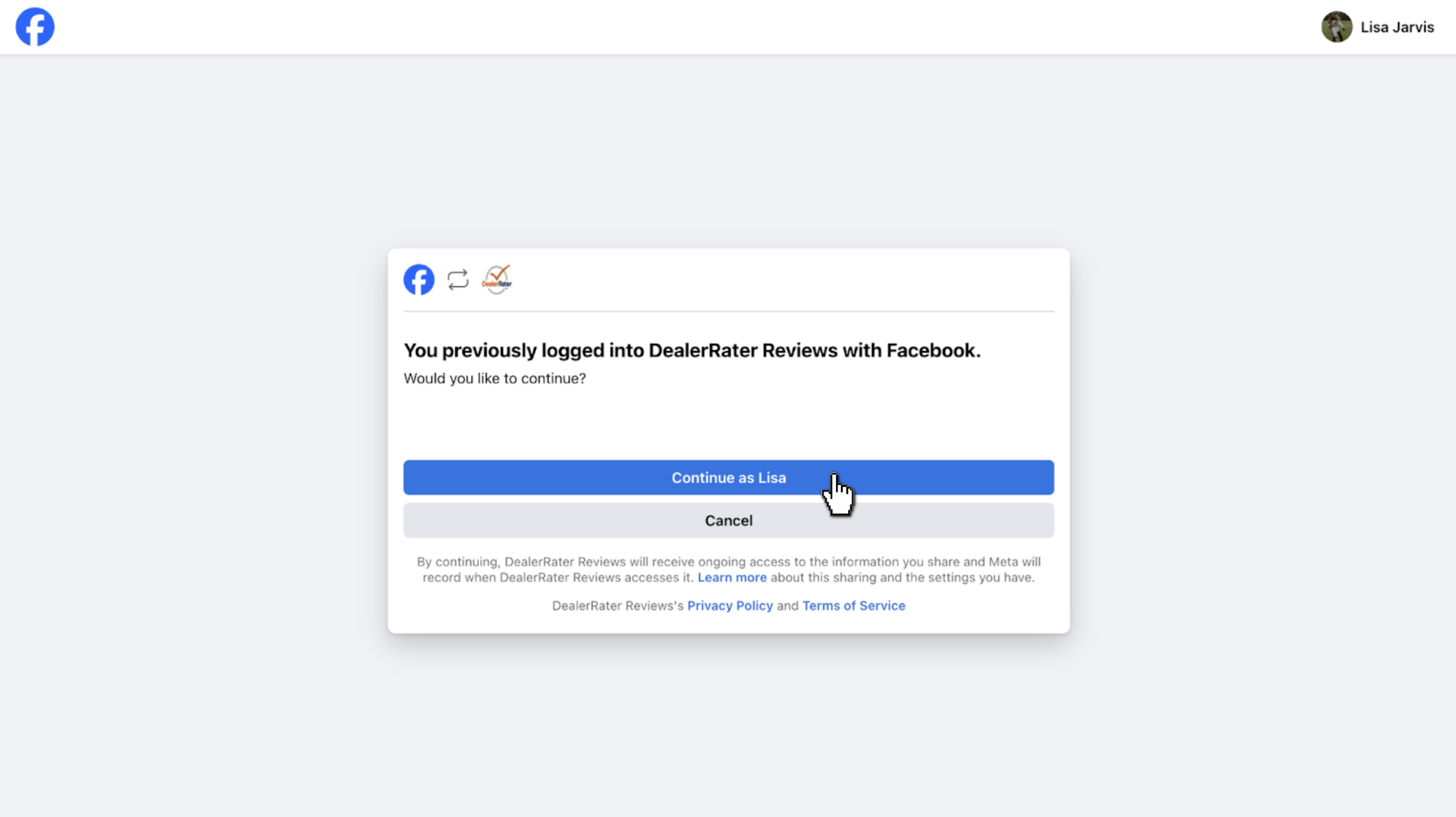
- Confirm your Facebook account and select Continue
- Check the box for each page you want to connect
- For example, your Sales or Service page
- For example, your Sales or Service page
- Click Connect Page(s)
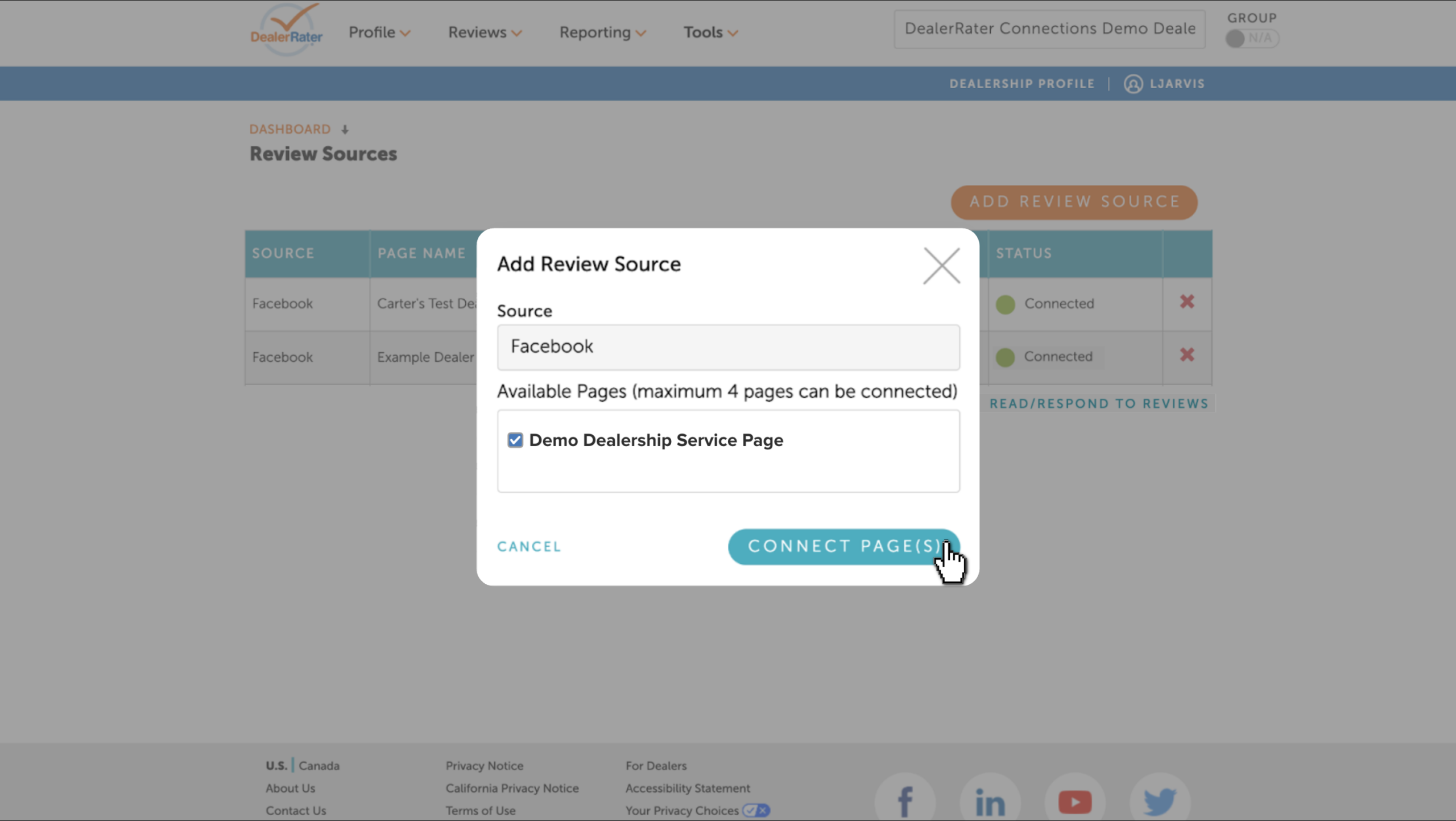
You’ll see confirmation once your Facebook pages are connected.
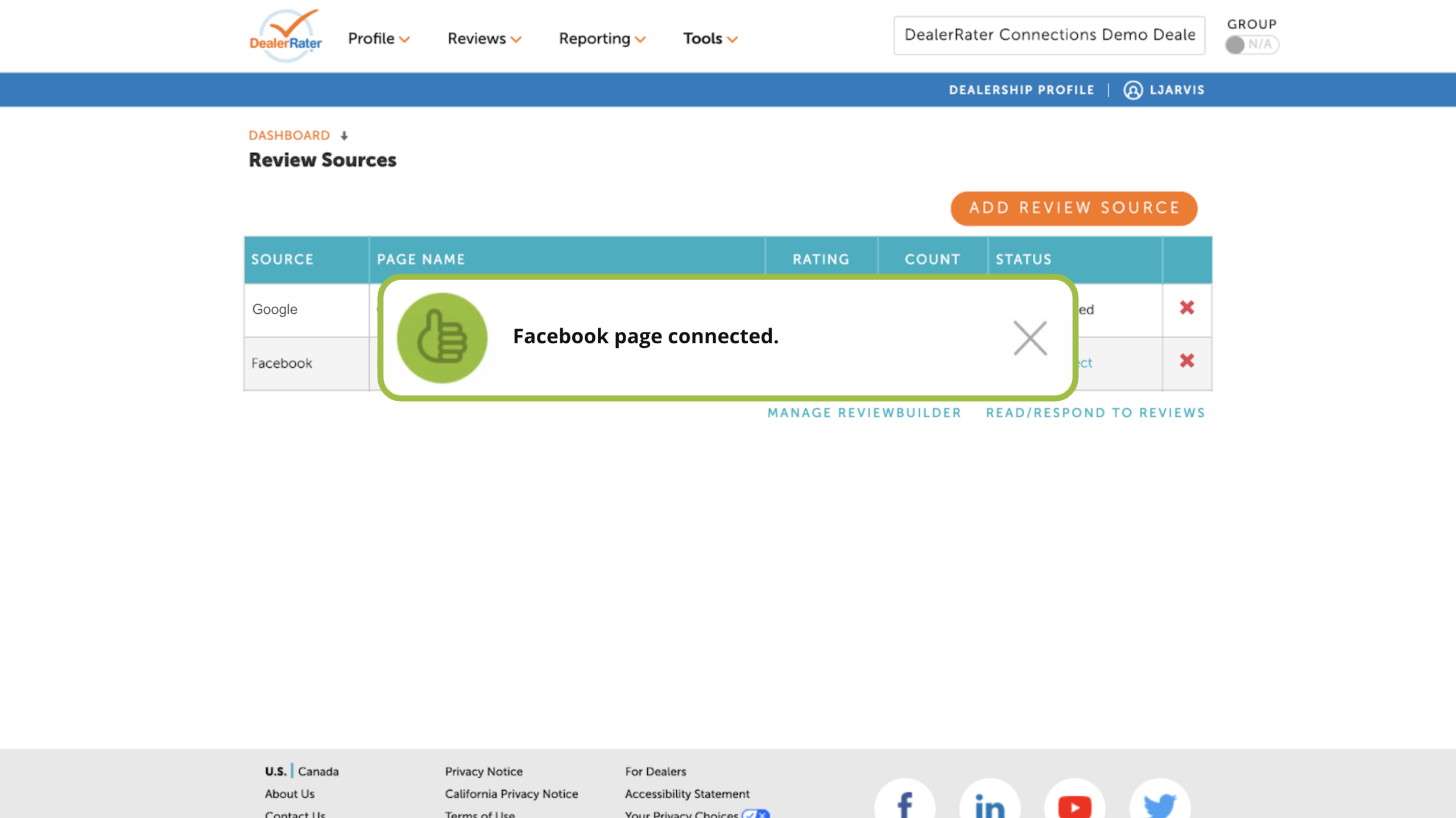
Note: They’ll also automatically populate in your Social Media Setup page under Tools, so you can publish reviews directly to your Facebook Page Wall.
5Connect other review platforms
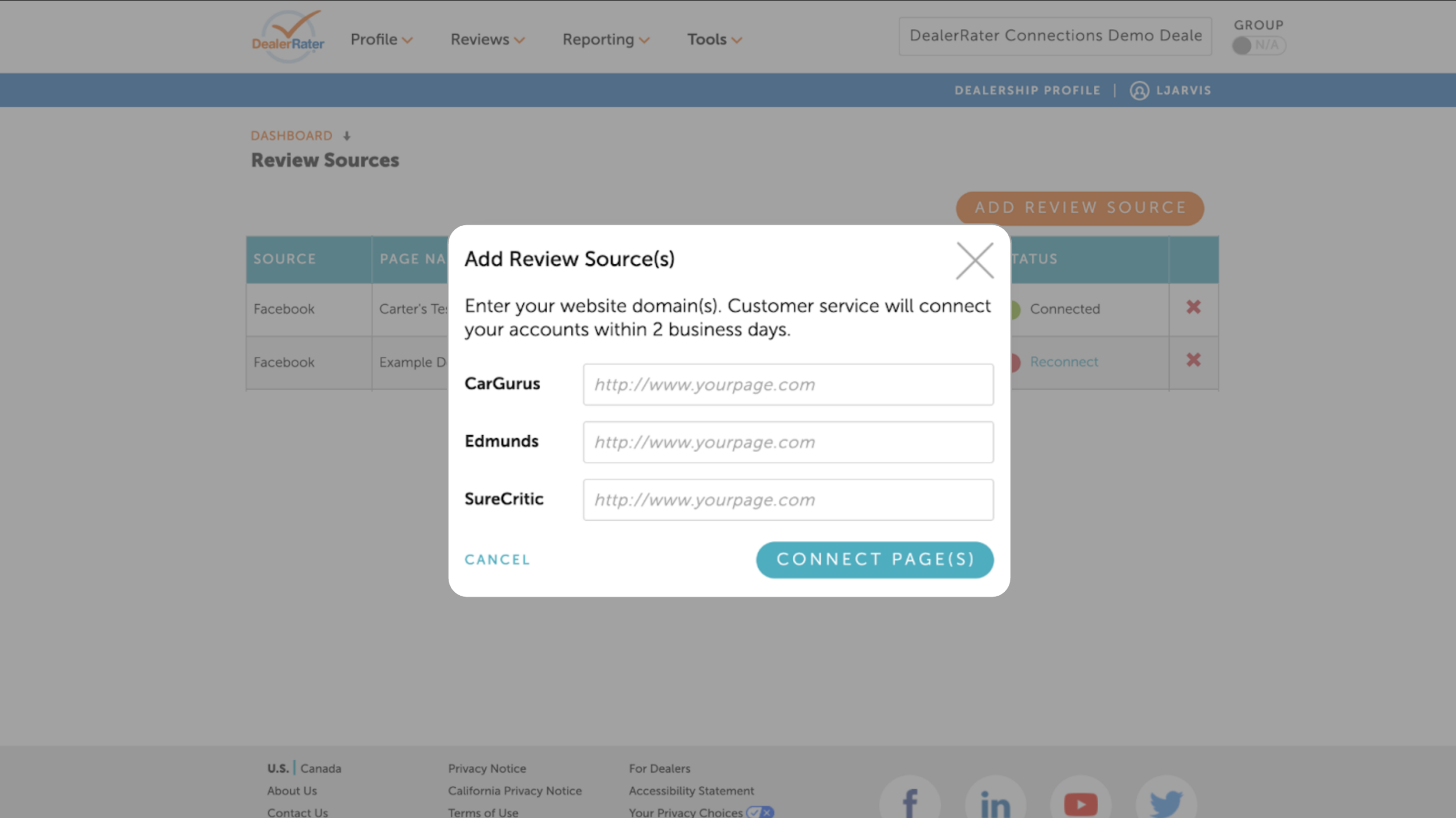
Review Sources supports more than just Google and Facebook — you can also connect Yelp, Carfax, CarGurus, Edmunds, CitySearch, and SureCritic.
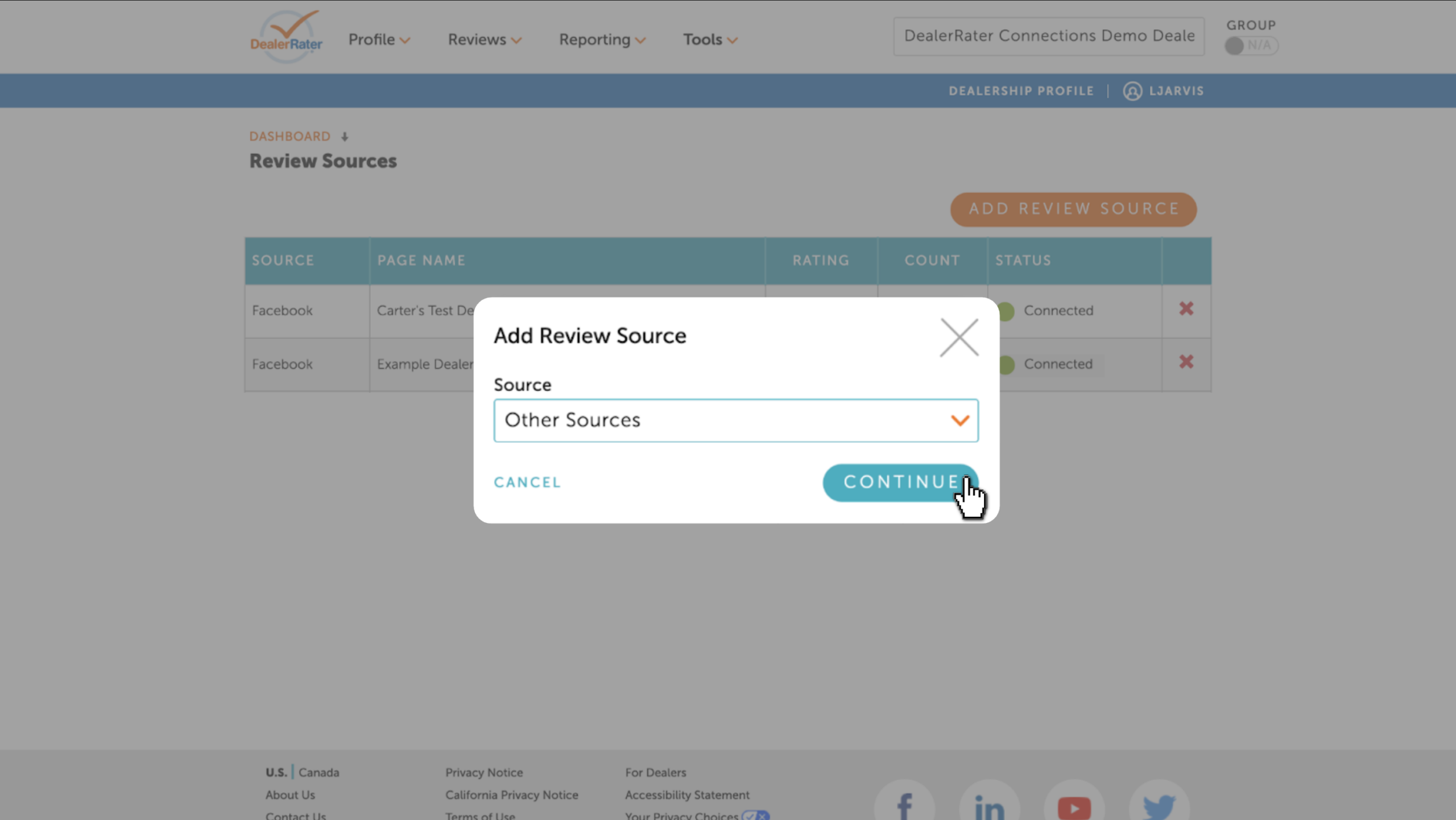
- Click Add Review Source and select Other Sources from the dropdown
- Click Continue
- Enter your dealership’s profile page URL for each platform you want to connect
- Click Connect Page(s)
You’ll see a confirmation banner.
Our customer service team will take it from there.
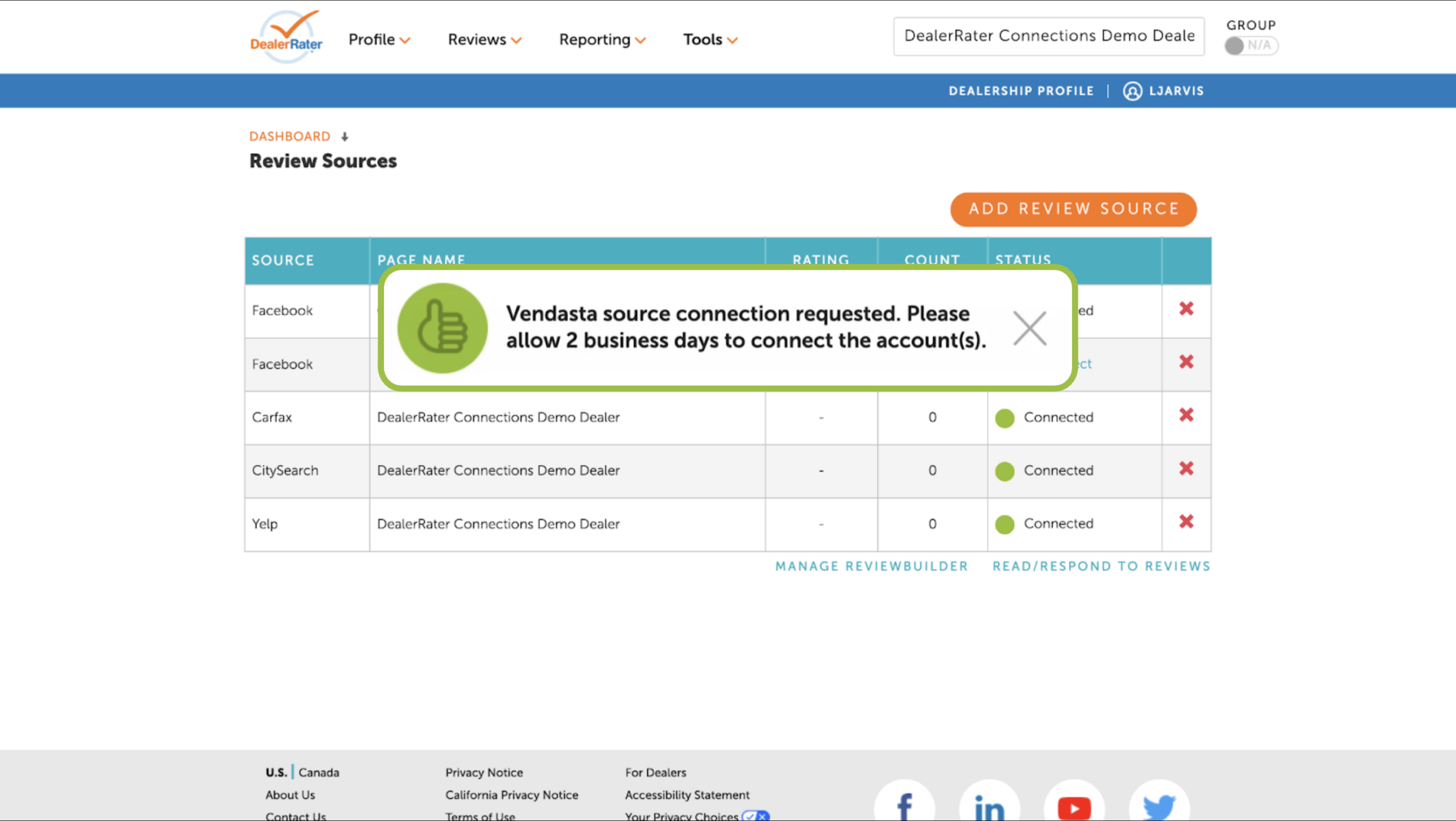
Note: Other Sources connections are not instant. Our customer service team connects these accounts within 2 business days of your request.
6Manage your reviews
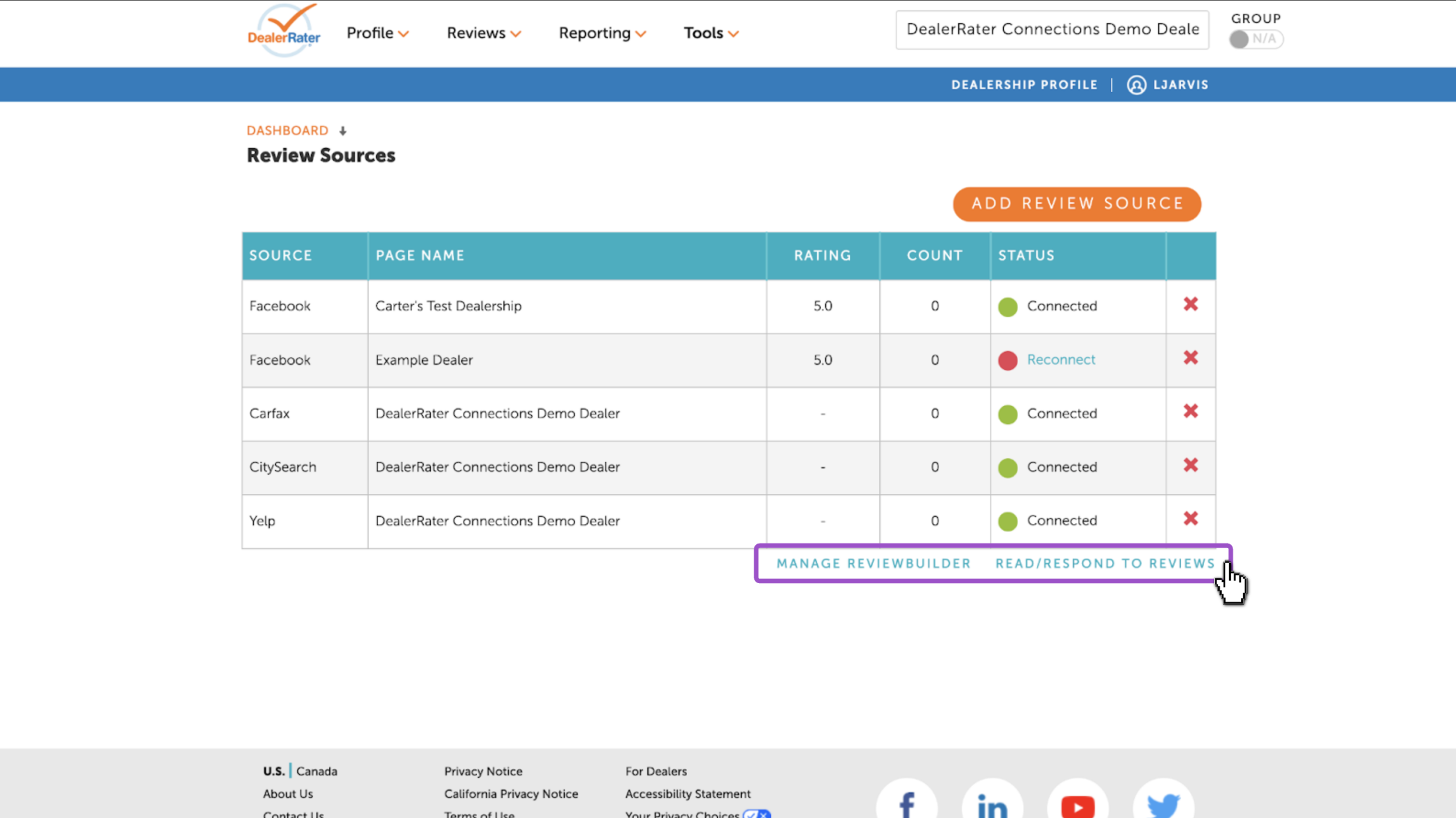
Once you connect at least one source, you’ll be able to:
- Read and Respond to reviews — view and reply to reviews from all connected sources on the All Reviews page; responses post directly back to the original platform
- Access ReviewBuilder — set up campaigns to proactively request reviews from customers
7Remove a connected review source
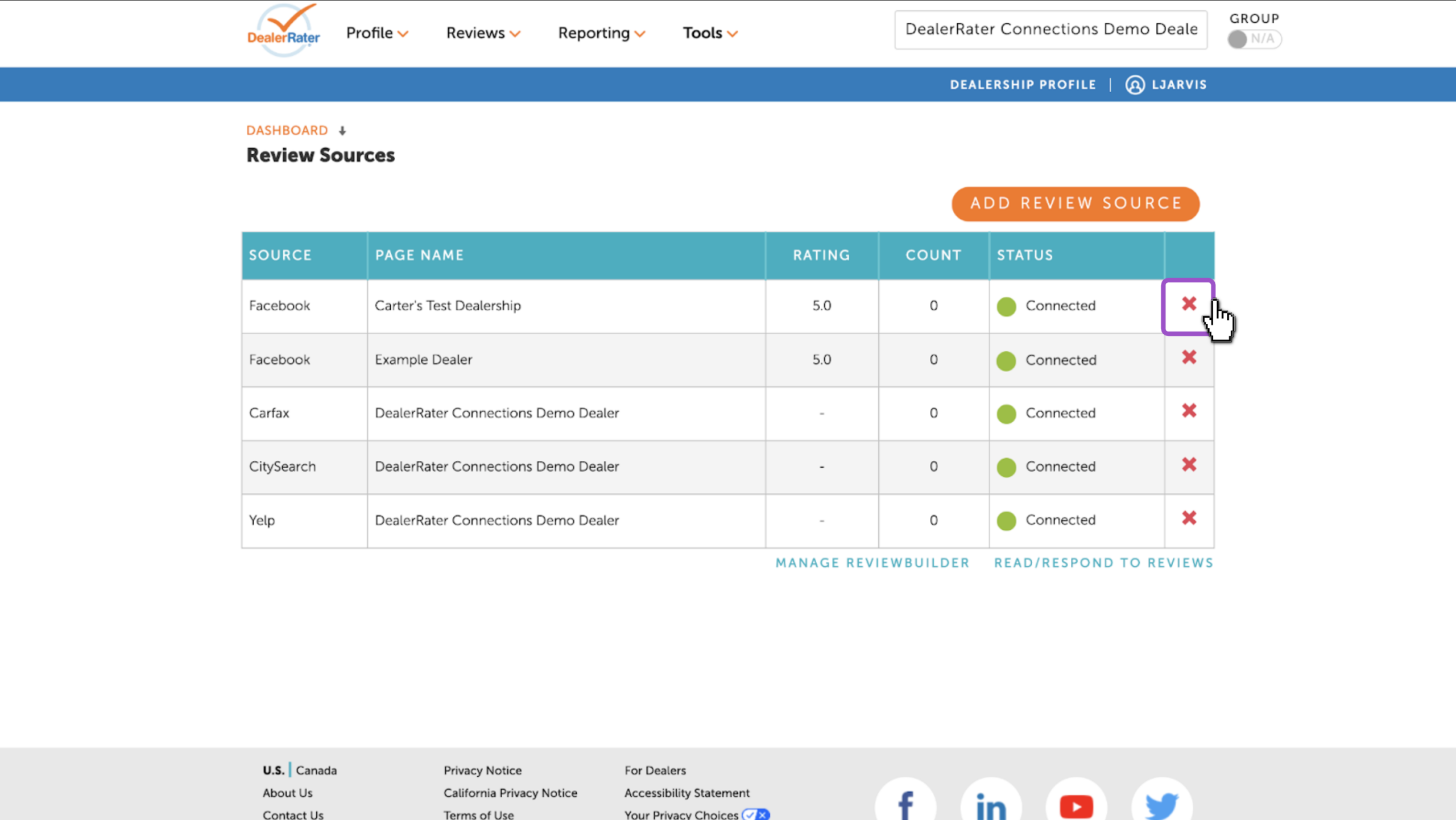
Disconnect a review source from the Review Sources table.
- Click the red x button on the right side of the source
- Reviews from that platform will stop syncing to your panel immediately
Frequently asked questions
How many pages can I connect per source?
Up to 4 pages per source type (Google or Facebook).
How long do other sources take to connect?
Other Sources (Yelp, Carfax, CarGurus, etc.) are connected manually by our customer service team. Allow up to 2 business days after submitting your request.
My Google or Facebook page isn’t appearing — what should I check?
If your Google Business Profile doesn’t appear after signing in, make sure you’re signed in with the account that has ownership or management access. Select “Use a different account” during sign-in if needed.
For Facebook, you must have admin access to the Facebook pages you want to connect. If a page doesn’t appear in the list, verify your Facebook permissions before trying again.
Will my connected Facebook pages appear in Social Media Setup?
Yes. Any Facebook pages connected through Review Sources automatically appear in the Social Media Setup page under Tools > Social Media Setup.