How to update dealership hours
Whether you’re preparing for a holiday or simply updating your regular schedule, you can manage your dealership’s hours directly within your Dealer Inspire website platform.
In this article, you’ll learn how to update your standard department hours, add special hours for occasions like holidays, and customize how hours are displayed on your website.
To Get Started
Go to the Cars.com Hub. Click on Dealer Inspire, then Manage Website.
1Adjusting standard hours
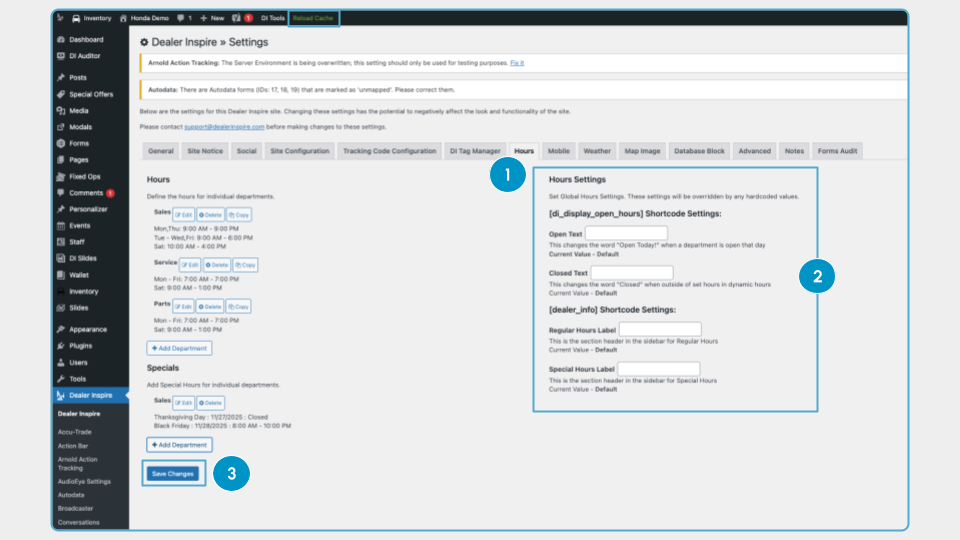
1. Navigate to the Settings page.
2. Click the Hours tab.
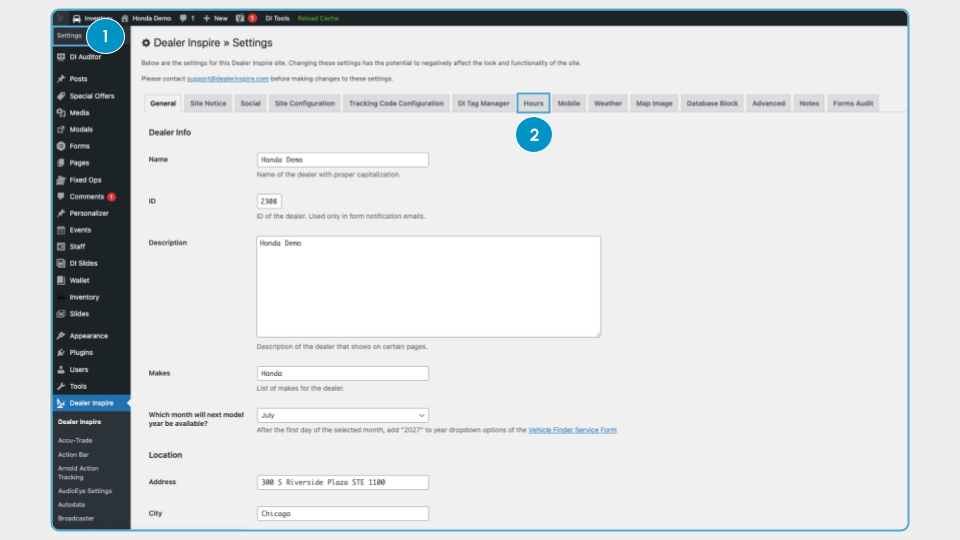
3. Click Edit next to the department you’d like to update.
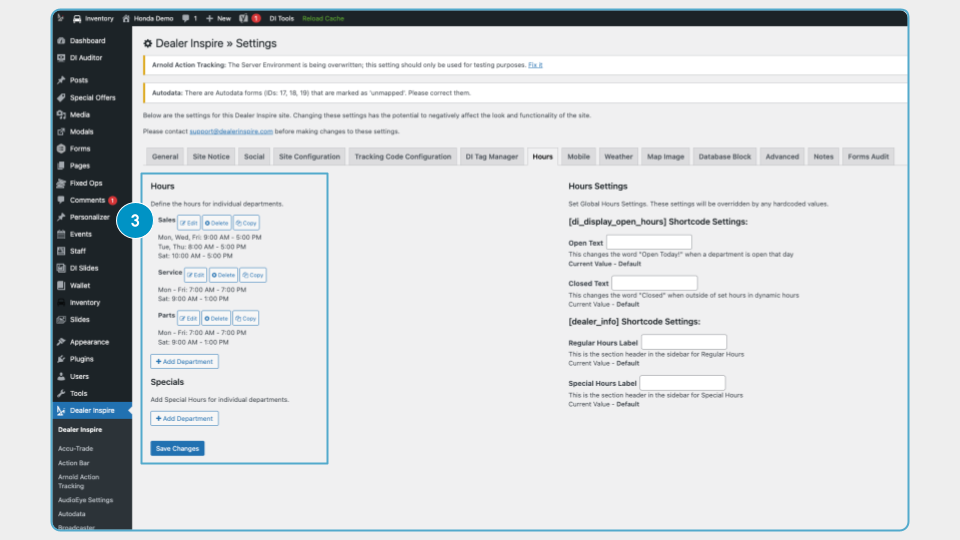
4. In the pop-up editor:
- Use the checkboxes to select the days the department is open.
- Set open and close times using the time selector.
- (Optional) Add disclaimers like “Holiday Hours.”
- Click the green ( + ) to add more disclaimers.
- Click the red ( x ) to remove a disclaimer line.
5. Click Save in the editor window.
- Repeat for any other departments.
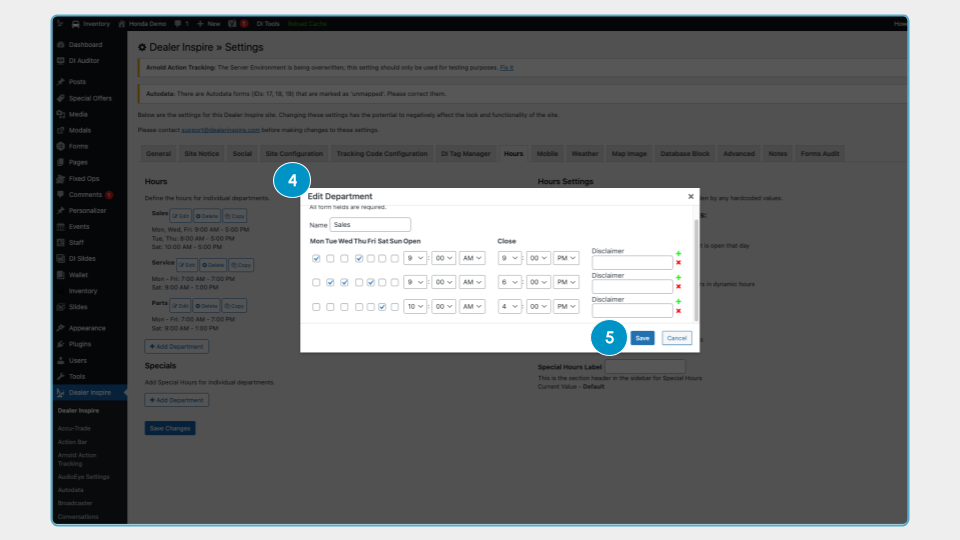
6. After making all changes, click Save Changes on the main Hours page.
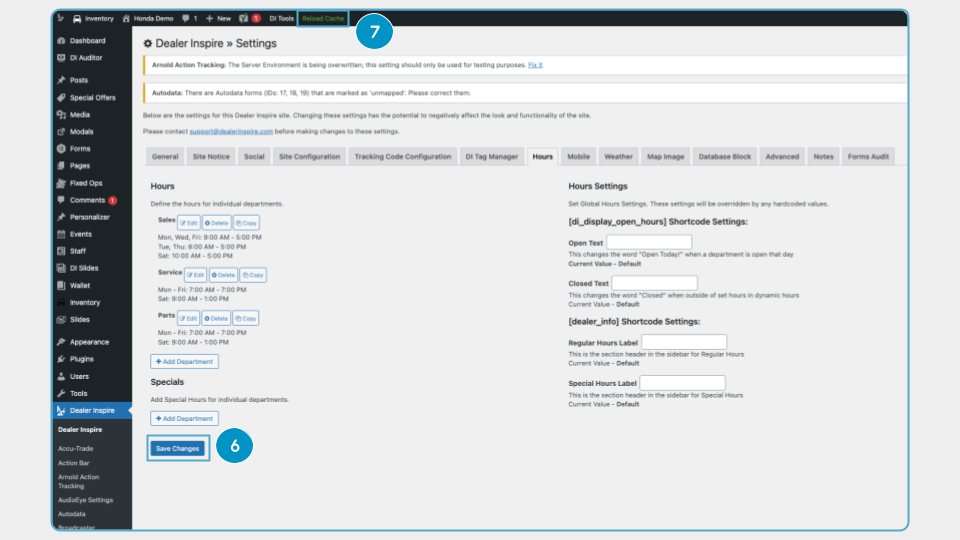
7. Click Reload Cache at the top of the page to apply your changes to the live site.
- This ensures that visitors see your updated hours immediately on the front end of your site.
2 Adding special hours (holidays, events, etc.)
If your dealership has hours that differ from the regular schedule, you can set Special Hours that will display separately with a “Special Hours” label.
To add special hours:
1. In the Hours tab, scroll to the Specials section.
2. Click + Add Department.
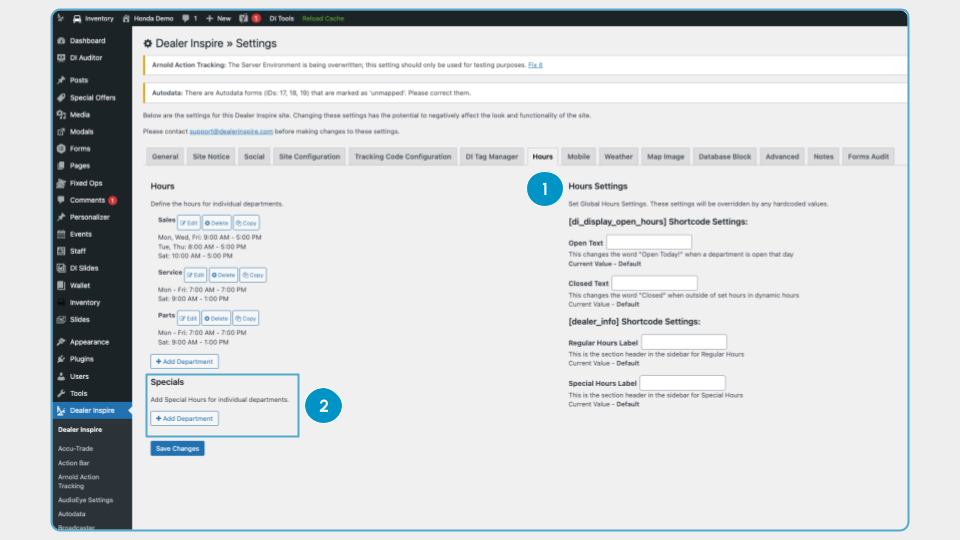
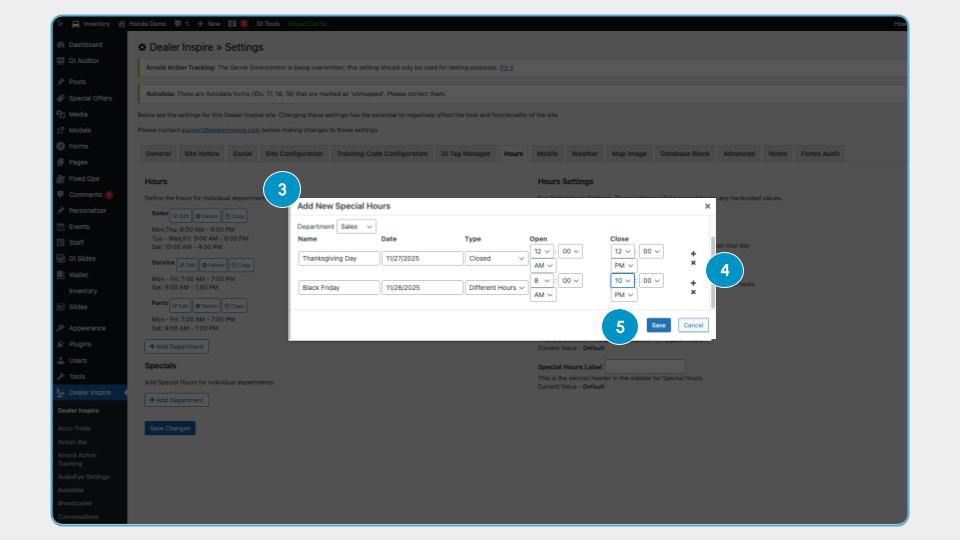
3. In the form that appears:
- Choose the department the special hours apply to.
- Enter a label for the occasion (e.g., “Memorial Day”).
- Select the date and set custom open/close times.
- Or, mark the department as Closed for that day.
4. Add more departments or time blocks by clicking the ( + ).
5. When finished, click Add.
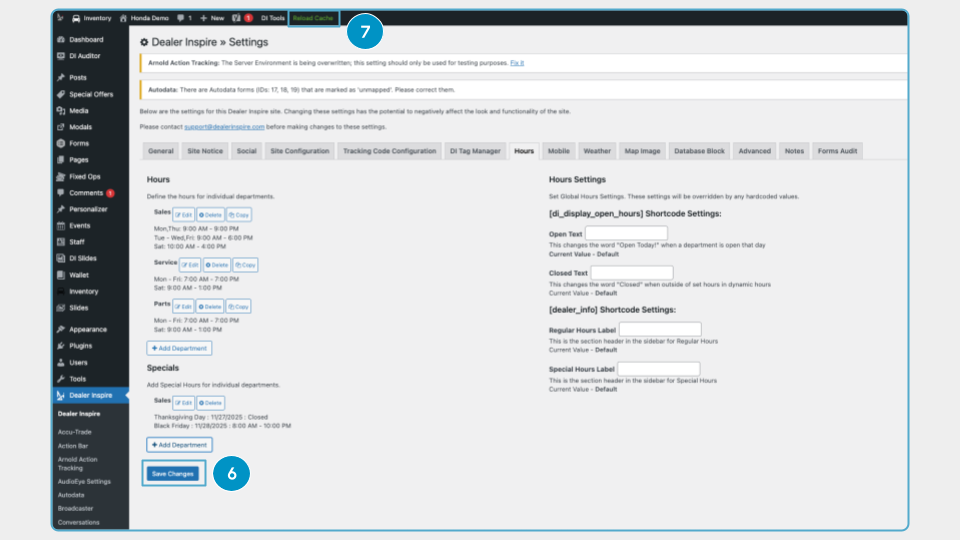
6. Then click Save Changes on the Hours page.
7. Click Reload Cache and/or refresh your website to see the changes live.
3 Customizing Hours Display Labels
The Hours Settings section lets you customize the front-end language your site uses to display hours.
To customize labels:
1. Navigate to Hours Settings in the same tab.
2. Here, you can edit default labels like:
- “Open Today!” (Open Text)
- “Closed” (Closed Text)
- “Special Hours” (Special Hours Text)
3. Make any changes you’d like, then click Save Changes.