How to create image carousels on the VRP
Your Vehicle Results Page (VRP) displays inventory listings before shoppers click into individual Vehicle Details Pages (VDPs). Enabling an image carousel on the vehicle card allows shoppers to preview multiple vehicle photos directly from the VRP.
This guide explains how to enable and configure the VRP image carousel within Lightning Settings. For more advanced configuration guidance related to inventory display settings, refer to the linked Help Center resources.
In this article, you’ll learn how to access the Vehicle Card settings, choose an image gallery type, adjust display options, save your changes, and reindex your site so updates appear on the frontend.
To get started
Go to the Cars.com Hub. Click on Dealer Inspire, then Conversations.
1Navigate to vehicle card settings
From the backend of your website:
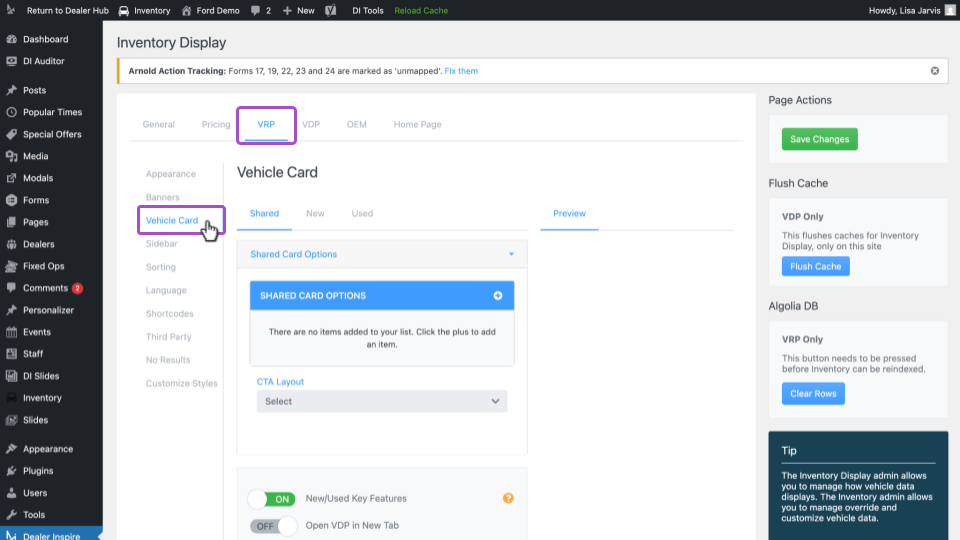
- Click Inventory in the left-hand menu.
- Select Lightning Settings.
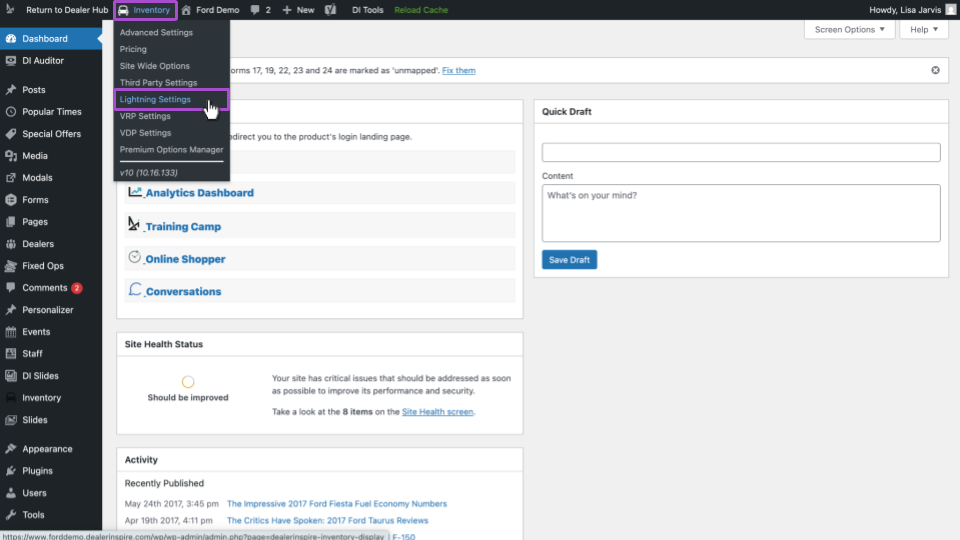
- Click the VRP tab.
- Select Vehicle Card.
The Vehicle Card section controls how vehicles appear on the Vehicle Results Page before a shopper clicks into the VDP.
2Choose your image display options
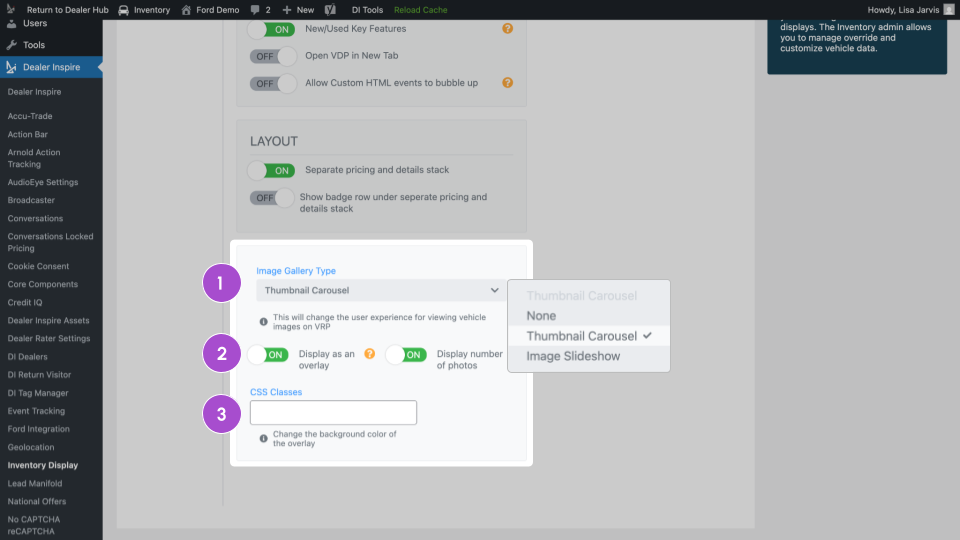
Scroll down to the Image Gallery Type section within Vehicle Card settings.
This section includes three configuration areas:
1. Click the dropdown under Image Gallery Type and select one of the following
- None: Disables the image carousel on the VRP.
- Thumbnail Carousel: Displays clickable thumbnail images directly within the vehicle card on the VRP. Shoppers can scroll through images without leaving the page.
- Image Slideshow: Opens a pop-up image viewer when clicked, allowing shoppers to browse vehicle photos without navigating to the VDP.
This setting controls how vehicle images behave on the Vehicle Results Page.
2. Below the dropdown, you will see two toggle switches:
- Display as an overlay: Places navigation arrows and controls directly over the vehicle image.
- Display number of photos: Displays the total image count on each vehicle listing.
You may turn these settings on or off depending on your preferred display style.
3. At the bottom of the section, you will see a CSS Classes field.
- This field allows advanced styling adjustments.
- It can be used to change the background color of the overlay.
- If left blank, the system defaults to a gray-white opaque overlay.
Only use this field if you are familiar with CSS customization. Otherwise, leave it empty.
Need help choosing?
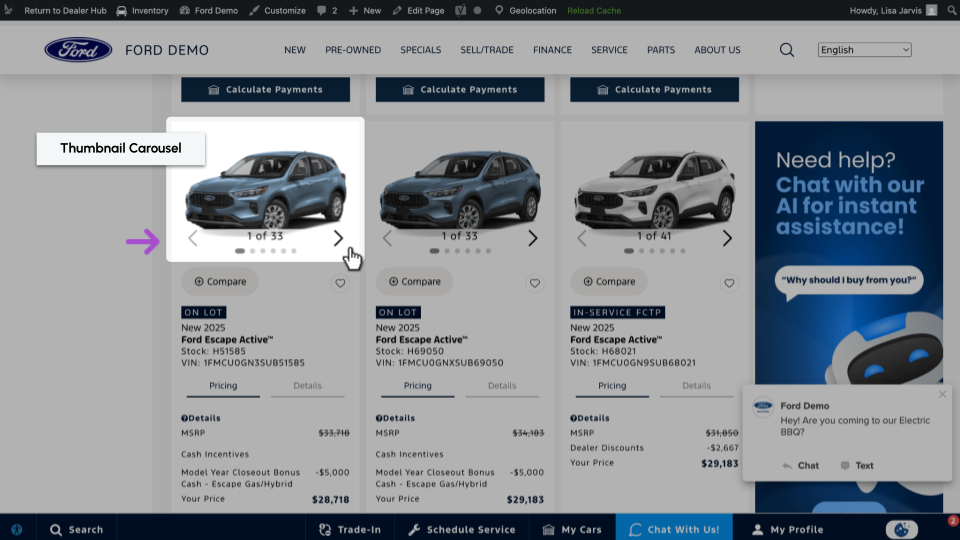
Thumbnail Carousel
Display as Overlay: ON
Display Number of Photos: ON
- Shows thumbnail navigation directly on the vehicle card.
- Navigation arrows appear over the image.
- The total photo count displays on the listing.
- Best for maximizing image visibility directly on the VRP.
Thumbnail Carousel
Display as Overlay: OFF
Display Number of Photos: OFF
- Displays thumbnail scrolling without overlay controls.
- No photo count indicator is shown.
- Creates a cleaner, more minimal vehicle card layout.
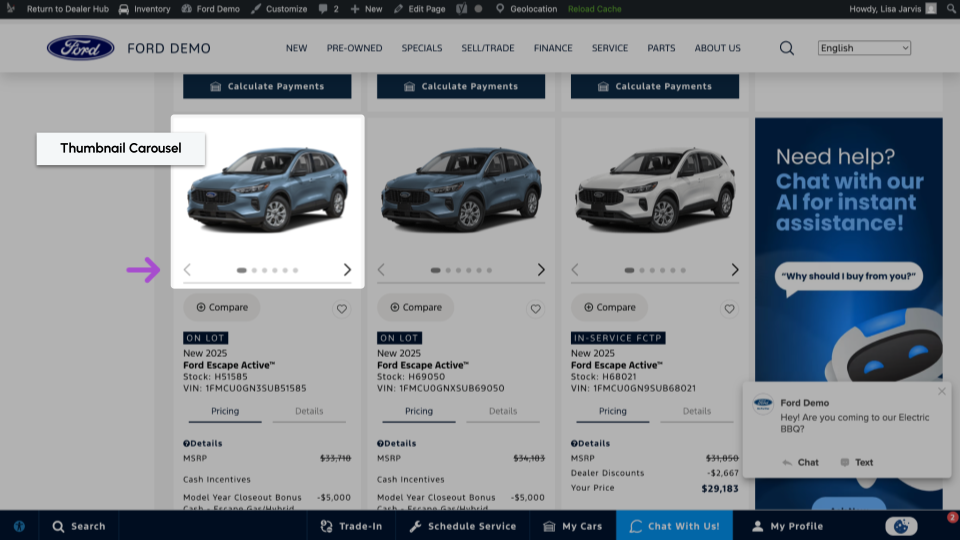
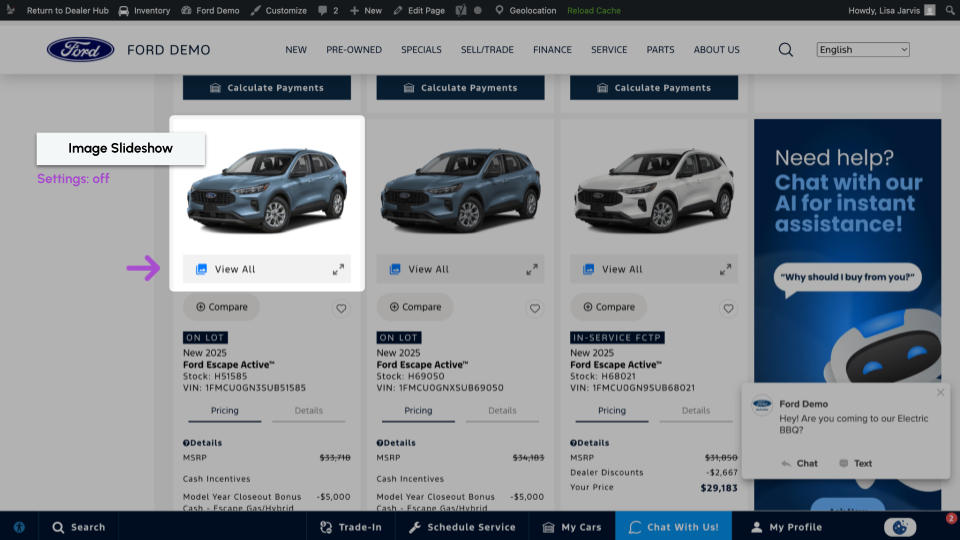
Image Slideshow
Display as Overlay: ON
Display Number of Photos: ON
- Opens a pop-up slideshow when clicked.
- Navigation arrows appear over the image.
- Photo count is visible.
- Provides a more immersive viewing experience while staying on the VRP.
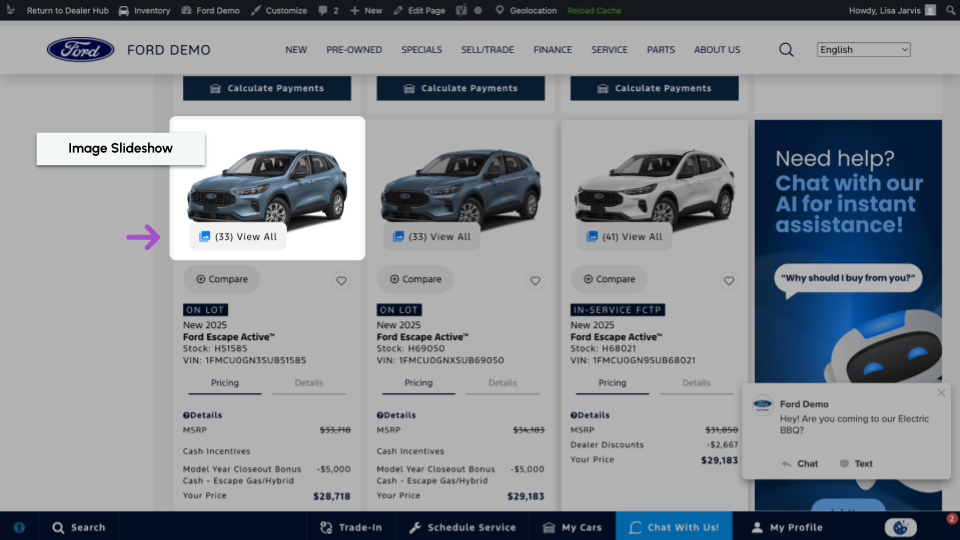
Image Slideshow
Display as Overlay: OFF
Display Number of Photos: OFF
- Opens a pop-up slideshow.
- No overlay controls or photo count display.
- Minimal display styling.
3Save changes
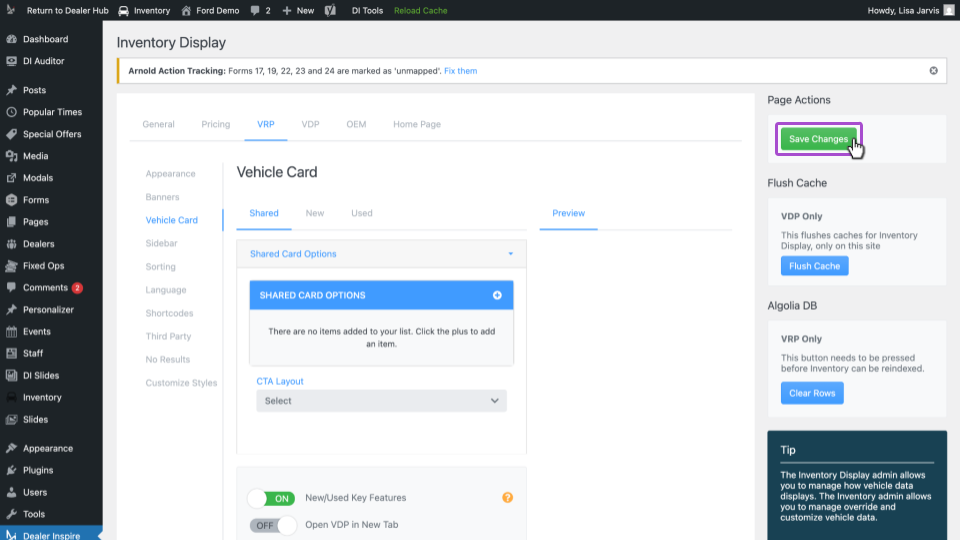
- Scroll back to the top of the page.
- Click Save Changes in the top-right corner.
Your settings will not apply until saved.
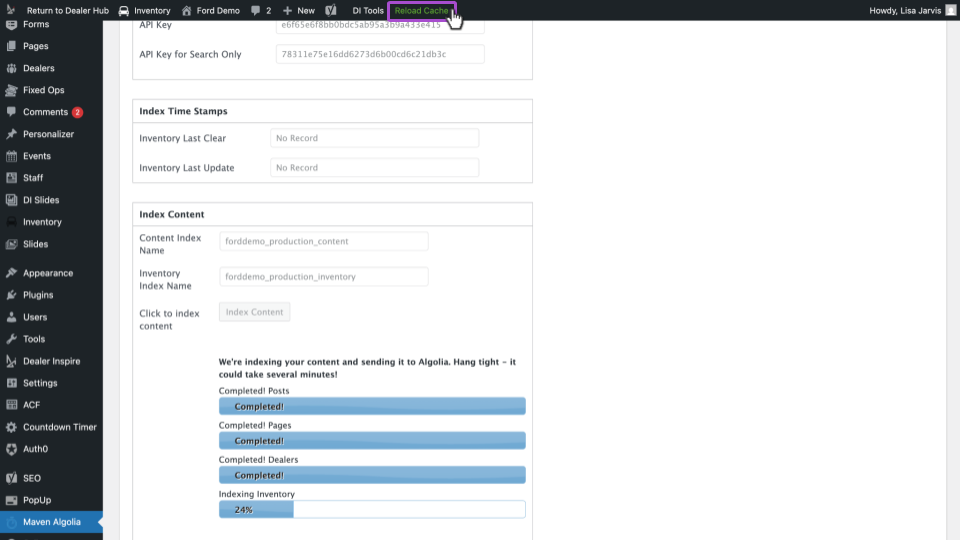
4 Reindex your content
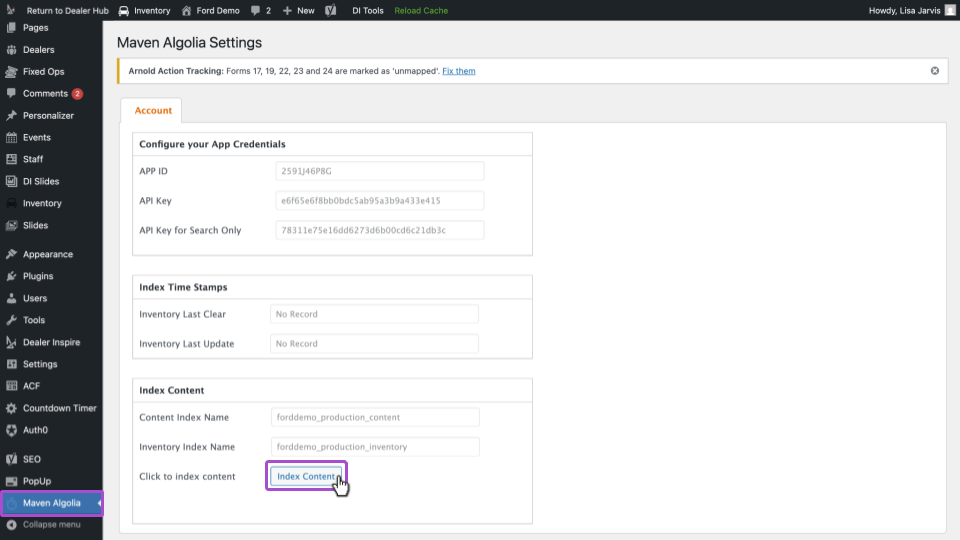
After saving changes, you must reindex the site for the carousel updates to appear on the frontend.
- In the left-hand menu, scroll down and click Maven Algolia.
- Click Index Content.
- Wait until all four progress bars display Completed.
Reindexing updates the search and inventory data so new display settings apply properly.
5 Reload cache
Once indexing is complete:
- Click Reload Cache in the top admin bar.
- Visit a Vehicle Results Page (VRP).
- Confirm the carousel display appears as expected.
If changes are not visible:
- Confirm you saved changes.
- Confirm all indexing bars completed successfully.
- Refresh the browser after reloading cache.
Tracking Carousel Engagement
You can track VRP carousel interactions in GA4 to monitor shopper engagement. Event tracking configuration may vary depending on your analytics setup.
If you need assistance with analytics tracking, consult your internal analytics team or your Dealer Inspire Performance Manager.