How to embed special offers anywhere on your website
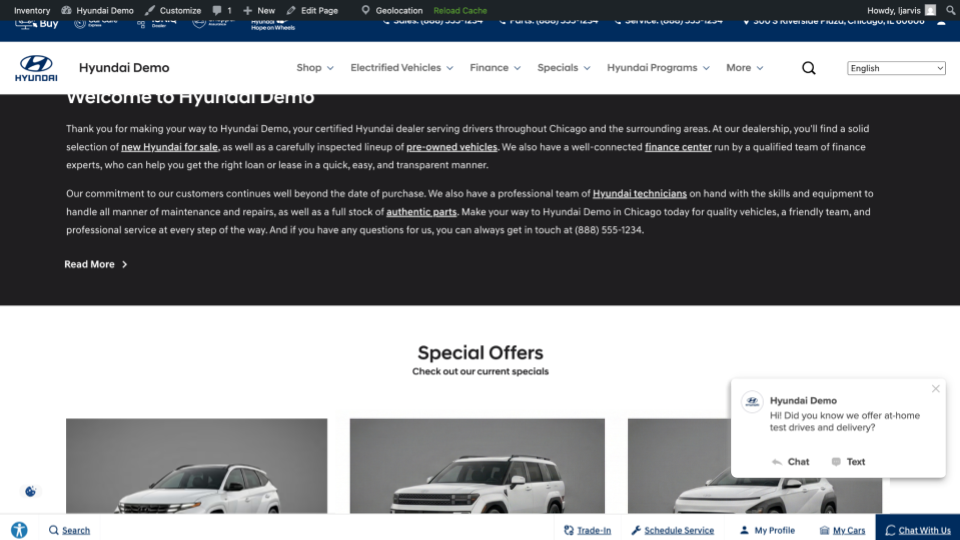
Special Offers allow you to display discounts and incentives on your inventory. Once created, special offers appear on your Special Offers page and can also be added on any page of your Dealer Inspire website using the Site Builder widget.
In this article, you’ll learn how to embed your live special offers on any page of your site using the Site Builder widget. If you need to create an offer before getting started, reference our how to create special offers article.
To get started
Go to the Cars.com Hub. Click Dealer Inspire, then Manage Website.
Create a special offer
You’ll need to have offers live on your site before embedding them to a page with the Site Builder widget.
Once you have special offers created, follow the steps outlined below.
To learn how to create special offers with this article.
1Open the page in Site Builder
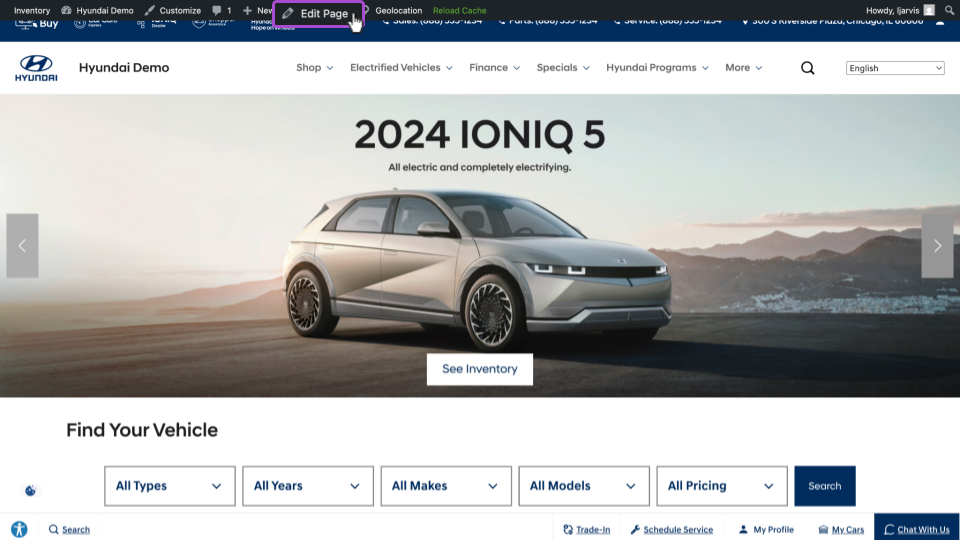
- Navigate to the page where you want to add the special offers widget.
- Click Edit Page in the top menu bar.
These steps use the homepage as an example.
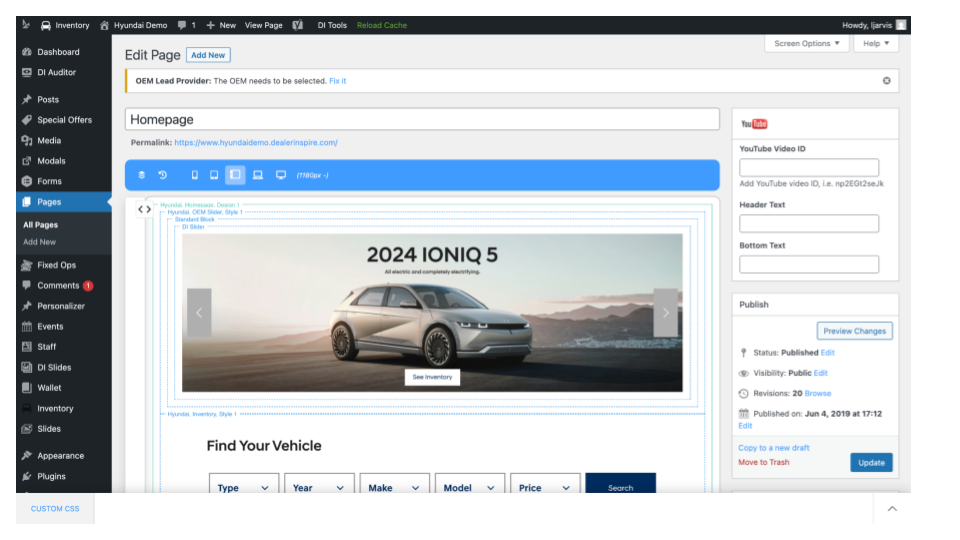
The page will open in the Site Builder template editor.
2Insert the Special Offers block
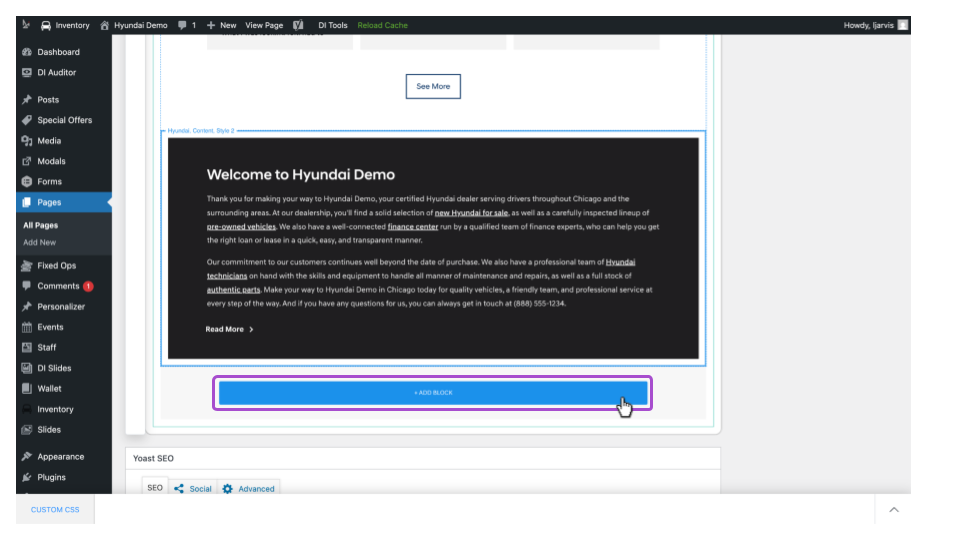
Scroll to the location on the page where you want to add the special offers.
- Click + Add Block.
- Use the search bar to find the Special Offers block.
- Click the eye icon to preview the block.
- Click the block or the down arrow to insert it into the page.
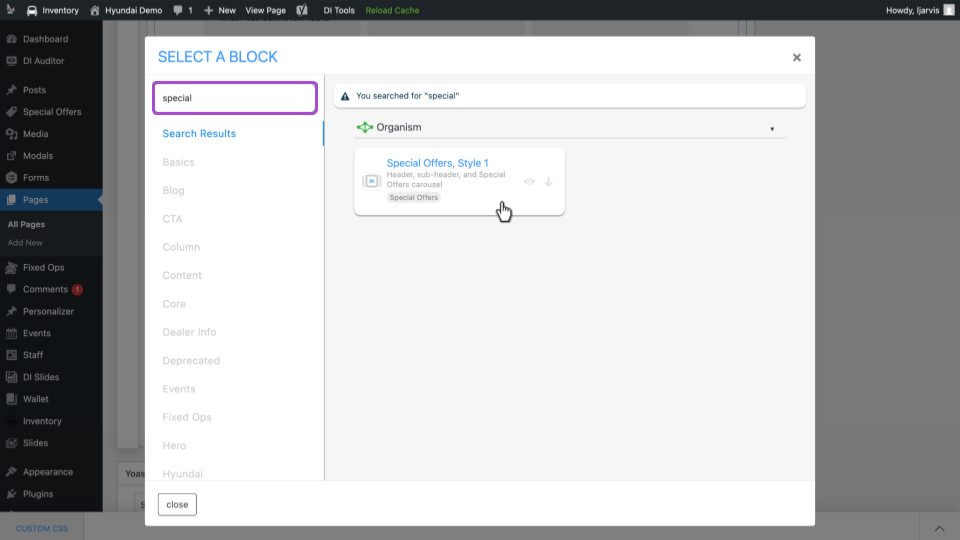
- The widget will automatically pull in the live special offers from your site.
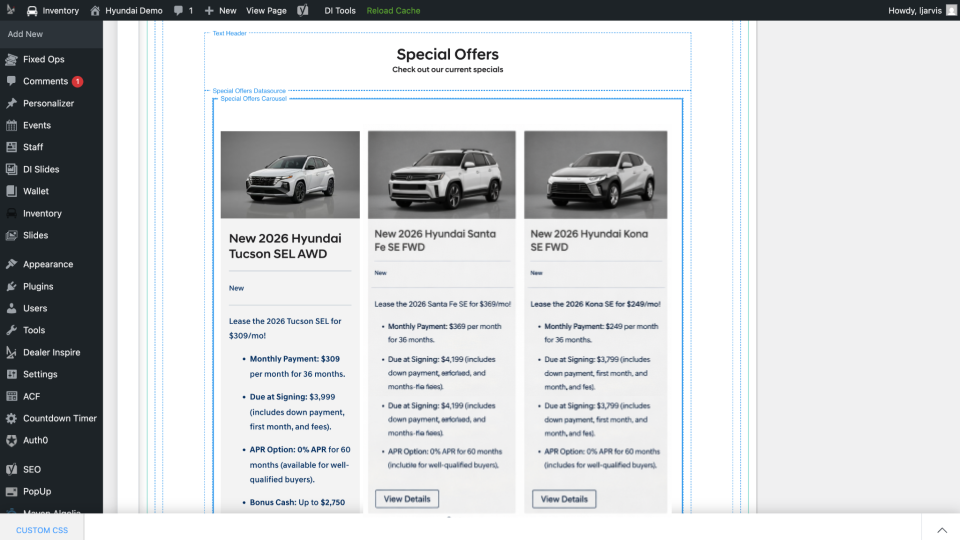
3 Customize the block
- Click a component within the block, such as the Text Header block, to edit it.
- Update the header text as needed.
- Adjust the text color as needed.
- Click Save Text Header to apply your changes.
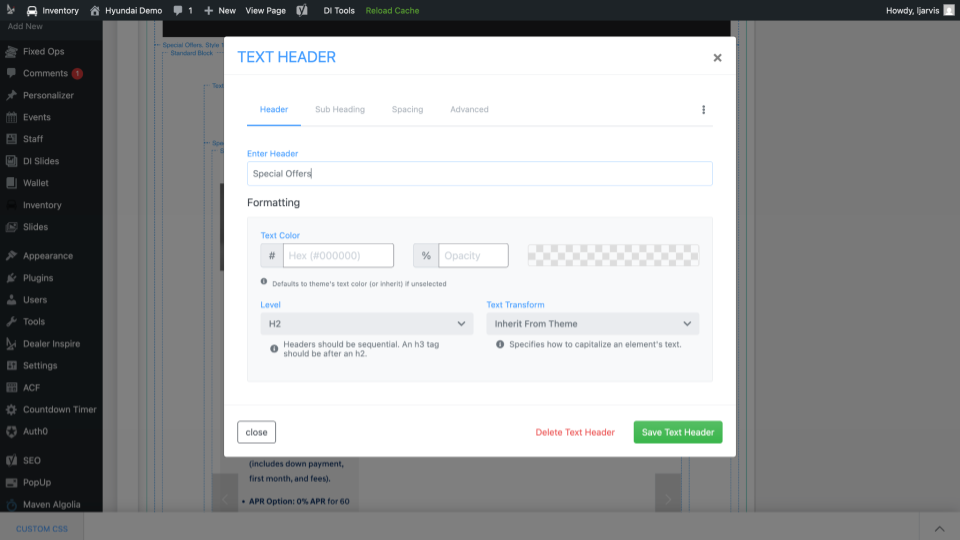
4Publish the page
- Click Update or Publish
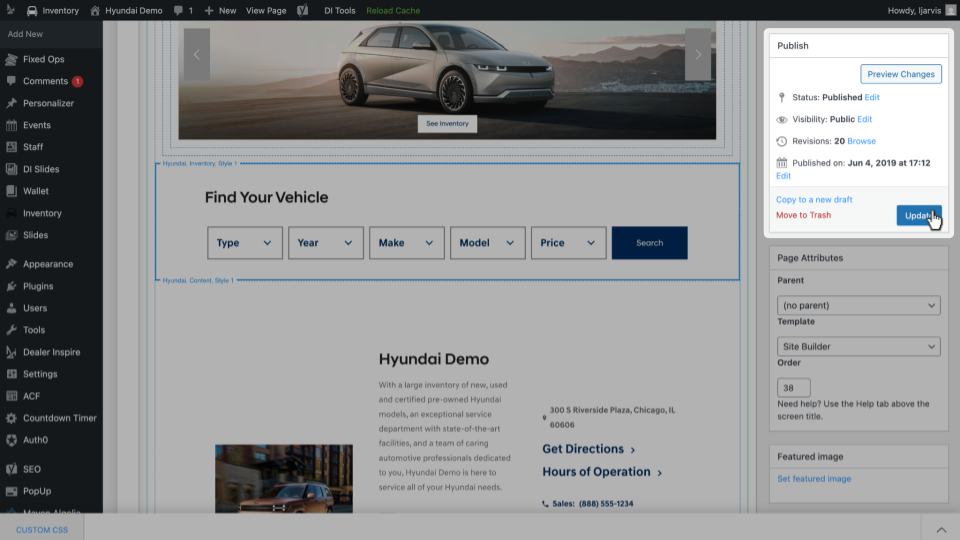
- Navigate to the frontend of your site to confirm the special offers are embedded on the page.