How to access your website’s form leads
If you’re unable to access your website leads through your CRM for any reason, you can view all form submissions directly from your Dealer Inspire website.
To Get Started
Go to the Cars.com Hub. Click Dealer Inspire, then Manage Website.
Access leads in 3 simple steps
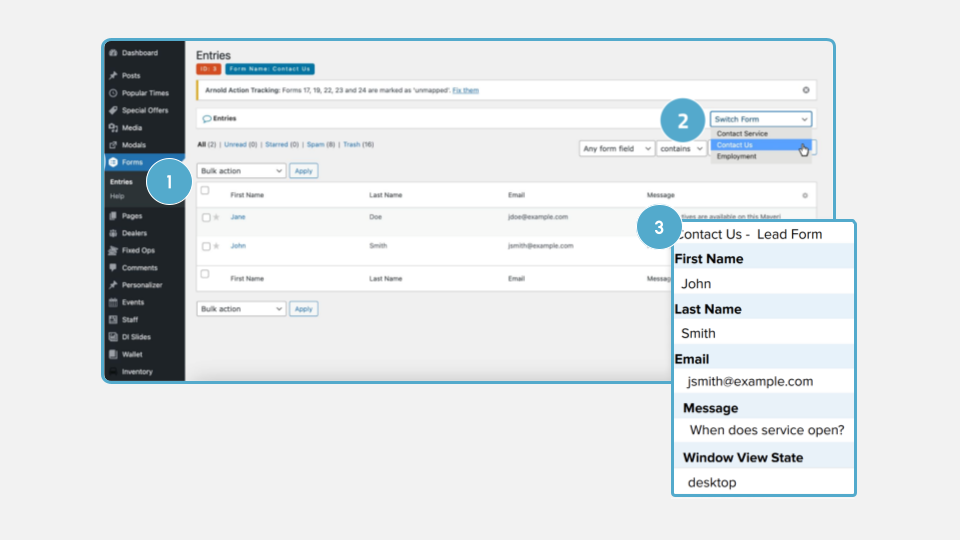
- From the left-hand menu in your website backend, click Forms, then select Entries.
- Select the form Use the dropdown menu to choose the specific form you’d like to view (e.g., Contact Us, Trade-In, Service Request).
- View the entries Browse the list of submitted entries. Click any entry to view full lead details.