How can I ensure the best quality images on my website?
To deliver a high-quality experience on your Dealer Inspire website, it’s essential to use optimized, high-resolution images in the correct format and dimensions. Because your site adapts to both desktop and mobile screens, following these image best practices will help ensure professional, fast-loading visuals across devices.
1 Start with High-Quality Sources
Strong image quality begins with your source file. For best results:
- Use high-resolution, OEM-approved, or brand-provided assets
- Avoid screenshots, low-resolution exports, or social media rips
- OEM/brand assets are often pre-optimized for digital use and maintain brand consistency
2 Choose the right image tool
You don’t need advanced software like Photoshop. Use these free browser-based tools:
- Canva – Easy drag-and-drop editor with custom canvas sizing
- Pixlr – Full-featured browser-based editor
- Squoosh.app – Ideal for compressing large image files without losing quality
3 Crop First, Resize Second
To maintain clarity and prevent distortion:
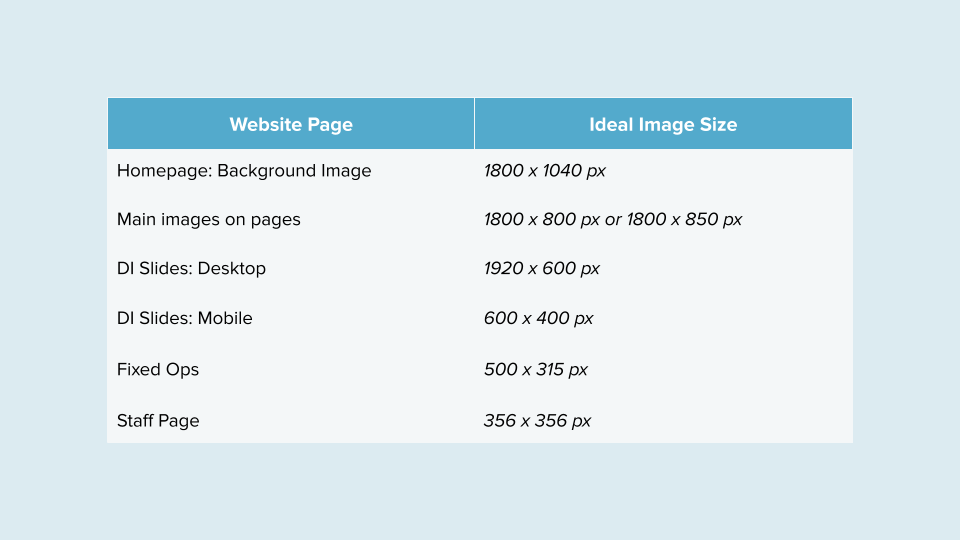
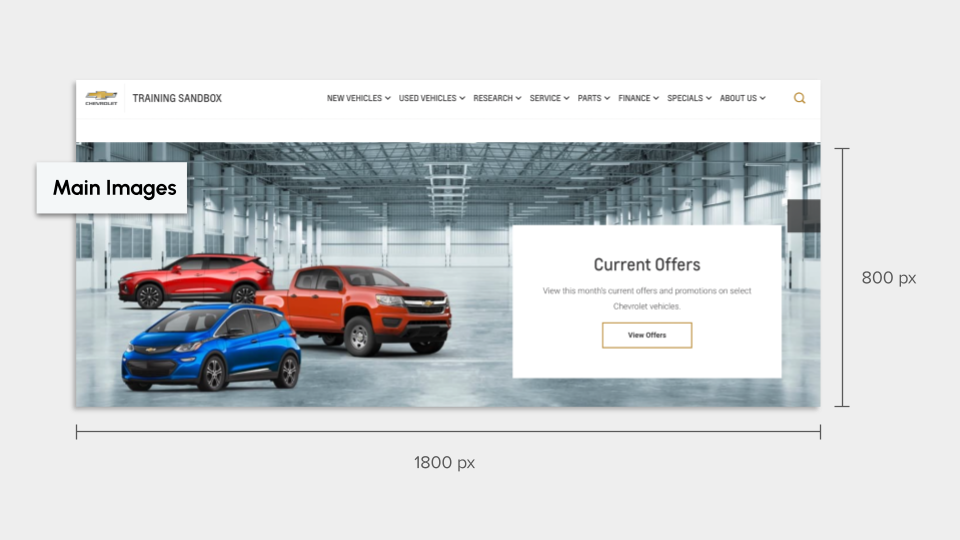
- Match the aspect ratio before resizing (e.g., crop to 1800 × 1040px proportions for homepage images)
- Keep the subject centered — image edges may be cropped on mobile views
4 Export images properly
To keep your website performing well, follow these export tips:
- Use the Correct Format: Use .jpg for photographs to keep file sizes small. Use .png only if you need a transparent background (like for a logo).
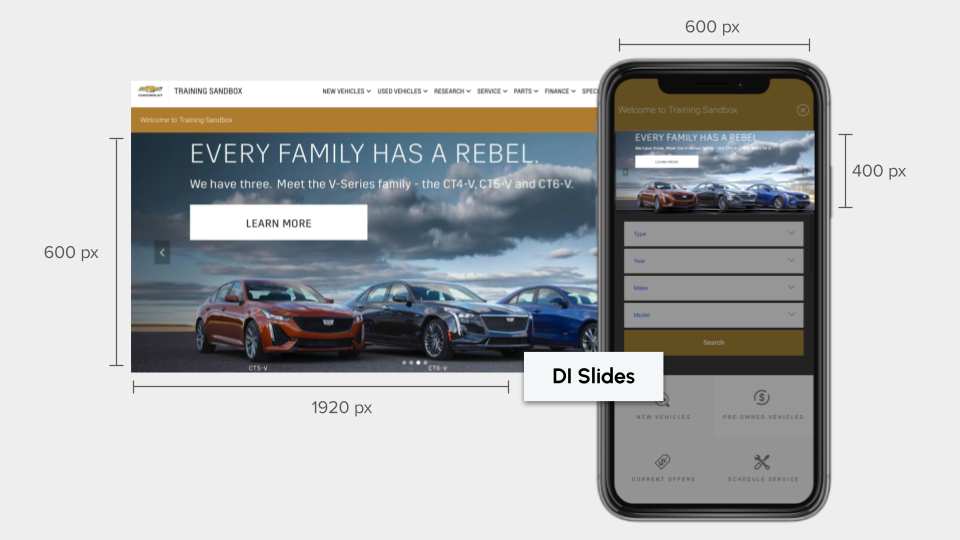
- Aim for “Web-Ready” File Sizes: Even if the pixels are correct (1920 x 600px for a slide), a file that is 10MB will slow down your site. Try to keep most images under 200kb – 300kb.
- 72 DPI is Standard: While print requires high resolution, web images only need 72 DPI (dots per inch). Anything higher adds unnecessary weight to your page.
Follow these rules of thumb:
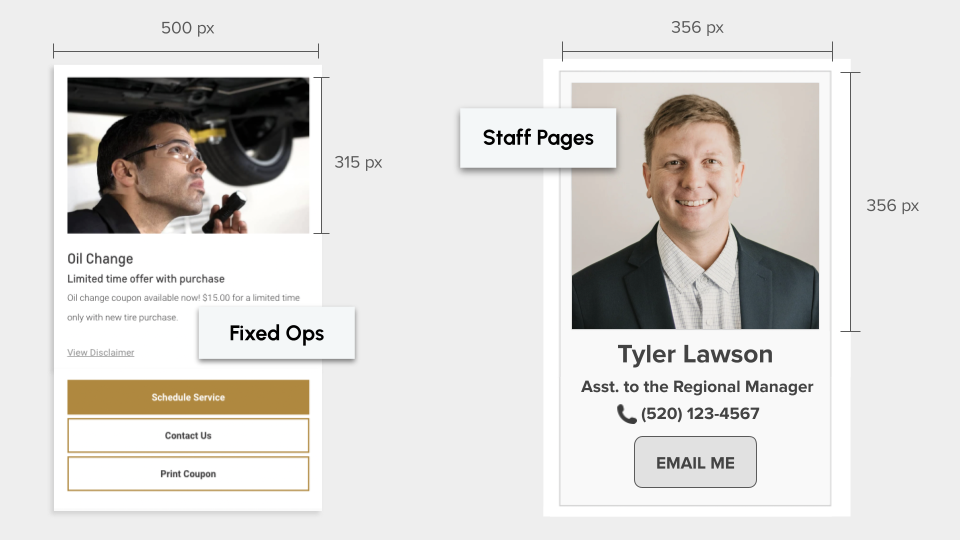
- Identify the Target: Check the sizing guide to see exactly what dimensions you need for the specific page area (356 x 356px for a Staff Page).
- Verify Source Quality: Ensure you are starting with a high-resolution OEM or brand asset, not a screenshot.
- Log In and Upload: Go to the Cars.com Hub, select Dealer Inspire, click into your dealership site. Access the backend to upload the resized file to your page.
Check out these examples of Sizing Guide references:
Frequently Asked Questions
What are the ideal dimensions for my website images?
It depends on placement. Examples:
- Homepage background: 1800 × 1040px
- Desktop slide: 1920 × 600px
- Mobile slide: 600 × 400px
Why do I need different sizes for desktop and mobile slides?
Dealer Inspire sites are fully responsive. Using mobile-specific image sizes ensures content is properly framed and loads quickly.
Where should I get my images?
Use OEM or brand-provided assets whenever possible. Avoid low-res or cropped screenshots.
What should I do if my images look blurry or “cut off”?
Blurry images often result from incorrect resolution. Cropping issues usually stem from incorrect aspect ratios. Refer to your sizing guide or contact support
How do I upload my new images?
Log into the Cars.com Hub, go to Dealer Inspire, select your website, enter the backend, and upload via Media Library or directly to the page.