How to feature inventory on your website homepage
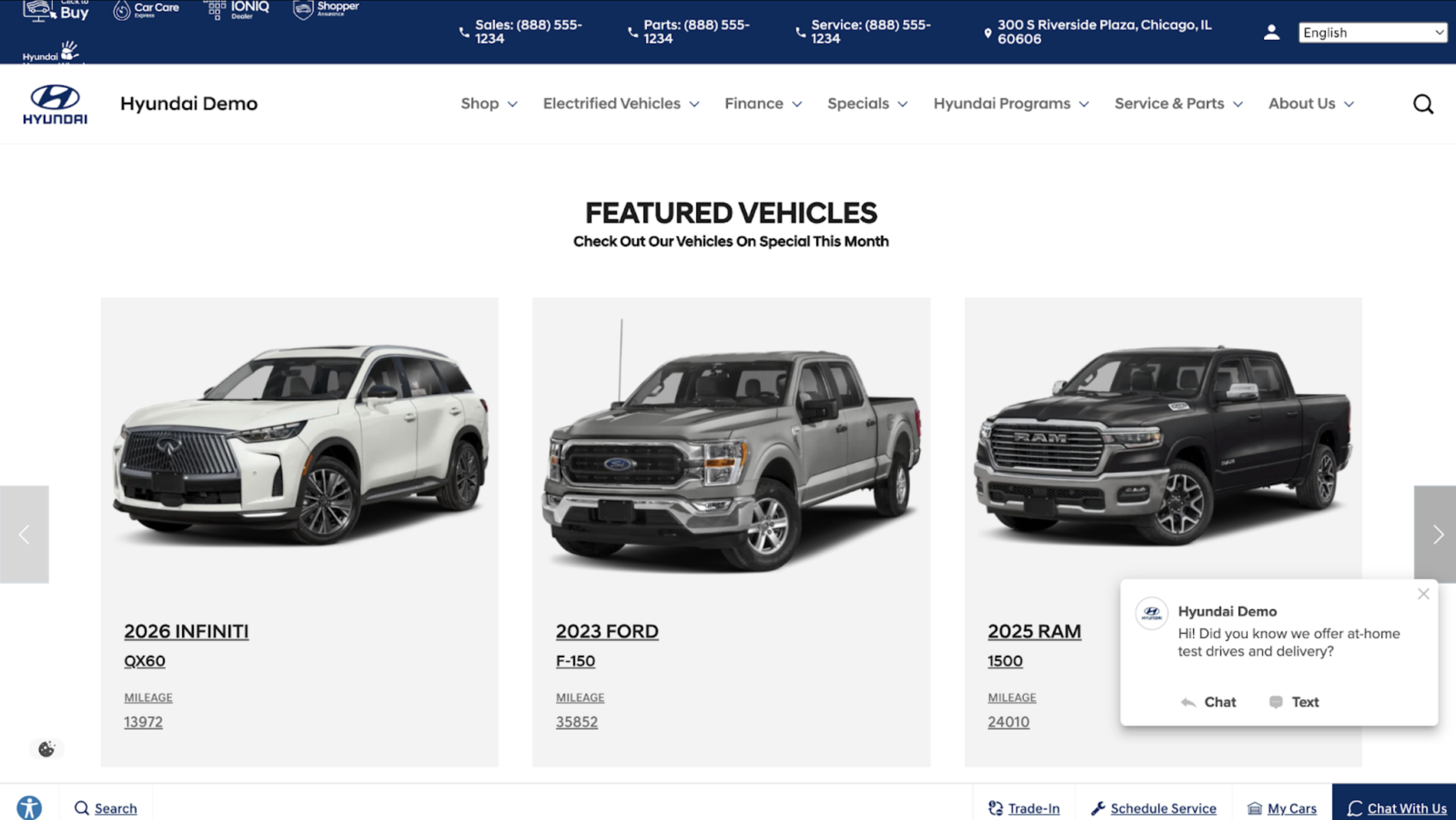
Highlight specific vehicles on your homepage with the featured inventory widget. Spotlight aged used inventory, new vehicles with offers, or fresh arrivals, and give shoppers a more direct path to a VDP.
In this article, you’ll learn how to add the featured inventory widget to your homepage, select which vehicles to display, and publish your changes.
To get started
Go to the Cars.com Hub. Click Dealer Inspire, then Manage Website.
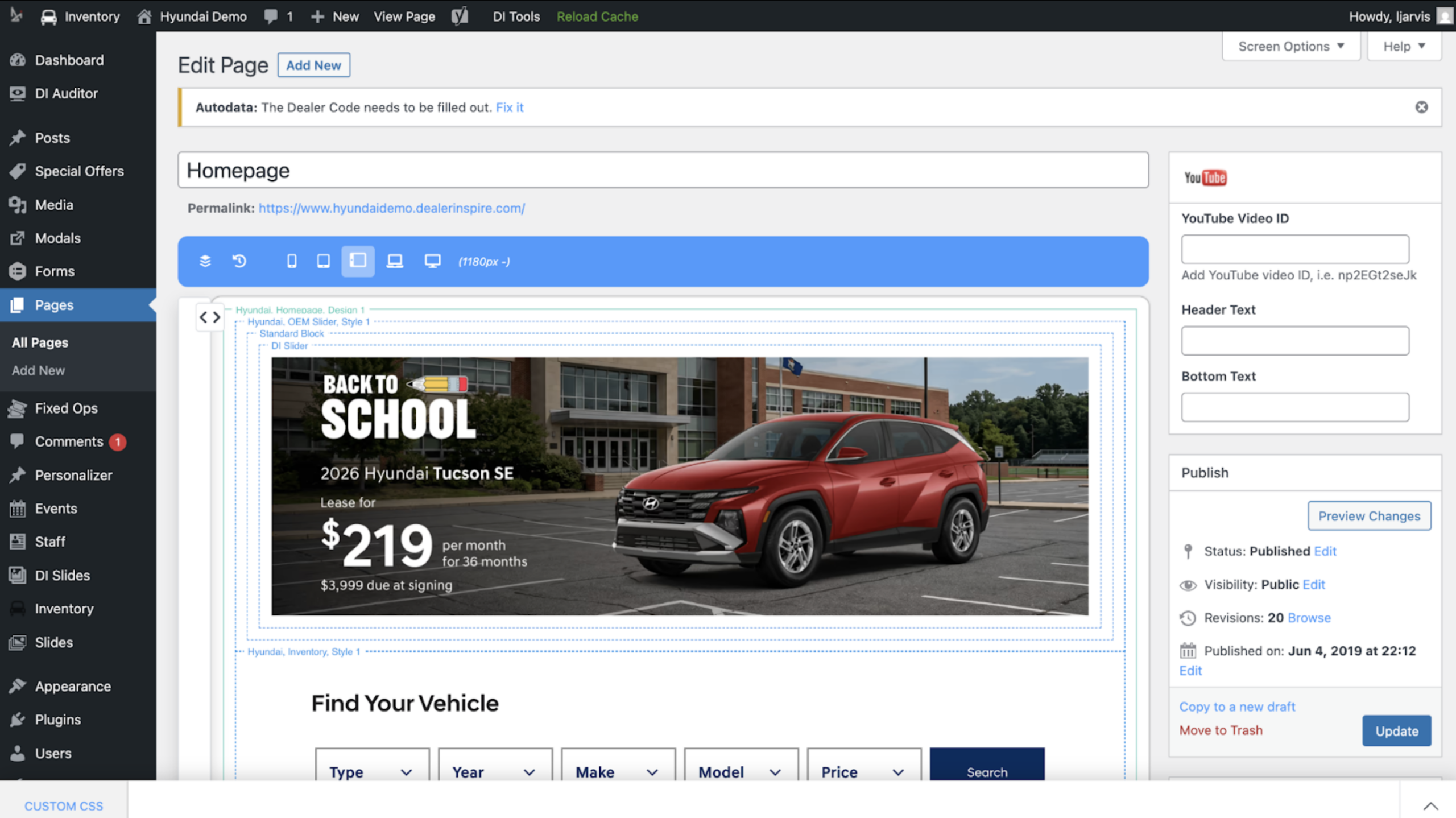
1Open your homepage in Site Builder
- Navigate to the homepage where you want to feature inventory
- Click Edit Page in the top menu bar
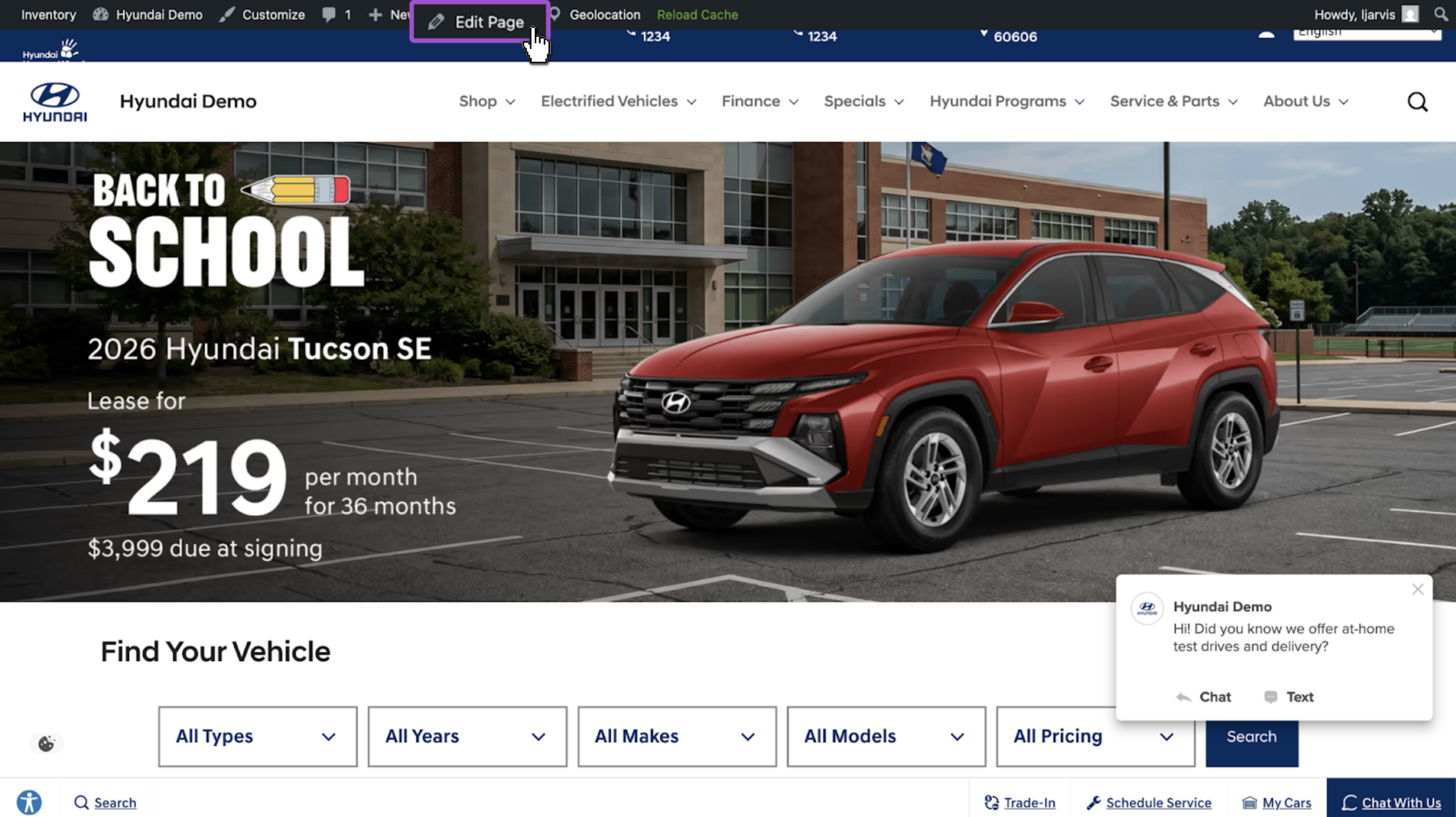
- The page will open in the Site Builder template editor
2 Insert the Inventory block
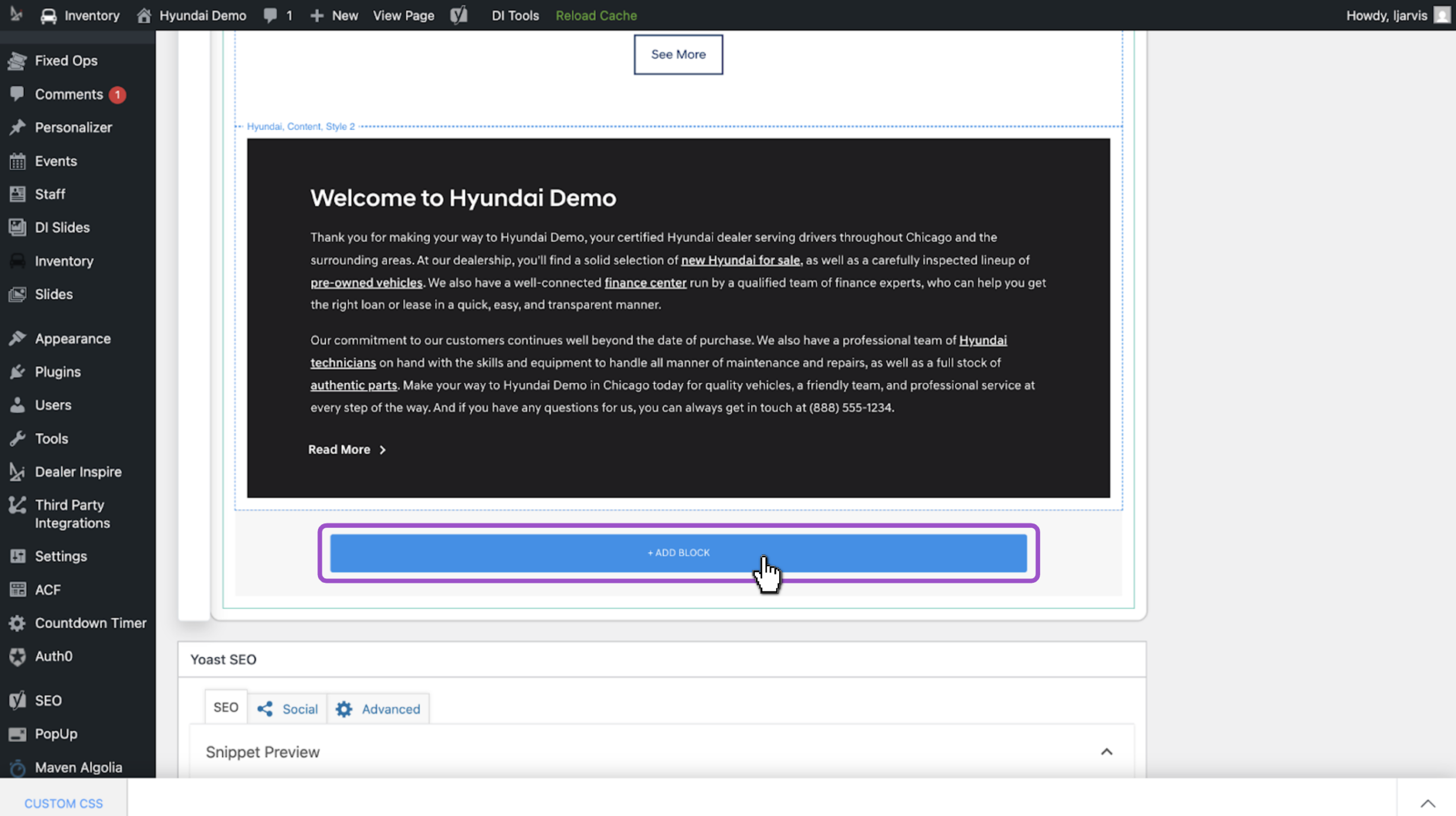
- Scroll to the end of the page and click + Add Block
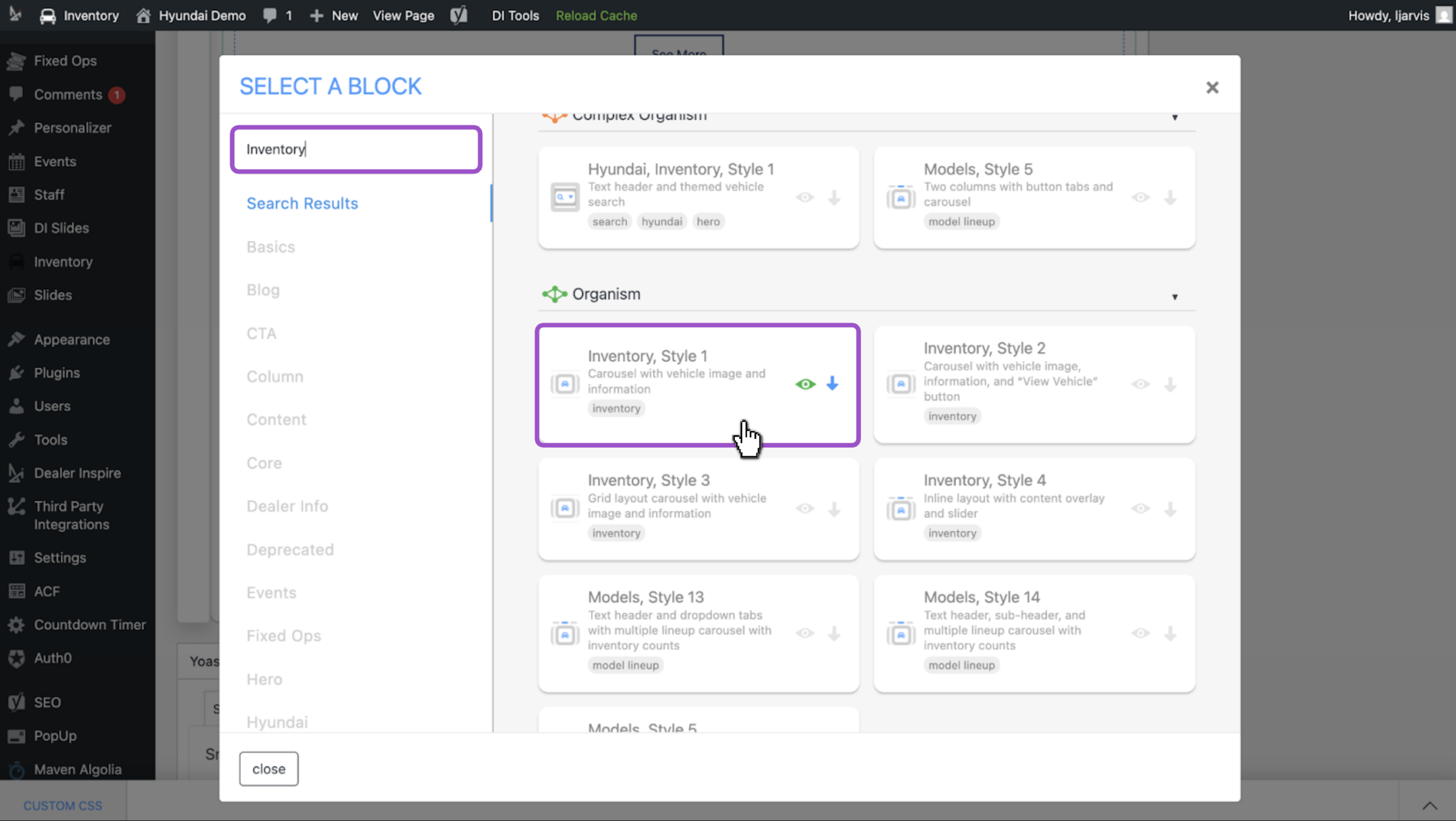
- Use the search bar to find the Inventory block
- Click the eye icon to preview the various styles of options
- Click the block or the down arrow to insert it into the page
- The widget will automatically pull in live inventory from your site
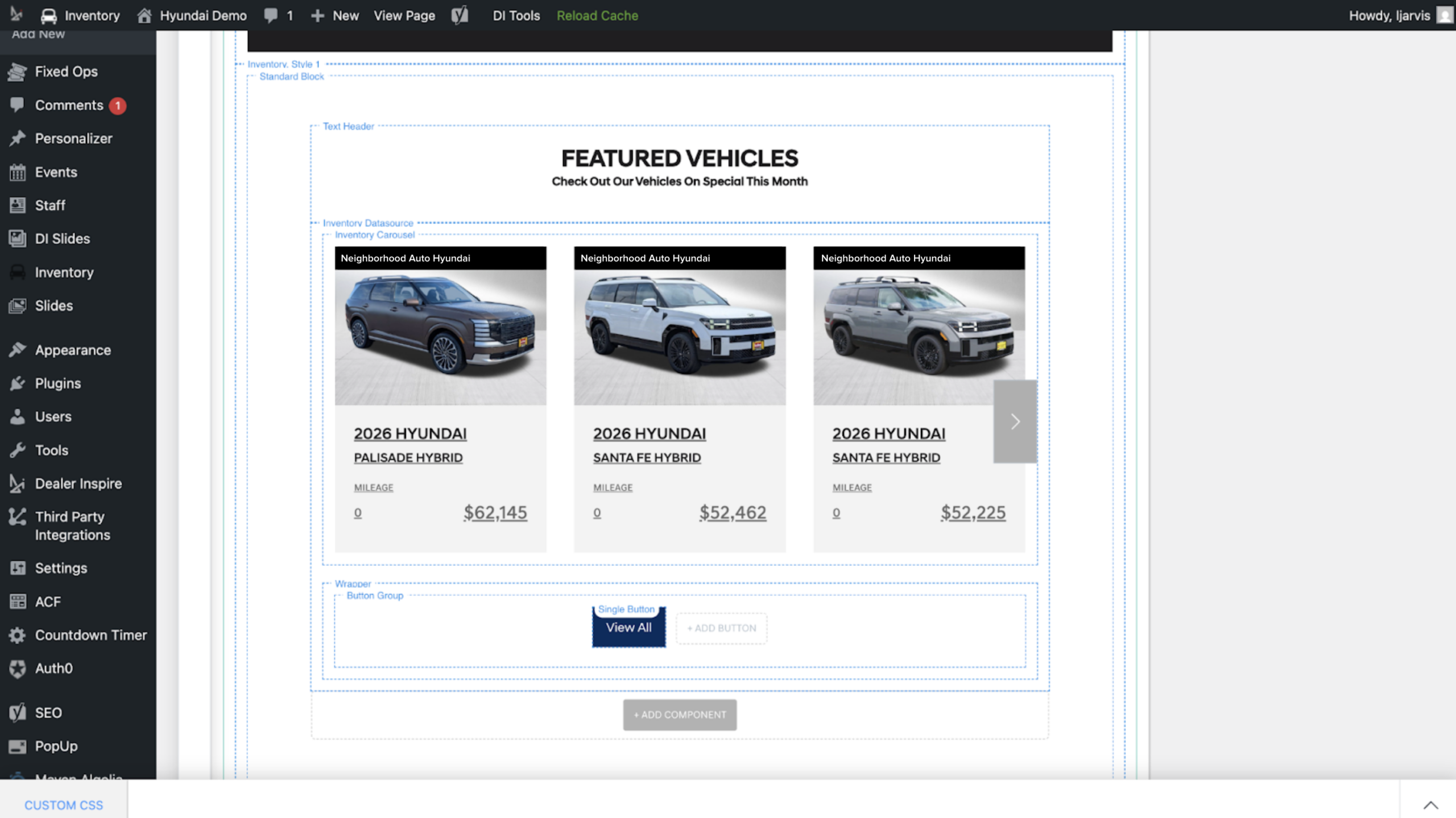
Tip: Drag and drop the featured inventory block to reposition it to anywhere on the page. Select it in the widget tree, then drag it to a new position.
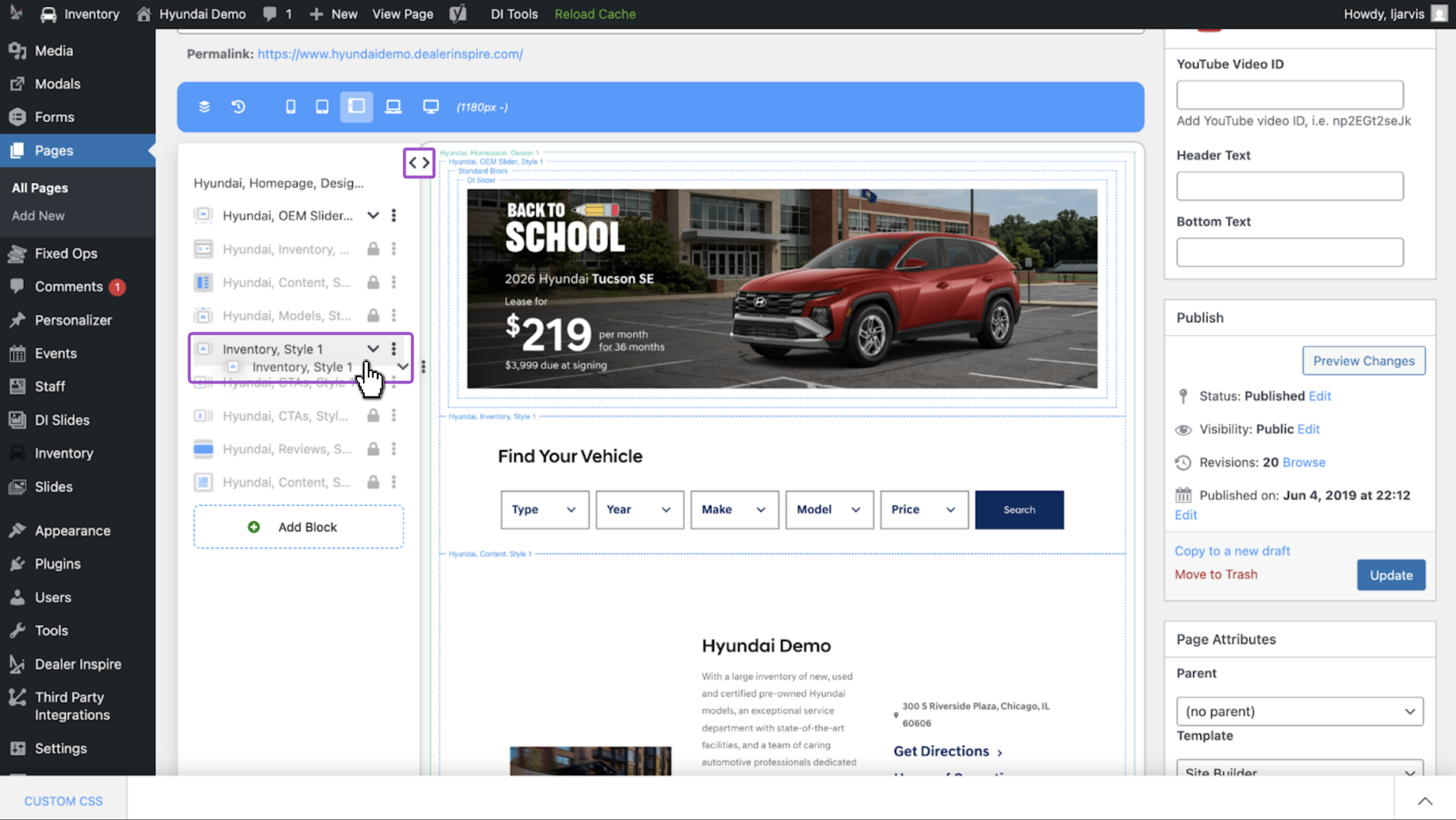
3Customize how your inventory displays
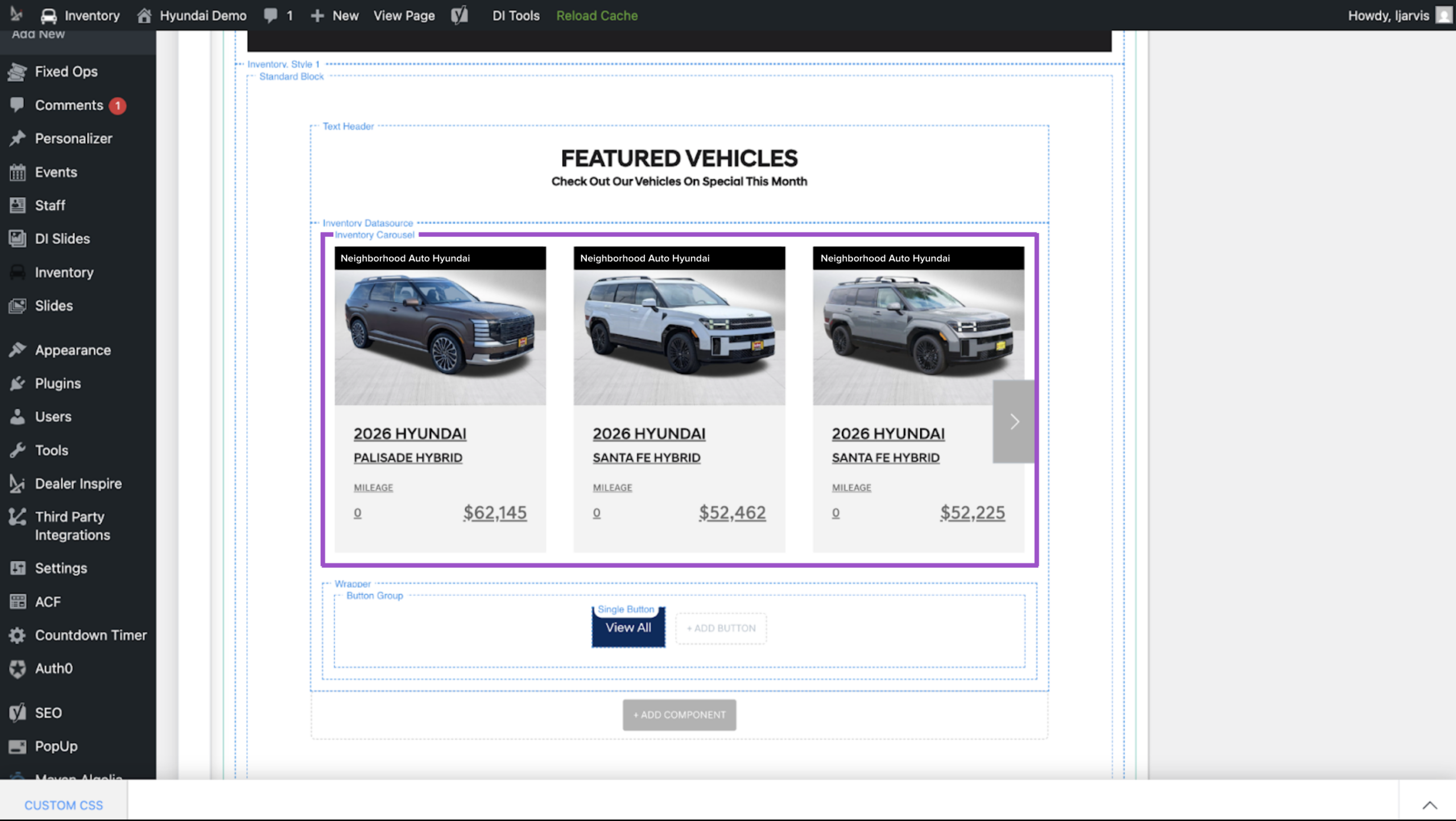
The Inventory Carousel component controls how vehicles display visually. The Inventory Datasource component determines which vehicles populate it. Customizing this is optional.
- Click the Inventory Carousel component
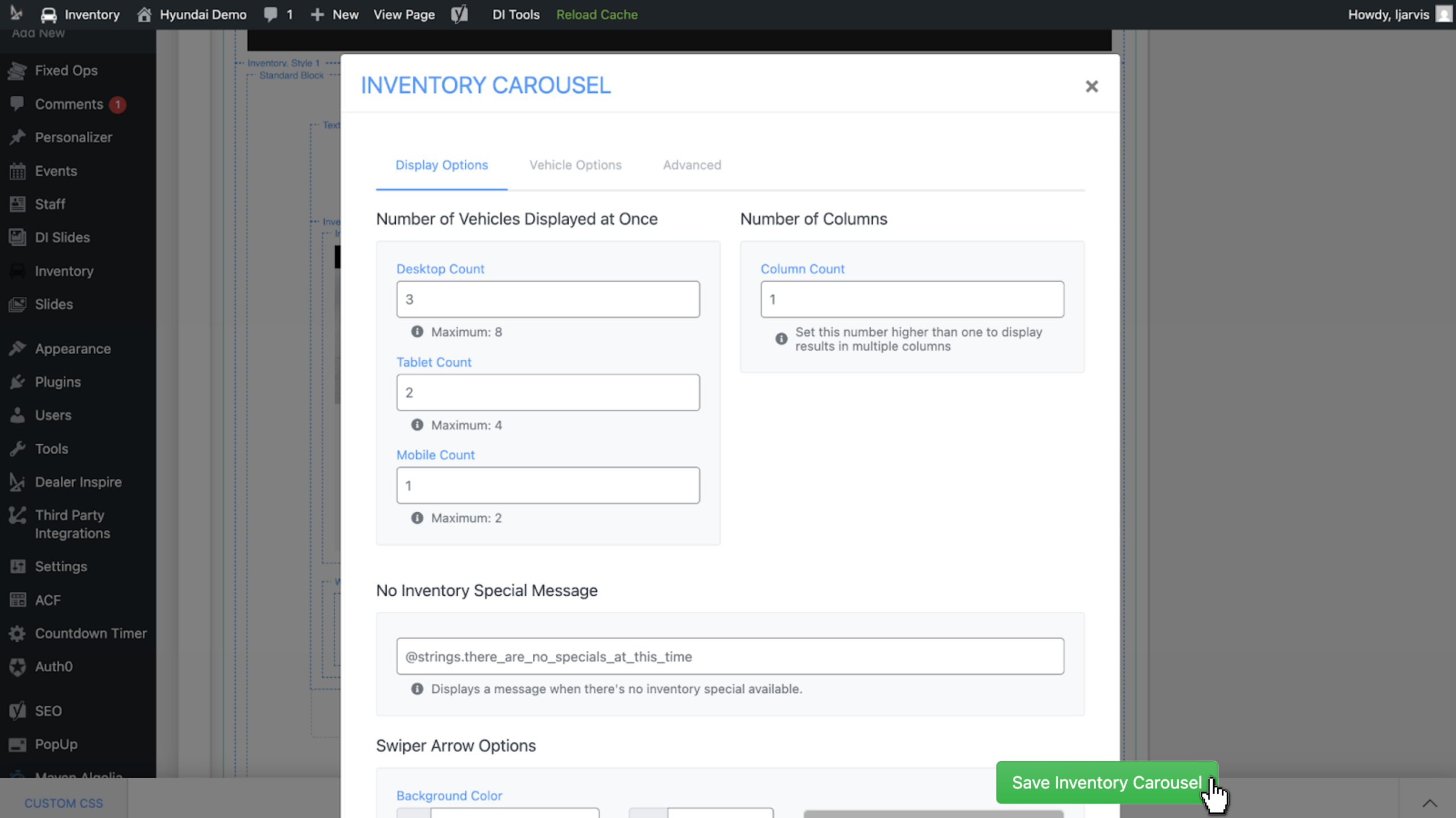
- Update details like how many images you’d like to display
- Click Save Inventory Carousel after making any changes
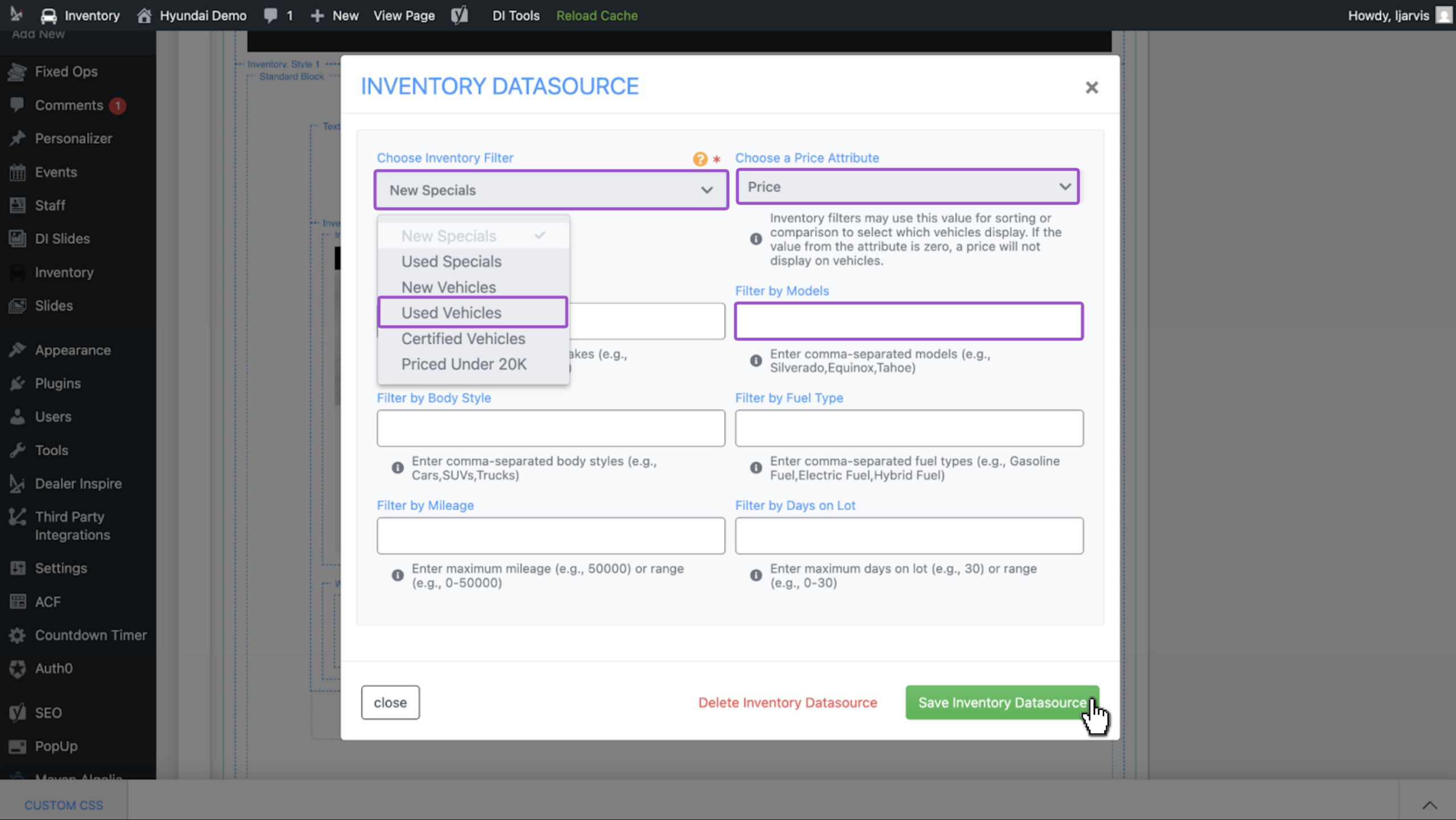
- Click the Inventory Datasource component
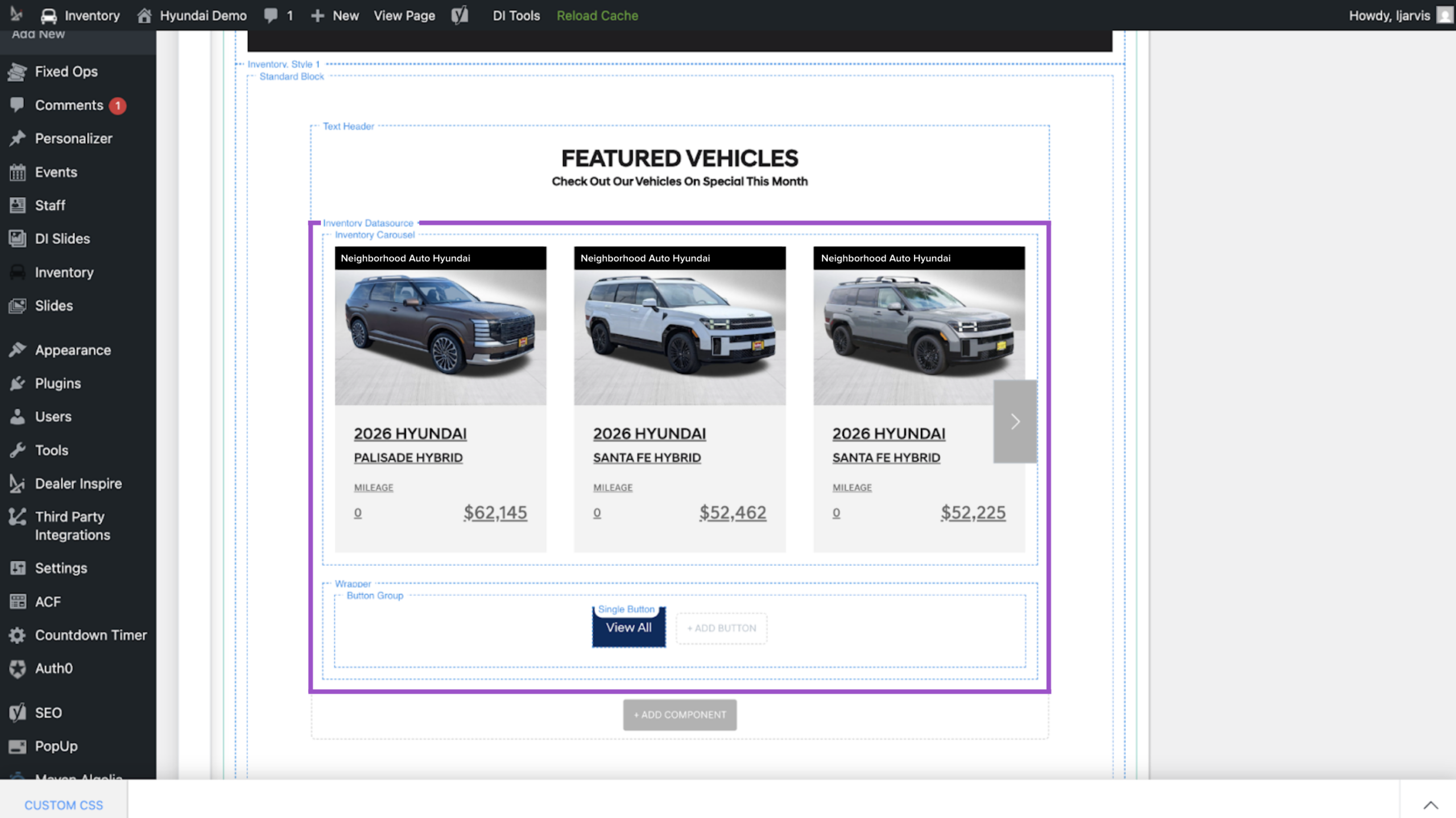
- Adjust inventory by:
- Inventory Filter: New Specials, Used Vehicles, Priced under 20k, and more
- Price Attribute: Price, Our Price, and more
- Make, Model, Body Style, Fuel Type, and more
- Hit Save Inventory Datasource after you’ve customized your featured inventory
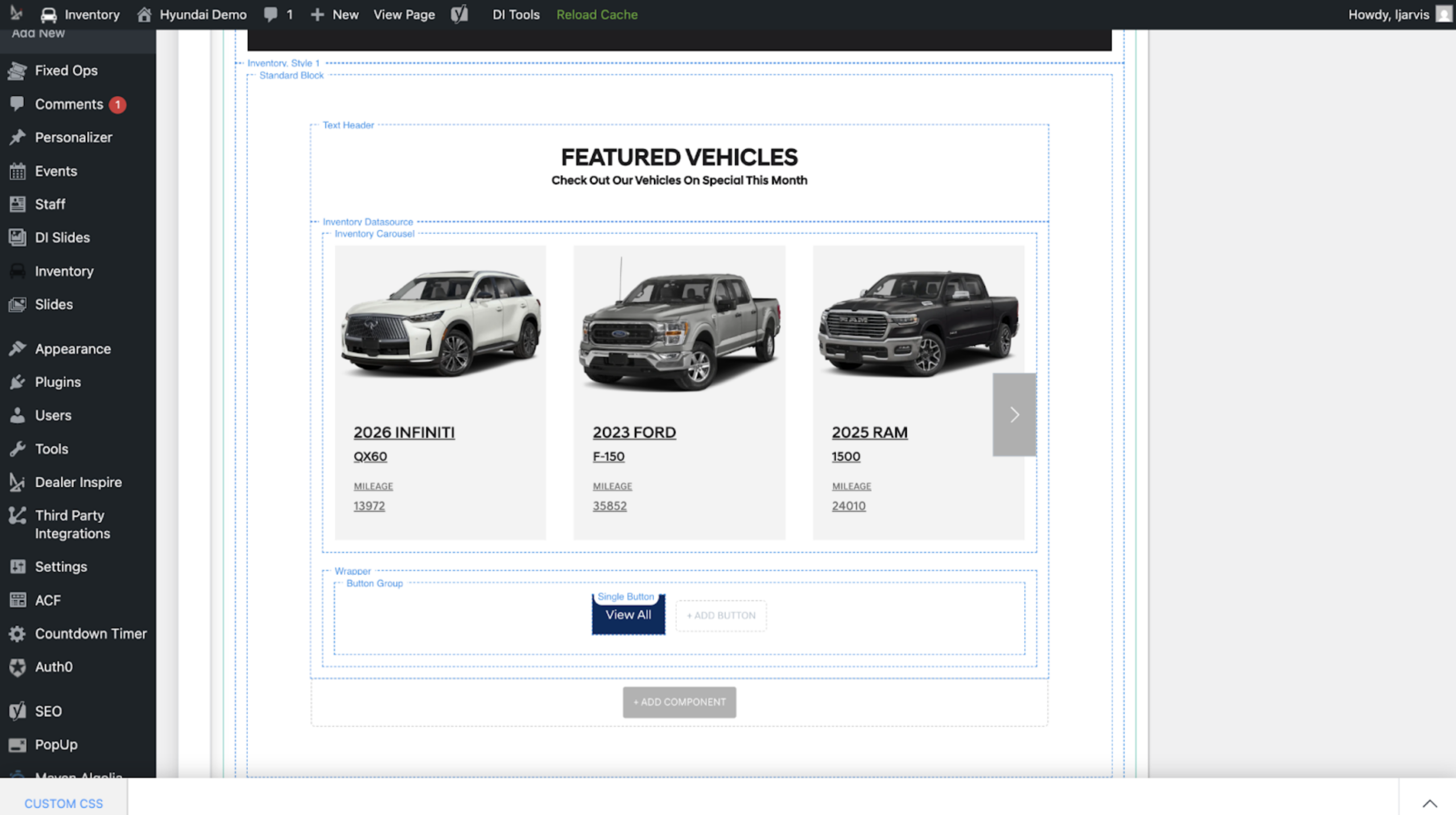
Once saved, the featured inventory block updates on the page. Here, the carousel displays vehicles matching the Used Vehicles filter.
4Publish your changes
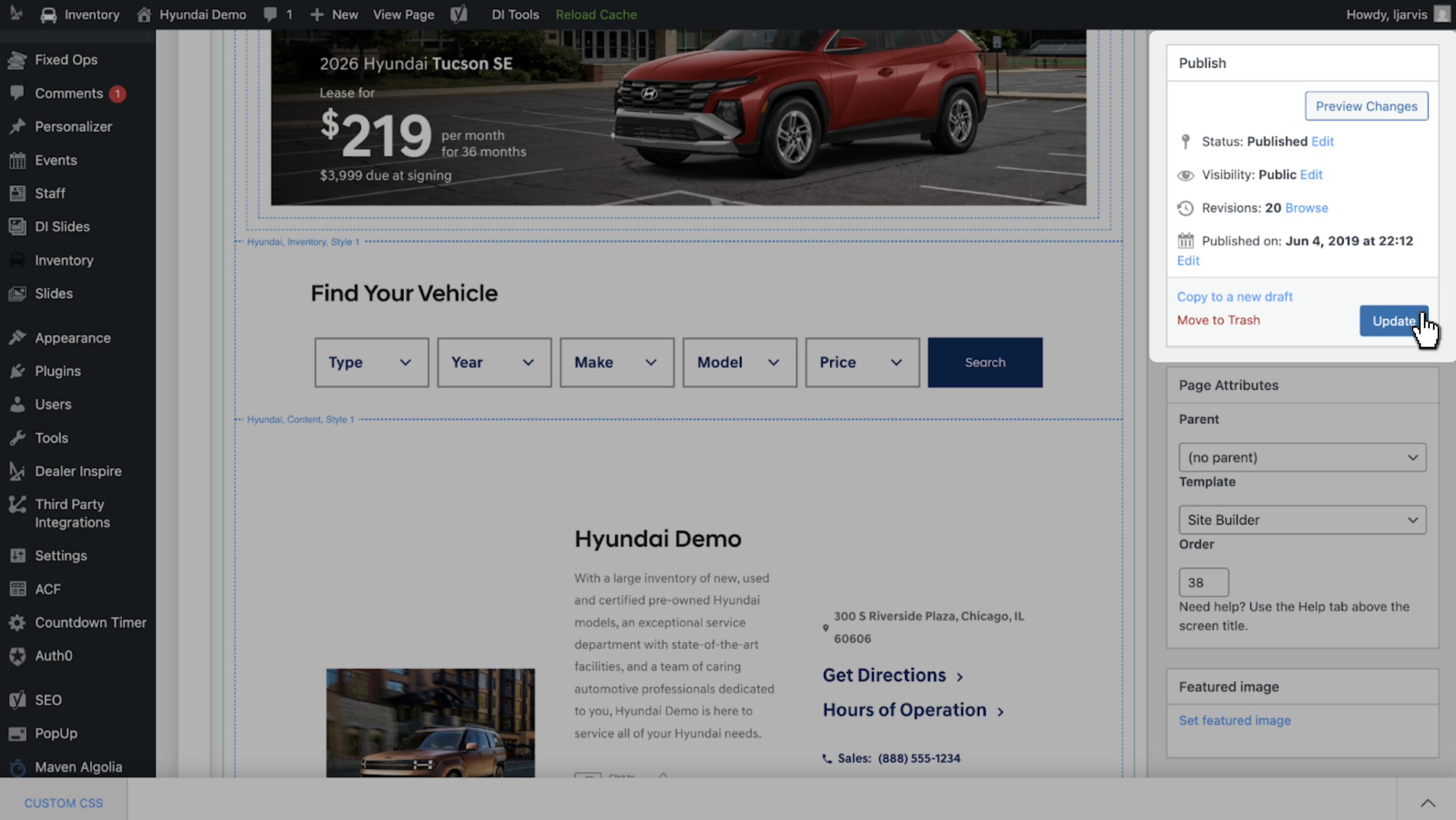
- Hit Update to push changes to your live site
- Navigate to the frontend of your site to confirm the featured inventory is displaying on the page