How to view a seller’s rating
Before placing a bid on a vehicle in DealerClub, it’s important to understand who you’re buying from. DealerClub provides transparent seller ratings and detailed profile information to help you evaluate a seller’s reputation and performance. Checking this information before bidding helps you make a confident, well-informed decision.
In this article, you’ll learn how to view a seller’s overall rating from a vehicle listing, where to find detailed seller and dealership performance information, and how to read written reviews before placing a bid.
To get started
Go to the Cars.com Hub and click on DealerClub.
1 Open a vehicle listing
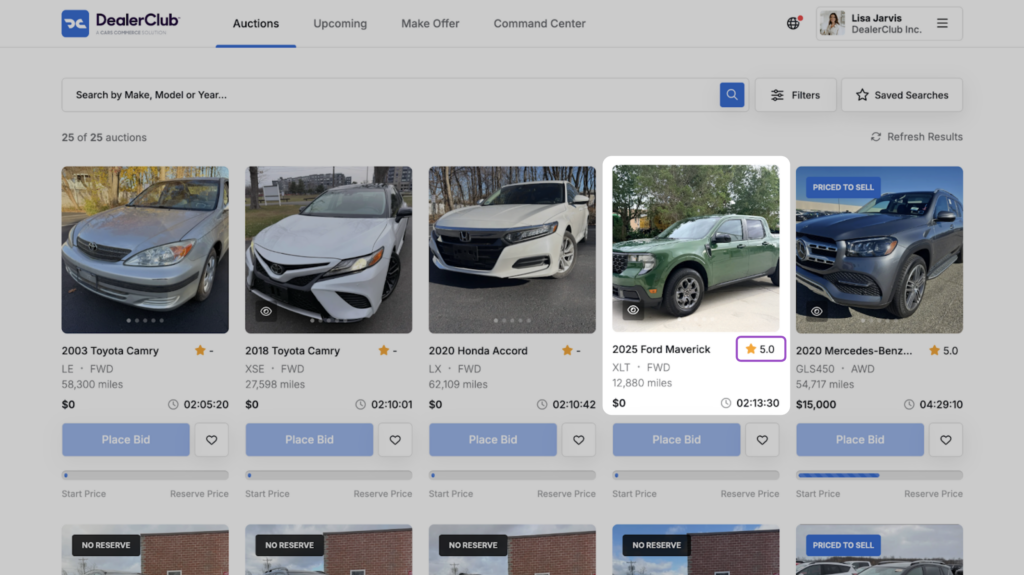
- From the DealerClub search results page, locate a vehicle you’re interested in.
- On the vehicle card, find the seller’s star rating displayed with the listing.
2 Find the seller information
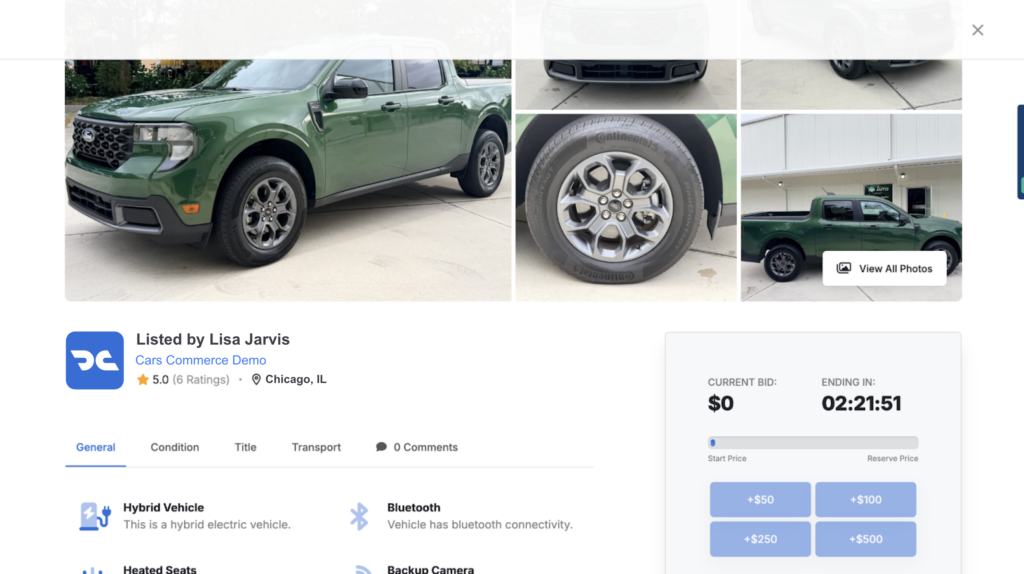
- Scroll below the vehicle images on the vehicle detail page.
- Find the seller name and overall rating displayed in the seller information section.
- Click on the seller name or rating to access more detailed seller information.
This will allow you to review additional insights about the seller and their dealership performance.
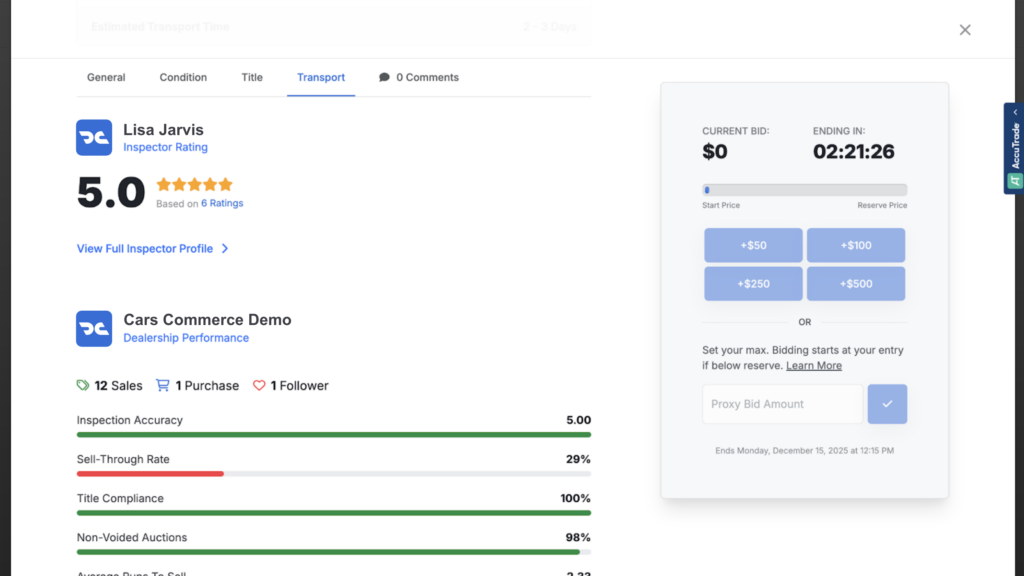
- Continue scrolling down the vehicle detail page.
- Select the “Full Inspector Profile” link.
The Full Inspector Profile includes expanded details about the seller, including dealership performance metrics and activity insights on DealerClub.
3 Read seller reviews
On the seller profile page, you can review the seller’s:
- Bio
- Awards (if applicable)
- Performance insights
- Overall rating
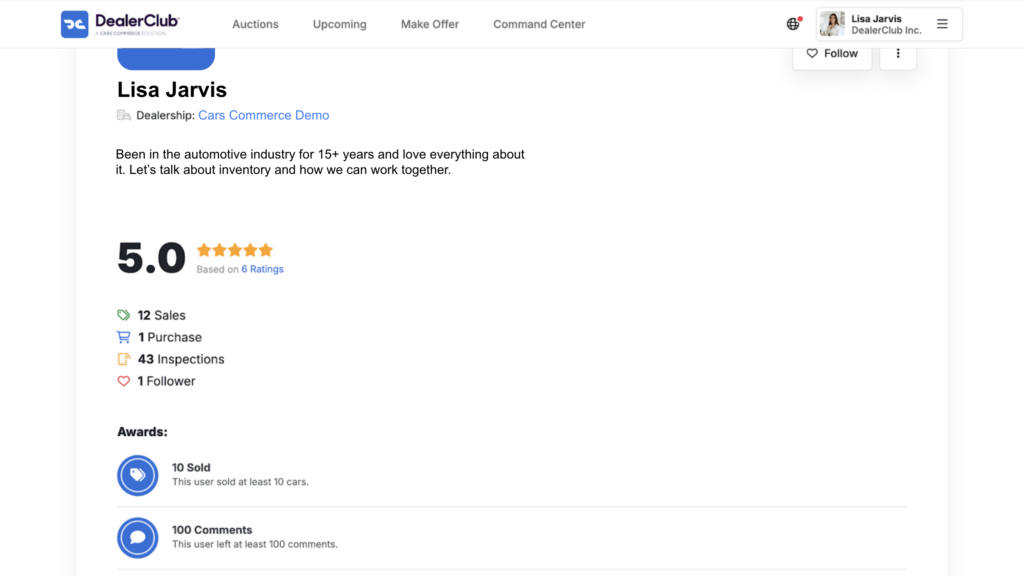
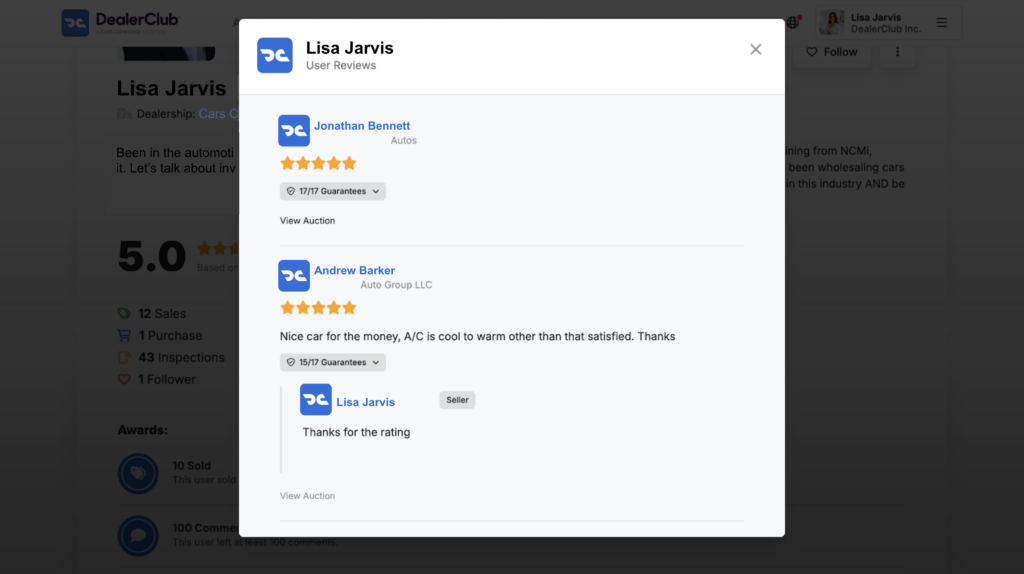
- To read written reviews, click the blue rating text displayed under the seller’s overall score.
- A pop-up window will appear showing:
- Written reviews from other dealers
- The seller’s responsiveness to reviews (if applicable)