How to access your Cars.com inventory feed
If you are a Cars.com customer, your retail inventory feed is automatically synced with DealerClub. This integration allows you to import vehicles directly from your Cars.com listings into DealerClub to begin the wholesale listing process.
In this article, you’ll learn how to locate your synced Cars.com inventory feed within DealerClub, import vehicles into DealerClub to begin the wholesale listing process, complete the required vehicle details and photo selections, and schedule your vehicle for auction.
To get started
Go to the Cars.com Hub and then click on DealerClub.
1 Go to your command center
- Once logged into DealerClub, click Command Center at the top of your screen.
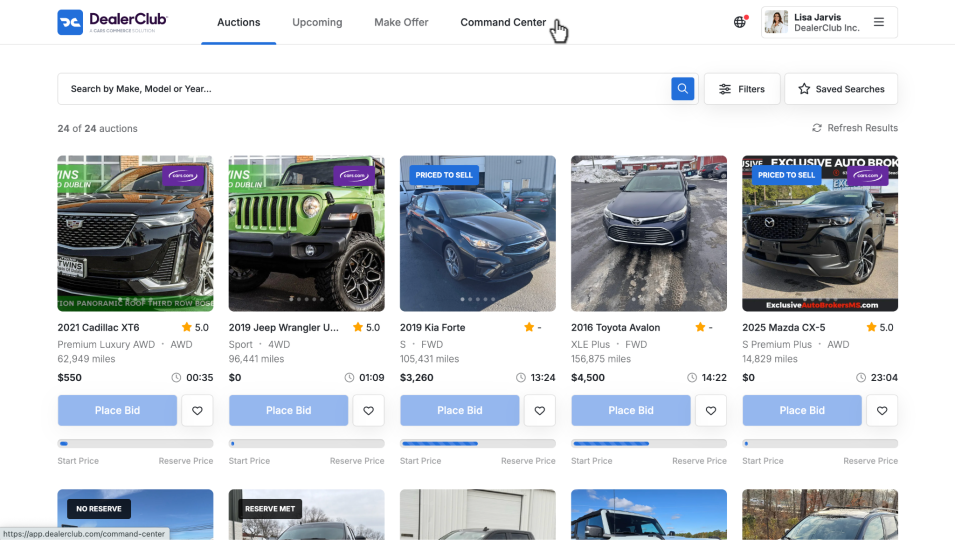
Your DealerClub feed automatically pulls in retail units from Cars.com, making it easy to spot aged vehicles and move them into wholesale without disrupting your retail operations.
2 Locate your Cars.com inventory feed
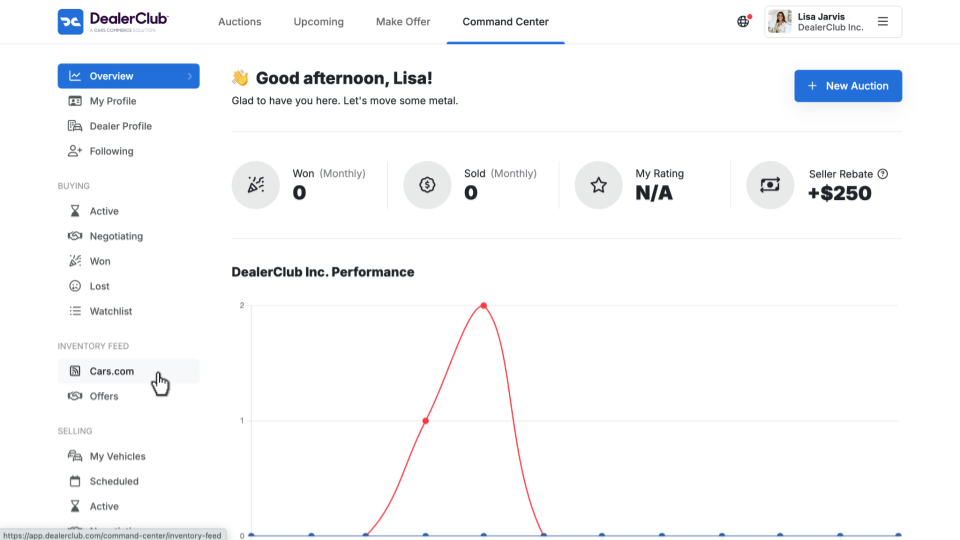
- In the left-hand panel, click Inventory Feed.
- Select Cars.com.
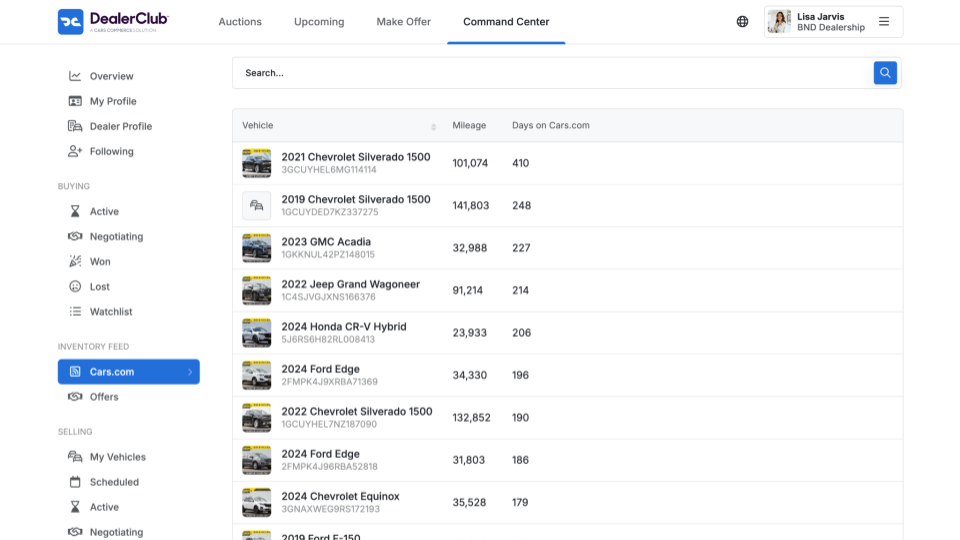
Your synced retail inventory will appear in a list view where you’ll see how:
- Each vehicle includes VIN-level data, mileage, and photos pulled directly from your Cars.com listing.
- Inventory is automatically sorted with the oldest units displayed first.
- Imported vehicles can be converted into wholesale auction listings within DealerClub.
3 Import a vehicle from the Cars.com feed
To begin listing a vehicle for wholesale:
- Hover over a vehicle in the inventory list.
- Click Import.
Note: When you click Import, the vehicle is added to DealerClub as imported inventory, but the listing process has not yet started.
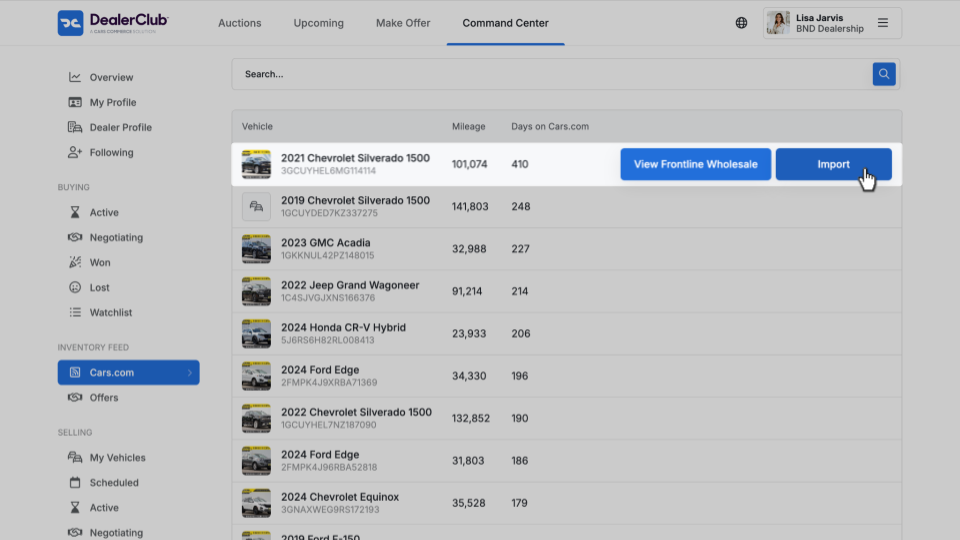
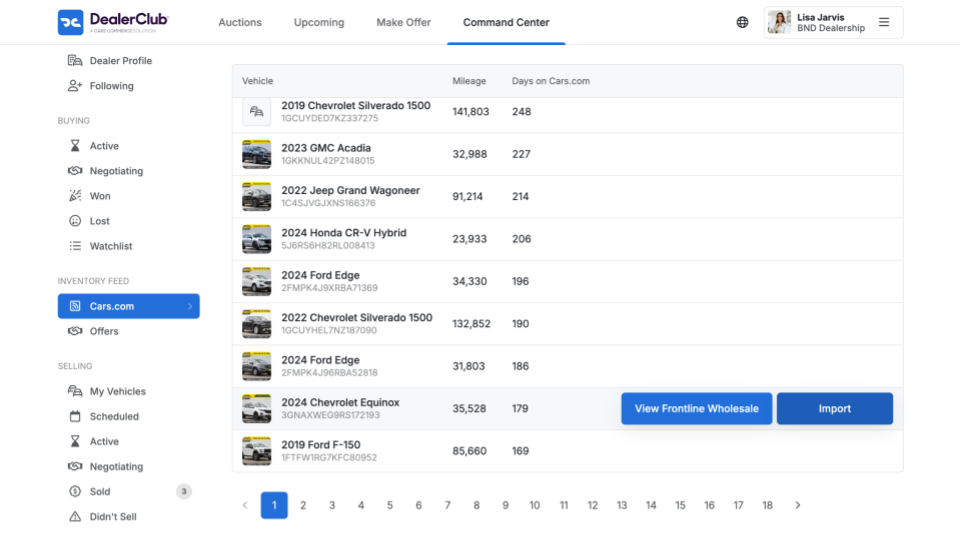
You may see different buttons next to vehicles:
- Import – The vehicle has not yet been imported into DealerClub. Clicking this begins the listing setup process.
- View – The vehicle has already been imported. The listing process has either been started or the auction is live.
- View Frontline Wholesale – View the status or offers associated with the retail listing connected to Cars.com.
4 Confirm and complete vehicle details
After clicking Import, a pop-up window will appear displaying the vehicle’s VIN-level details pulled from Cars.com.
Review and Adjust Photos
- Select the photos you want to include in the wholesale listing.
- Adjust photo classifications (for example, interior or exterior).
- Choose a featured image if needed.
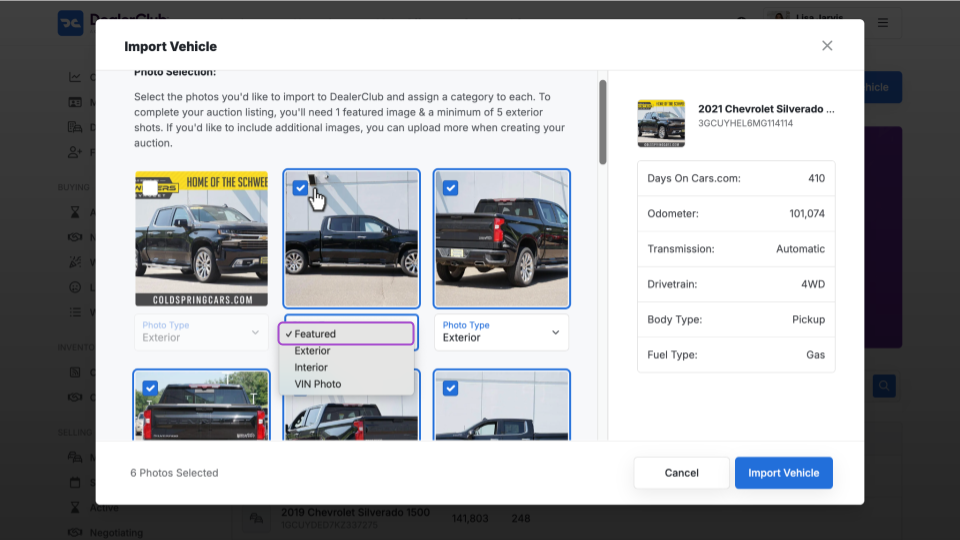
Photo Requirement:
You must select a minimum of five total images that include both exterior and interior views.
If you do not meet the minimum at this stage, you can upload additional images on the next screen.
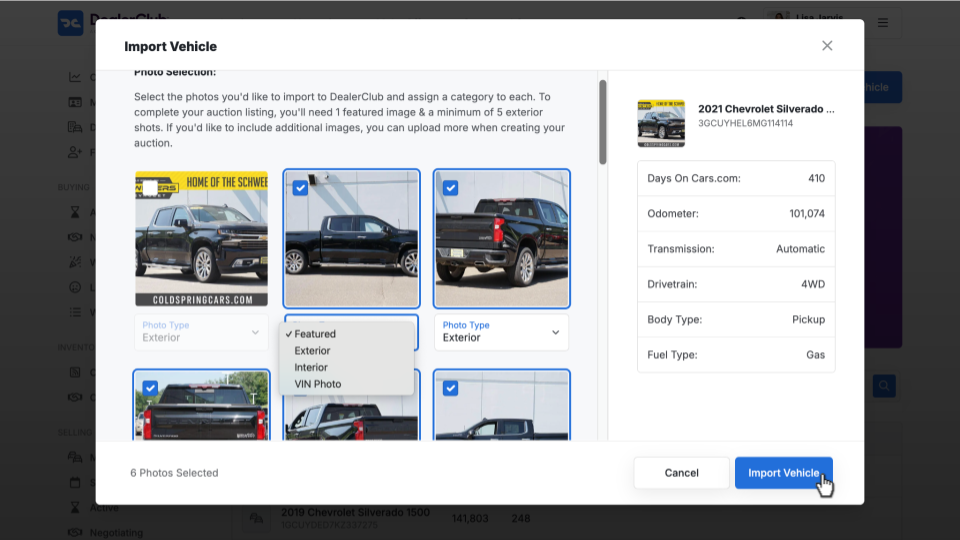
- Click Import Vehicle to proceed.
Complete Required Vehicle Information
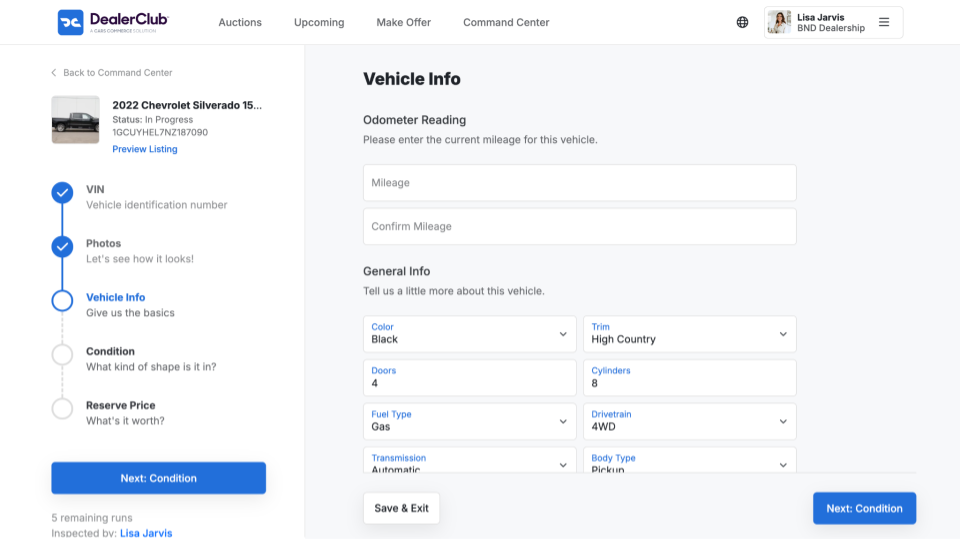
On the next screen, complete all required fields, which may include:
- Mileage
- Vehicle description
- Condition details
- Guarantees (if applicable)
- Notes regarding prior work completed or vehicle history
Add clear condition disclosures to ensure accurate representation.
You must complete all required fields before scheduling the auction.
5 Schedule the auction
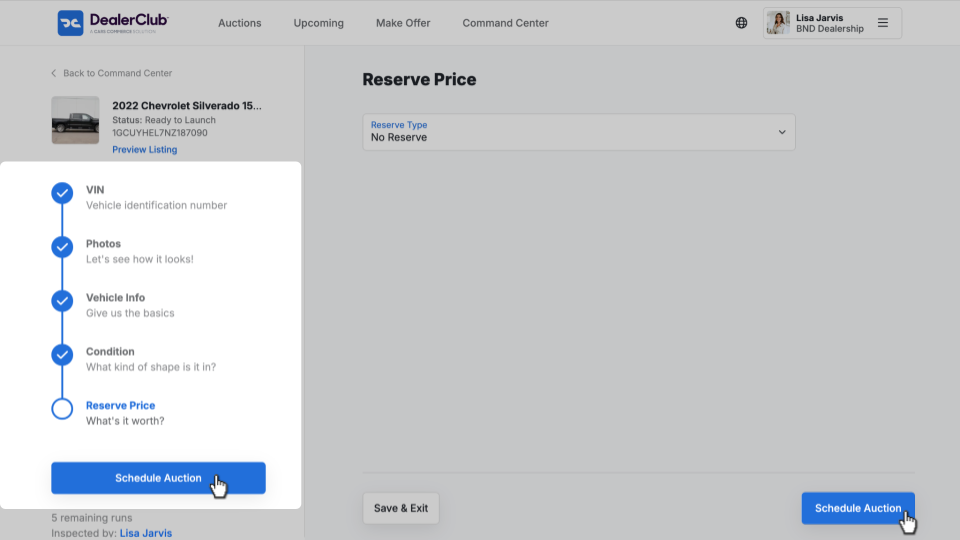
As you complete the listing details, progress indicators (checkmarks and a progress bar) will appear on the left side of the screen.
Once all required sections are complete:
- Click Schedule Auction.
- Select the appropriate auction timing (if prompted).
- Confirm the listing.
The vehicle will go live according to the selected auction schedule.
6 Monitor and manage your auction
After the auction is live:
- Track bids and activity within DealerClub.
- Monitor listing status from your Command Center or active listings area.
- Repeat the process for additional vehicles as needed.