How to fill out the condition report
A complete, accurate Condition Report builds buyer confidence and drives stronger auction results. Whether you’re on the lot with the mobile app or finishing details at your desk, every section of the CR tells buyers what they need to place competitive bids.
In this article, you will learn how to scan the VIN, complete a walk-around, document photos, fill out condition details including Guarantees and Badges, and schedule your vehicle for auction.
1 Scan the VIN
Start the listing from the DealerClub mobile app.
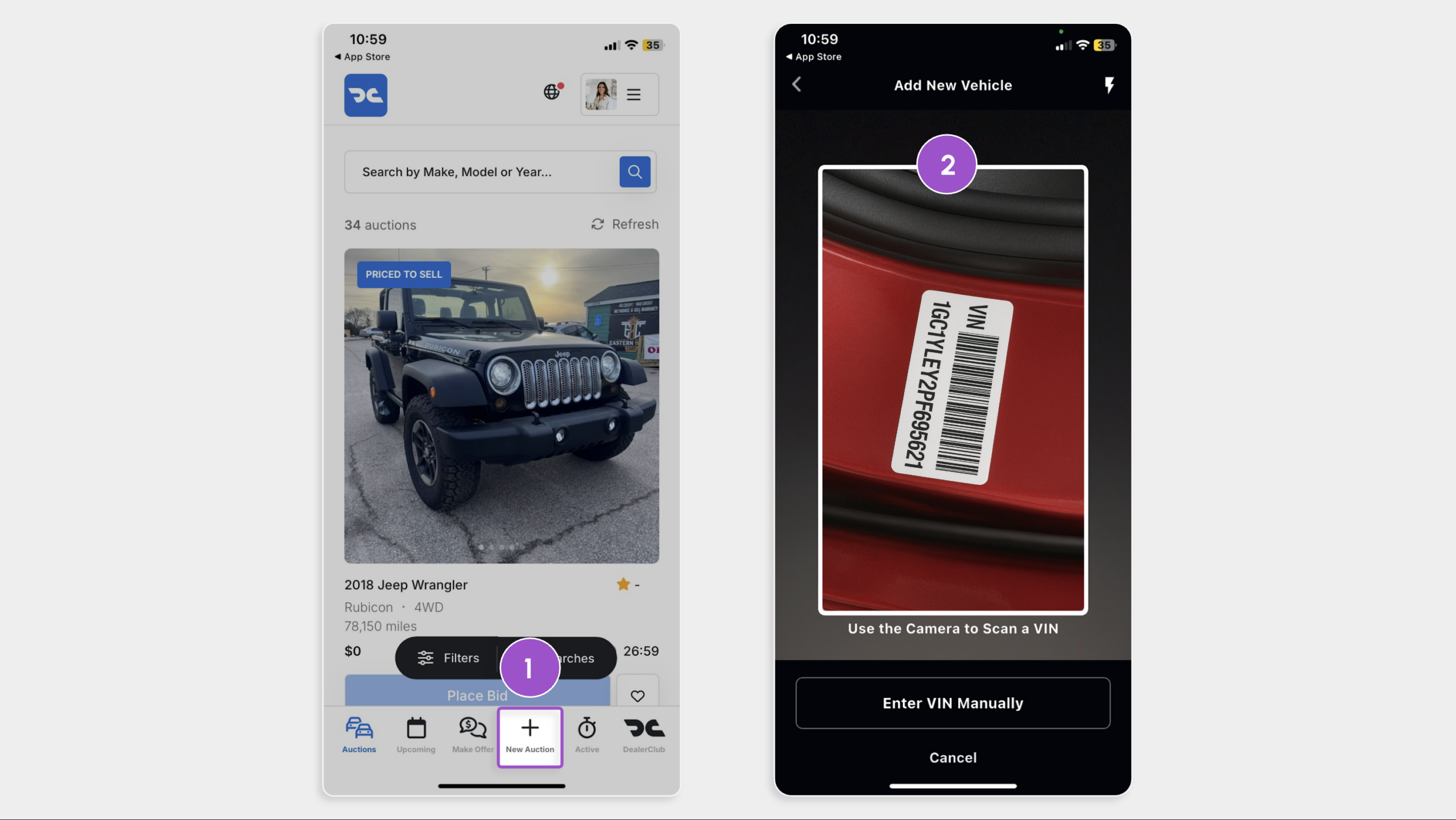
- Tap New Auction (+)
- Scan the VIN barcode with your camera, or tap Enter VIN Manually
- When prompted, allow camera access to scan
- Click Upload Photo to add an image of the VIN label and start the Condition Report
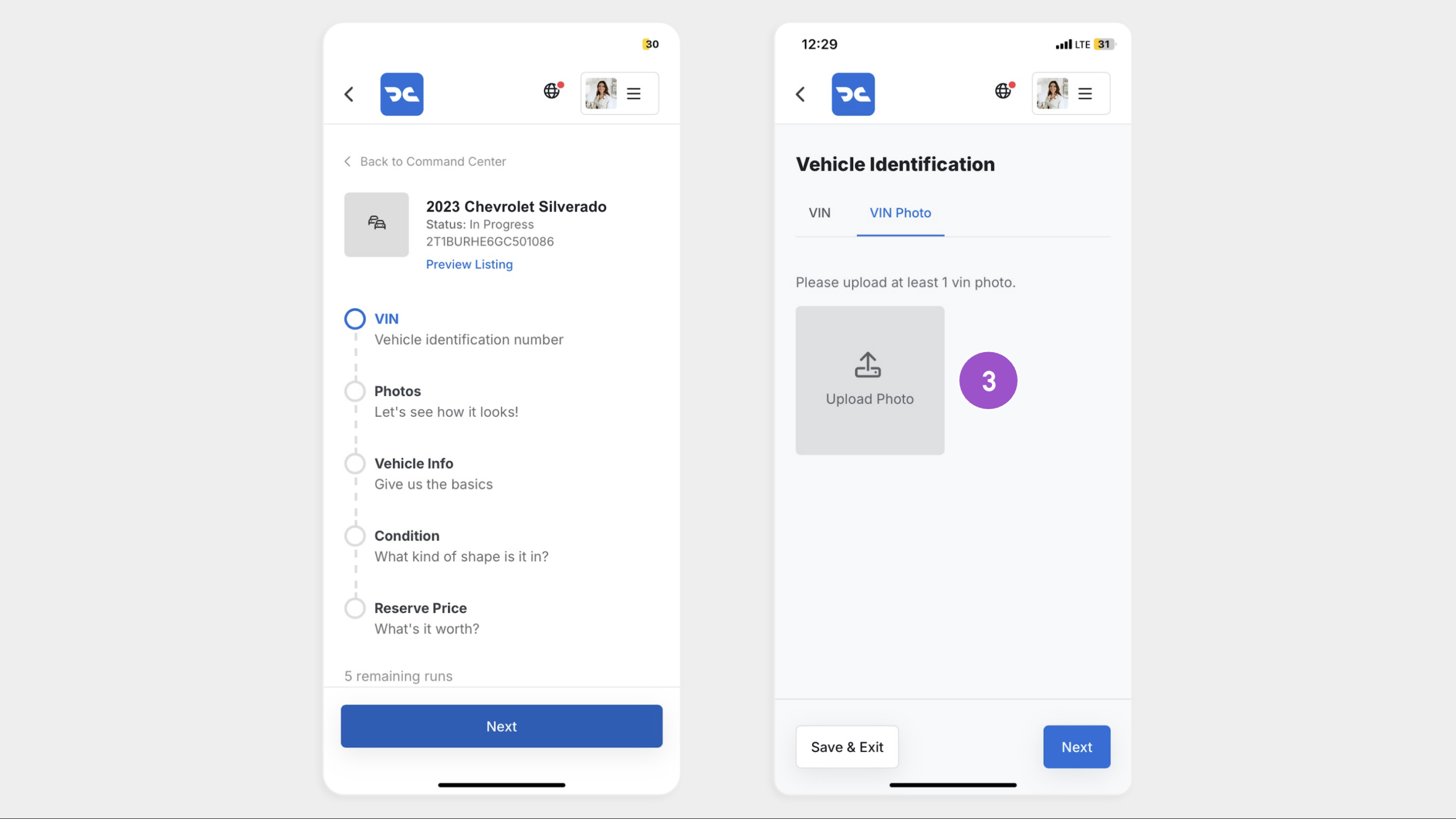
Continue through the process with photos, vehicle information, and condition details by walking around the vehicle to indicate features or issues.
2Conduct a walk-around of the vehicle
Capture photos and document conditions as you walk around the vehicle. Detailed images reduce buyer uncertainty.
Capture clear images of:
- Exterior (all angles)
- Interior
- Tires and tread depth
- Paint scratches or dents
- Undercarriage
- Dashboard, including the odometer and any warning lights
- Mark any visible damage in the app for full disclosure
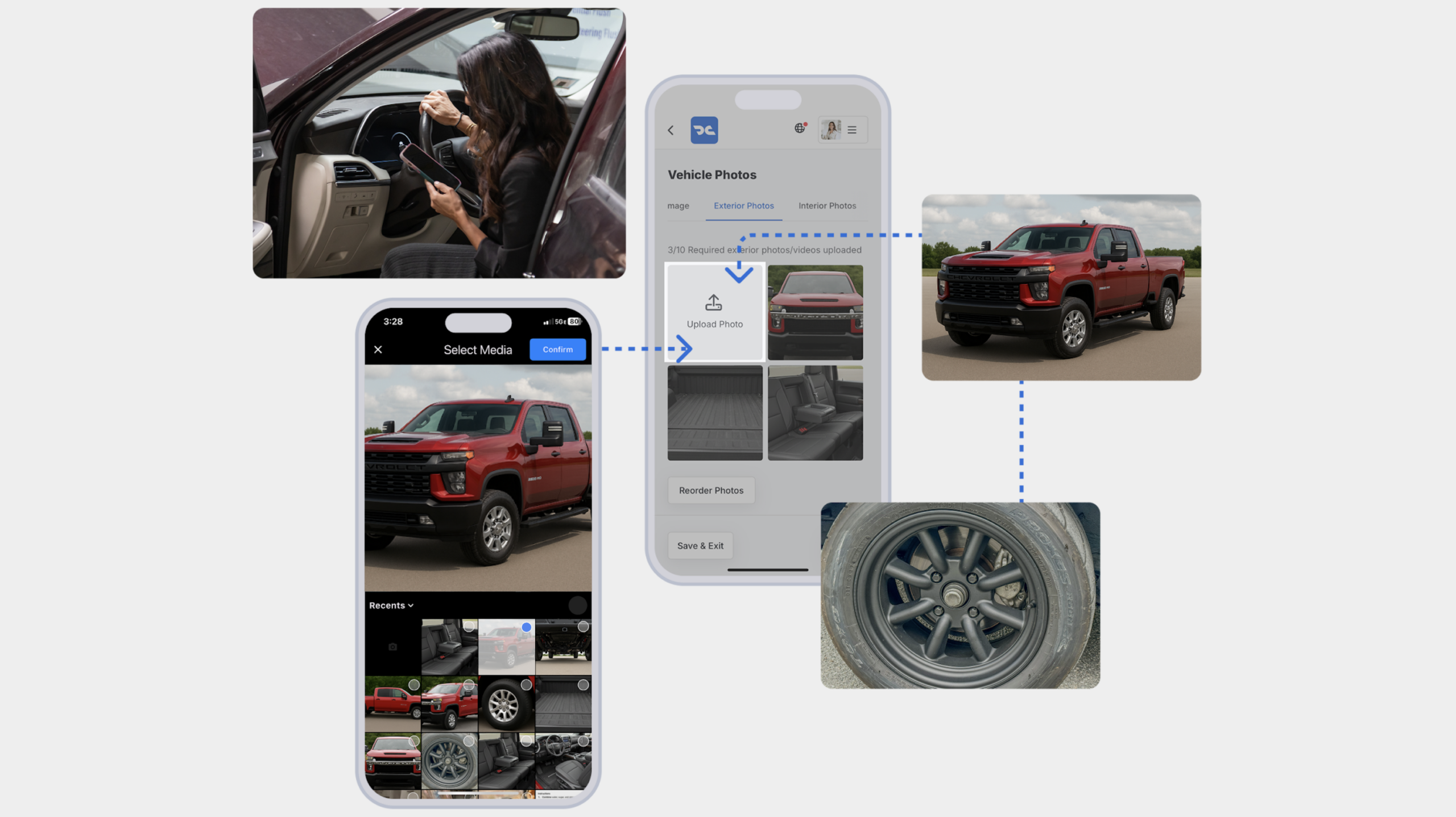
Note: The more detail you provide, the more confident buyers will be when bidding.
3Fill out the condition details
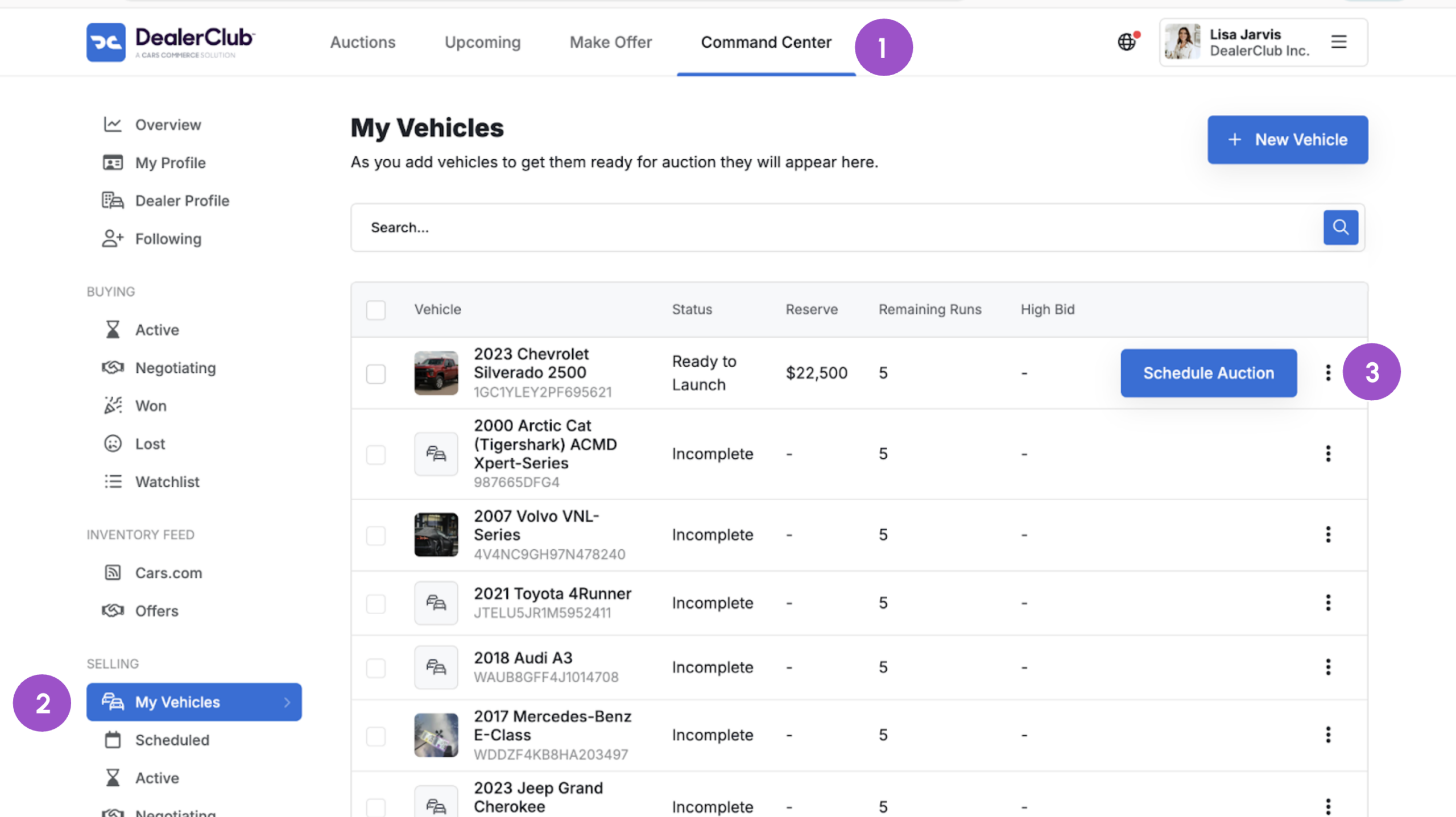
Continue in the app or switch to desktop. On desktop:
- Go to Command Center
- Click My Vehicles
- Select the vehicle to open the listing
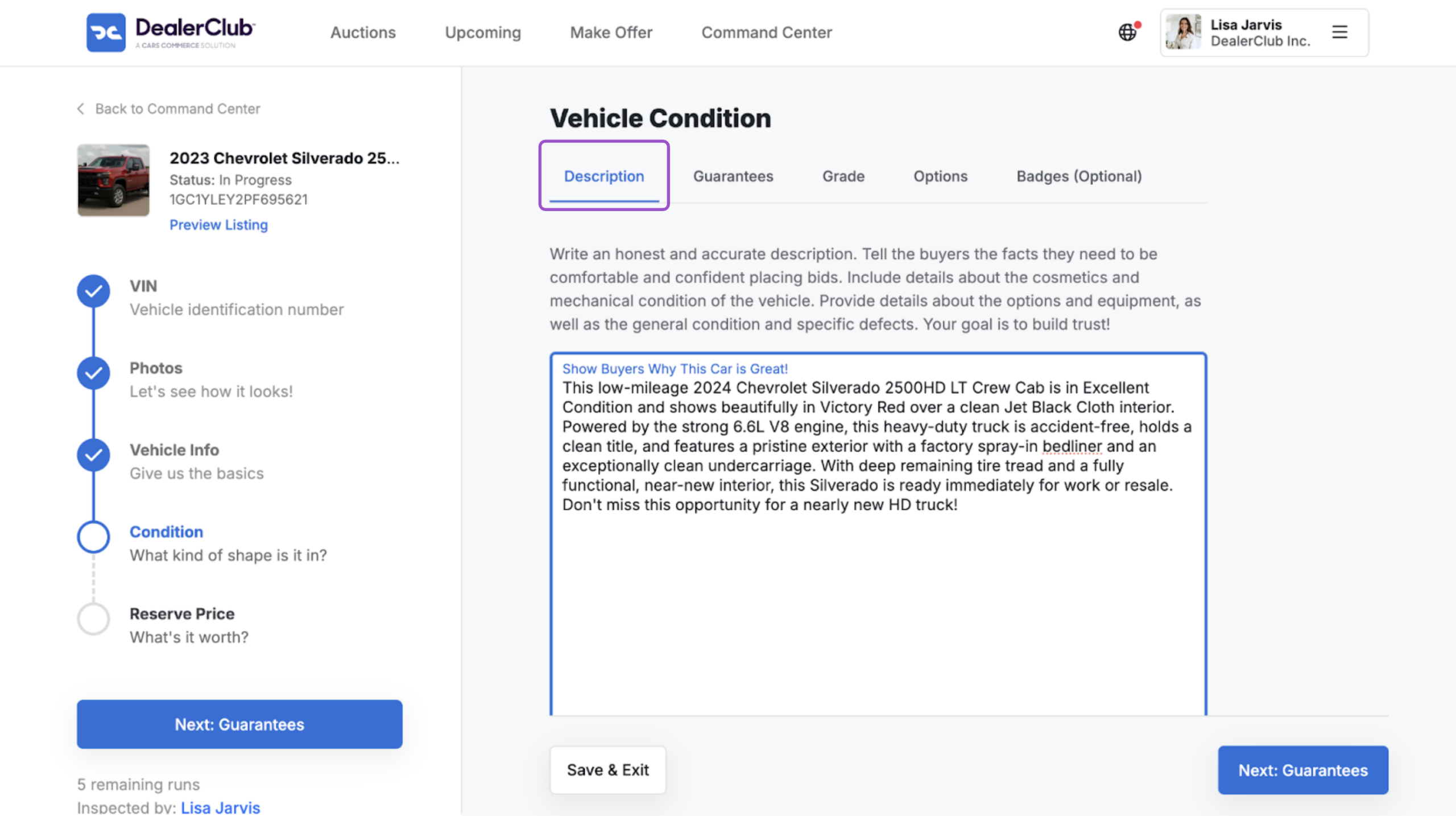
Work through each section of the Vehicle Condition tab:
Description
- Write a clear, honest overview of the vehicle’s condition
- Include standout features and any known issues
- More detail leads to more confident bids
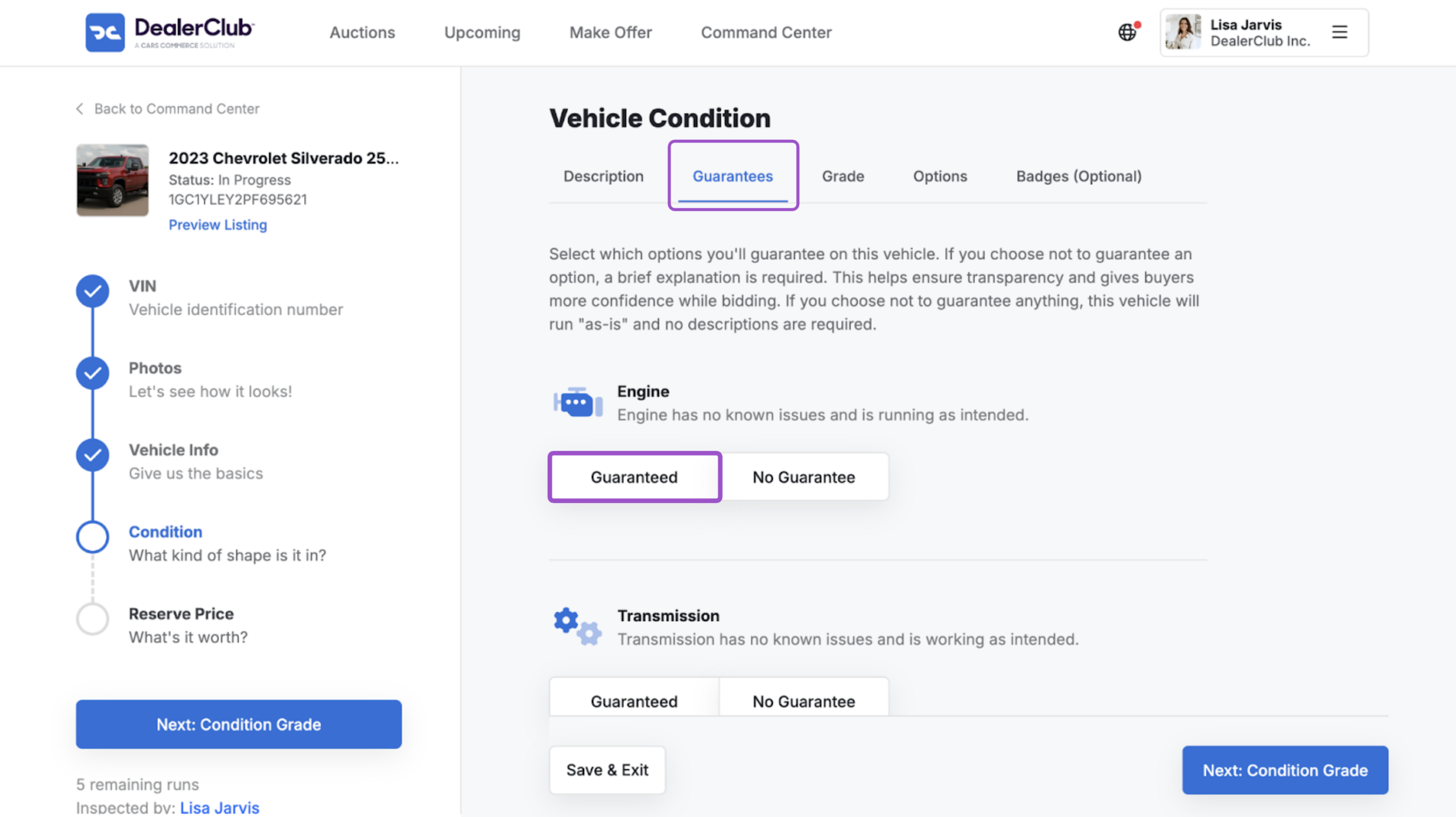
Guarantees
- Select Guaranteed or No Guarantee for each feature
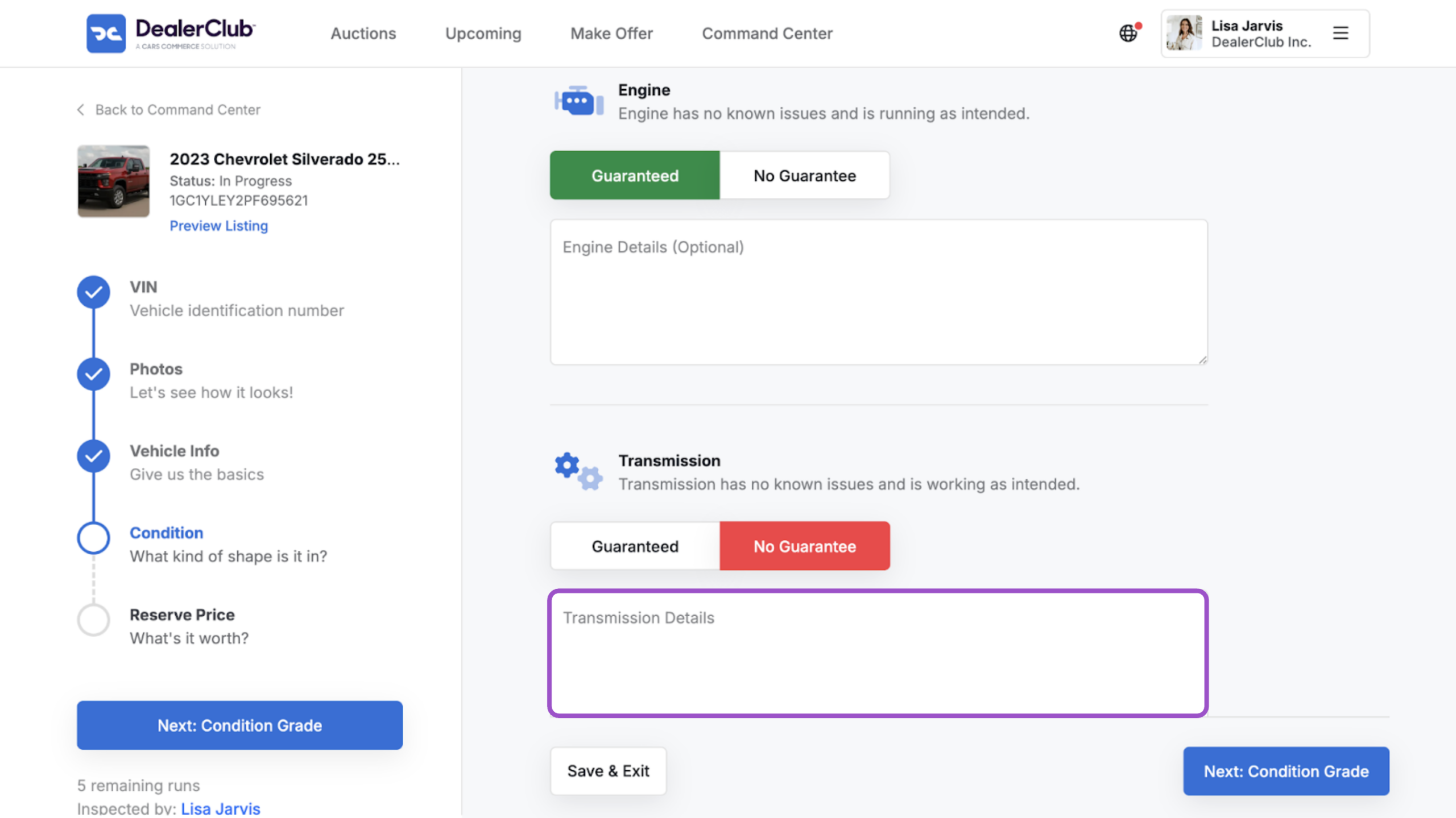
- If guaranteed, add a brief supporting detail (example., “AC runs ice cold”)
- If not guaranteed, a comment explaining why is required
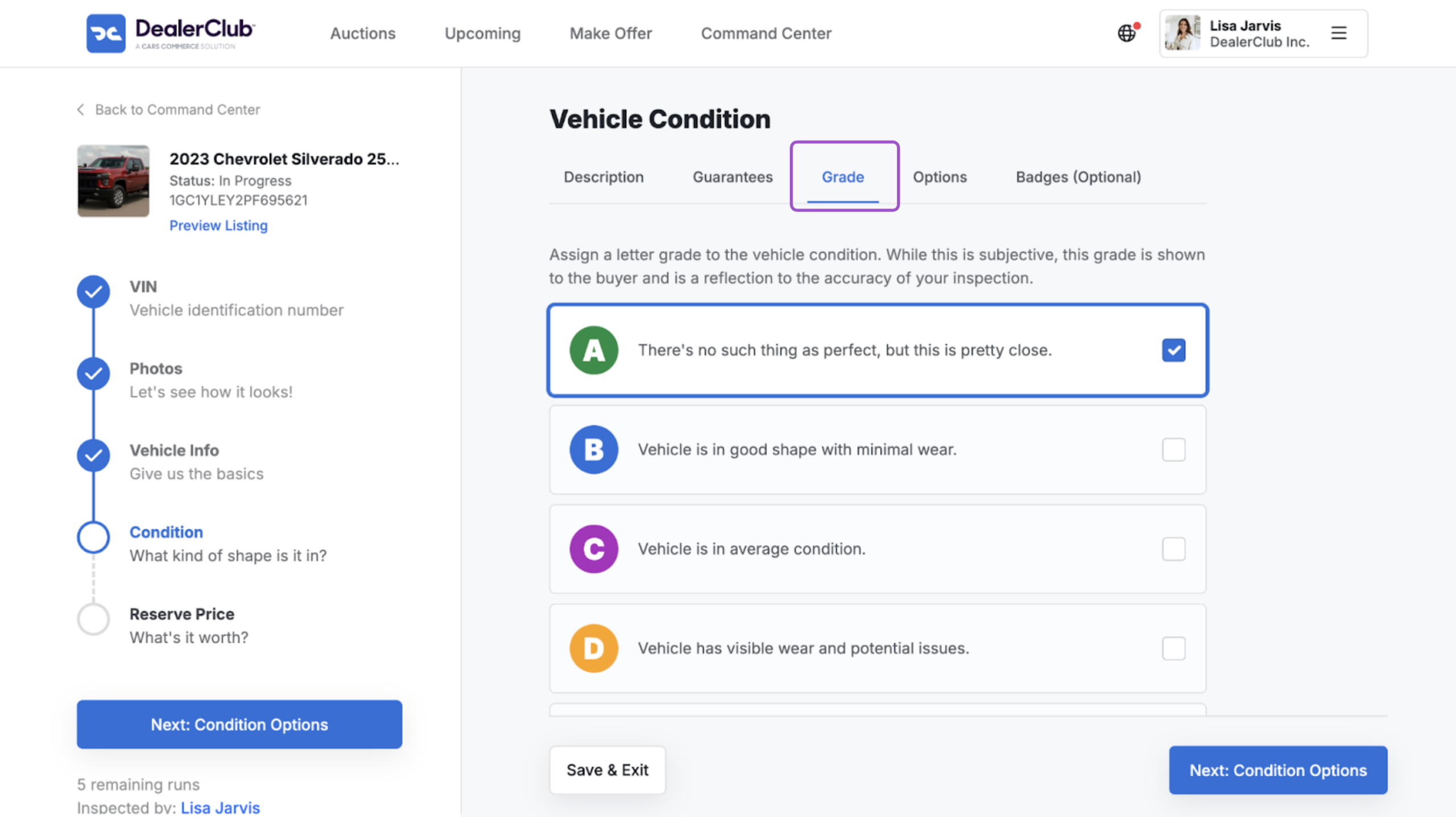
Grade
- Select the condition grade that reflects your honest assessment
- Think about what you’d want to know as the buyer
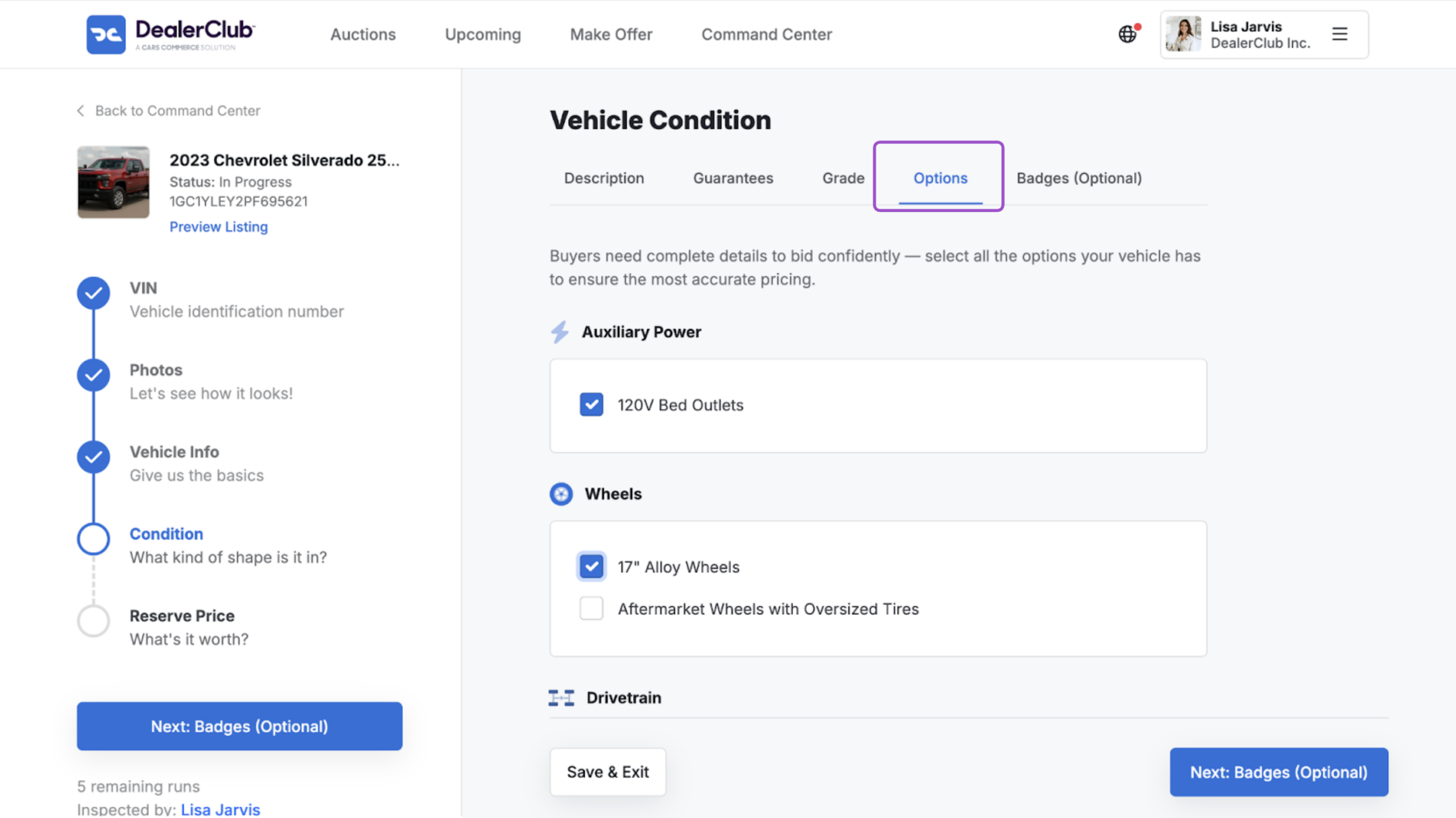
Options
- Select all features that apply (e.g., sunroof, leather seats, alloy wheels)
- Accurate options ensure correct pricing at auction
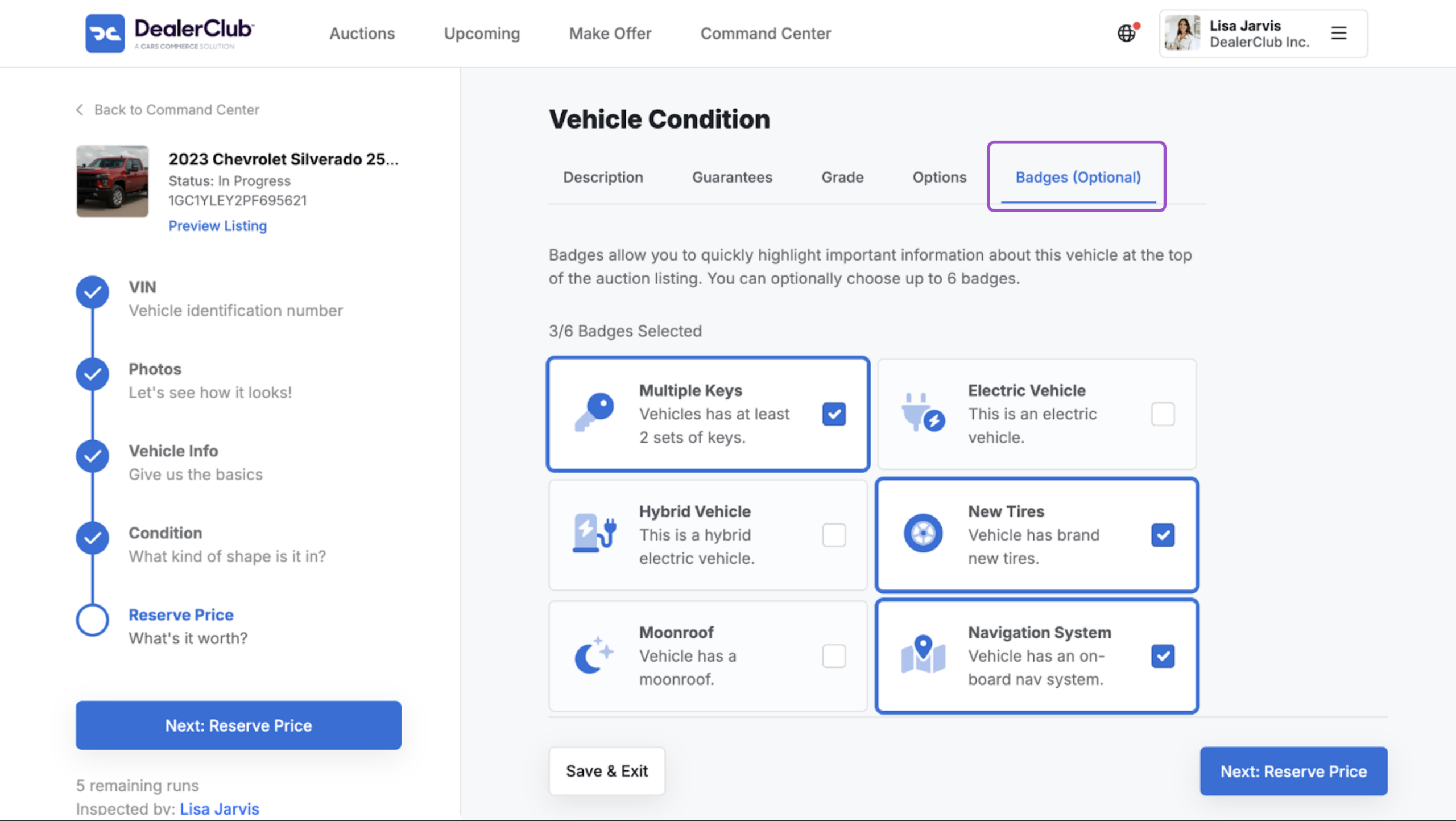
Badges
- Choose up to six badges that highlight selling points (example, “Multiple Keys,” “New Tires”)
- Badges appear at the top of your auction listing
4Schedule your vehicle for auction
Once the Condition Report is complete:
- Review all condition details and attached images
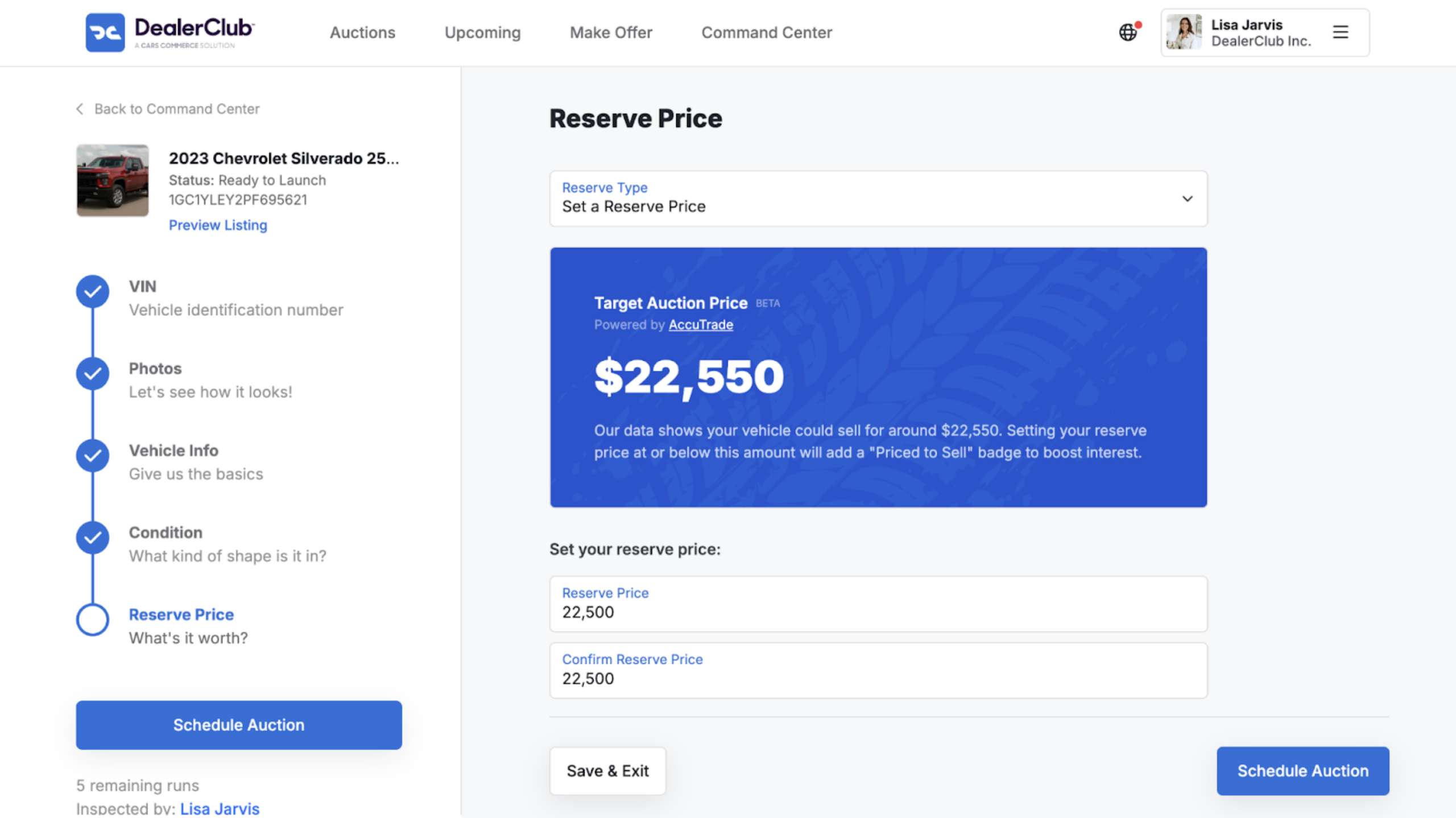
- Enter your Reserve Price and confirm the amount
- Click Schedule Auction; your listing will go live in DealerClub