How to review Suggested Actions in the Cars.com Dealer app
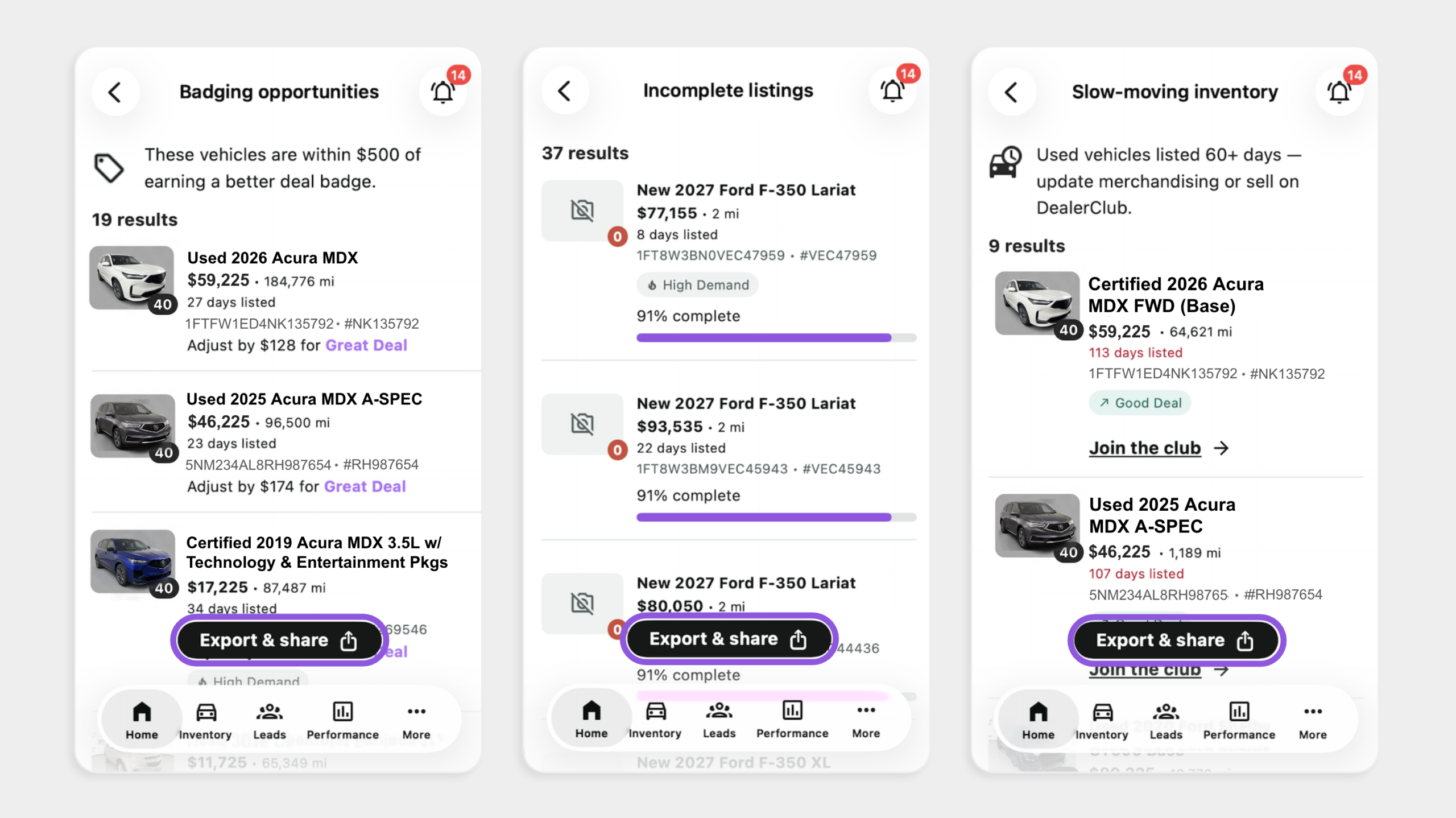
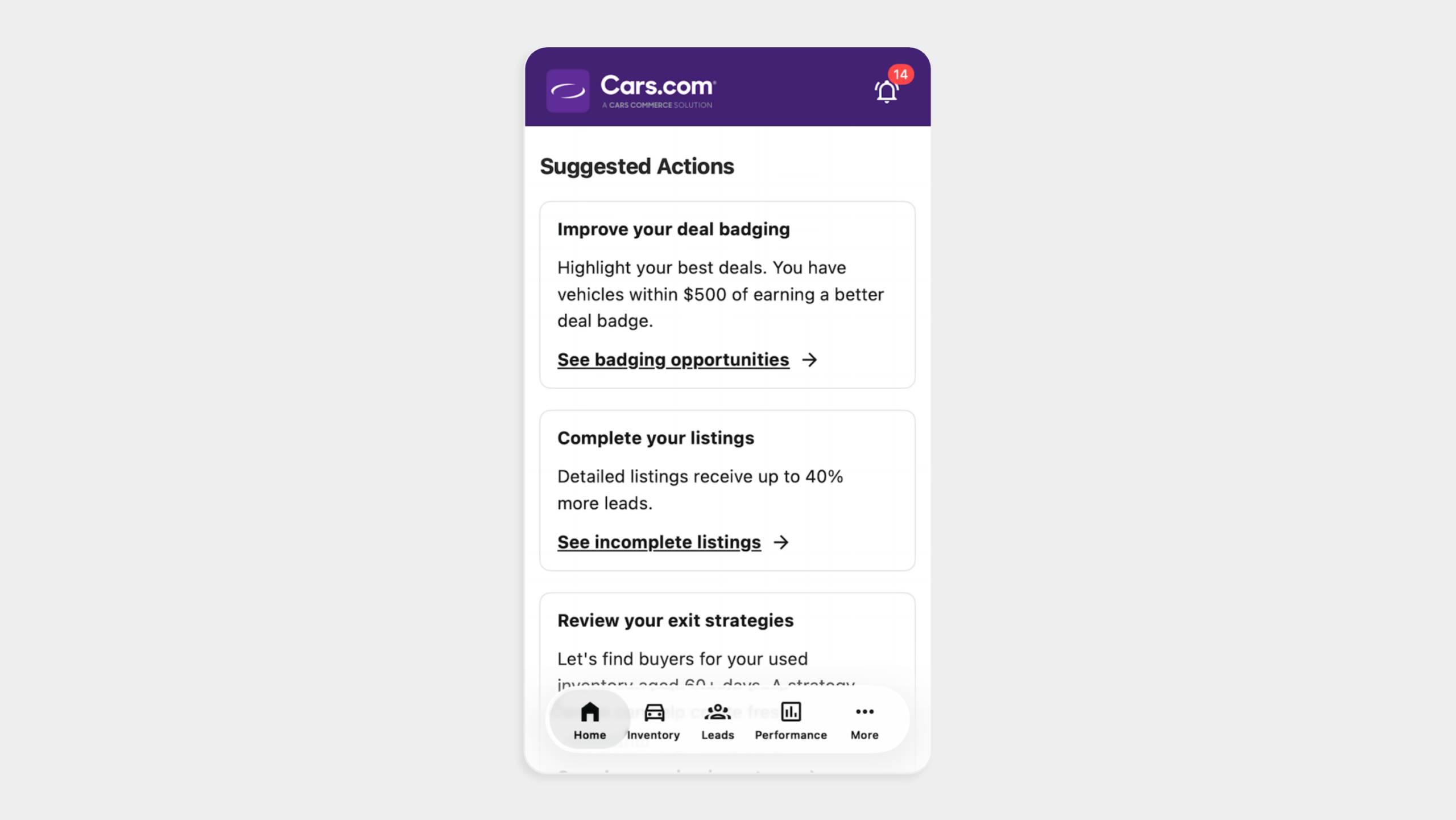
The Cars.com Dealer app opens on the Home tab with Suggested Actions, a list of what needs your attention today. Use it to spot which deals, listings, and inventory to prioritize, then share with your team.
In this article, you will learn what each Suggested Action shows, where to check your alerts, how to share what you find with your team, and which articles take you deeper on each topic.
To get started
Log in to the Cars.com Dealer app with your Cars.com credentials.
Find Suggested Actions
Open the Home tab and scroll to Suggested Actions. Each card shows an area that needs attention and links to the details.
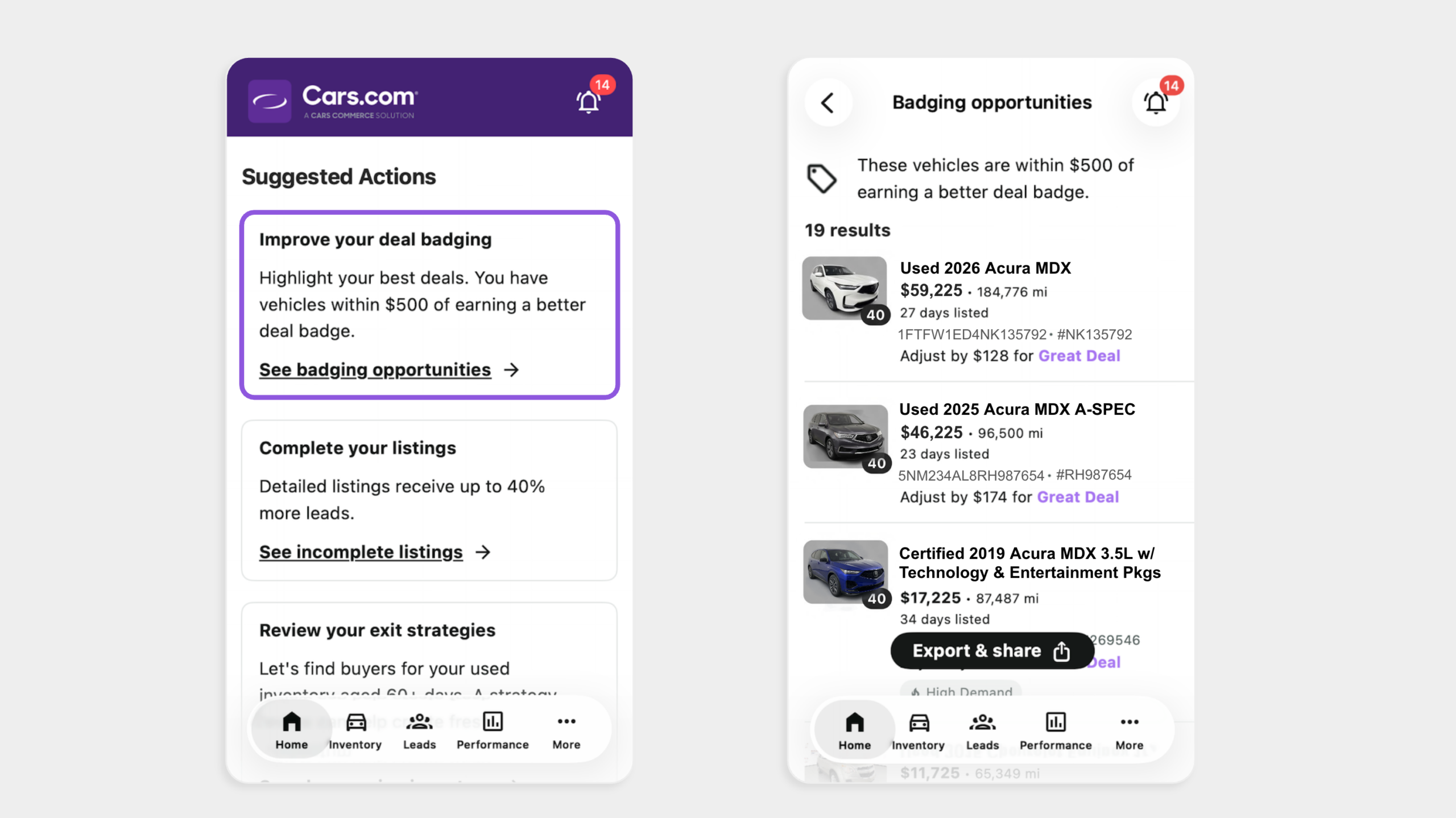
Improve your deal badging
This card shows vehicles close to earning a better deal badge and the recommended adjustment for each. Tap See badging opportunities to review and decide which listings to update.
Deeper dive: How to manage your deal badges on the Cars.com Dealer app
Complete your listings
This card shows listings that need merchandising attention, like images or seller notes. Tap See incomplete listings to review what listings need to be completed. Detailed listings receive up to 40% more leads.
Deeper dive: How to find and fix incomplete listings
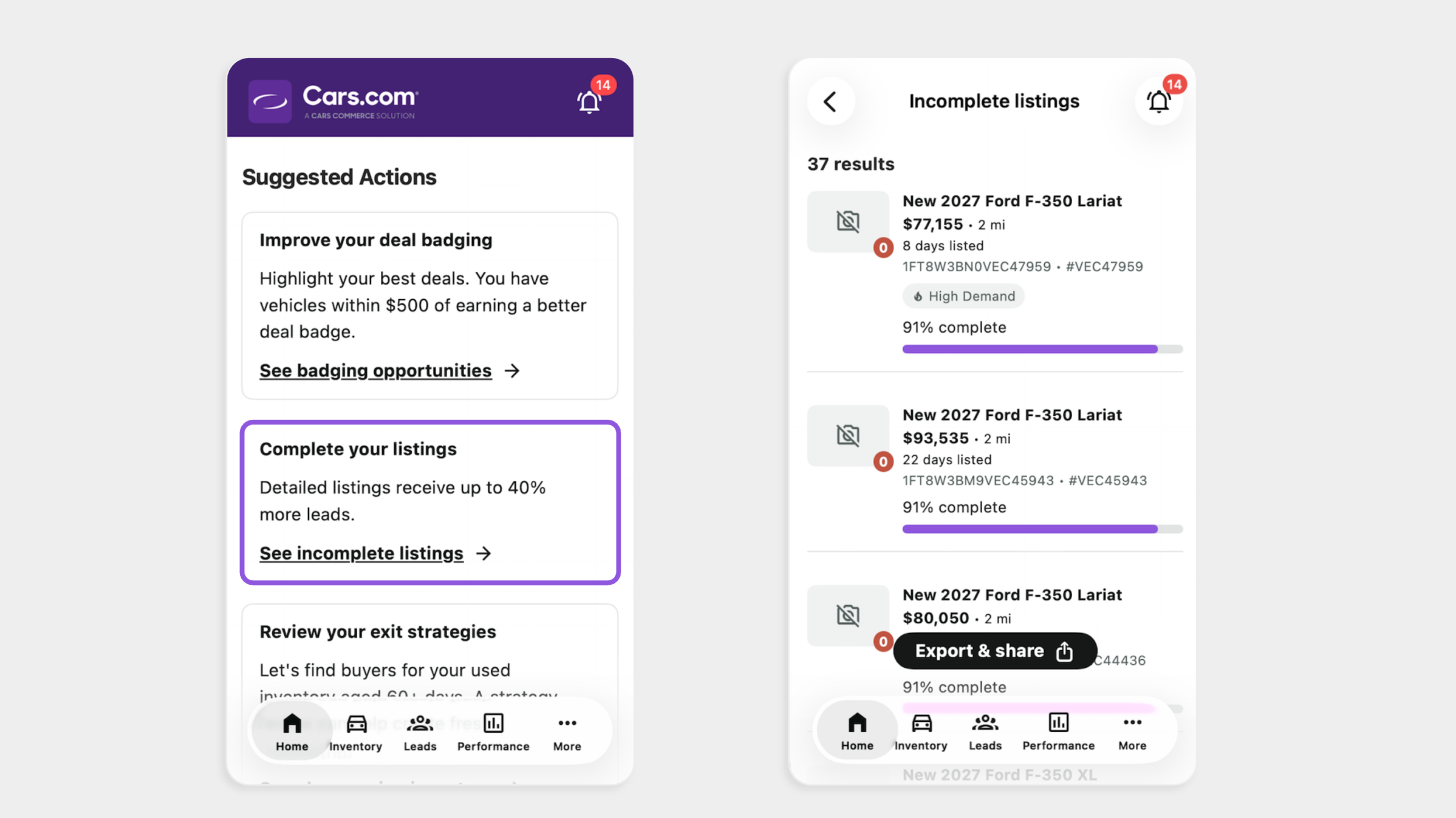
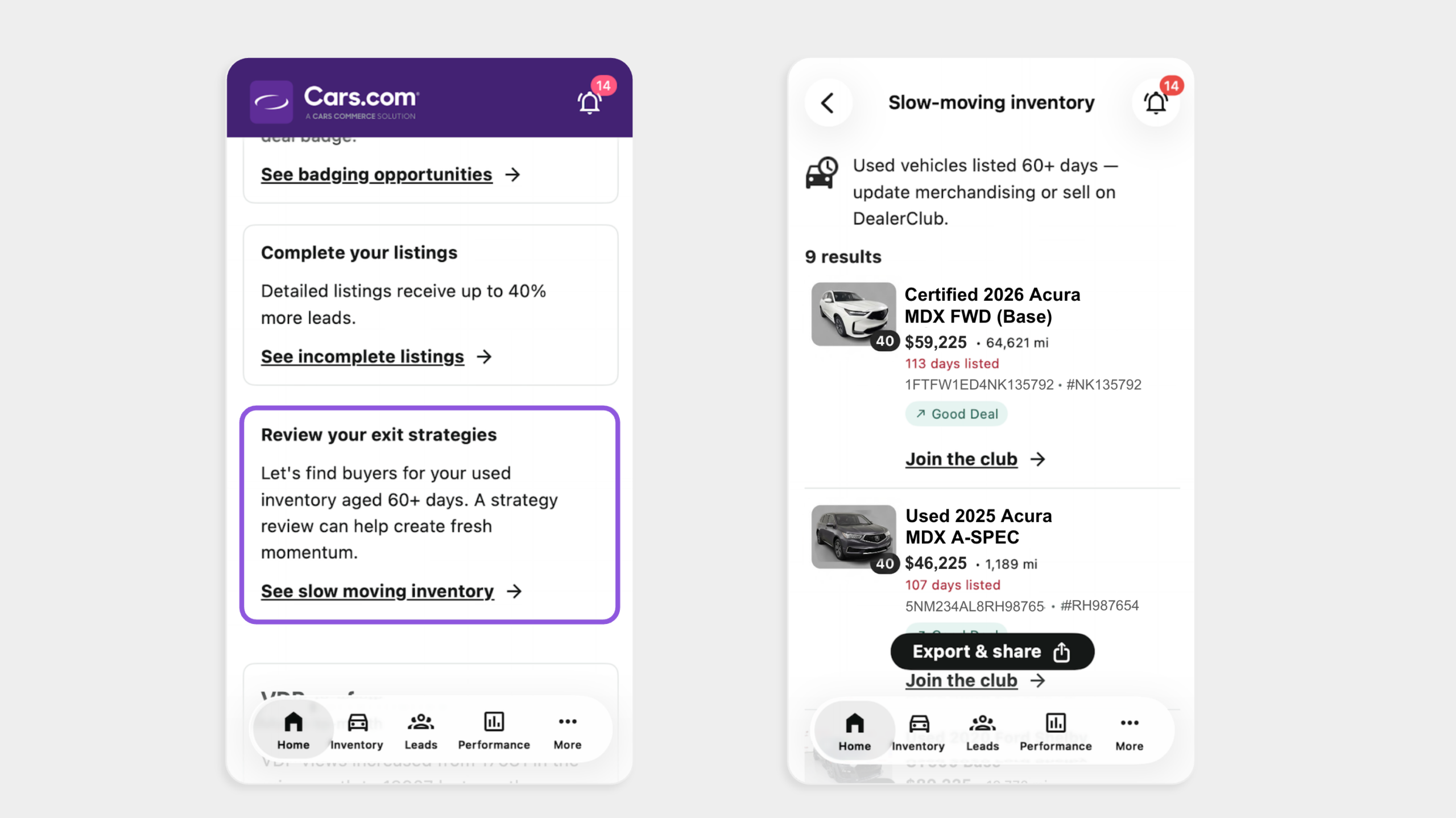
Review your exit strategies
This card shows used vehicles aged 60+ days. Tap See slow-moving inventory to review which vehicles to move.
Deeper dive: How to access appraisals and wholesale auctions
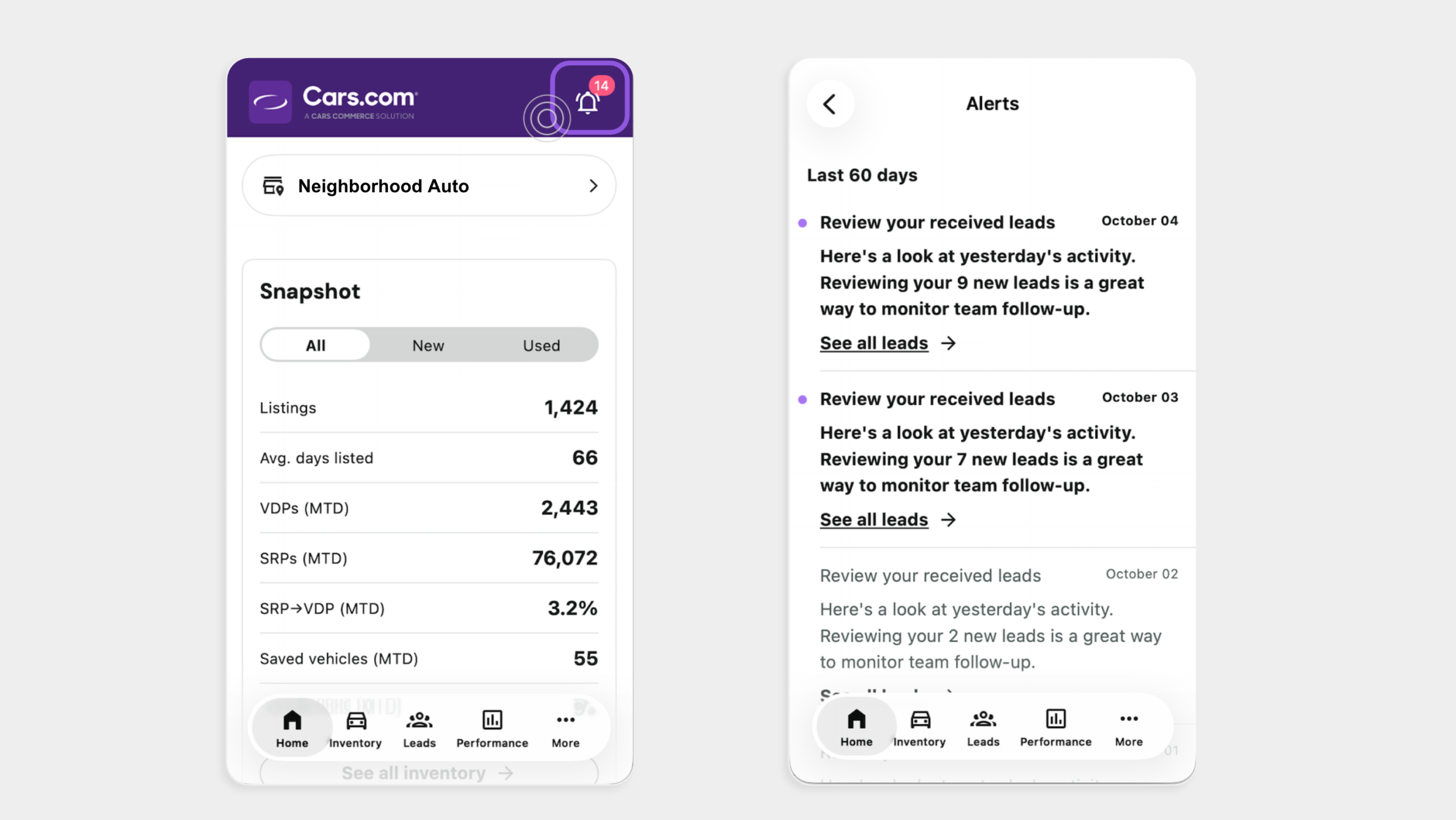
Check your alerts
View alerts from the last 60 days. Alerts cover insights like new leads to review and changes in your VDP performance. Tap the Bell icon in the top right corner to view unread alerts.
Deeper dive: How to turn on push alerts
Share what you find
Tap Export & share to send a list to the right person on your team.
Best practice: Start each day on the Home screen, then check your alerts. Share the lists that need attention so your team knows what to work on for the day.