How to enable site notice
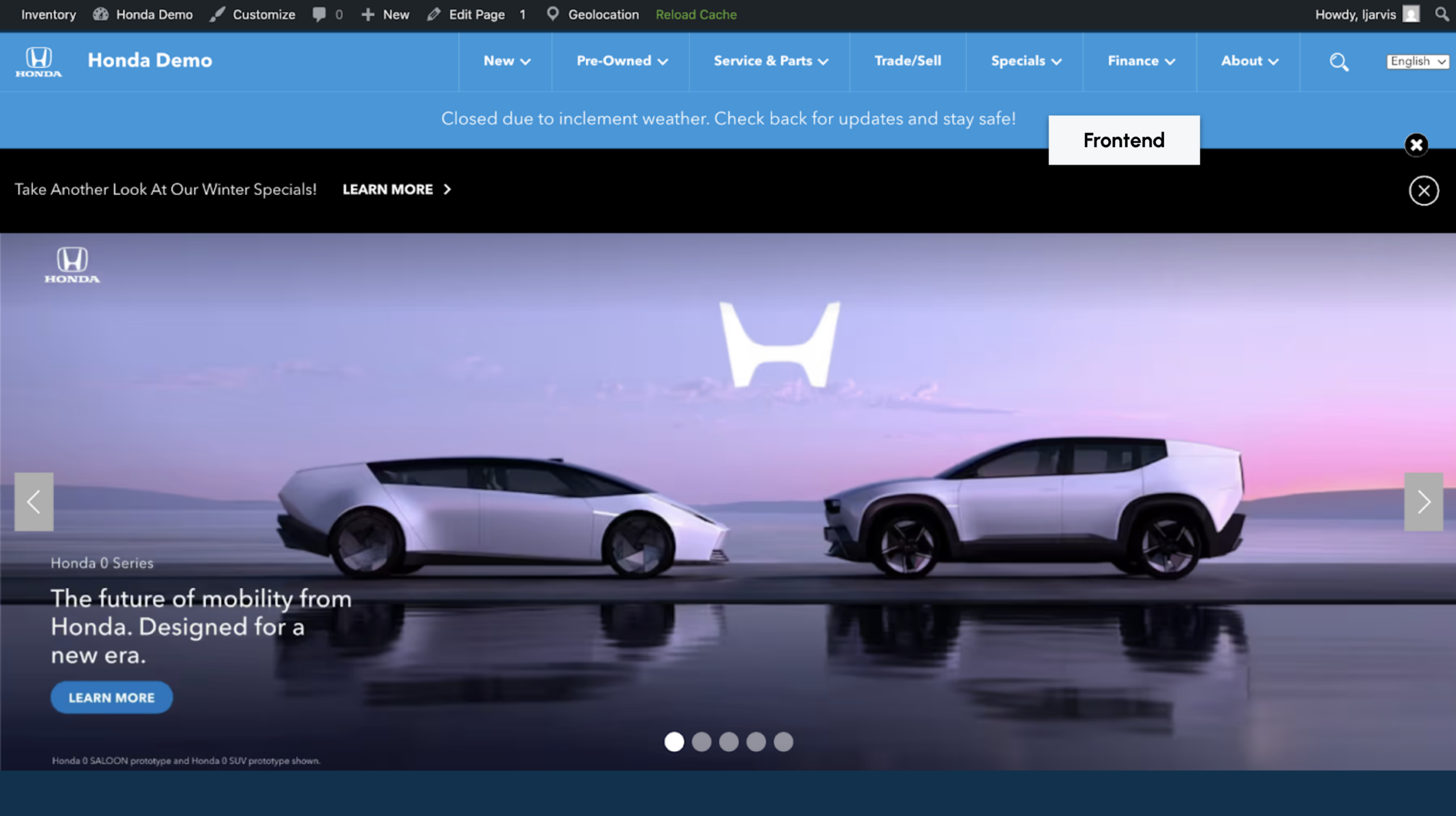
Site Notice is a sitewide message that displays above all other content. It will be the first thing every visitor sees, no matter which page they land on. Use Site Notice to communicate urgent or time-sensitive information, like weather closures, special holiday hours, or power outages for example.
In this article you will learn how to navigate to the Site Notice settings, enable and configure the banner, write your message, and save your changes so the notice is visible to shoppers.
To get started
Go to the Cars.com Hub. Click Dealer Inspire, then Manage Website.
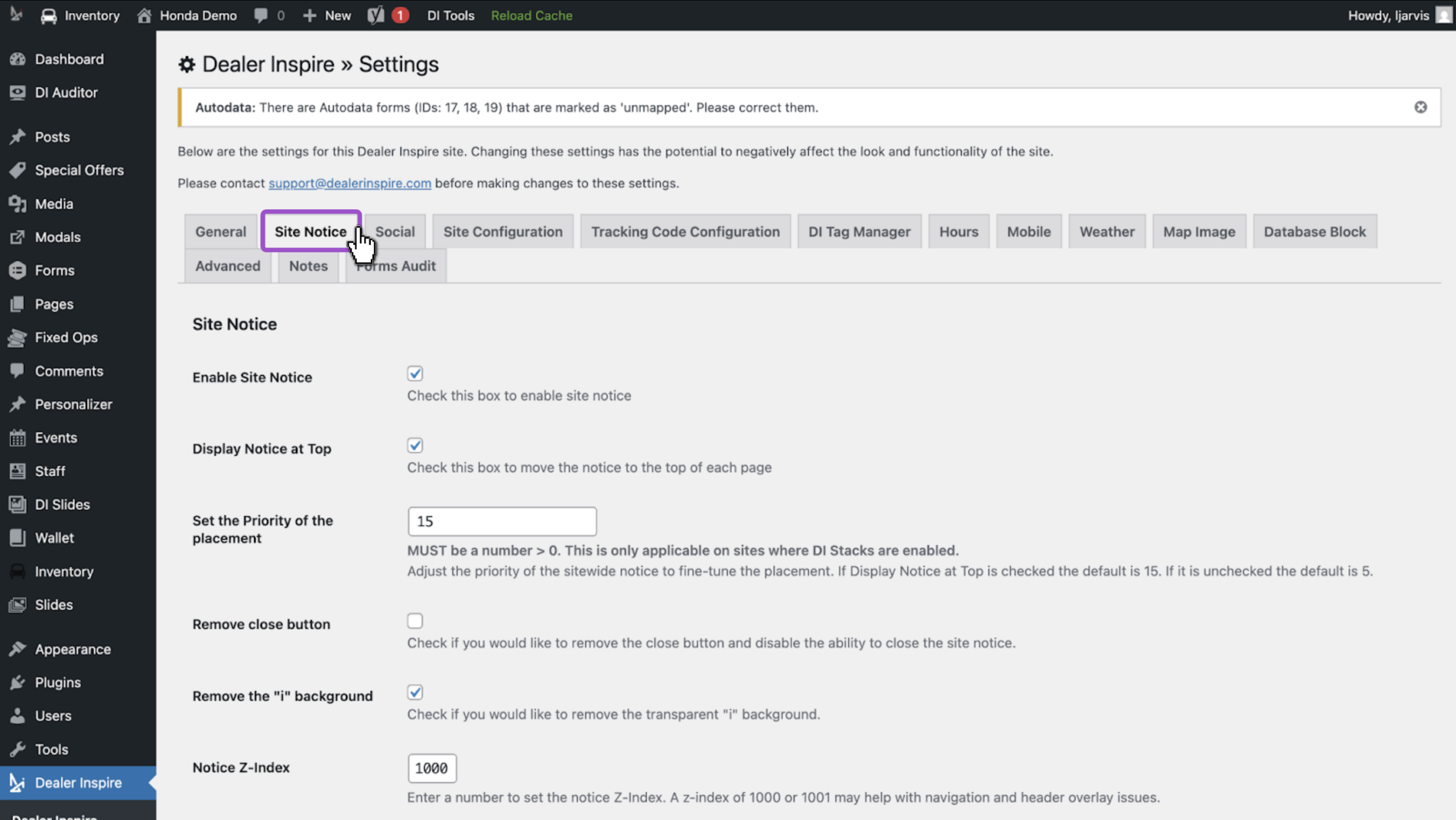
1 Navigate to Site Notice
- Click the Dealer Inspire tab in the lefthand menu.
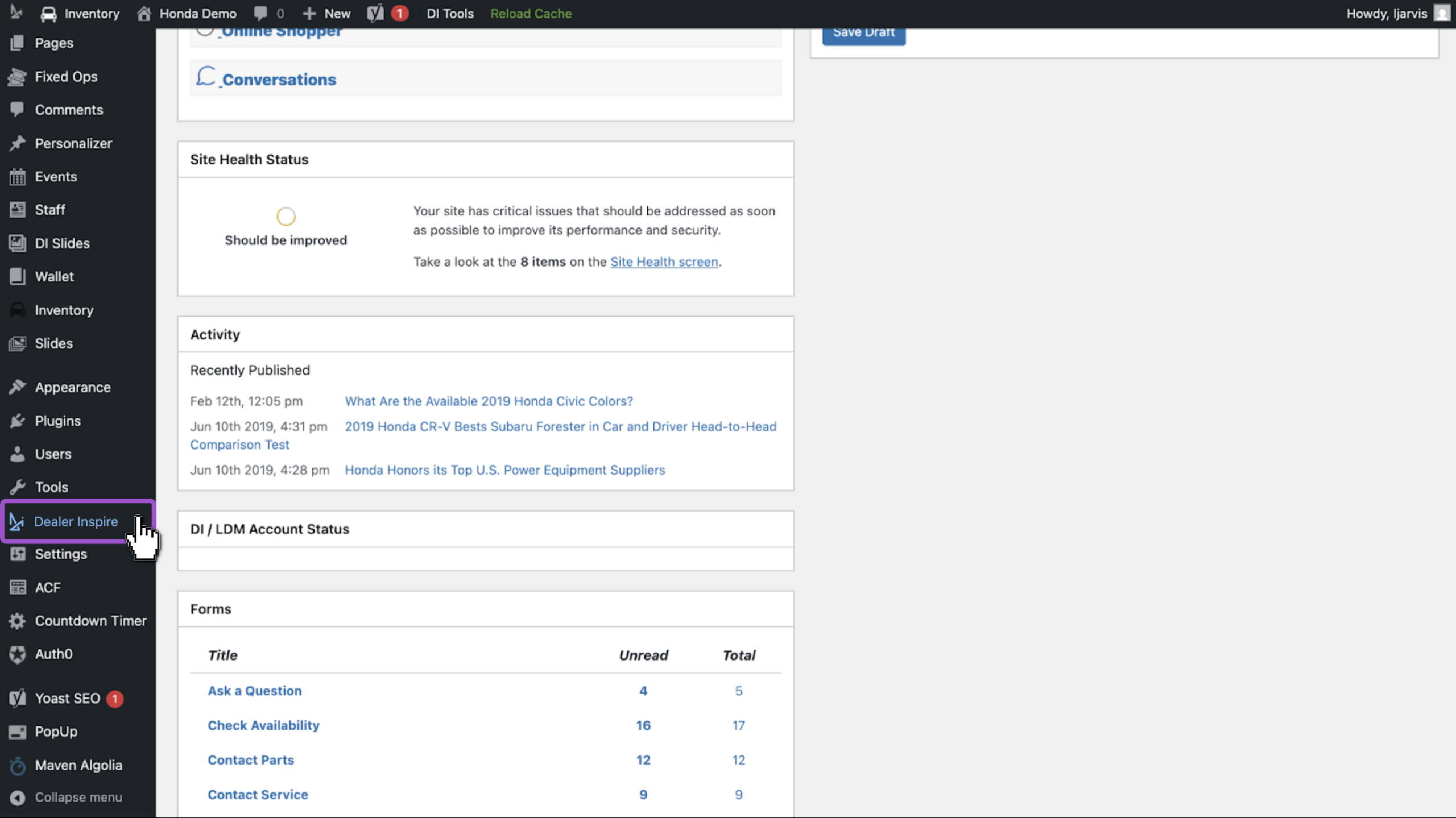
- Click the Site Notice tab.
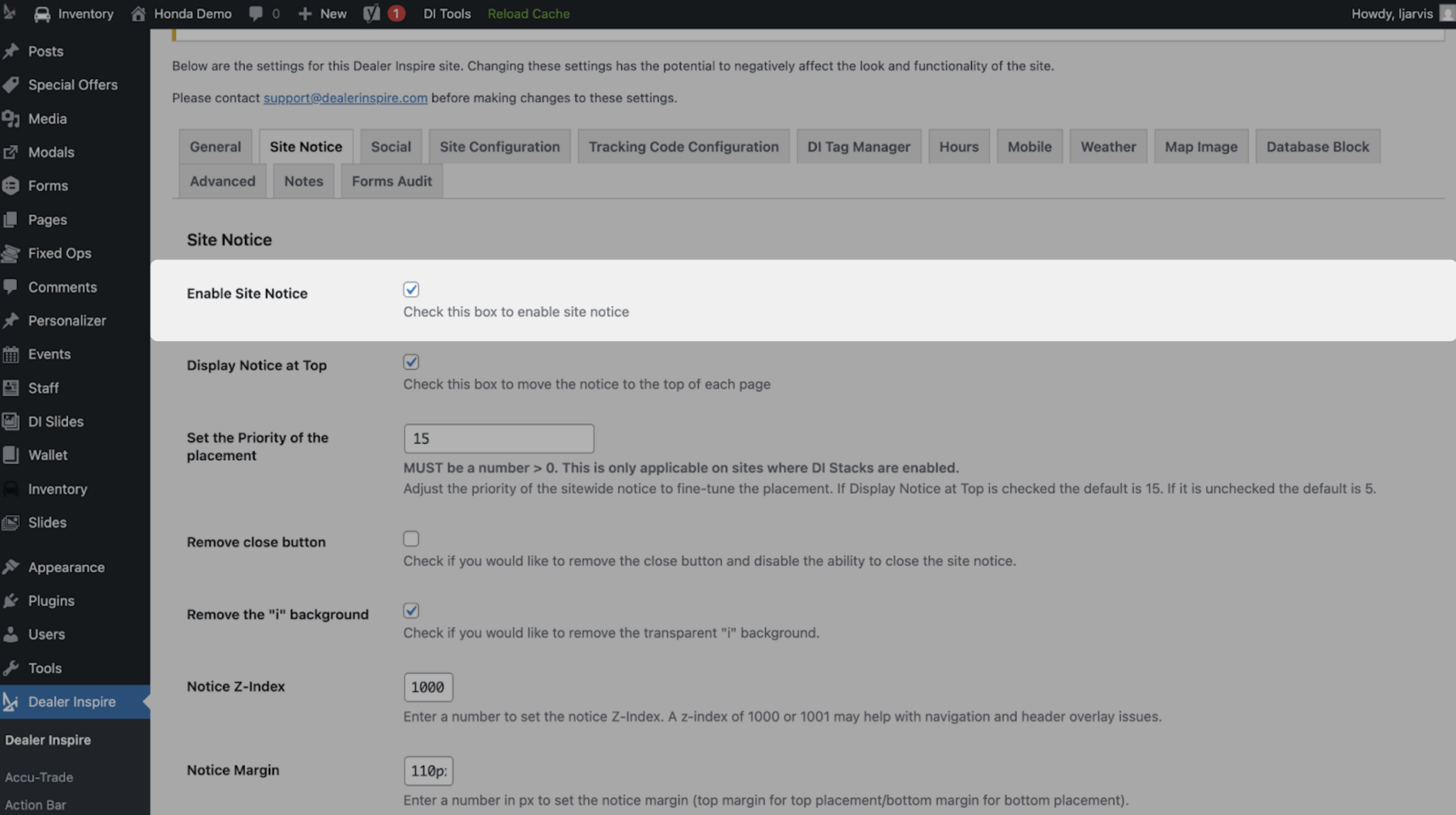
2 Enable Site Notice
- Check the Enable Site Notice checkbox.
- This activates the banner and makes it visible on your site.
The settings below this checkbox control how the notice looks and behaves. Configure each field:
- Display Site Notice at Top — Keep this checked. It pins your message to the top of every page, where shoppers see it first.
- Priority Placement — Enter 15. This sets the loading order and controls which banner appears first when multiple banners are active.
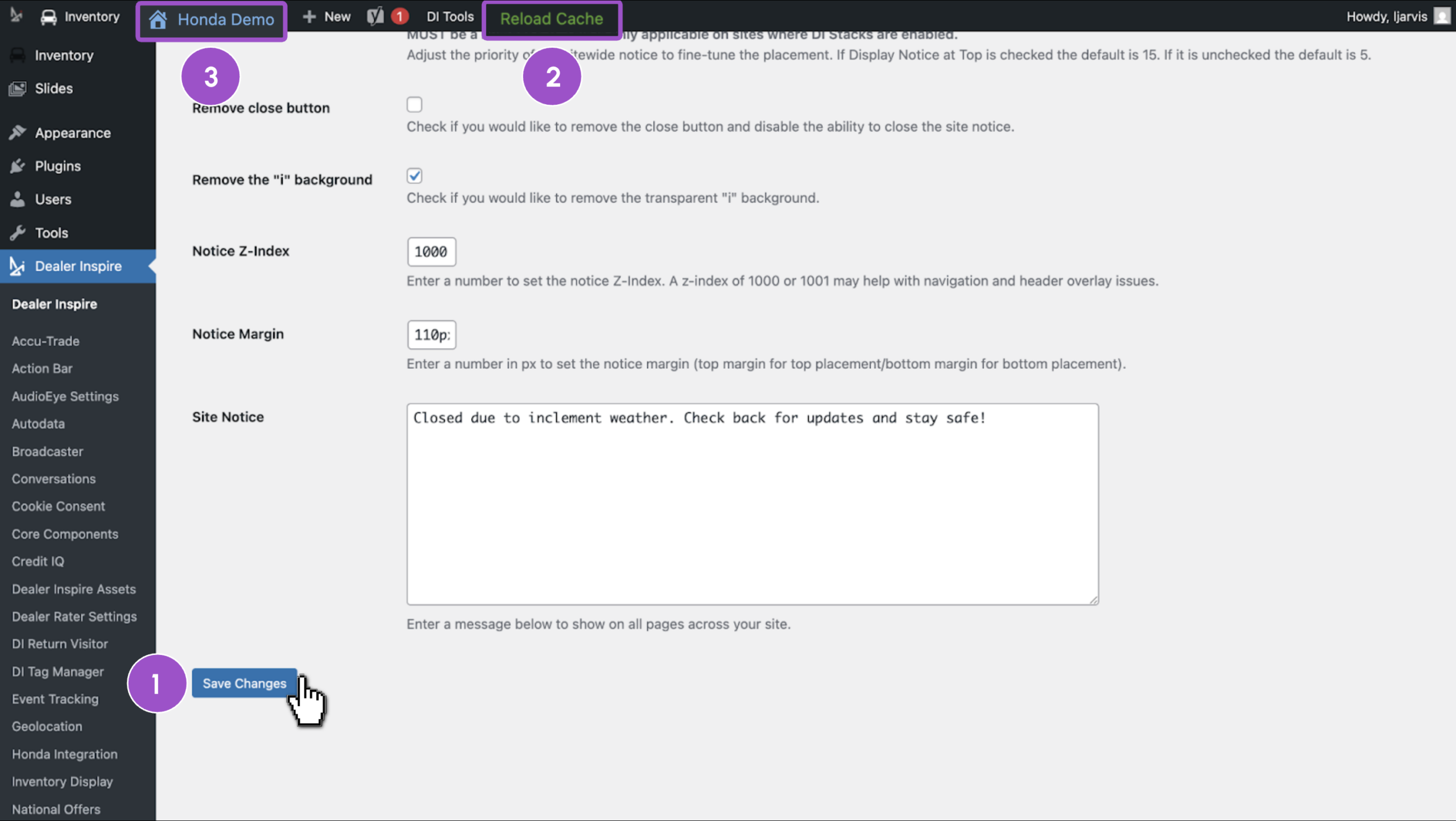
- Remove close button — Check this box to prevent shoppers from dismissing the notice. Leave it unchecked to show an X that lets shoppers collapse the banner.
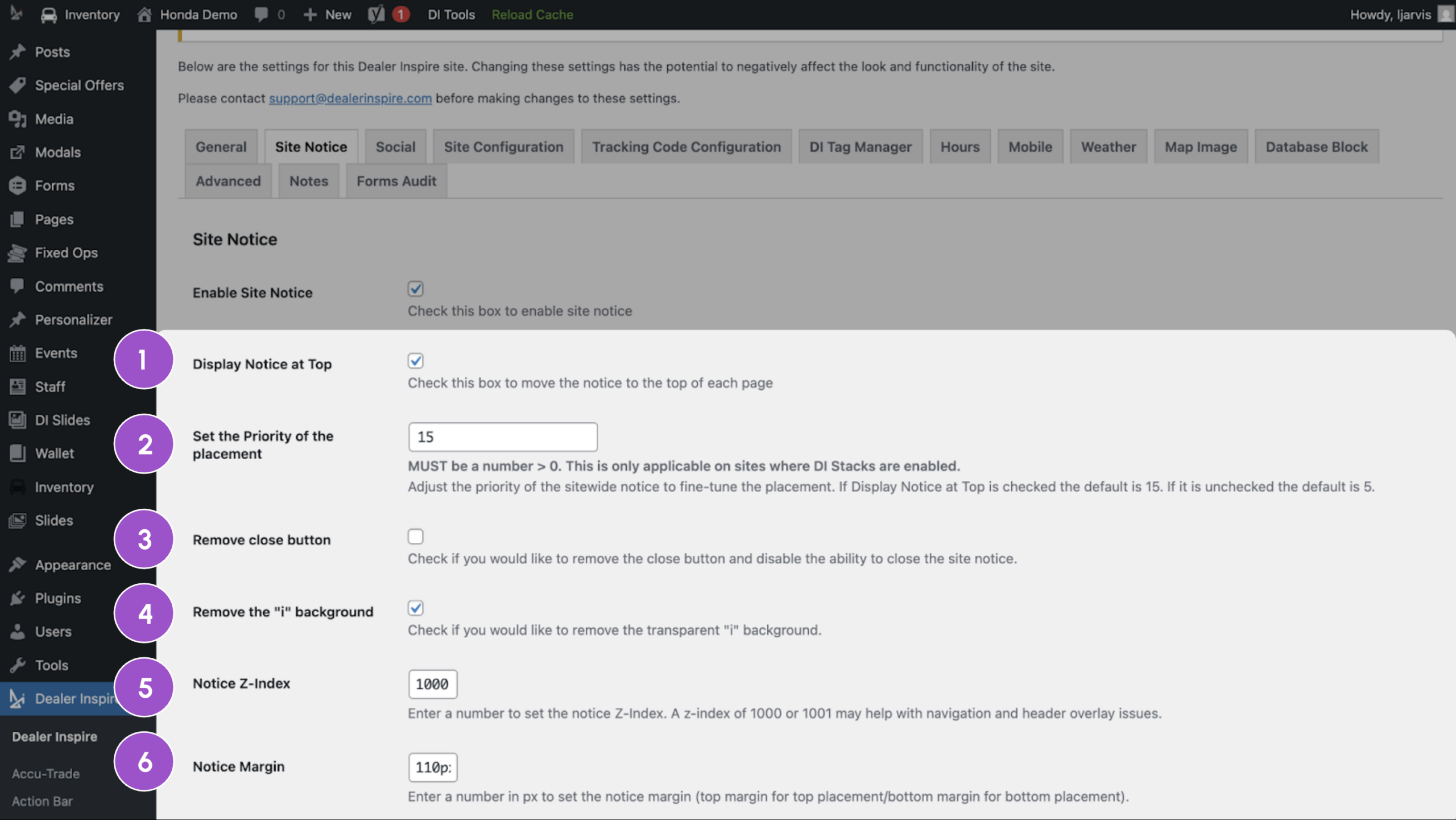
- Remove the “i” background — The letter “i” appears on the banner by default to signal an informational message. Check this box to remove it.
- Notice Z-index — Set this to 1000. This places the notice on the top visual layer so other banners, the navigation menu, or pop-ups don’t cover it.
- Notice Margin — Set this to 110px. This controls spacing between the notice and your site’s header, like the logo and search bar.
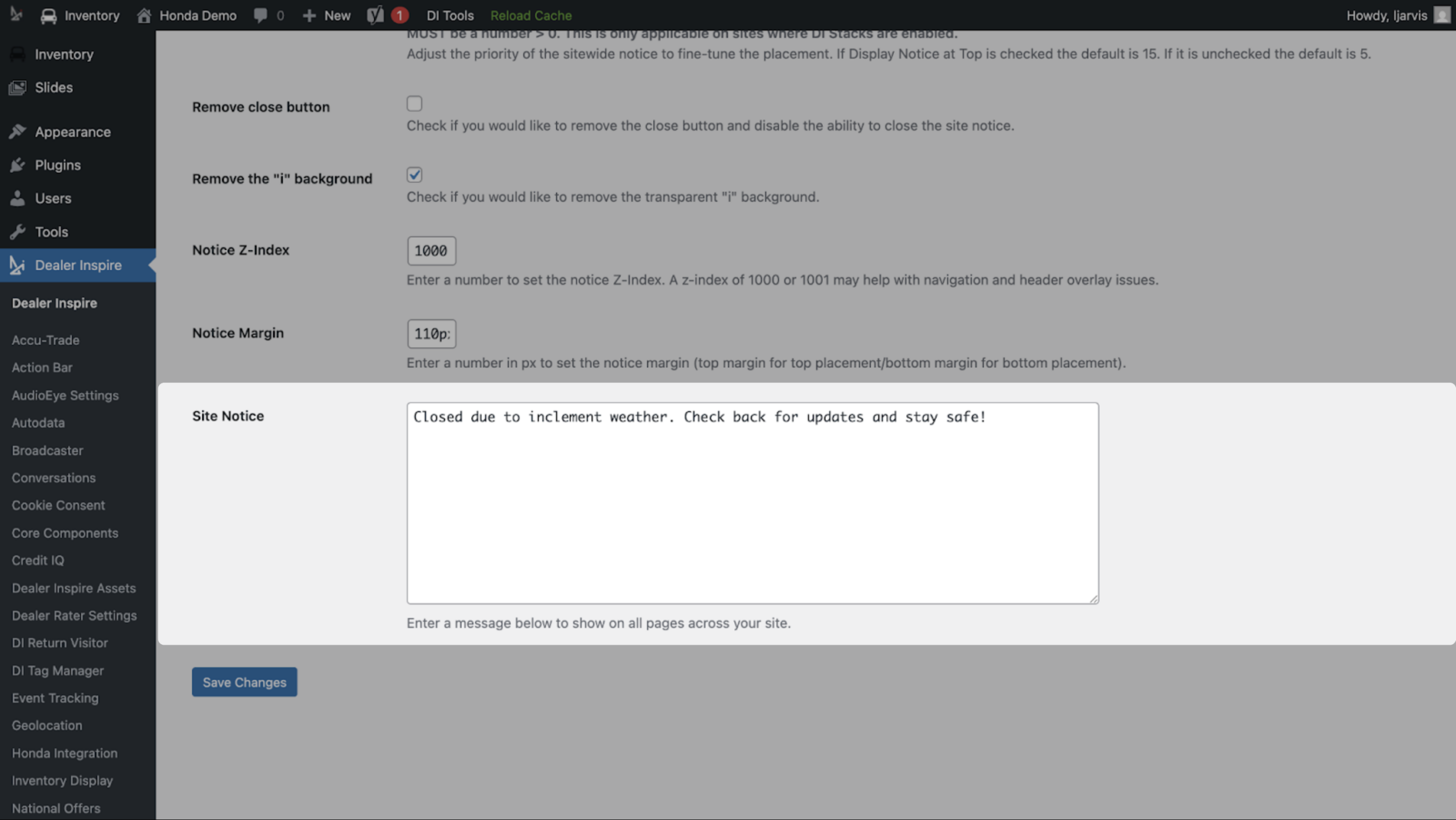
3 Include your message
- Click into the Site Notice text box and type your message.
- Keep it to one line: a short, clear message performs better than a long one.
Example: Closed due to inclement weather. Check back for updates and stay safe!
Tip: Site Notice works best for urgent, time-sensitive content — weather closures, holiday hours, phone outages, or a single high-priority offer. For promotions, use a slide or banner instead.
4 Save your changes
- Click Save Changes.
- Click Reload Cache to push the update live immediately.
- Flip to the frontend to confirm the banner appears the way shoppers will see it.
FRONTEND VIEW