How to pay your invoice online
Paying your Cars.com invoice starts in the online payment portal. Once you create your account, you can view every open invoice and pay by credit card or ACH.
In this article, you’ll learn how to create your account, log in with your temporary password, update your password, and view and pay an invoice.
Note: This article covers one-time payments. To pay automatically each billing cycle, follow how to set up auto pay.
To get started
Go to payment.cars.com.
1Create your online payment account
- Click New User? Sign Up when you land on the login screen
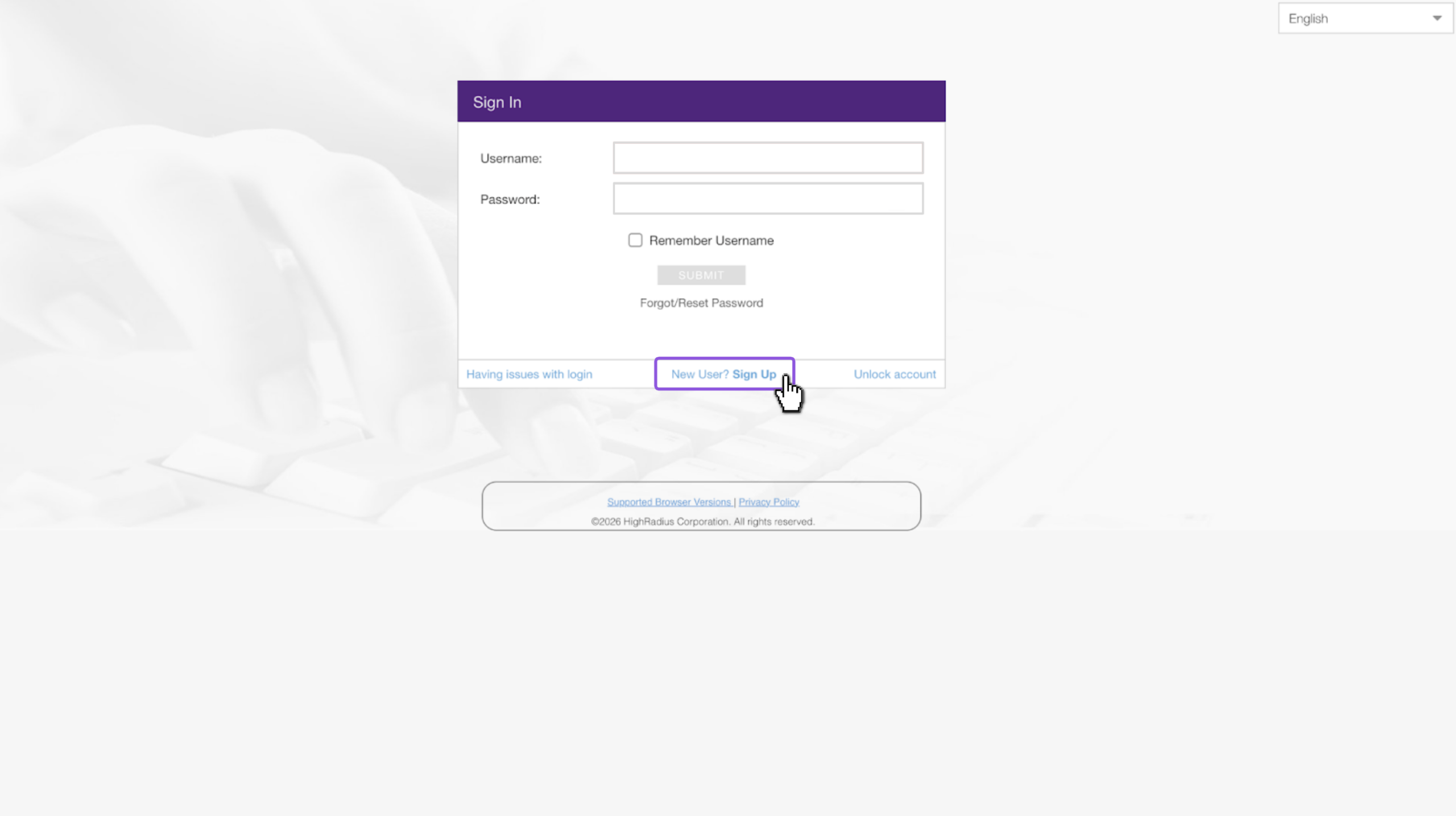
You’ll need your customer number or 8-digit code for the next section. You can find this number on your initial welcome email from our Billing department or on your first invoice.
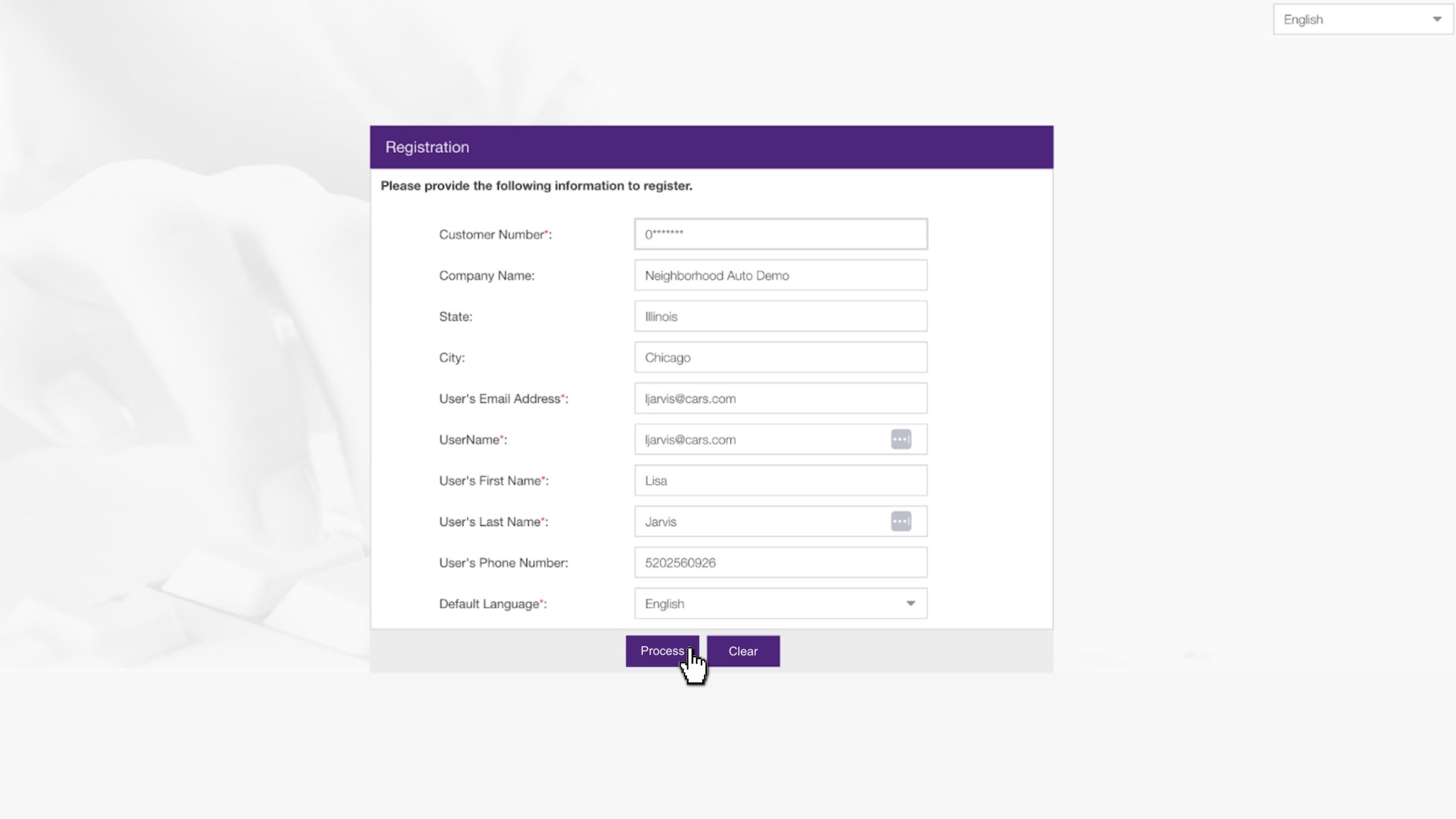
2Enter your account details
- Fill out all required fields labeled with an asterisk
- Select Process
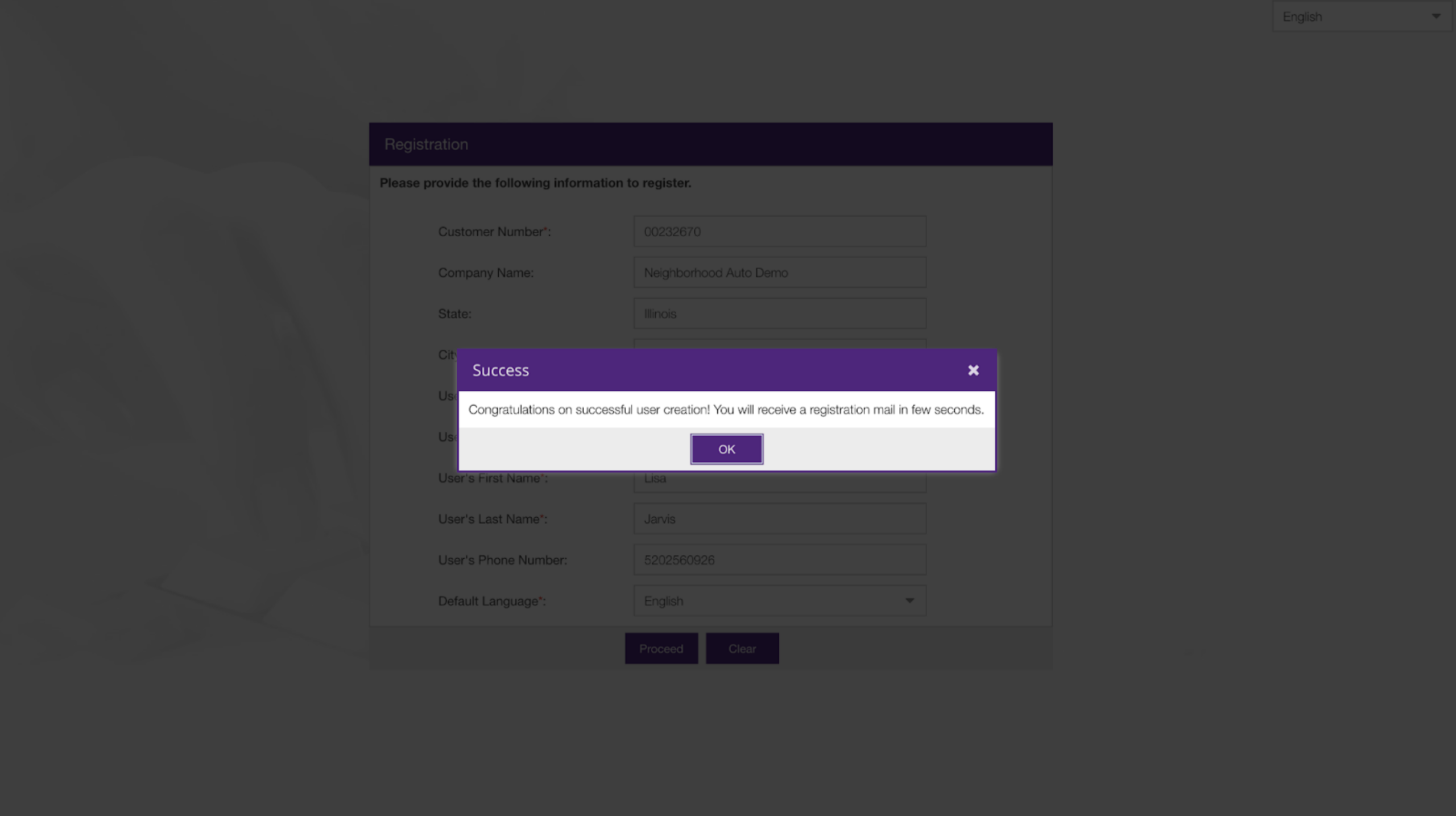
You’ll receive a confirmation message. Click OK.
3Log in to the payment portal
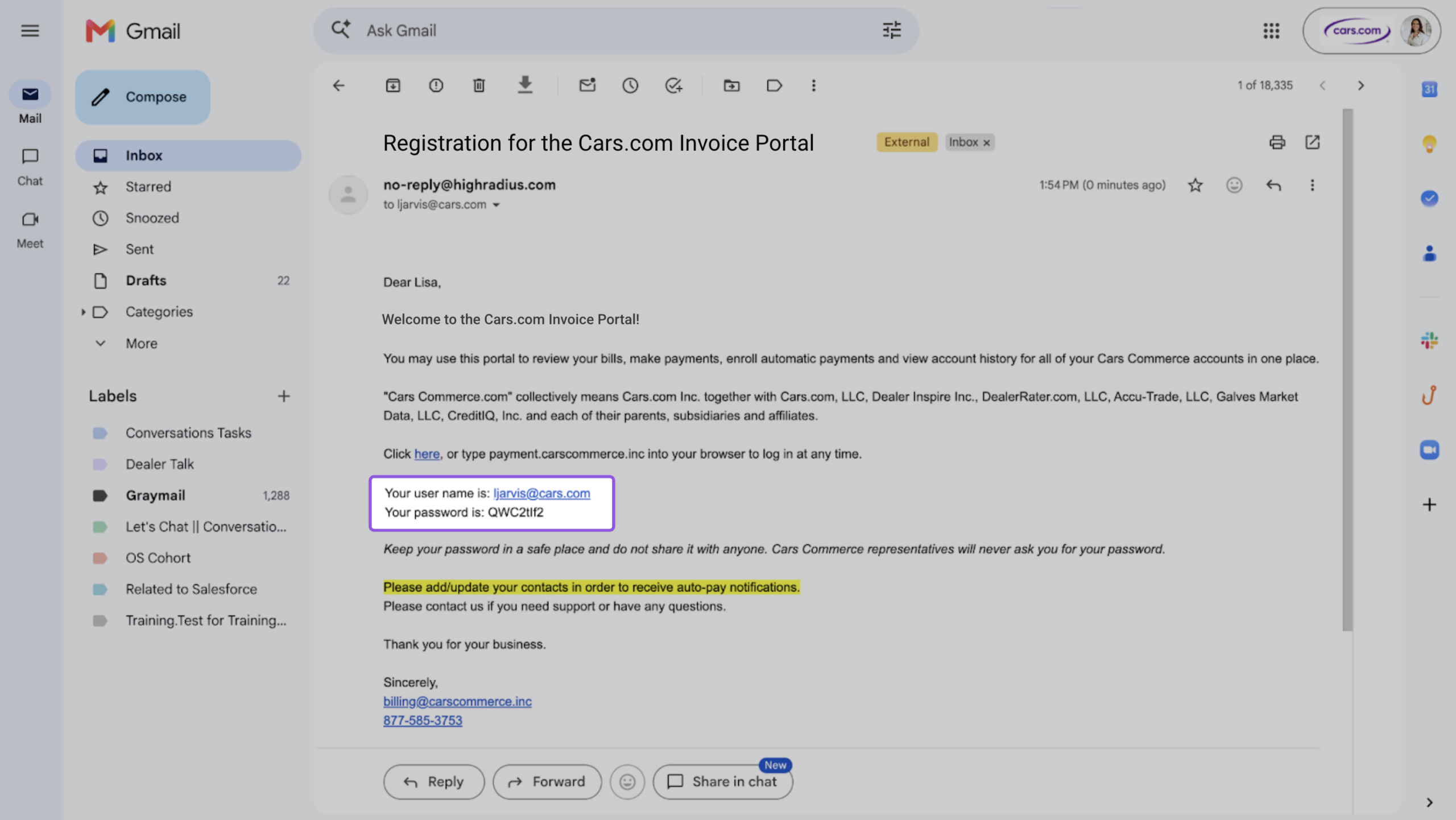
You’ll receive an email confirming registration and next steps for your invoice portal.
- Find your temporary password in the email
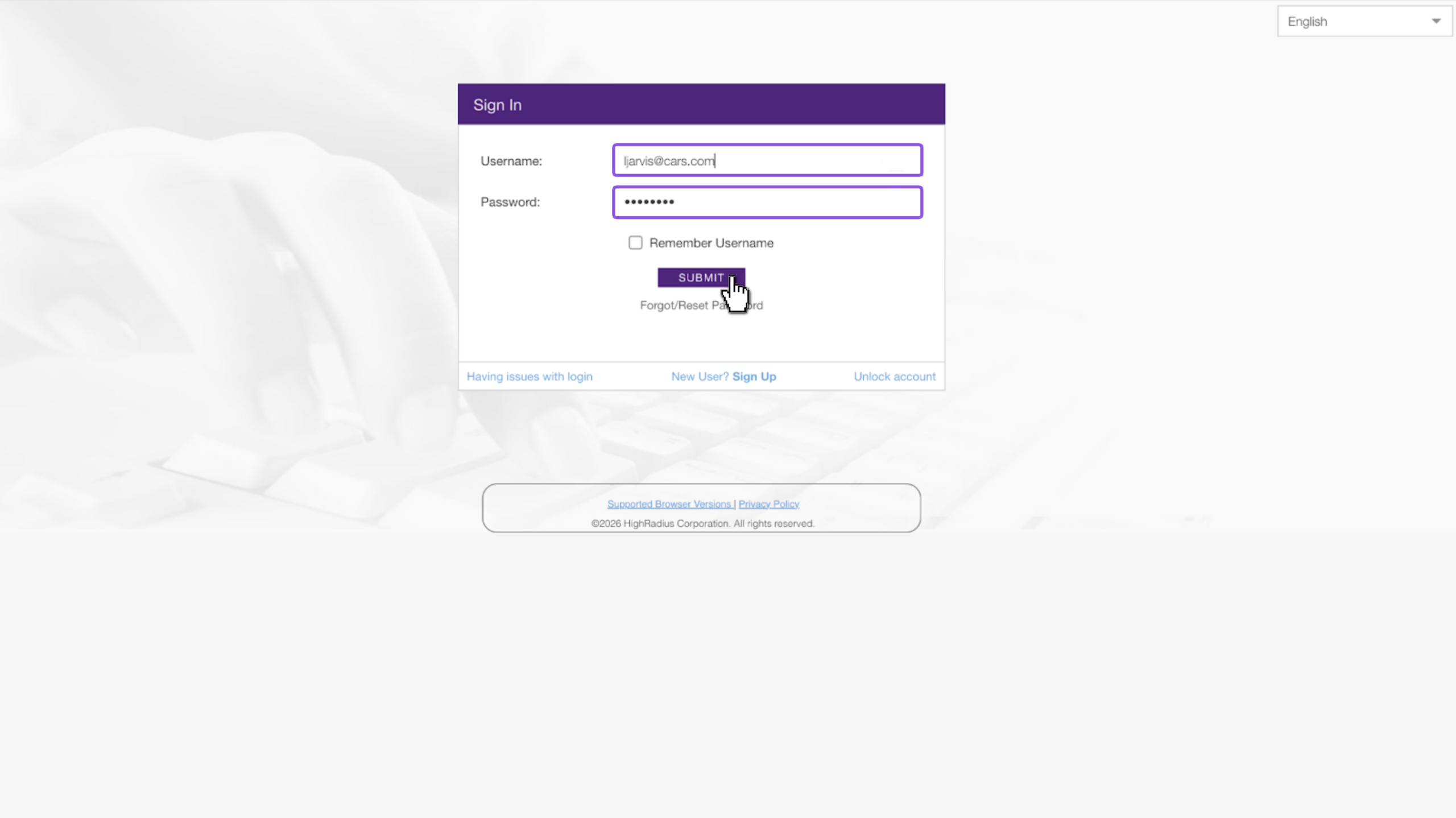
- Go back to the payment portal tab
- Enter your email address and temporary password
- Click Submit
4Change your temporary password
Your email includes a temporary password in order to securely access the portal. Once you’ve logged in, you can update your password to something of your choice.
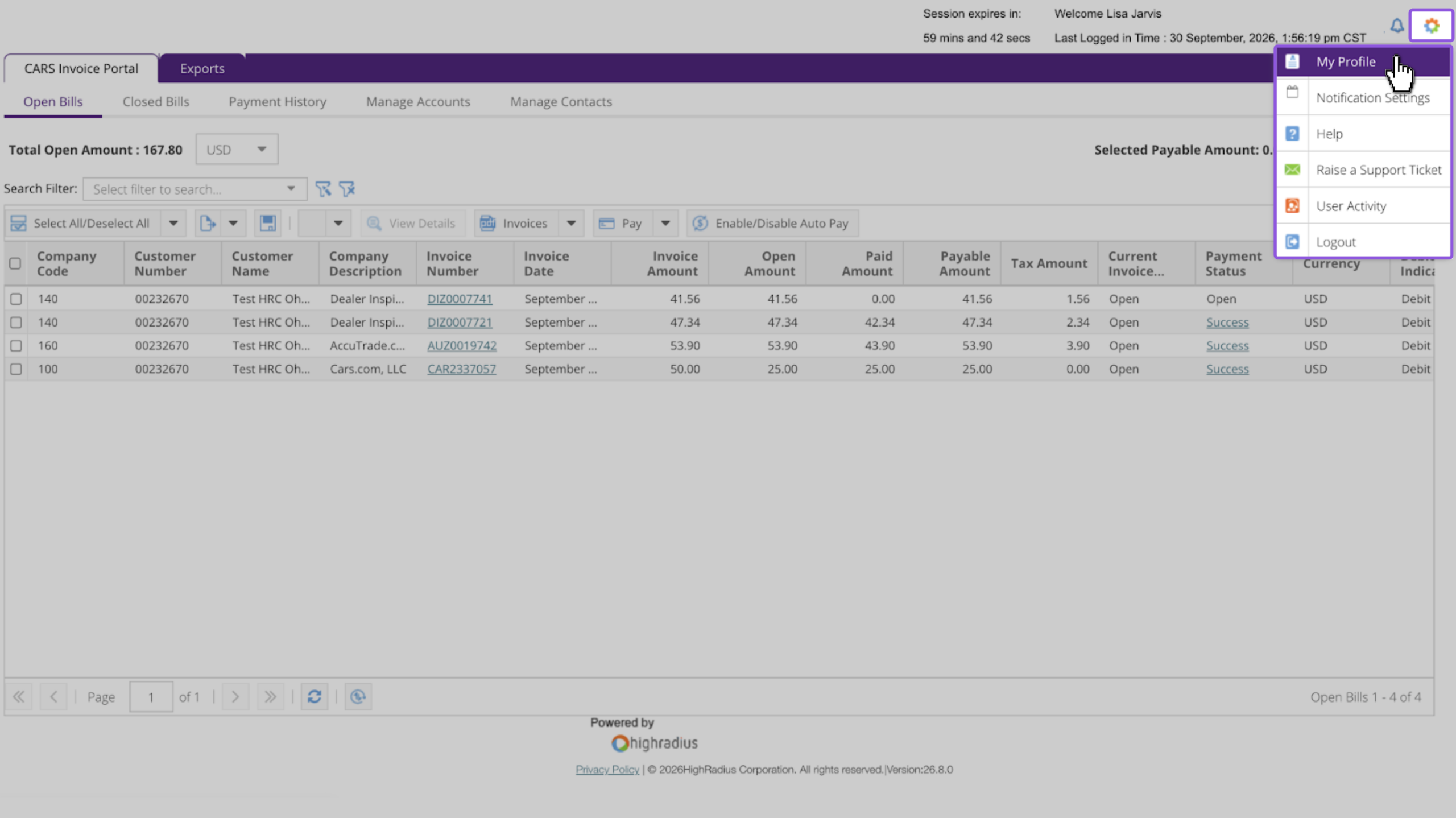
- Click the Gear icon in the top right
- Click My Profile
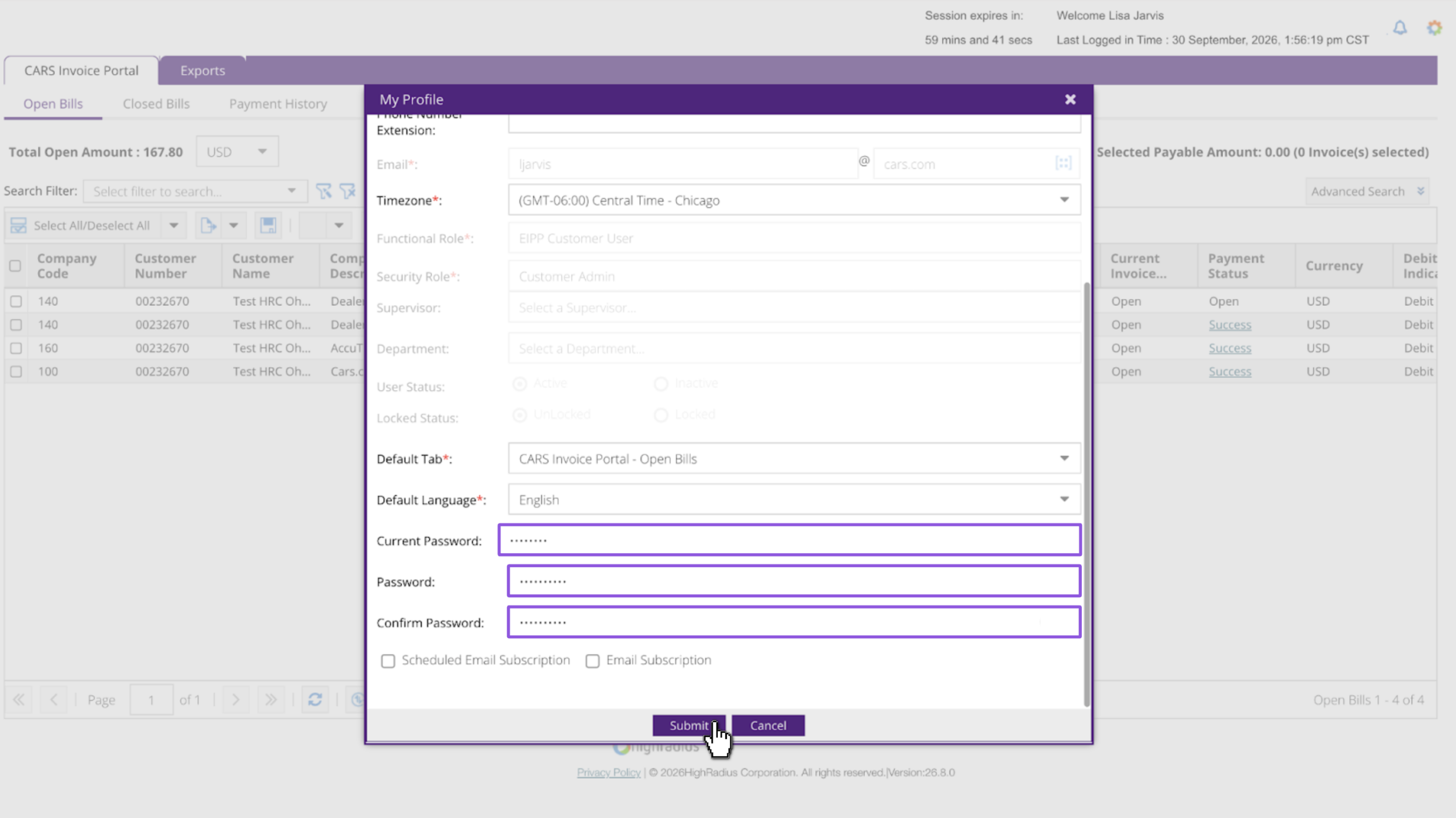
- Scroll to the bottom of the My Profile window
- Input your current password (provided from the email you received)
- Type in your new password and confirm it
- Click Submit
5View or pay your invoice
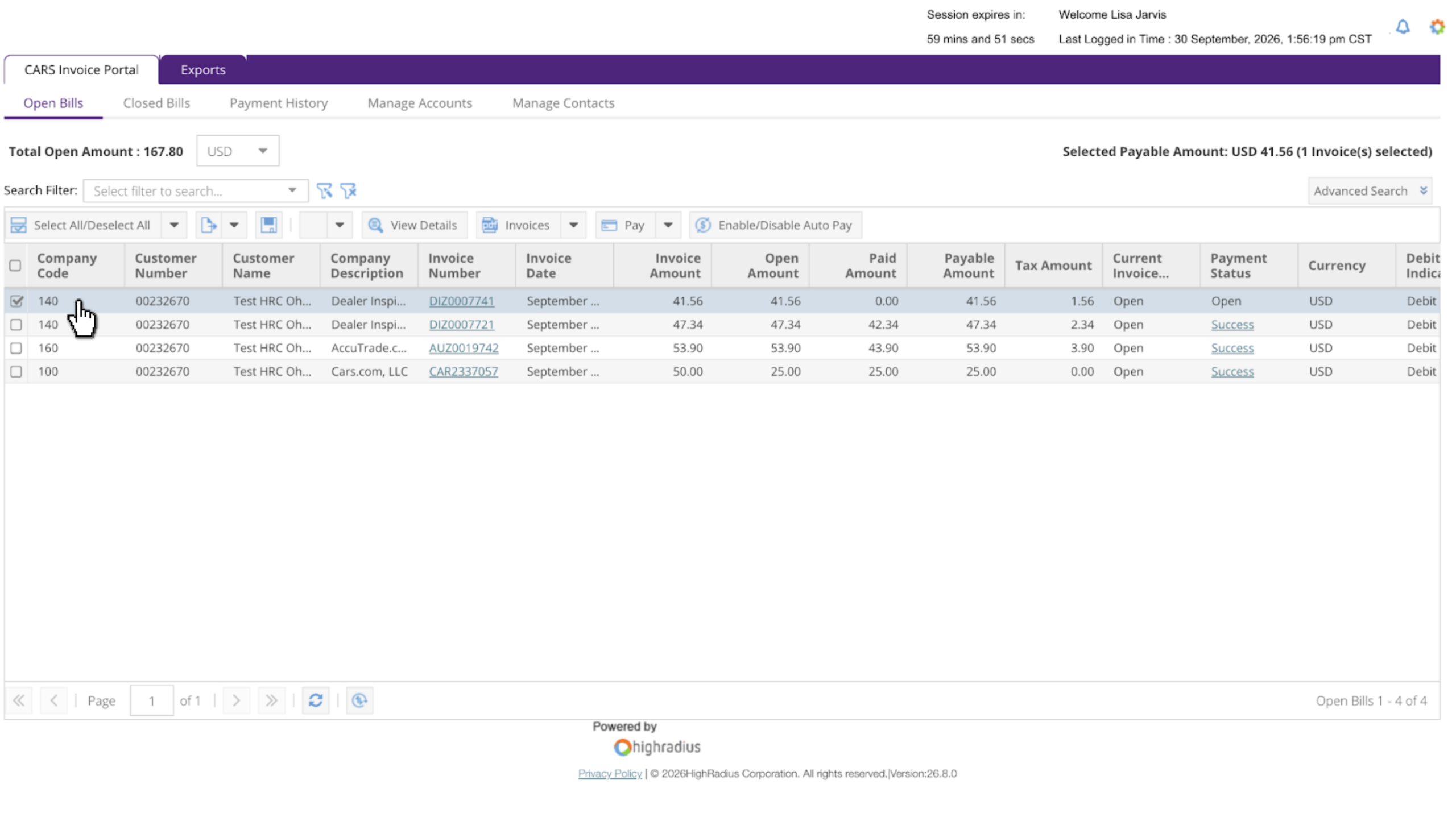
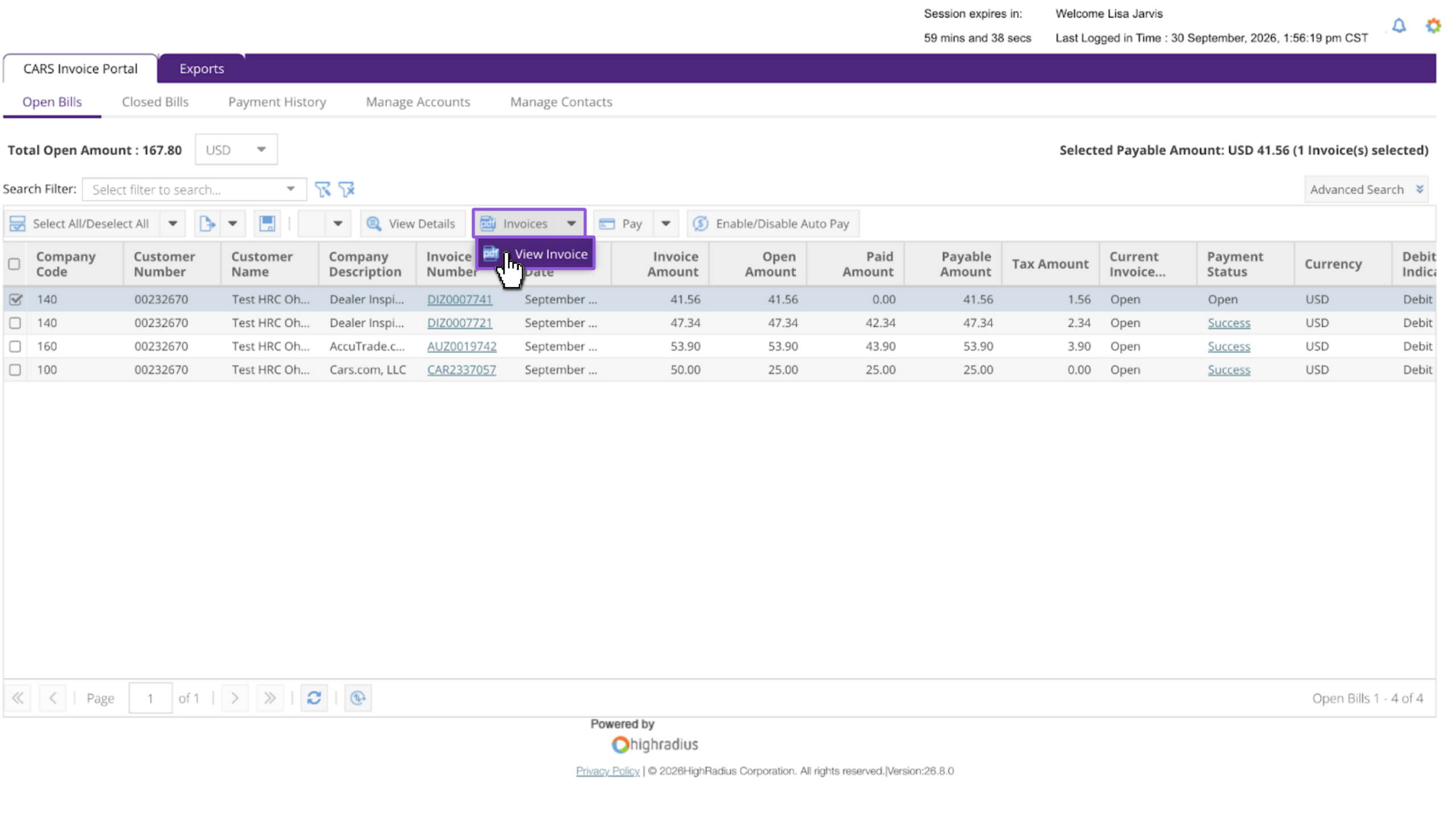
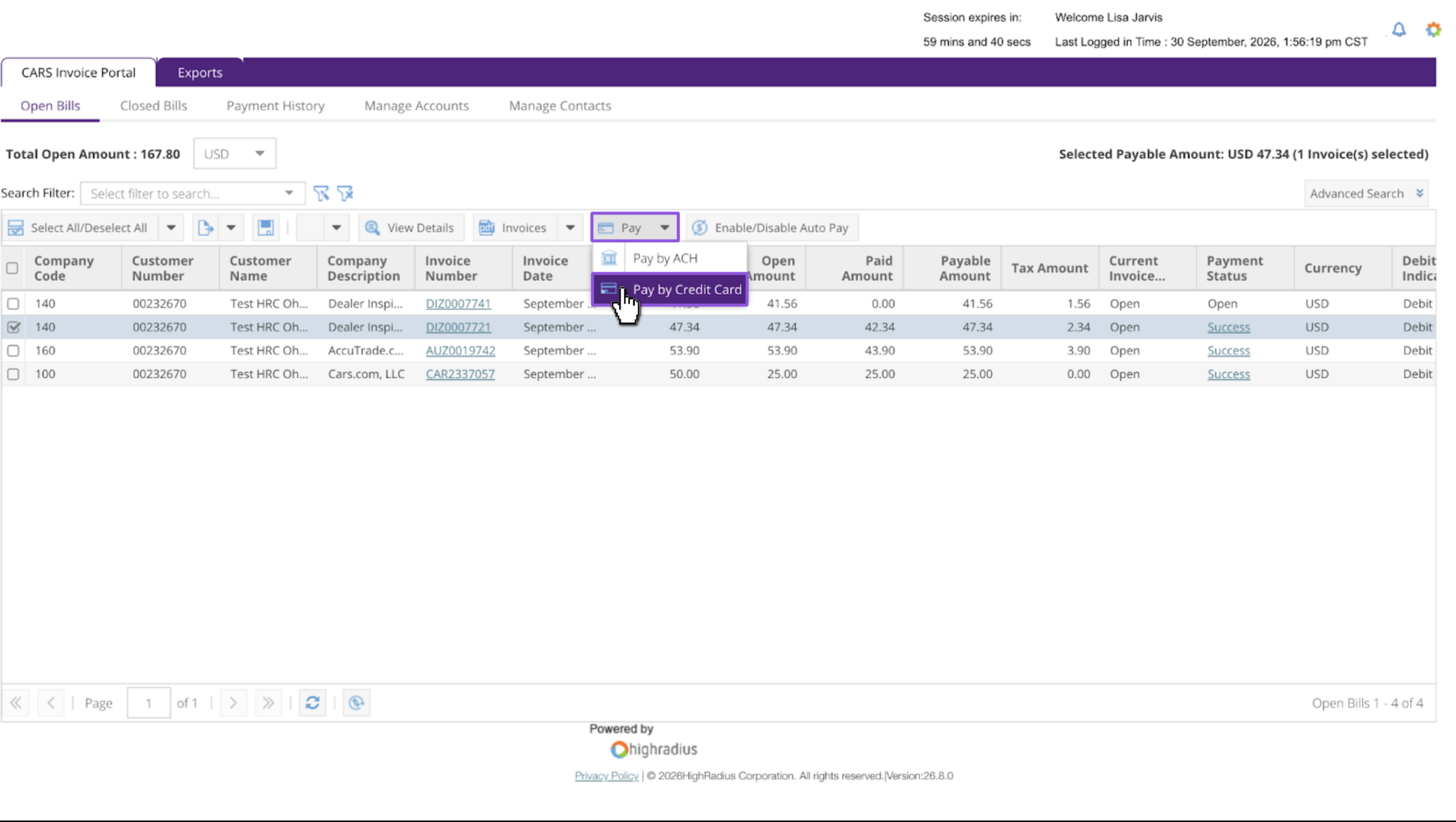
You can view or pay your invoice from the Open Bills tab.
- Select an invoice by clicking the checkbox
- Select Invoices, then View Invoice
- Select Pay, then Pay by Credit Card (or, Pay by ACH)
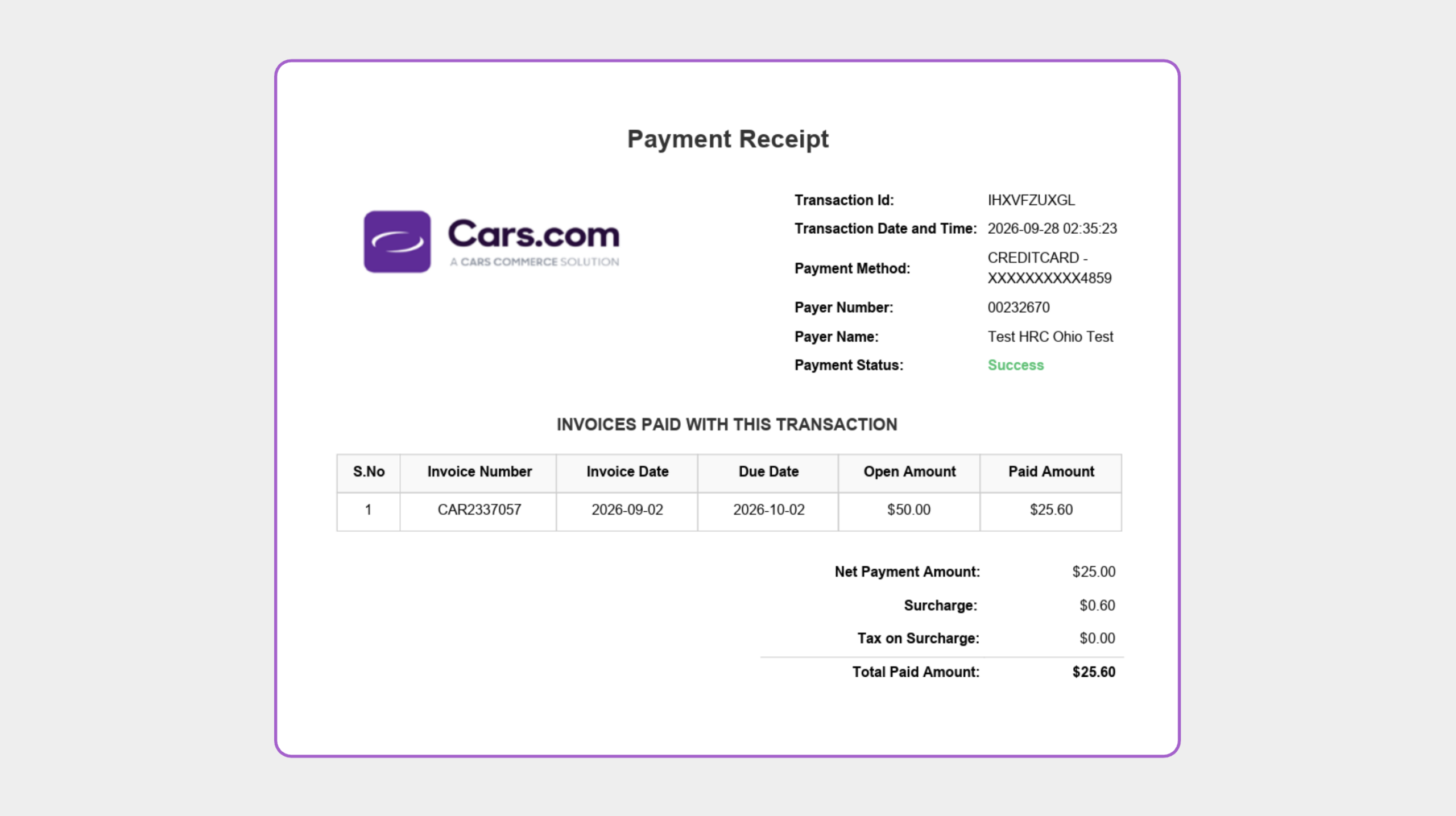
Follow the prompts to pay your invoice. Once submitted, you’ll receive a payment receipt via email.
Have questions? Reach out to billing@cars.com for help.
FAQ
How often should I log in to the payment portal?
Check the portal monthly to stay ahead of open and past-due invoices. Your Open Bills tab shows what’s due and when. Check there first when you have a question about an invoice, then reach out to Billing or your Account Executive if you need more help.
Where do I find my customer number or 8-digit code?
Check your welcome email from the Billing department or your first invoice. If you can’t find either, email billing@cars.com.
Is there a fee to pay by credit card?
Yes. A surcharge of up to 2.4% will be applied to all payments made by credit card. The surcharge rate may be lower in certain states, and will not apply in states where surcharging is not permitted by law. This surcharge reflects a portion of the cost of accepting credit card payments and will be disclosed at the time of payment.
How do I update my password?
Click the Gear icon, then My Profile, and enter a new password at the bottom of the window. Follow the steps in the “Update your password” section above.
I see an error that my email address already exists. What should I do?
This means an account already exists for your email address. Reset your password to get back in:
- Go to the portal home page and click Forgot/Reset Password
- Enter your email address in both the Username and Email Address fields or check the User name same as email box
- Watch for a notification that a One Time Code (OTC) was sent to your email
- Enter the OTC and create a new password
- Return to the home page and log in with your new password
Can I access more than one account with one login?
Yes. Email billing@cars.com with the account number for the login you created and the account numbers you want to add.
Who do I contact for billing help?
Email billing@cars.com. Include your dealership name, customer number, and invoice number so Billing has your information ready.