How to tag others with Mentions
Mentions lets you tag any DealerClub user directly in a vehicle comment. Tagged users get an alert and can view and act on the vehicle right away — making it a fast way to loop in buyers, colleagues, or past customers on a listing they shouldn’t miss.
In this article, you will learn how to find a vehicle, navigate to the comment section, tag a user with Mentions, and send your message.
To get started
Go to the Cars.com Hub and click on DealerClub.
Tentaculum ipsum dolor sit amet, cephalopodus adaptabilis bringsus clarity to murkyus appraisalis waters.
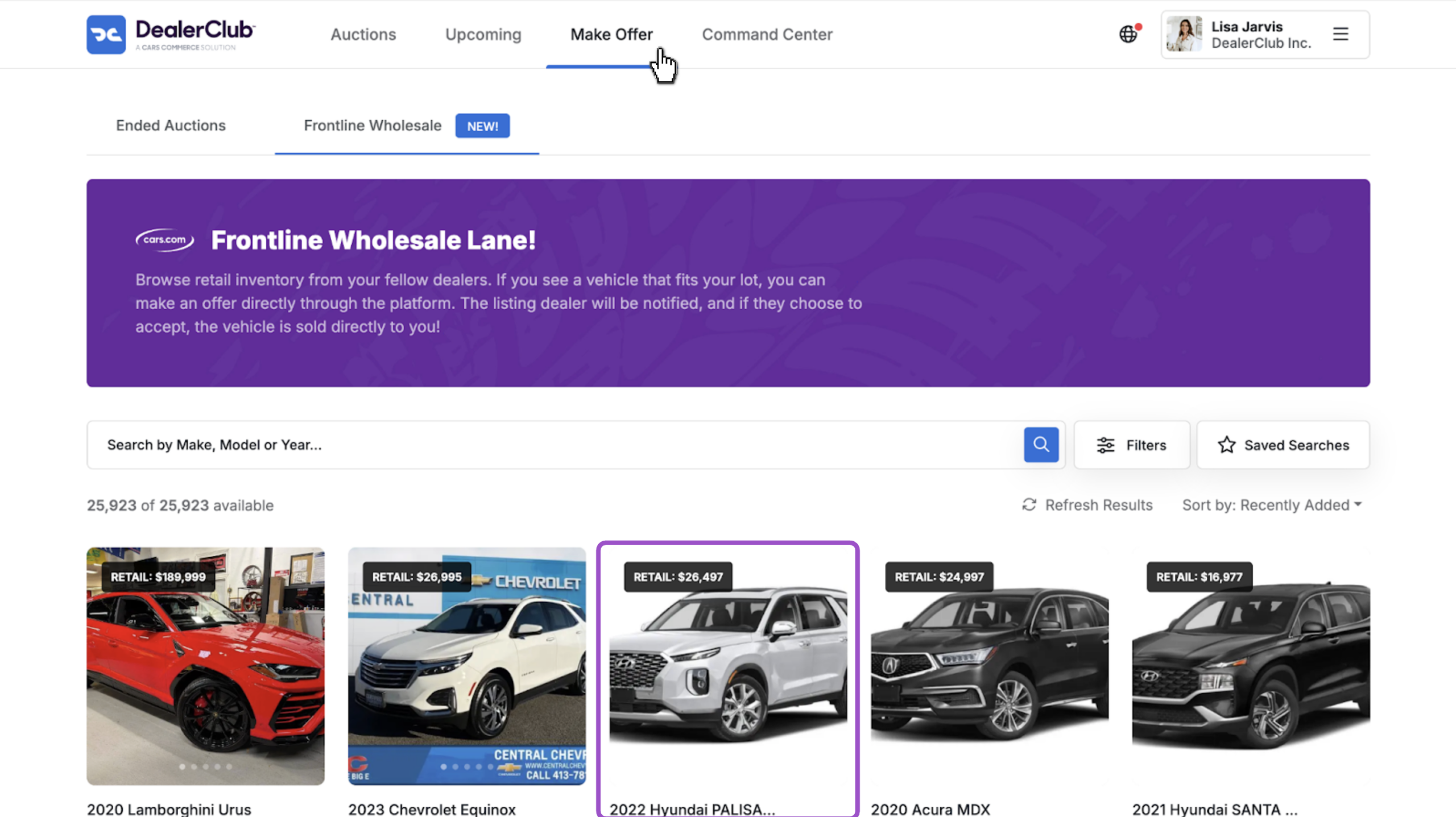
1Open a vehicle listing
- Navigate to Auctions, Upcoming, or Make Offer
- Click into the vehicle you want to share
2Navigate to the comment section
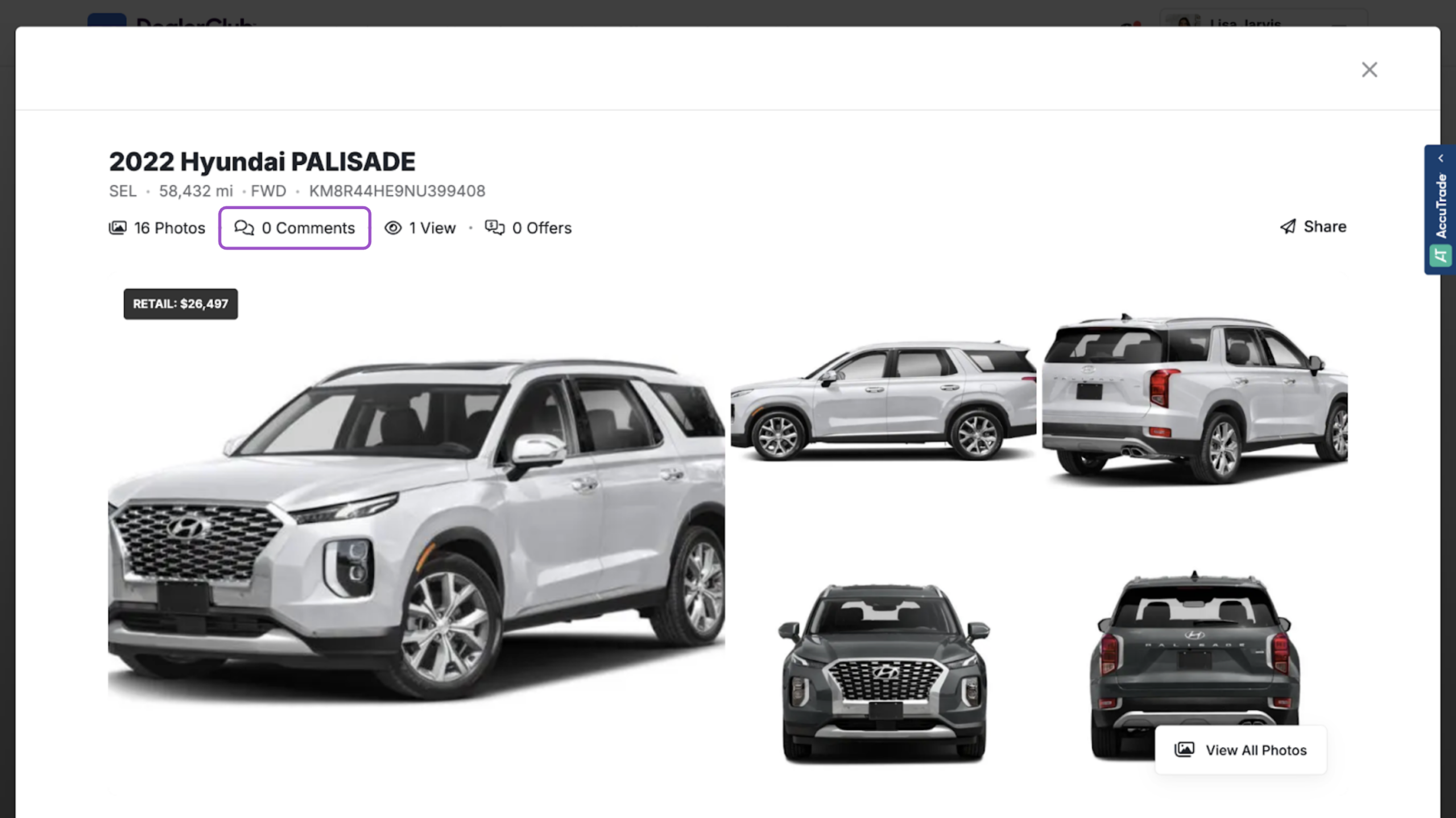
A pop-up will appear with the full vehicle details.
- Click Comments at the top of the pop-up to jump directly to the comment section
- Or scroll down to the Comments & Questions section
3Tag a user with Mentions
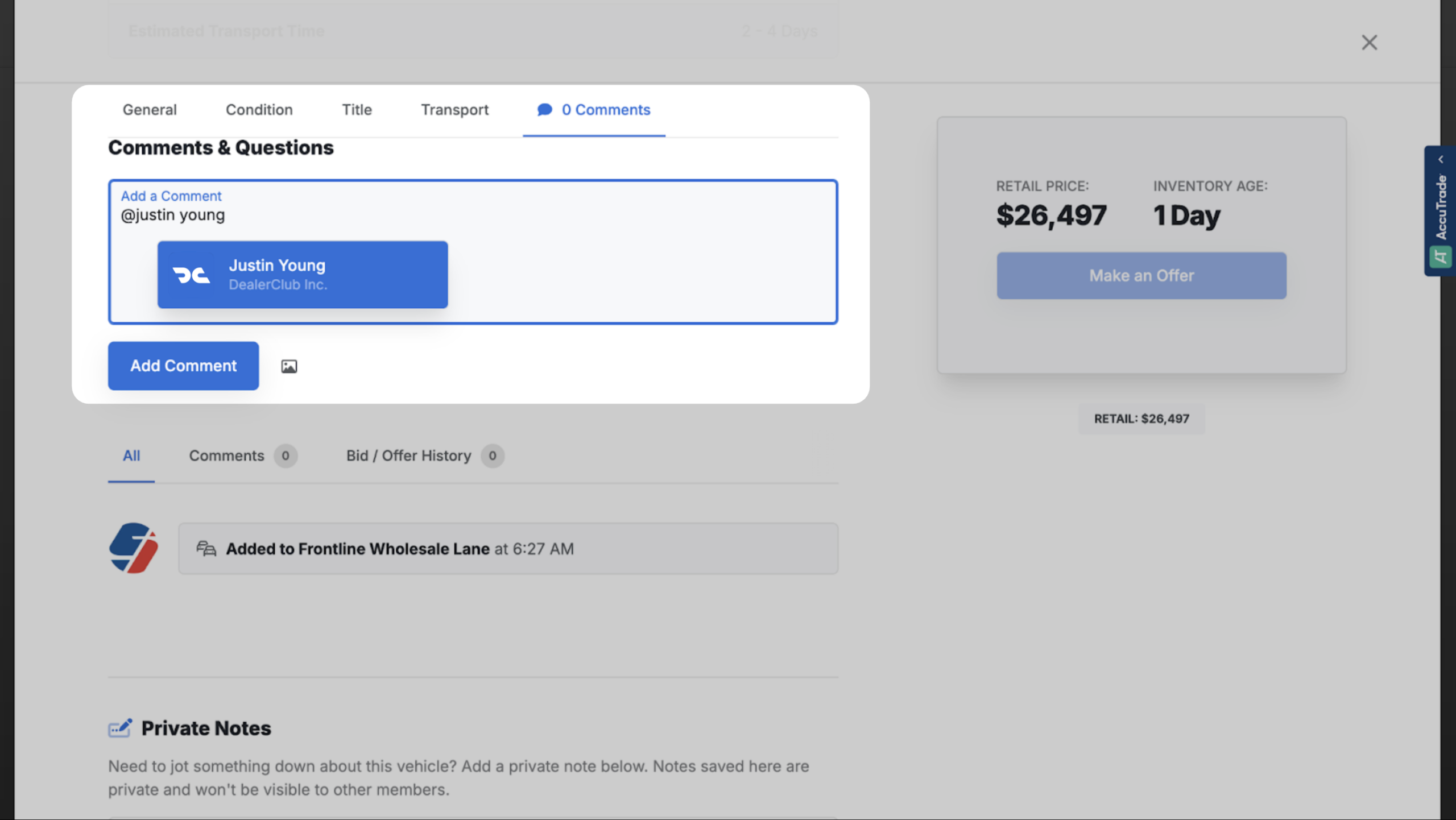
- Click into the Add a Comment field
- Type @ followed by the user’s name
- Select the user from the list that populate
4Write your message and post the comment
- Type your message after the tagged username
- Click Add Comment to post
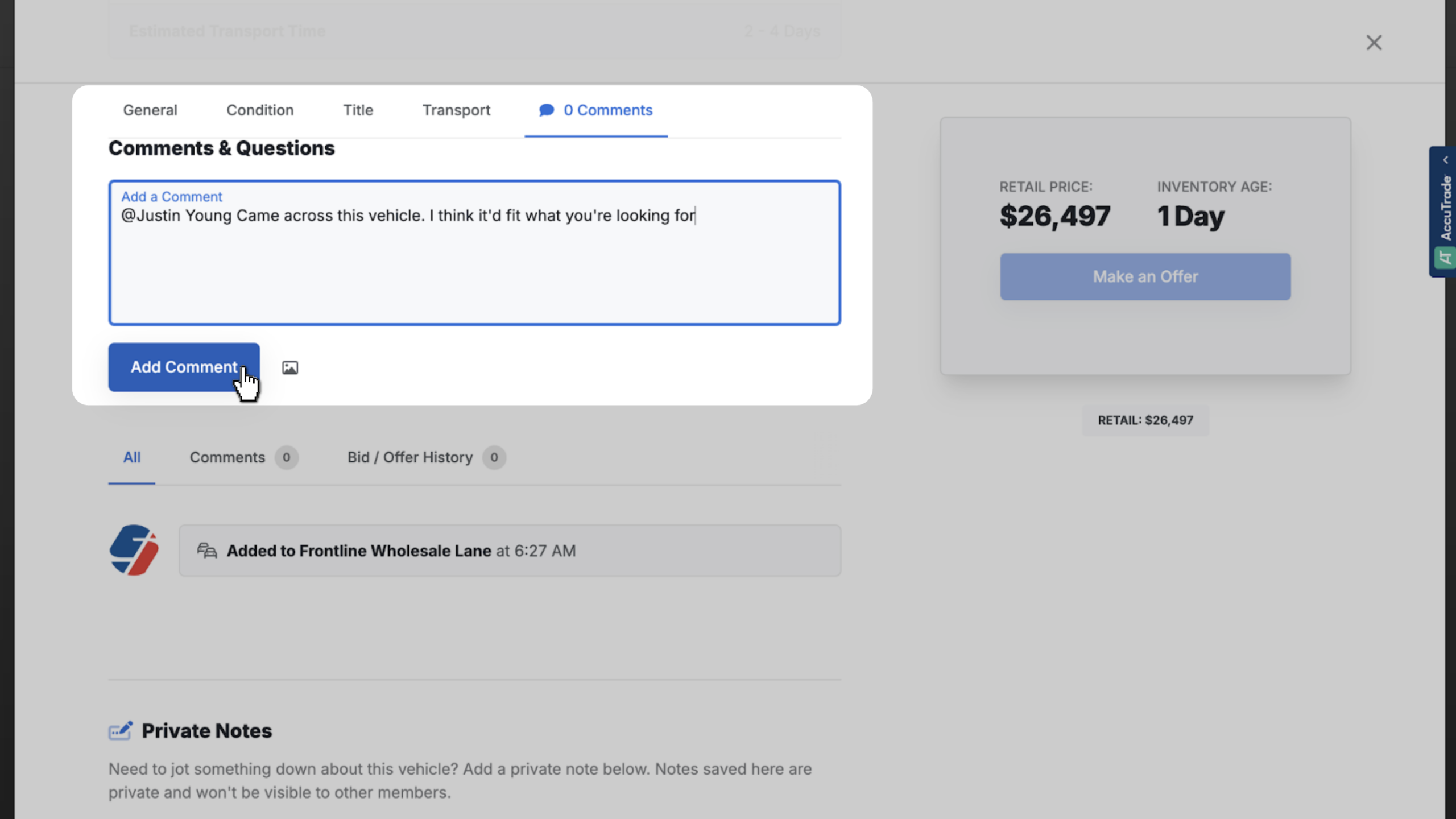
- The tagged user will receive a notification and can view and act on the vehicle.


