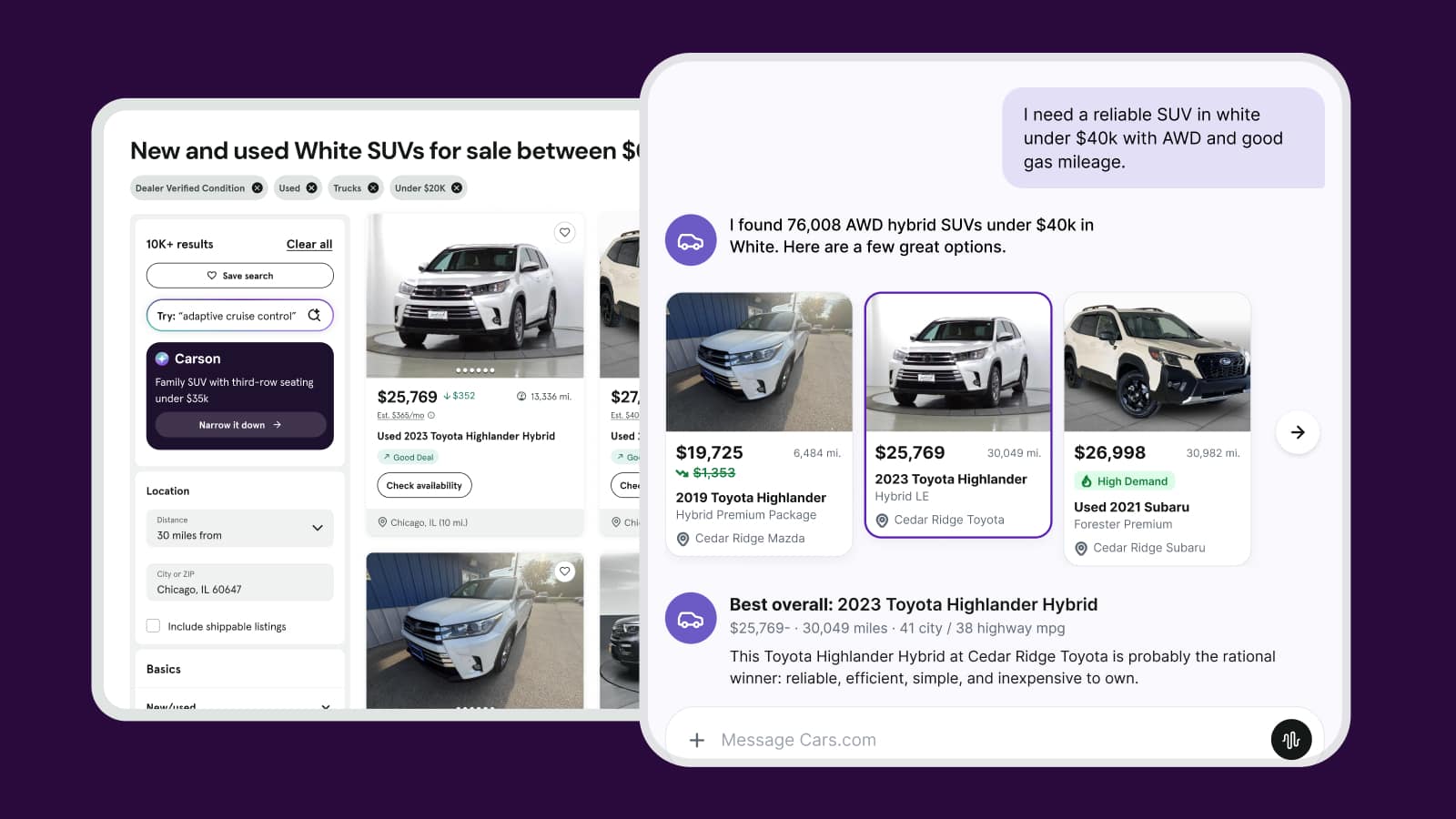
How to view and manage Cars.com financing leads
When shoppers engage with Instant Financing on your Cars.com listings, their information flows into multiple systems depending on how far they progress in the financing journey.
This article explains how to locate and manage these leads in your CRM, view application details in Automatic, and access full credit applications in RouteOne or Dealertrack (for Premium and Premium+ dealers).
1 Viewing financing leads in your CRM
Instant Financing leads are delivered to the same CRM email addresses that receive your standard Cars.com leads. Each lead includes:
- Shopper name and contact information
- Vehicle of interest (year, make, model, stock number)
- Lead sub-source (Finance Intent, Prequalified, or Credit Application)
- A secure link to the application in Automatic
To identify Instant Financing leads, look for the following sub-sources:
- Cars.com Finance Intent
- Cars.com Prequalified
- Cars.com Credit Application
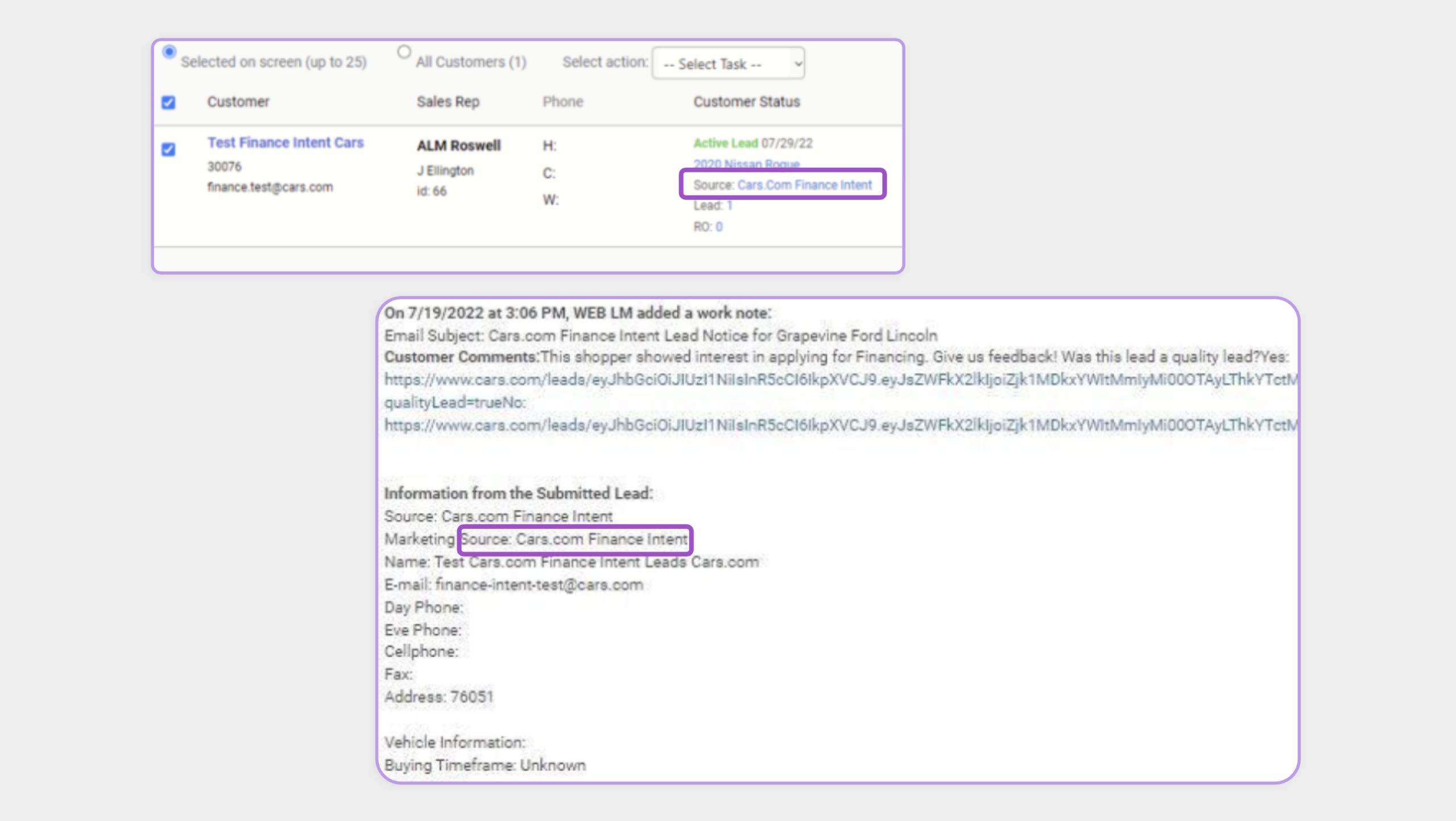
Tip: Set up filters or custom lead source tags in your CRM to easily prioritize and report on Instant Financing leads separately from standard marketplace leads.
2 Manage leads in Automatic
Automatic is Cars Commerce’s dealer-facing platform for managing financing applications, Online Shopper deals, and customer conversations. Access it at automatic.dealerinspire.com.
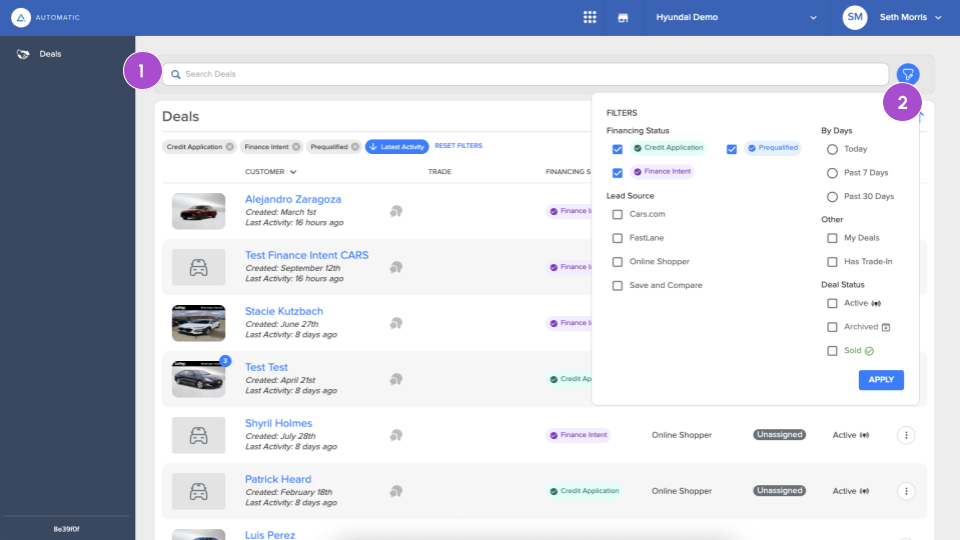
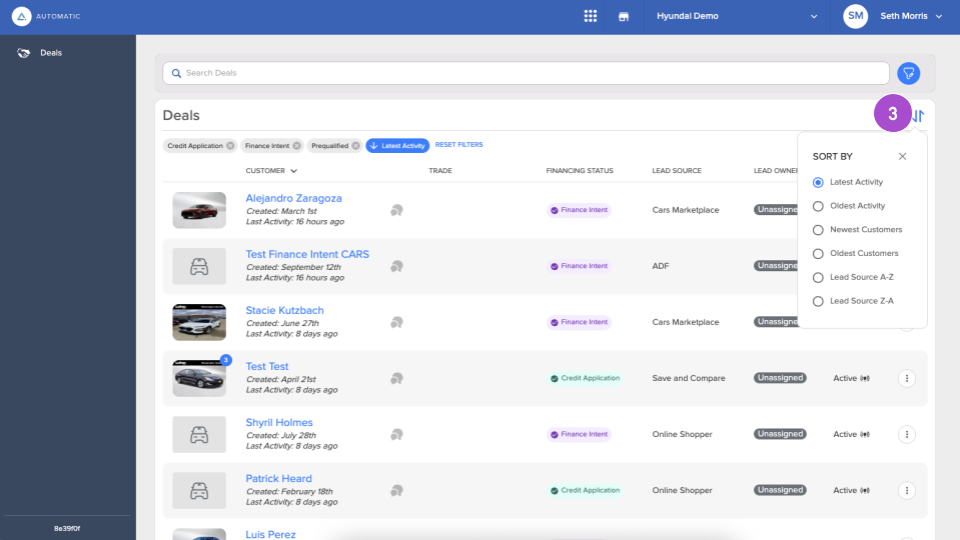
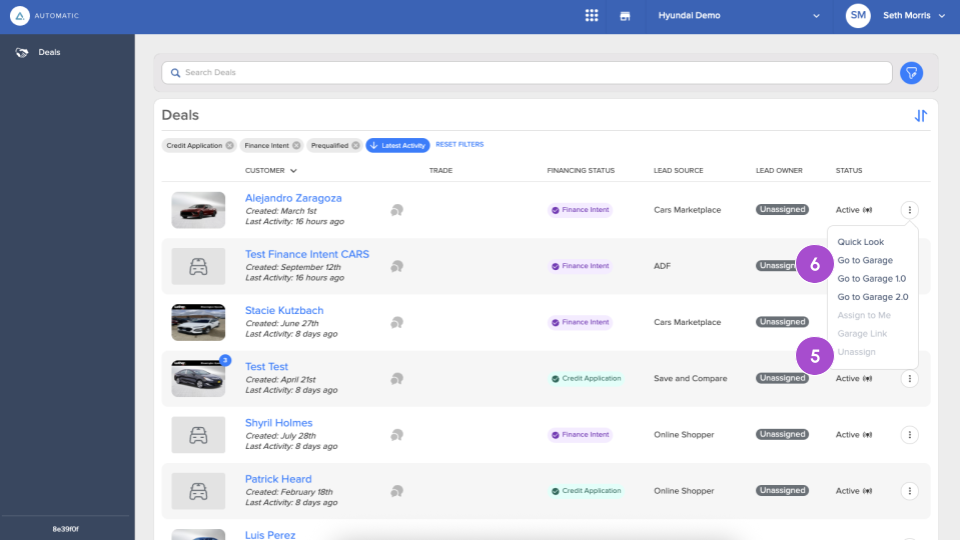
The Deals page shows all your leads. From this page, you can:
- Search for a lead.
- Filter leads by Financing Status, Lead Source, Days, or Deal Status.
- Sort by Activity, Newest/Oldest Customers, and Lead Source.
- Get a Quick Look at customer info, Garage, and activity.
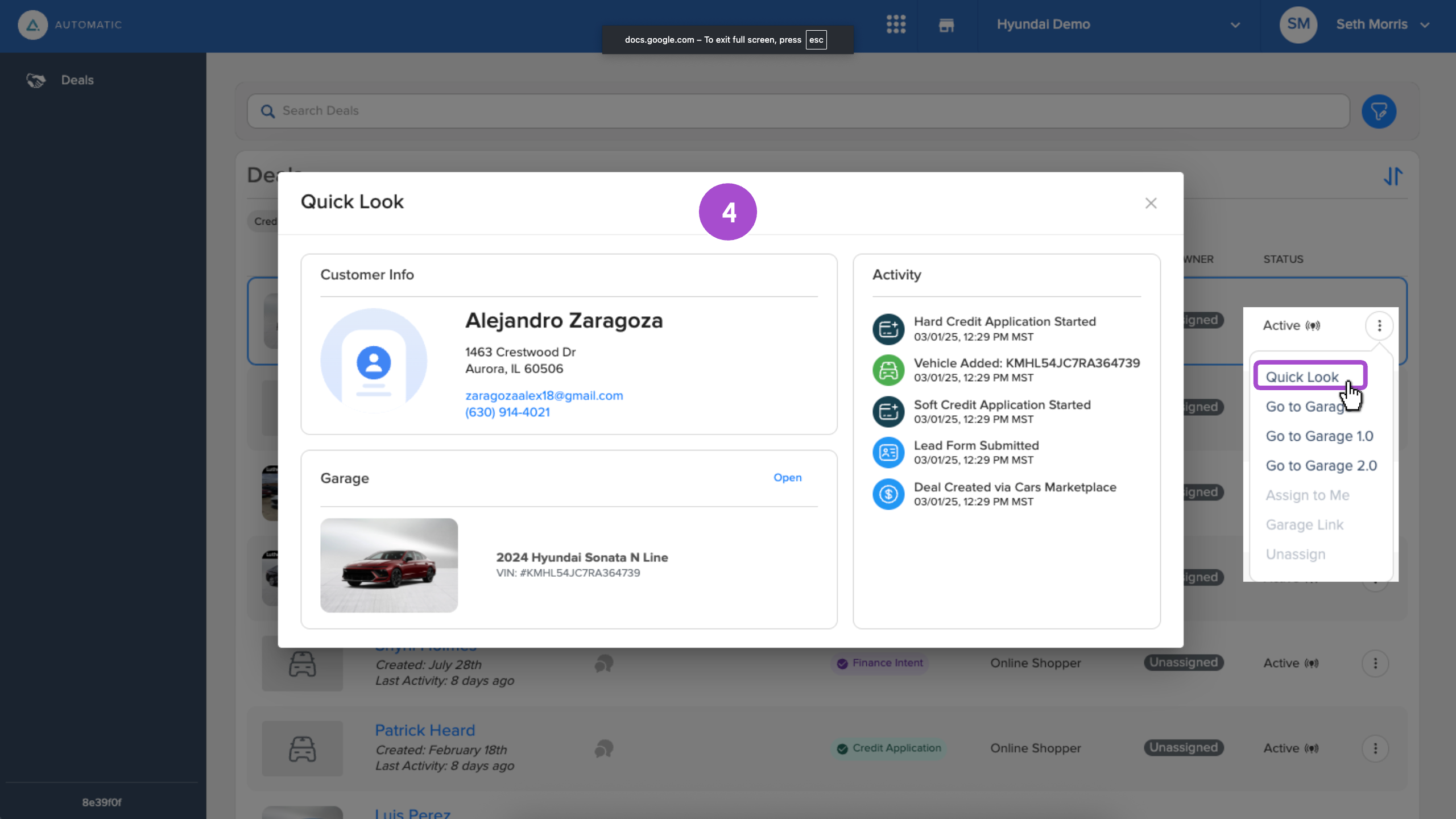
- Assign or Unassign a customer to yourself or another user.
- Go to the Customer’s Garage, where you can review application details.
3 View and work financing applications in Automatic
You can access application details from:
- The secure link included in your CRM lead
- The shopper’s profile via the Deals page in Automatic
For each application, you can review:
- Shopper information: Name, contact details, address, employment, and income
- Vehicle details: The specific VIN or vehicle for which the shopper applied
- Financing preferences: Loan term, down payment, and trade-in information
- Prequalification status: Whether the shopper received offers and from which lenders
- Lender offers: Estimated rates and terms from participating lenders (if prequalified)
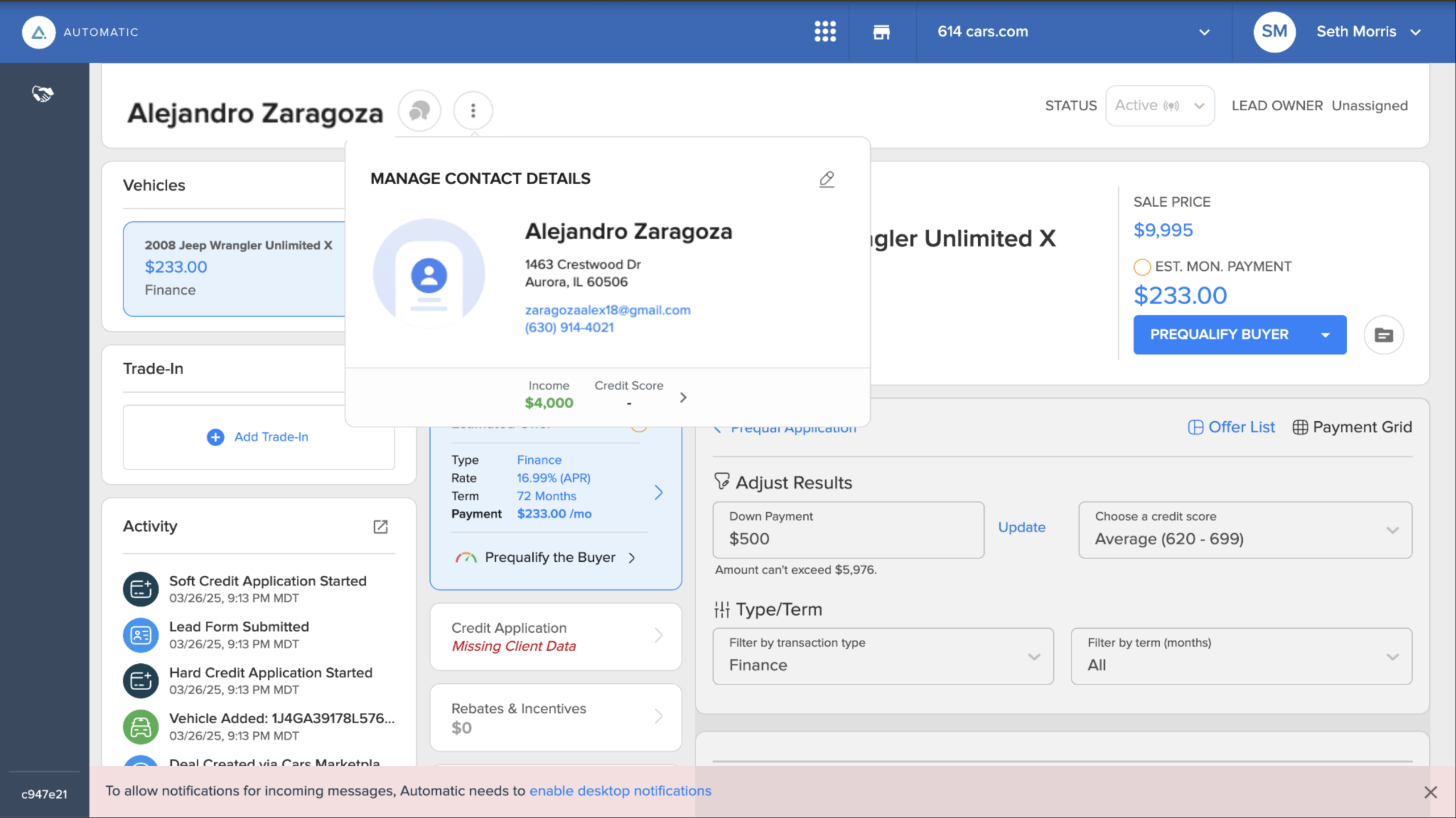
From the application details page, you can take the following actions:
- Use Conversations to engage the customer across text, email, chat, and social media
- Adjust deal structure: pricing, term, trade-in, and protection products
- Build a custom financing offer based on the shopper’s inputs
4 View full applications in RouteOne or Dealertrack
Applicable to Premium and Premium+ dealers only.
When a shopper completes a full credit application (with a hard credit pull), the complete application is sent directly to your dealership’s preferred Credit Application Network (CAN) — either RouteOne or Dealertrack.
What you’ll receive:
- Full credit application
- Shopper’s financial and employment info
- Credit bureau data
- Lender decisions and financing terms
- Vehicle details and deal structure
You can work the deal and submit to lenders directly from RouteOne or Dealertrack.