How to access your Cars.com reporting
Your Cars.com Marketplace data lives in one place. This article walks you through reaching your reports and finding specific insights into your dealership’s engagement and performance.
In this article, you’ll learn how to get to your reporting in the Cars.com Hub, find a reporting category, and choose and view a specific report.
To get started
Go to the Cars.com Hub.
1 Get to your reporting
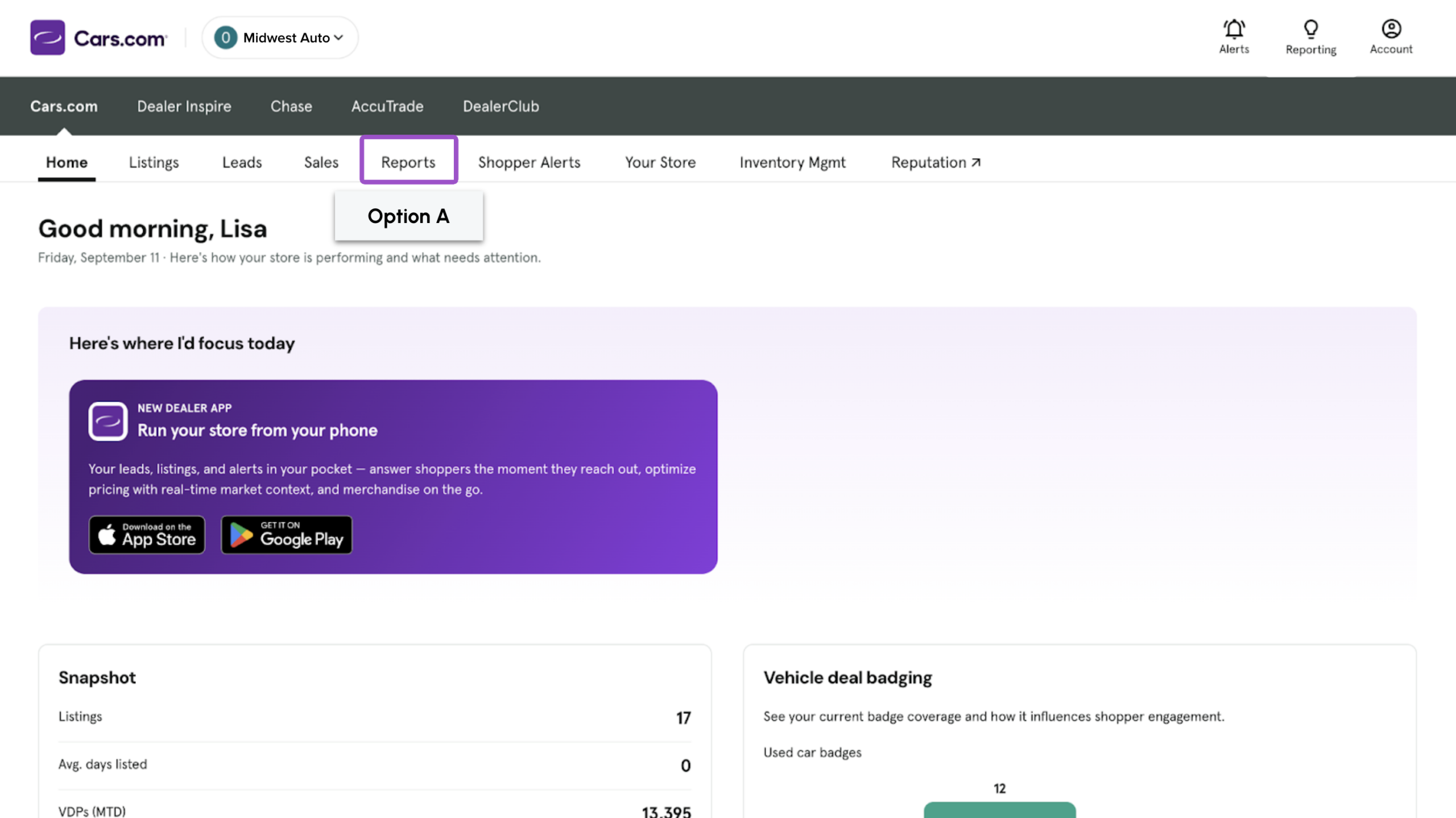
Option A — Reports tab
- Click Reports in the top menu; it opens the full Cars Reporting page
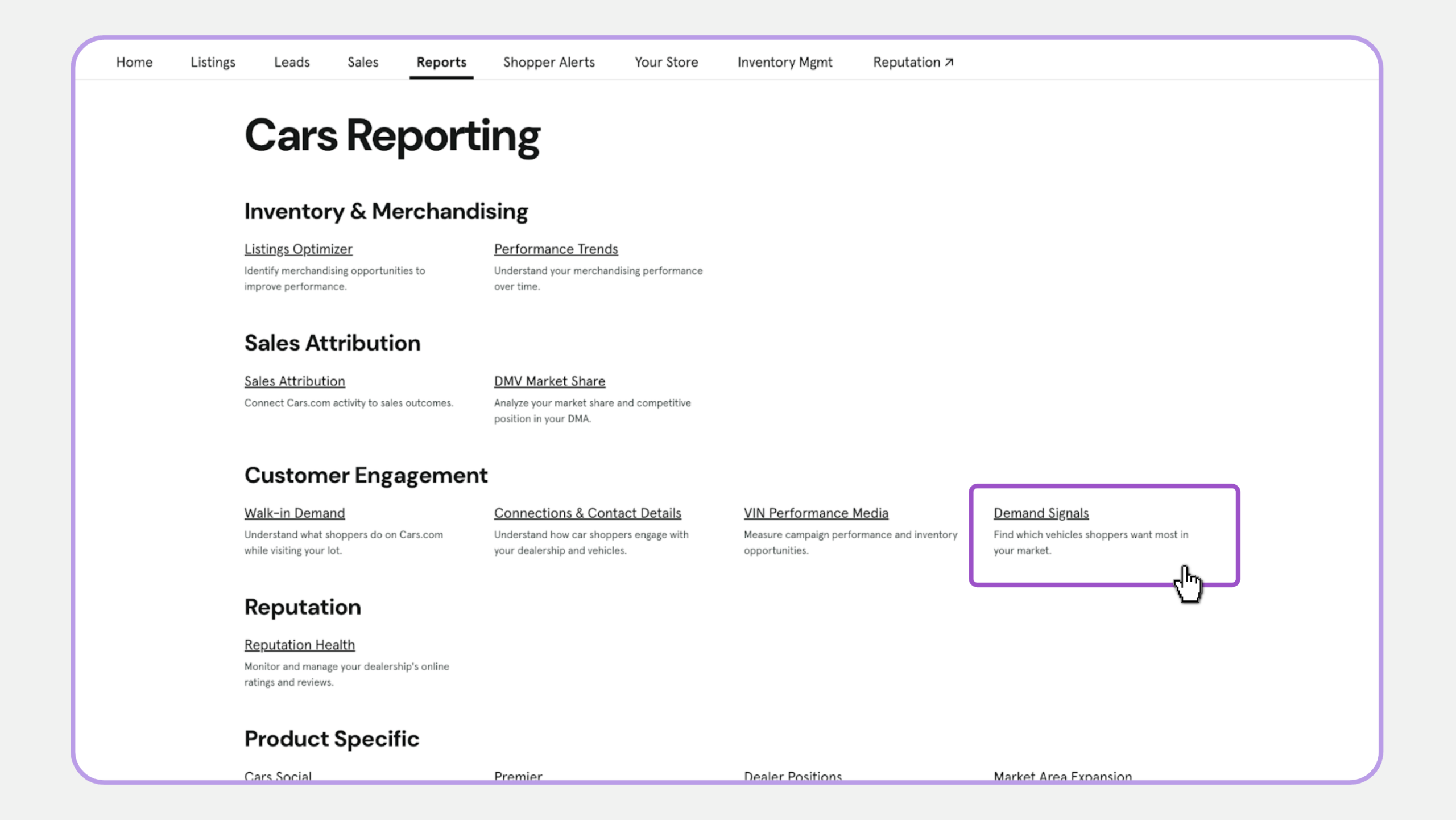
- Scroll to the category you need:
- Inventory & Merchandising
- Sales Attribution
- Customer Engagement
- Reputation
- Product Specific
- Click the report you want to view
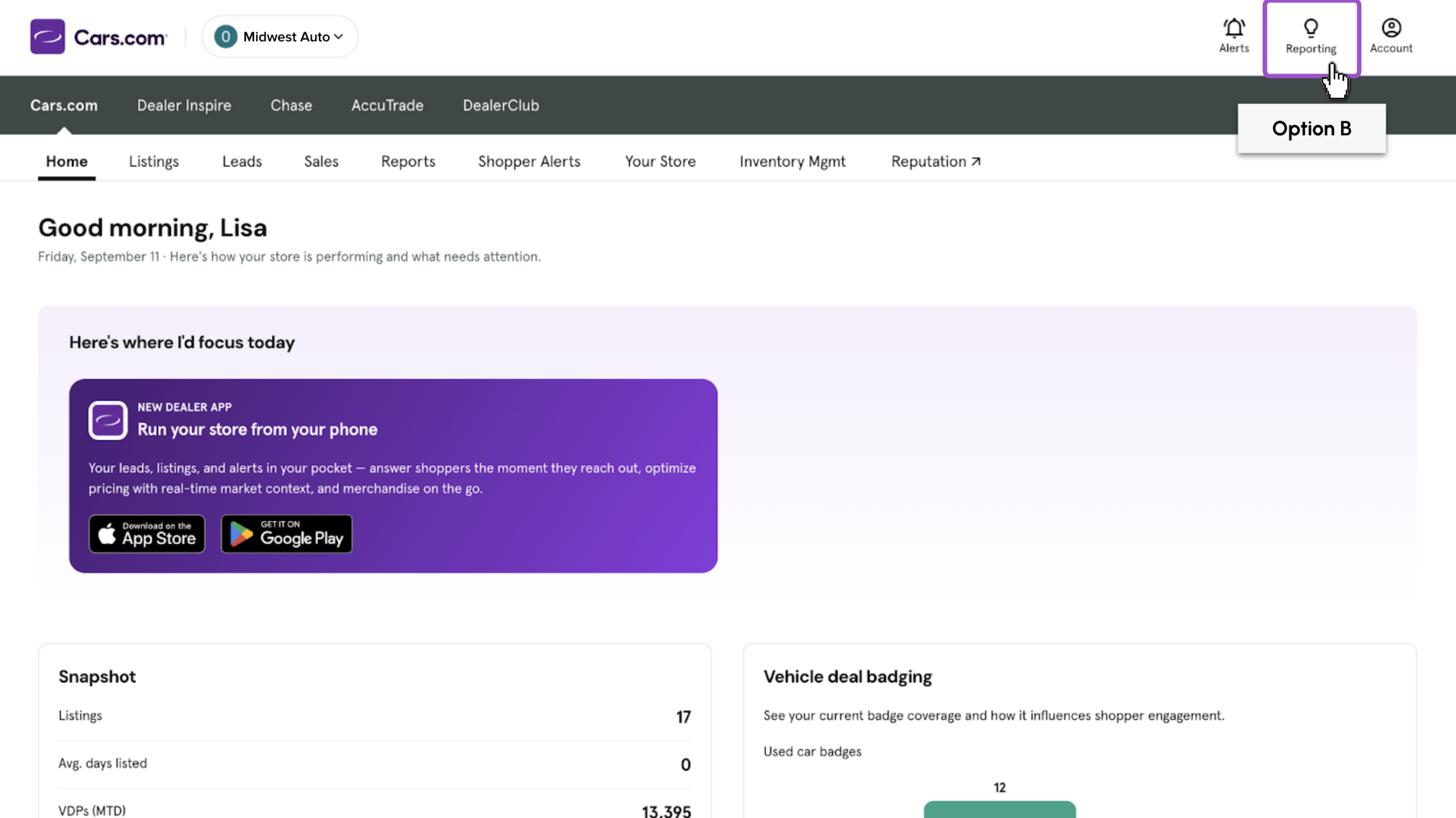
Option B — Reporting icon
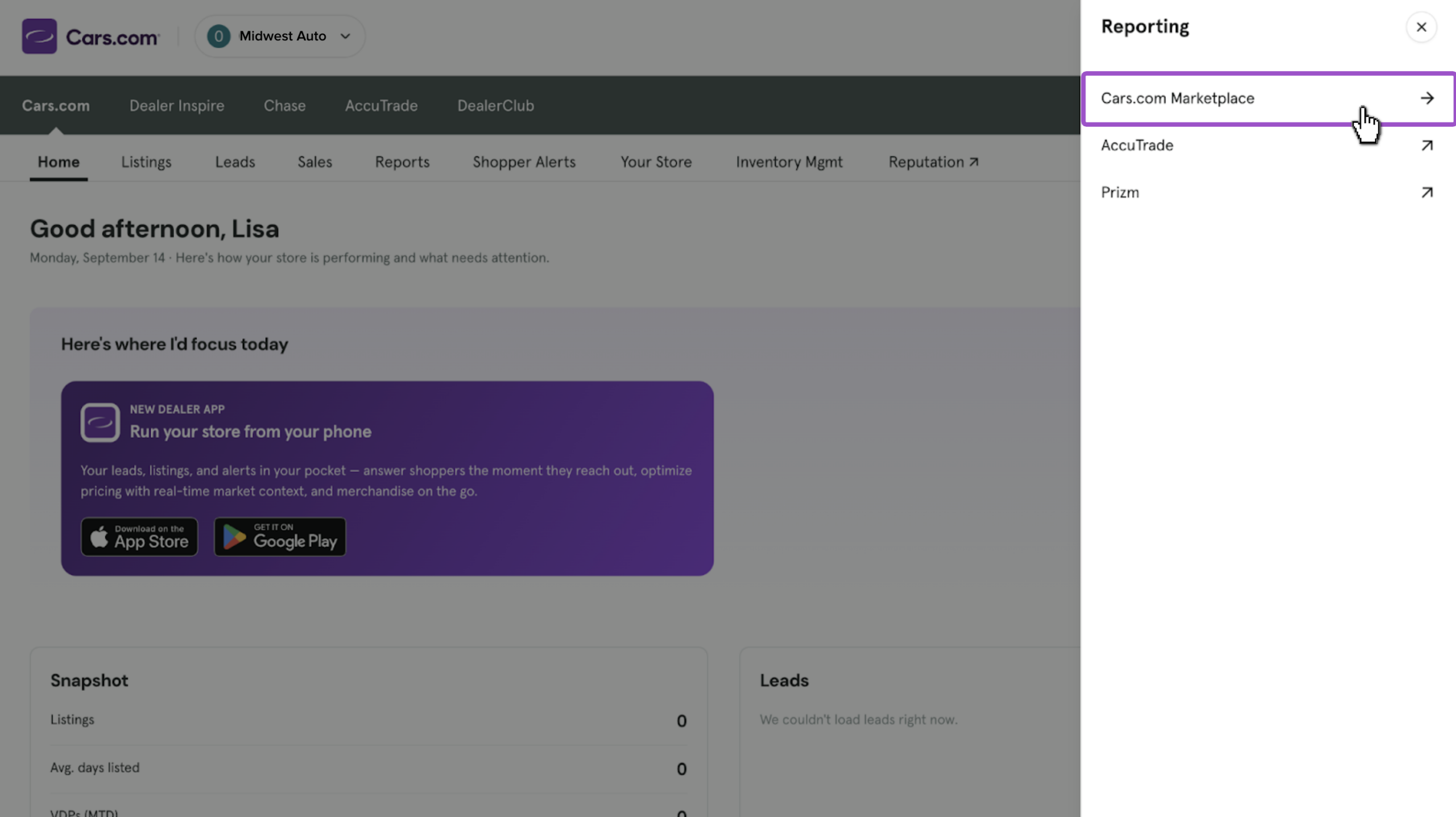
- Click Reporting in the top right
- Select Cars.com Marketplace
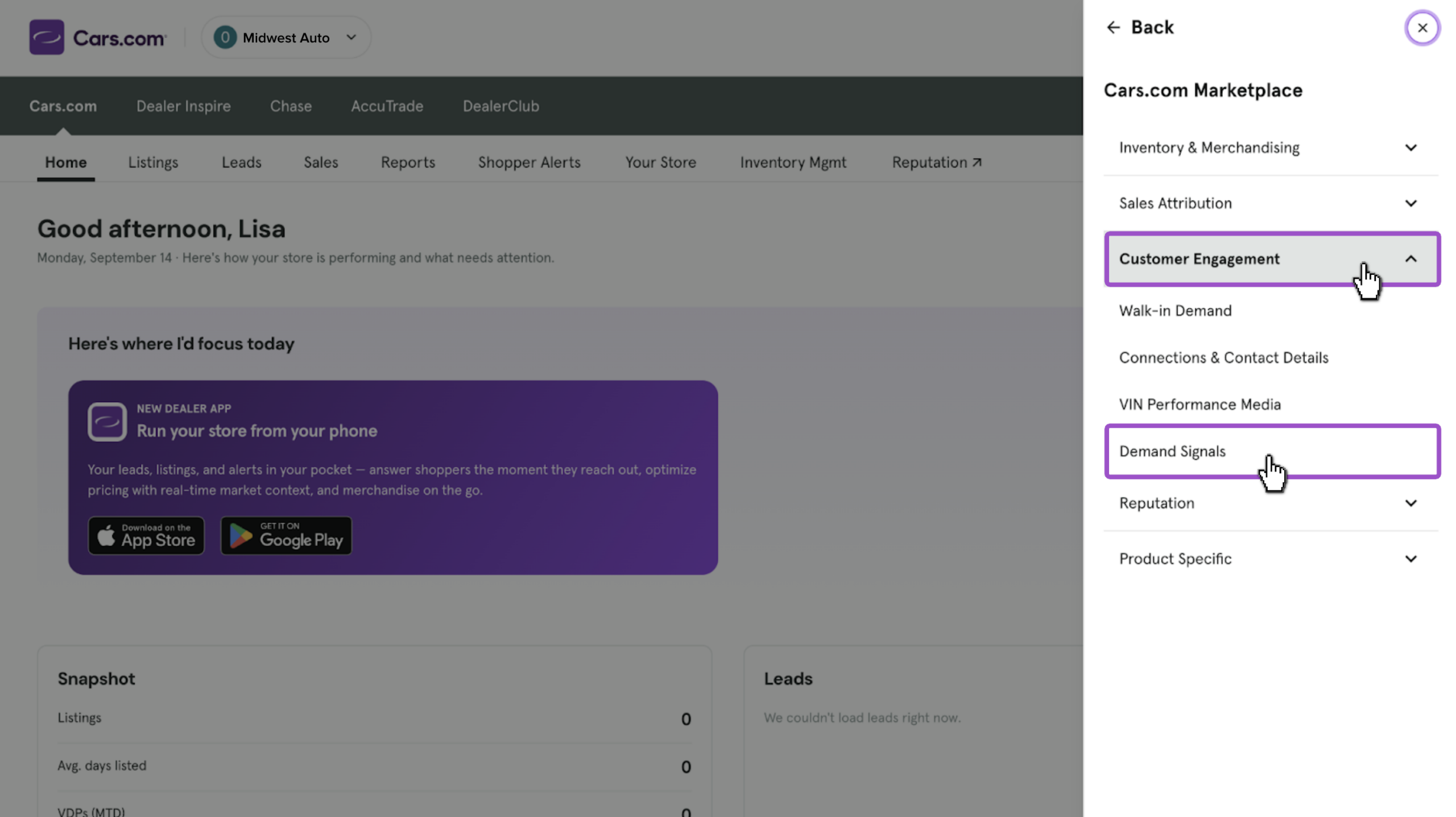
- Click into the category to expand it:
- Inventory & Merchandising
- Sales Attribution
- Customer Engagement
- Reputation
- Product Specific
- Click the report you want to view
2Use the data
Filter your results by date, channel, or status depending on the report.
- Review snapshot summaries for a quick read on trends
- Use charts and graphs to spot patterns across your Marketplace and Reputation performance