How to find vehicles to move to wholesale in the Dealer app
The Cars.com Dealer app flags vehicles that have sat on your lot too long and shows what each one could bring at wholesale. Review them, then open DealerClub or AccuTrade to take the next step.
In this article, you will learn how to find aging vehicles recommended for auction on the Home screen, check a vehicle’s estimated wholesale range, and open DealerClub or AccuTrade to list or appraise a vehicle.
To get started
Log in to the Cars.com Dealer app with your Cars.com credentials.
1Find vehicles to move to wholesale
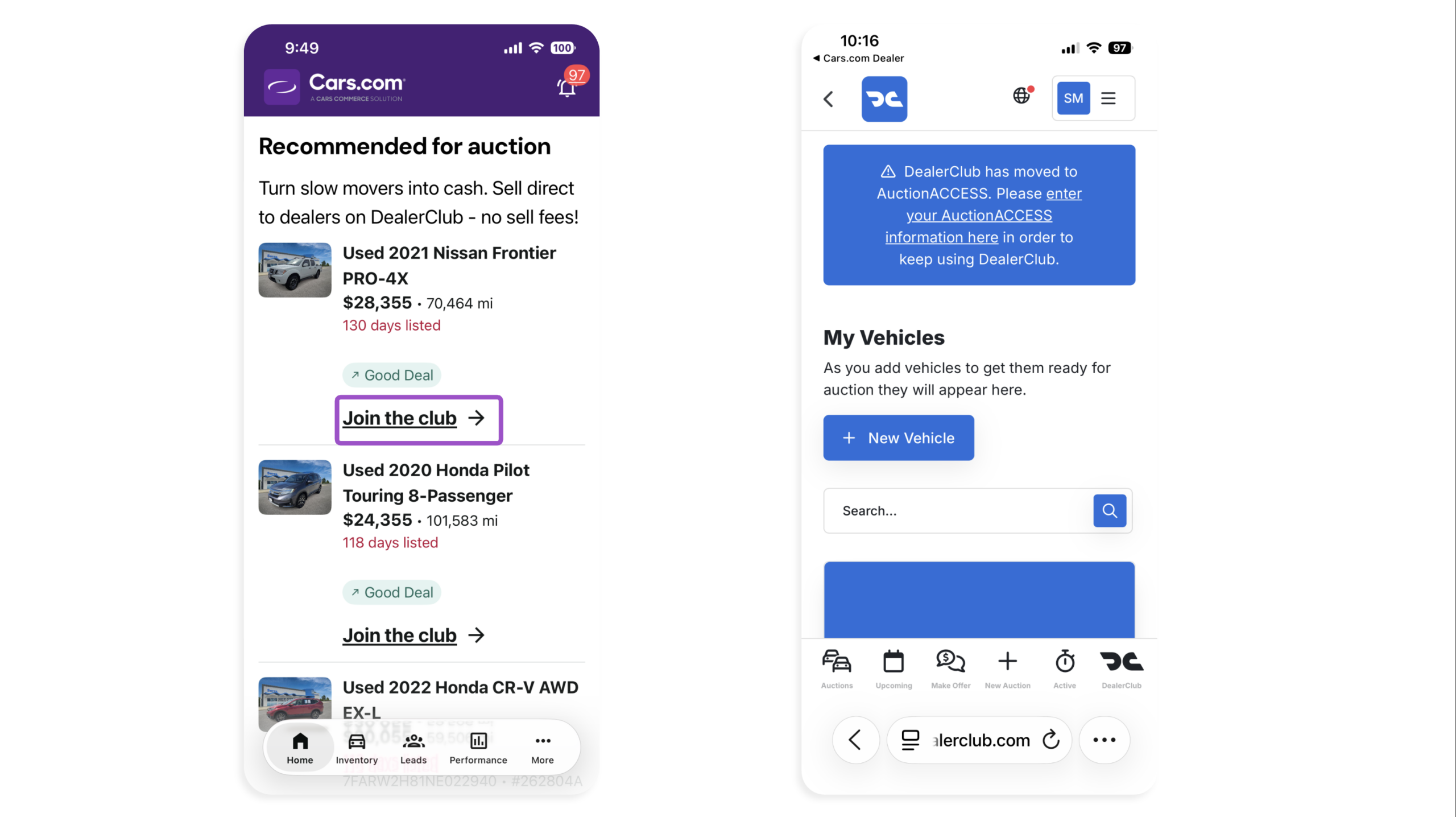
- Tap Home on the bottom menu
- Scroll to Recommended for auction
- Review listings that have been on your lot for more than 60 days.
- Tap the link in a vehicle card to log in to DealerClub and list a vehicle
2 Check a vehicle’s wholesale range
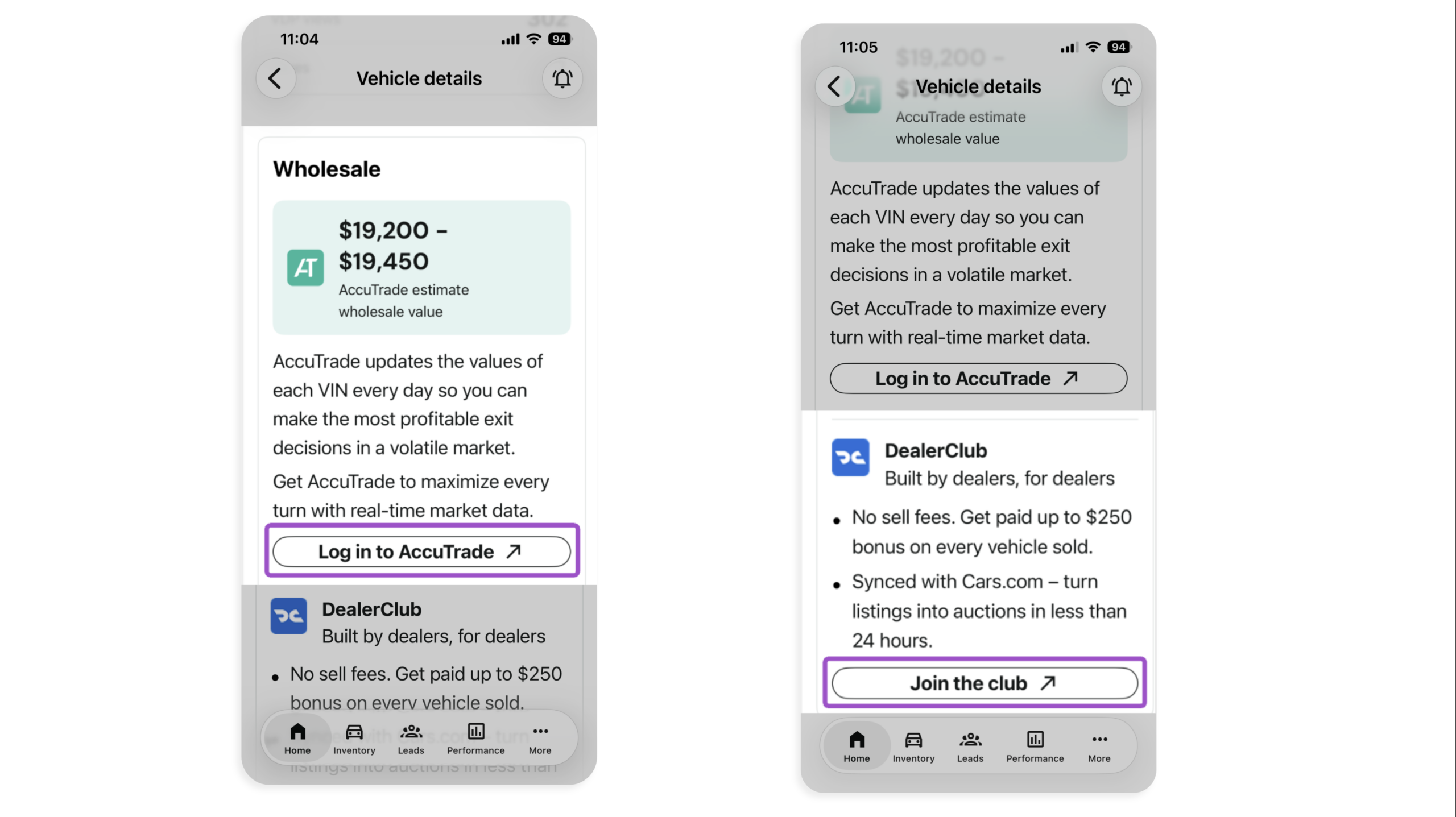
- Tap on a vehicle in the Recommended for auction section to open its vehicle details page (VDP)
- Scroll to the estimated wholesale price range, provided by AccuTrade
- Tap the button below the range to get a complete appraisal in AccuTrade
- Tap the button in the DealerClub section to list a vehicle for auction
Tip: Check the wholesale range on aging vehicles before you decide whether to list them.
Note: You can also view a vehicle’s wholesale price range from Inventory on the bottom menu.