How to find and fix incomplete listings in the Dealer app
Complete listings give shoppers the full picture of your vehicles before they visit your dealership. The Cars.com Dealer app shows you which listings are missing details, and the merchandising checklist shows exactly what each one needs.
In this article, you will learn how to:
- Update the missing details and confirm a listing is complete
- Find your incomplete listings
- Scan a VIN to check a vehicle on your lot
- Share your list of incomplete listings with your team
- Read the merchandising checklist
To get started
Log in to the Cars.com Dealer app with your Cars.com credentials.
What you’ll need
- Download the Cars.com Dealer app from App Store for Apple or Google Play Store for Android
- Inventory listings on Cars.com
1Find your incomplete listings
Choose one of these paths to find your incomplete listings:
- Tap See incomplete listings under Suggested Actions on Home
- Or tap Performance, then tap See incomplete listings in the Current merchandising section
- Or tap Inventory, then scroll to the right below the search bar and select Incomplete
Tip: You can also tap the scan icon to the right of the search bar to scan a VIN on your lot and see what needs to be completed for that vehicle.
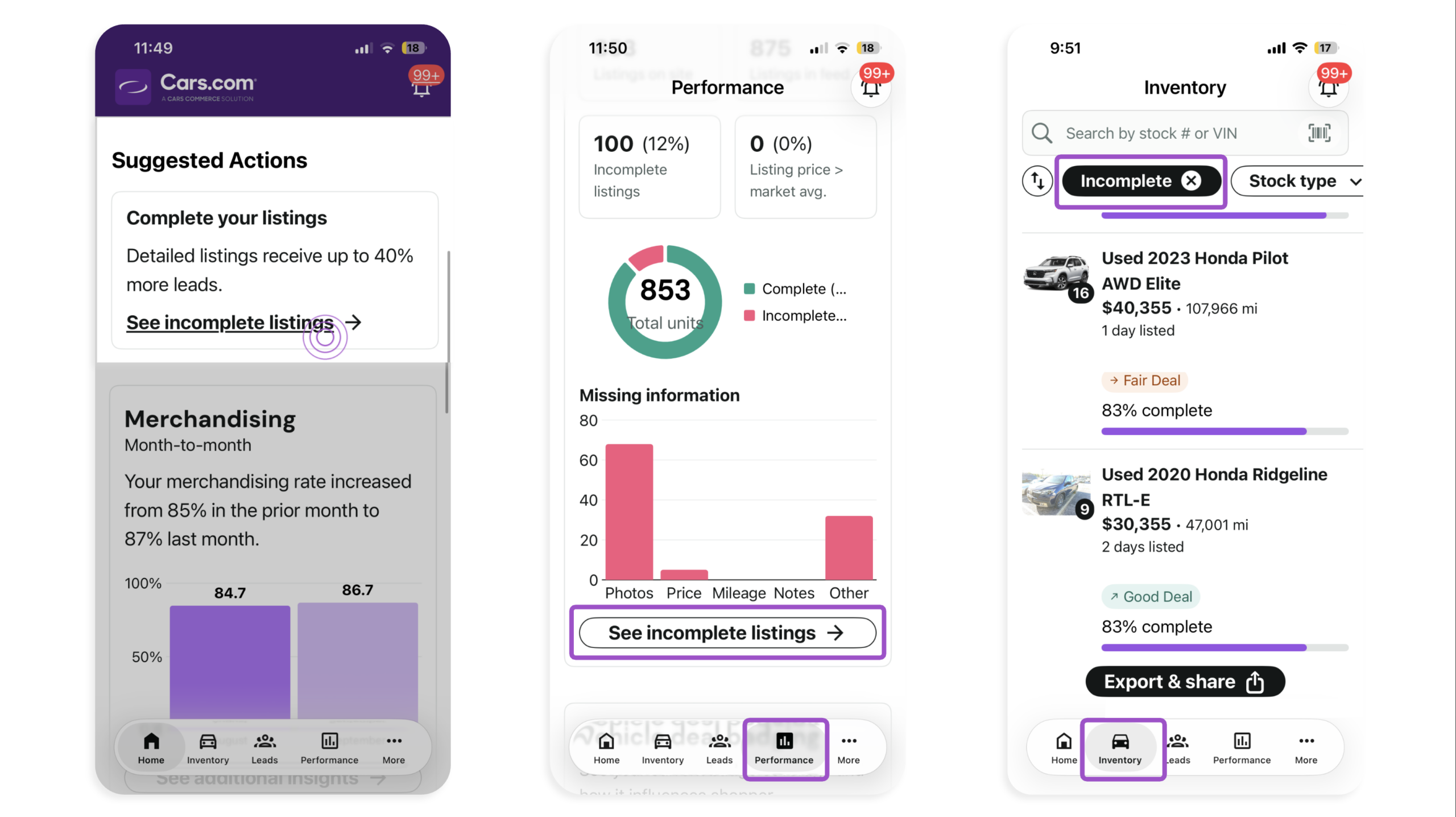
You’ll see an inventory view filtered to only your incomplete listings.
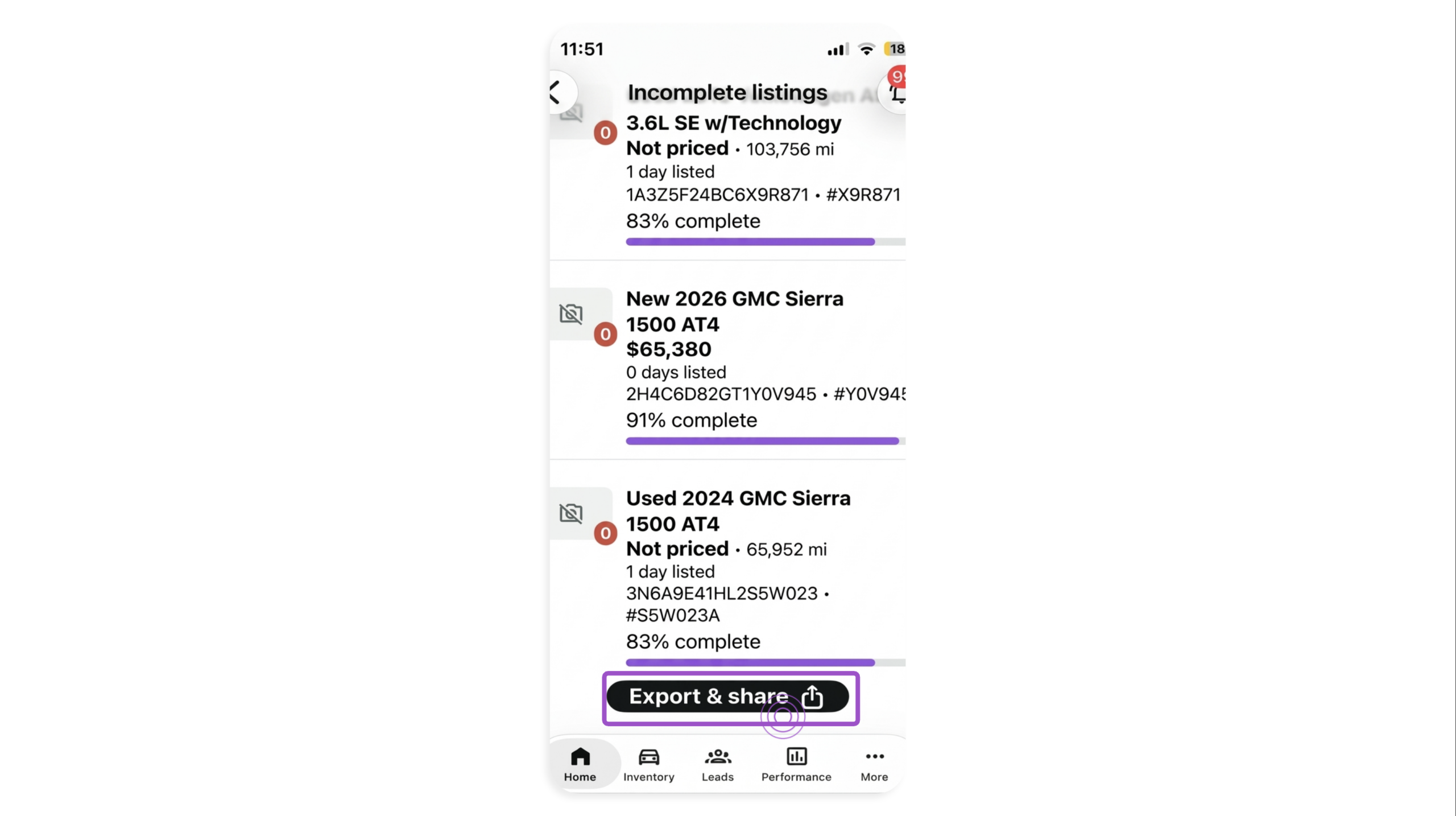
- Tap Export & Share to send the list of incomplete listings to yourself or a teammate
2Review the merchandising checklist
- Tap a vehicle to open its vehicle details page
- Scroll to the merchandising checklist
- Note each item marked incomplete (x instead of ✓)
- Note the vehicle’s VIN or stock number for the next step
- Or tap Share to send yourself or a teammate a link to the vehicle
The checklist includes body style, door count, engine, exterior color, interior color, mileage, photos, price, seller notes, standard features, and transmission.
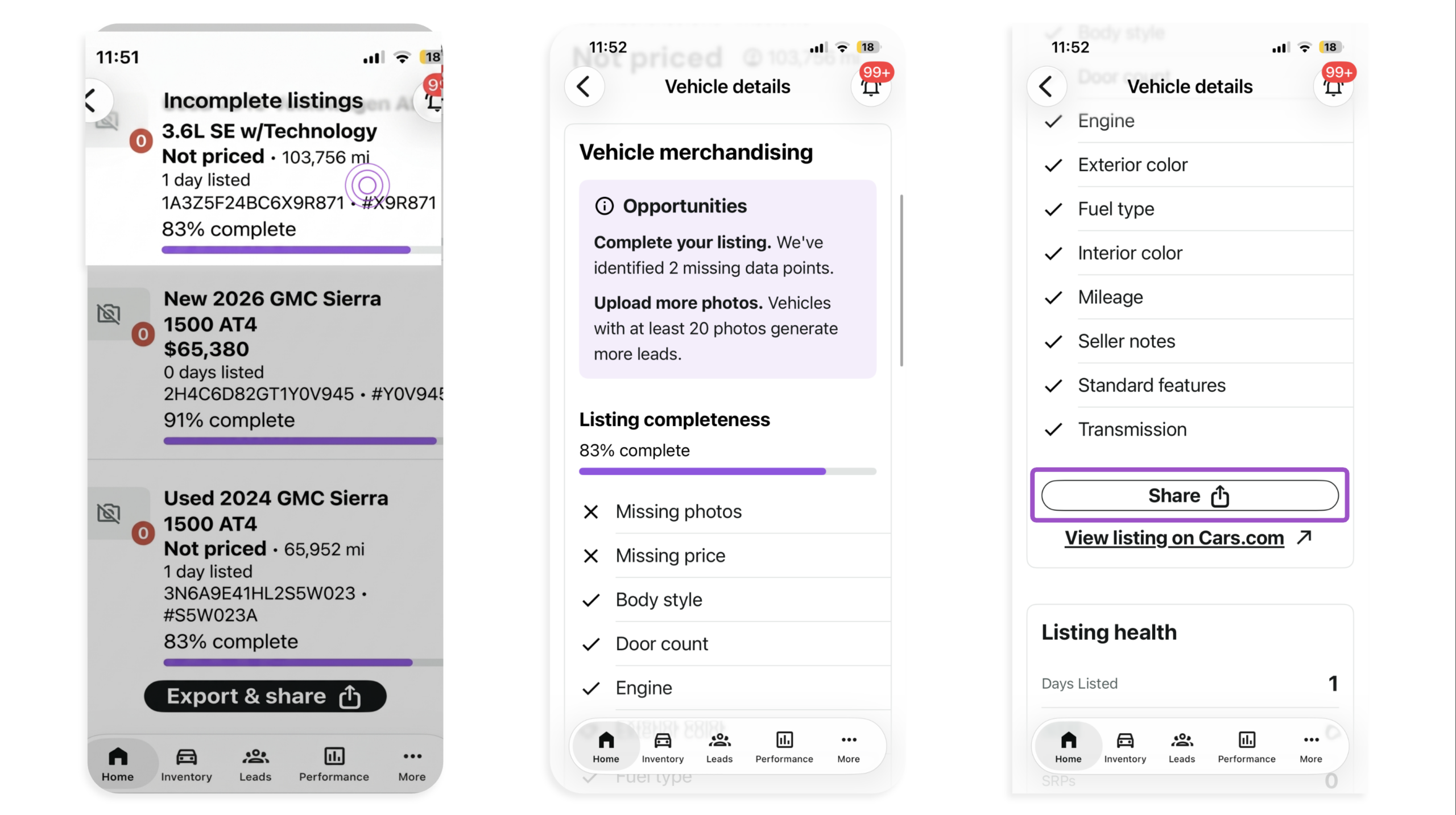
Note: The checklist shows what’s missing but doesn’t let you edit it. You’ll make updates outside the app.
3 Update missing details
Choose where you manage your inventory:
- Update the details in your IMS or inventory provider if your listings come from a feed
- Or log in to your Cars.com Hub and follow How to update a VDP to edit the vehicle directly
Note: Manage price through your IMS or inventory provider. Price changes made in Dealer Dash may revert during the next inventory feed refresh.
4Confirm your checklist is complete
- Open the vehicle in the Dealer app
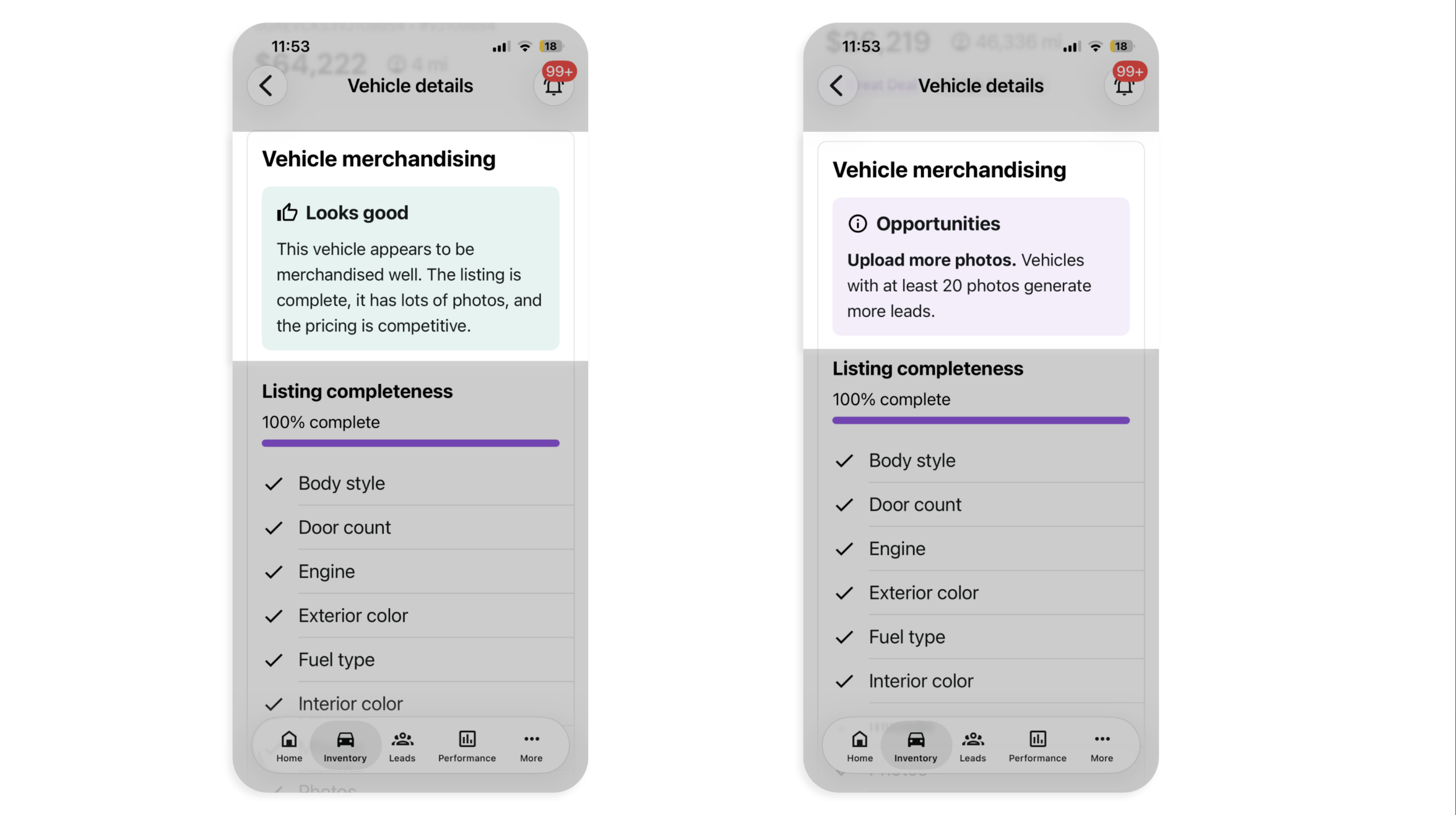
- Check for the Looks good confirmation on the vehicle details page
You’ll see Looks good when every checklist item is complete. The merchandising charts on Performance disappear once all your listings are complete. A vehicle can reach 100% complete with fewer than 20 photos, but the app prompts you to add more until it has at least 20.
Note: Updates sent through your IMS or inventory provider can take 24 hours or more to appear in the app and on Cars.com.
Best practice: Check your incomplete listings each time you add new vehicles to your inventory. Fewer incomplete listings mean a stronger merchandising picture across your lot.