How to set up auto pay
Auto pay charges your invoices to the card or bank account you choose, so you don’t have to submit each payment manually.
In this article, you’ll learn how to add a credit card or bank account, set an auto pay limit, and enable auto pay.
Note: This article covers automatic payments. To submit a one-time payment, follow how to pay your invoice online.
To get started
Go to payment.cars.com.
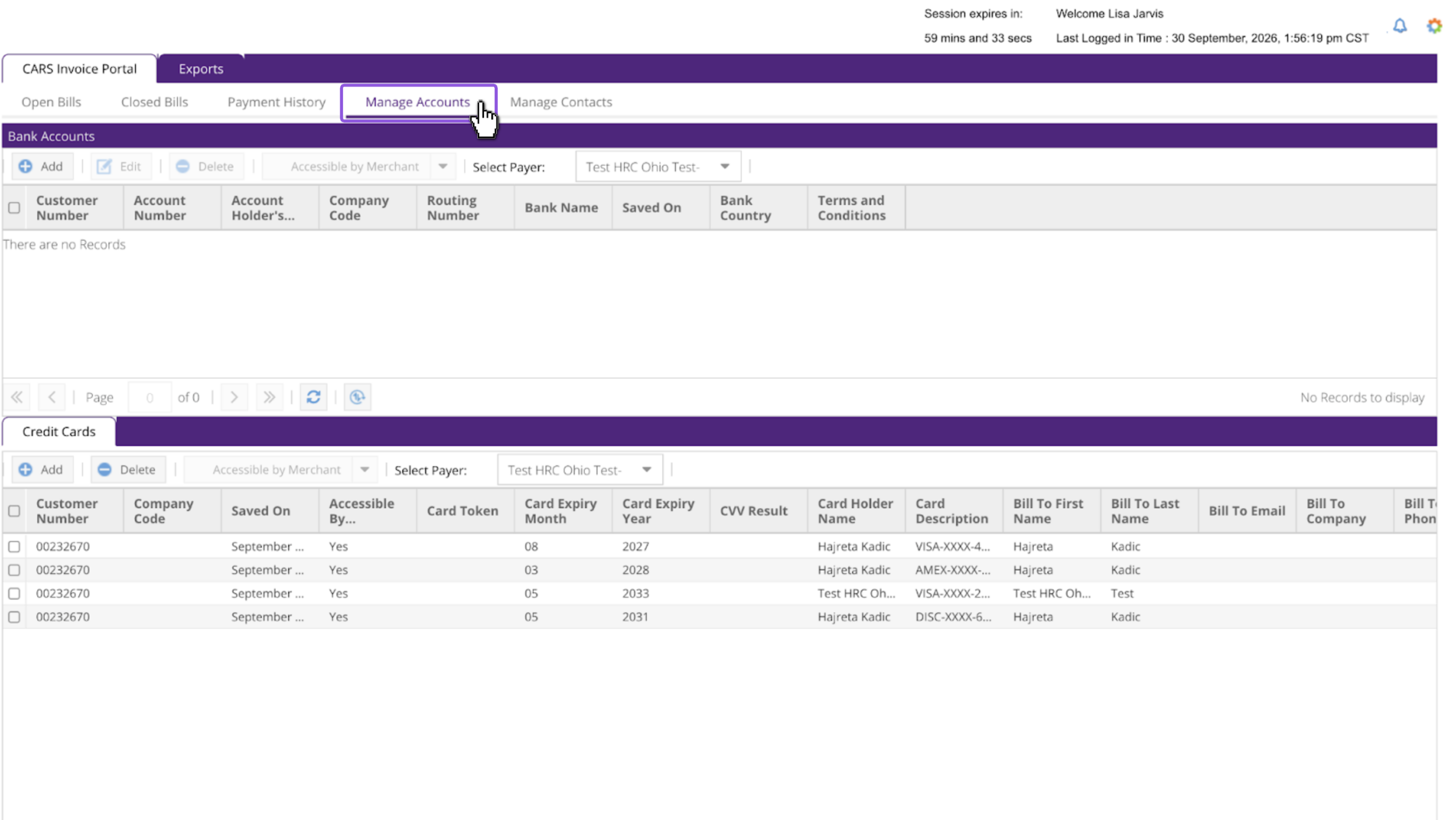
1Open Manage Accounts
- Select the Manage Accounts tab from the home screen
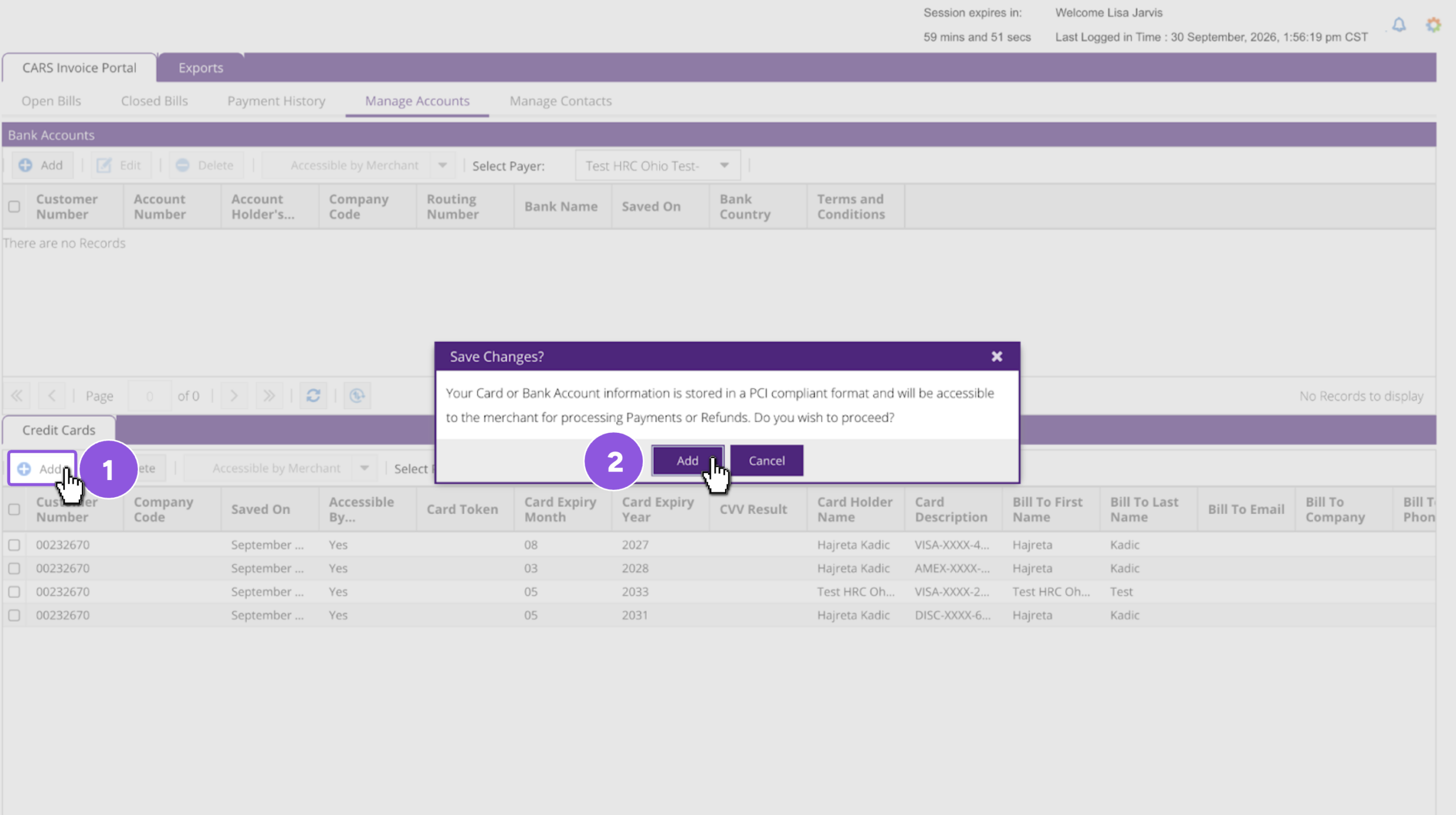
2Add a credit card or bank account
- Click Add
- Click Add again to proceed
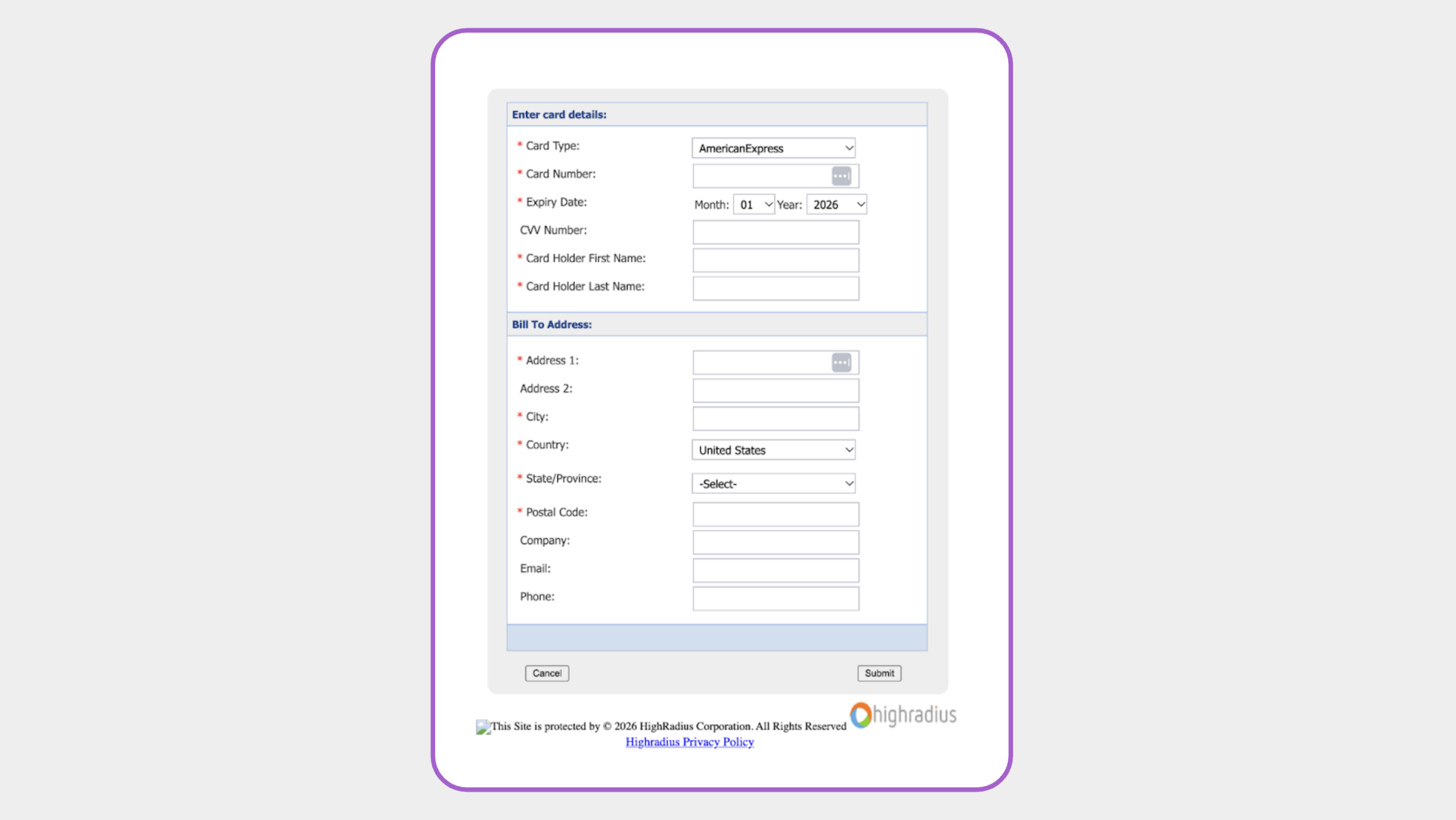
3Enter your payment details
- Fill out the fields of your card or bank information
- Click Submit
4Open auto pay settings
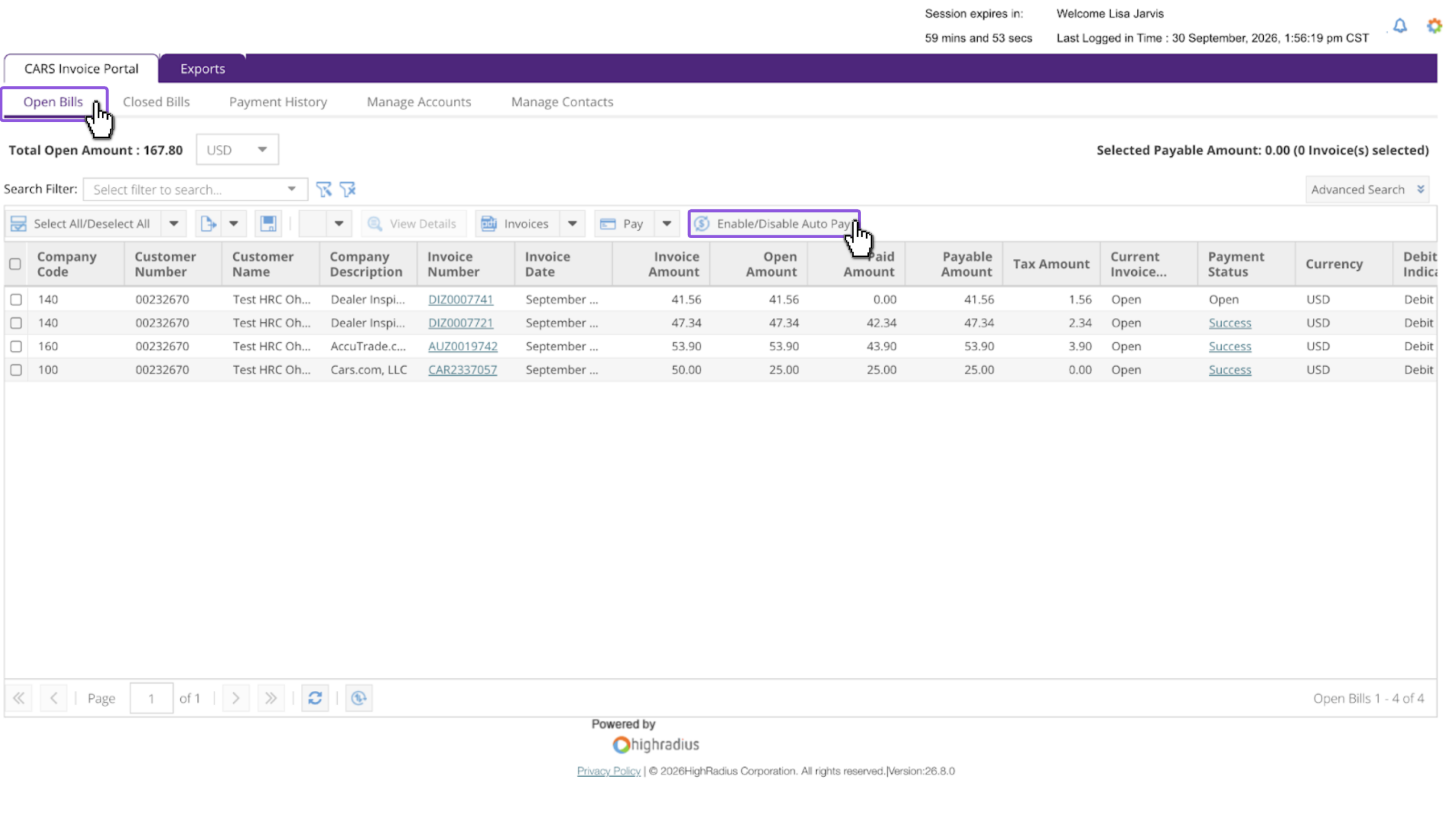
- Click the Open Bills tab
- Select Enable/Disable Auto Pay
5Set your auto pay preferences
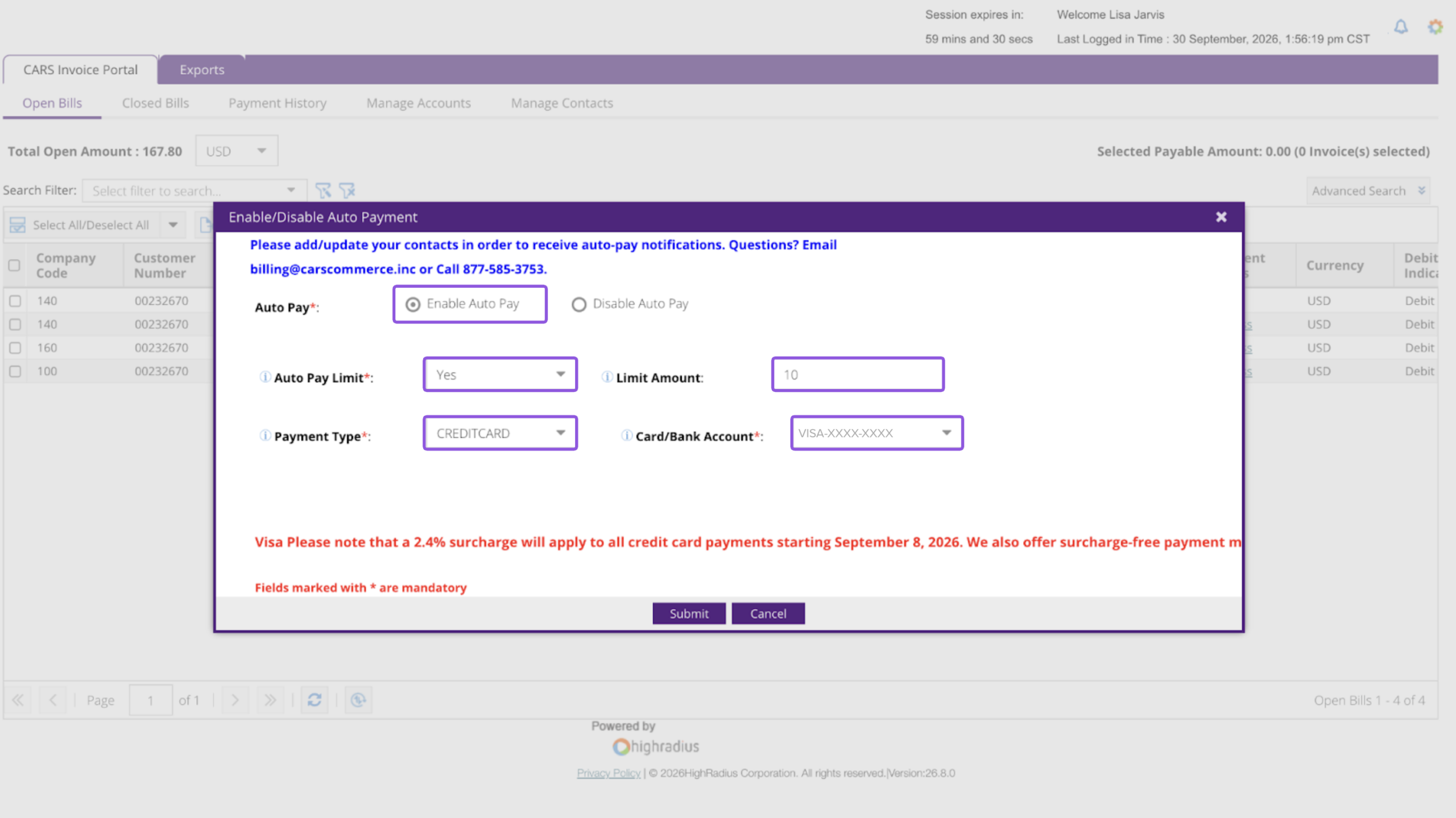
- Select Enable Auto Pay
- Select Yes or No from the Auto Pay Limit dropdown
- Enter your maximum amount in Limit Amount if you selected Yes
- Select your payment type, then choose the card or bank account you added
- Click Submit
Note: Your auto pay limit must cover your full invoice total, including taxes and surcharges. Avoid entering only your contracted rate.
Auto pay will apply to your next invoice.
Have questions? Reach out to billing@cars.com for help.
FAQ
Is there a fee to pay by credit card?
Yes. Credit card payments include a surcharge of up to 2.4%. This applies to one-time payments and auto pay.
What happens if my invoice is higher than my auto pay limit?
Auto pay won’t process the payment. You’ll get an email that the payment failed. To resume auto pay, take these steps:
- Log in to payment.cars.com
- Click the Open Bills tab, then Enable/Disable Auto Pay
- Enter a higher Limit Amount
- Click Submit
Set your limit to cover your full invoice total, including taxes and surcharges.
When does auto pay charge my account, and will I get a confirmation?
Auto pay charges your open invoices on the invoice date. After each payment, you’ll get a confirmation and receipt sent to the email listed on your payment portal account.
How do I update my card or bank account?
- Click the Manage Accounts tab
- Select your outdated card or bank account (ACH) and delete it
- Add your new card or bank account according to Step 2
- Return to the Open Bills tab and click Enable/Disable Auto Pay
- Select your new account from the Card/Bank Account dropdown
- Click Submit
Auto pay will use your new payment details for all future payments.
How do I turn off auto pay?
- Click Open Bills
- Click Enable/Disable Auto Pay
- Select the Disable Auto Pay option
- Click Submit