How to track AI search traffic by platform
Google Analytics 4 (GA4) groups AI referral traffic into a default AI Assistant channel, but it doesn’t capture every AI platform and combines everything it does capture into a single bucket. Here’s how to build a custom segment that separates AI traffic by individual platform, so you can see exactly which LLMs are sending shoppers to your site.
In this article, you’ll learn how to create a custom GA4 exploration report to segment AI traffic by platform, so you can gain visibility into how your site is showing up across specific AI sources — like ChatGPT, Perplexity, and Gemini — and how many shoppers click through to your site.
To get started
Go to your Google Analytics 4 account and select your property.
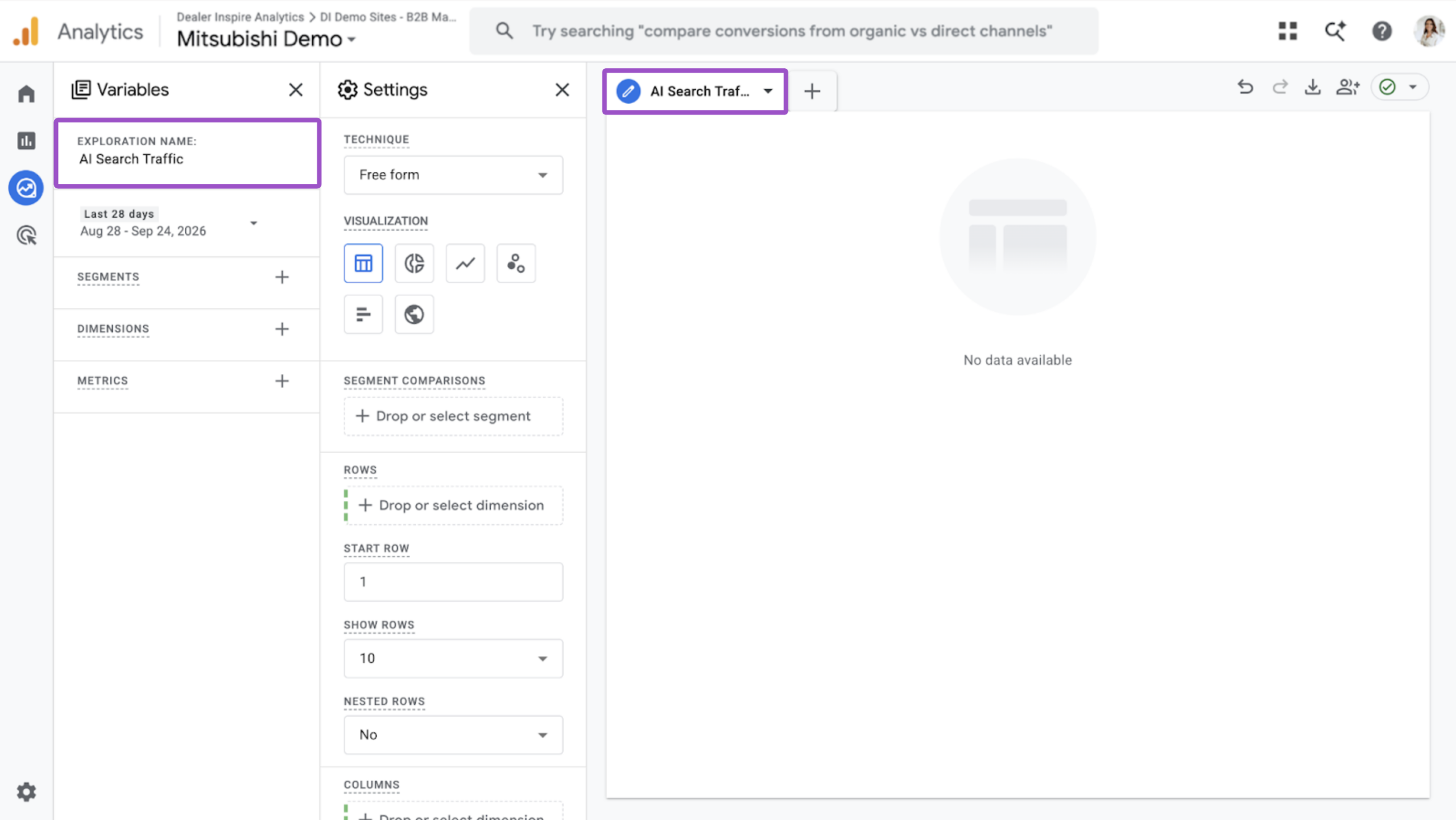
1Start a new exploration
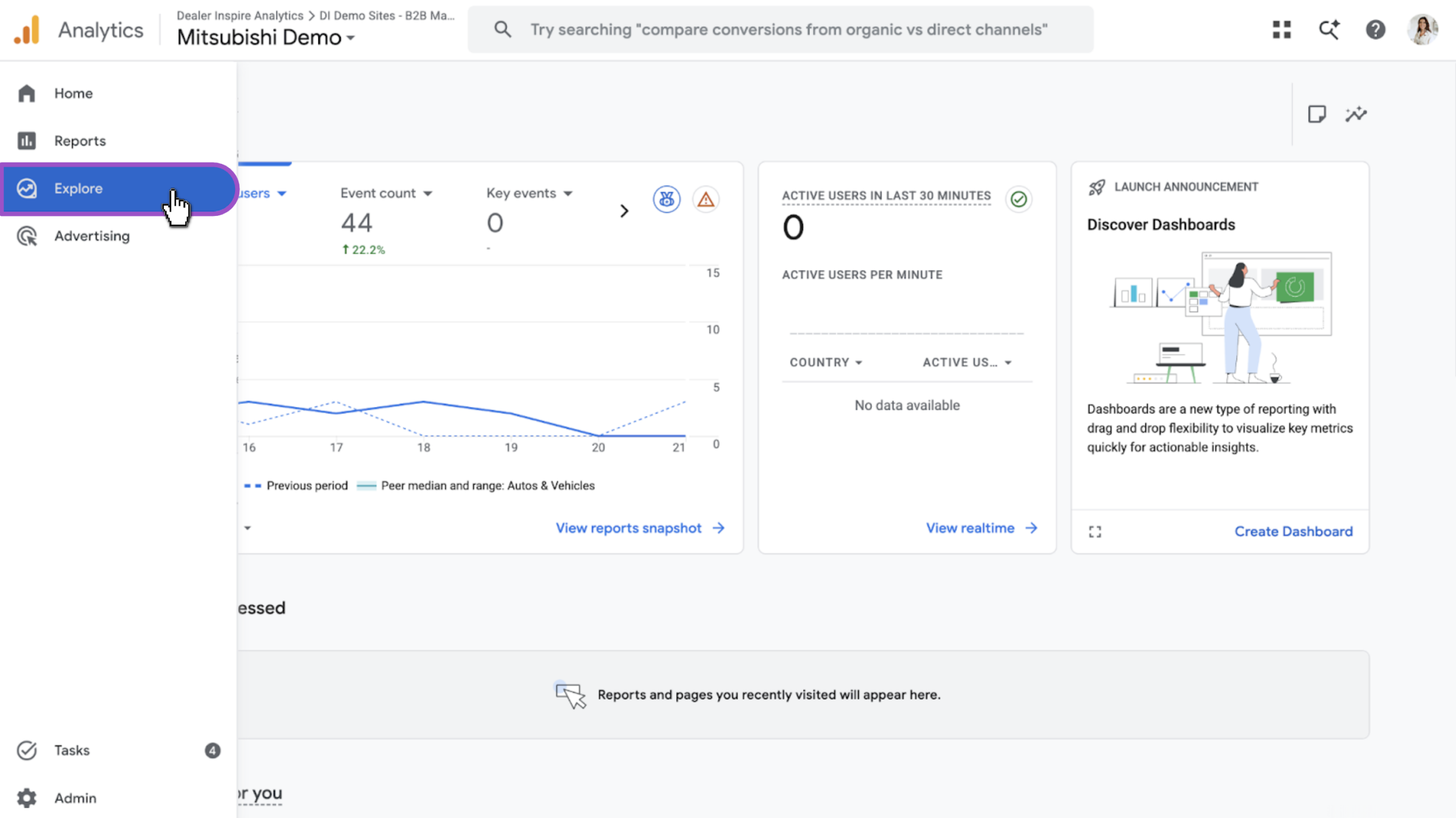
- Select Explore from the left navigation
- Click Blank to start a new exploration report
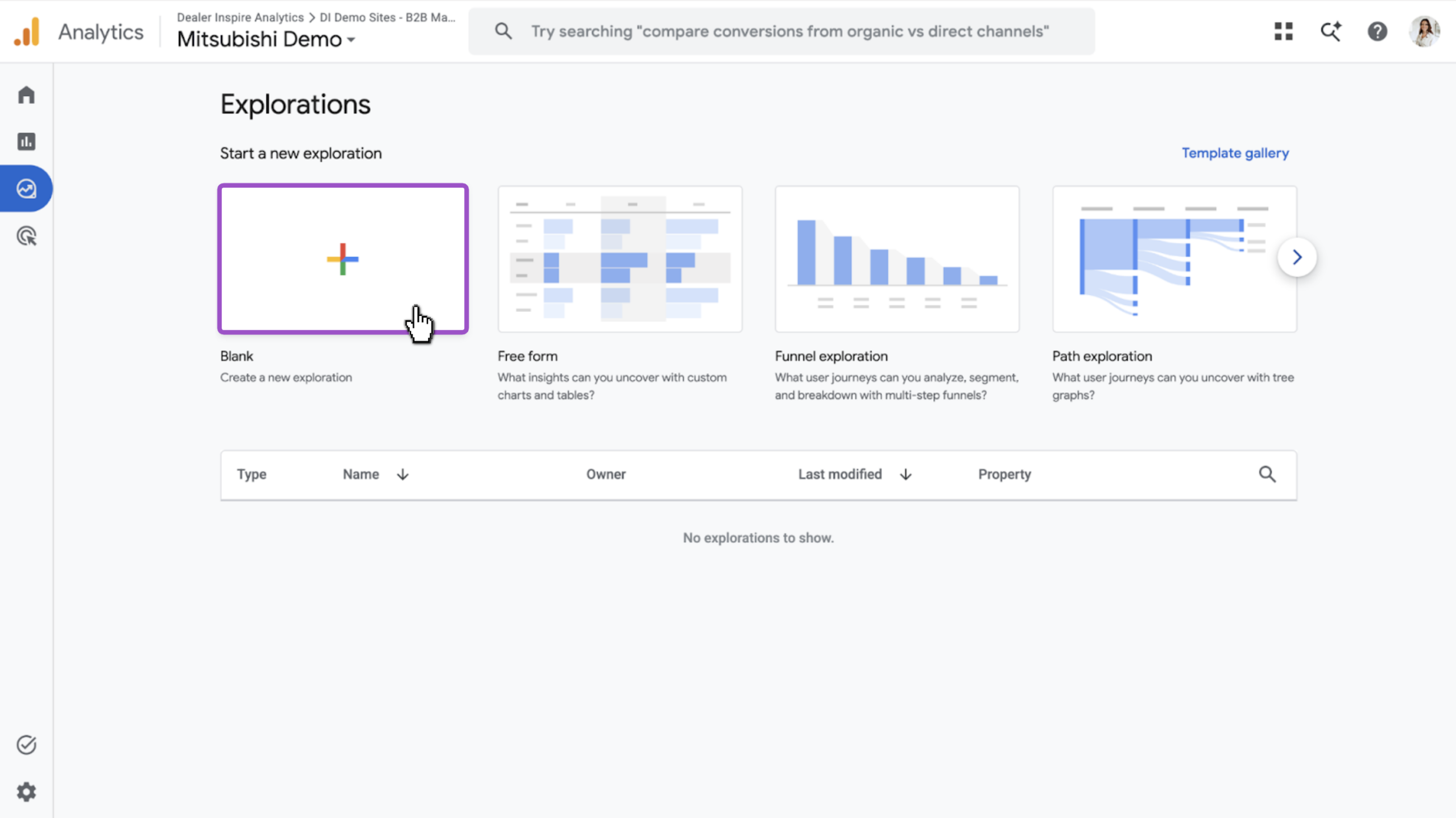
- Click into the text box to title your report and tab AI Search Traffic
2Set your dimension
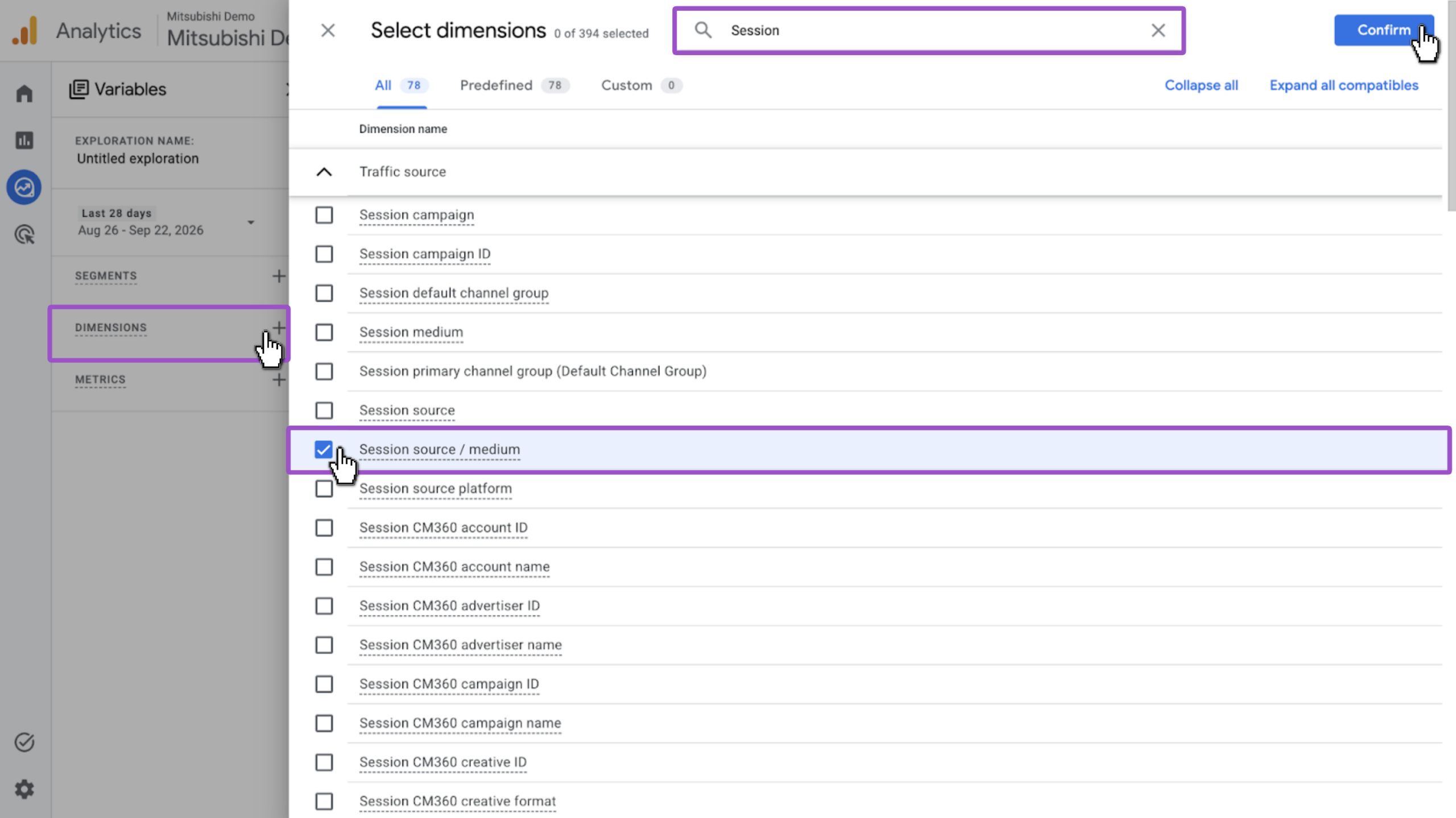
- Locate the Dimensions panel and click the + icon
- Search for and select Session source/medium
- Click Confirm
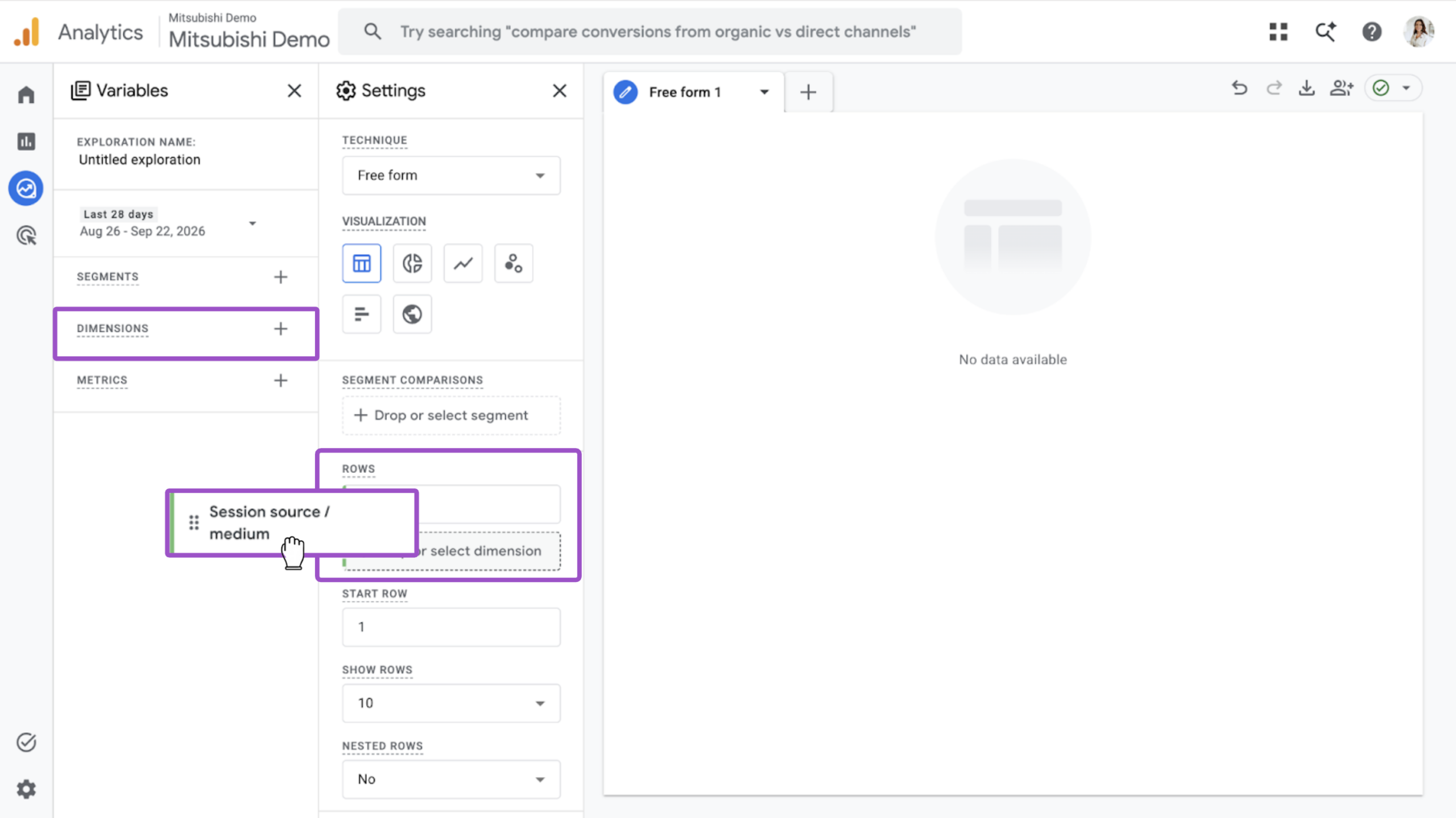
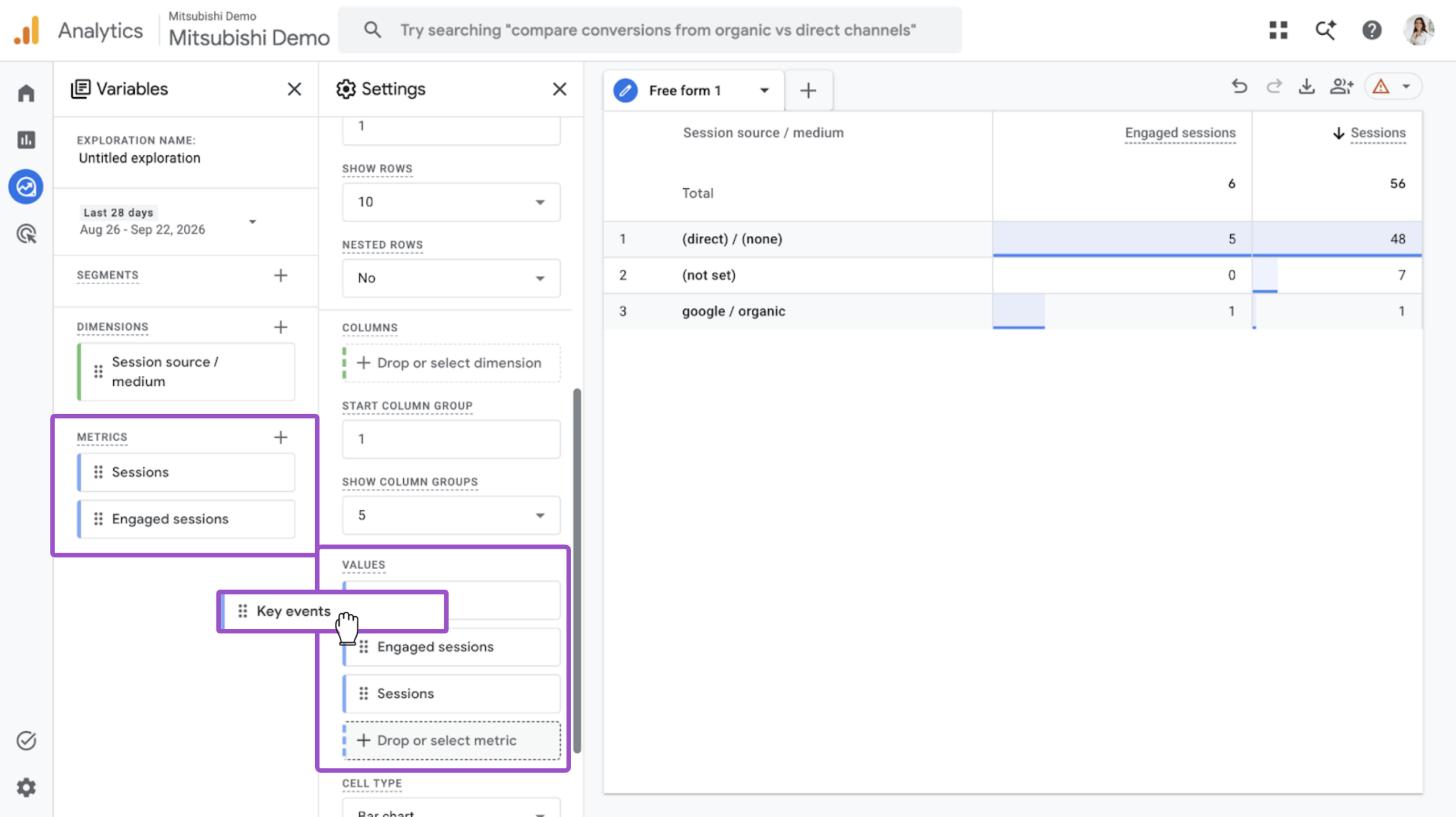
- Drag Session source / medium from Dimensions into the Rows section
3Add your metrics
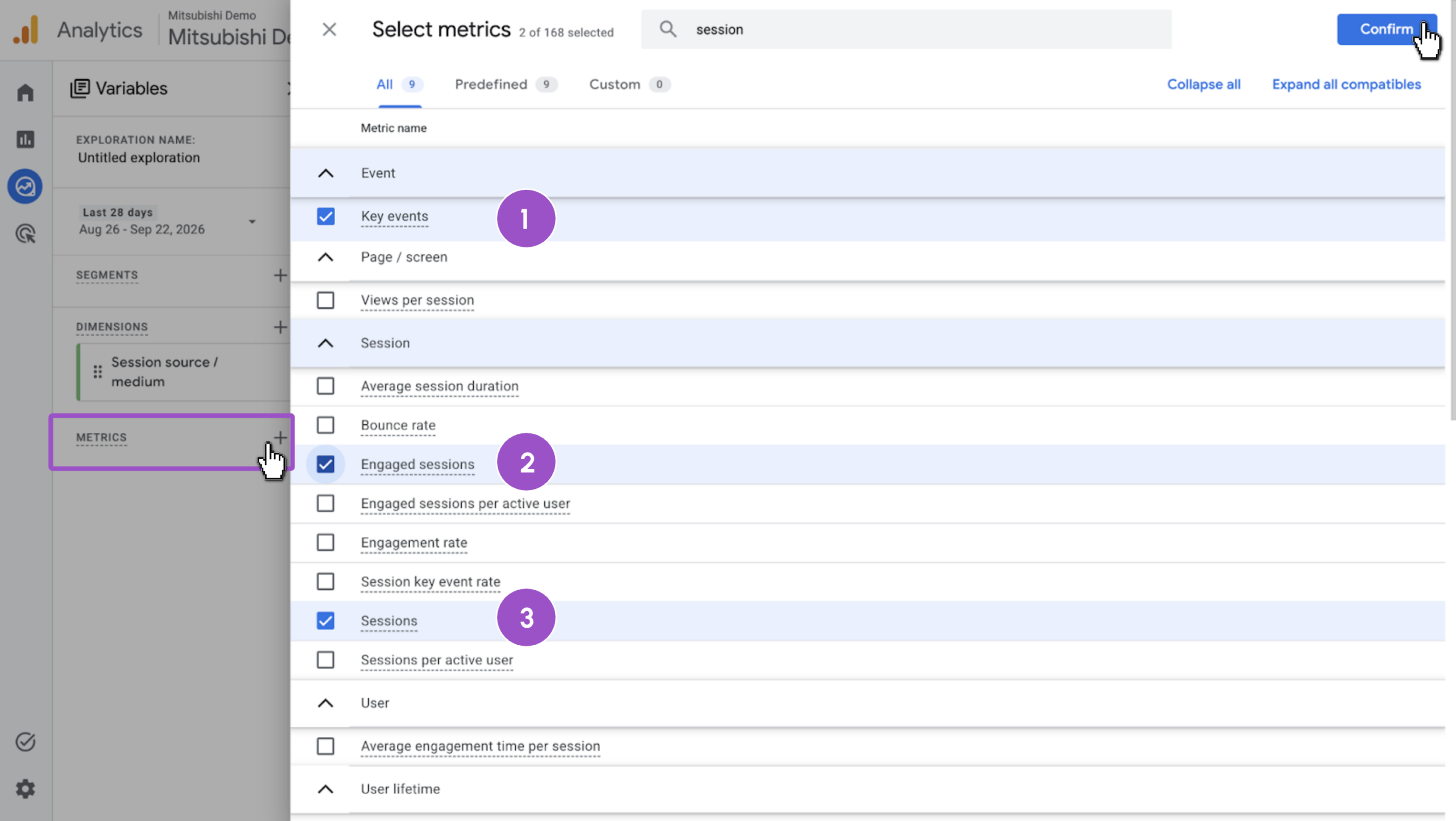
- Locate the Metrics panel and click the + icon
- Search for and select the following metrics:
- Key events
- Engaged Sessions
- Sessions
- Click Confirm
- Drag all three metrics into the Values section
4Create the AI traffic segment
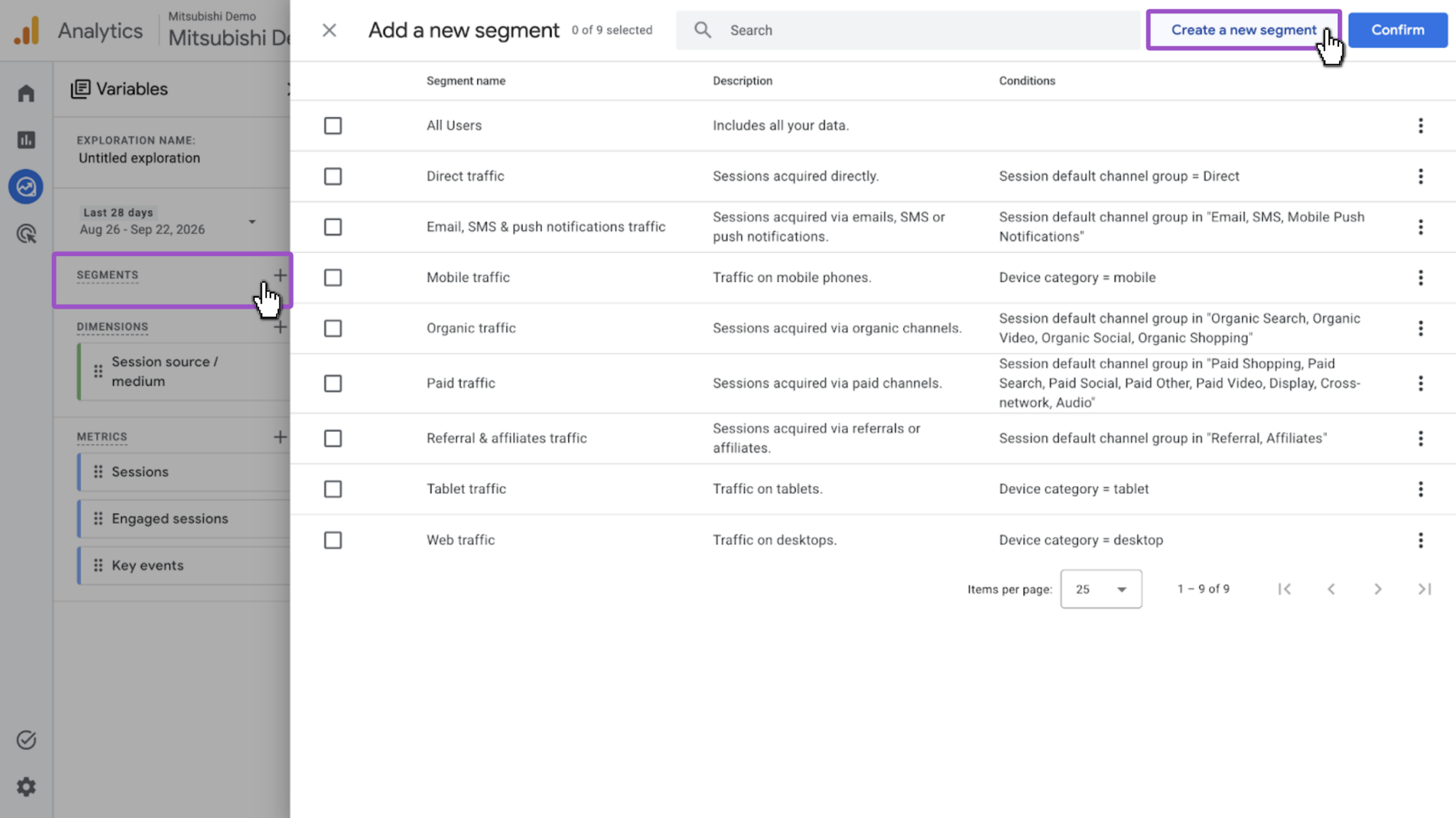
- Locate the Segments panel and click the + icon
- Select Create new segment
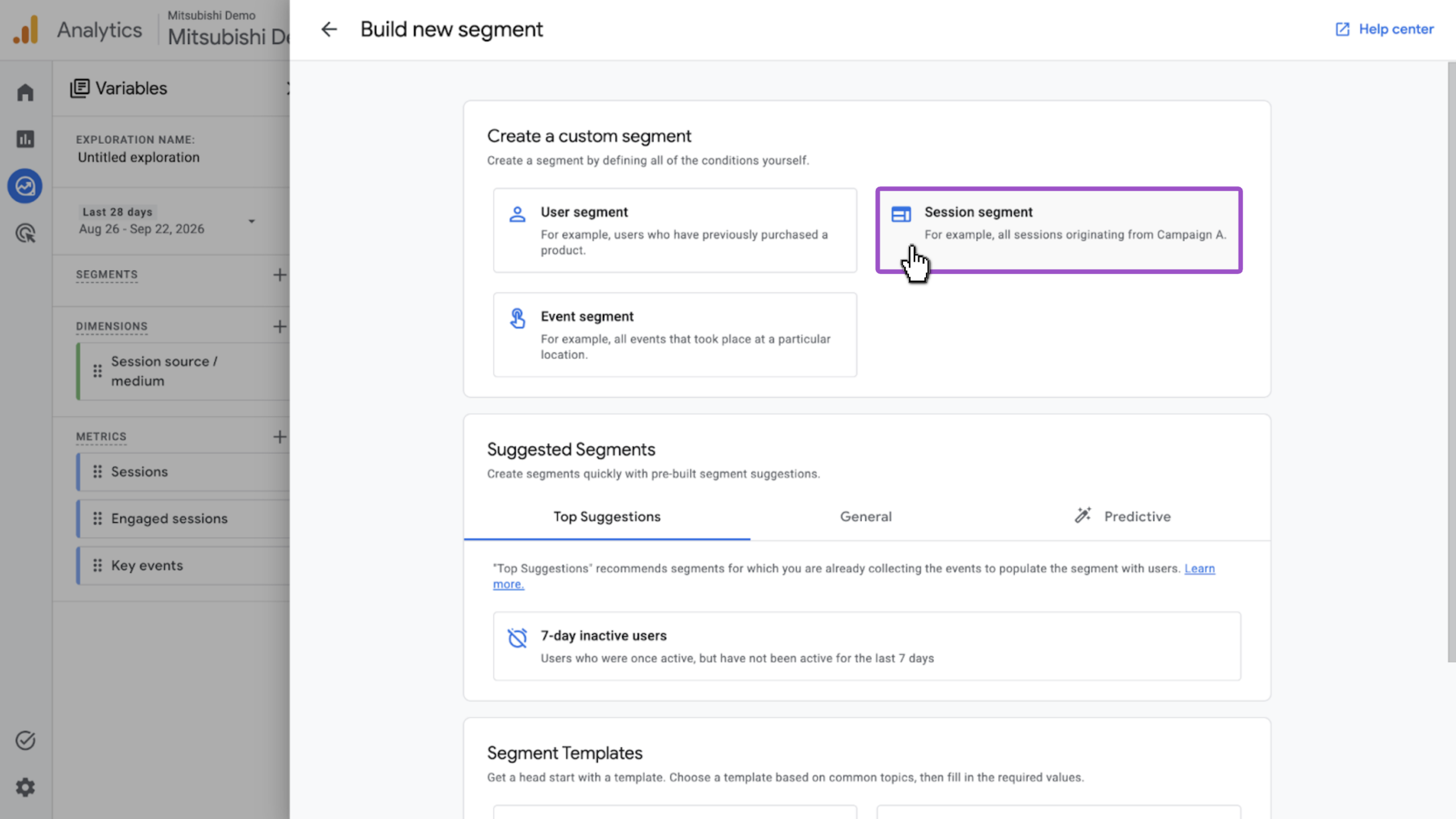
- Select Session segment as the segment type
5Apply the regex filter
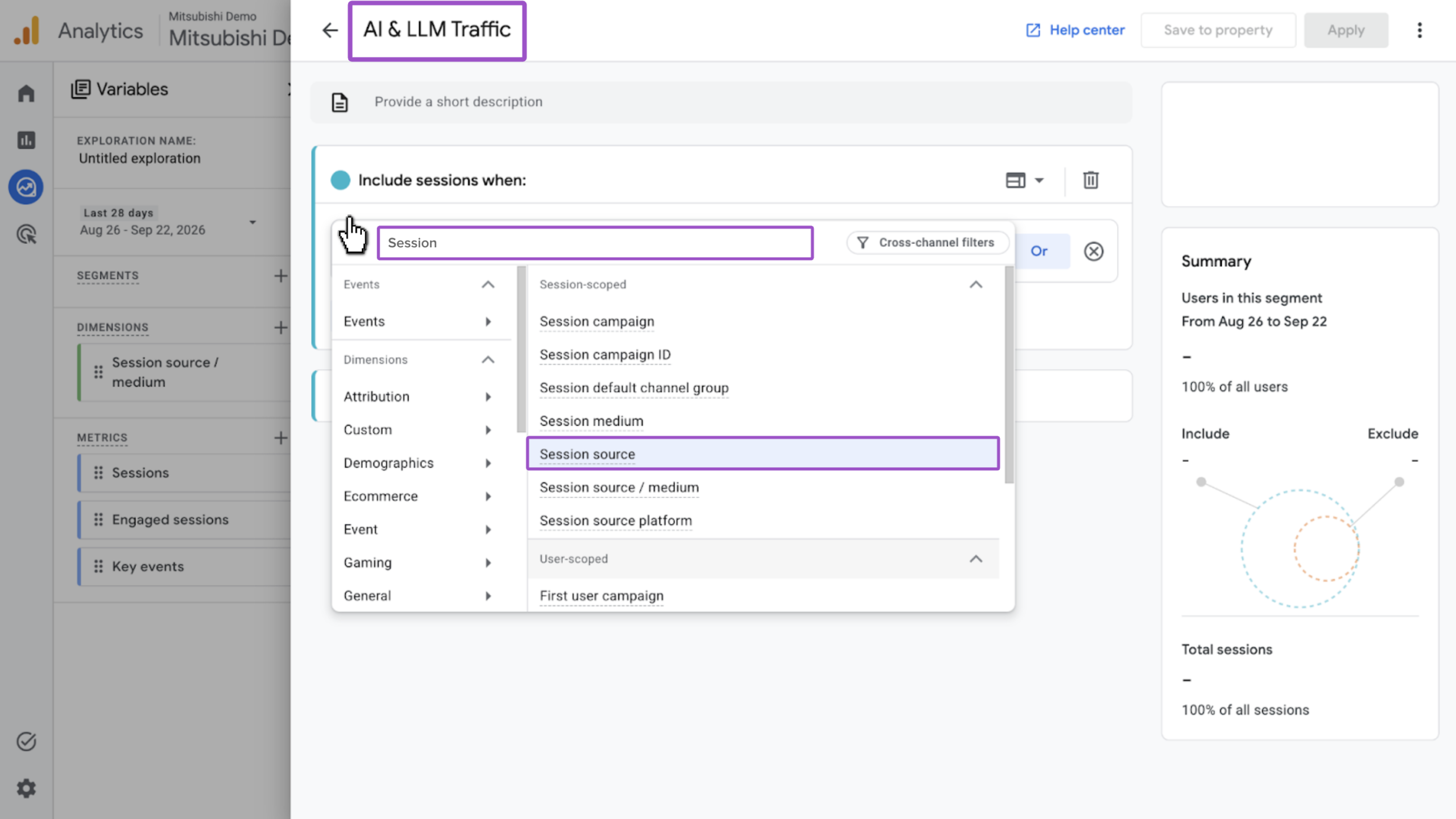
- Name the segment AI & LLM Traffic
- Click Add new condition and search or find Session source
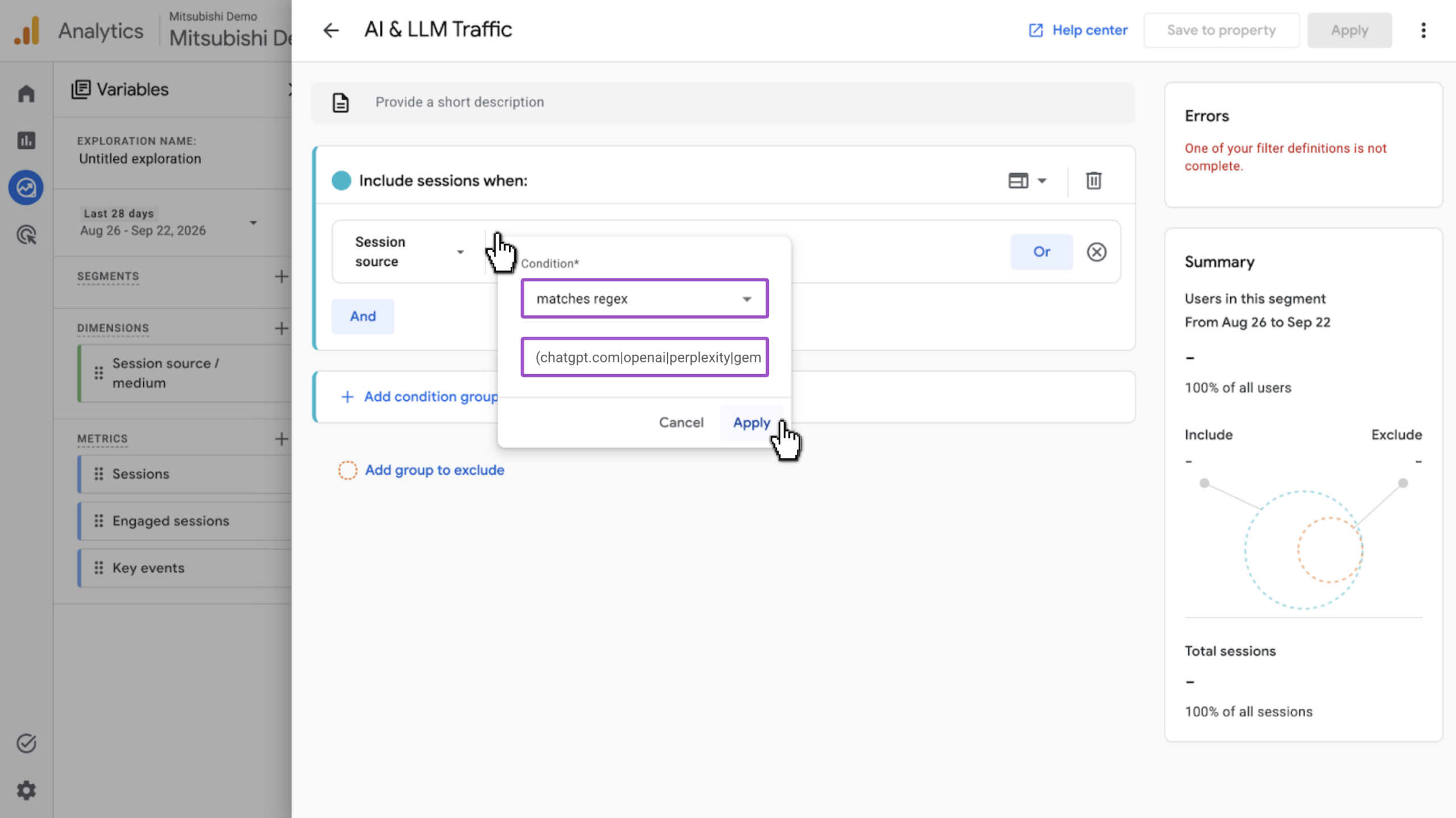
- Click + Add Filter and set the condition to matches regex
- Enter the following filter:
(chatgpt.com|openai|perplexity|gemini.google.com|gemini|copilot.com|copilot.microsoft.com|claude.ai|grok.com)Note: This filter only captures the AI platforms listed today, like ChatGPT, Perplexity, and so on. New platforms launch often. Revisit this regex periodically and add any tools you want to track.
- Click Apply to save the condition
- Click Apply in the top right corner to save the segment
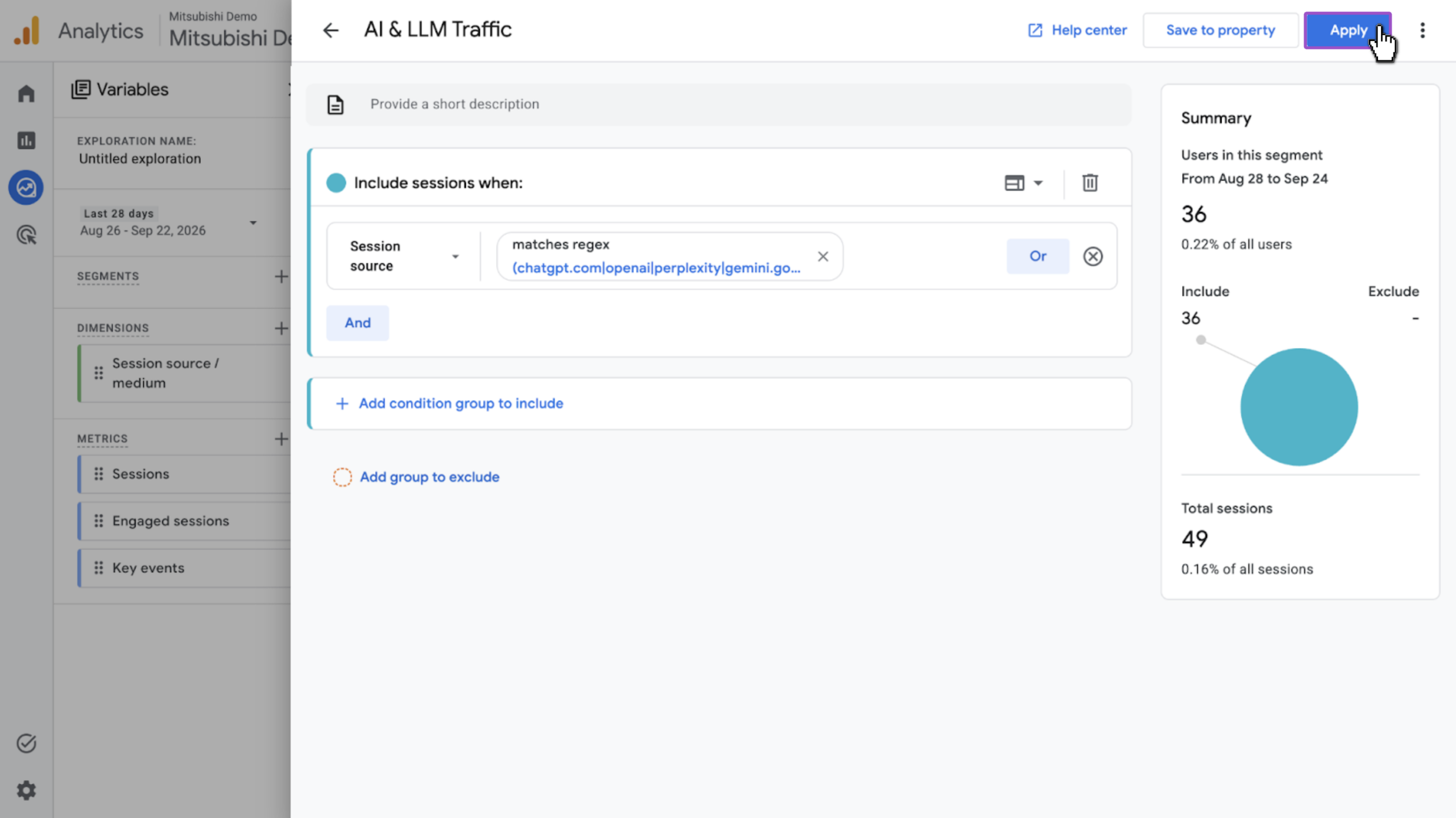
- The AI & LLM Traffic segment should appear under the Segment Comparison panel
- If it does not appear, drag AI & LLM Traffic from the Segments panel into the Segment Comparison panel
- Update date range as needed and view your results
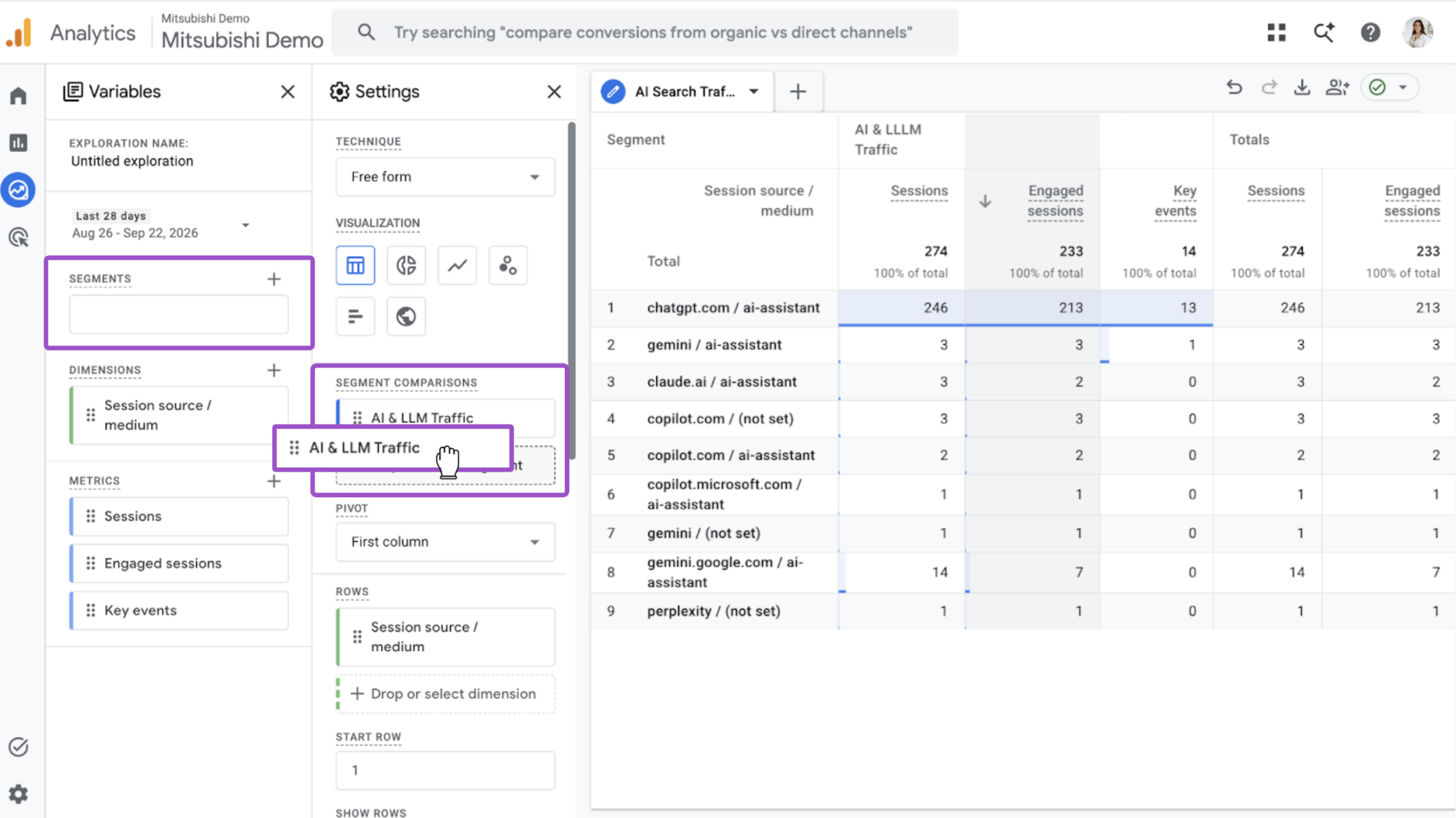
Once applied, your exploration report will break out sessions, engaged sessions, and key events by individual AI platform — giving you visibility GA4’s built-in AI Assistant channel doesn’t offer on its own, since it groups every platform into a single bucket.