How do I edit an OEM-syndicated page?
Syndication is how your OEM transfers and manages content on certain Site Builder pages. If a page is syndicated, your OEM controls what’s on it, and you may see a red restriction bar when you try to edit it. You might want to edit a syndicated page to add a special offer, banner, or other dealership-specific content.
In this article, you’ll learn what the red, orange, and blue restriction bars mean, why a page might be locked, and the steps to get a syndicated page unlocked so you can customize or edit it.
To get started
Go to the Cars.com Hub. Click Dealer Inspire, then Manage Website.
1Open the page you want to edit
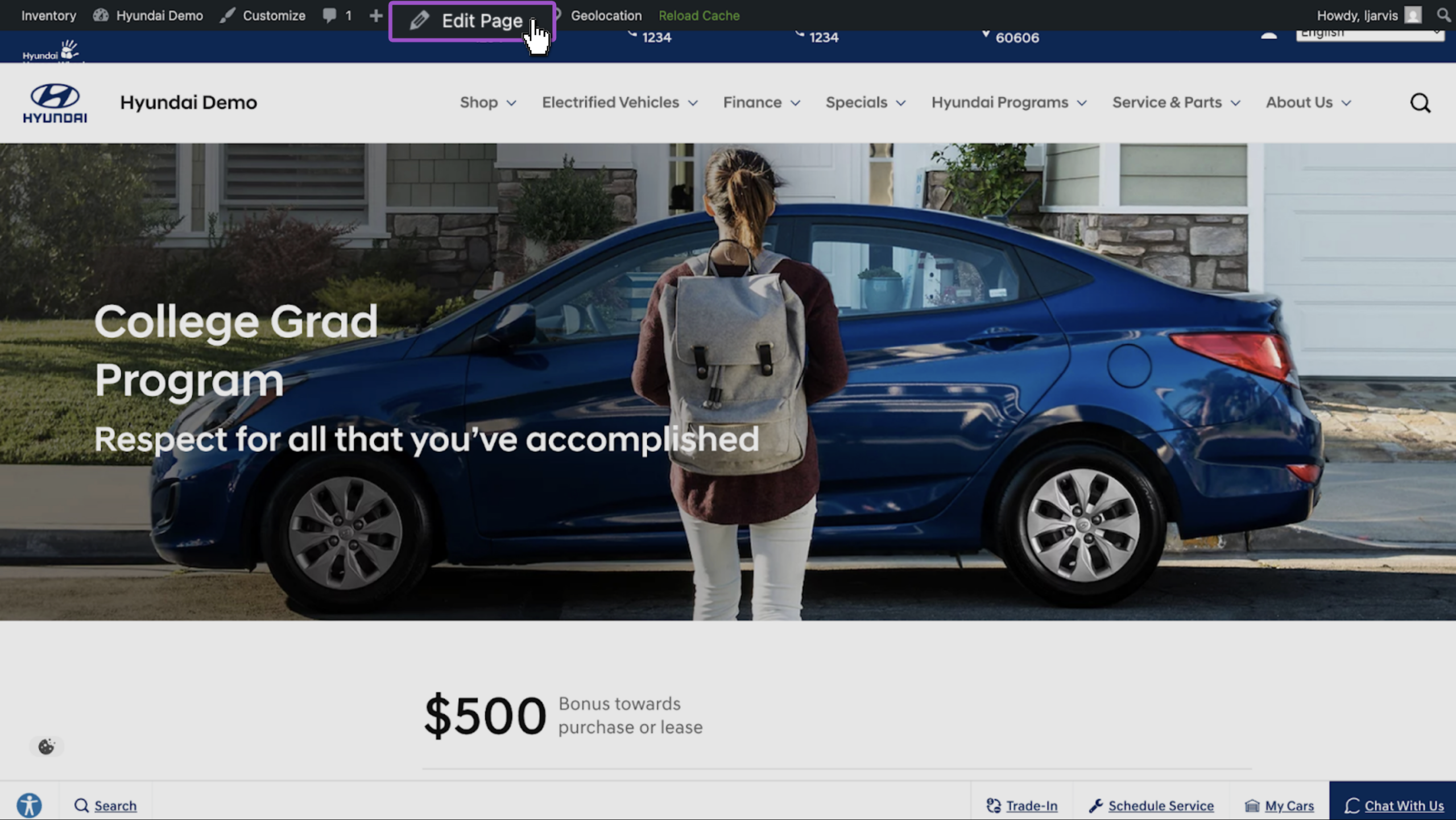
- Find the page you’d like to edit on your website
- Select Edit Page in the top menu bar
- Or, find the page in the Pages plugin in the backend of your website and click into it
2Check the restriction bar color
A colored bar at the top of the page editor tells you what kind of page you’re working with.
- Blue — editable, no restrictions
- Red — syndicated by your OEM
- Orange — syndicated, but unlocked by Support
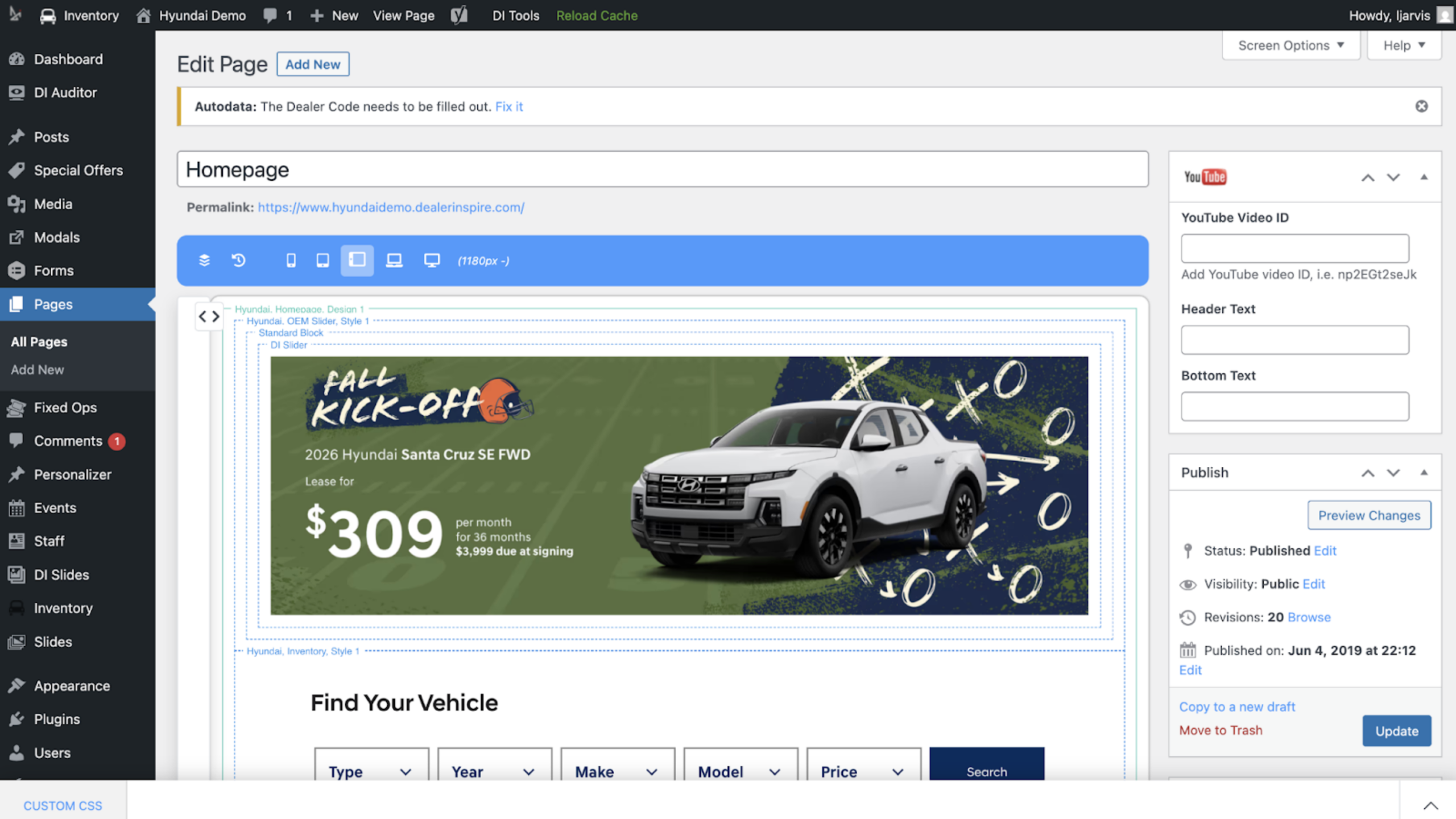
Blue means your dealership created or owns this page. Make any edits with no restrictions.
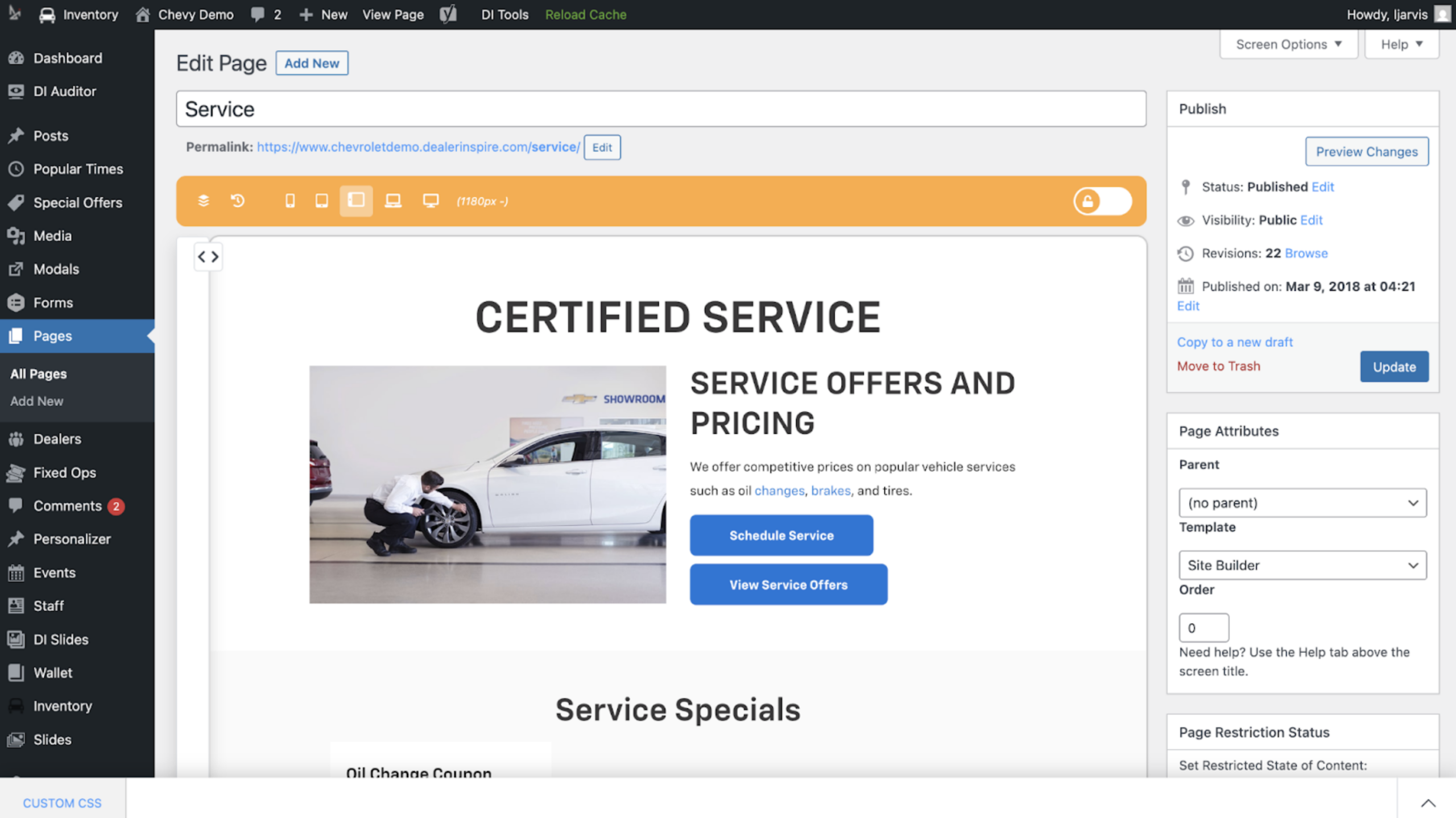
Orange means this page was syndicated, but our Support team has paused syndication so you can personalize editable components.
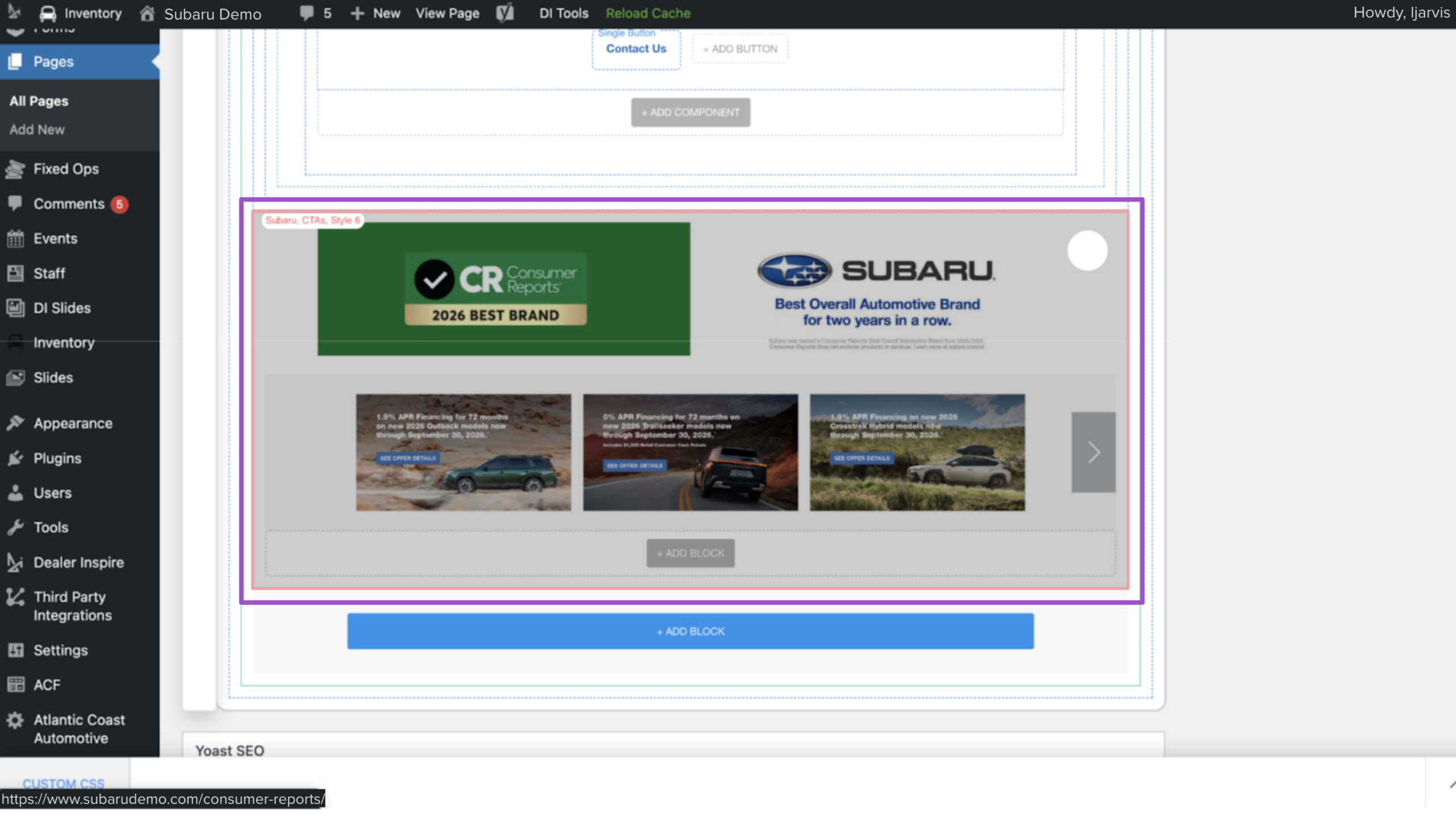
If you come across a component outlined in red, even on an orange, unlocked page, that section is still locked so your OEM can guarantee they always stay in sync with brand updates.
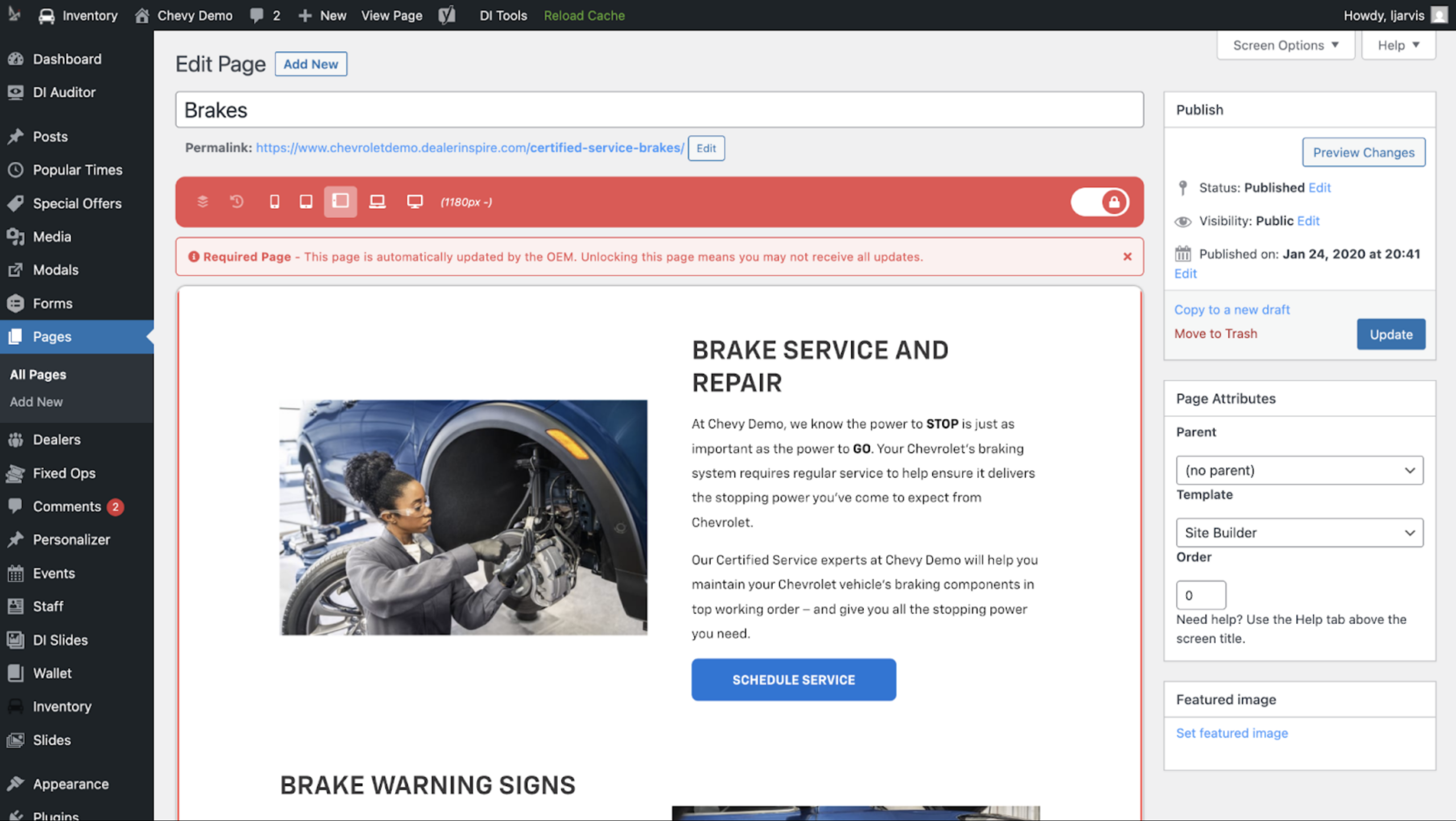
Red means this is an OEM-syndicated page. Your OEM maintains and may require this page, and you don’t have the ability to edit it right now.
Note: Syndicated pages vary by OEM. Whether you can unlock a red page at all depends on what your OEM allows.
3Confirm what your OEM allows
- Reach out to your Performance Manager
They’ll provide details on which pages your OEM syndicates and whether unlocking them is an option for your dealership.
4Request an unlock from support
- Email support@dealerinspire.com and include the syndicated page you want to edit
- Support pauses syndication and toggles off the lock icon
- The bar turns from red to orange, confirming the page is now editable
Note: Pausing syndication also pauses OEM updates to the page. Turning syndication back on reverts any edits you made while it was paused and the OEM’s content replaces your changes.
5Make your edits
Once the bar turns orange, edit the page like any other Site Builder page.
- Add or update text, images, or components
- Save or publish your changes
Need more information? Learn how to edit pages with Site Builder.
Best practice: Make all your edits in one session while a page is unlocked. Confirm with Support before turning syndication back on.
6Re-enable syndication for OEM updates
Turn syndication back on once you no longer need the page unlocked — for example, if a time-sensitive promotion has ended or the page needs to be back in compliance with OEM standards.
- Contact support@dealerinspire.com when you’re ready to turn syndication back on.
Note: Turning syndication back on reverts any edits you made while it was paused. The OEM’s content replaces your changes.
FAQ
Will I lose my changes when syndication is turned back on?
Yes. Any edits made to a previously syndicated page revert to the OEM’s content once syndication is restored.
Can I unlock any syndicated page?
Not always. Some OEMs don’t allow their syndicated pages to be unlocked. Check with your Performance Manager or Support for what’s allowed on your brand.
Why can’t I edit a section even though the page is unlocked or orange?
Some components stay locked even on an unlocked page. Your OEM keeps control of those sections so they always stay in sync with brand updates.
Who do I contact for syndication questions?
Contact your Performance Manager for OEM-specific syndication details. Contact support@dealerinspire.com to request a page be unlocked.