How to use and manage Save & Compare
Save & Compare is a feature built into every Dealer Inspire website that lets shoppers save vehicles to a profile (My Cars) and compare them side-by-side on your site. Shoppers who save and compare vehicles show real buying intent before they even fill out a lead form.
In this article, you’ll learn how to turn Save & Compare on or off, how Save & Compare actions turn into leads, and where to go for performance reporting.
To get started
Go to the Cars.com Hub. Click Dealer Inspire, then Manage Website.
What is Save & Compare
Save & Compare lets shoppers save vehicles to a profile and compare them side-by-side, right from your website. Here’s what that experience looks like for shoppers on your site.
Browse and save inventory
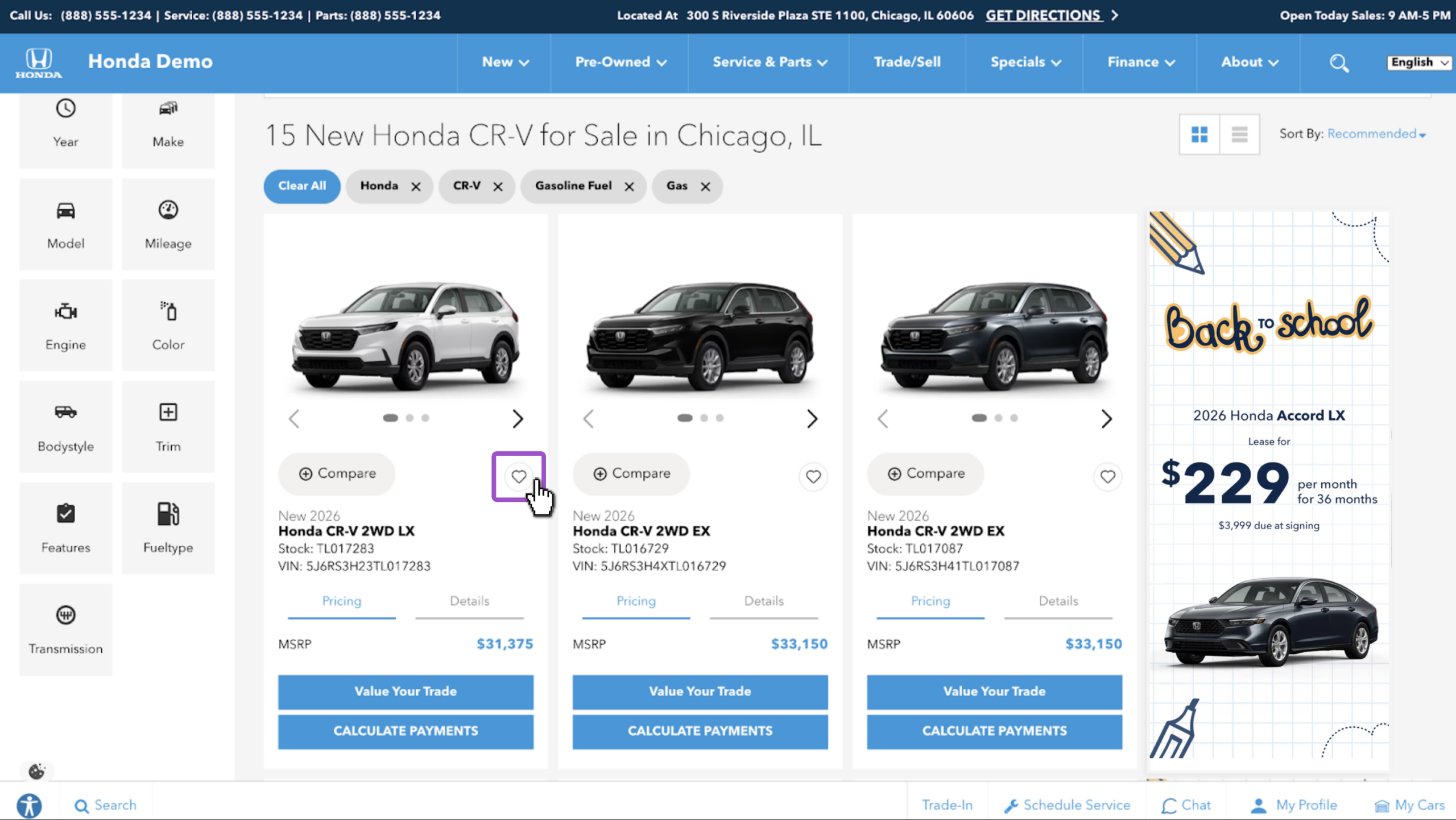
Shoppers click the heart icon on any vehicle card to add it to save it to their profile.
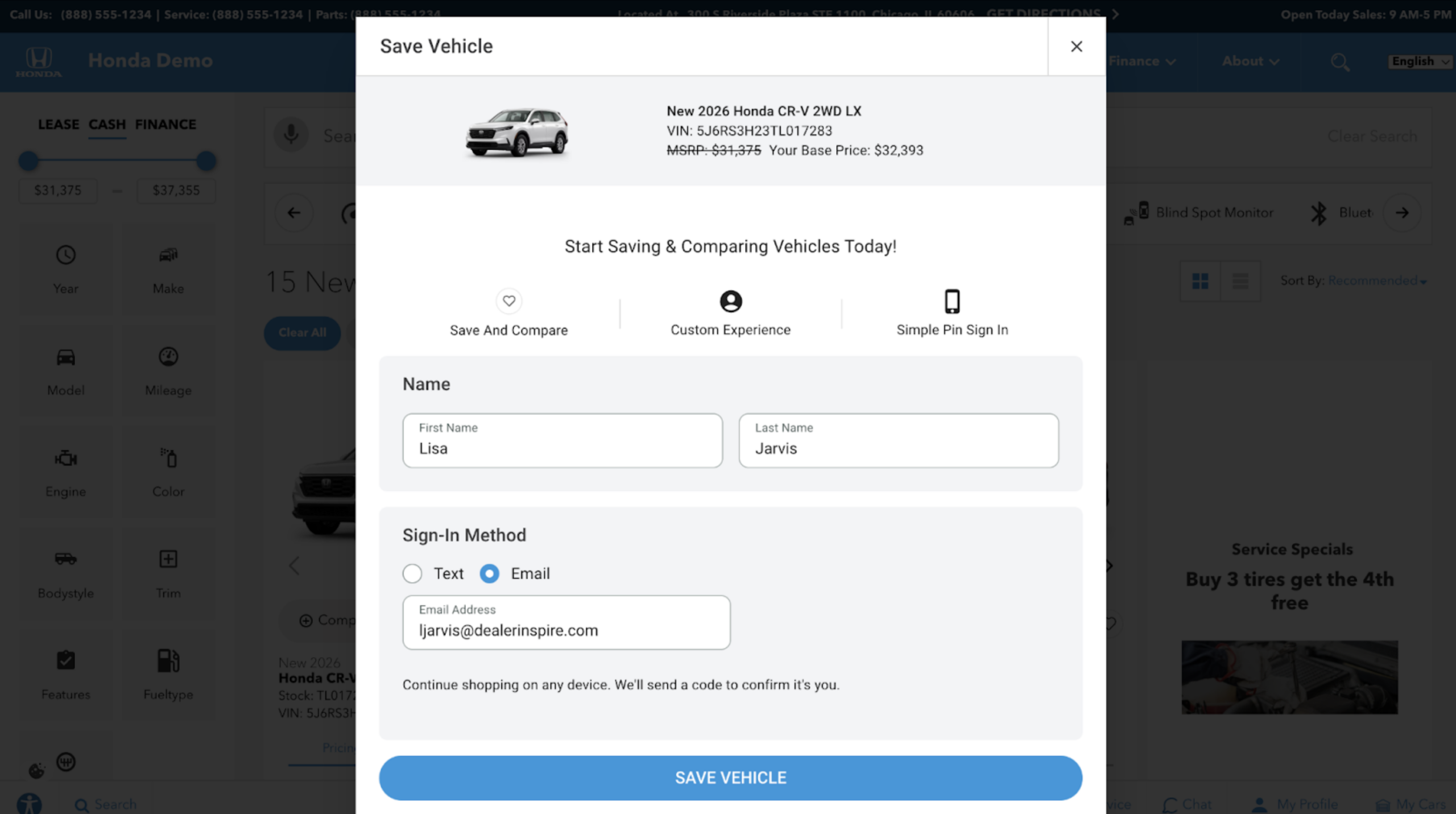
Shoppers are prompted to create a new profile or sign in to an existing profile. Creating a profile will trigger a lead to your CRM through Automatic.
Access saved vehicles in My Cars
Vehicles save to My Cars, so shoppers can pick up where they left off from any page on your site.
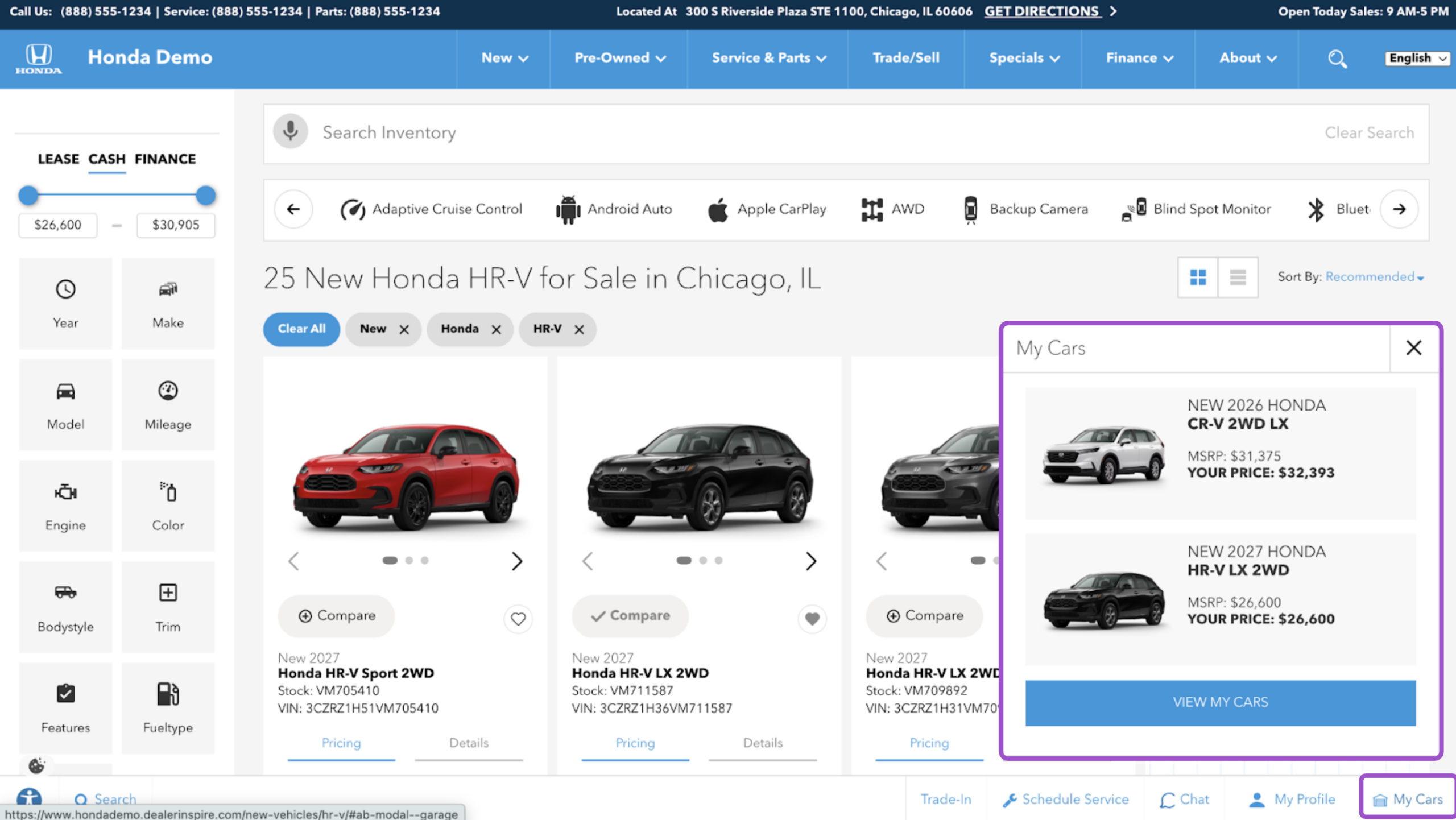
Compare vehicles side-by-side
Once a shopper saves two or more vehicles, they can open the comparison table to view pricing, payments, and specs side-by-side.
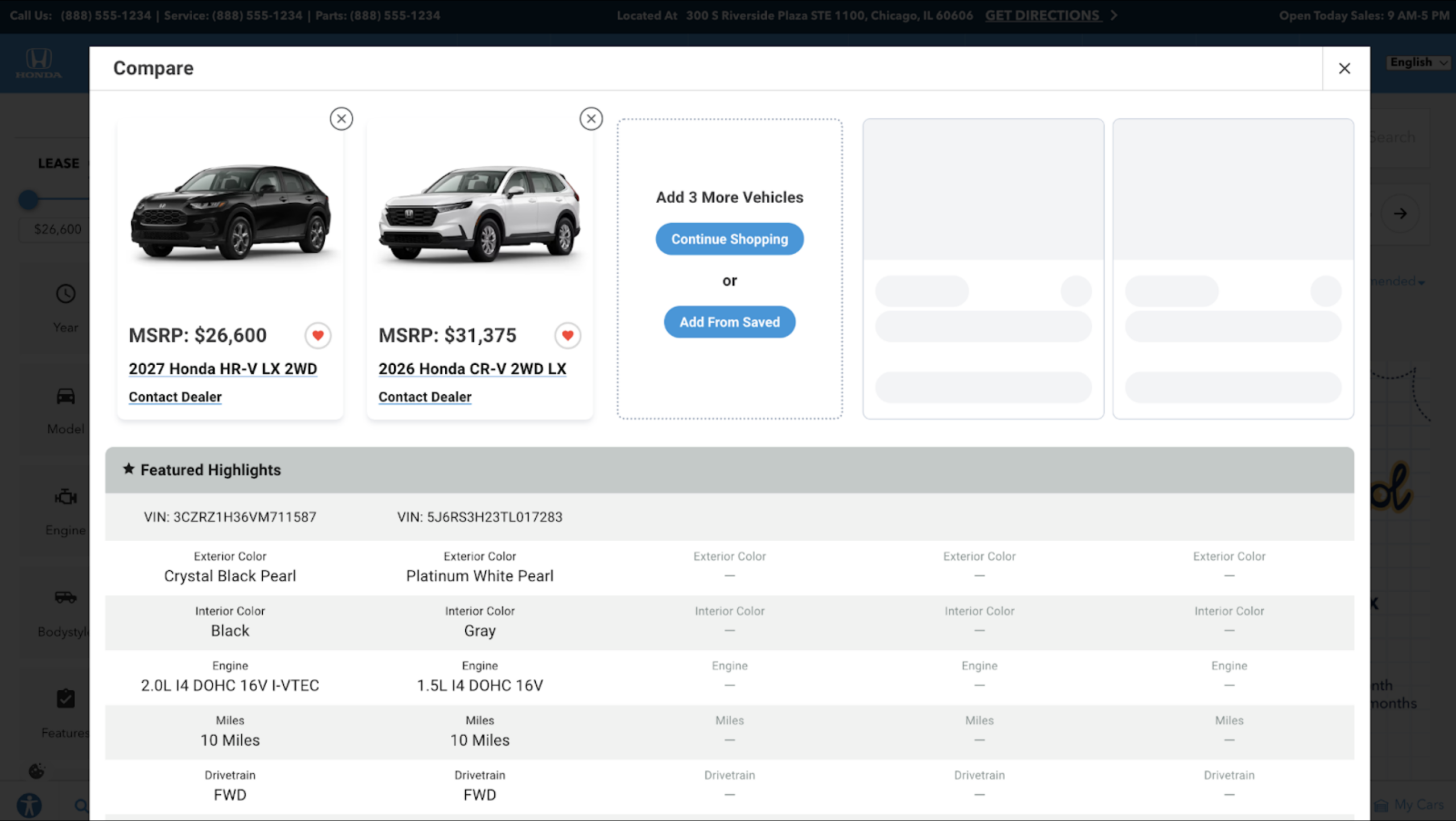
All dealers have access to this feature. Confirm that Save & Compare is turned on for you.
How to enable Save & Compare
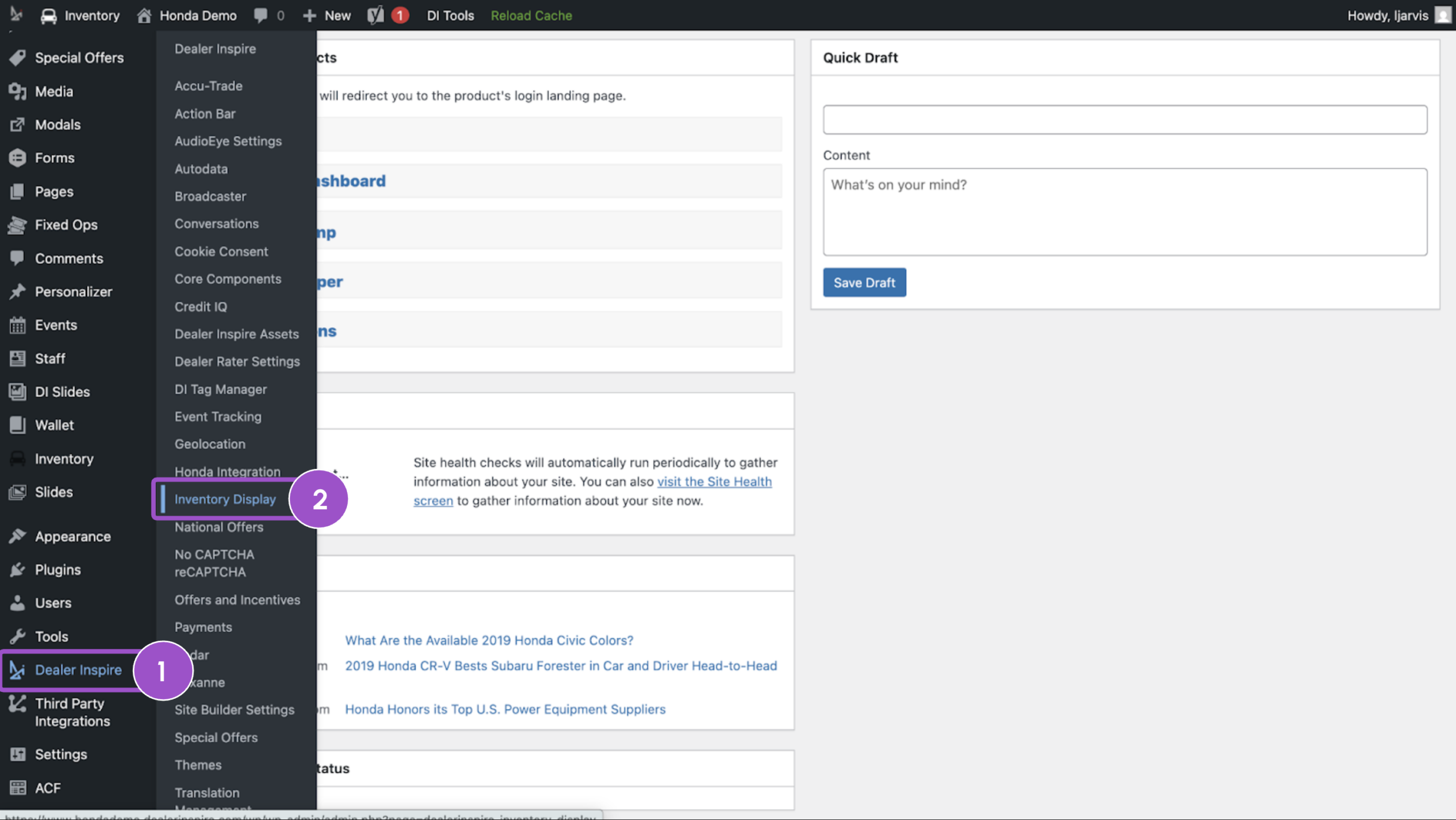
1Navigate to Inventory Display Settings
From the backend of your website:
- Click Inventory Display
- Scroll to find Dealer Inspire on the left sidebar and hover over it
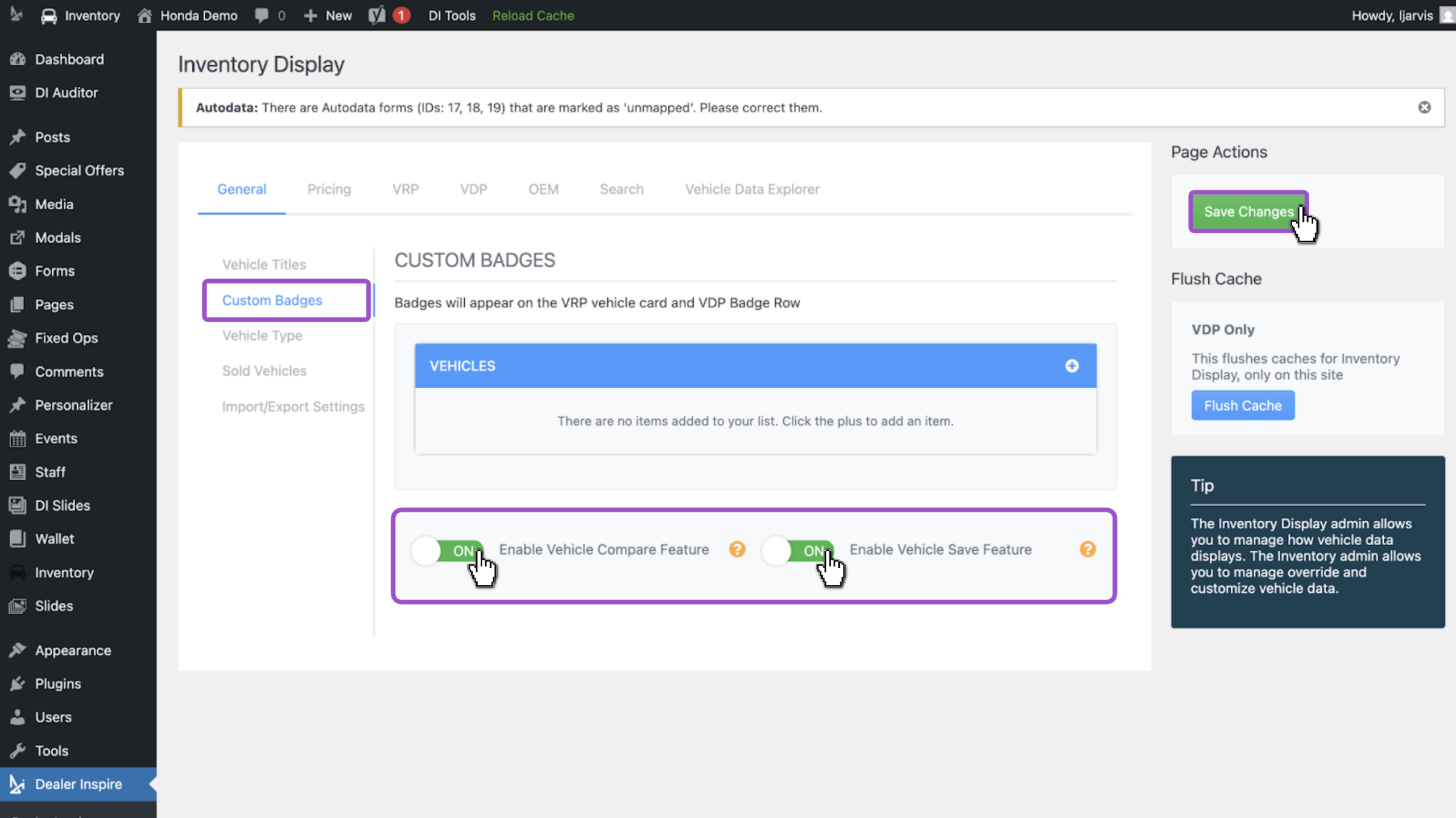
2Turn Save & Compare on
- Click the Custom Badges tab under General
- Find the Enable Vehicle Compare Feature and Enable Vehicle Save Feature toggles
- Click the toggle to turn it on (green) or off (gray)
- Click Save Changes
3Review Save & Compare performance
- Click Save & Compare from the Google Looker Studio report
- From here, you can review:
- Save and Compare Clicks: Total clicks on saved vehicles and comparison actions
- Vehicle Engagement Trends: A daily breakdown of Save & Compare activity
- Inventory-Level Insights: Which vehicles are being saved and compared the most
- Lead and VDP Impact: Correlation between Save & Compare interactions and key performance metrics like leads and pageviews
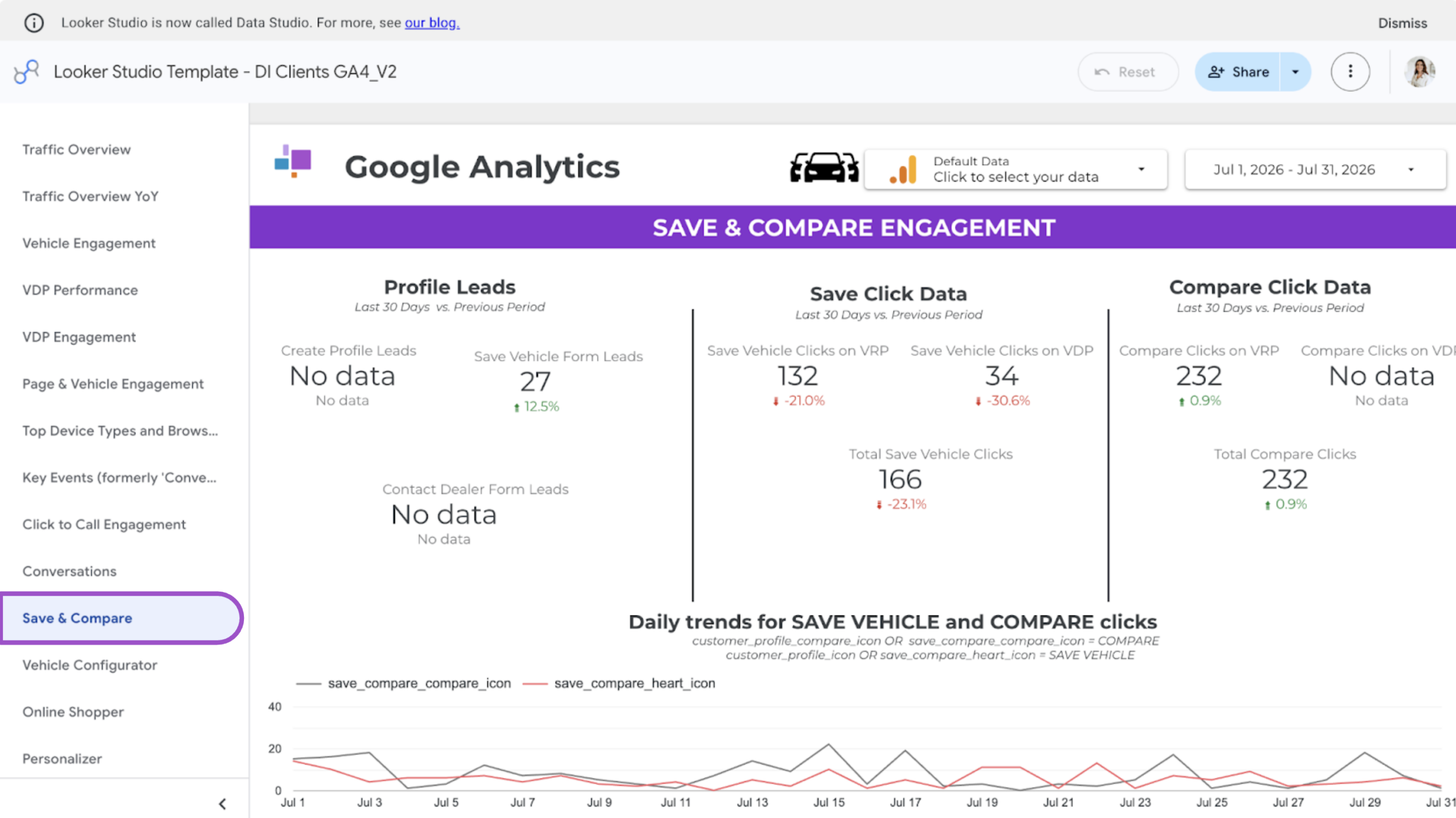
Note: Your Performance Manager (PFM) sets up the Looker report for you. If you need the link or need access to your report, reach out to your PFM.
How Save & Compare actions become leads
- Compare: a shopper adds a vehicle to the comparison table to view it side-by-side with others. Compare actions don’t generate a lead — they’re purely an engagement signal.
- Save: a shopper clicks the heart on a vehicle to save it to their profile. Save actions do generate a lead by default, since saving requires creating a profile.
- Saved shopper info routes to your CRM through Automatic unless the lead gate is turned off
You’ll see Save and Compare as the lead source in Automatic.
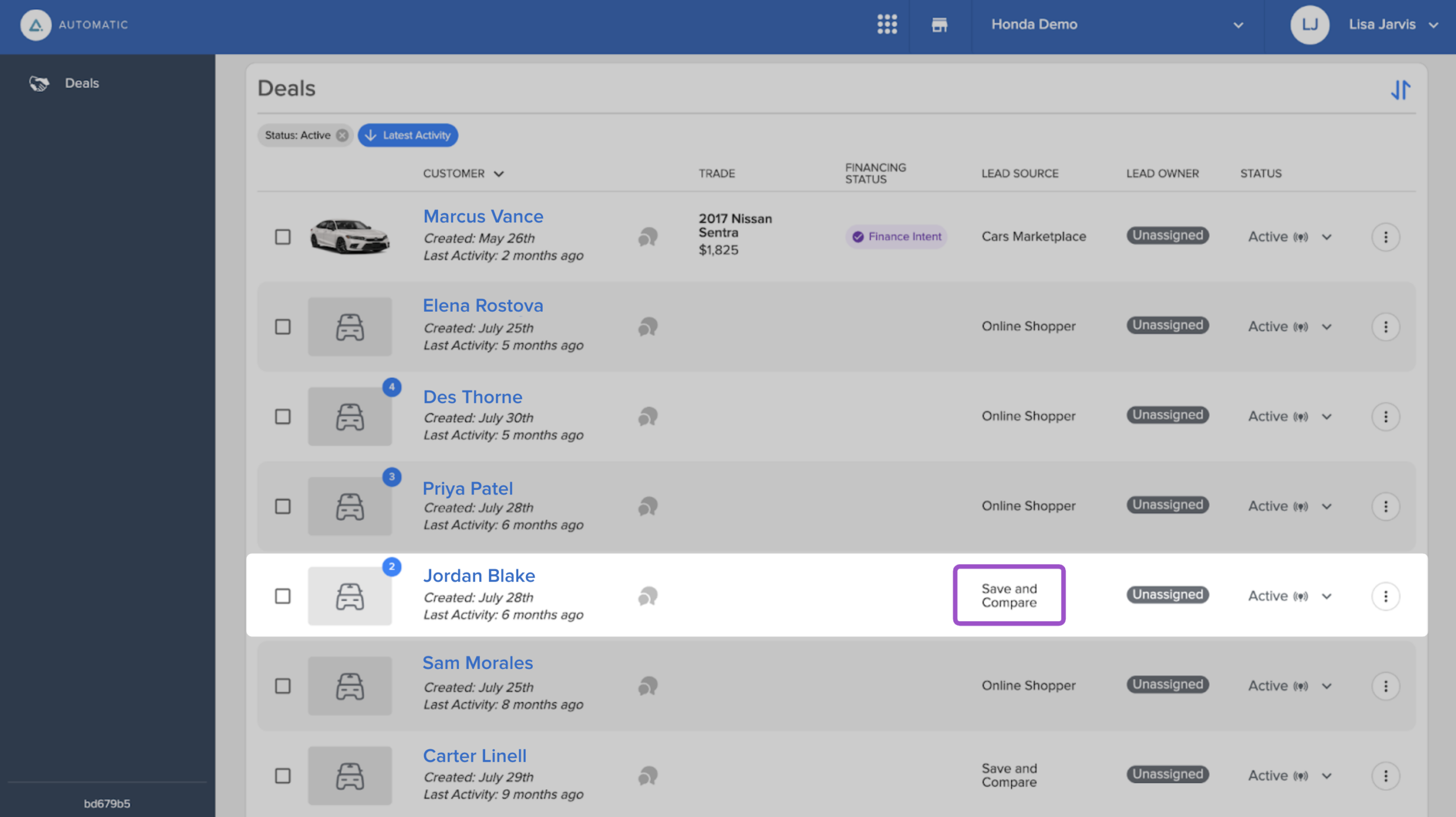
Note: Turning off the Save lead gate stops Save actions from sending shopper info to your CRM. Shoppers can still save and compare vehicles.
Want to request changes to your Save lead gate? Email support@cars.com.