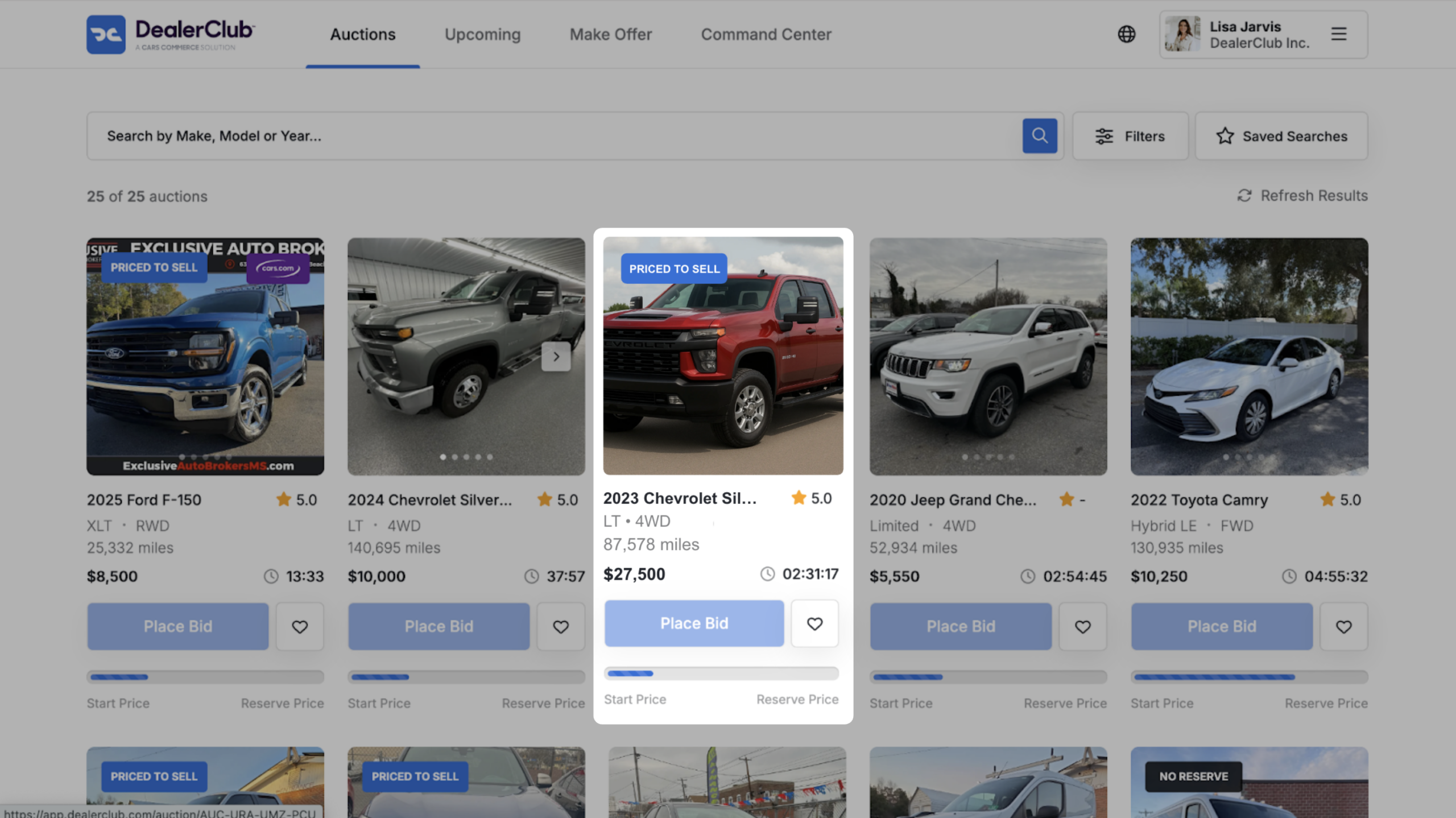
How to set your reserve using AccuTrade pricing insights
Your reserve price is the minimum you’re willing to accept for a vehicle at auction. Setting it strategically — using real-time market data from AccuTrade — helps you protect your margin while staying competitive with buyers.
In this article, you will learn how to choose your reserve type, understand the Target Auction Price, set your reserve amount, and earn the Priced to Sell badge.
To get started
Go to the Cars.com Hub and click on DealerClub.
1Select your Reserve type
After completing your Condition Report, you’ll land on the Reserve Price page. Choose one of two options:
- Set a Reserve Price — a Target Auction Price powered by AccuTrade populates automatically to help you set a competitive minimum
- No Reserve — no minimum price; you’re committing to a sale at the final bid
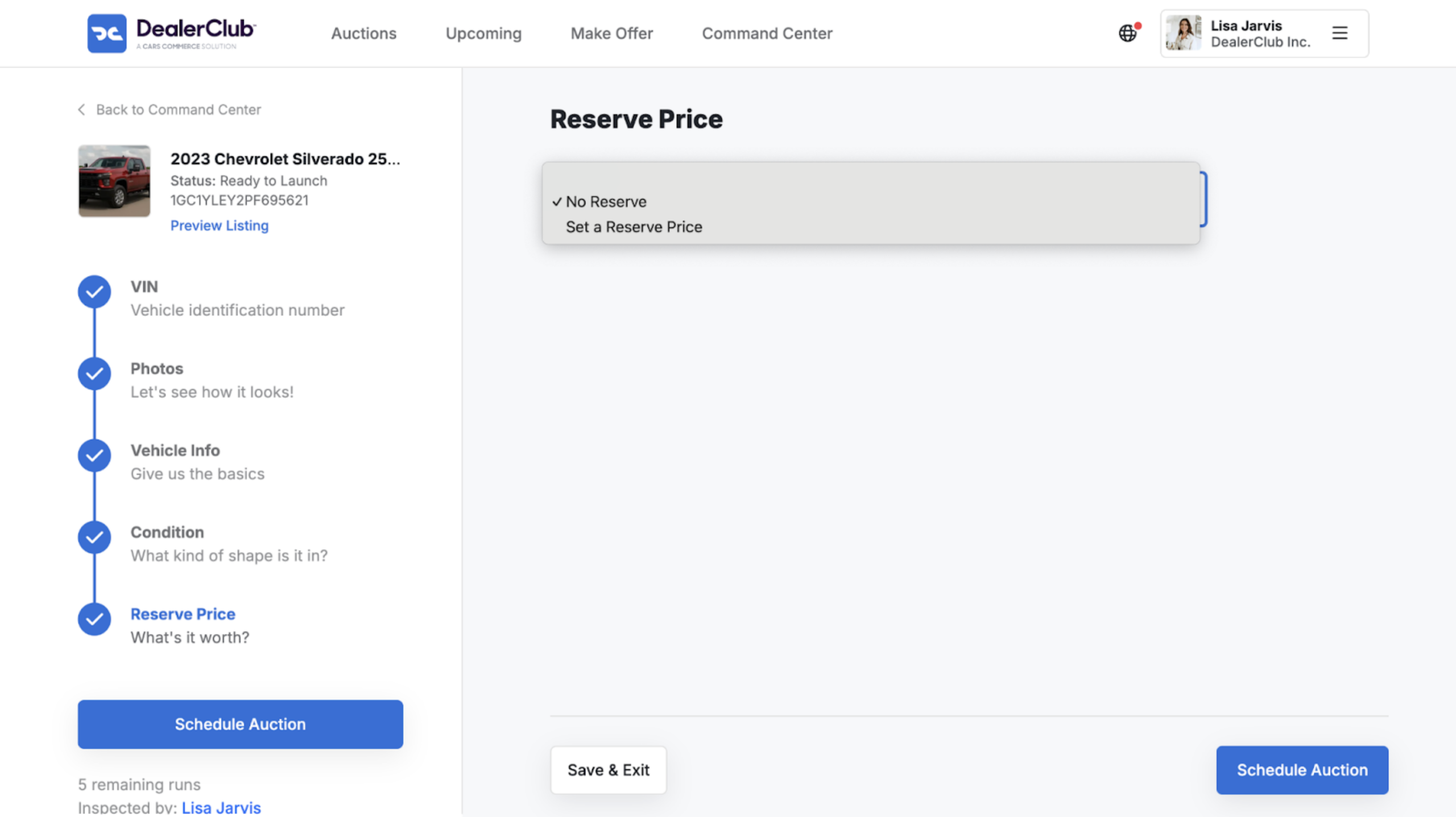
Not sure which to choose? If the AccuTrade pricing data shows strong demand for that unit, No Reserve can drive more bidding activity. If you need to protect a margin floor, Set a Reserve Price keeps you covered.
2Review the Target Auction Price
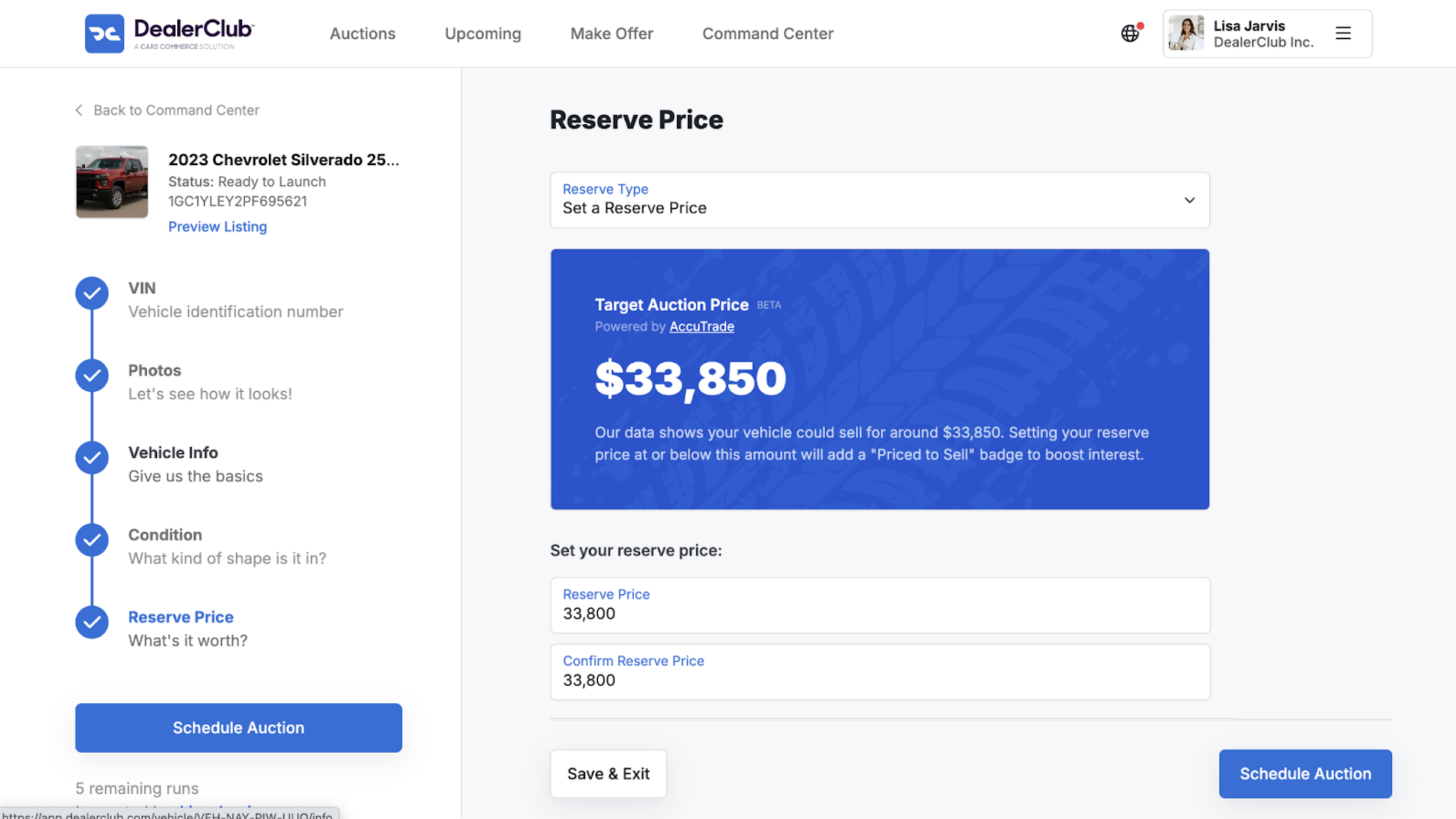
Selecting Set a Reserve Price pulls in AccuTrade market data to show you what your vehicle is likely to sell for.
- The Target Auction Price reflects current market conditions for that vehicle
- Setting your reserve at or below this amount automatically adds a Priced to Sell badge to your listing. Badges drive higher view counts and more bidding activity by signaling a fair market deal to buyers
For this vehicle, the target auction is $33,850.
3Enter and confirm your reserve price
- Enter your amount in the Reserve Price field
- Confirm the amount in the Confirm Reserve Price field
- Click Schedule Auction to proceed to the scheduling window
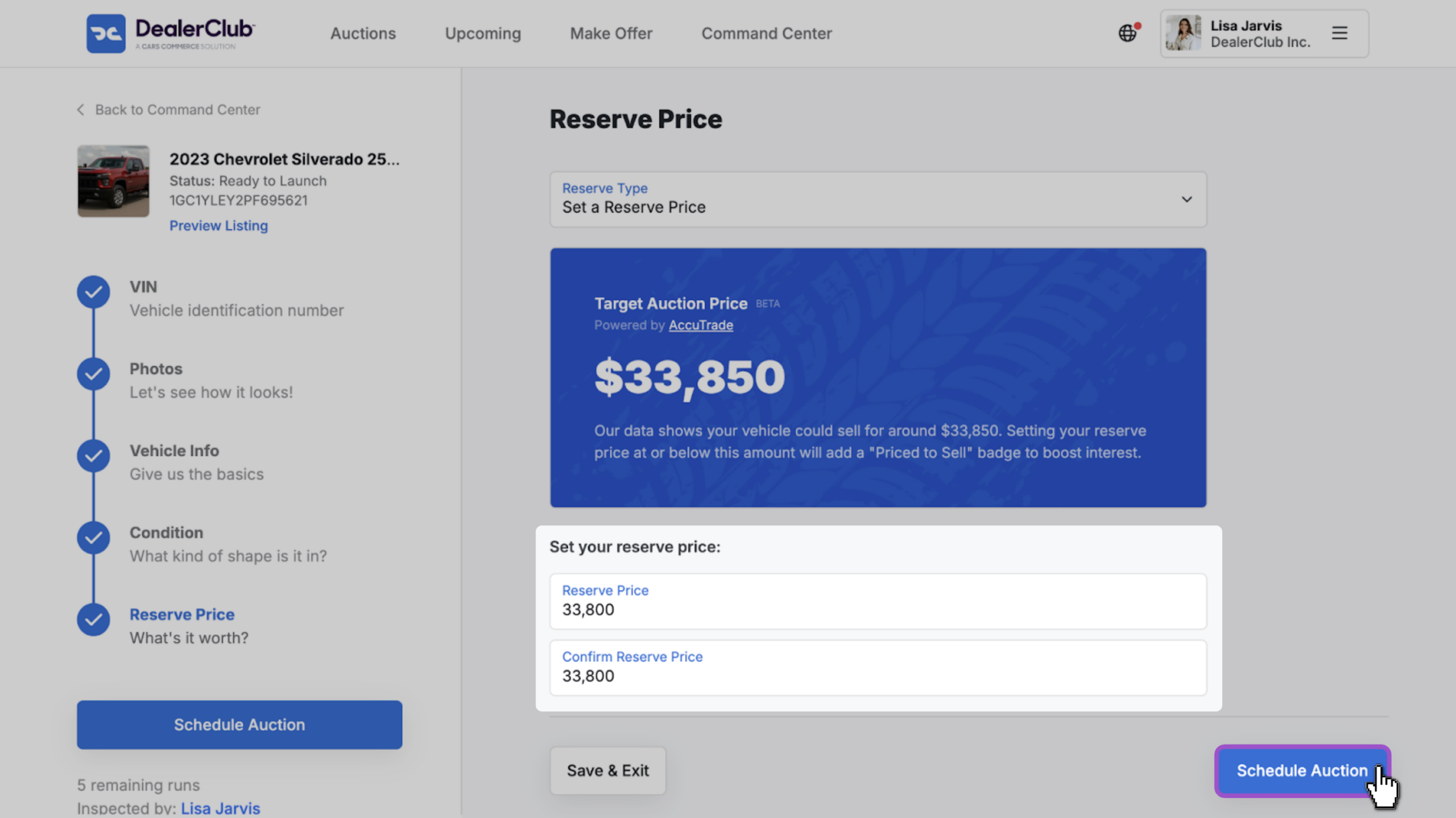
Setting your reserve at or below the AccuTrade Target Auction Price automatically applies the Priced to Sell badge to your listing in search results.