How to automatically configure your GA4 properties
Configuring your GA4 property to meet Automotive Standards Council (ASC) specifications normally requires adding dozens of Custom Dimensions, Key Events, and updating your Event-Data Retention Settings by hand. The GA4 Property Configuration tool automates that initial setup in just a few minutes. While Dealer Inspire manages a GA4 property for your website that meets all ASC specifications, you may choose to maintain your own separate property as well. This tool is designed for those ‘non-DI maintained’ properties, allowing you to automatically sync them to the same industry standards without the manual work.
In this article, you will learn how to copy the configuration sheet, authorize it with your Google Account, run the automation against your non-DI Maintained GA4 properties, and confirm the settings were applied correctly.
Before you begin
- You’ll need Admin or Edit access at the Property Level
- Open your Google Analytics 4 account
- Go to analytics.google.com
- Search for your property name
1 Copy the Property Configuration sheet
- Click into the Google Sheet labeled DI’s DIY – GA4 Property Configuration
- Click Make a copy
Access the sheet directly from the link at the bottom of this article!
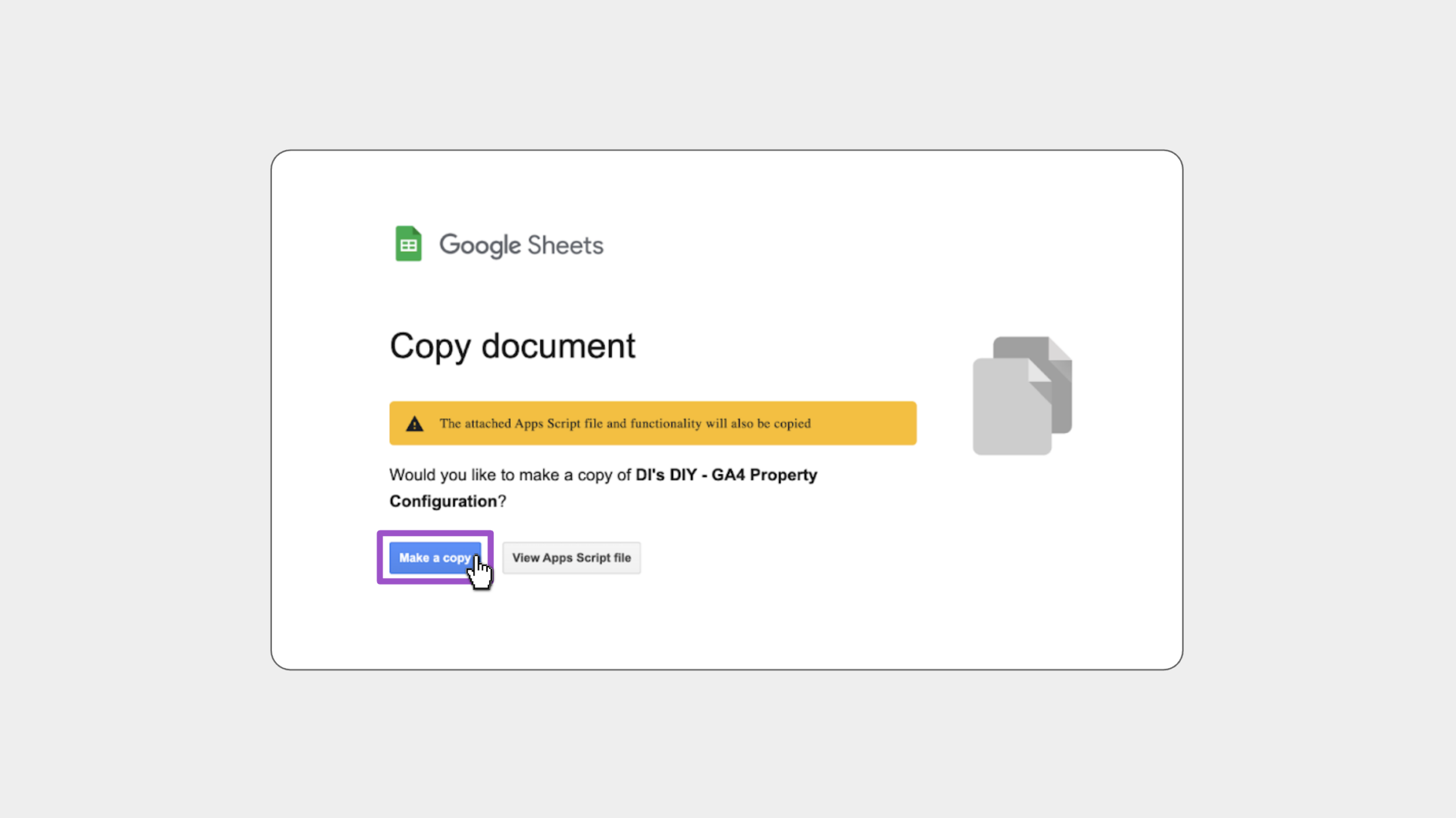
Best Practice: Rename the sheet to your dealership name or Google Analytics 4 account.
- Click DI’s GA4 Builder
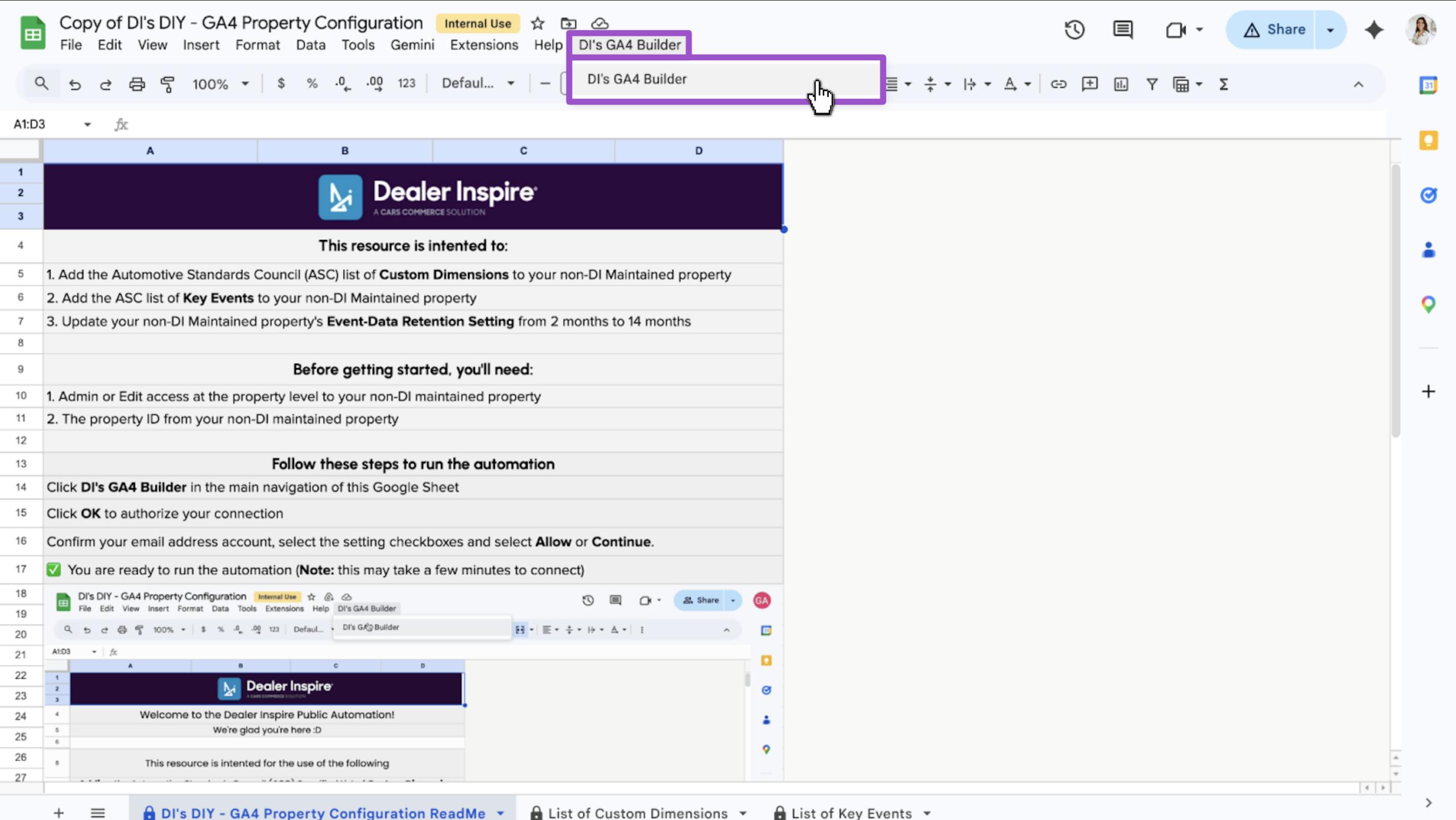
- Click OK to approve the required authorization
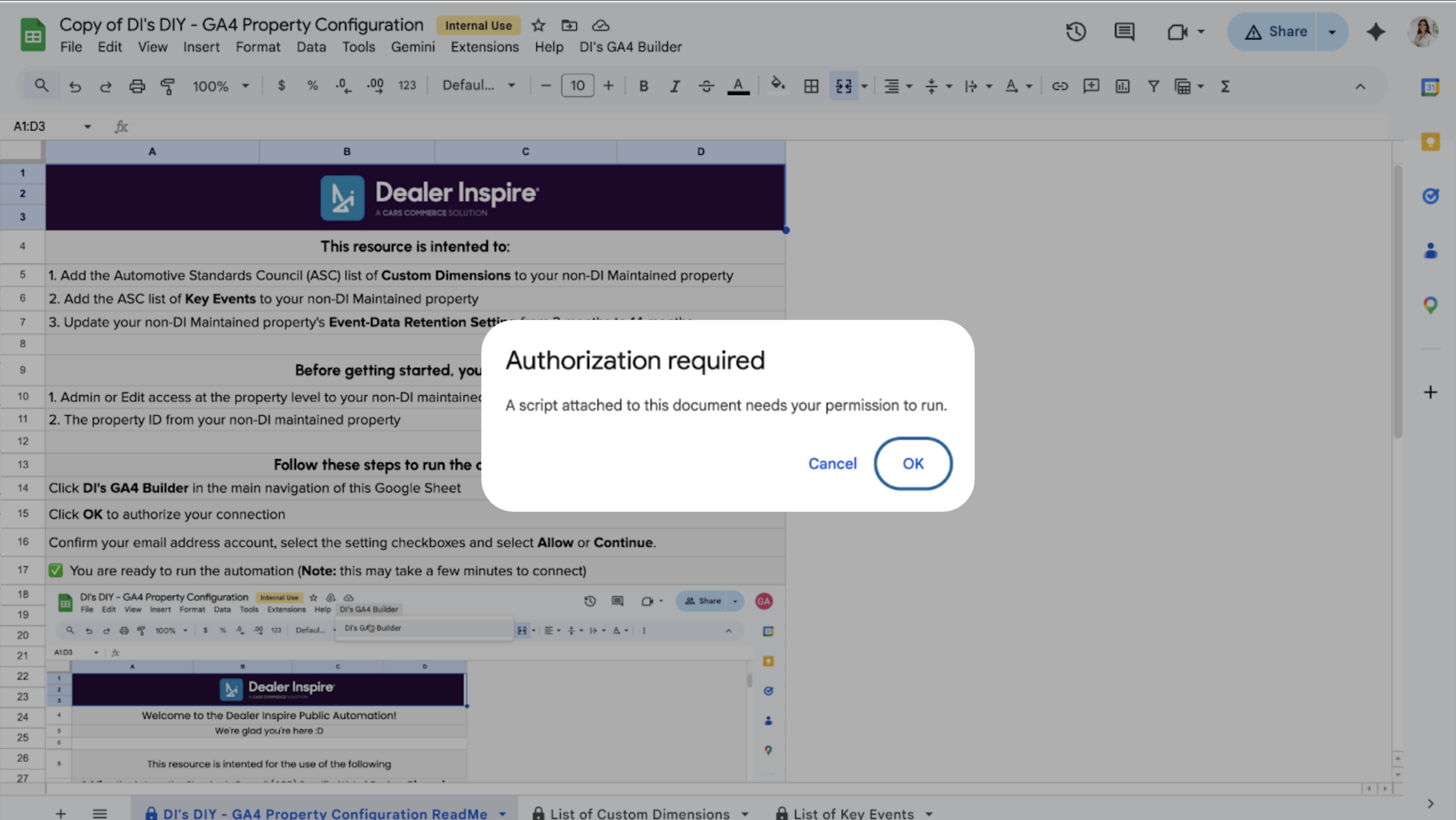
2 Authorize access to your Google Account
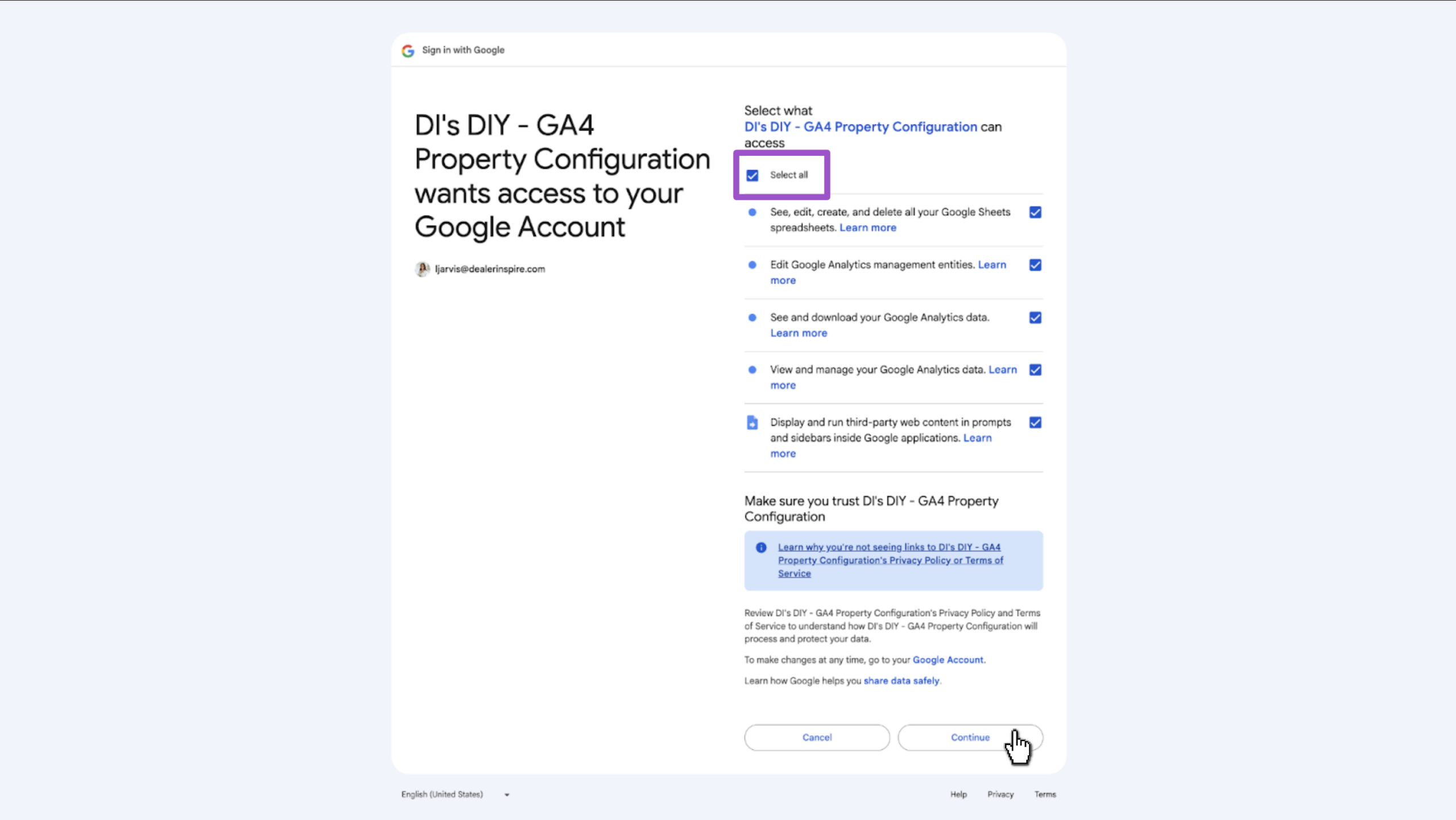
The Google Sheet will request access to your Google Account.
- Select all the checkboxes to authorize the API connection between Sheets and GA4
- Click Continue
3 Enter your property ID and select settings
Now that you’ve authenticated the connection, click DI’s GA4 Builder again.
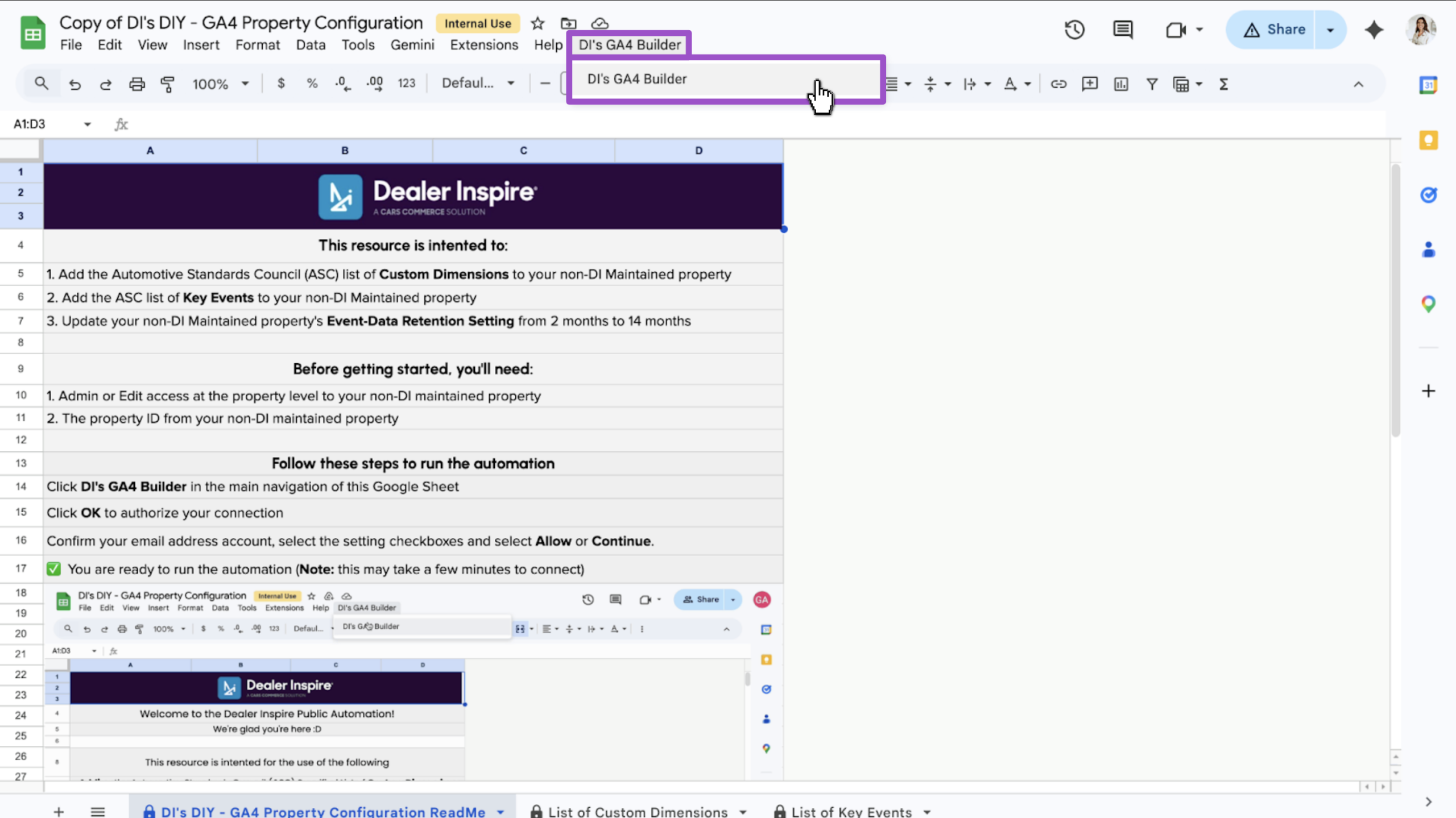
A pop-up will appear.
- Enter your Property ID into the field
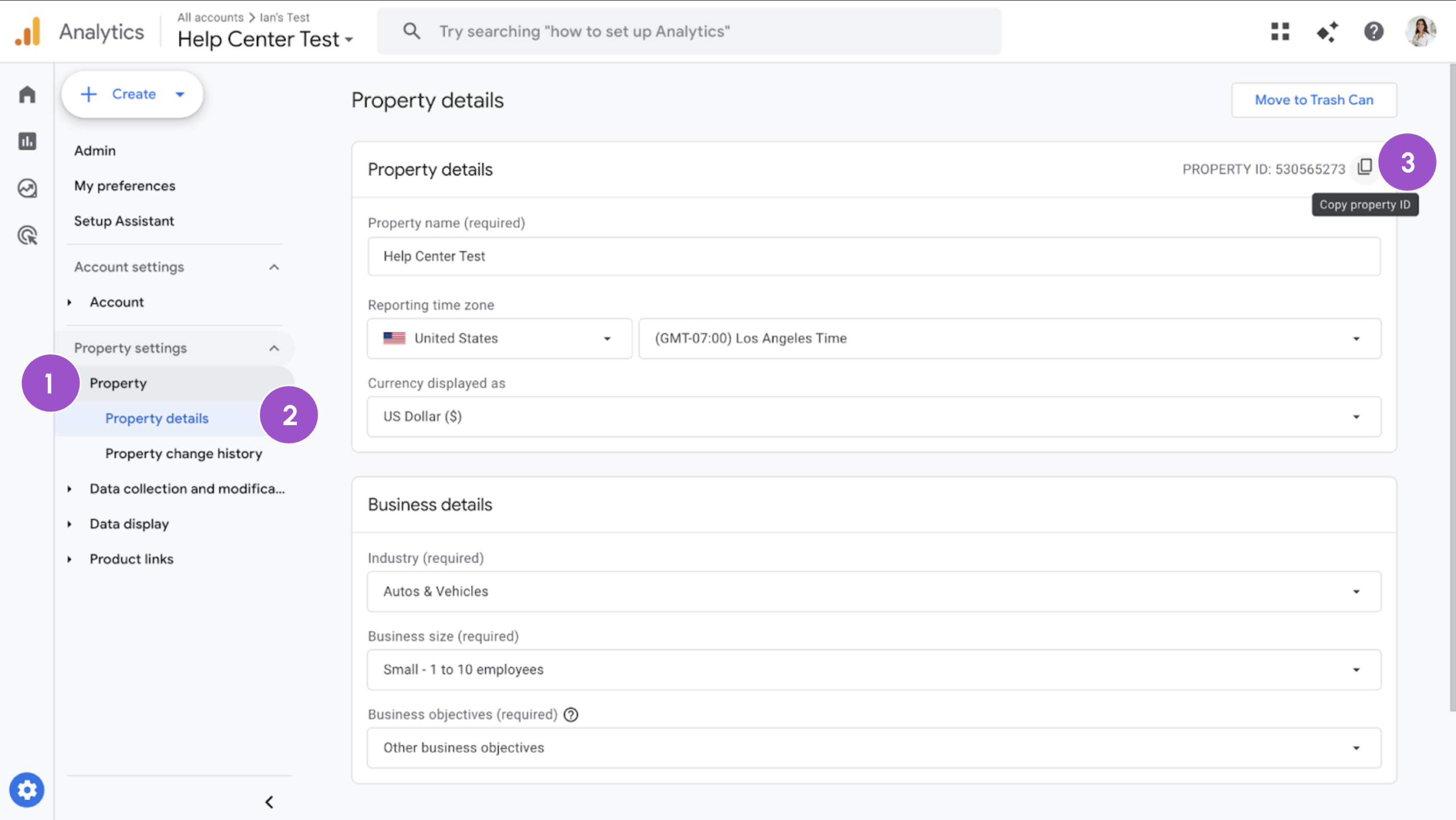
- Go to your Google Analytics dashboard
- Click Properties > then Property Details
- Click the copy icon in to the top right corner
- Go to your Google Analytics dashboard
- Check the boxes for the settings you’d like to add
- Click Submit
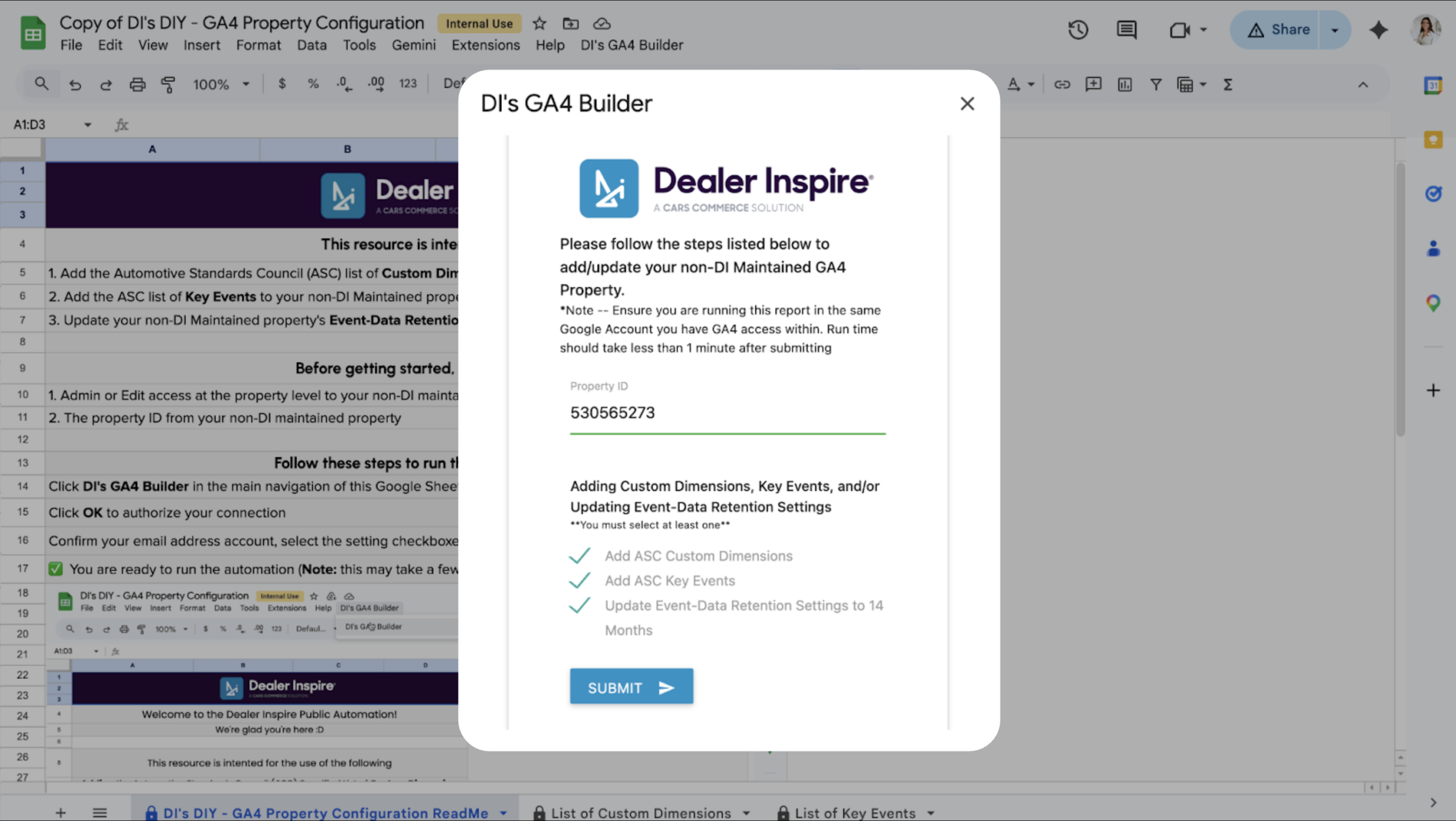
The automation takes about one minute to process. You’ll see a confirmation message appear when it is complete.
4Verify properties in GA4
- Navigate back to your GA4 dashboard
- Navigate to Data Display > Events or Custom definitions to confirm your new properties appear
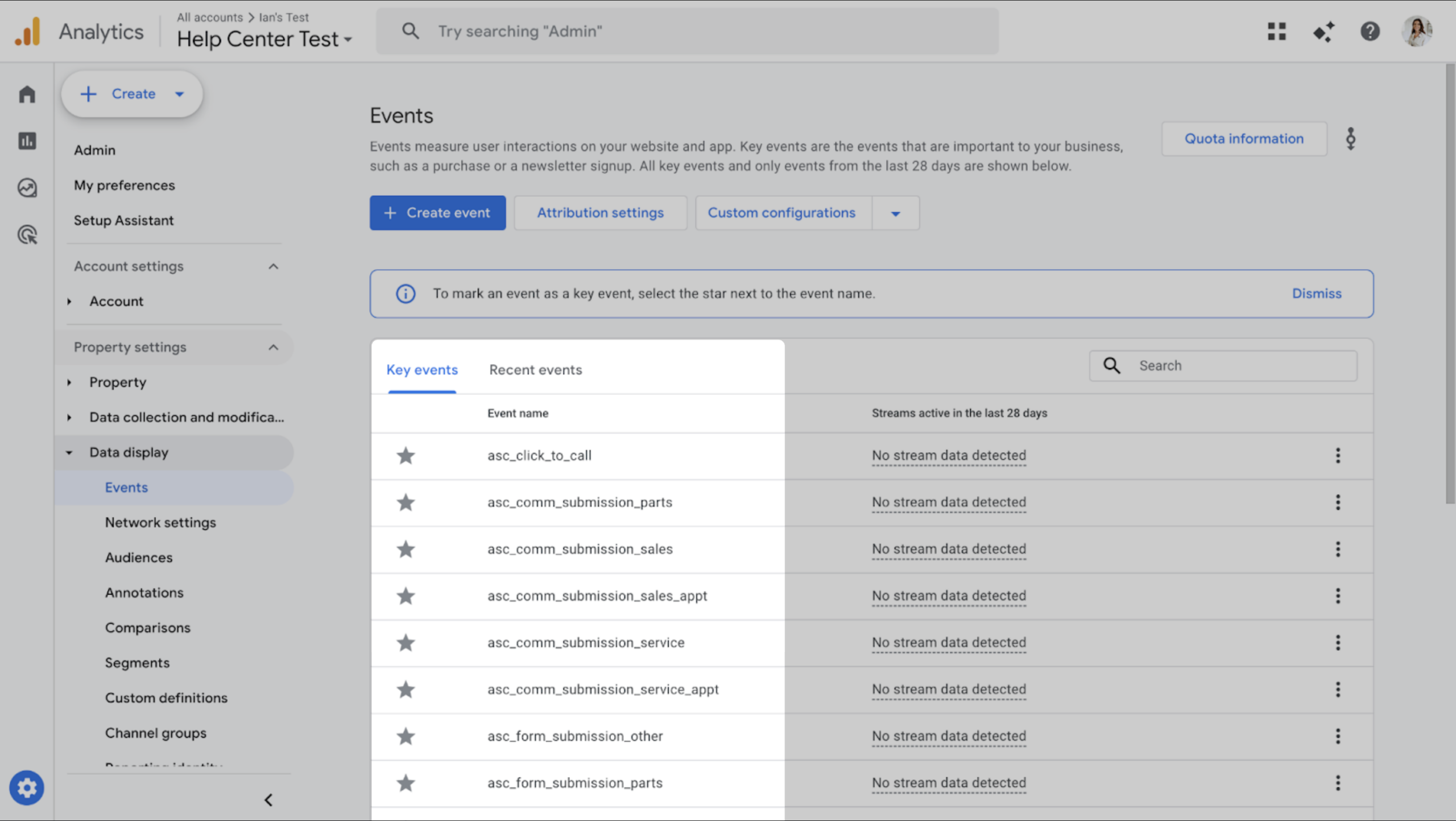
Note: if you encounter errors with authenticating the connection, please consult your IT department as the service may be blocked by your dealership’s firewall.