How to locate buy fees
Buy fees are tiered based on the vehicle’s final selling price. For example, the fee is $400 for a $10,000 vehicle and $500 for a $25,000 vehicle.
In this article, you’ll learn how to calculate a buy fee using the fee calculator in the DealerClub app, how to view the buy fee when finalizing payment for a won auction, and how to view the buy fee on the Bill of Sale from the Won Auctions screen.
To get started
Go to the Cars.com Hub and then click on DealerClub.
1 Calculate a buy fee
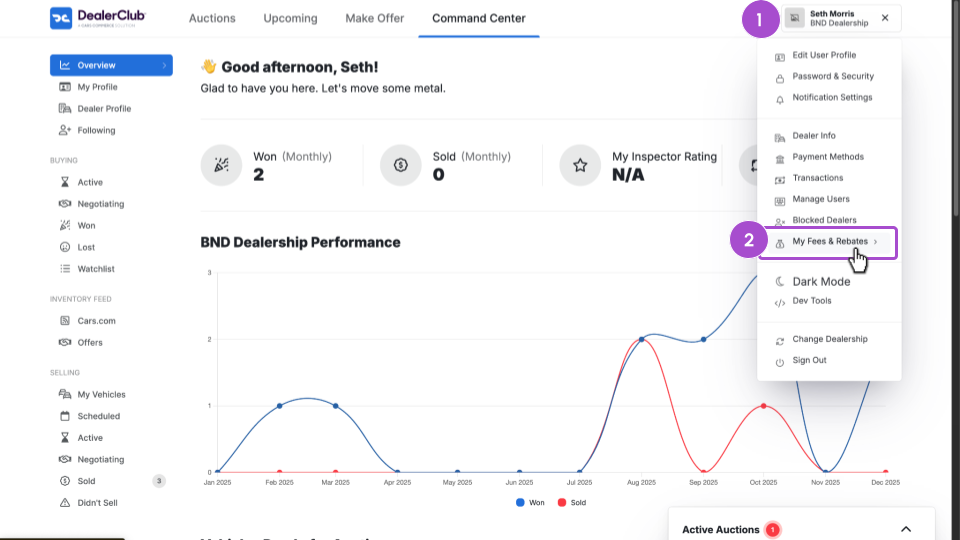
Buy fees can be calculated from the My Fees and Rebates screen:
- Click the profile menu.
- Select My Fees and Rebates.
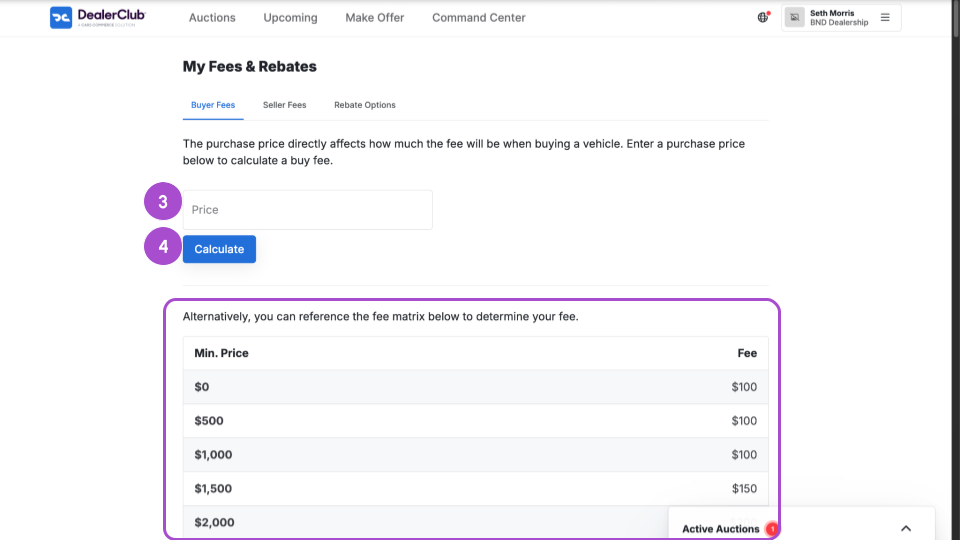
3. Enter the vehicle price.
4. Click Calculate.
Note: You can also reference the fee matrix below the calculator to determine your fee without entering a price.
2 View the buy fee for a won auction
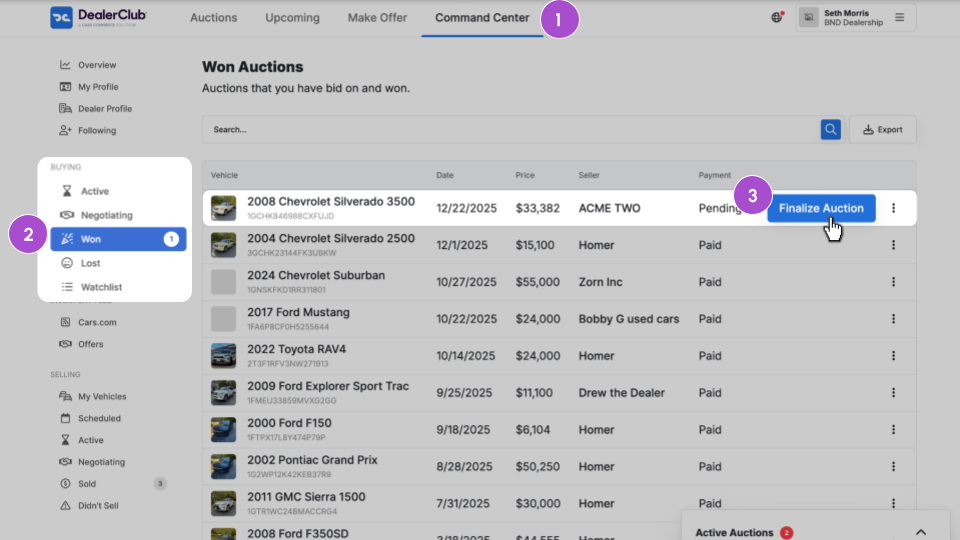
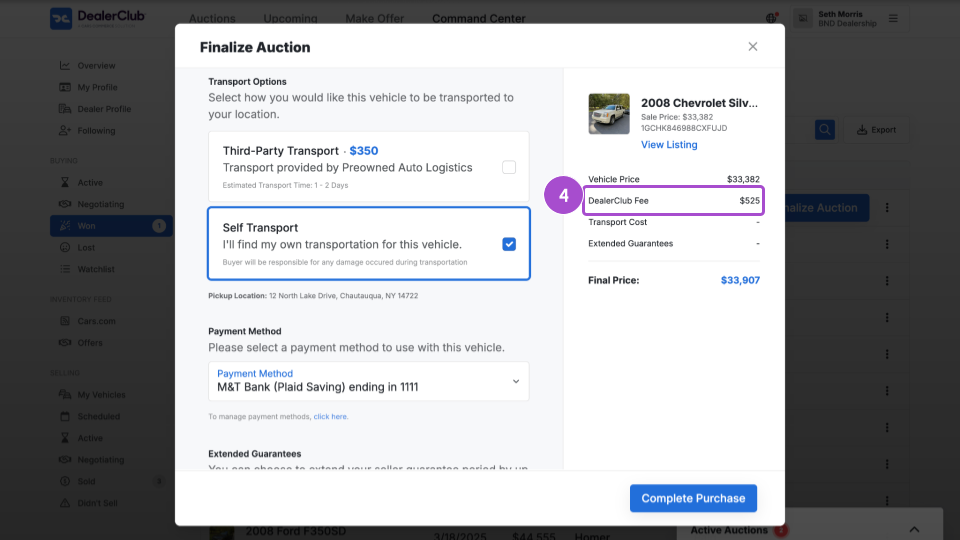
When you win an auction, you’ll see the buy fee listed when you finalize your payment:
- Click the Command Center tab.
- Select Won under Buying.
- Click the Finalize Auction button for the vehicle.
- The buy fee is listed to the right as DealerClub Fee.
3 View the buy fee in the Bill of Sale
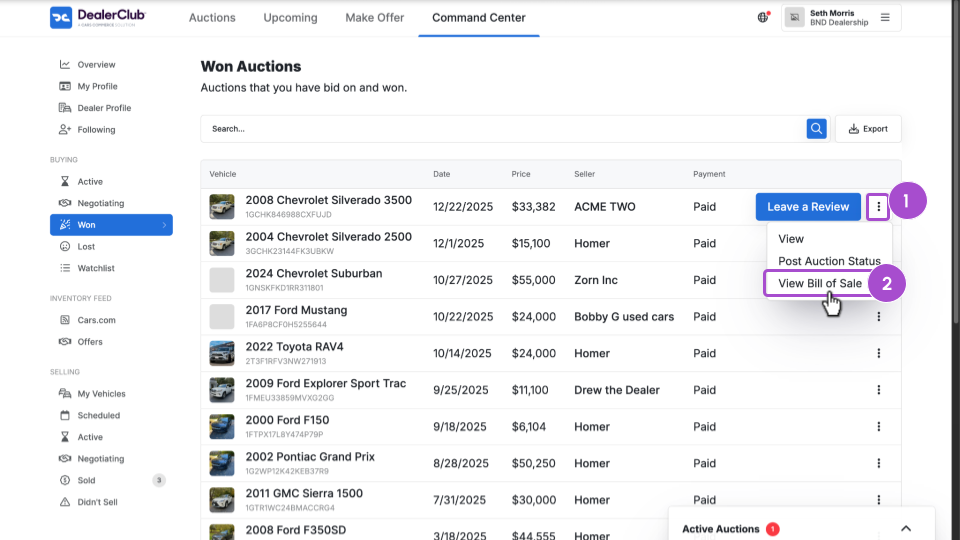
After finalizing the payment, you can view the Bill of Sale from the Won auctions screen:
- Click the 3-dot menu.
- Select Bill of Sale.
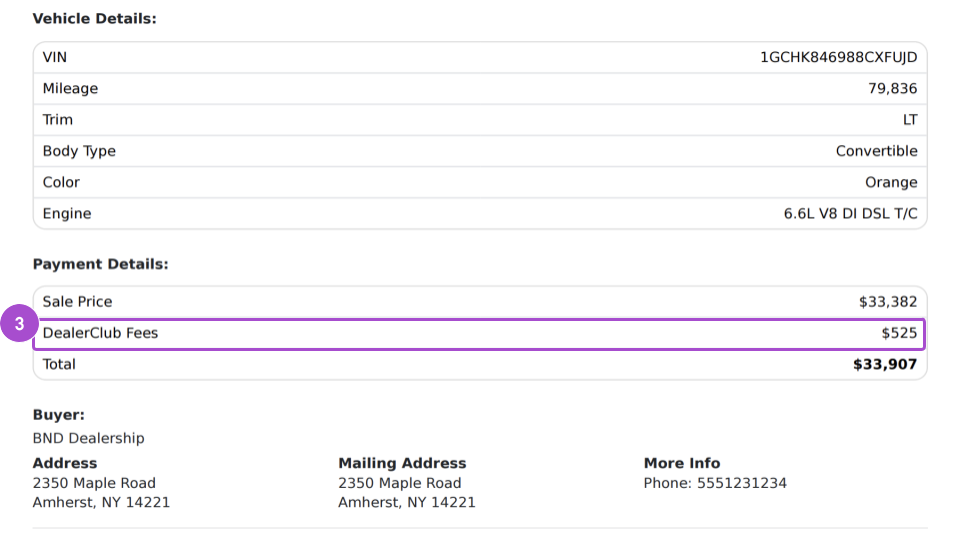
- The buy fee is listed as DealerClub Fees in the Payment Details section.