How to use Conversations reporting to improve performance
The reporting tools built into Conversations give dealership admins a full view of both historical chat performance and real-time agent activity. By regularly reviewing these dashboards, you can track how many leads are being generated, evaluate agent effectiveness, and jump into active chats when necessary to protect the shopper experience.
In this article, you’ll learn how to access Conversations reporting, interpret key metrics, and use real-time monitoring tools to coach agents, optimize staffing, and improve lead outcomes.
To get started
Go to the Cars.com Hub. Click Dealer Inspire, then Conversations.
1 Access admin settings
To access the backend of Conversations for admins:
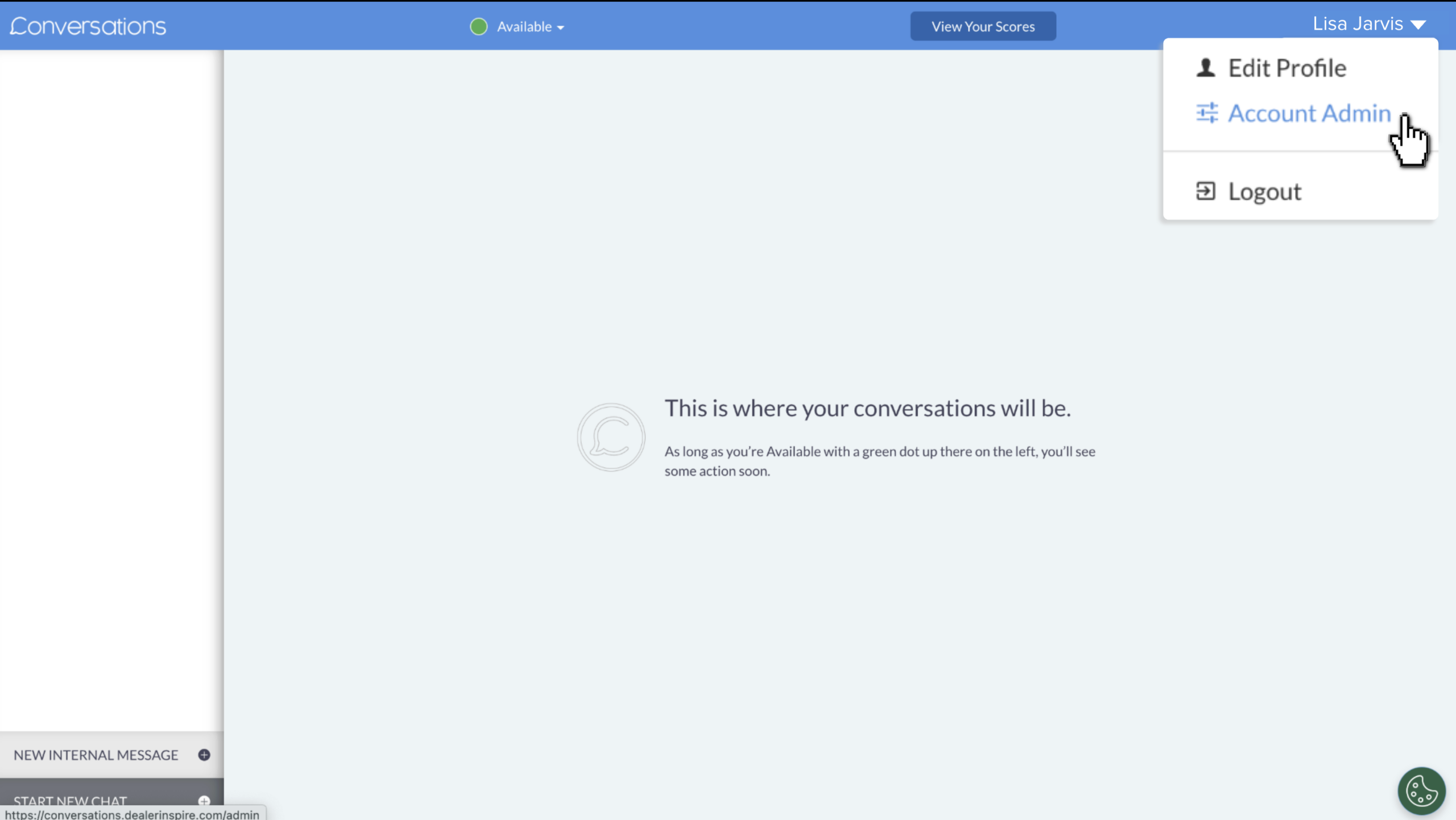
- From the main chat screen, click your name in the top right corner.
- Select Account Admin.
2 Monitor performance and reporting
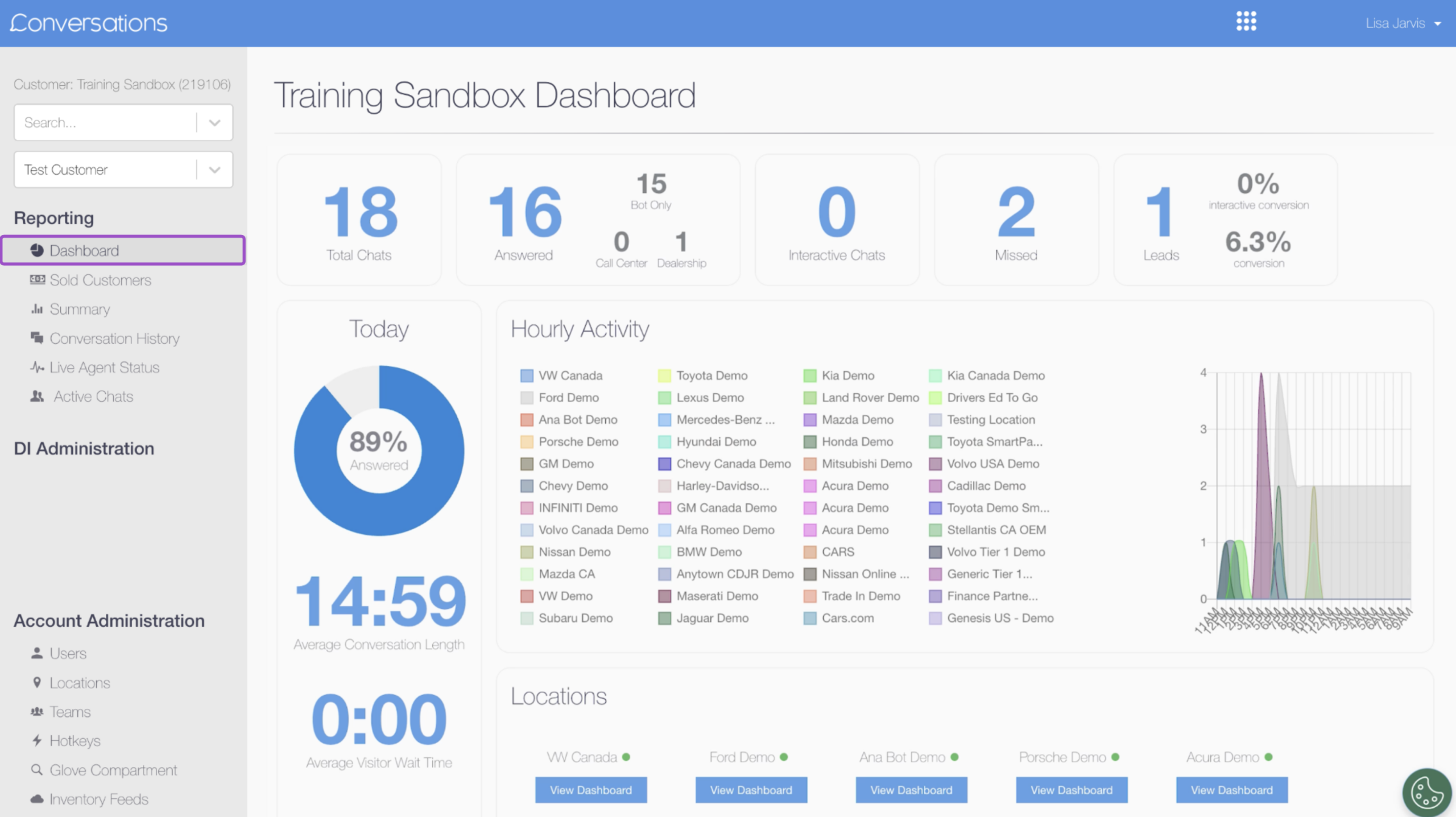
When you enter the admin view, you’ll land on the reporting dashboard. This is your control center for monitoring team performance, chat volume, and lead conversion.
Dashboard Summary
What it tracks:
- Total chats
- Answered chats
- Missed chats
- Leads created
Important context:
The Missed Chats metric assumes that your dealership staff is actively handling chats. However, with the AI Virtual Assistant as the default responder and managed chat available if human assistance is needed, most chats will be automatically answered. You should only see missed chats in rare cases, such as: :
- A shopper explicitly requests to speak with someone at the dealership
- Your team has not followed up after being alerted to take over a conversation
How to use it:
Identify performance gaps and operational trends. If you’re seeing missed chats despite having AI or managed chat enabled, review those transcripts to understand if a shopper requested a handoff or if additional staffing or training is needed.
3 Sold customers
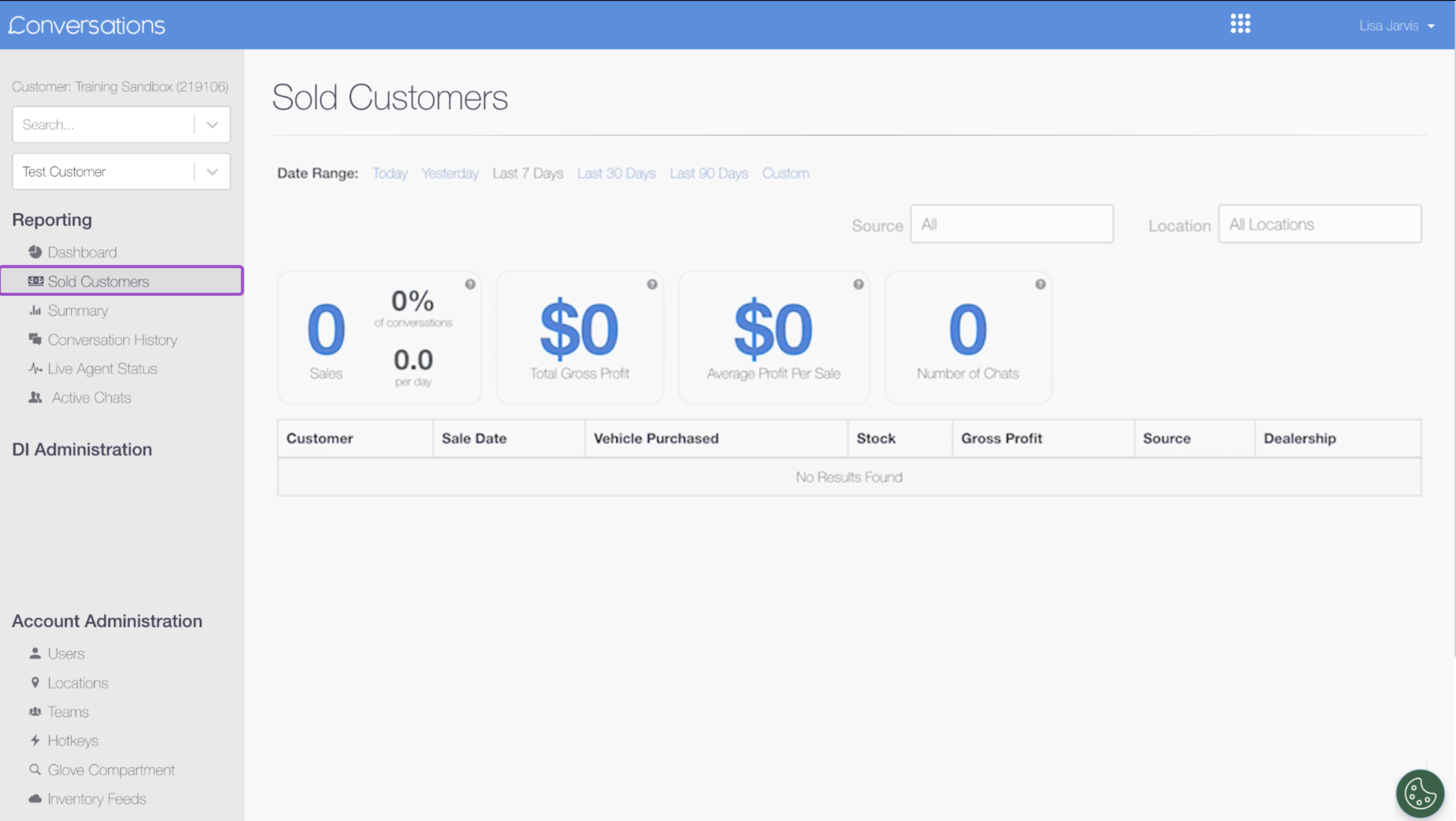
This tab links Conversations directly to sales.
What it tracks:
- Number of vehicles sold
- Total value of sales from Conversations leads
How to use it:
Measure ROI by seeing exactly how many deals were initiated through live chat. This is especially useful for end-of-month reporting or vendor evaluations.
4 Summary tab
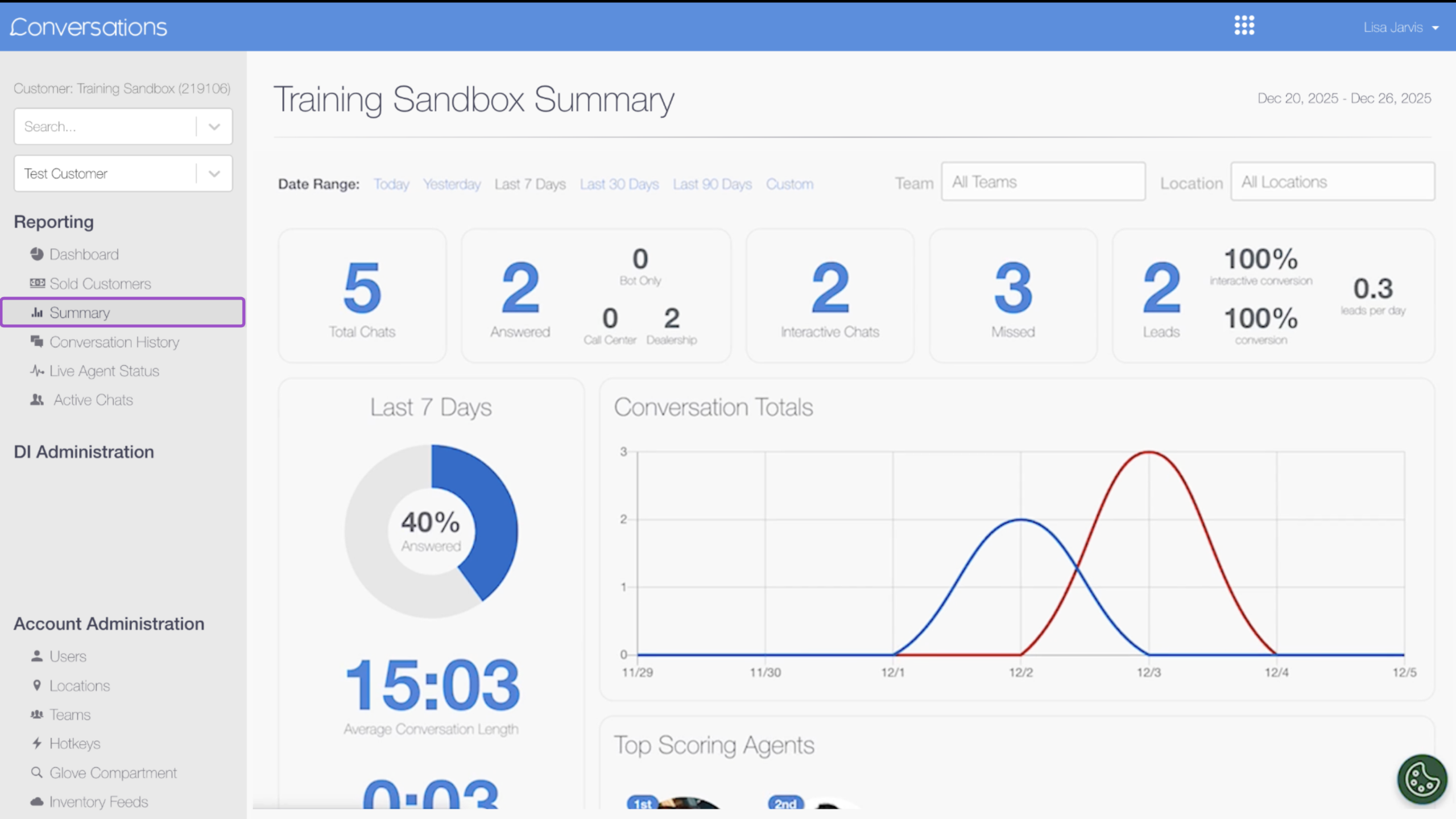
This tab provides high-level team metrics, plus tools to drill into individual performance.
Date Range
What it tracks:
- Custom timeframes (e.g., last 7 days, MTD, YTD)
How to use it:
Compare performance month-over-month to evaluate training effectiveness, staffing changes, or new messaging strategies.
Top Scoring Agents
What it tracks:
- Agent-specific chat volumes and lead conversion scores
How to use it:
Recognize top performers and highlight best practices in team meetings. You can also use strong examples as coaching material for lower-performing team members.
5 Conversation history
This tab gives you searchable access to every chat that has occurred through Conversations.
What it tracks:
- A complete archive of all past chat transcripts
How to use it:
- Quality assurance and coaching
- Retrieving lost shopper information
- Reviewing chats tied to specific leads or sales
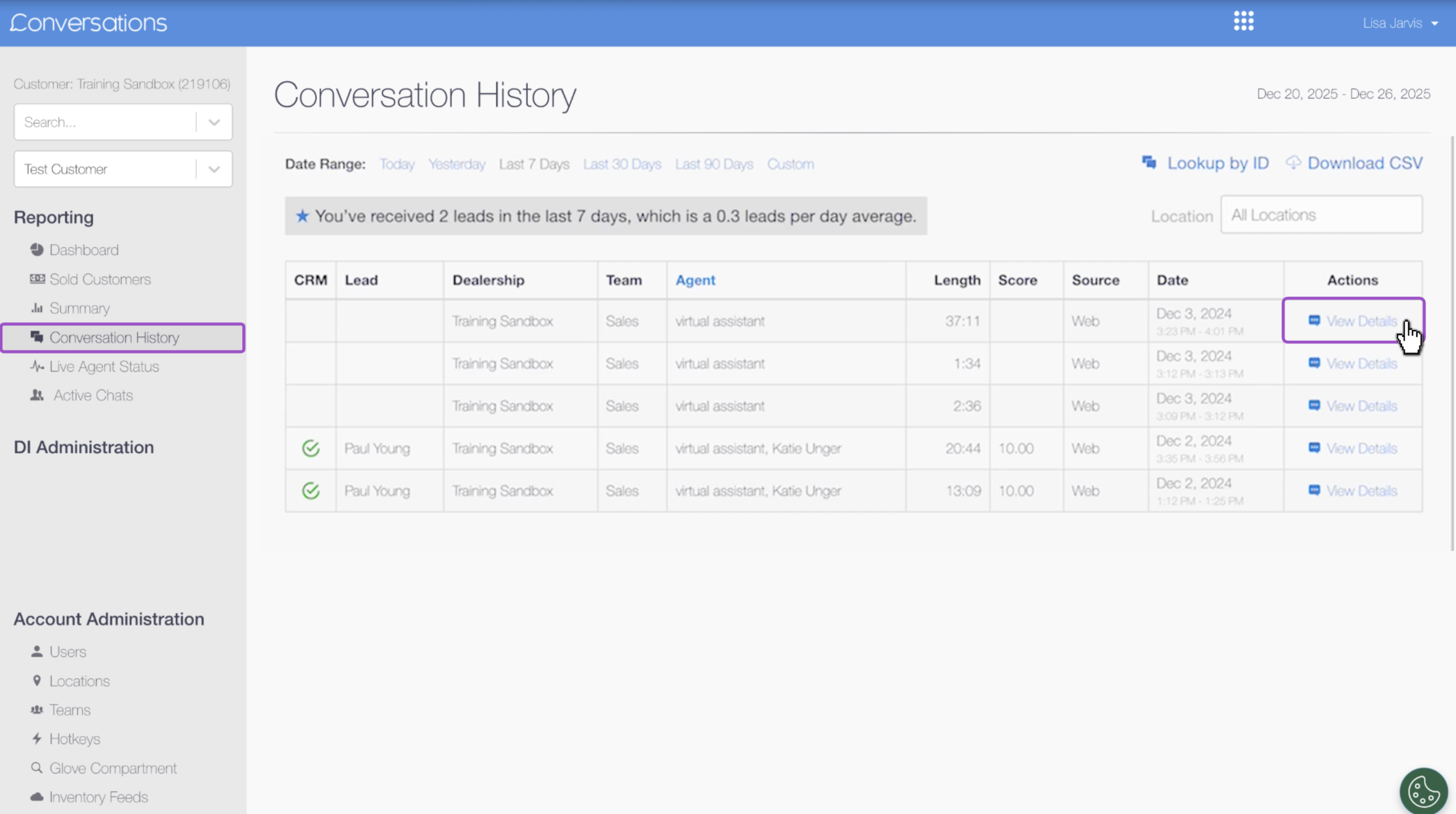
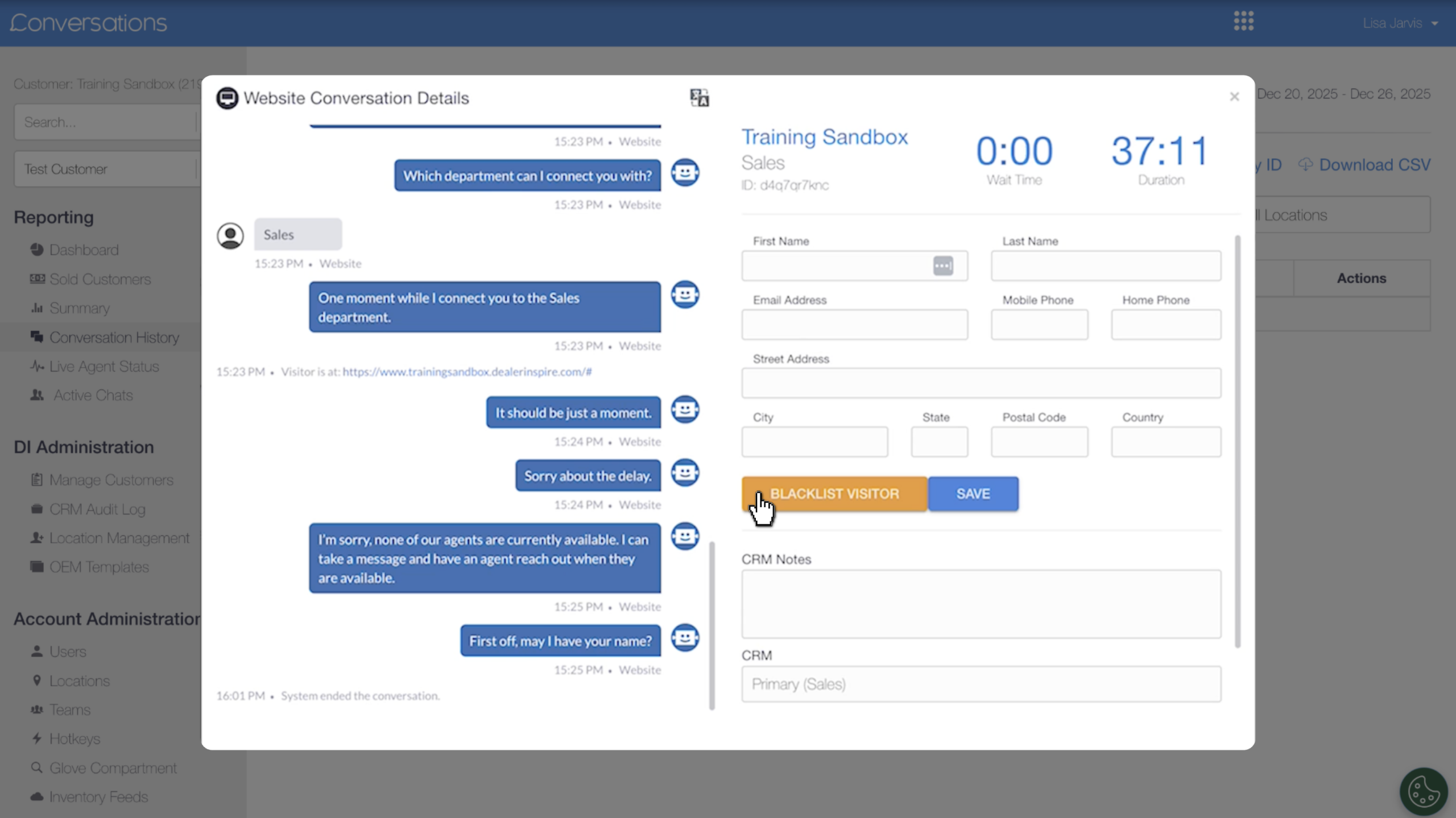
Tip: If a visitor was abusive or inappropriate, click Blacklist Visitor inside the chat details to block them from returning.
6 Live agent status and active chats
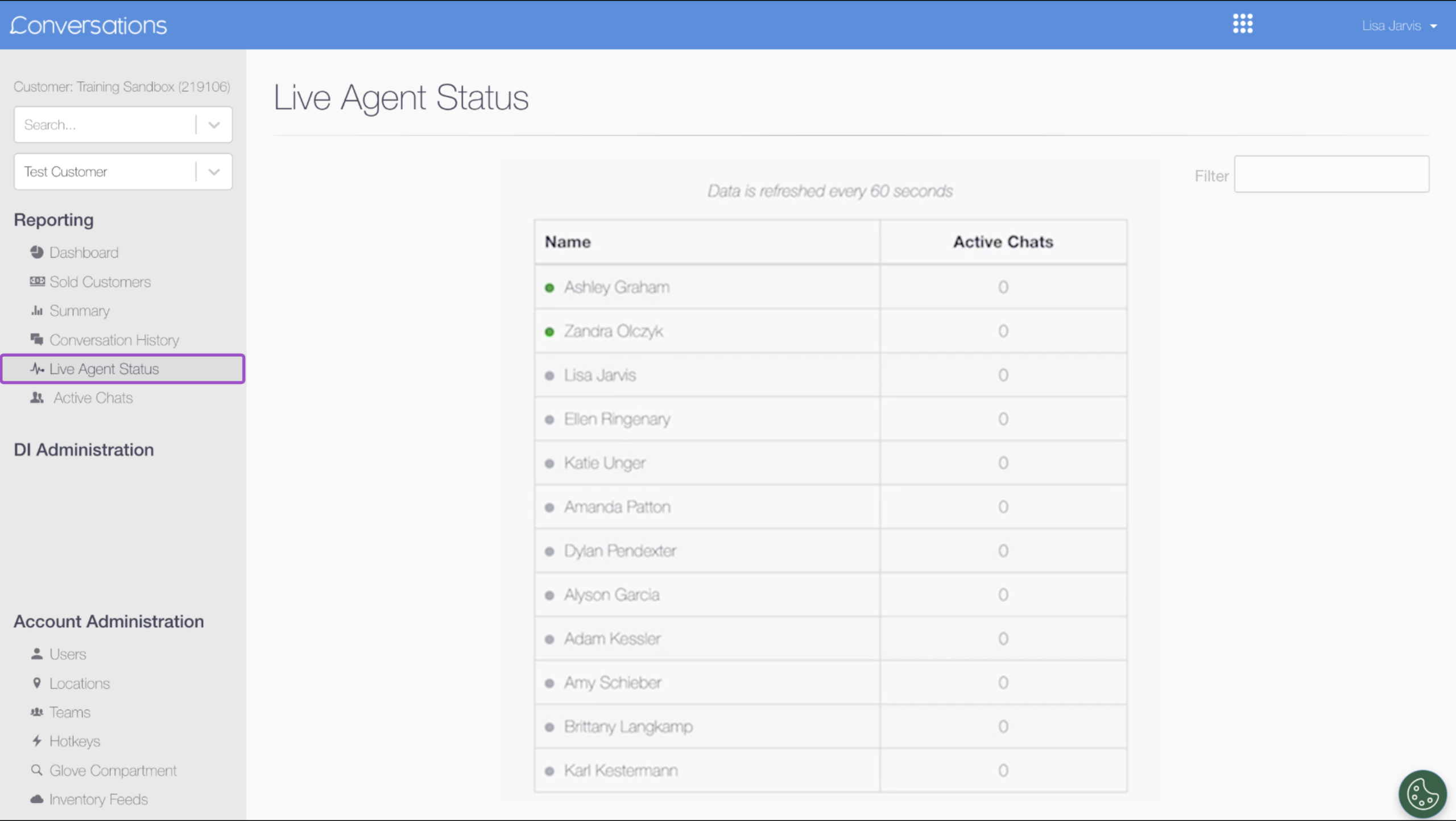
These tools give you a real-time window into who’s online and what’s happening.
Live Agent Status
What it tracks:
- Which agents are currently logged in and available
How to use it:
Make sure your team is staffed and responsive during business hours.
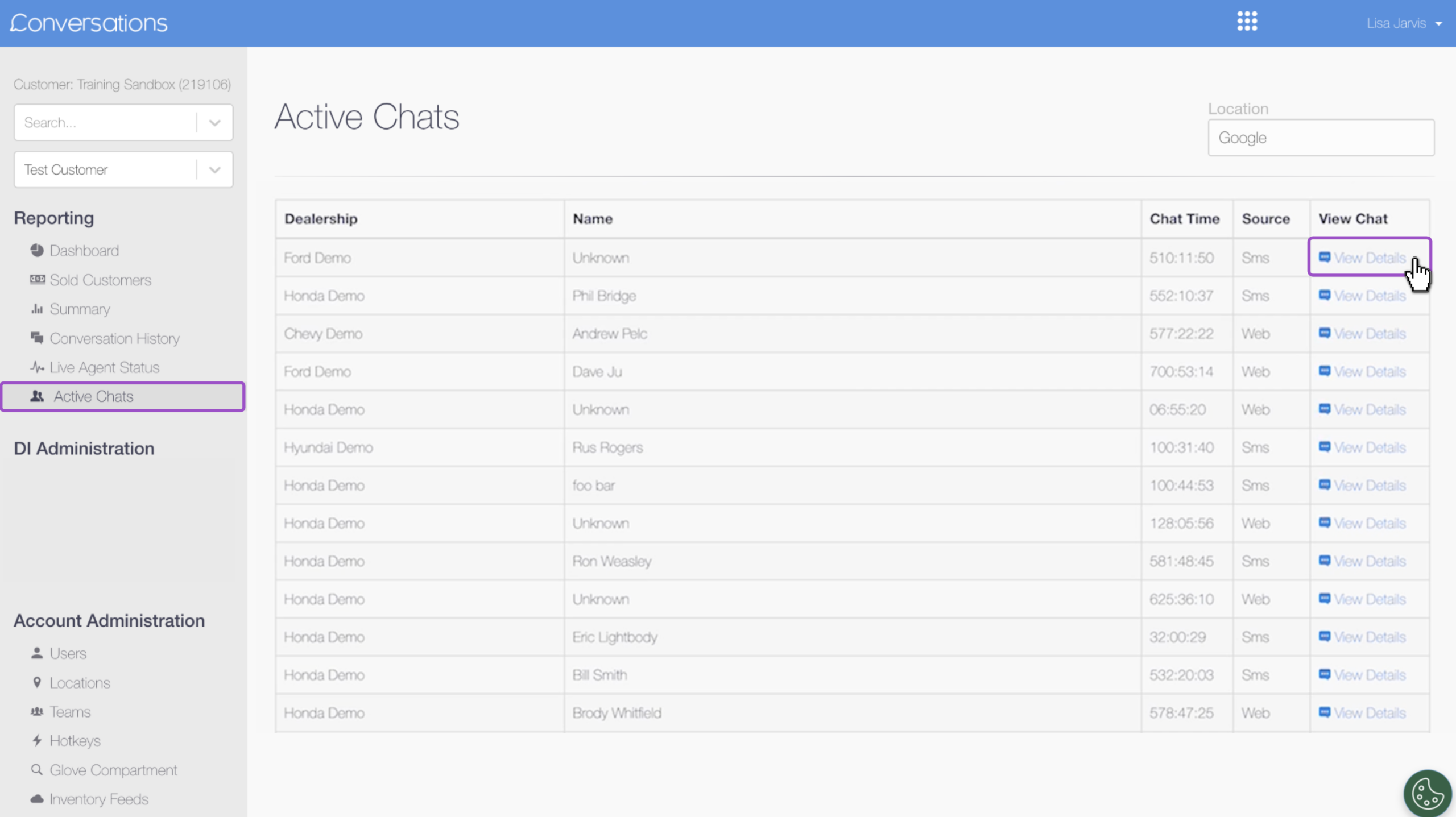
Active Chats
What it tracks:
- All chats in progress
- Real-time transcripts
How to use it:
- Monitor difficult conversations as they unfold
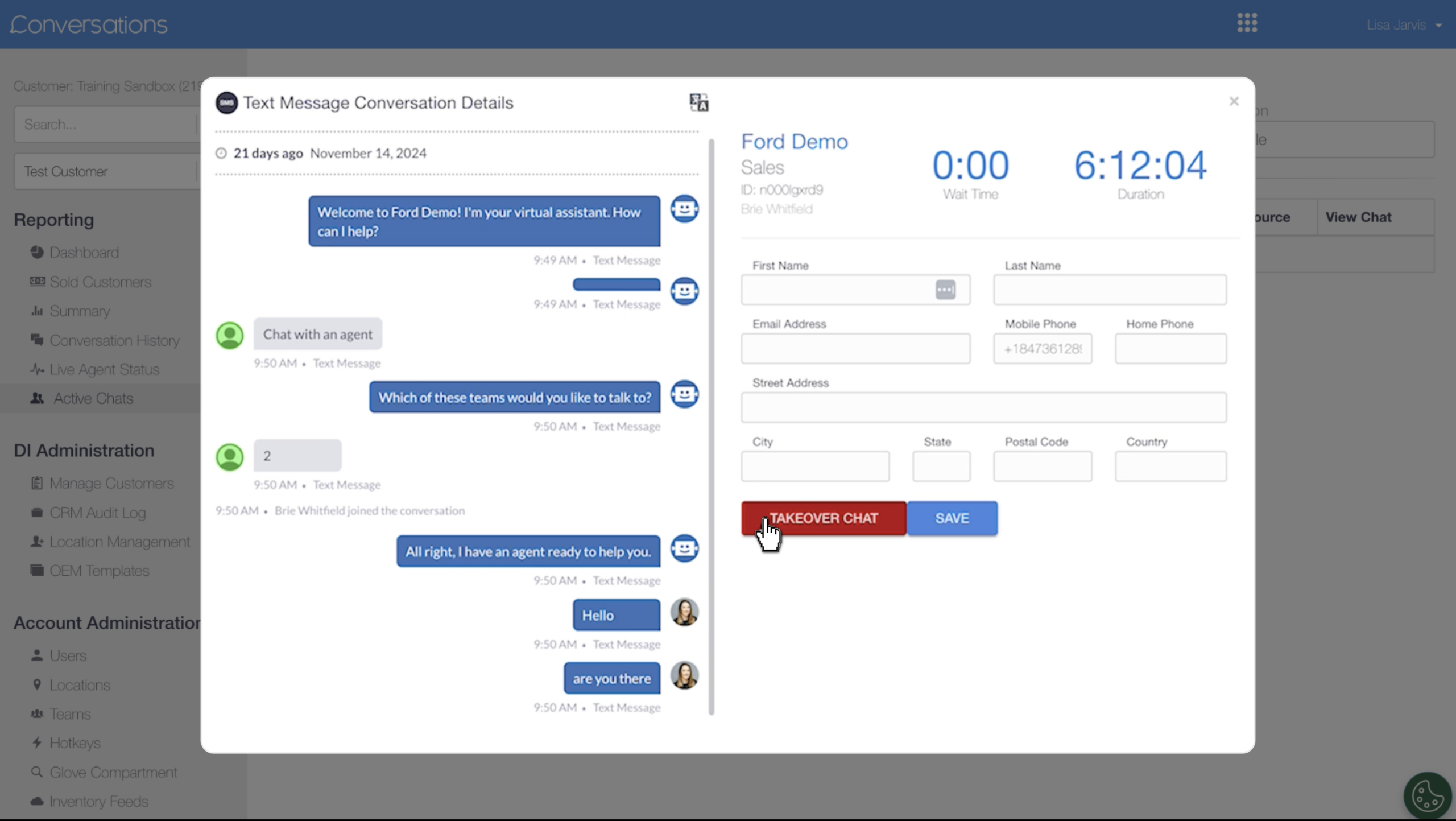
- Step in using the Takeover feature if a conversation needs help
Chat Takeover
If an agent needs help, you can click View Details on the active chat and select Takeover Chat. This immediately makes you the primary agent, removing the original user from the conversation.