How to set up Smart Response
Managing your dealership’s online reputation just got easier. Smart Response is our hands-off, automated solution that ensures every customer feels heard — without your team needing to lift a finger. By combining the speed of AI with the nuance of human experts, Smart Response helps you meet OEM response requirements, improve your local SEO, and build trust with shoppers across the platforms that matter most.
In this article, you’ll learn how to connect your social accounts to Smart Response, adjust your notification settings, and understand how AI and human experts respond to reviews across Cars.com, DealerRater, Google, and Facebook.
To get started
Go to the Cars.com Hub Click Cars.com, then Reputation.
How Smart Response works
AI-Enhanced Responses for Positive Reviews
Smart Response uses AI to automatically generate personalized replies for positive reviews. These responses reflect your dealership’s tone of voice and include relevant keywords to support local SEO — no templates or repetitive phrasing.
- Currently available for: Cars.com and DealerRater
- Coming soon: Google and Facebook support
Each AI-generated response is reviewed by a human expert to ensure it’s accurate, on-brand, and appropriate before publishing.
Human Responses for Negative Reviews
When a negative review is submitted, our real-life experts take the lead. They personally review the feedback and craft a professional response that aims to de-escalate concerns and demonstrate your dealership’s commitment to resolution.
This human-led service covers:
- Cars.com
- DealerRater
- Google
Getting started with Smart Response
To get the most out of Smart Response, ensure your social accounts are linked. We cannot “back-date” responses for reviews that came in while pages were disconnected.
1 Navigate to the reviews section
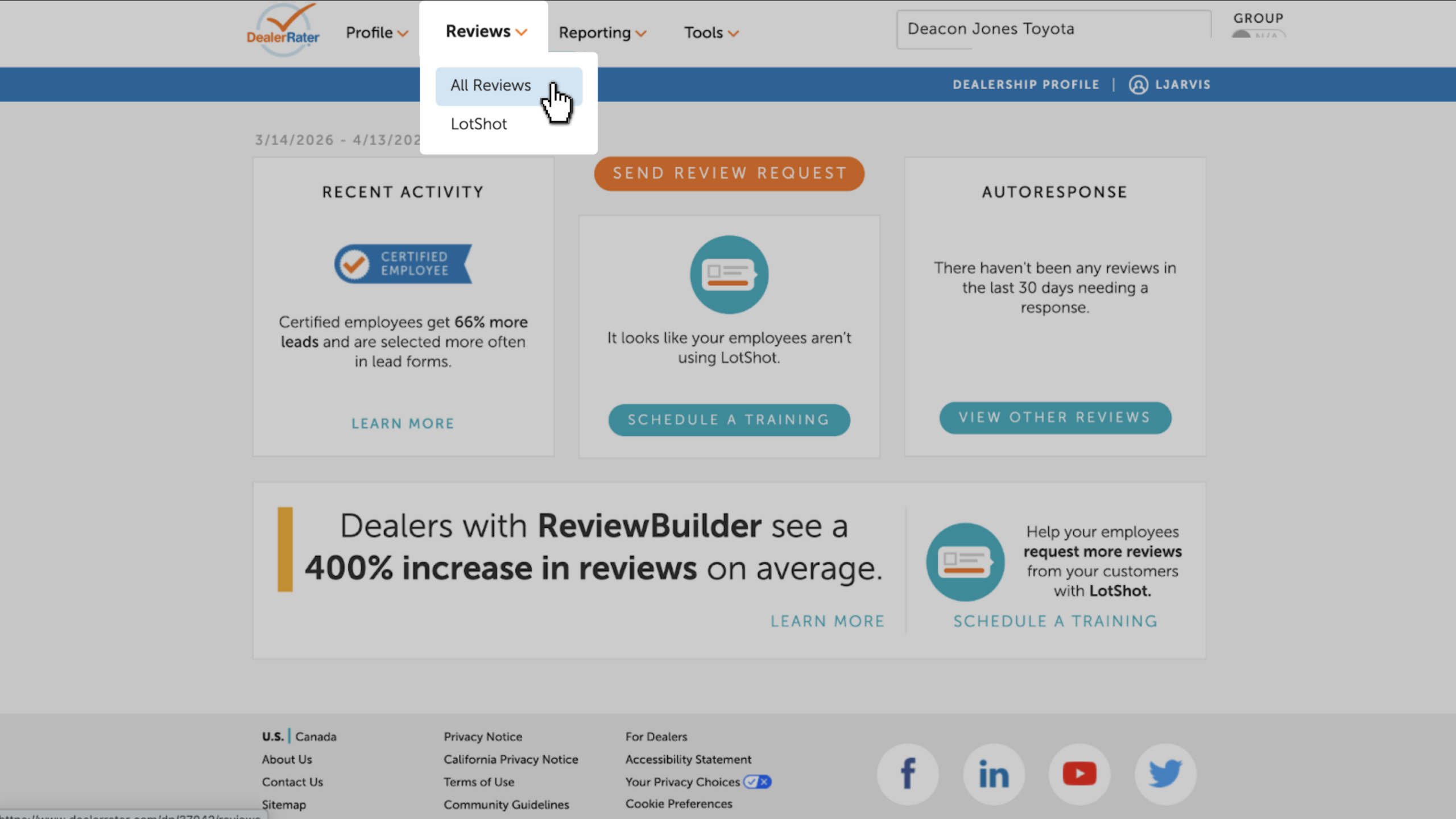
- Hover over Reviews in the top navigation.
- Select All Reviews.
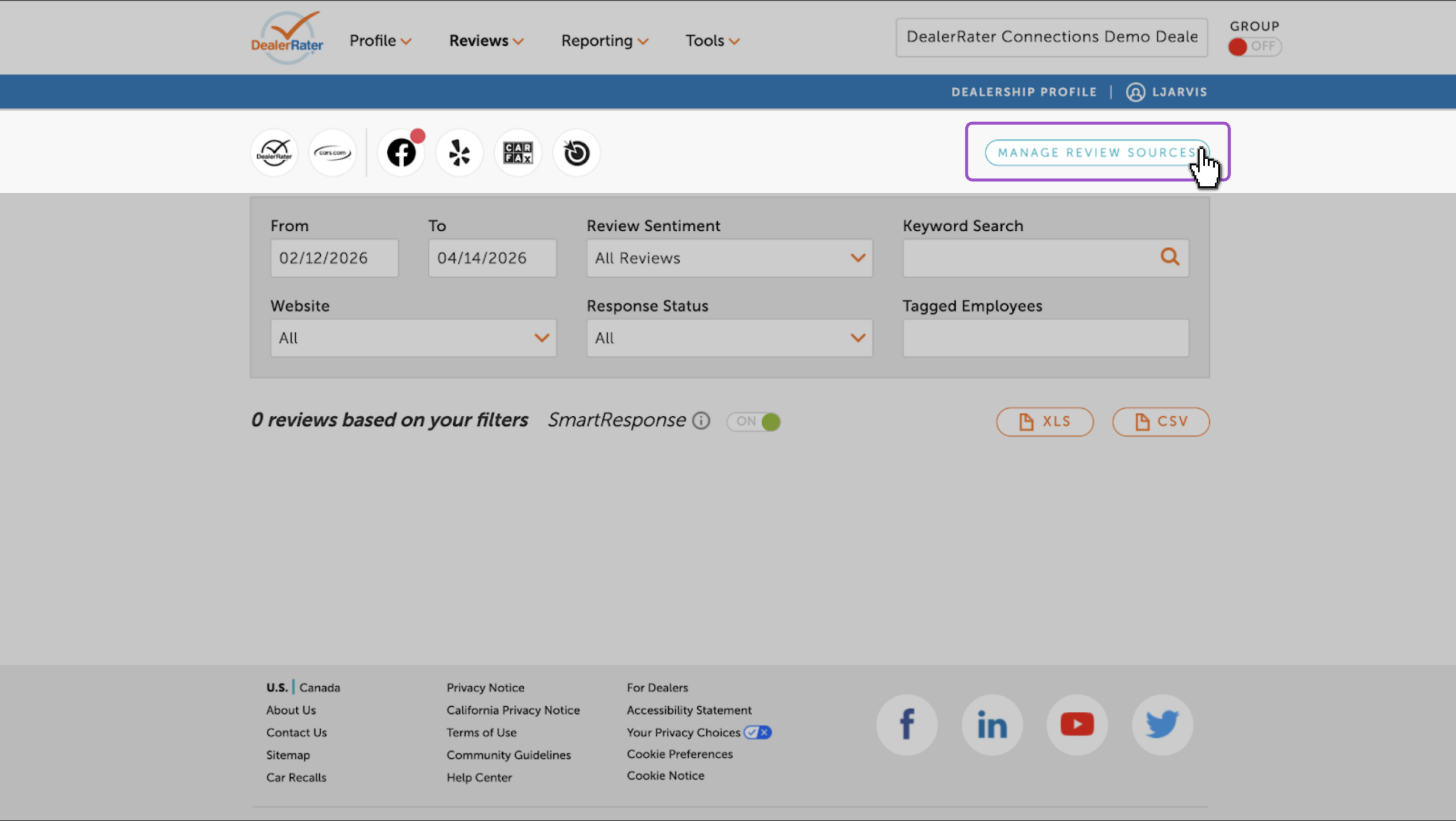
- You’ll see the review sources that are or are not set up yet
- Your Cars.com and DealerRater accounts are already connected by default
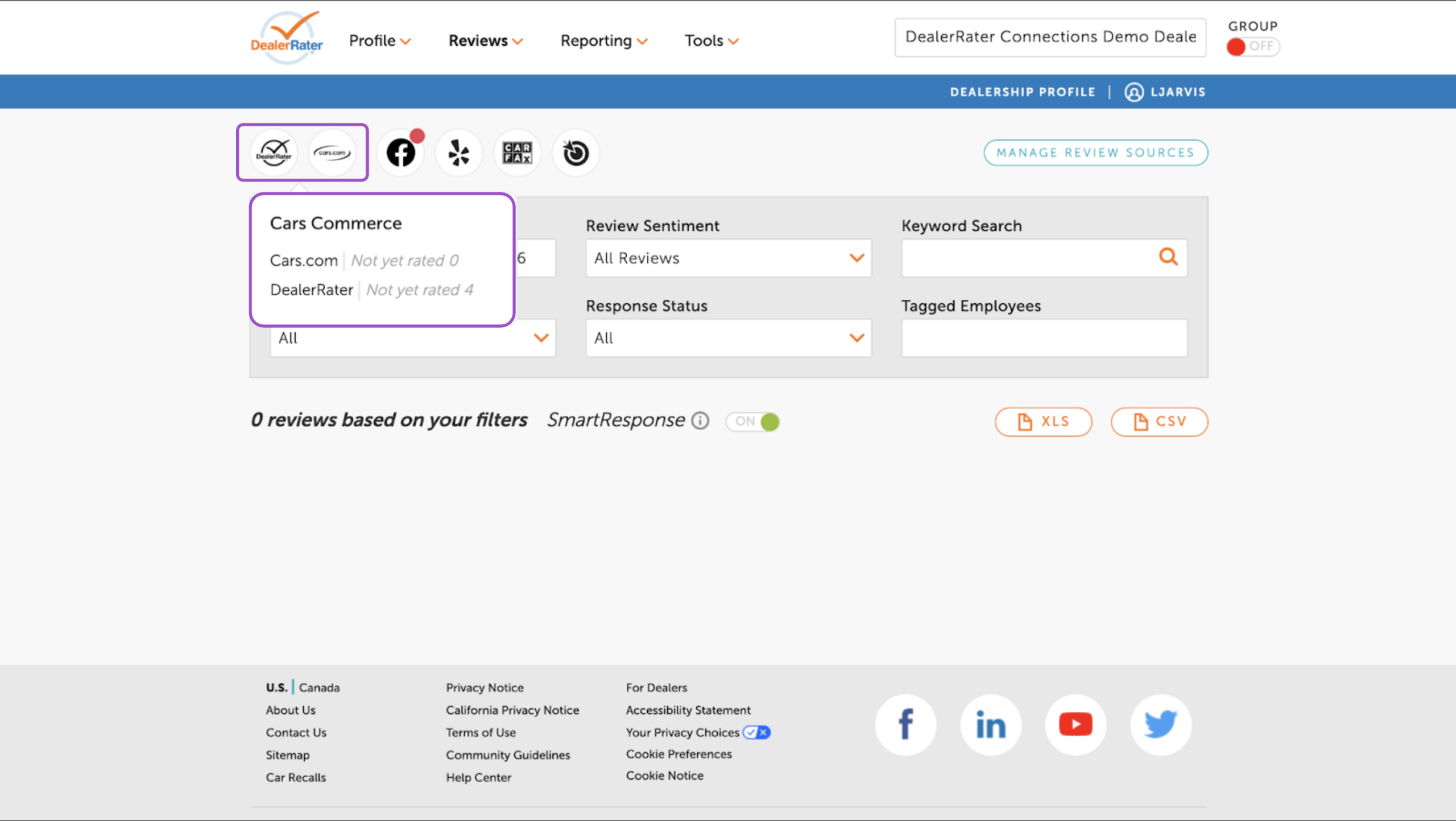
- Click the platform icons to see the connection status of your review source pages
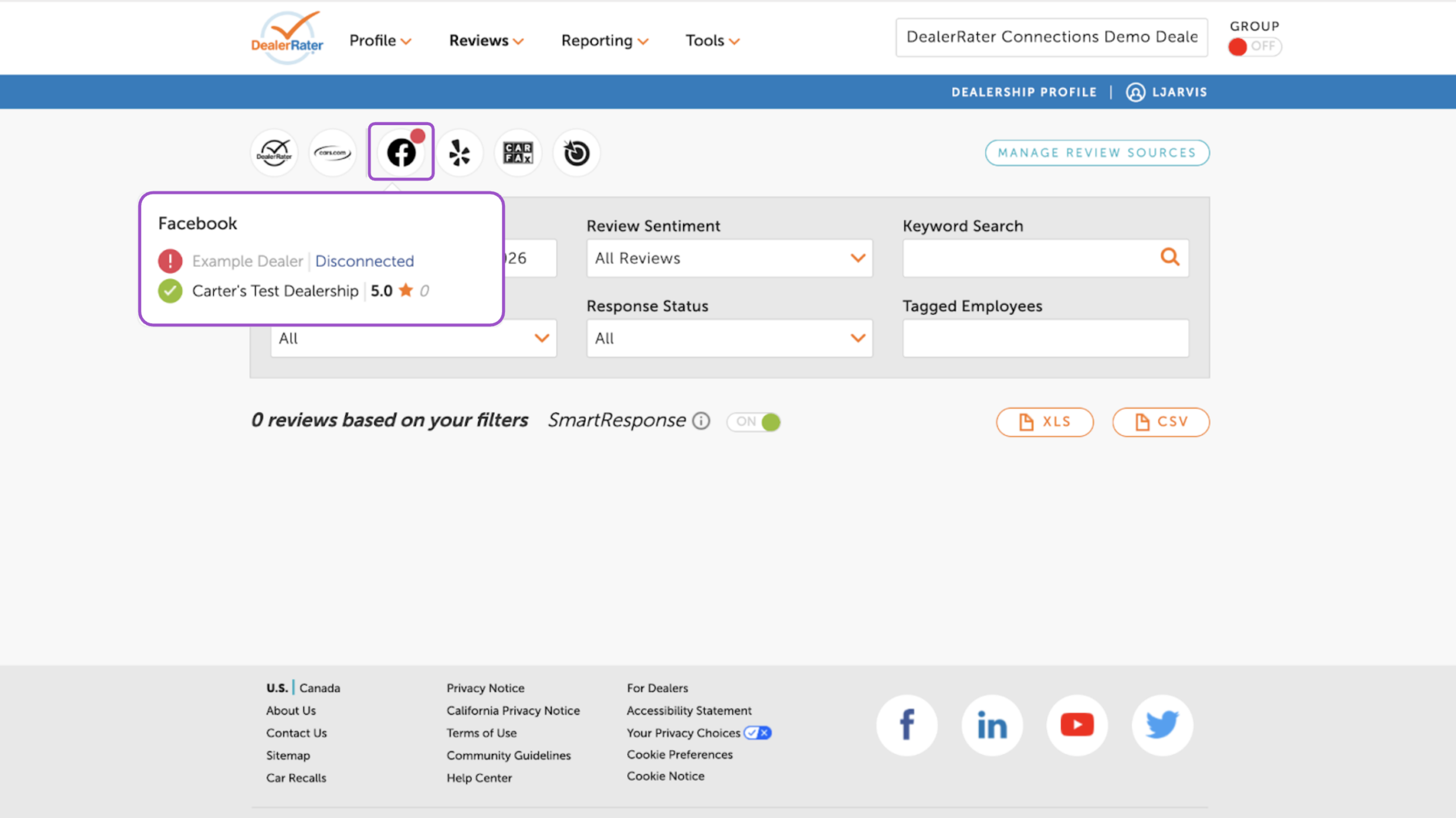
- Click Manage Review Sources to manage your review source pages
- Connect Google and Facebook pages here
2 Connect your Google account
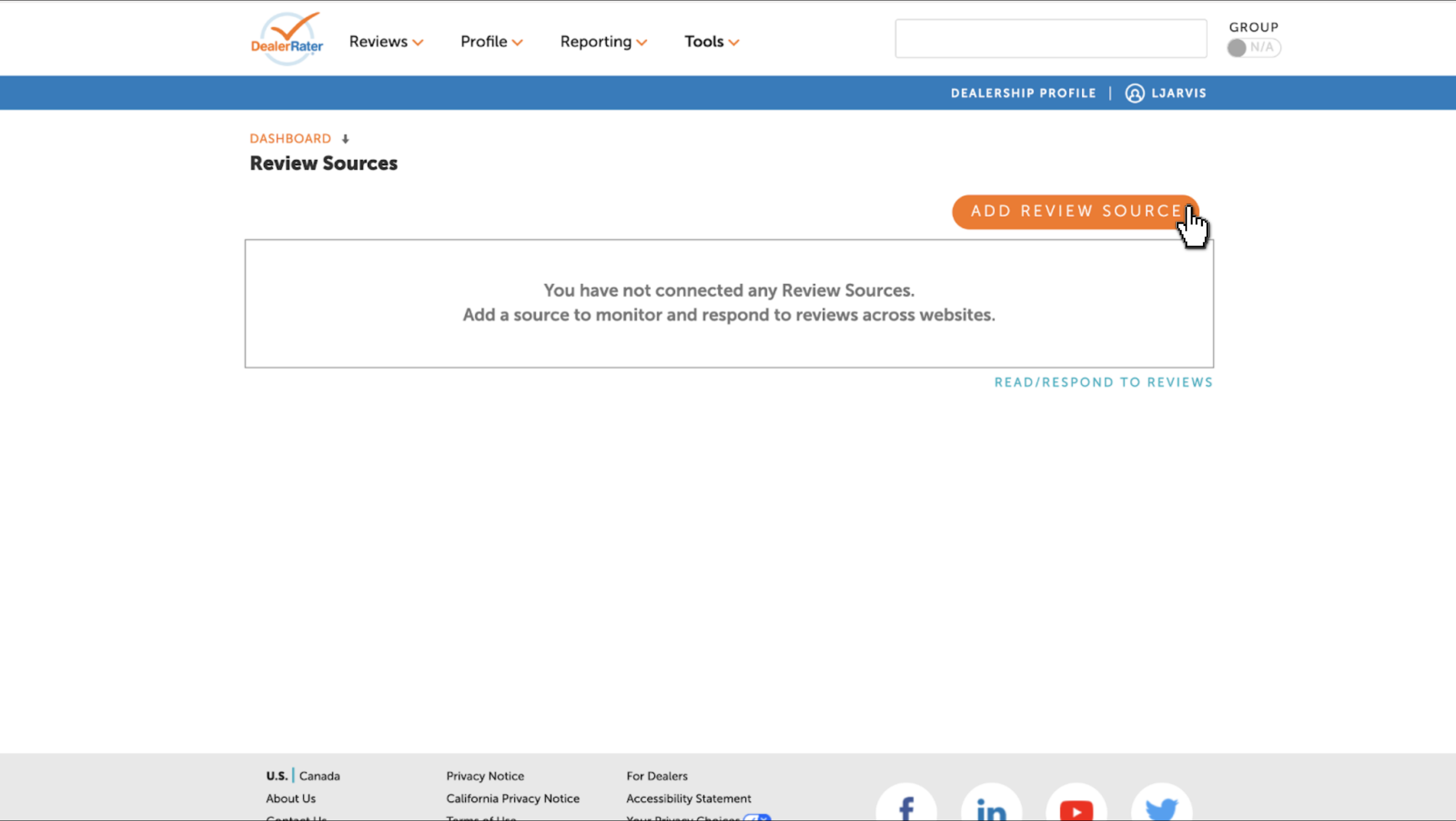
- Click Add Review Source
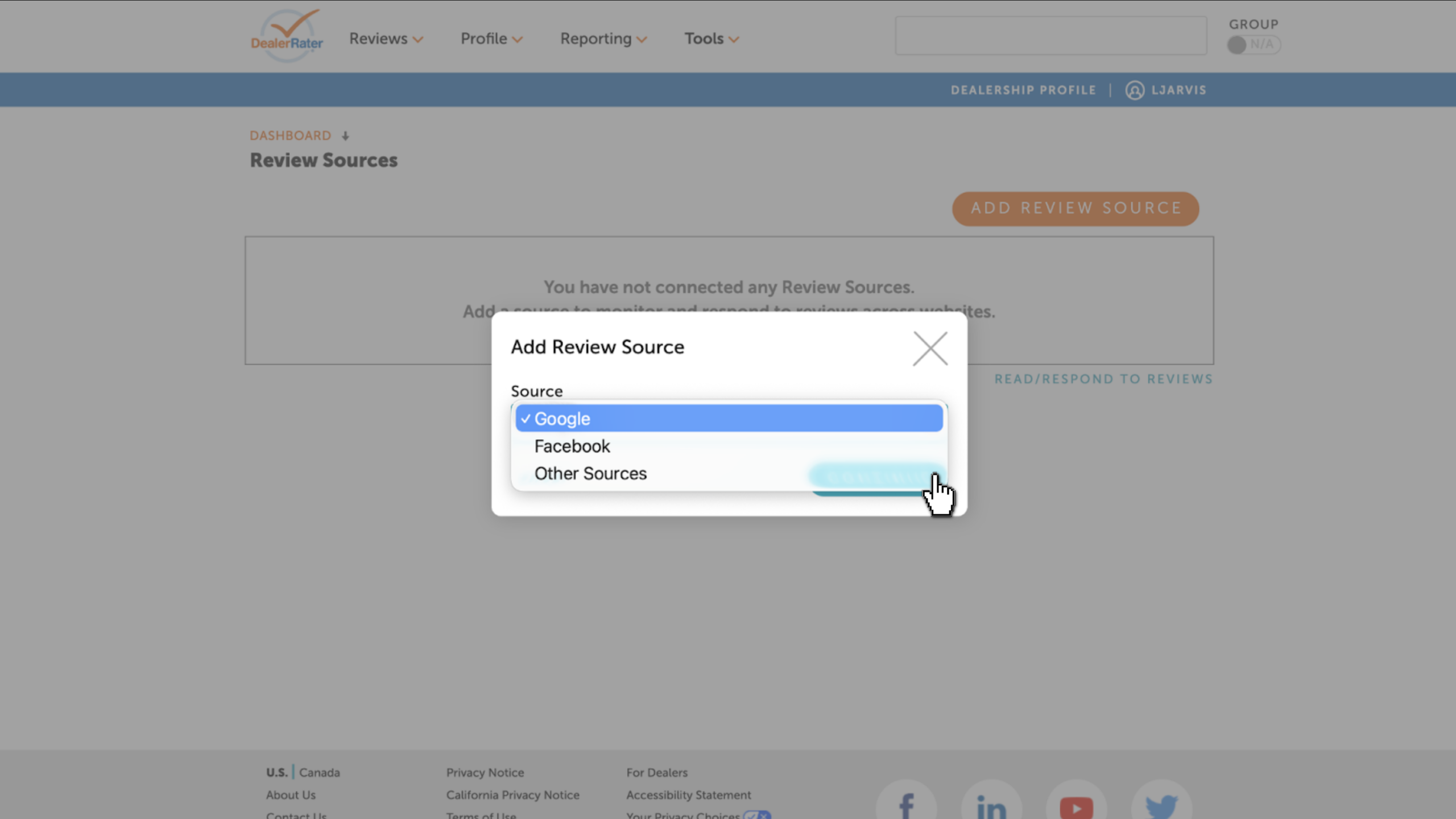
- Select Google from the dropdown
- Click Continue
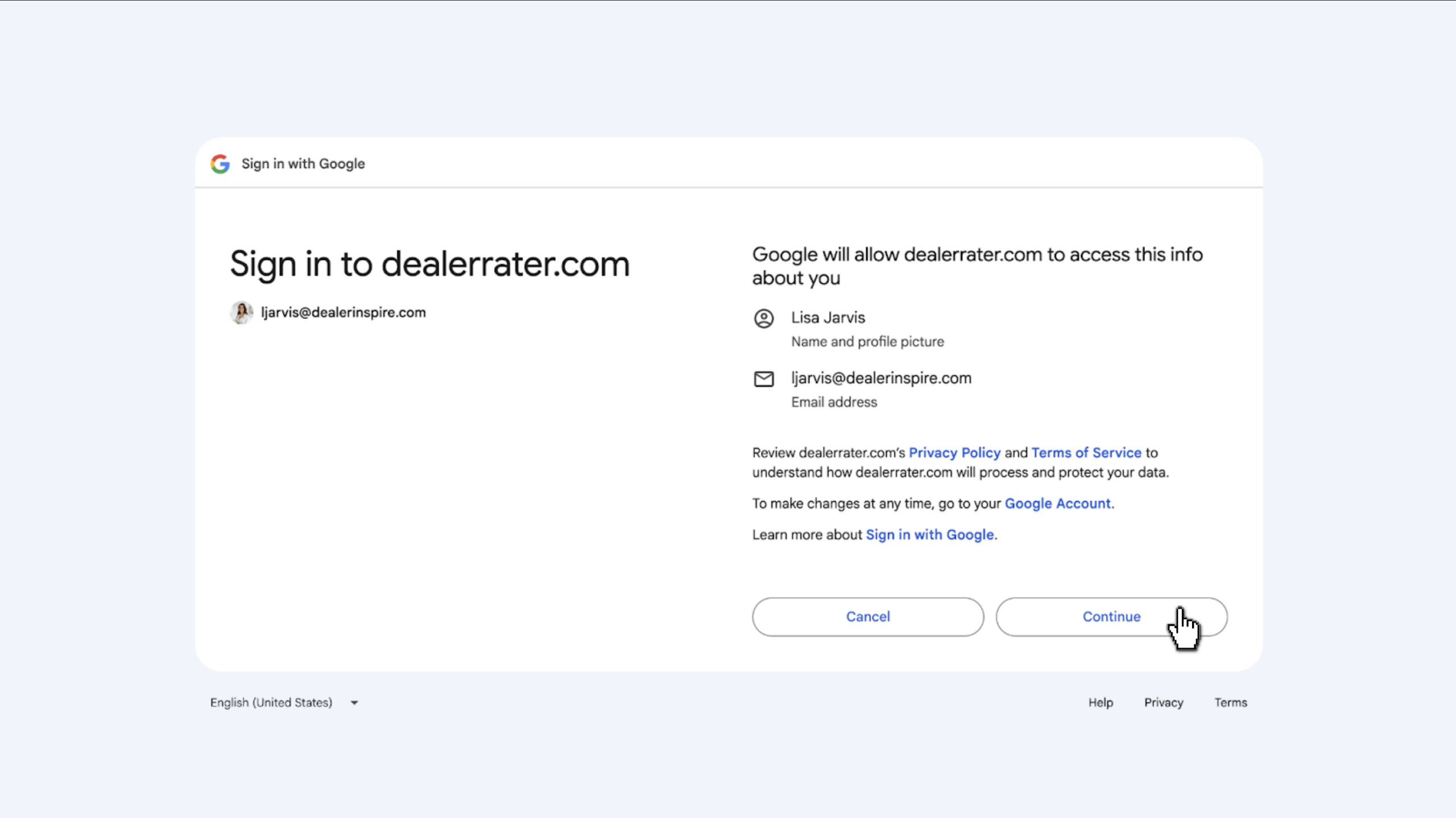
- Select your Gmail from the pop-up
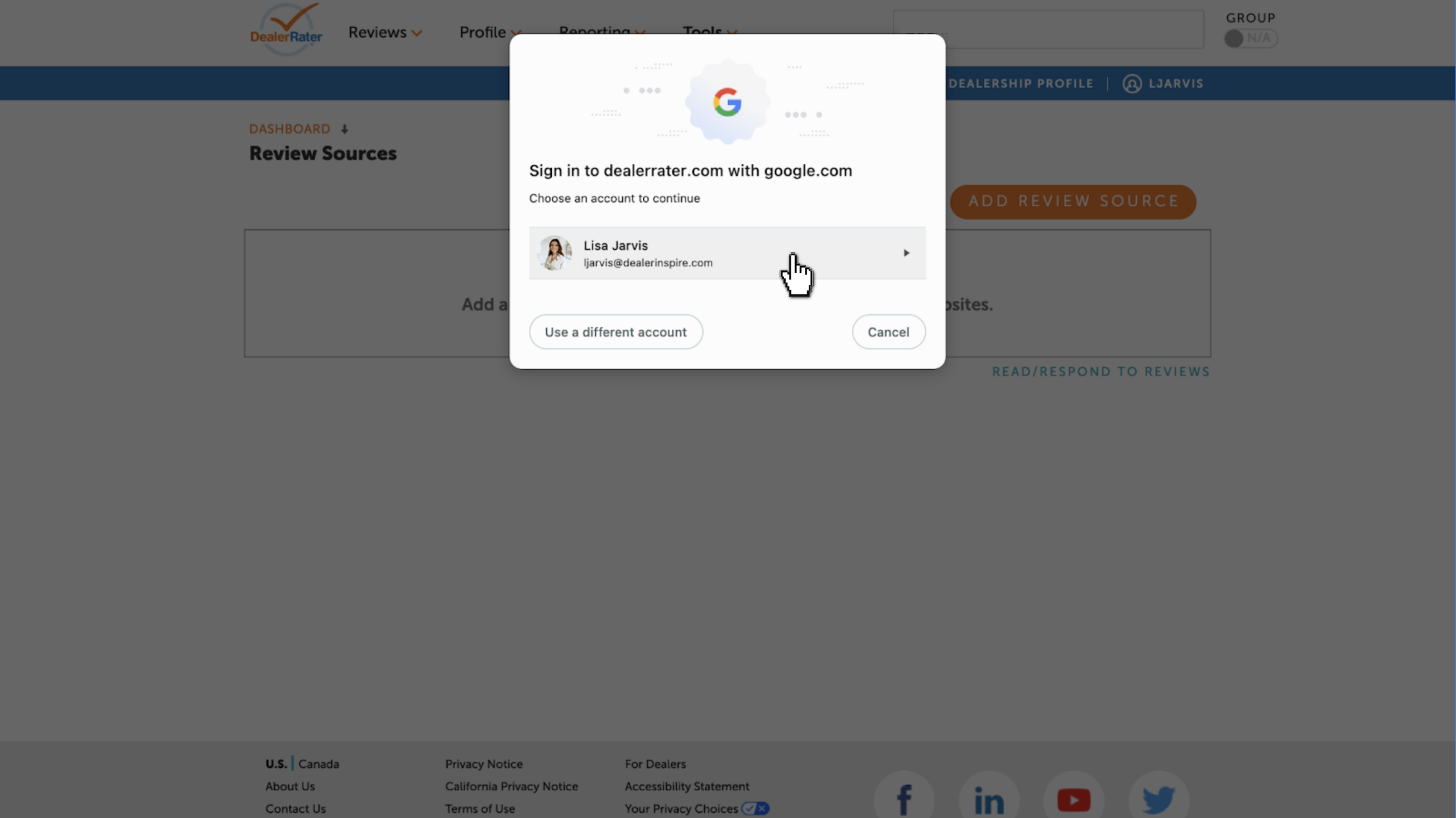
- Follow the prompts to log into your Google Business Profile and grant review permissions
- Note: there are multiple prompts to complete. Follow each to finish authentication.
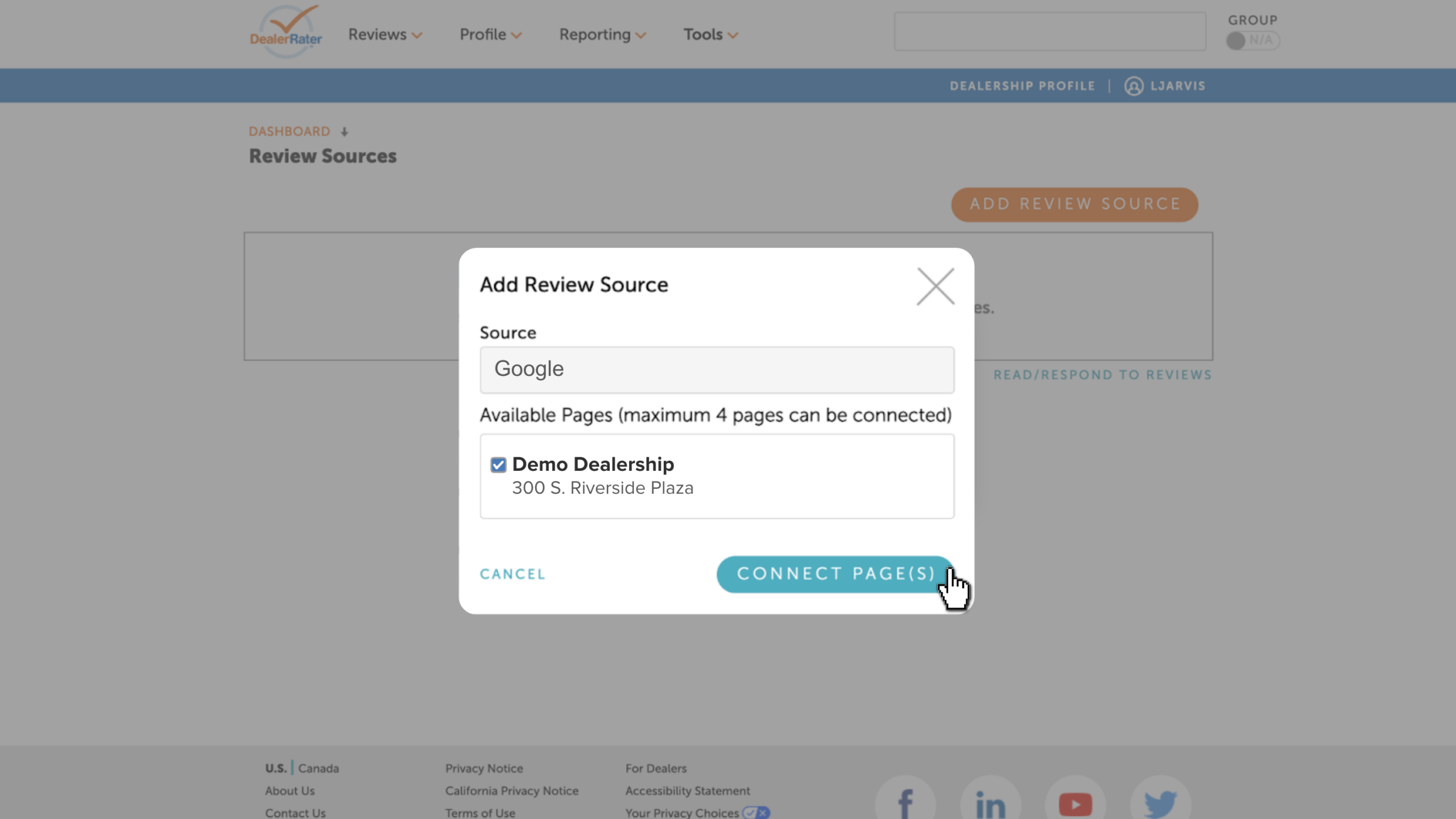
- Check the box next to each page you want to connect
- Click Connect Page(s)
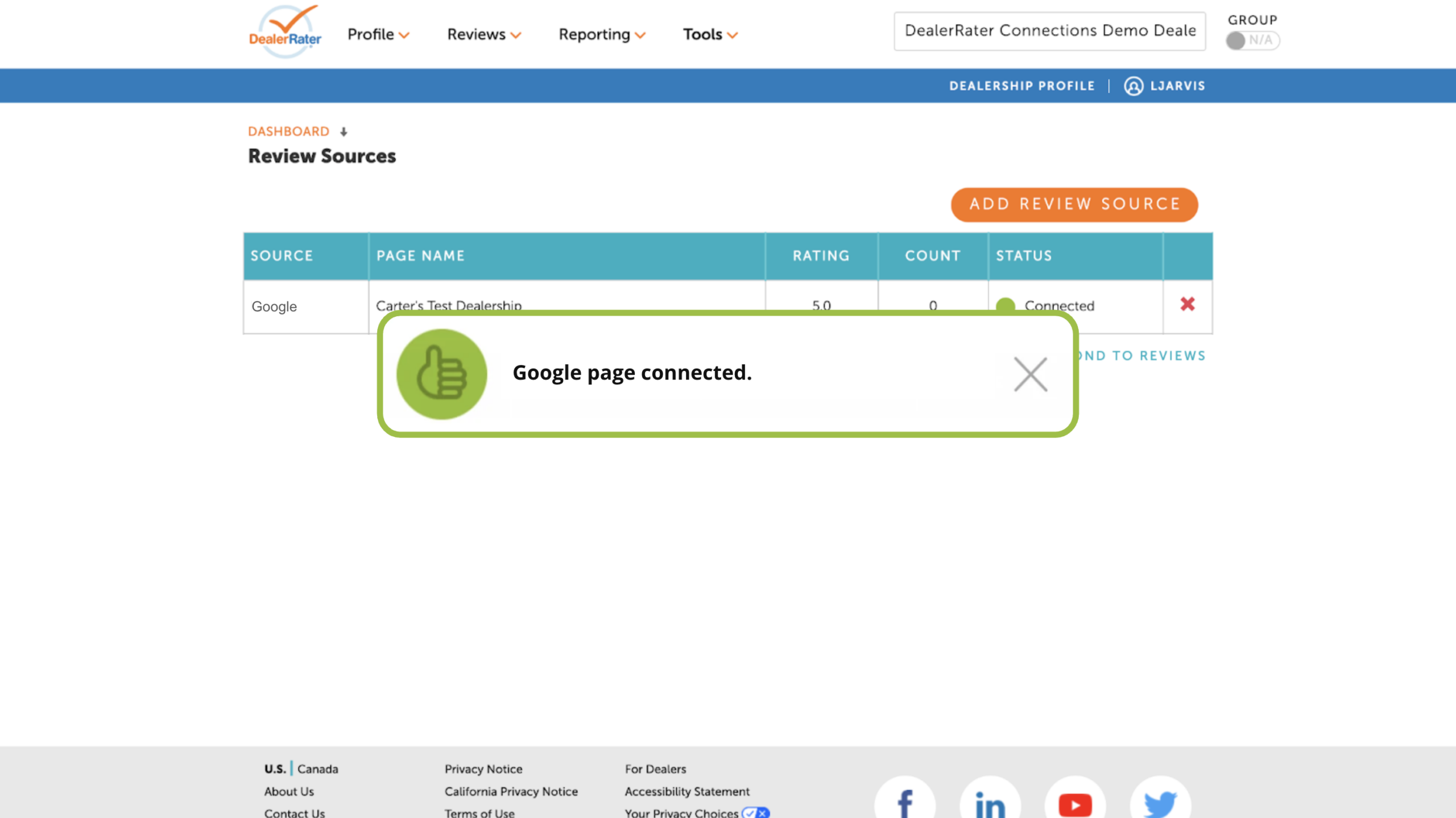
- You’ll receive a confirmation once the connection is complete
3 Connect your Facebook page
- Click Add Review Source again
- Select Facebook from the dropdown
- Click Continue
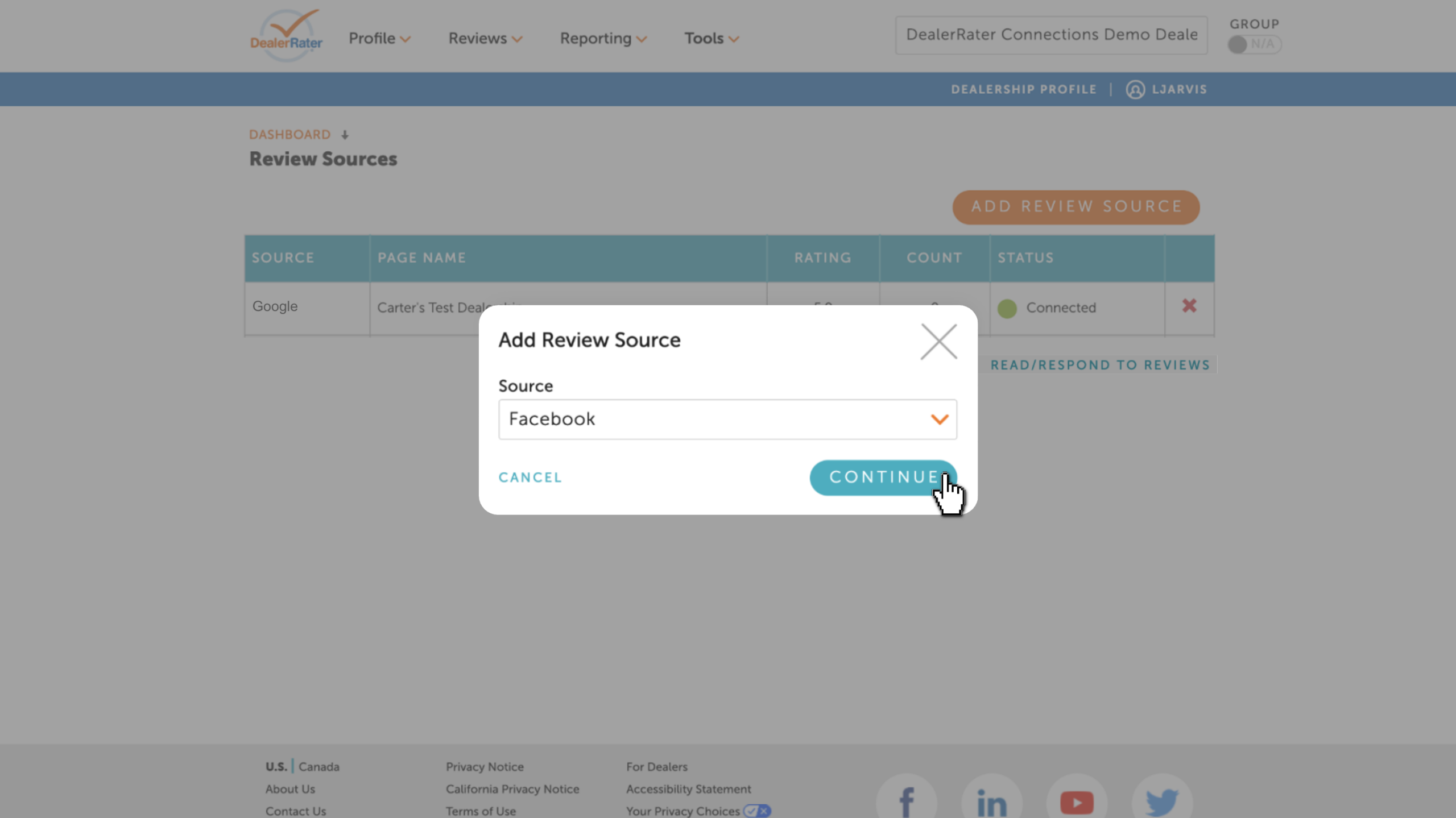
- Click Continue to connect your Facebook page
- You may need to log in
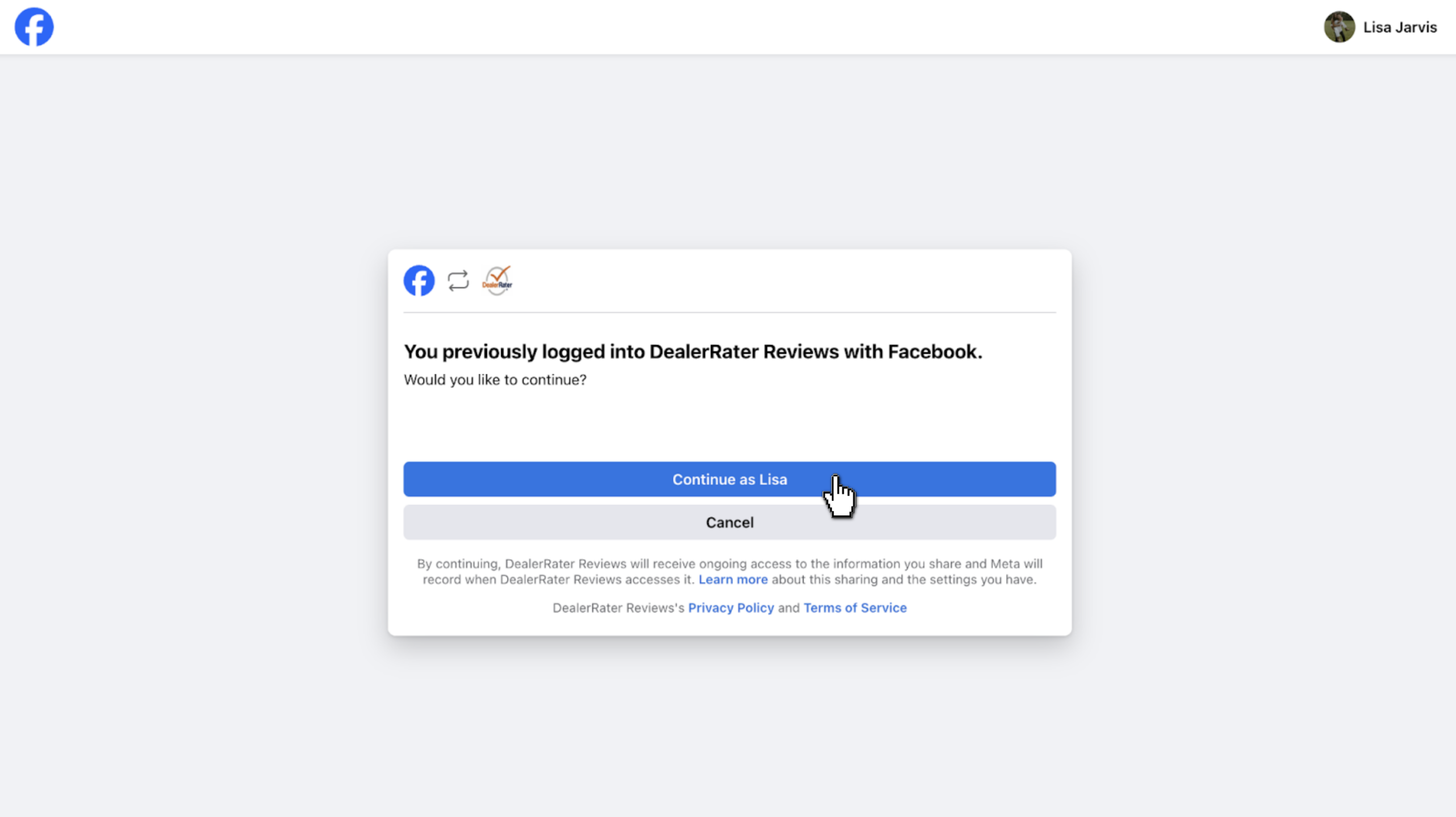
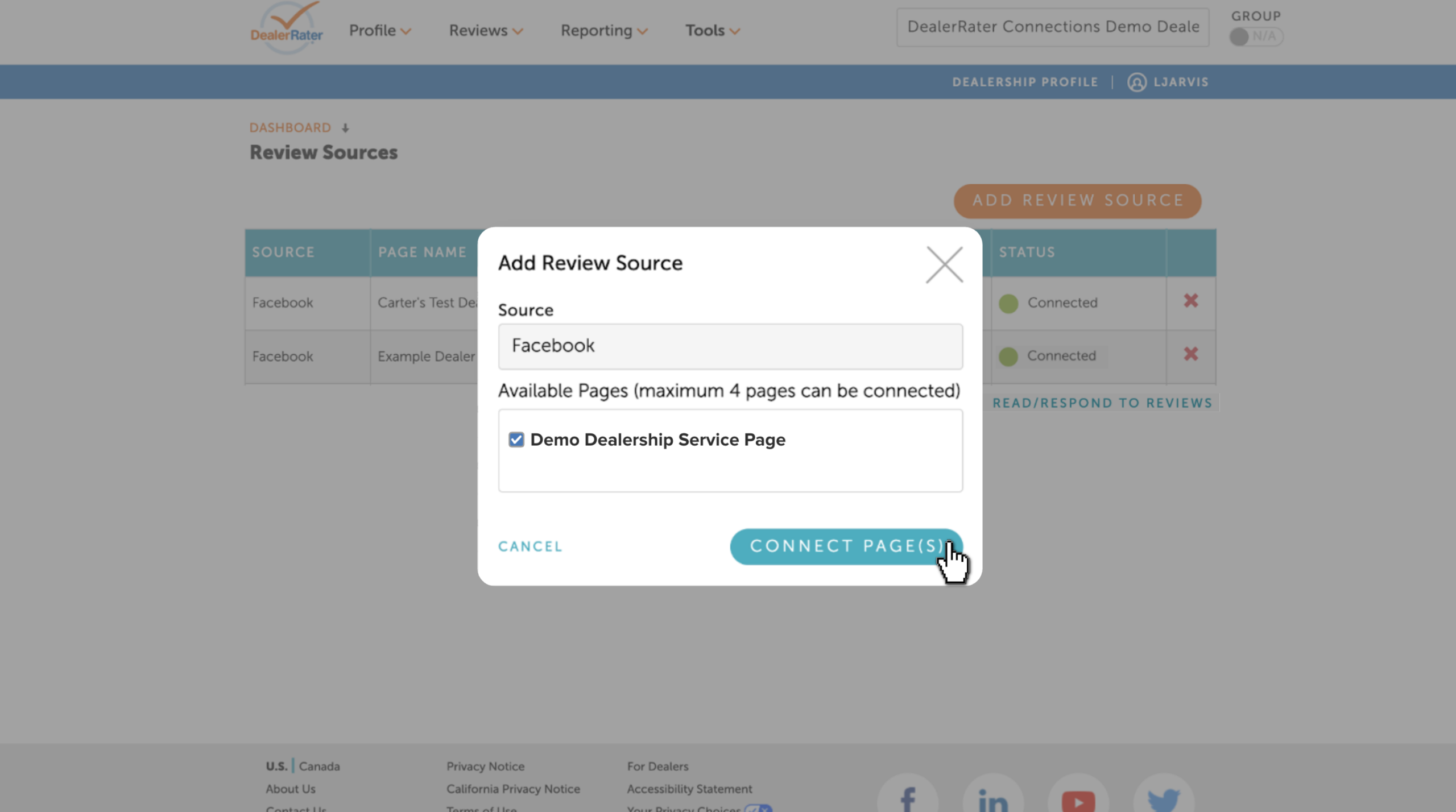
- Check the box of the Facebook page(s) you’d like to connect
- Select Connect Page(s)
- You’ll receive confirmation when your page is connected
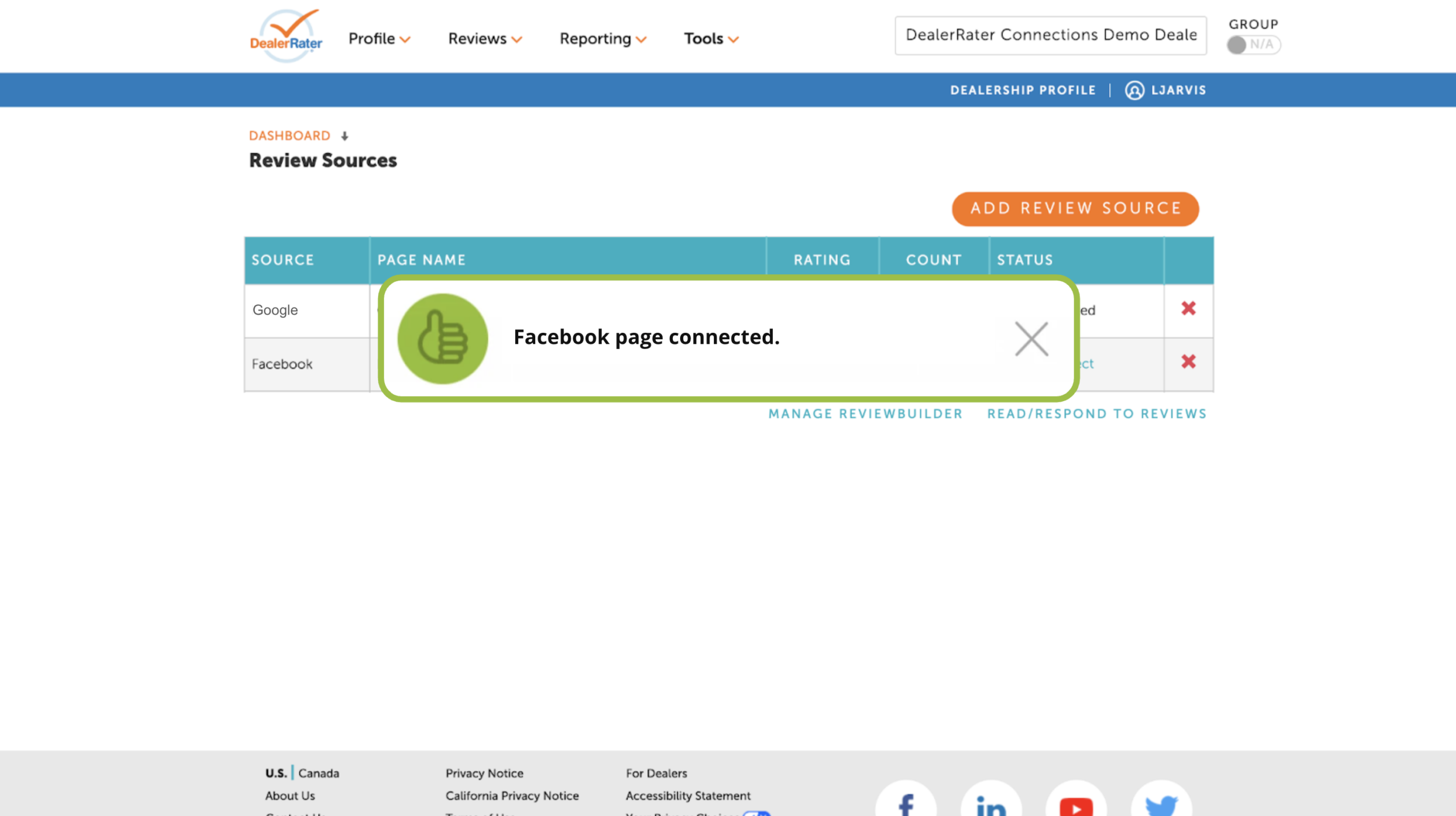
Note: Your Cars.com and DealerRater accounts are already connected by default — no additional steps needed. You can verify this in the All Reviews section.
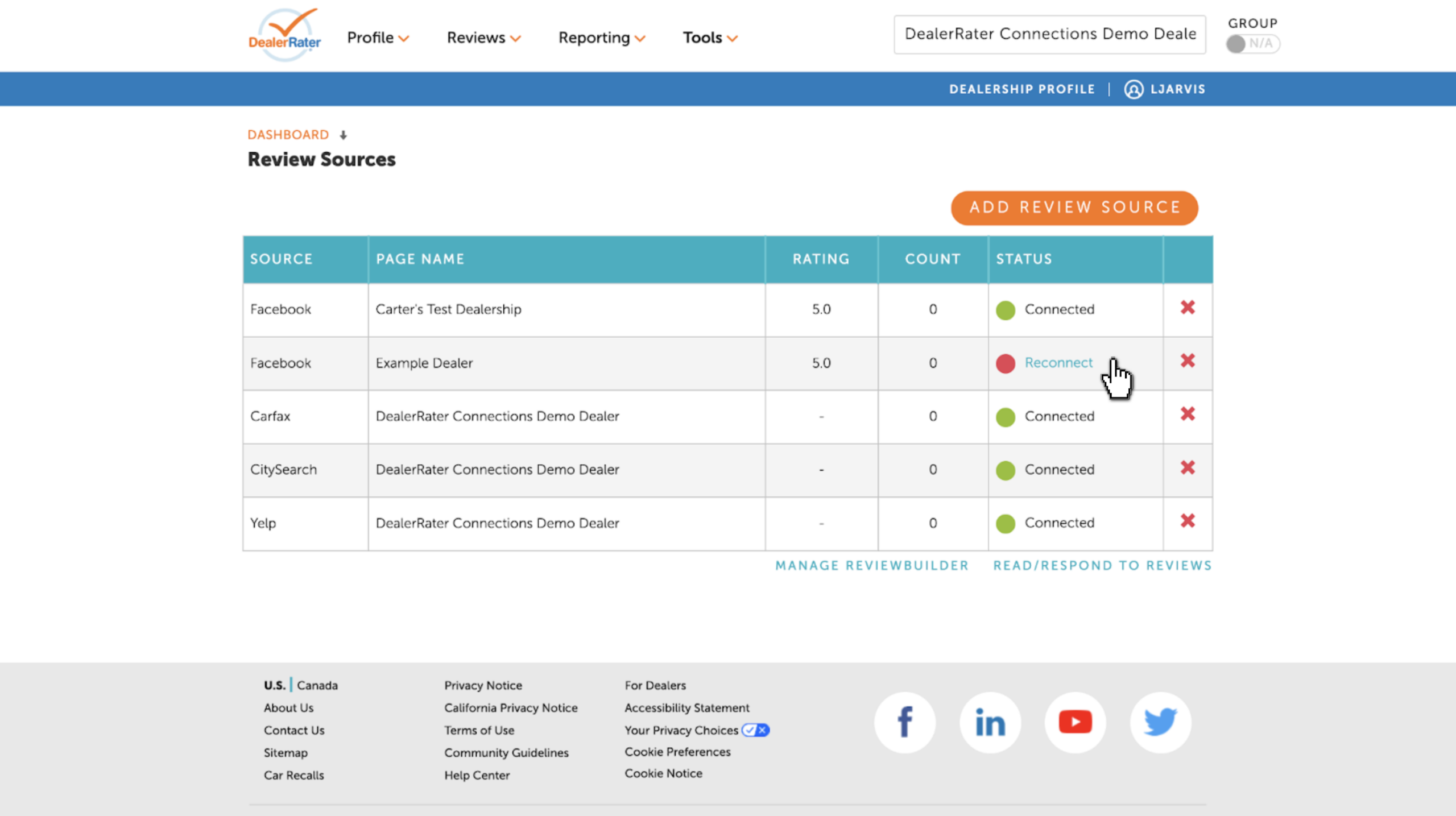
Reconnect a page
If a page has been disconnected, select Reconnect and follow the prompts to sync.
Frequently Asked Questions (FAQ)
Which platforms does the AI respond to?
AI currently handles positive reviews on Cars.com and DealerRater. All other reviews — including those on Google and Facebook — are handled by our human team.
Can I customize the AI’s responses?
Not at this time. Smart Response is designed to be “set it and forget it,” automatically using your dealership’s name and past response patterns to stay on-brand.
What if the AI responds to a “spam” or “weird” review?
Our human moderators can skip or report spam. However, AI is programmed to respond to every positive review to ensure full compliance with OEM expectations.
Can I turn the AI off?
Yes — you can disable Smart Response AI replies using the toggle in your settings. However, we recommend keeping it on to maintain consistent, timely responses.