How to leverage managed chat
Managed Chat acts as a live support safety net within the Conversations platform. While the AI Virtual Assistant is the default responder for incoming chats — offering quick, automated answers 24/7 — Managed Chat ensures no lead goes unanswered when human assistance is needed. If a shopper requests a live agent and your dealership team is unavailable (due to after-hours, holidays, or high chat volume), the conversation automatically rolls over to a professional Call Center Agent.
This article walks you through how to configure Managed Chat rules, assign policies to teams, and ensure Call Center agents are equipped with the right information to deliver a consistent, branded experience for your customers.
To get started
Go to the Cars.com Hub Click Dealer Inspire, then Manage Website.
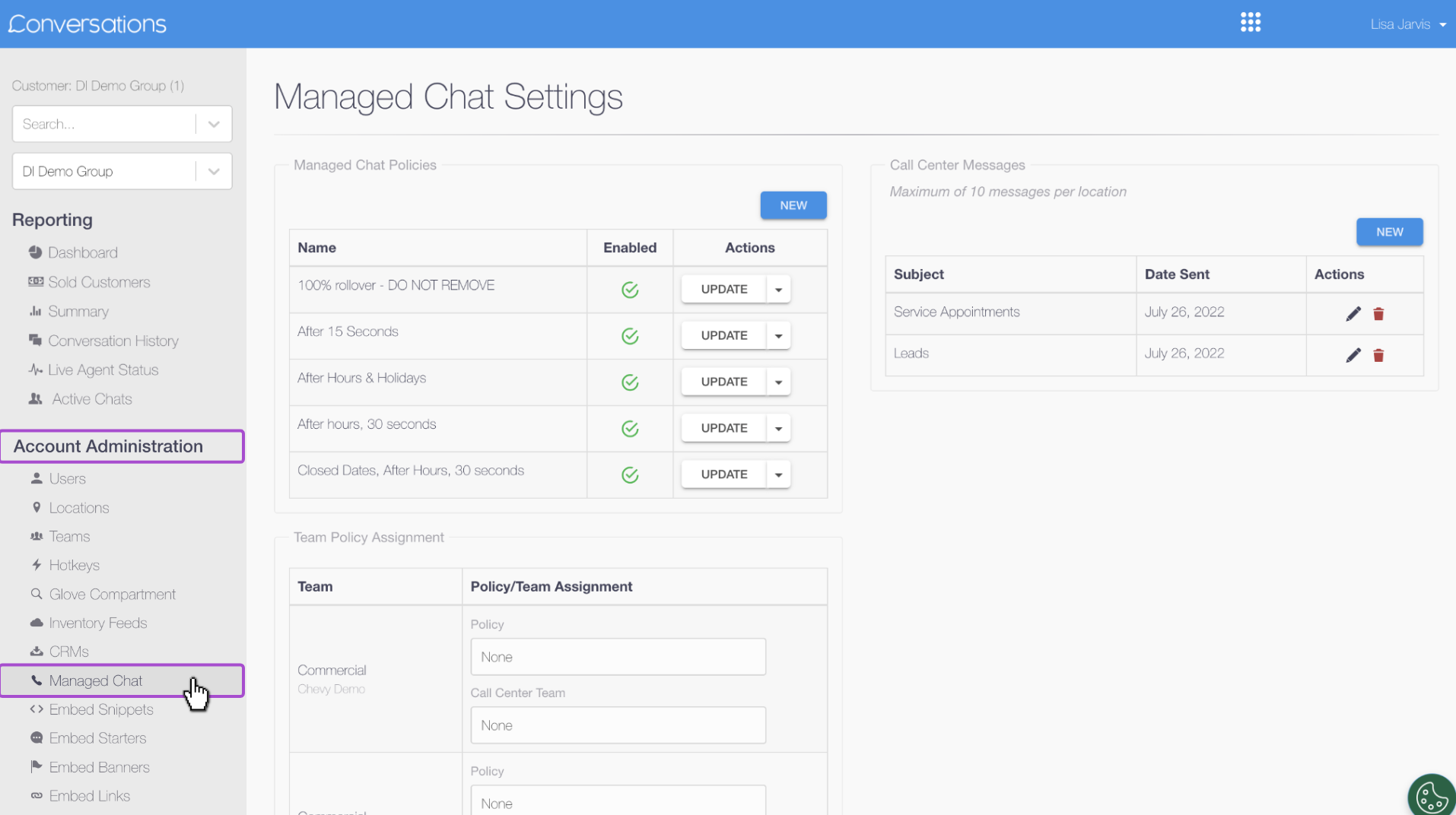
1 Access Managed Chat settings
To begin, log into your Conversations admin dashboard.
- Click your name in the top-right corner.
- Select Account Admin.
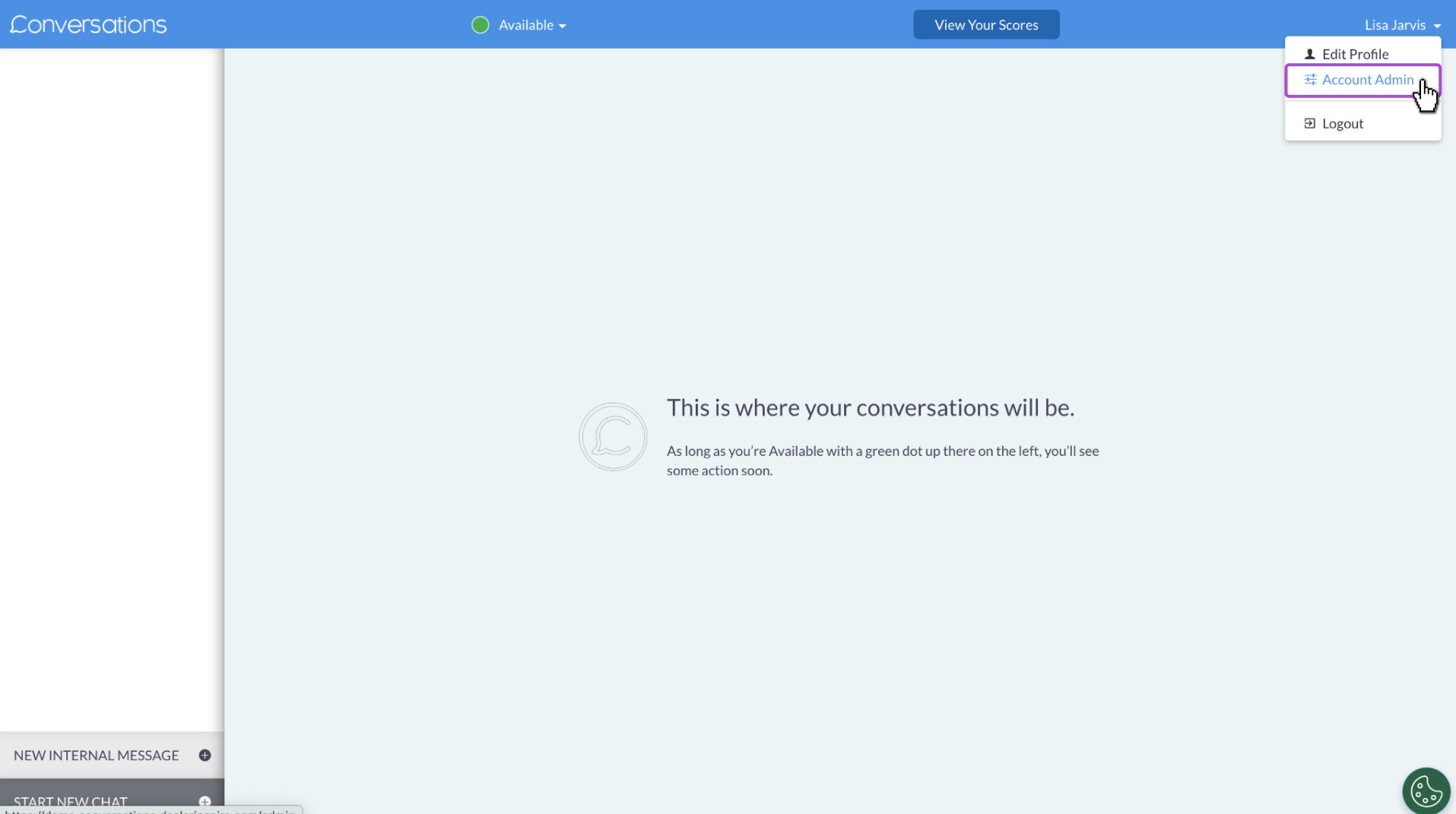
- From the left-hand menu, click Managed Chat under the Account Administration section.
Note: Admin permissions are required to access these settings.
2 Create a Managed Chat policy
Managed Chat policies define when the Call Center should take over a conversation. These rules are highly customizable and allow for fine-tuned control over chat routing.
To create a new policy:
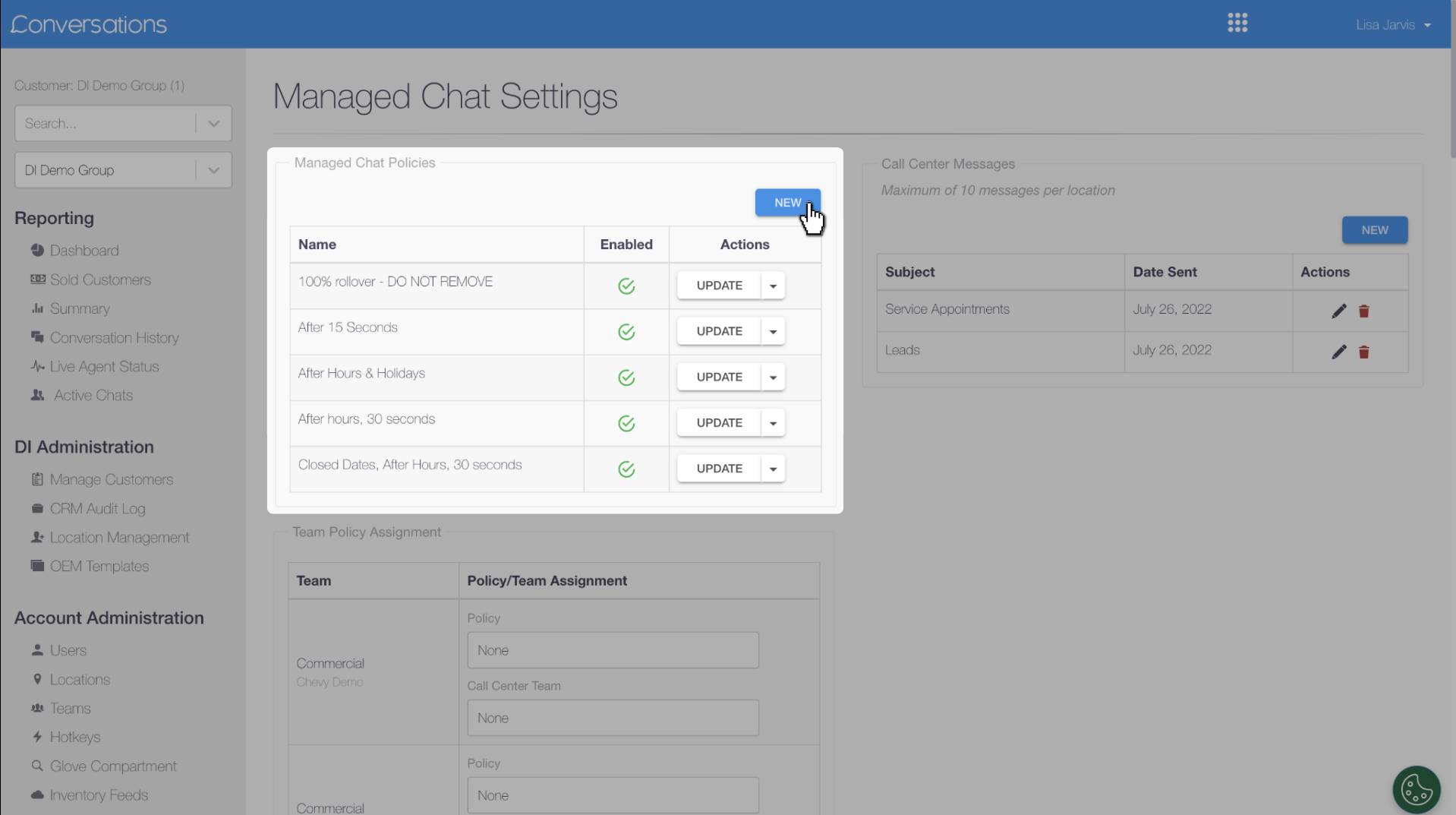
- In the Managed Chat Policies section, click New.
- Enter a title for your policy.
- By default, Always use managed chat is enabled.
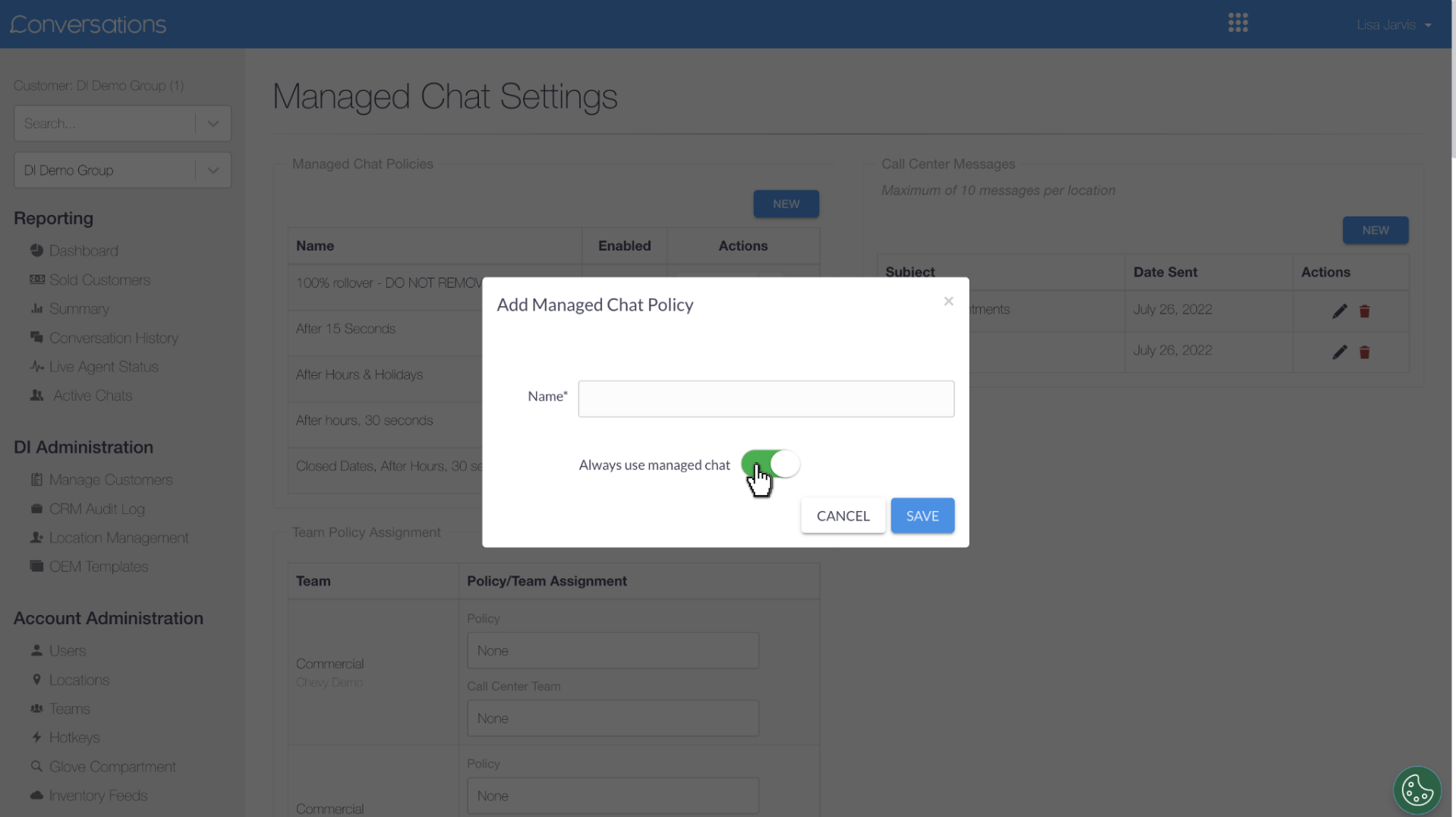
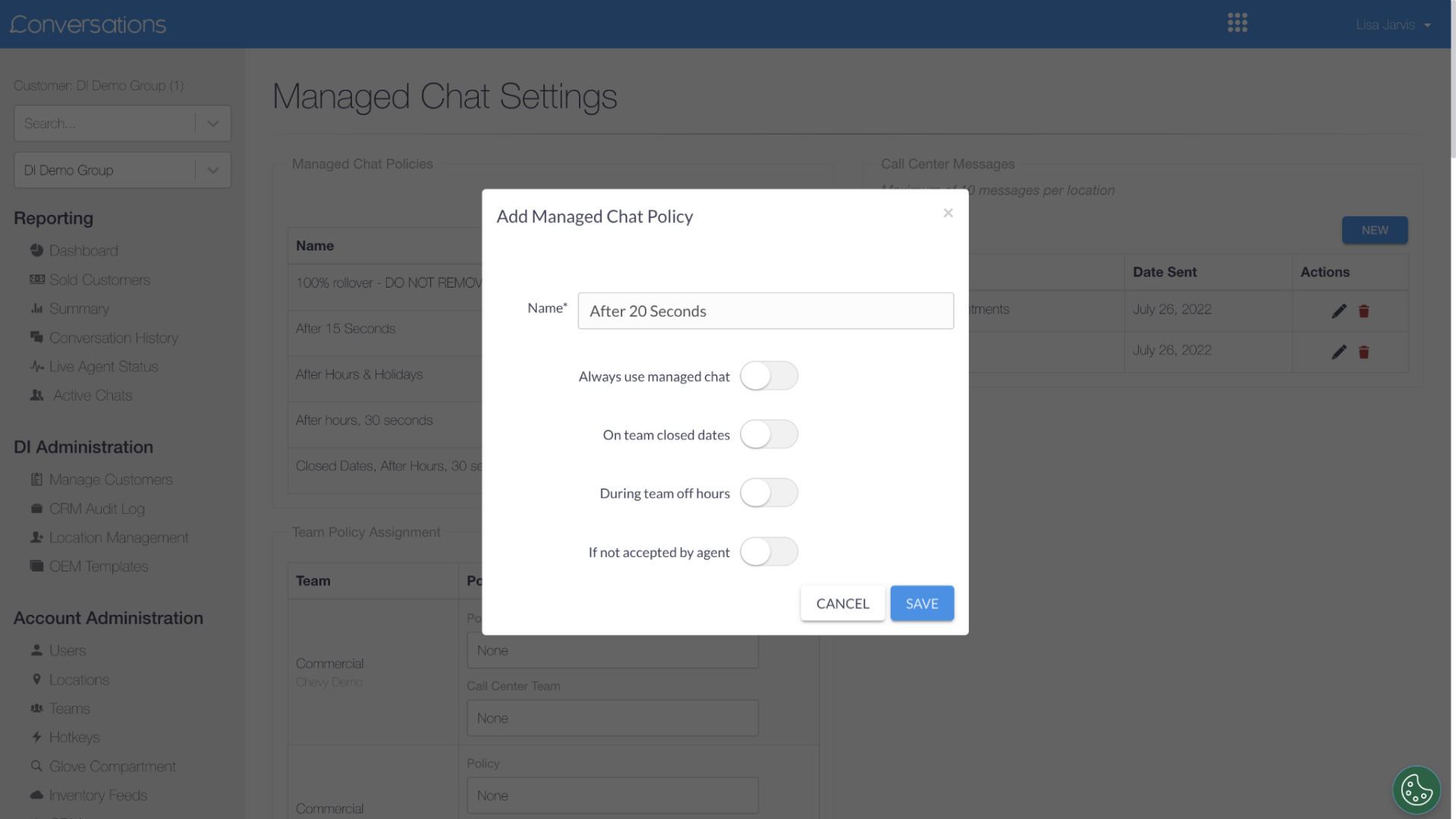
- Toggle Always use managed chat off to reveal additional options:
- On Team Closed Dates
- During Team Off Hours
- If Not Accepted by Agent
- On Team Closed Dates
You can enable one or more of these options to trigger a handoff to the Call Center.
Example: Rollover after agent delay
To avoid customer abandonment if an agent doesn’t respond quickly:
- Toggle on If Not Accepted by Agent
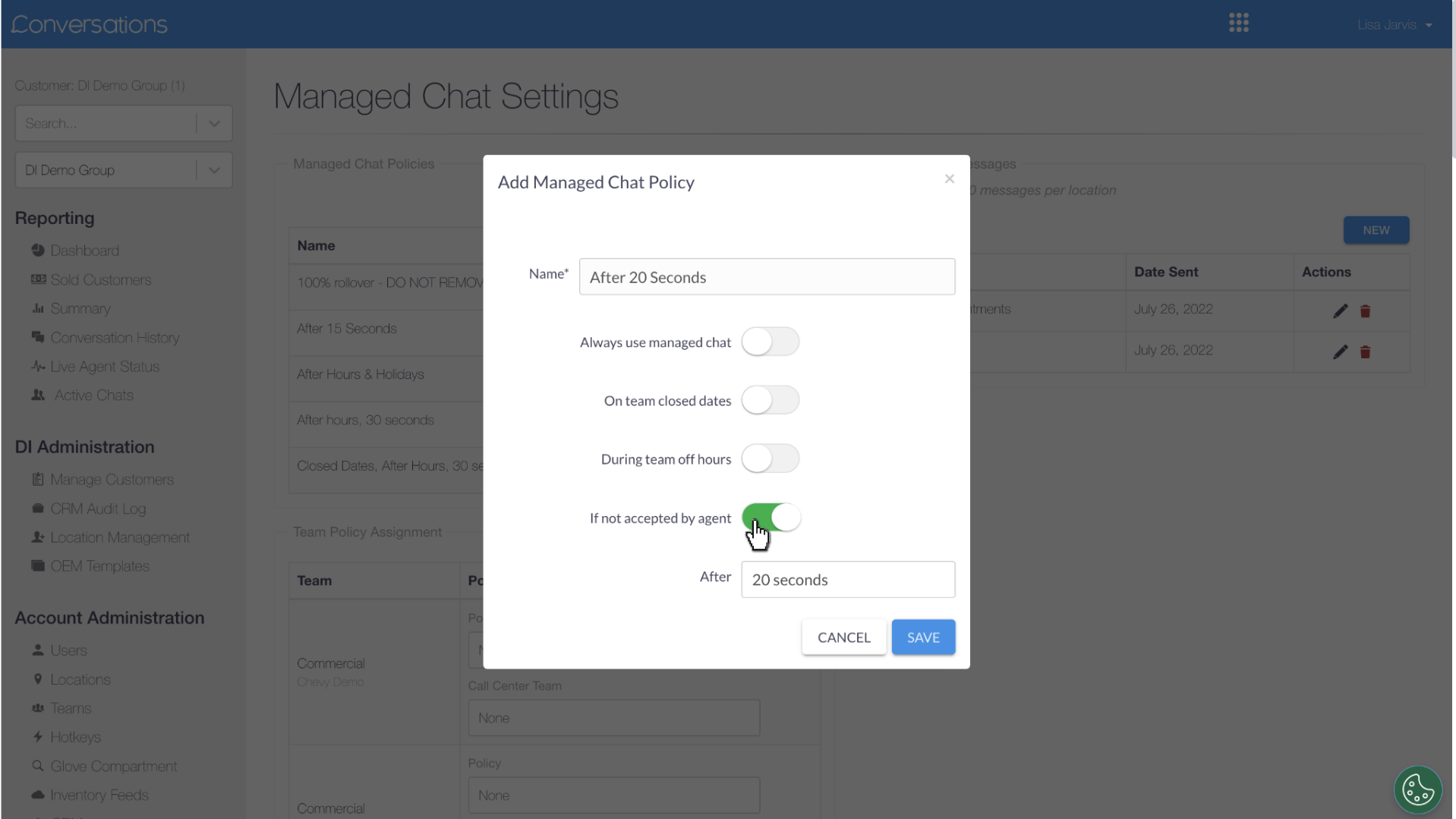
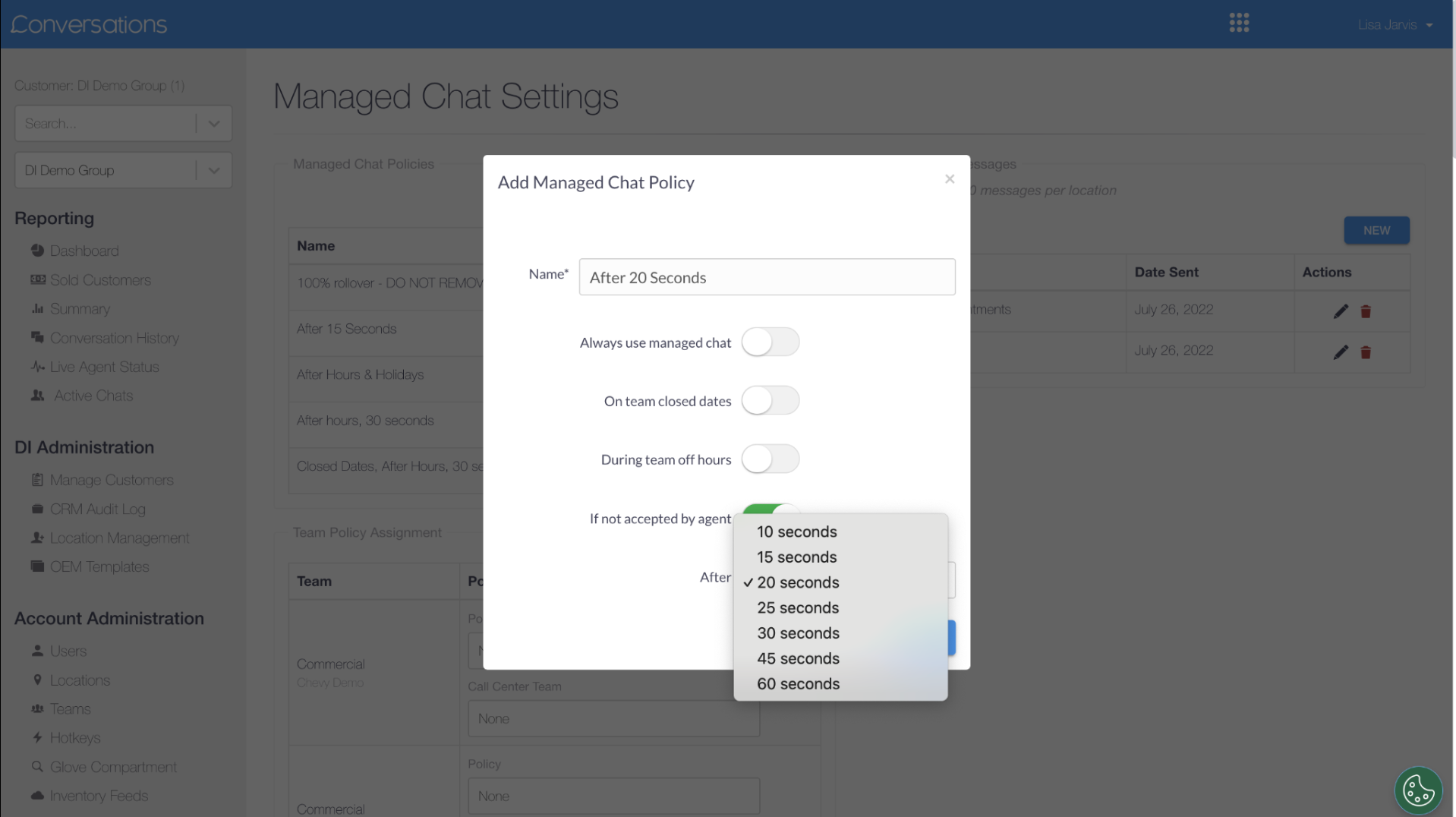
- Set a time threshold (e.g., 20 seconds) for when to escalate to Managed Chat.
- Click Save to apply.
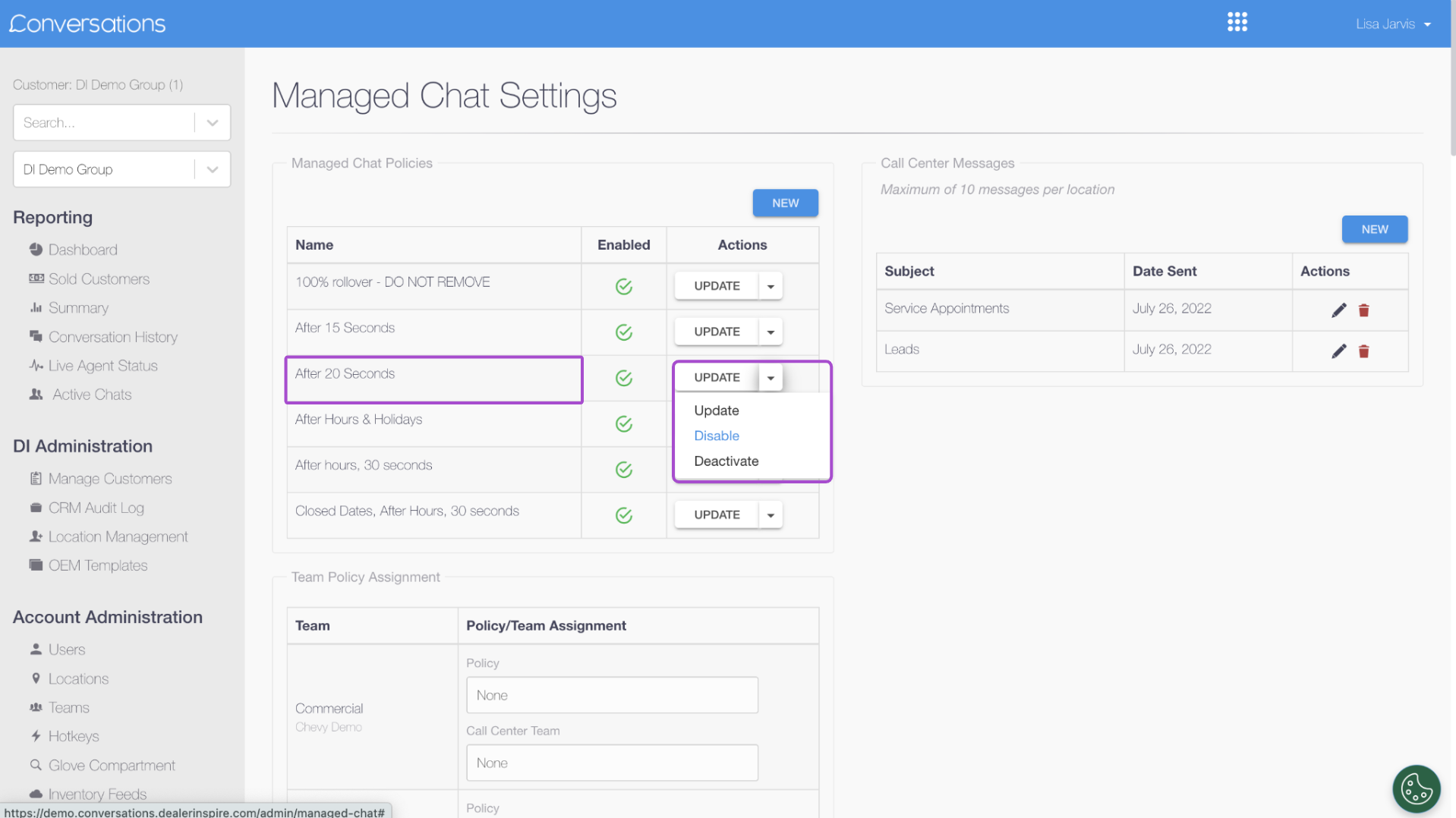
- Your new policy will now appear in the policy list. You can update, disable, or deactivate it at any time.
3 Apply policies to your teams
To ensure each team uses the correct Managed Chat rule:
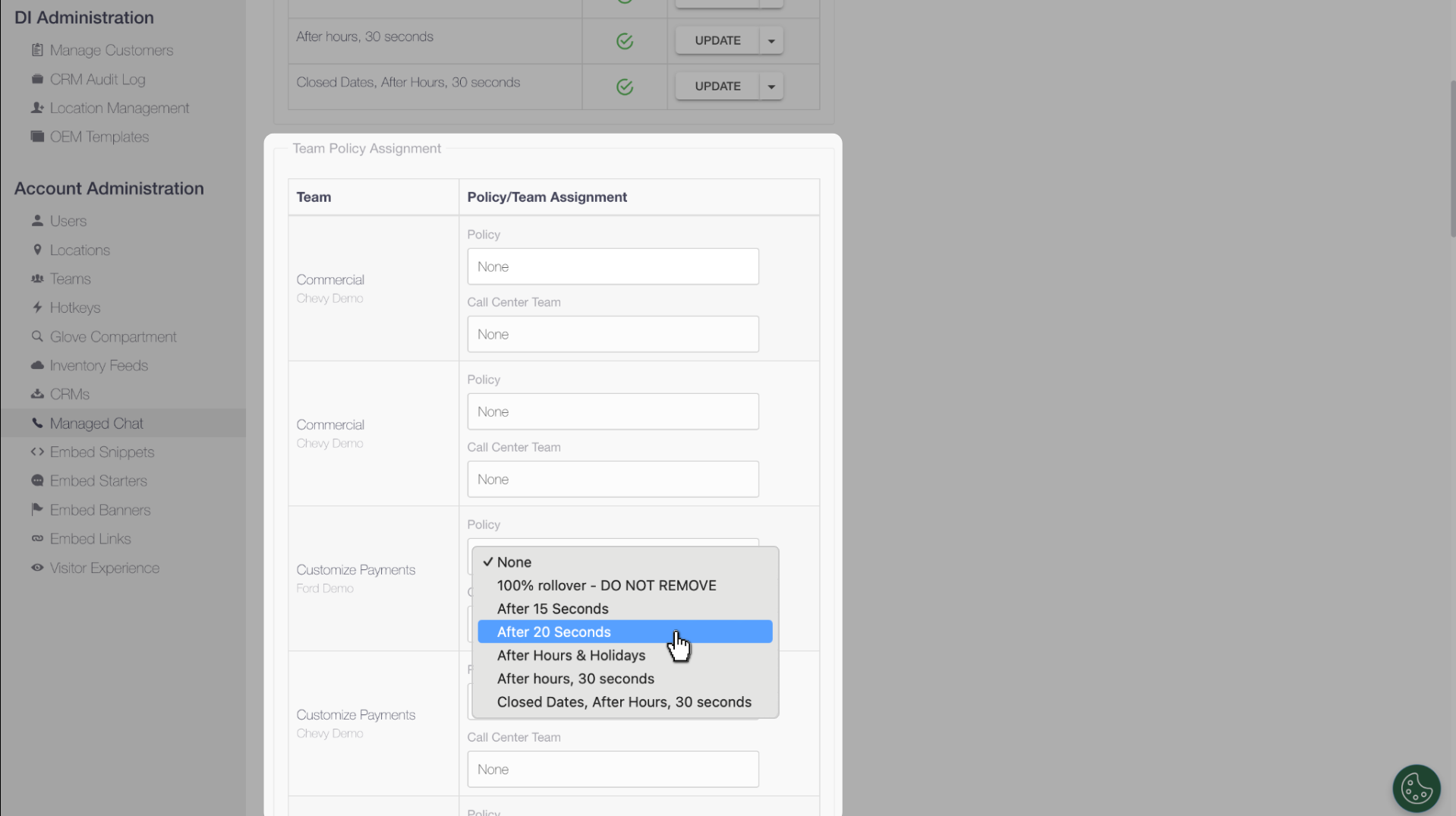
- Scroll to the Team Policy Assignment section.
- Locate the team you want to configure.
- Use the dropdown in the Policy column to select a policy.
Tip: You can create multiple policies but only one can be assigned per team. This helps tailor chat workflows to each department’s hours and coverage needs.
4 Add messages for Call Center agents
Call Center agents rely on clear, timely information to represent your dealership effectively. You can provide custom messages for reference or proactive use during Managed Chat interactions.
To create a message, navigate to Call Center Messages and click New.
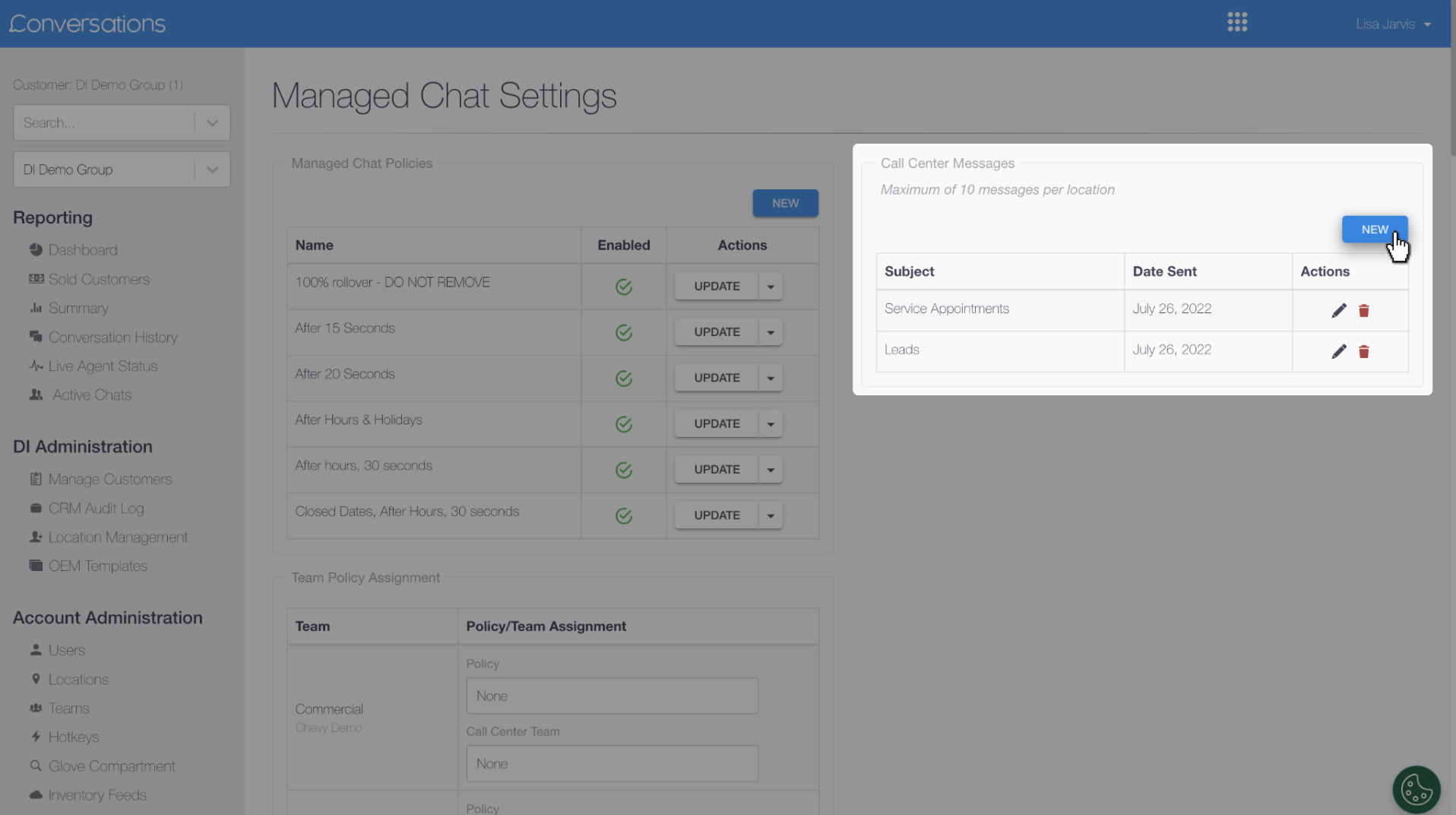
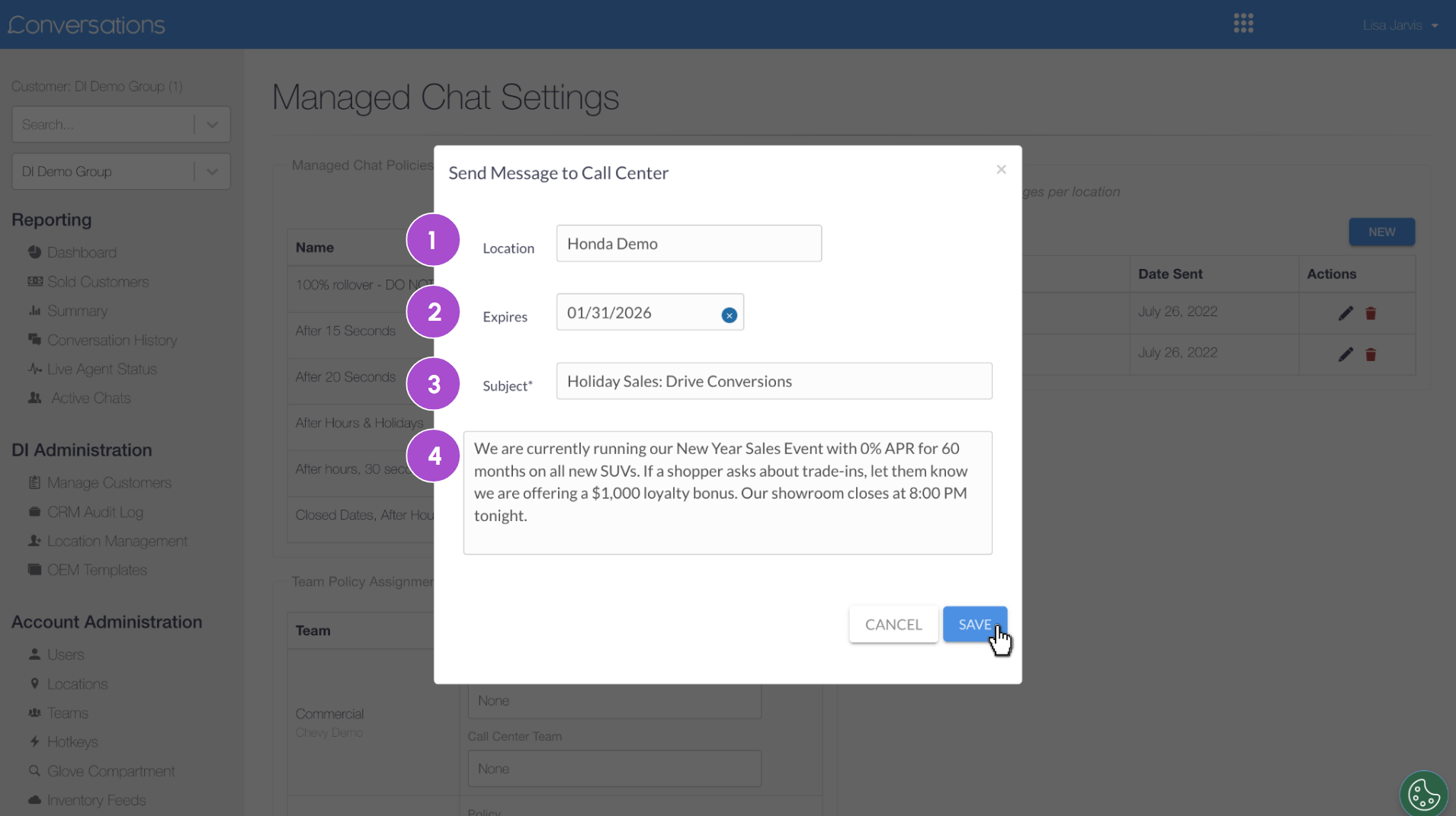
Enter the following information:
- Location: Select the dealership (or leave blank to apply to all).
- Expiration Date: Set if the message is time-sensitive.
- Subject: Use a brief 2–3 word label with a clear call to action.
- Message: Enter the content Call Center agents should see.
Click Save when complete.
Best practices:
- Limit to 2–3 active messages.
- Pair with a related Hotkey for easy response.
- Use for temporary alerts (e.g., weather closures, holiday hours).
5 Set accurate team hours
Your Managed Chat policies depend on your dealership’s hours being up to date. Each team’s schedule must reflect real operating hours, including holidays and special closures.
To update hours:
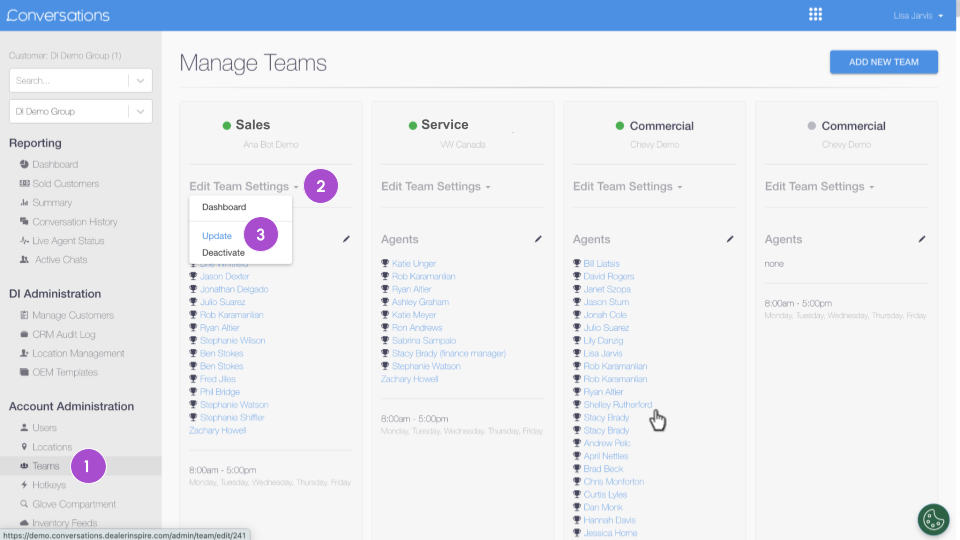
- In the Conversations admin panel, click Teams.
- Find the team you want to update and click Edit Team Settings.
- Click update.
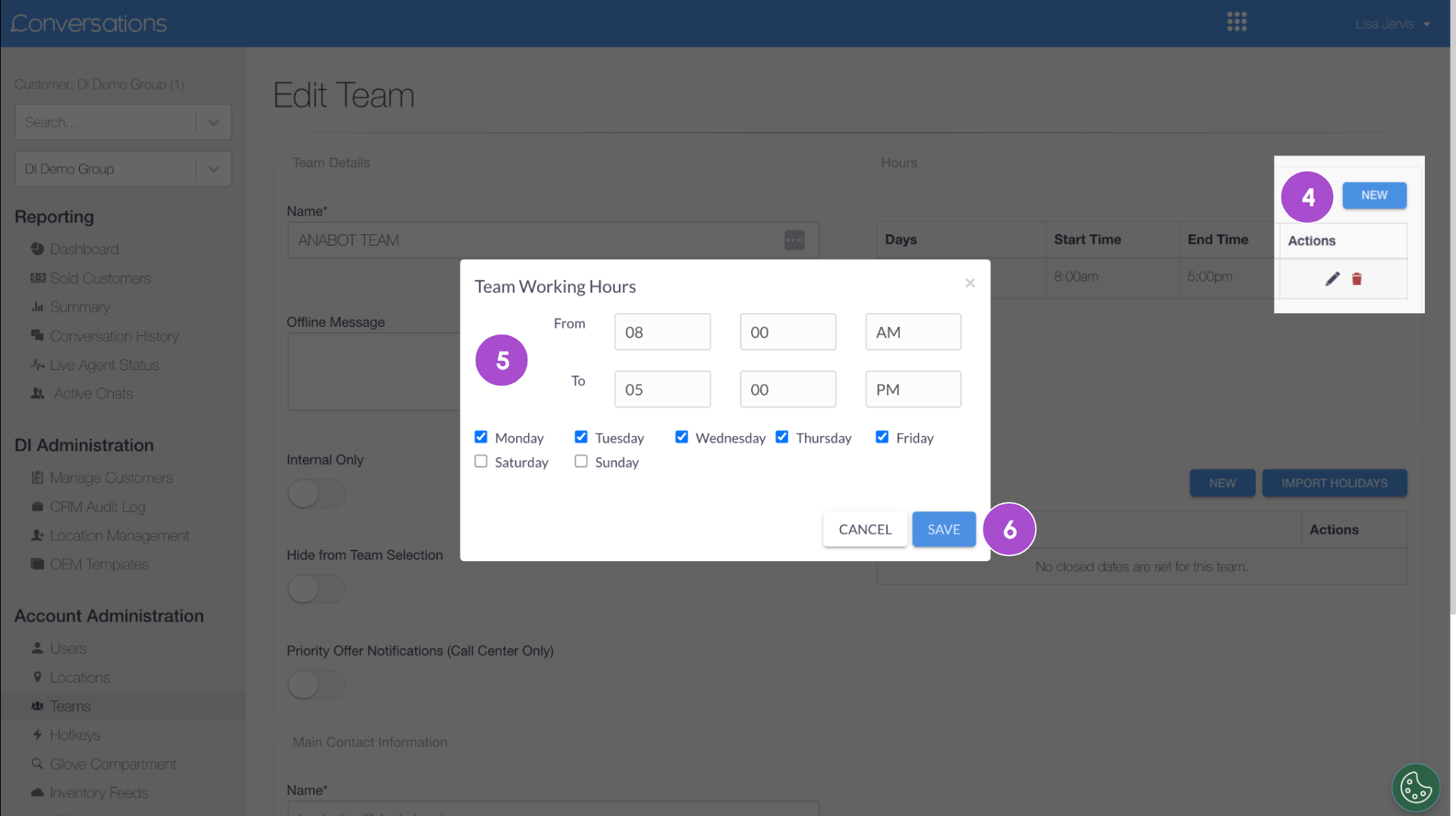
- Click the pencil icon under Hours, or click New to add hours.
- Adjust regular hours and note any changes for upcoming holidays.
- Click Save when finished.
Tip: If your hours change temporarily (e.g., holiday Monday), update your hours manually and assign the correct policy. Don’t forget to revert the change afterward.
By properly setting up Managed Chat, you ensure every shopper receives fast, knowledgeable service — even when your team is unavailable — helping you capture more leads and deliver a premium online experience.