How to set retail list prices
AccuTrade gives you flexible tools to price your used car inventory based on real-time market data, your cost basis, and profit targets.
In this article, you’ll learn how to verify vehicle costs and use AccuTrade’s Price Calculator to price your inventory using profit targets, market averages, or competitive rank.
To get started
Go to the Cars.com Hub, and click on AccuTrade.
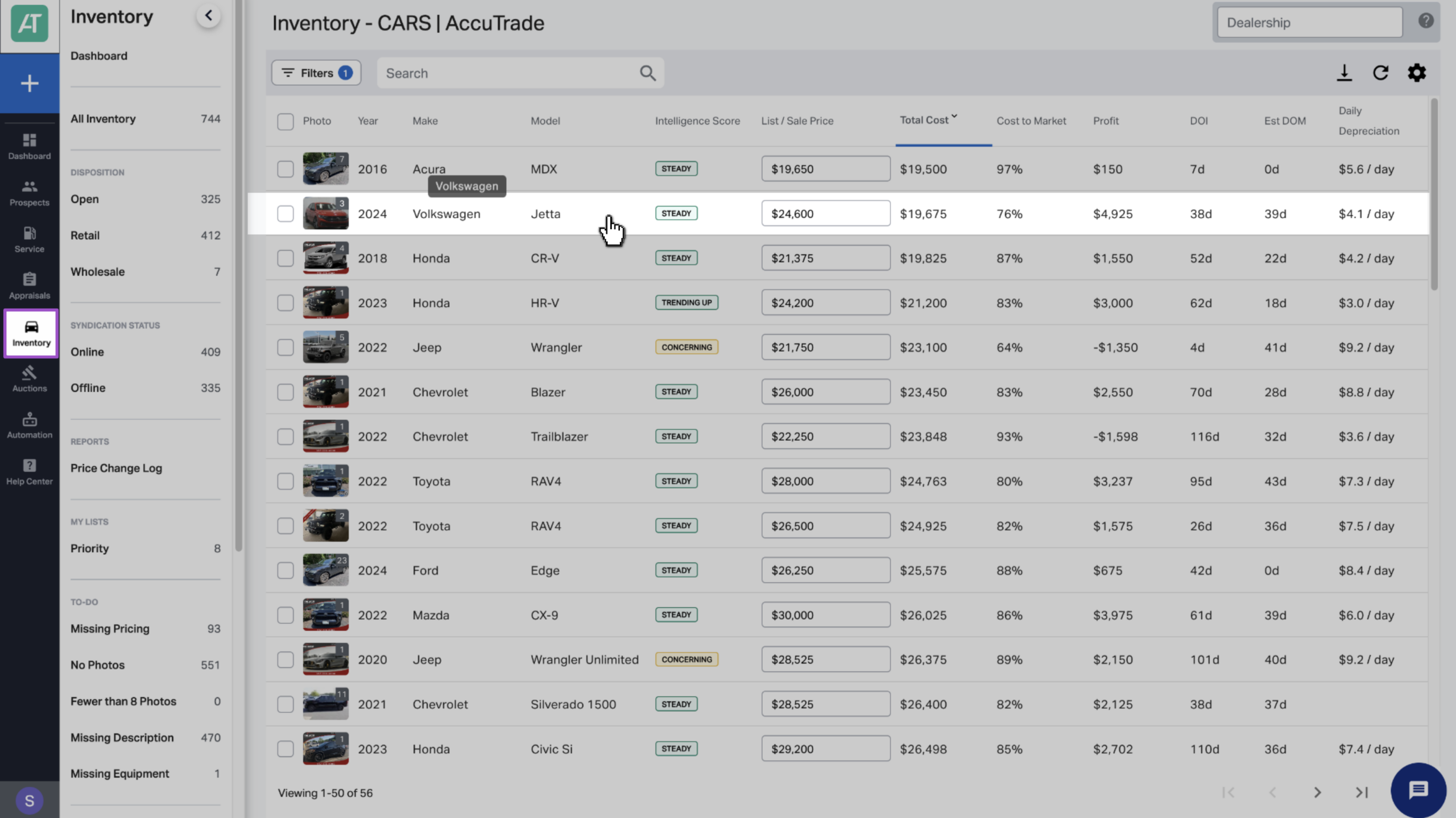
1 Select the vehicle from your inventory
Click the Inventory tab to search for and select the vehicle you want to price.
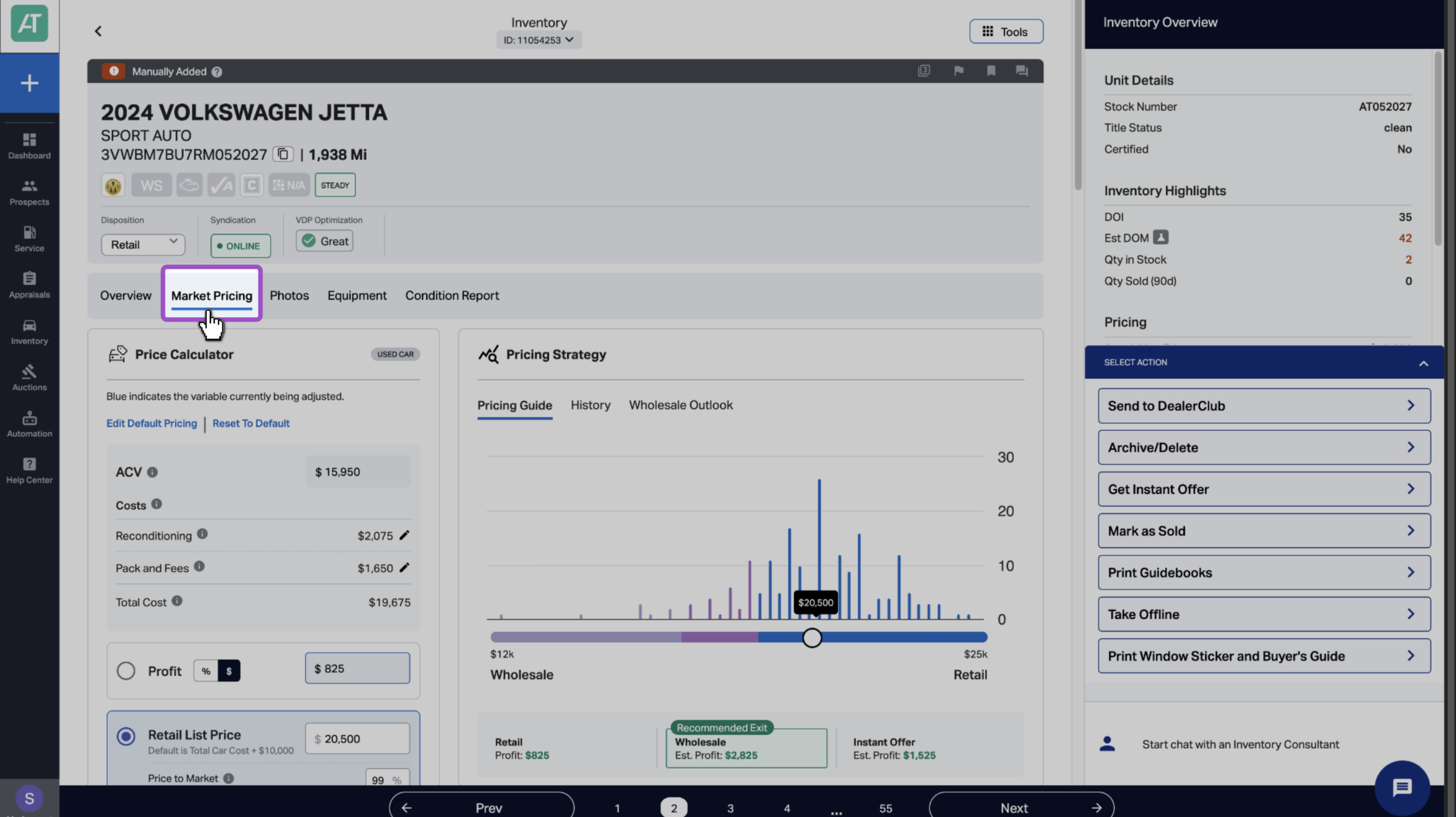
2 Select Market Pricing
On the vehicle screen, click the Market Pricing tab.
3 Review and adjust costs
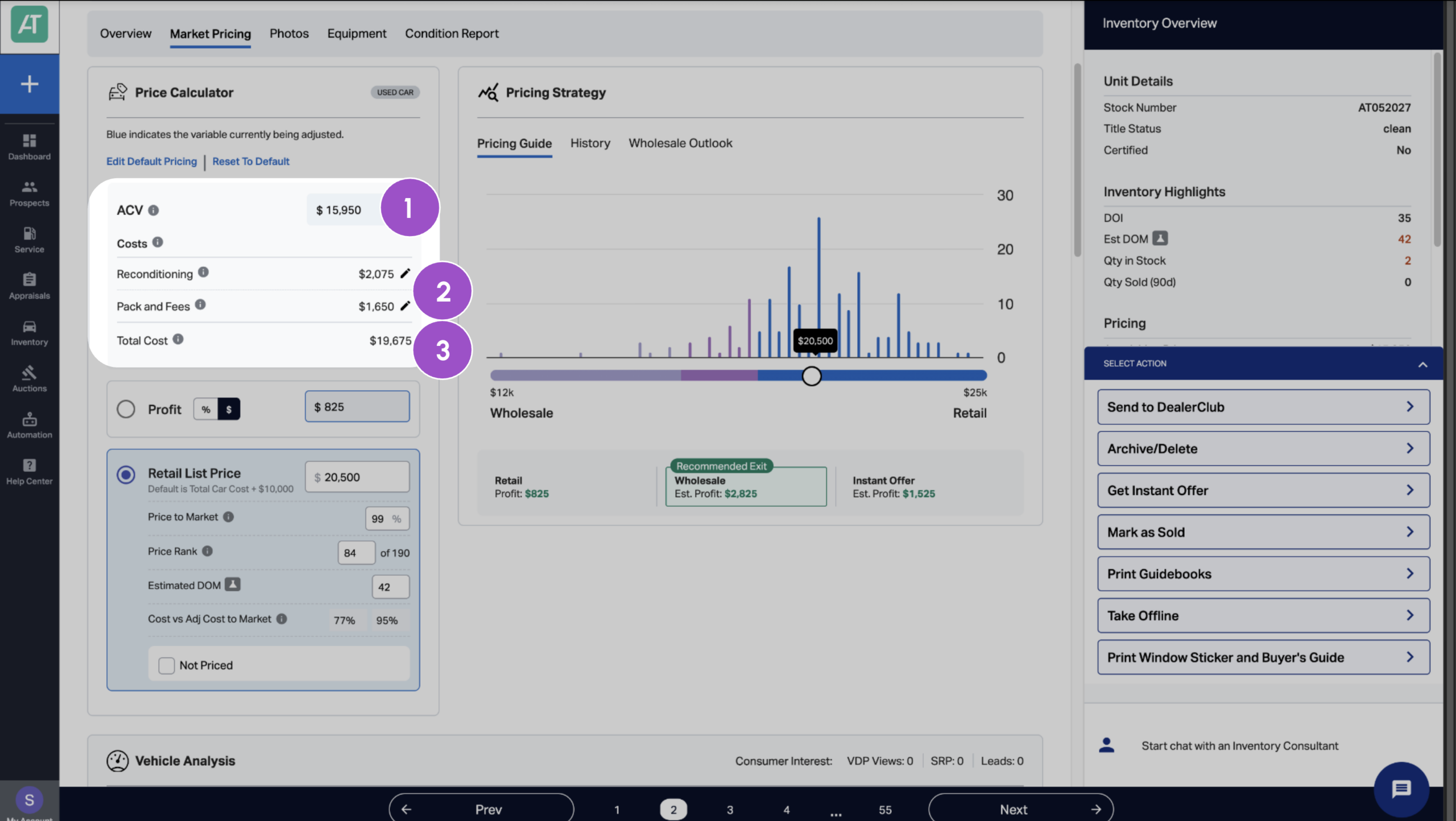
Before you can price for profit, you need to know your true all-in cost. Use the Price Calculator to verify what you paid and adjust your fees if needed to see your total vehicle cost.
- Verify your ACV
Confirm the vehicle’s Actual Cash Value (what you paid) is correctly populated in the system.
- Add additional costs and fees
Manually enter any additional costs you’ve invested:
- Reconditioning expenses (defaults to appraisal reconditioning cost but also customizable)
- Pack cost
- Transport fees
- Other acquisition expenses
- Review Total Car Cost
The system automatically calculates:
- Total Car Cost = ACV + Recon/Pack Fees
This is your break-even point. Everything above this is profit.
4 Set the retail list price
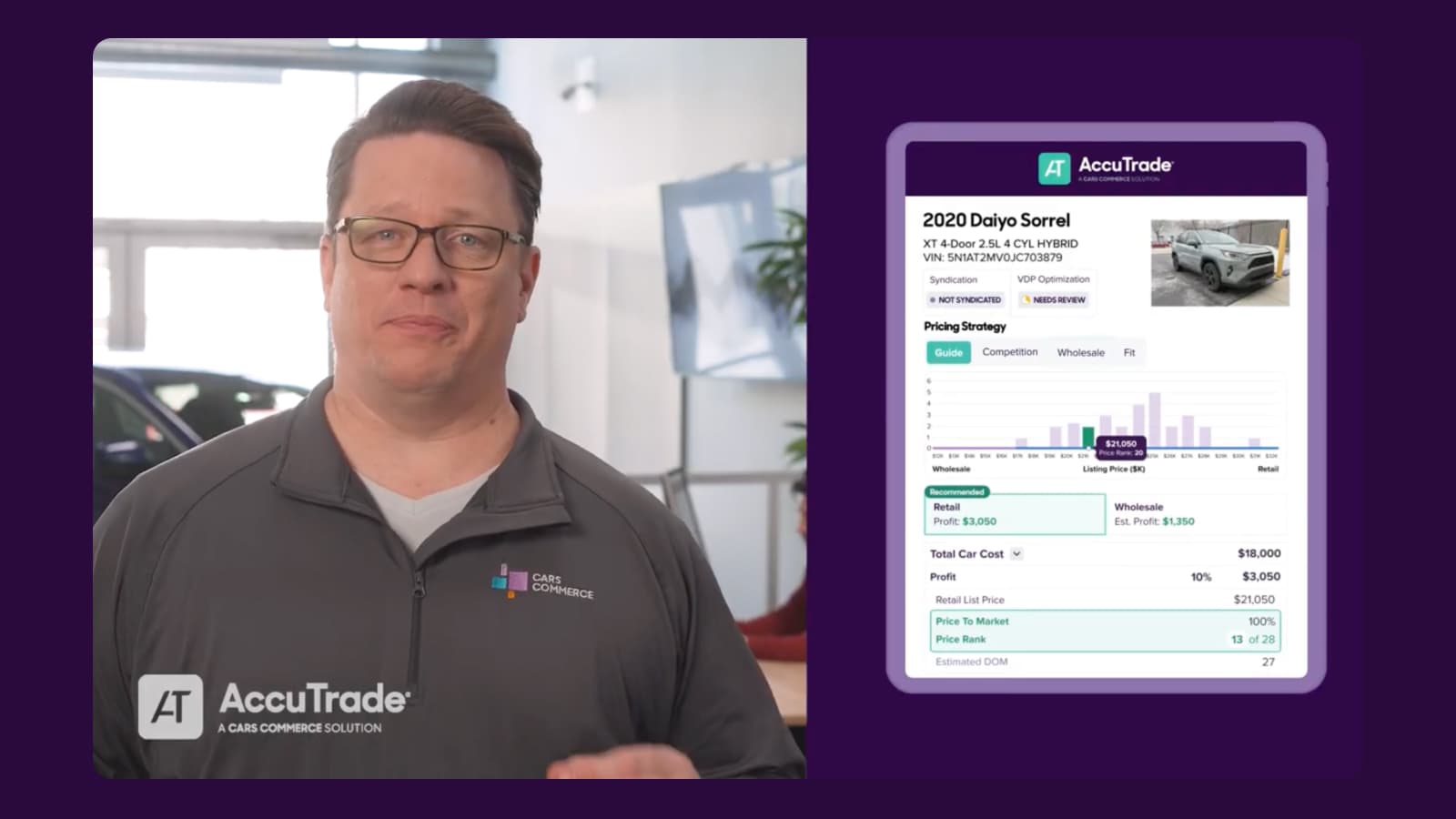
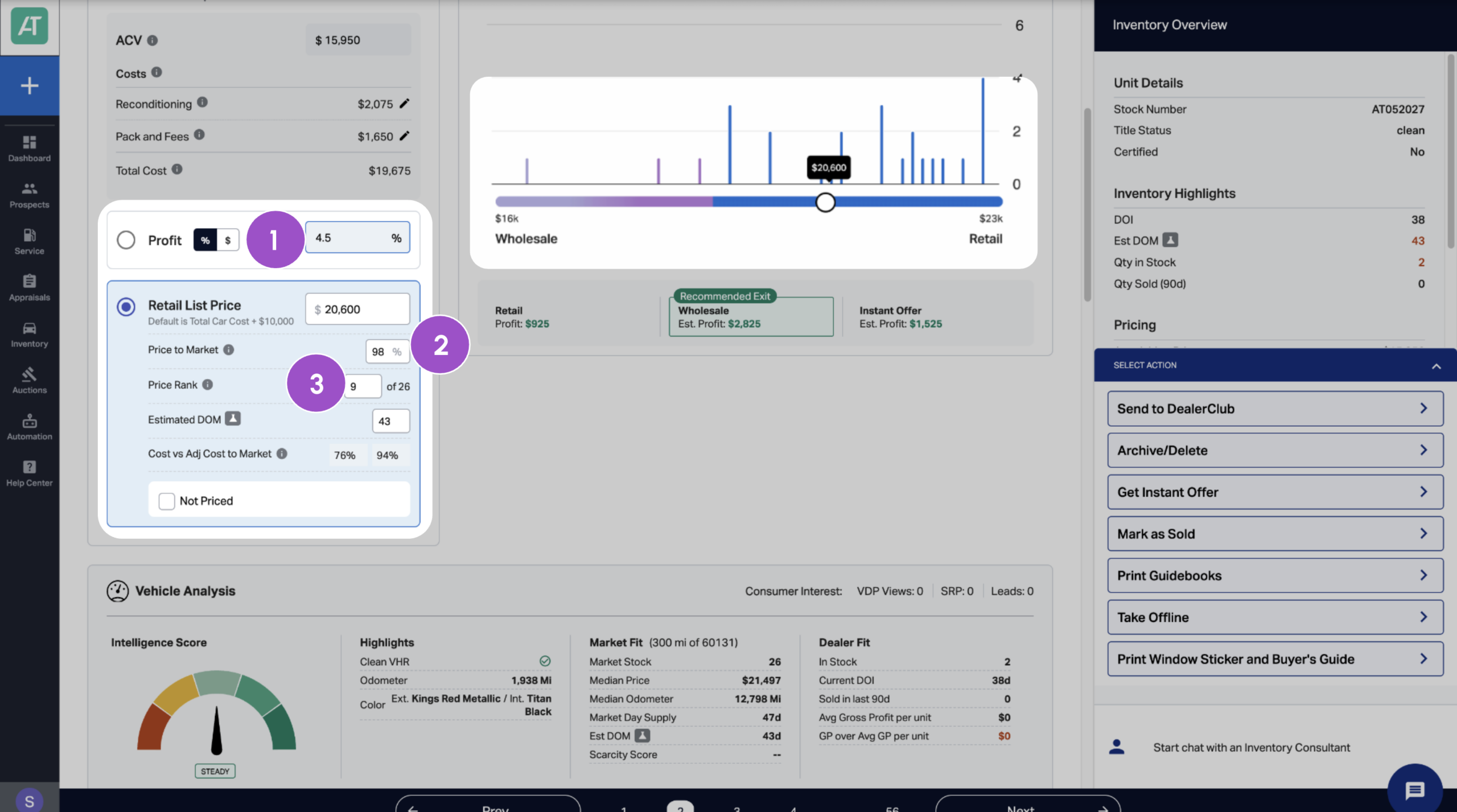
You can set the retail list price using one of three strategies: Profit, Price to Market, or Price to Rank. The system automatically positions your list price relative to the competitive set average, which updates continuously as the market shifts.
- Profit strategy
Set your price based on profit amount:
- Profit percentage
- Total profit
Metrics in the Retail List Price section will automatically update based on profit percentage or amount entered.
- Price to Market strategy (Recommended)
Set your price based on the market average:
- 100%+ Price to Market: Price above average
- 98-100% Price to Market: Competitively priced near average
- 95-98% Price to Market: Aggressively priced below average
- Below 95%: Turn-focused pricing
The Price to Market section also calculates the Estimated Days on Market (DOM) based on the pricing, as well as Cost vs. Adjusted Cost to Market percentages.
Example:
- Total Car Cost: $20,000
- Competitive Average Price: $25,000
- Adjusted Cost to Market: 80%
What this means:
- Below 75%: Strong profit margin potential
- 75-85%: Healthy profit opportunity
- 85-95%: Thin margins, price carefully
- Above 95%: At-risk vehicle, consider wholesale
- Price to Rank strategy
Set your price based on where you want to rank in the competitive set:
- Rank 1: Lowest priced vehicle (maximum velocity)
- Average rank: Competitively priced (balanced approach)
- Low rank: Premium priced (for unique/desirable vehicles)
Note: You can also adjust retail price by moving the slider in the Pricing Guide, which shows the vehicle’s price relative to other vehicles in the competitive set.
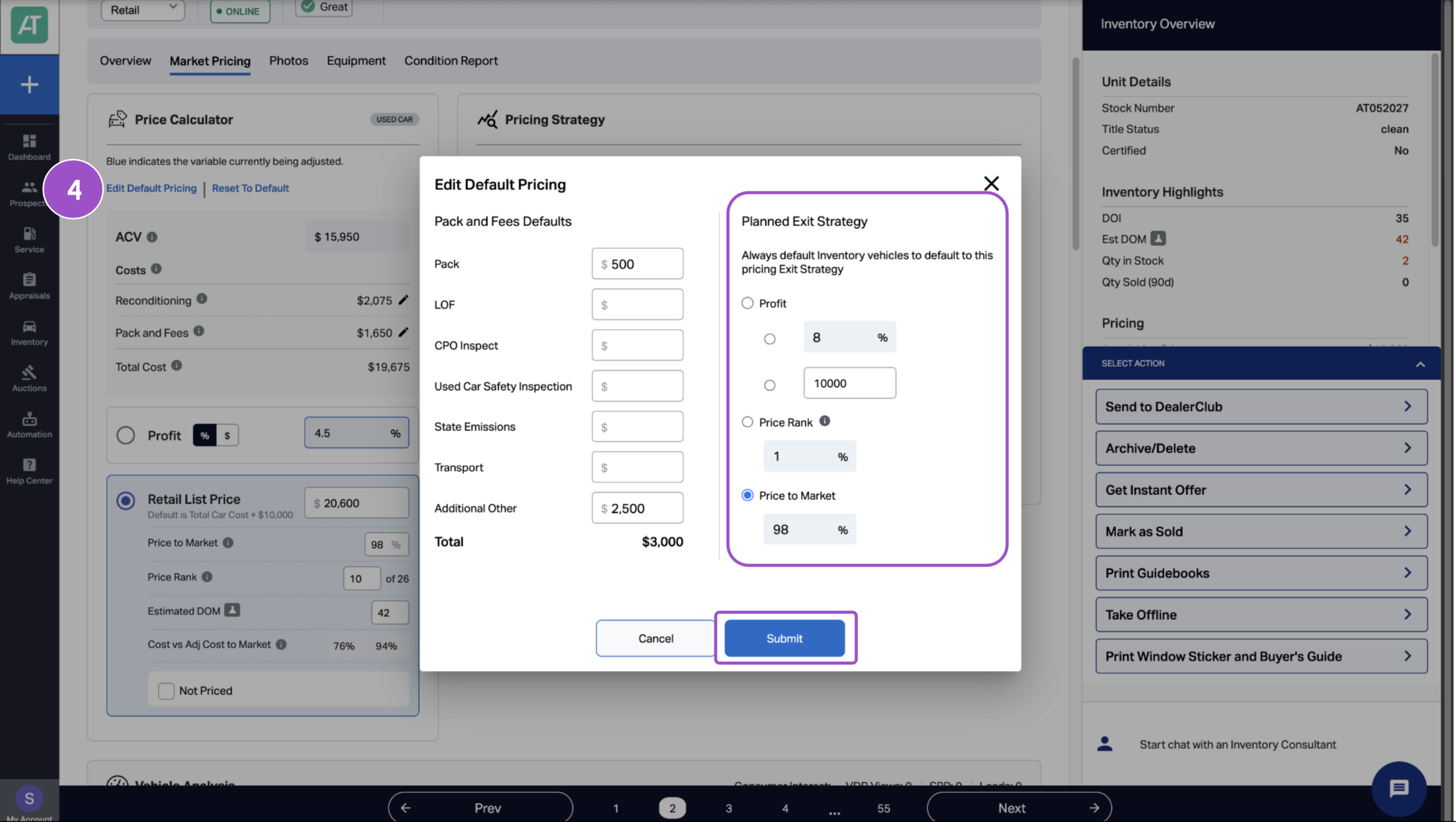
- Edit default pricing strategy
To update your default pricing method:
- Click Edit Default Pricing.
- Choose your preferred strategy.
- Enter the percentage or profit target.
- Click Submit.