How to connect your CDK CRM integration
Managing trade-in leads across multiple platforms can create inefficiencies, missed appraisal opportunities, and inconsistent workflows. The AccuTrade + CDK CRM Integration solves this by automatically capturing every trade-in lead — from sources like Cars.com, KBB, AutoTrader, and your dealership website — and sending them directly into the Prospects tab in AccuTrade.
This integration streamlines your appraisal process, improves appraisal velocity, and makes AccuTrade the central hub for all trade-in evaluations and pricing activity.
Follow the steps below to activate the integration.
To get started
Go to the Cars.com Hub, and then click on AccuTrade.
1 Visit the Fortellis marketplace
Go to the Fortellis website and click on Marketplace.

2 Search for the integration
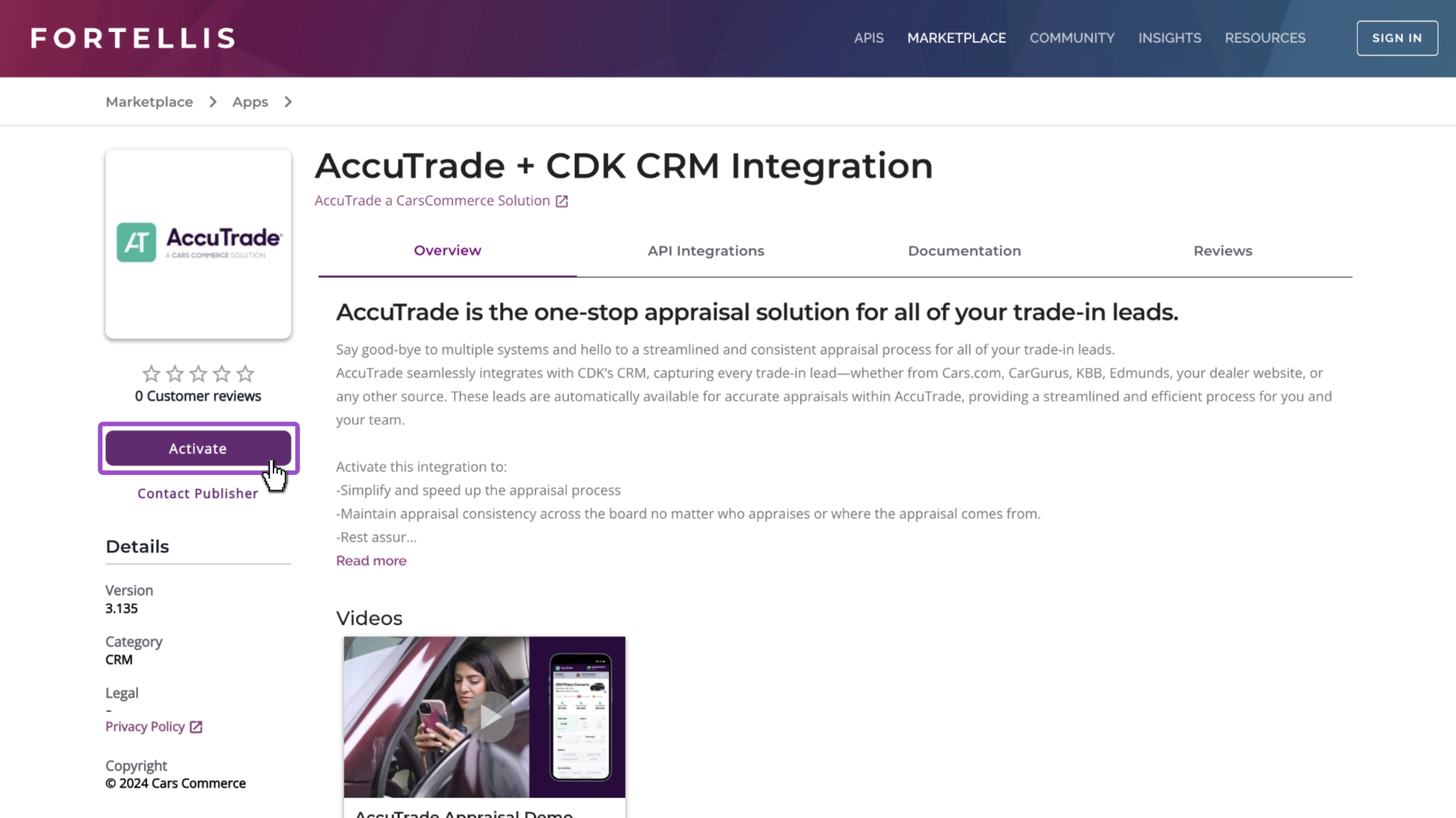
Search AccuTrade + CDK CRM Integration and hit enter. Select the following result:
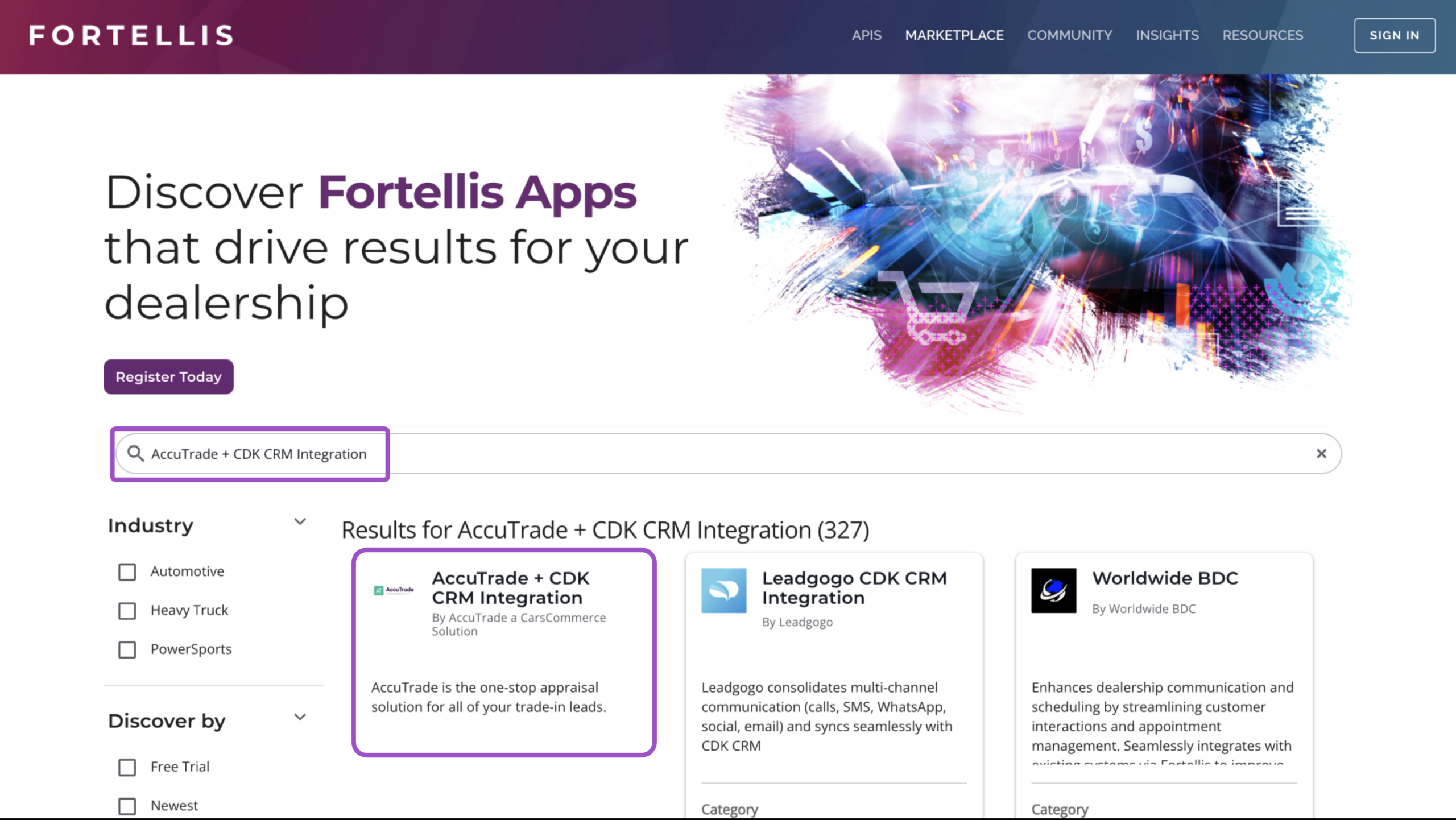
3 Activate the integration
Click Activate to request the integration.
This action will notify the AccuTrade support team. Once enabled, you’ll receive a confirmation email letting you know the integration is active.
4 Find your leads in AccuTrade
After activation, CDK CRM trade-in leads will automatically appear in the Prospects tab of your AccuTrade dashboard.
Each lead includes key vehicle and customer details such as:
- VIN
- Mileage
- Color
- Lead source
- Customer contact information
To view only CRM-sourced leads, use the From CRM filter at the top of the Prospects list.