How to manage your DealerClub integration
The integration between AccuTrade and DealerClub gives you a streamlined path to evaluate, appraise, and wholesale vehicles — all within one connected workflow. When a retail exit doesn’t make sense, you can send vehicles directly to auction in just a few clicks.
This article walks you through how to use the integration to move vehicles from AccuTrade to DealerClub efficiently.
Note: If you already have a DealerClub account, you can start using the integration right away. If you’re new to DealerClub, sign-up and verification takes just a few minutes, and you can typically list your first vehicle within 24 hours.
To get started
Go to the Cars.com Hub, and then click on AccuTrade.
1 Appraise and assess a vehicle
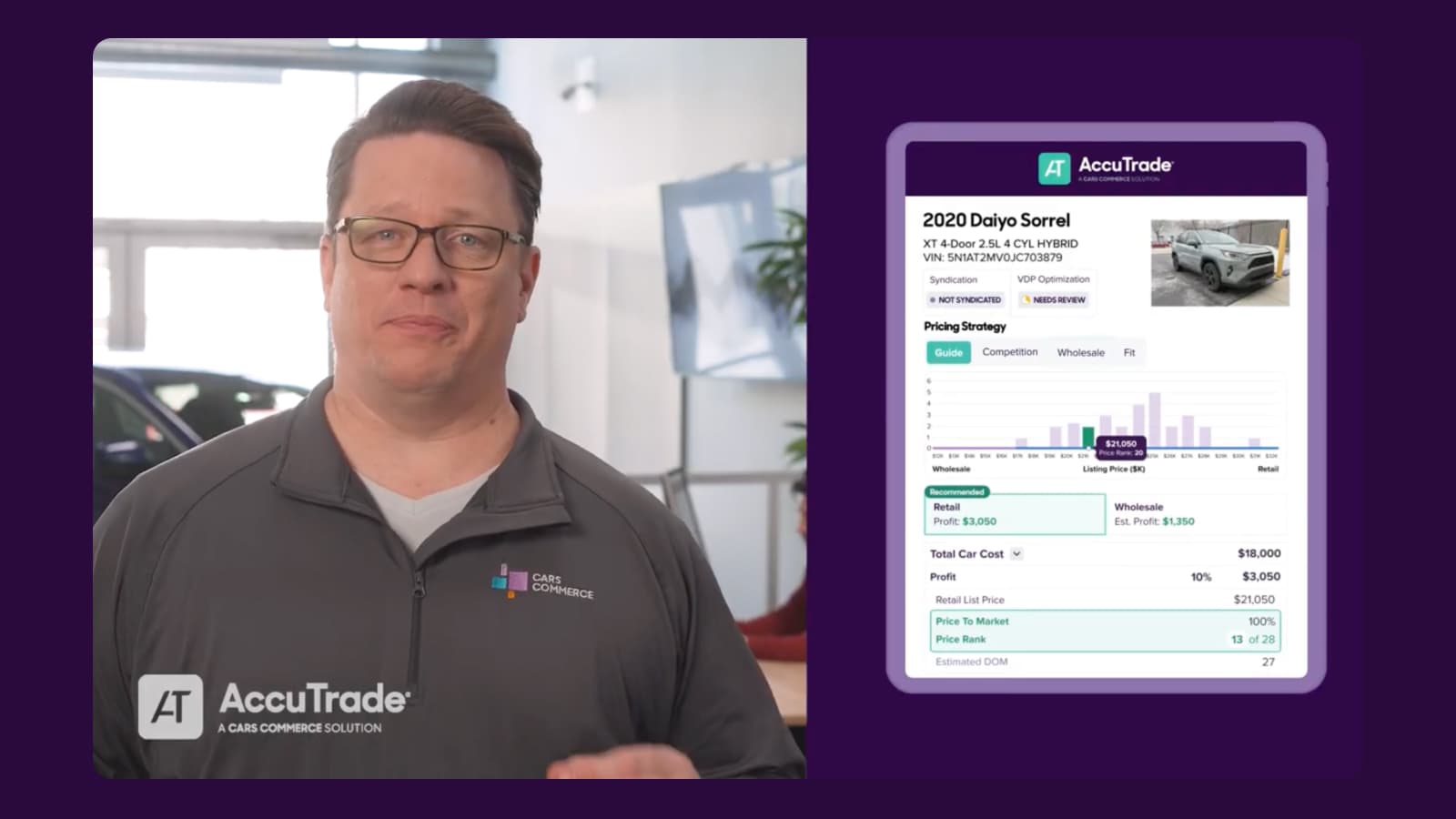
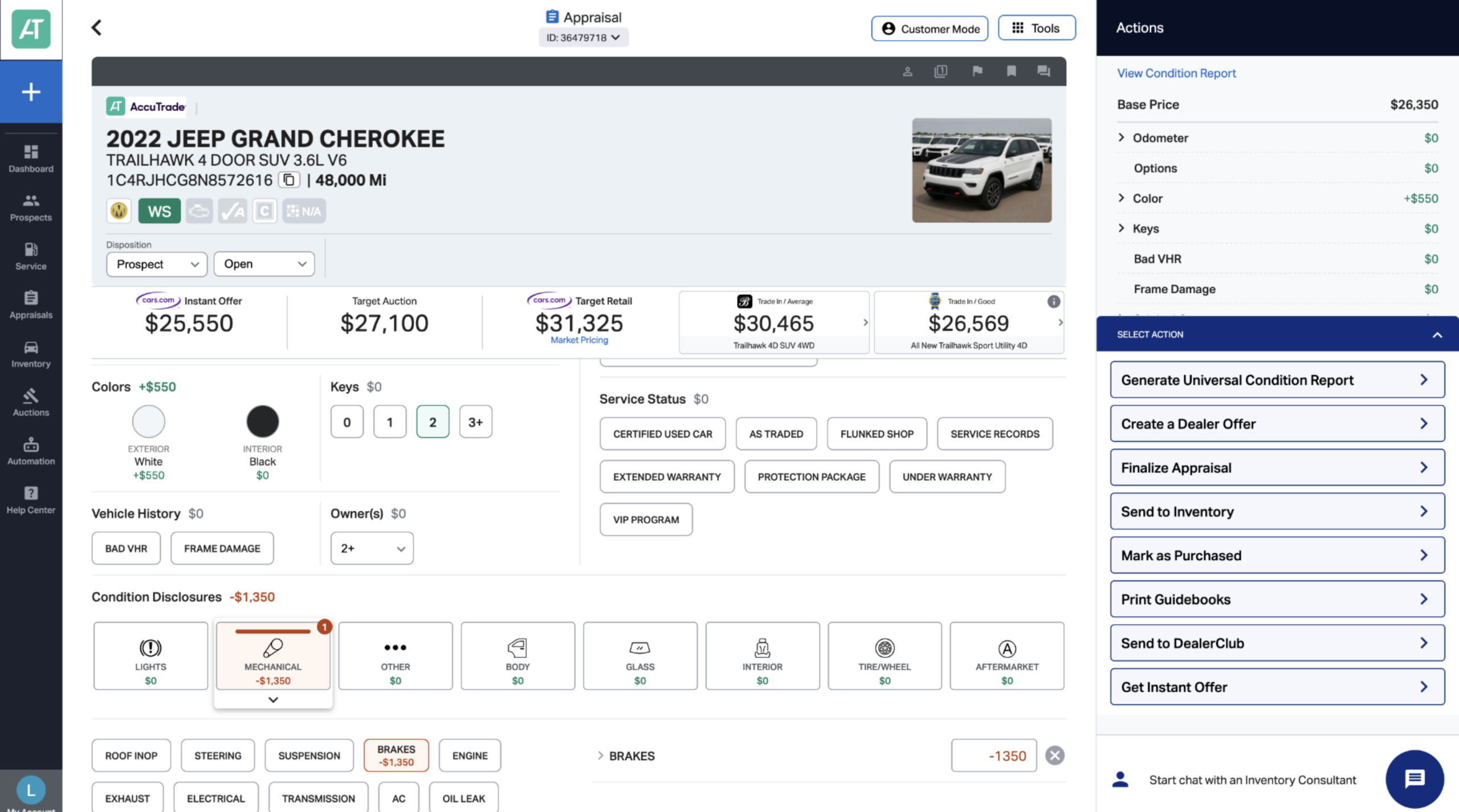
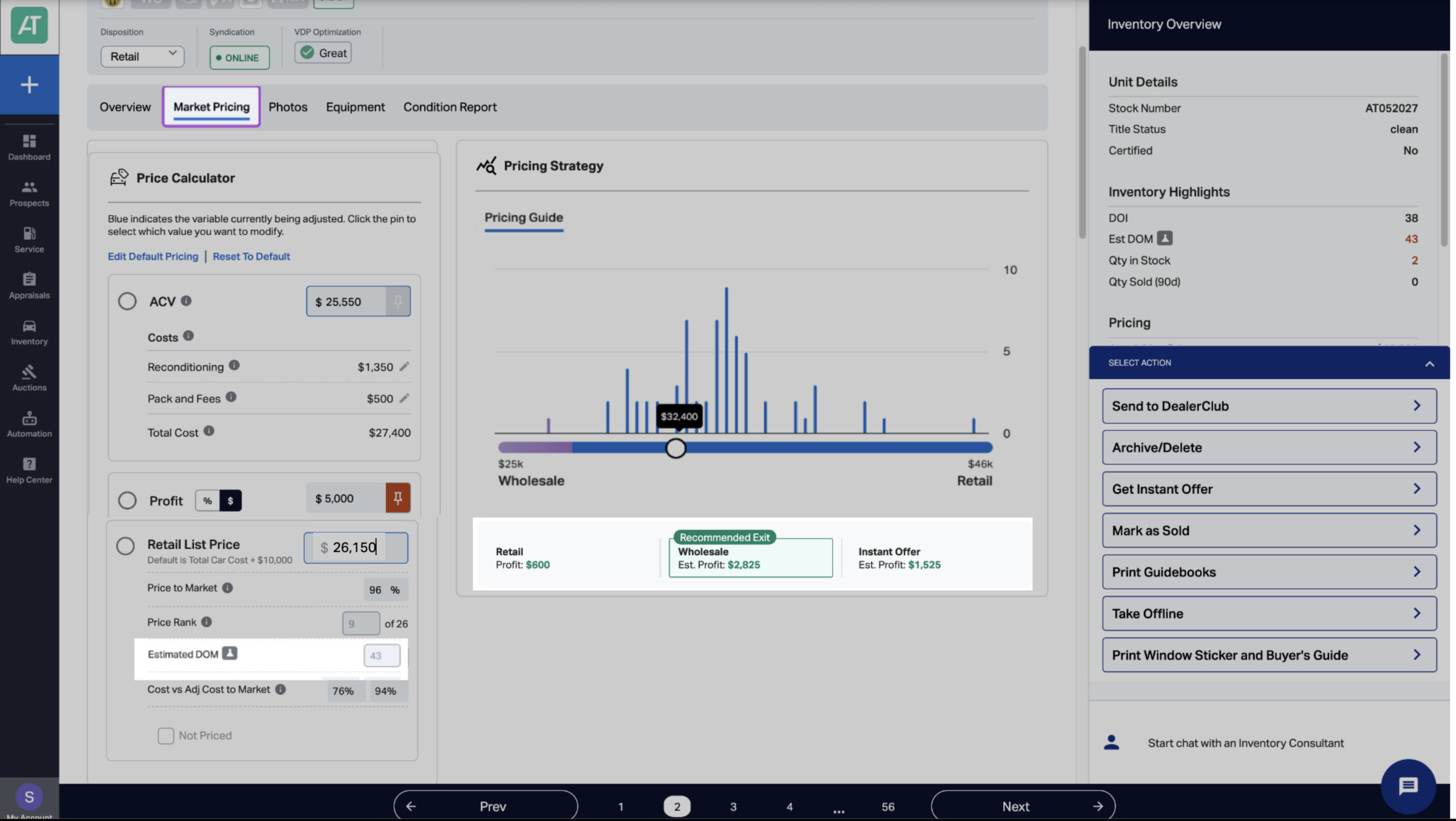
After completing a full AccuTrade appraisal — including manual disclosures and OBD data — navigate to the Market Pricing tab to review the vehicle’s market positioning.
In this view, assess key data such as:
If the data indicates low margin and high DOM, a wholesale exit may be the best option.
2 Send to DealerClub
To initiate the transfer:
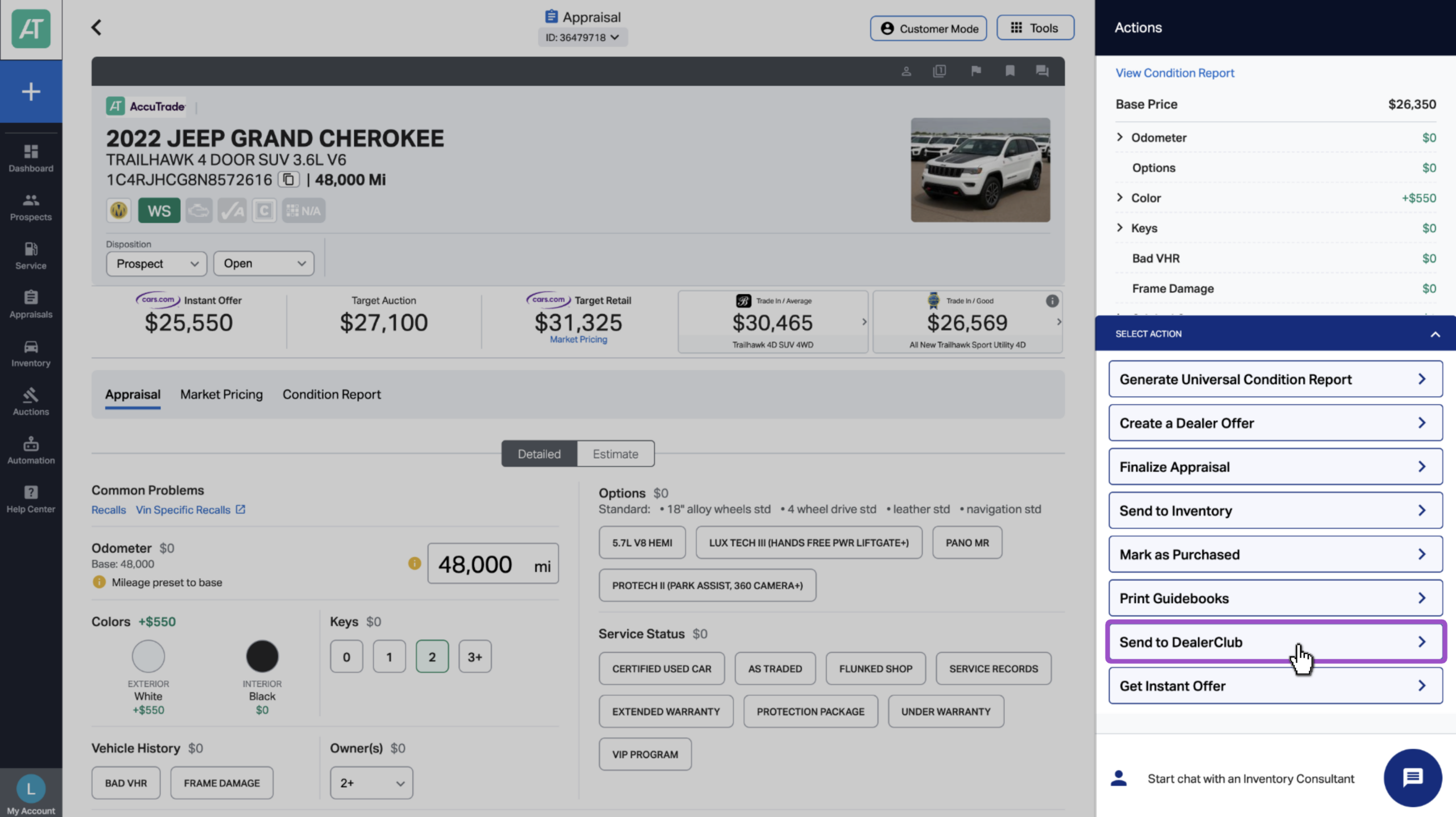
- On the right-hand side of the screen, click Select Action.
- Choose Send to DealerClub.
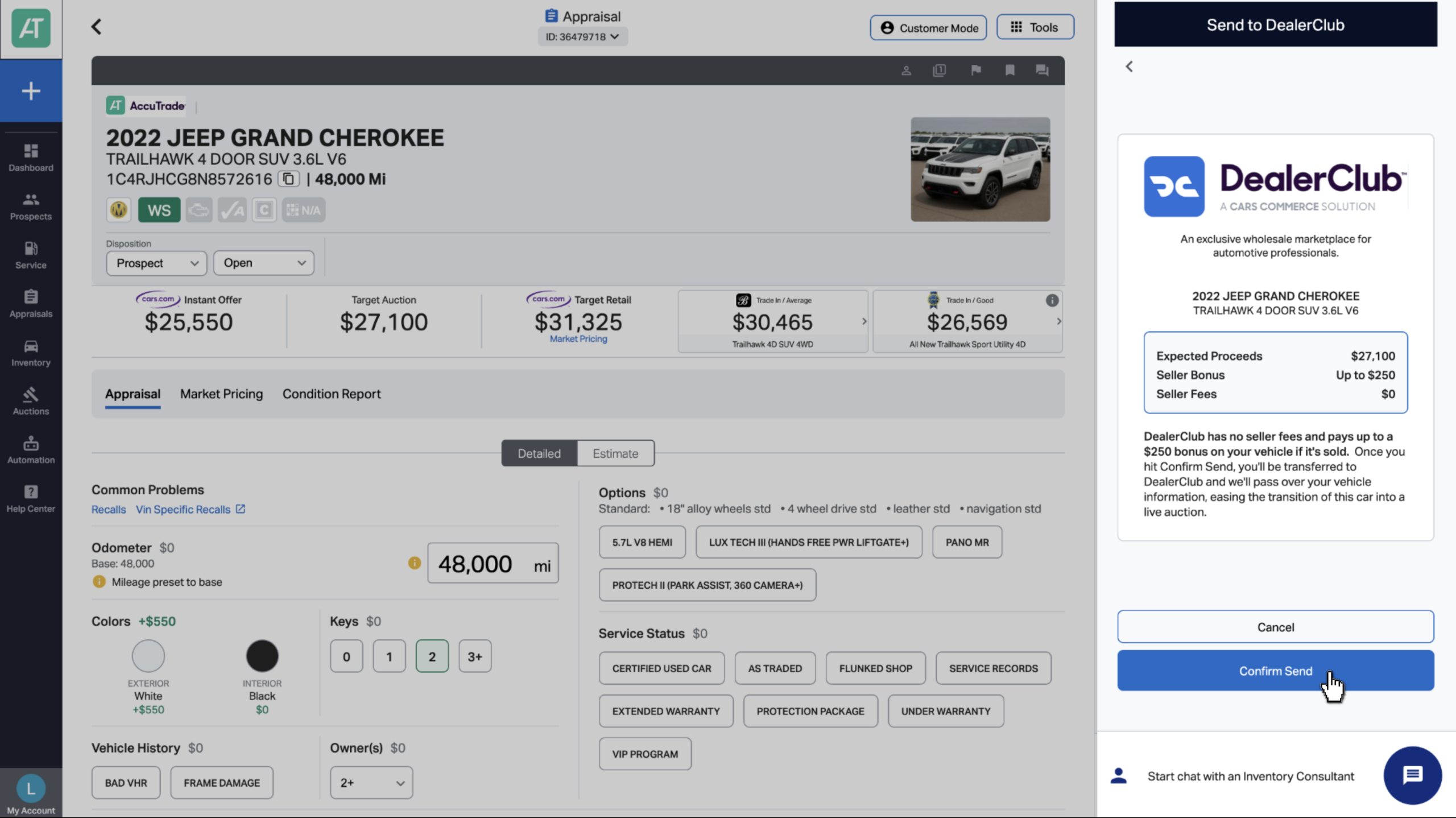
- Review the vehicle summary and click Confirm Send.
Important: Appraisals must include at least 11 photos to be eligible for DealerClub listing.
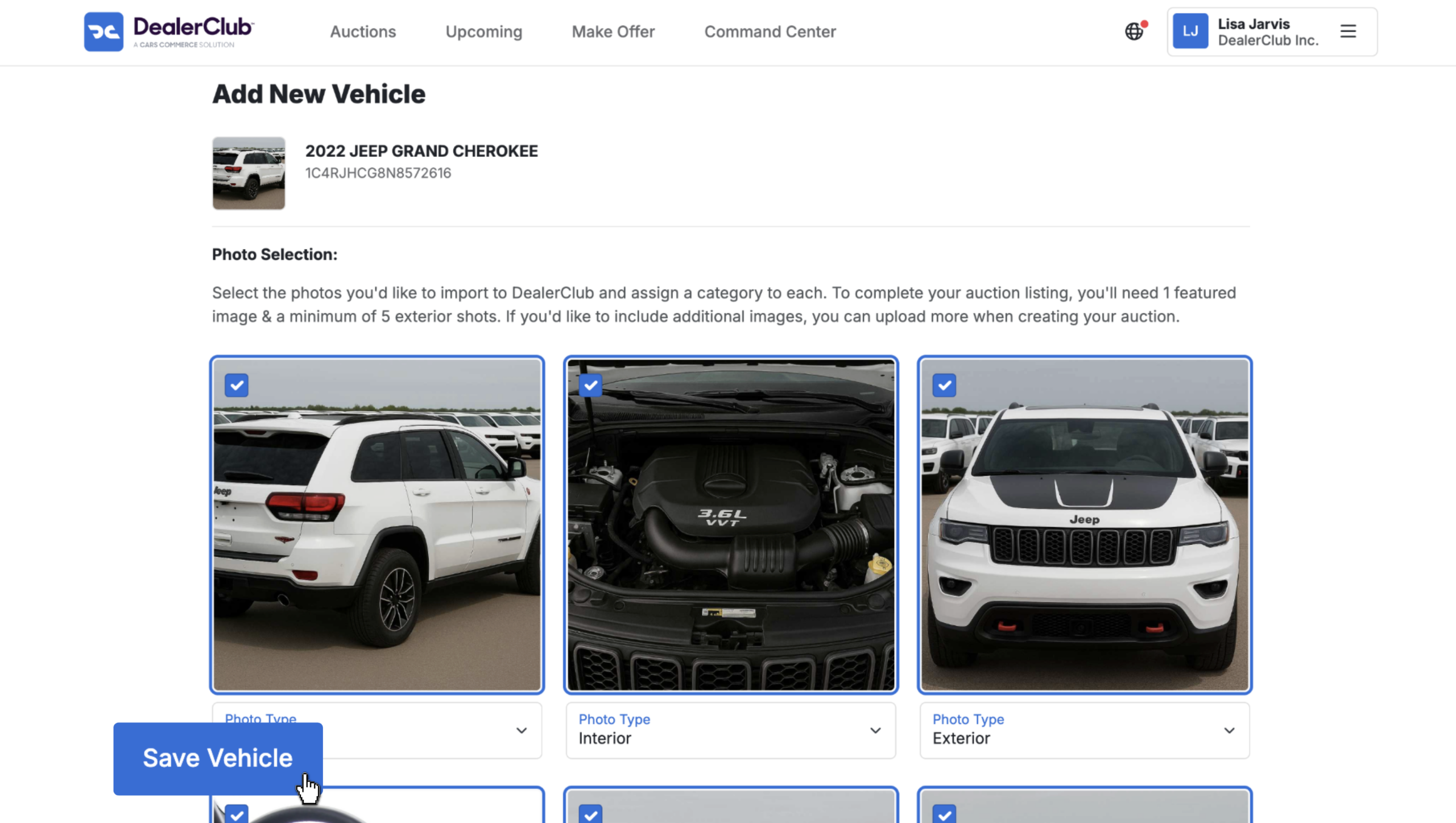
3 Select photos and save the vehicle
A DealerClub window will open to complete your listing:
- Select the photos you’d like to carry over from the appraisal.
- You must select:
- 1 featured photo
- Minimum of 5 exterior photos
- 1 featured photo
- Scroll to the bottom and click Save Vehicle.
This action creates your DealerClub listing draft.
4 Schedule the auction
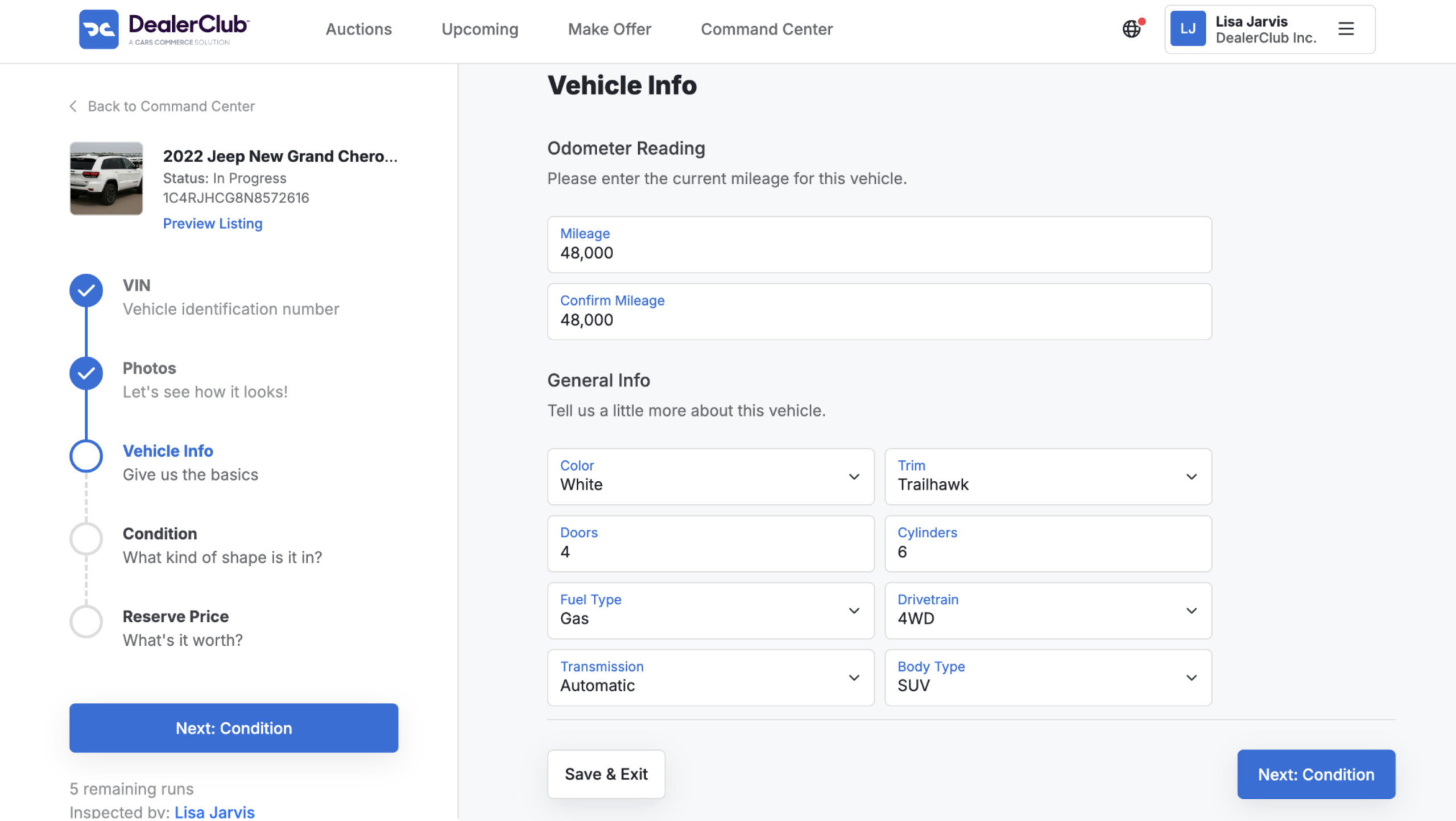
You’ll be guided through a series of pages to finalize:
- Vehicle condition
- Listing details
- Required disclosures
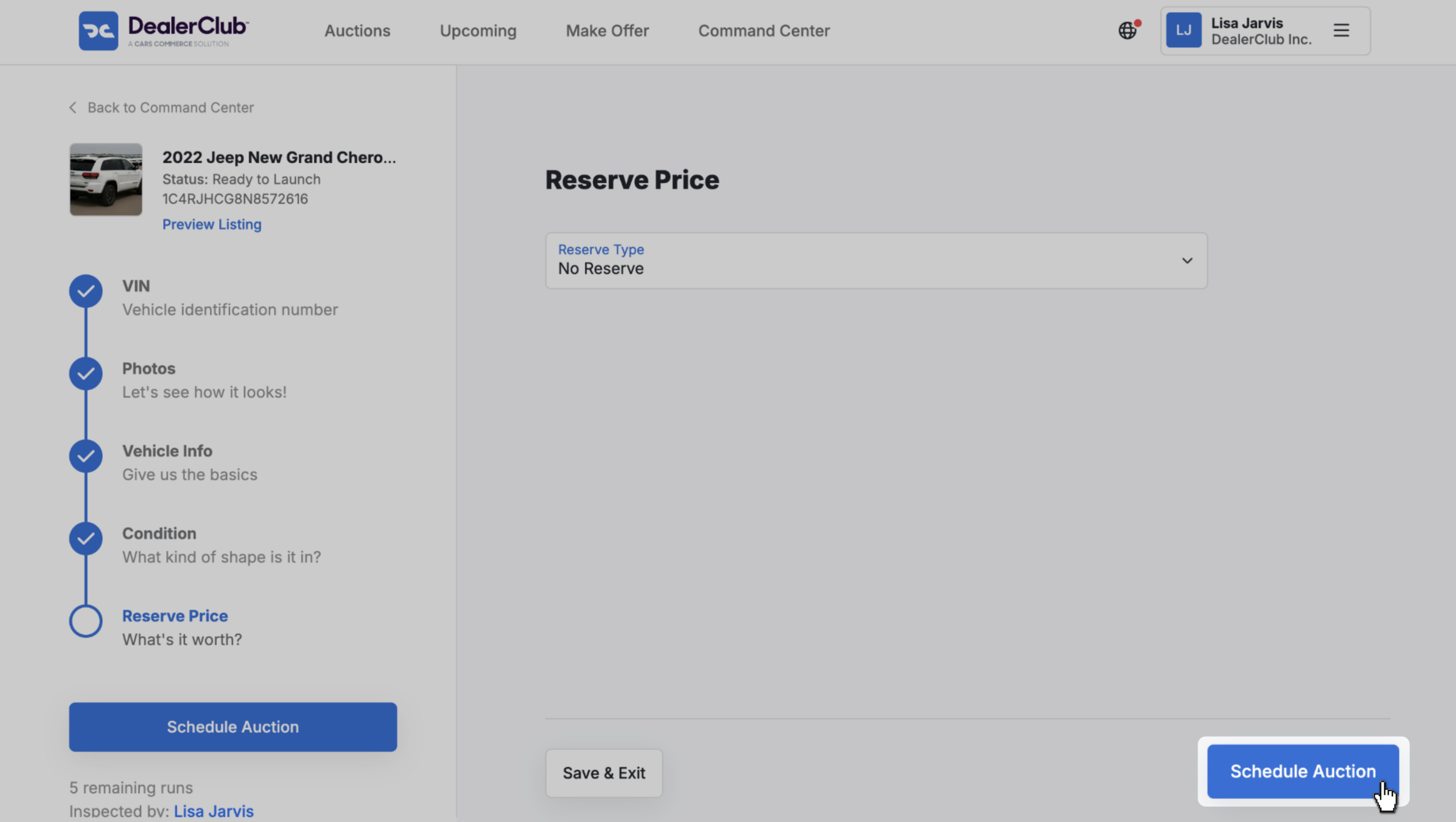
Once all fields are complete:
- Click Schedule Auction to submit the vehicle to an upcoming DealerClub lane.