How to convert Cars.com leads into acquisitions
This article explains how to work Cars.com seller leads inside AccuTrade, review the customer’s Instant Offer, optionally send a Dealer Offer, and complete an in-store inspection and appraisal.
To get started
Go to the Cars.com Hub, and click on AccuTrade.
1 Select a Cars.com lead
To select a prospect from your list of Cars.com leads:
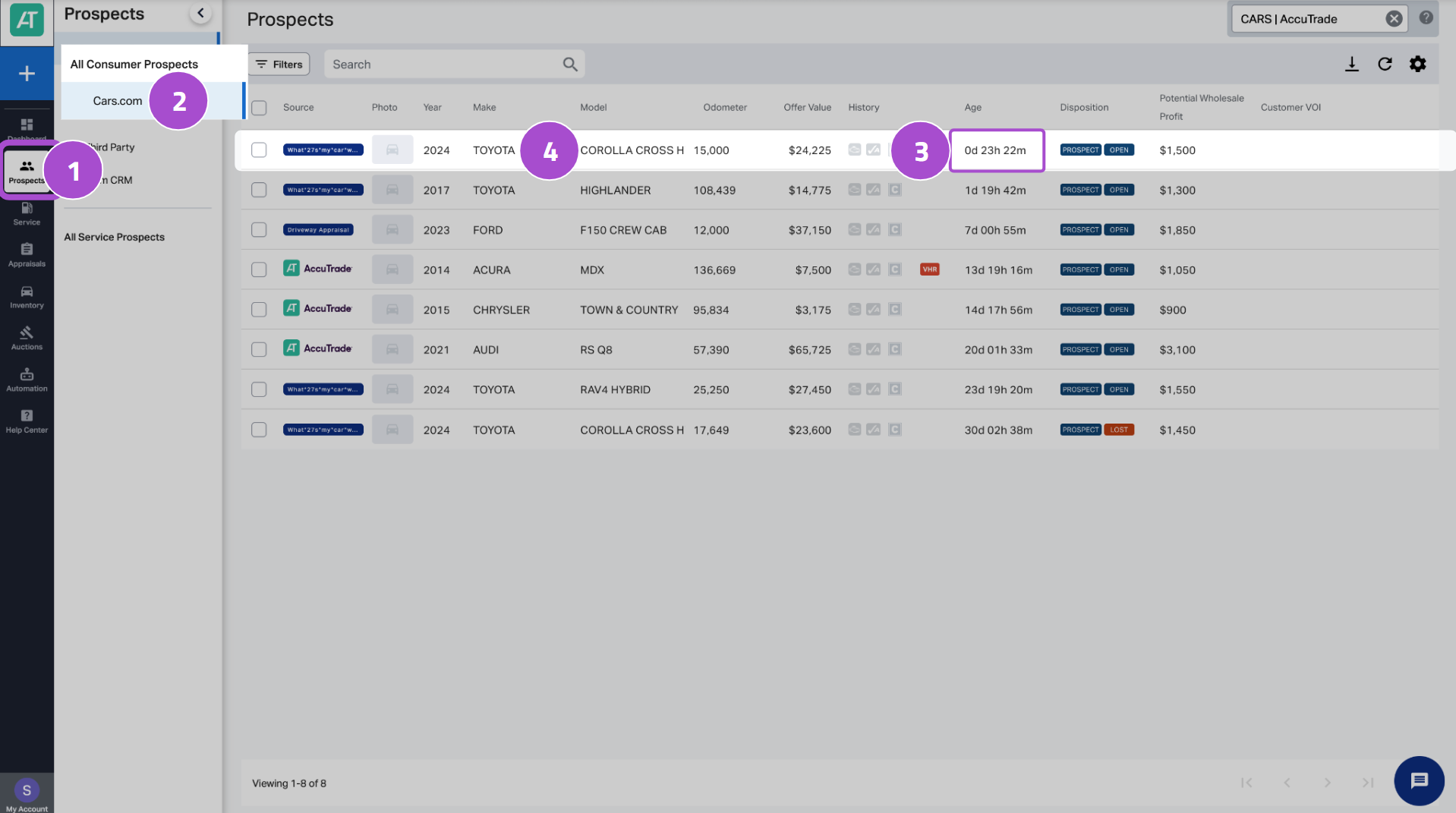
- In AccuTrade, select the Prospects tab.
- Click Cars.com.
- Locate the prospect you want to work.
- Best practice: Prioritize leads received within the last 24 hours.
- Best practice: Prioritize leads received within the last 24 hours.
- Click anywhere on the prospect row to open their Instant Offer appraisal.
2 Review the customer’s Instant Offer
The appraisal shows the Instant Offer along with offer details and customer information.
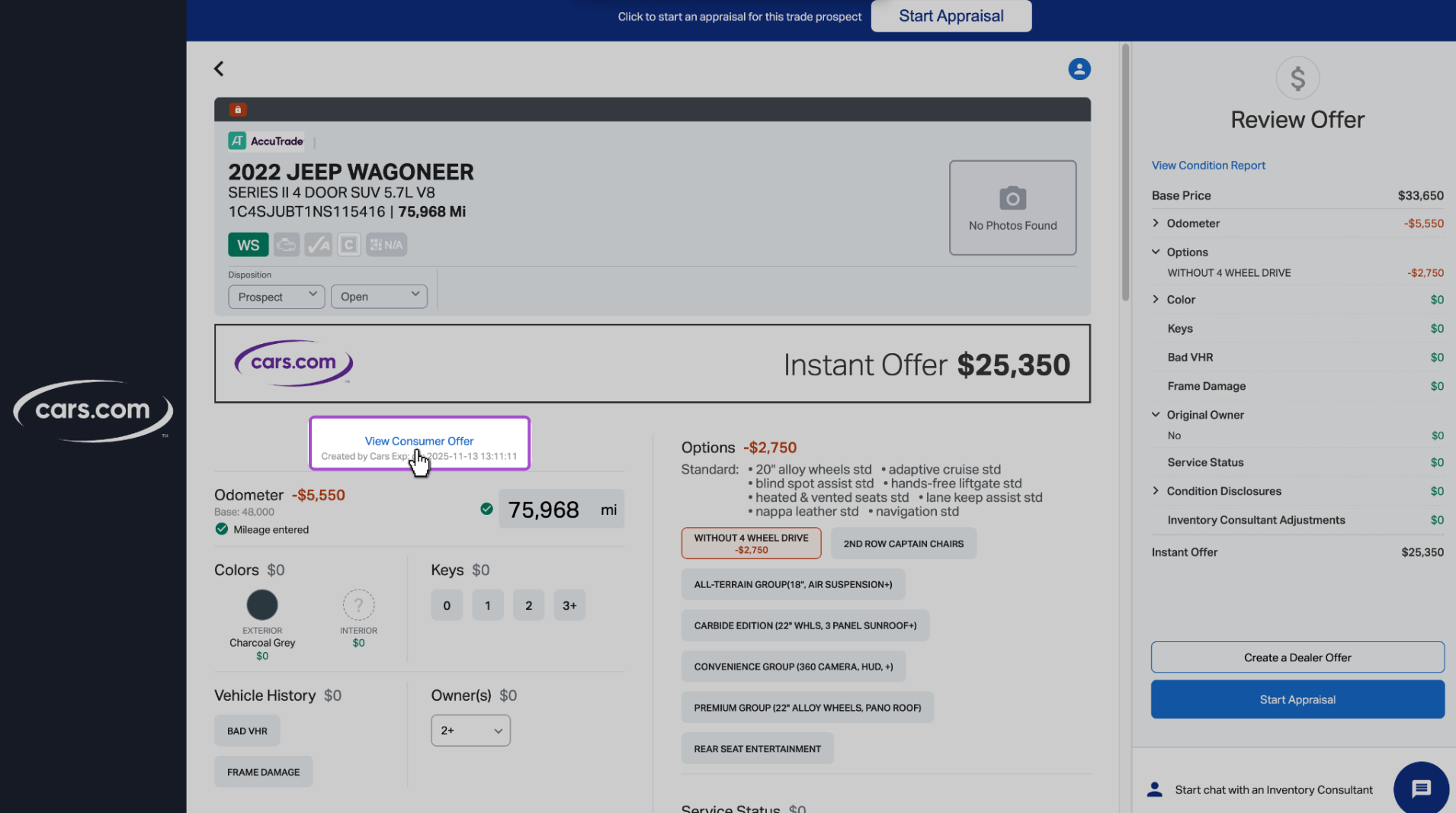
To view the exact offer the customer received, click the View Consumer Offer link. The offer will open in a new tab.
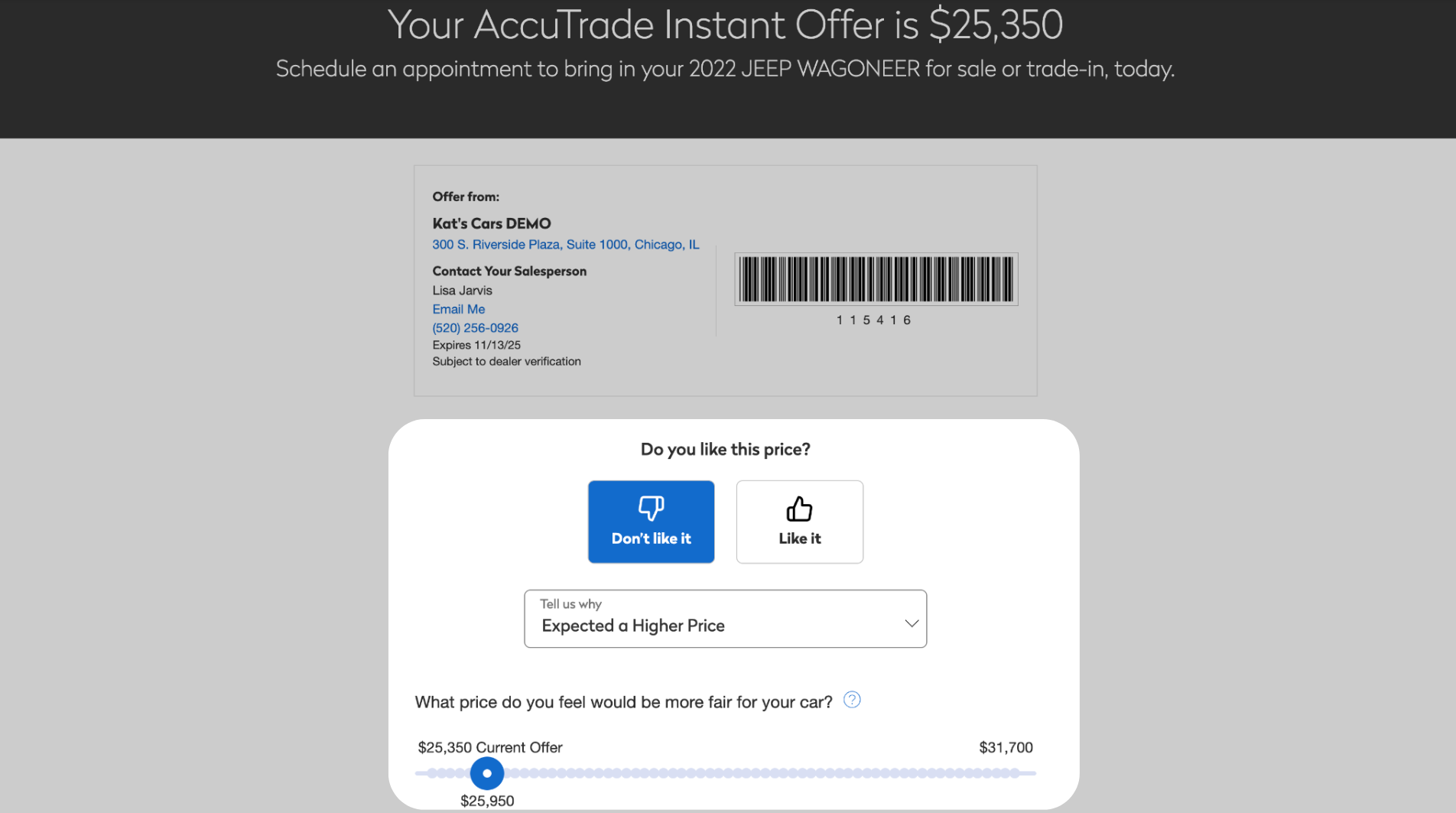
On the Consumer Offer page, review the “Do you like this price?” prompt to determine if the prospect would like a higher offer and, if so, why.
3 (Optional) Modify the offer
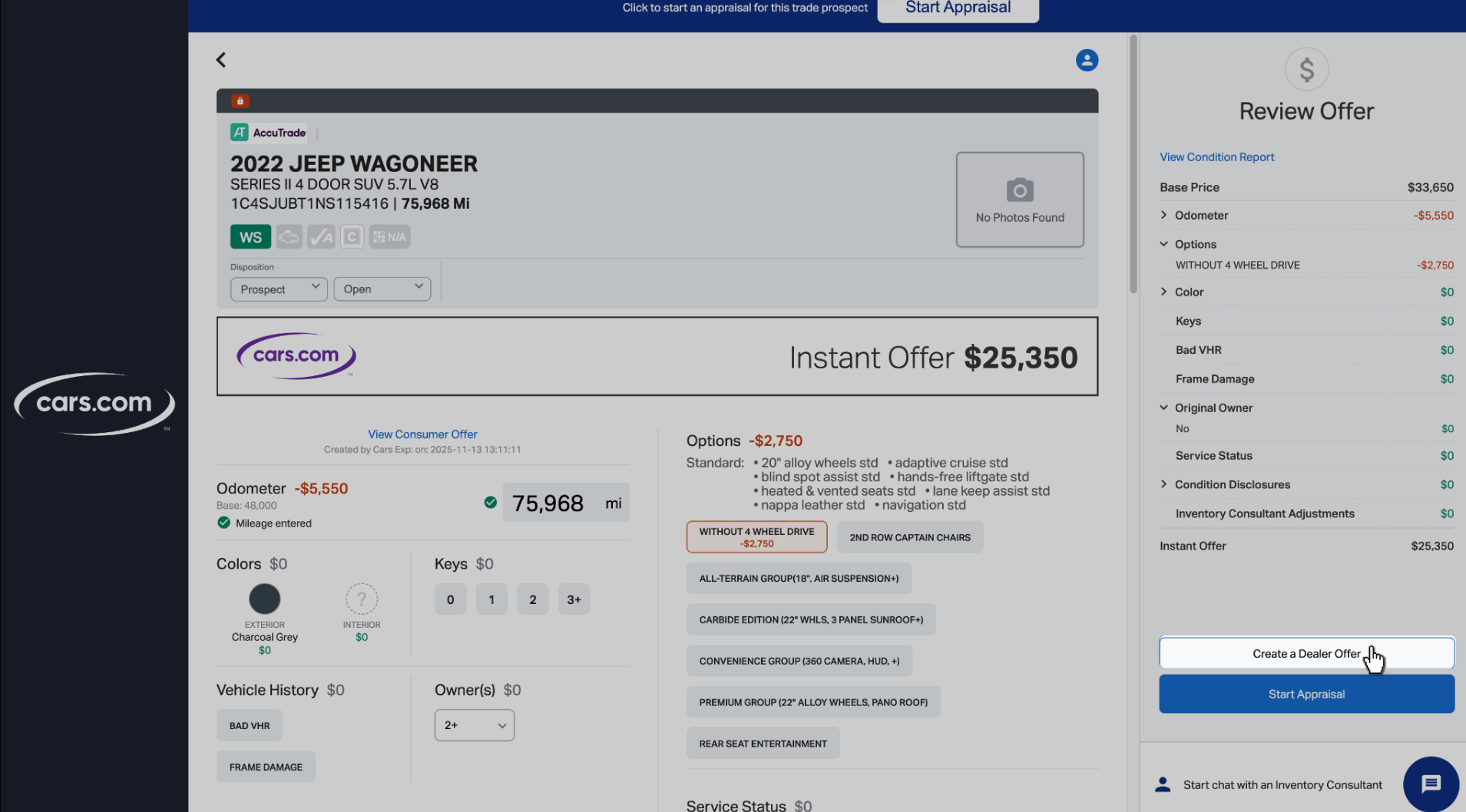
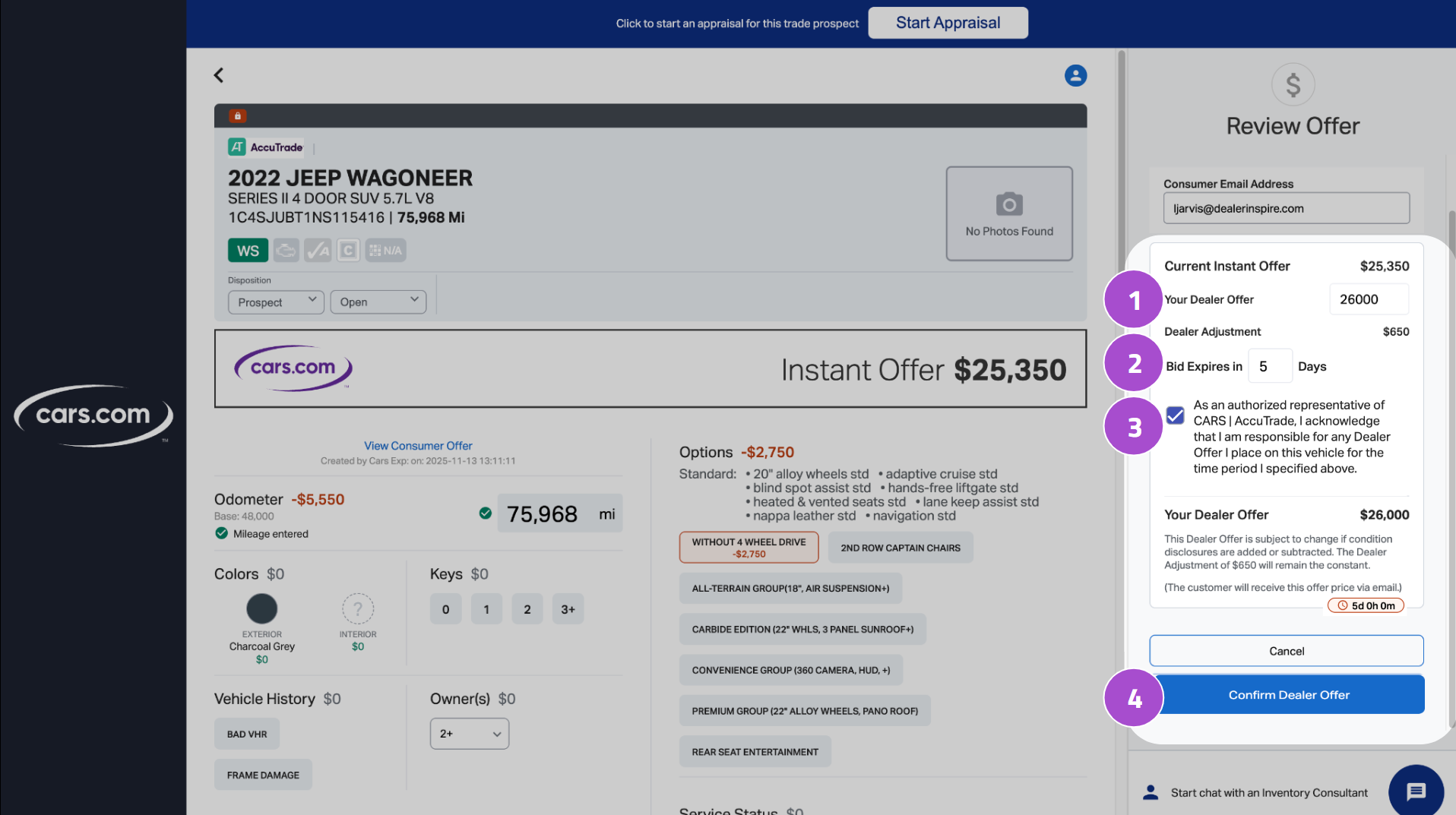
If you want to present a different offer amount than the Instant Offer, click Create a Dealer Offer, then:
- Enter the offer amount in Your Dealer Offer.
- Select the offer expiration date/time (if required).
- Check the acknowledgment box confirming responsibility for the dealer offer.
- Click Confirm Dealer Offer.
- The updated offer is sent to the customer by email.
Note: If the customer replies or follows up after receiving a Dealer Offer, continue the workflow below to schedule the in-store inspection and complete the appraisal.
4 Contact the customer to schedule final inspection
The next step is to contact the customer and invite them to schedule a final inspection. Remember, these leads are from sellers, so lead with the offer and focus on the acquisition before attempting a sale. Make sure to emphasize the instant offer they received and how quick the final inspection will be to lock in that price.
5 Conduct an in-store appraisal and inspection
When the customer arrives, open their appraisal and complete the inspection using the mobile app.
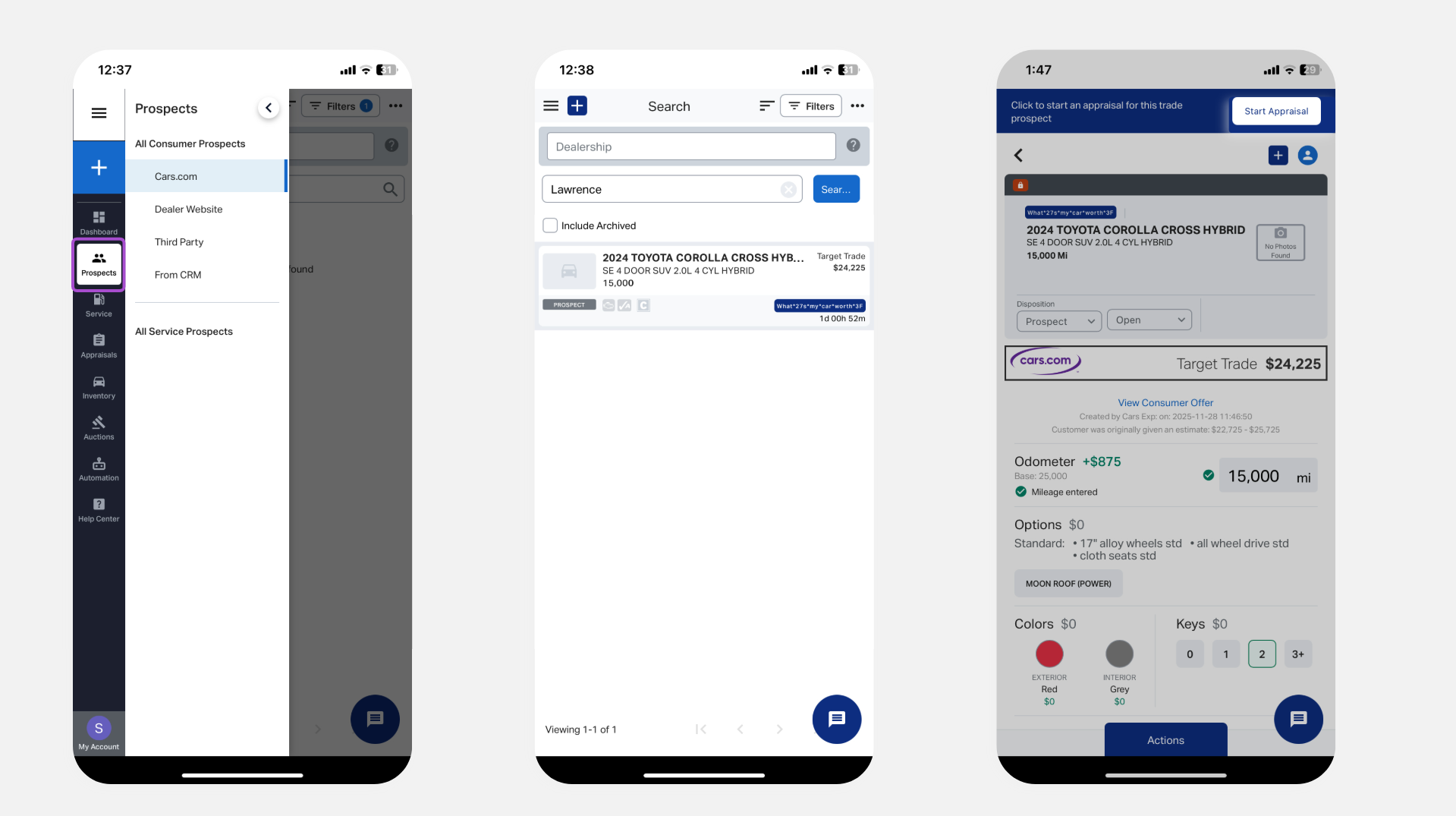
Option A: Start from the Prospect (recommended)
- Open the AccuTrade Appraiser mobile app.
- Tap Prospects.
- Search for the customer by name.
- Open the appraisal.
- Tap Start Appraisal.
Option B: Start a new Showroom Appraisal
- Tap the + button.
- Select Showroom Appraisal.
- Scan the VIN.
- Continue the appraisal flow.
6Run the BlueDriver scan (OBD)
- Start the vehicle and keep it running.
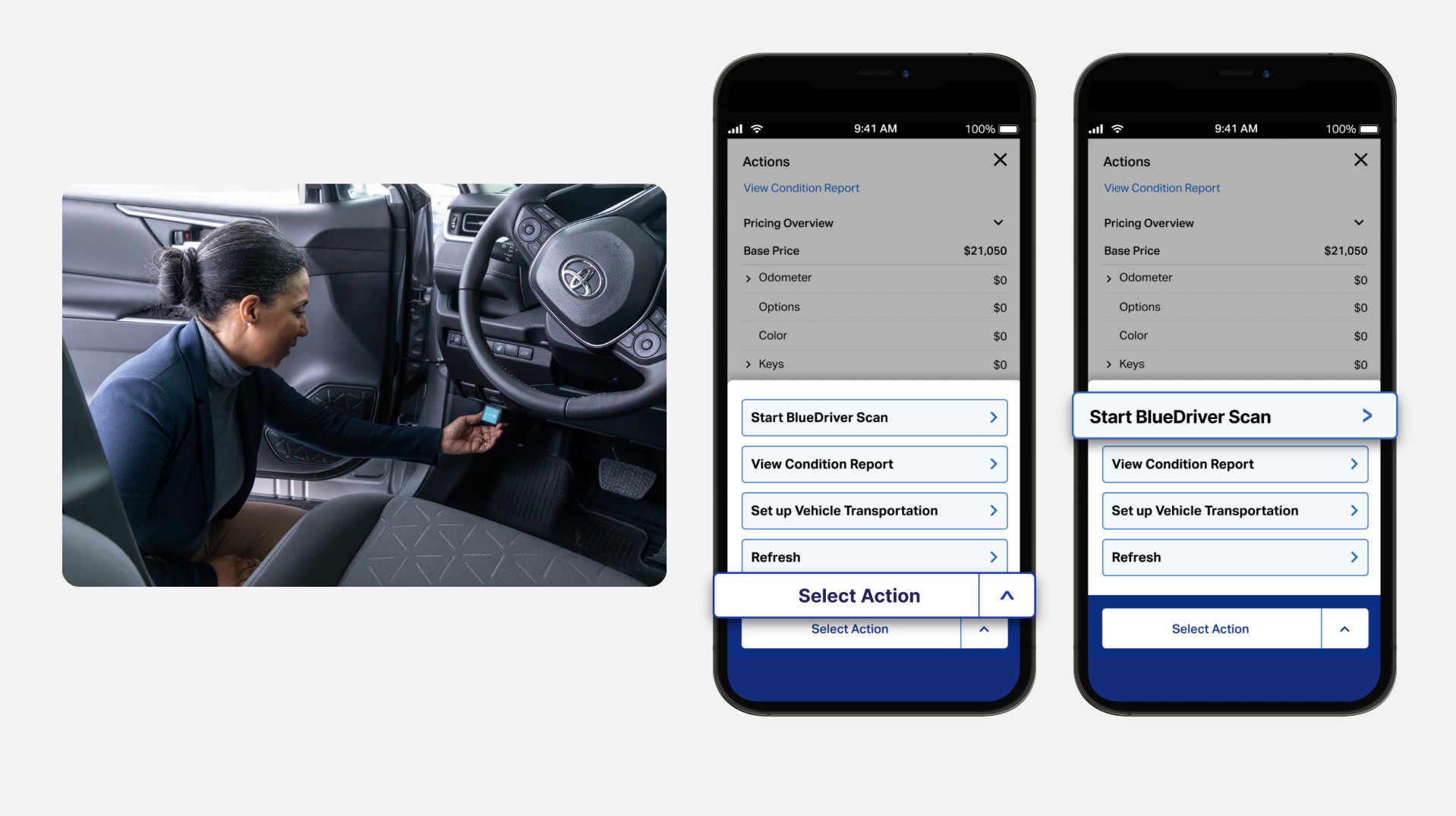
- Plug the OBD device into the port (typically under the steering wheel).
- In the app:
- Tap Select Actions (bottom of screen).
- Select Start BlueDriver Scan.
Note: You’ll need to have your Bluetooth on. For original BlueDriver devices, you’ll pair via Bluetooth first. For new LE devices, you’ll allow Bluetooth connection in the app. (See How to connect your OBD scanner for more details.)
7 Present the Universal Condition Report and offer
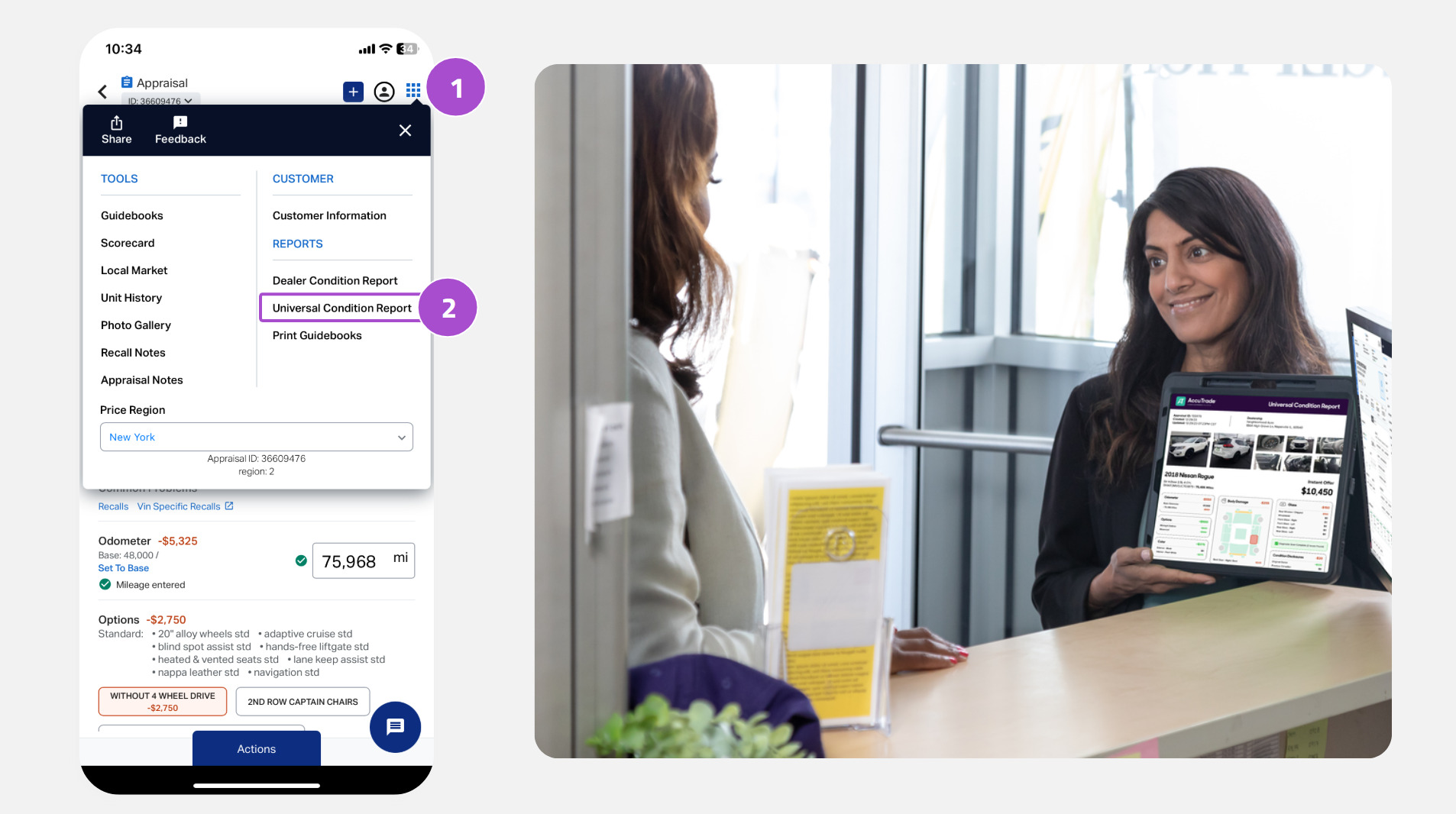
Present the Universal Condition Report to the customer and walk them through the details.
- In the Appraiser app, tap the square of dots icon (top-right).
- Select Universal Condition Report.
From the UCR view, you can:
- Review condition details with the customer.
- Email the report.
- Generate a print-ready PDF.
Showing the customer the “why” behind the price reduces confusion and builds trust, making you more likely to close the deal.