How to get started with the Dealer app
The Cars.com Dealer app puts your inventory, leads, and performance data on your phone. Check what needs attention on your lot and who is shopping your vehicles from anywhere.
In this article, you will learn how to sign in, move between the main tabs, review your Home screen, find pricing and wholesale opportunities, check your inventory and leads, track merchandising, and set a daily routine.
To get started
Open the Cars.com Dealer app on your device.
What you’ll need:
- Download the Cars.com Dealer app from the App Store or Google Play
- Your Cars.com login credentials
- A Marketplace subscription for your dealership
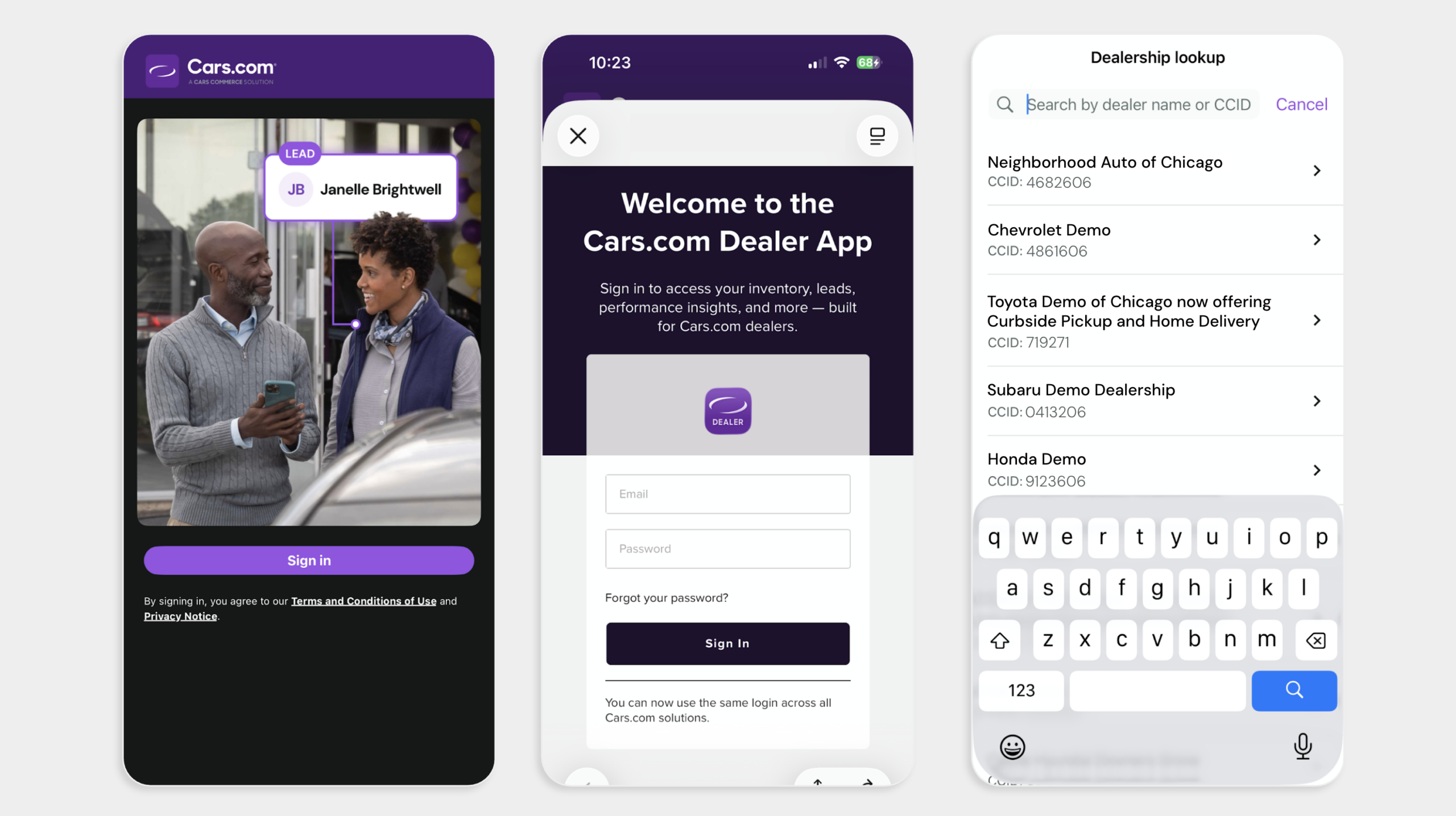
1Sign in with your Cars.com login
The app uses your Cars.com login, so you don’t need a separate account.
- Enter your Cars.com email address
- Hit Forgot your password? If you need to reset your password
- Find your dealership or search by dealership name or dealer ID (CCID)
- You’ll only see this screen only if you have access to more than one dealership)
- Next, you’ll land on your Home screen
Tip: Click the dealership bar at the top of your homescreen to switch dealerships if you have multiple. Or, hit the More tab in the bottom menu, then Change dealership.
2Explore the main navigation
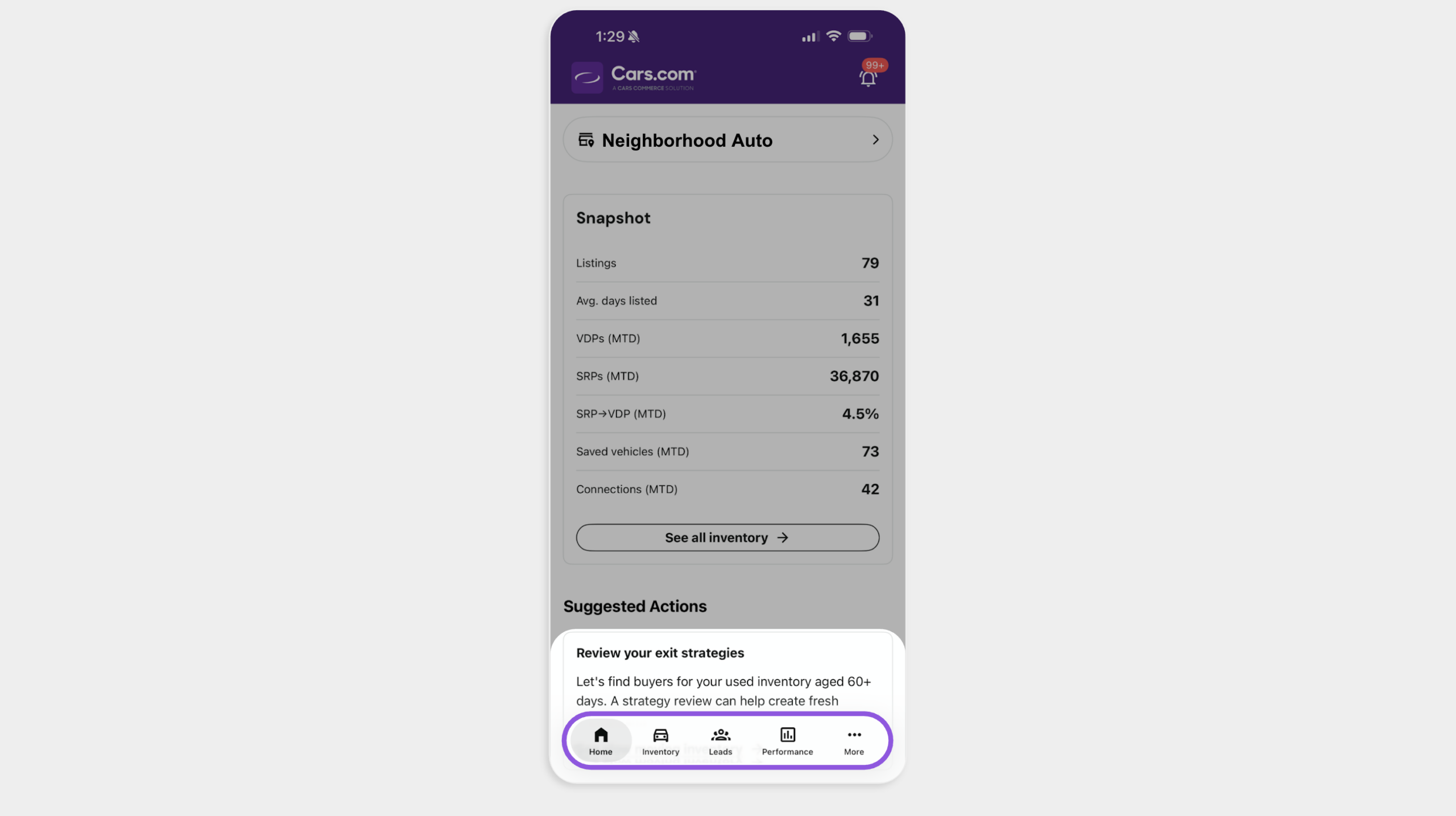
Tap a tab in the footer menu to switch views. The menu stays on every screen.
- Home: alerts, suggested actions, and performance highlights
- Inventory: your vehicles, with filters and search
- Leads: incoming shopper activity
- Performance: merchandising and listing opportunities
- More: LotShot, notifications, dealership users, support, and account options
Tip: Tap More, then LotShot to send a review request to a recent customer. For steps, see How to use LotShot in the Dealer app.
3Review your Home screen
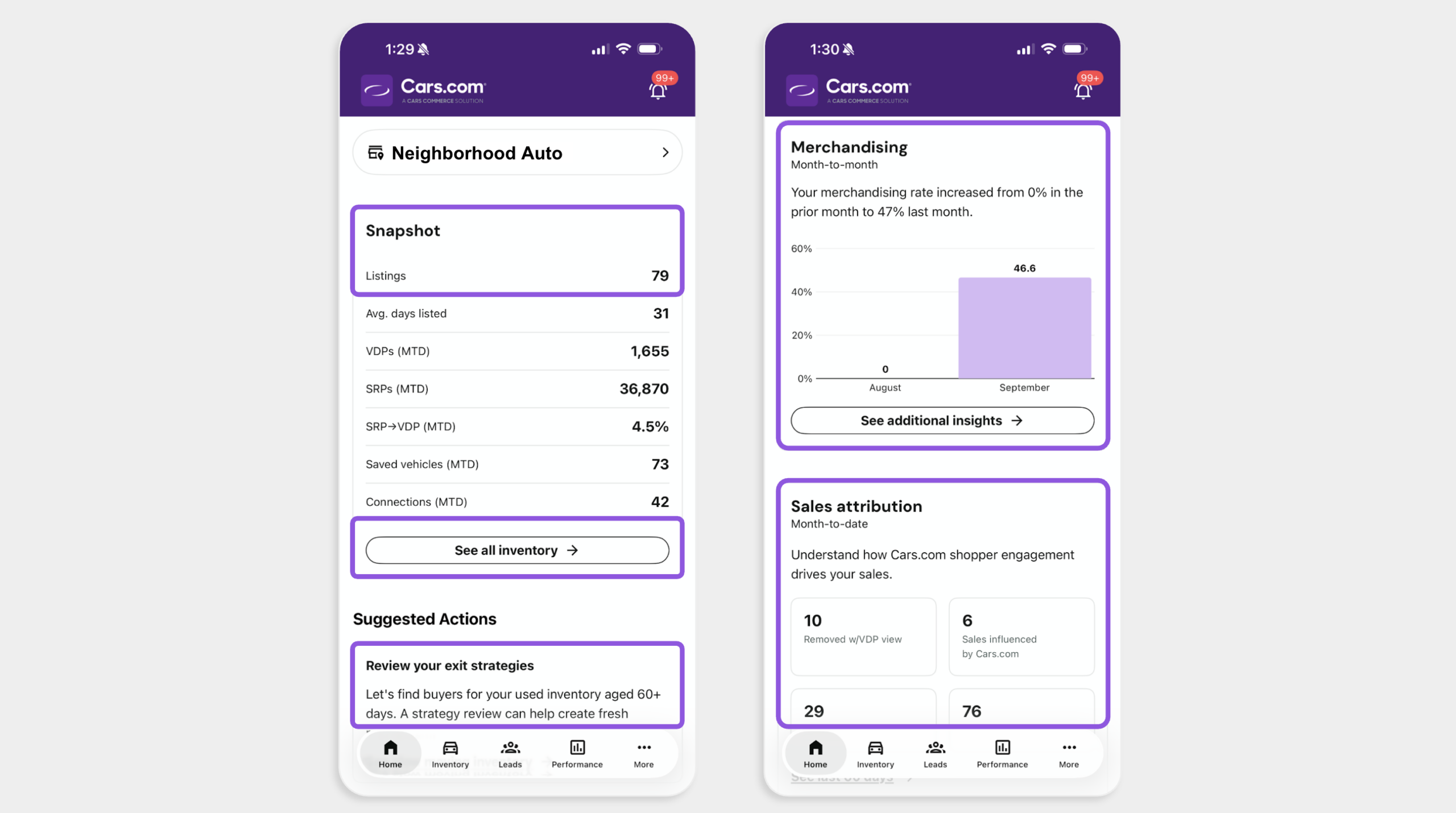
Start each day here. Your Home screen shows what needs attention first.
- Tap the bell icon in the top right to review your alerts
- Check Snapshot for your listings, average days listed, and month-to-date VDPs, SRPs, saved vehicles, and connections
- Tap See all inventory to open your full inventory list
- Review your suggested actions to act on deal badging, exit strategies, and complete merchandising (for details, see How to use suggested actions in the Dealer app)
- Review Merchandising to see how your merchandising rate changed from last month, then check Sales attribution for month-to-date sales influenced by Cars.com, total connections, and total saved listings
4Find pricing and wholesale opportunities
Scroll down your Home screen to find vehicles you can reprice or move.
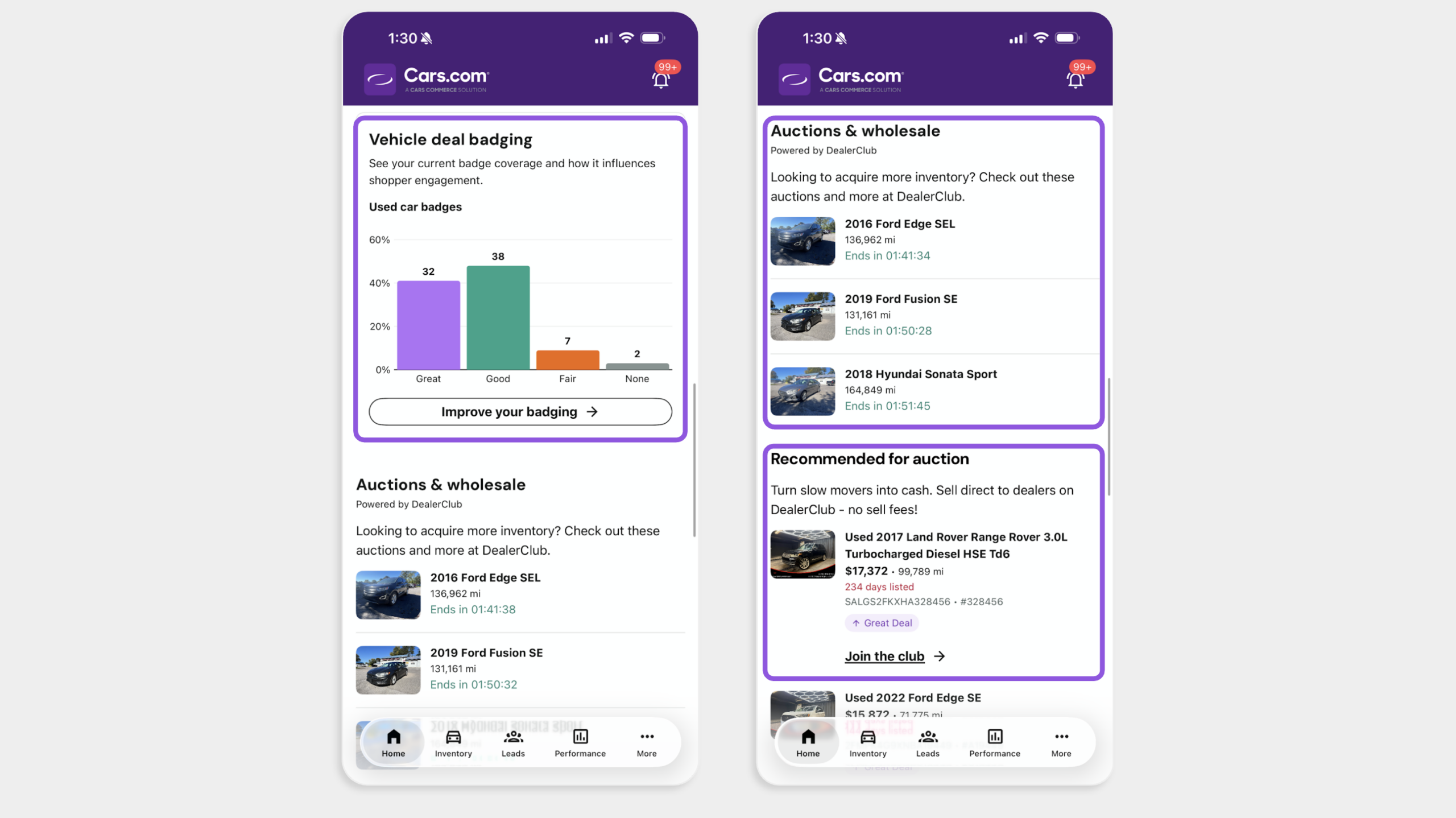
- Scroll to Vehicle deal badging to see what used vehicles carry a Great, Good, Fair, or no badge
- Tap Improve your badging to see vehicles within $500 of a better badge
- Tap a vehicle, then tap Adjust by to test a price change with the deal badge slider
- Use Auctions & wholesale to see active DealerClub auctions
- Use Recommended for auction to see slow movers with their days listed and deal badge
- Tap See all slow movers to review the full list
Note: the deal badge slider is for reference only. It doesn’t change your listing price. For the full walkthrough, see How to manage your deal badges on the Cars.com Dealer app.
Best practice: Review Recommended for auction each week. Vehicles that sit on your lot are your best candidates to sell directly to other dealers on DealerClub.
5Review your inventory
- Tap Inventory to see every vehicle
- Search by stock number or VIN, or scan a VIN with your camera
- Tap the sort icon to sort by make, price, mileage, or days listed
- Or, filter by Stock Type, Make, Year or even by Incomplete, Badging Opportunities, or Slow Movers to find the right listing
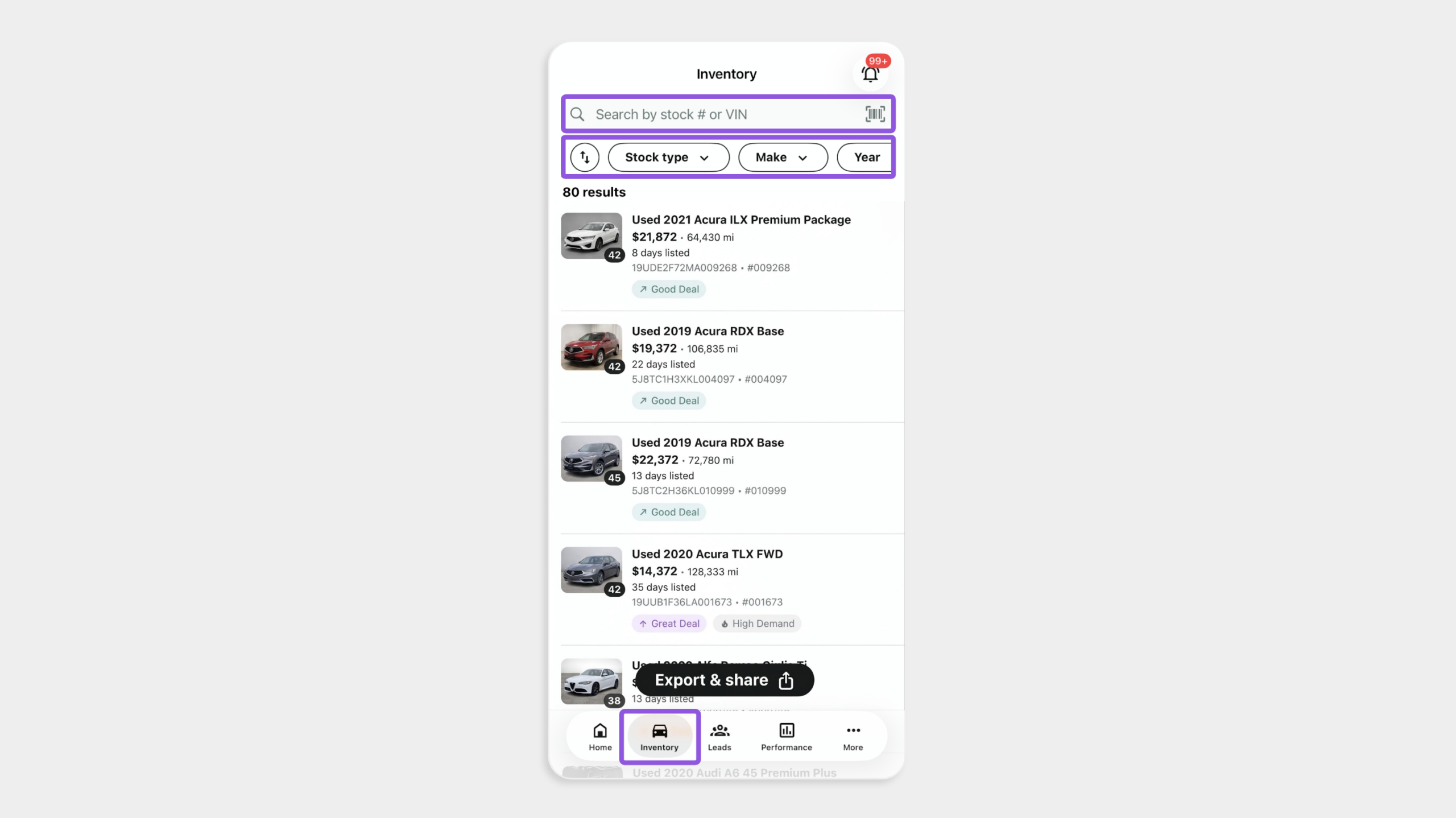
- Tap into any vehicle to get tailored insights and recommendations to help your inventory stand out in the market
- Tap Export & Share to send a listing that needs attention to a member of your team
6Check your leads
Review a shopper’s activity before you reach out.
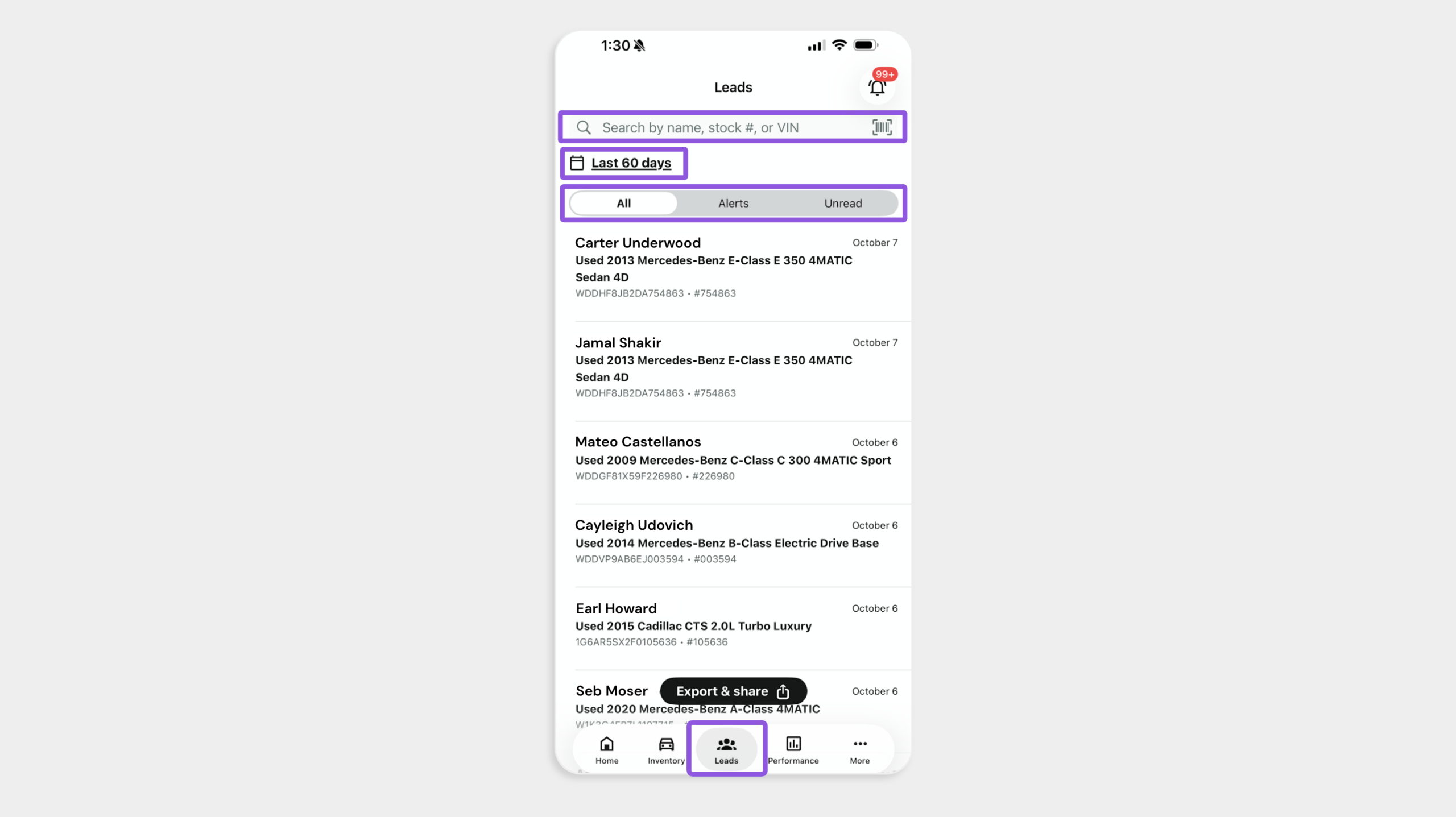
- Tap Leads
- Search by name, stock number, or VIN, or scan a VIN
- Tap Last 60 days to change the date range
- Tap Alerts to see shoppers who recently took high-intent actions on Cars.com
- Tap Unread to see leads you haven’t opened
- Tap a lead to open Shopper Details
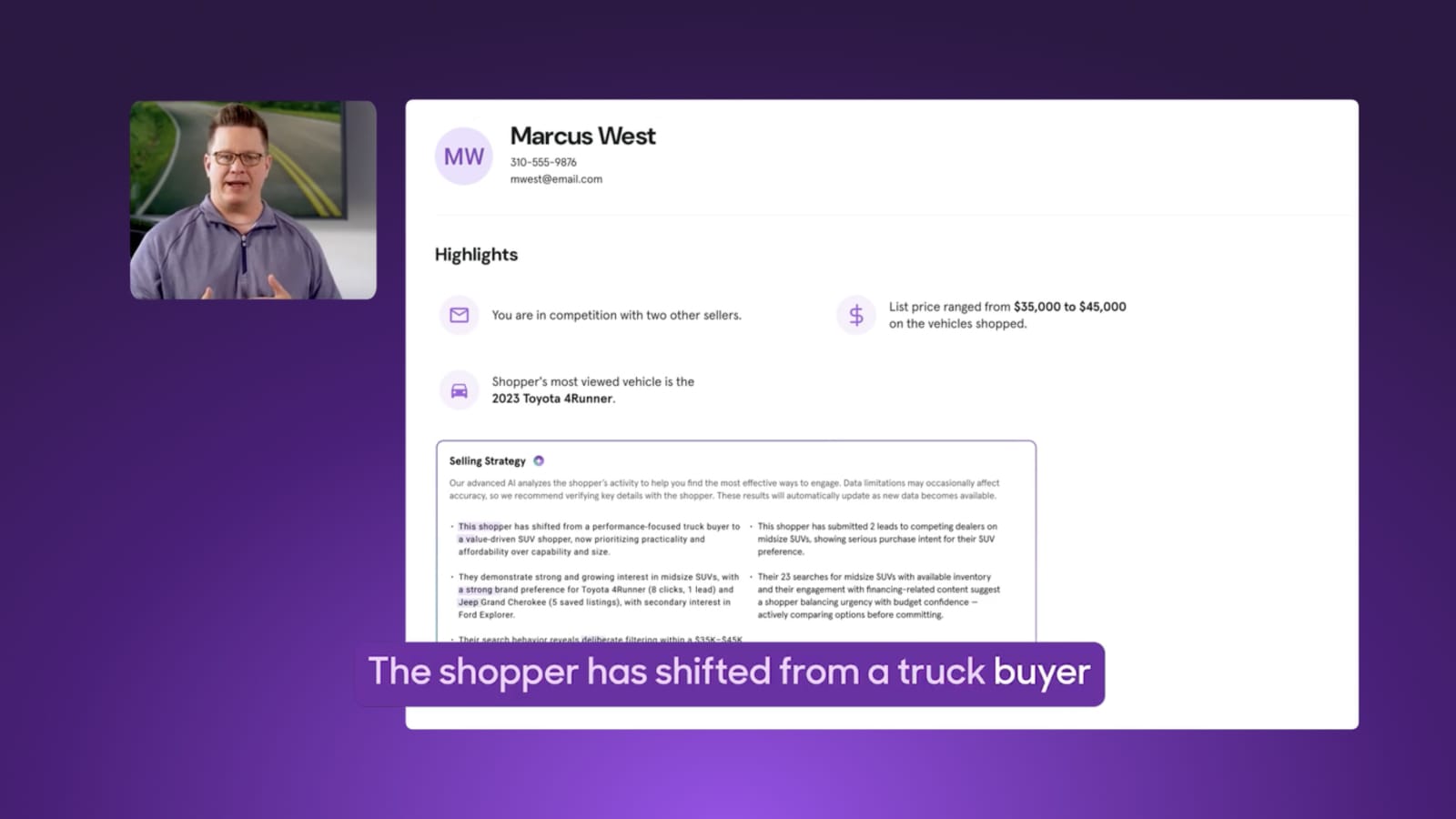
- Review the shopper’s price range, most viewed models, and timeline before you call
For full details, see How to review leads and shopper details in the Cars.com Dealer app.
7 Check your merchandising on Performance
Use Performance to find the listings that need work.
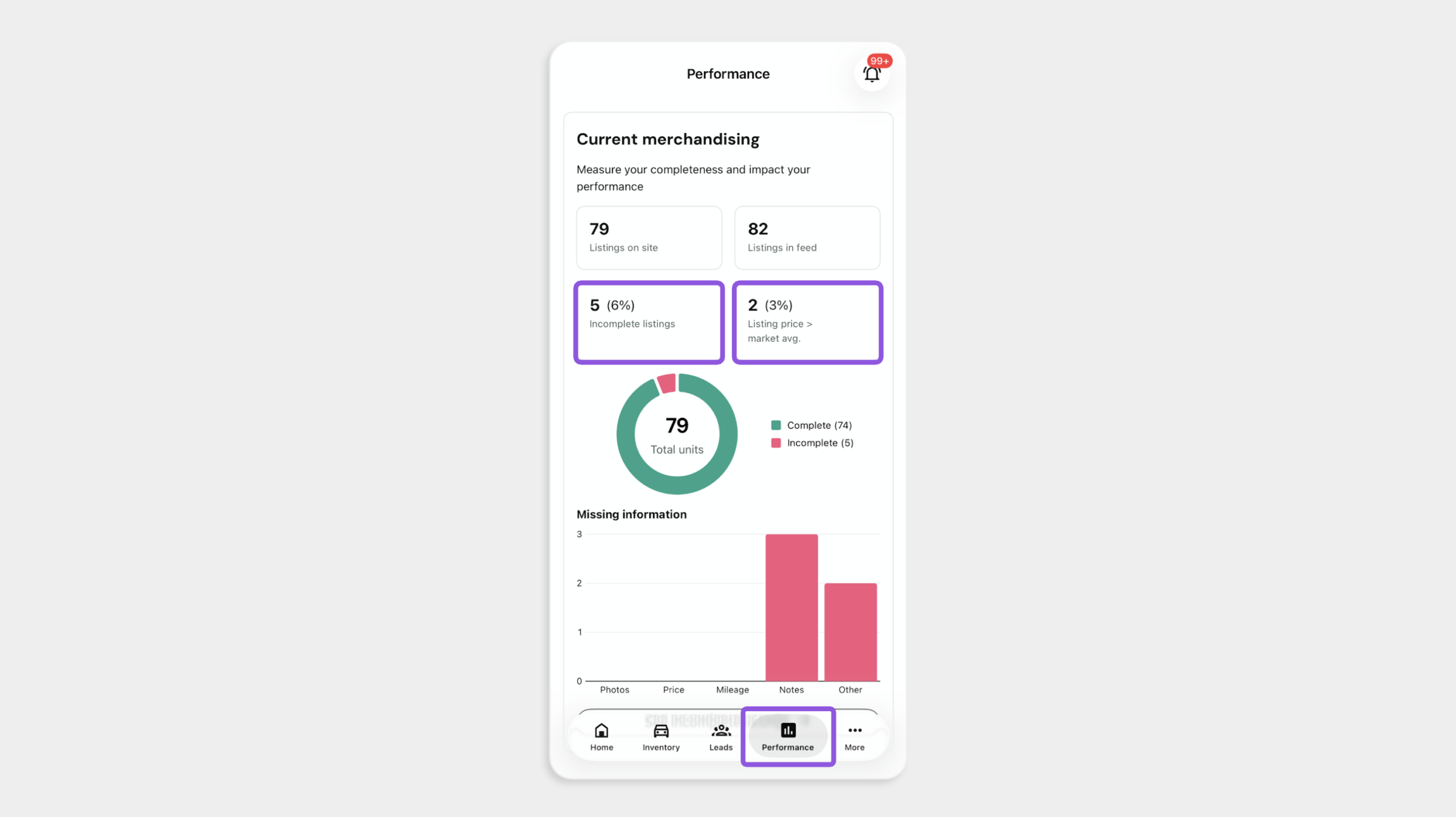
- Tap Performance
- Review Current merchandising for your listings on site and listings in your feed
- Check Incomplete listings and Listing price > market avg. for vehicles that need attention
- Review Missing information to see whether photos, notes, or other details are missing
- Tap See incomplete listings below the chart to open the vehicles that need work
8Create your daily routine
Repeat these checks to keep listings and leads moving.
- Each morning: Review your alerts, Snapshot, and suggested actions on Home
- During the day: Review shopper details before you reach out to any leads
- Each week: Fix incomplete listings on Performance and review Recommended for auction
Frequently asked questions
Why do my lead counts differ from my CRM?
The app shows leads from Cars.com sources. Your CRM includes leads from all of your sources. For details, see How to understand lead sourcing for Cars.com products in your CRM.
What if I can’t sign in?
Confirm your Hub username and password work on the Cars.com Hub. If they don’t, tap Customer Support under More, or contact support@cars.com.